How to recover
Get old Notepad
from Windows
Restore the classic Notepad in Windows 11 effortlessly. Follow our expert-tested guide to recover your favorite features and settings in minutes.


What leads to How to get old Notepad in Windows 11?
- New Notepad introduces a modern design that some users find less functional
- Tabbed interface may not support older scripts and formatting
- Performance glitches reported by some users
- Users automatically receive the new version upon installing Windows 11
- Compatibility issues with scripts from Windows 10 version
Repairs Windows system files, removes malware, and restores a clean OS state — without reinstalling.
Hello. I am a new user of Windows 11 (actually, I just swapped to it yesterday) and I've noticed some changes from Windows 10. Some are great but others - not so much. One of the main things that annoys me is the new Notepad (I use it quite often) and I need its old functionality. How do I do that? Is it even possible?
Windows 11 Notepad introduces several enhancements over its Windows 10 predecessor. Visually, it adopts a modern design with rounded corners, aligning with Windows 11's Fluent Design System, and includes a dark mode option.
Functionality improvements include a new tabbed interface, allowing users to open multiple documents in a single window, making multitasking more efficient. Advanced features such as multi-level undo, a redesigned find and replace function, and RichEdit support enhance the overall editing experience.
Additionally, the new Notepad operates as a Universal Windows Platform (UWP) app, promising improved performance and better system integration. However, user reactions to these changes are mixed. Many appreciate the modern design, dark mode, and tabbed interface, noting these features as significant improvements.
However, there are some reported issues, particularly with older scripts and formatting that were compatible with the Windows 10 version but face challenges in the new iteration. Some users have also experienced occasional performance glitches, though these are expected to be addressed in future updates.
Due to this, there are plenty of people who would want to use the old Notepad in Windows 11. However, when they install this version of the operating system, they automatically receive the new version of Notepad. Luckily, there is a way to revert the change and use the old Notepad on Windows 11 with its functionality, all while keeping the new aesthetics.
To run classic Notepad on Windows 11, you have to either uninstall or disable the new version and then implement the new version. There are two ways you can do that, and we provide them below.

Method 1. Restore classic Notepad via Optional features or Command Prompt
Step 1. Enable the old Notepad via Optional features
The first method involves installing old Notepad as an optional feature. Here's how:
- Right-click on Start and select System on the left.
- On the right, scroll down and select Optional Features.
- Under Add an optional feature, click View features.
- Search for the old Notepad and apply the new feature.
- If you can't find it on the list, means that it is already installed (you can check that under System > Optional features, as it should be listed there).

Alternatively, you can use a particular command to install it via Command Prompt:
- Type cmd in Windows search.
- Right-click on Command Prompt and pick Run as administrator.
- In the new window, copy and paste the following command:
dism /Online /add-Capability /CapabilityName:Microsoft.Windows.Notepad.System~~~~0.0.1.0 - Press Enter.
- Close down Command Prompt.

Step 2. Disable app execution alias
- Right-click on Start and pick Apps on the left.
- On the right side of the window, select Advanced app settings.
- Select App execution aliases.
- Scroll down to locate Notepad and turn off the switch to disable it.
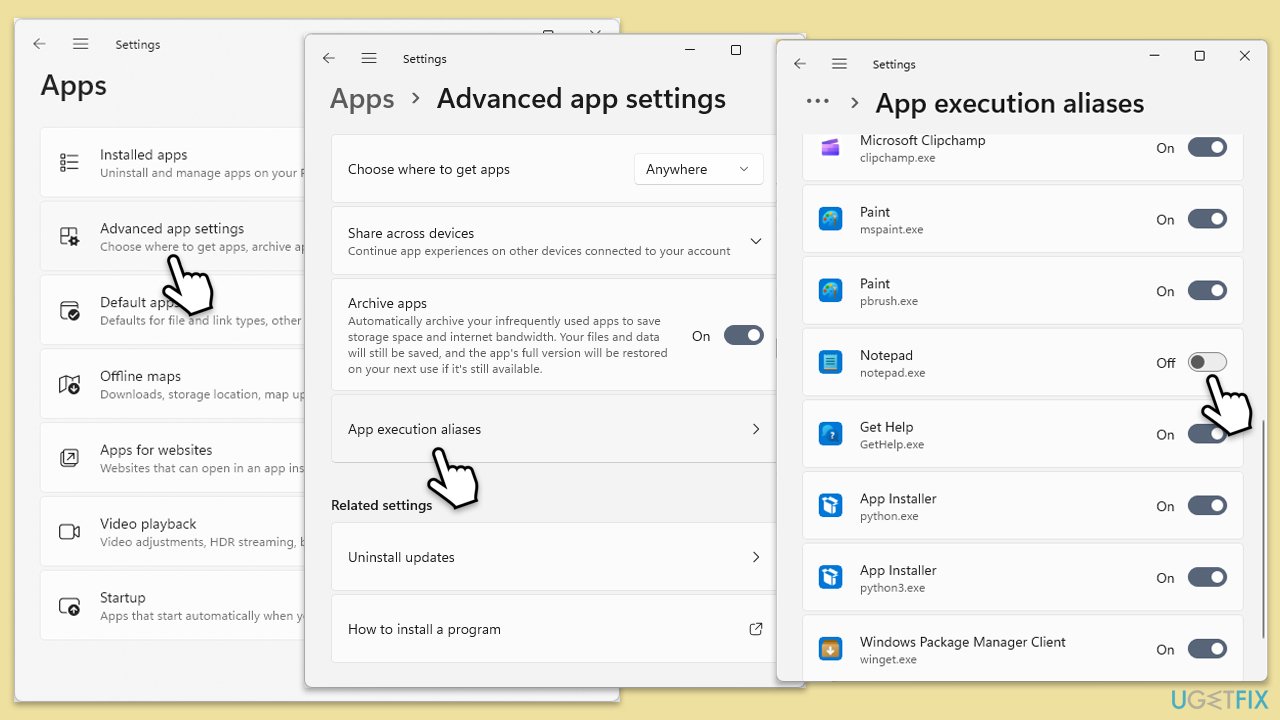
That's it, now any text file should be opening with classic Notepad. However, you will not have an option to use it in the Open with dialog as before. If you want to restore this functionality, follow the steps described in Method 2.
Method 2. Enable file associations
Step 1. Edit the registry
- Open current Notepad.
- Copy and paste the following commands:
Windows Registry Editor Version 5.00
;Restore Old Classic Notepad on Windows 11
;Created by Ramesh Srinivasan for Winhelponline.com
;Created on May 6, 2022; Revised on May 12, 2022.[HKEY_CLASSES_ROOT\Applications\notepad.exe]
"NoOpenWith"=-[-HKEY_CURRENT_USER\Software\Microsoft\Windows\CurrentVersion\App Paths\notepad.exe]
[HKEY_CLASSES_ROOT\txtfilelegacy\DefaultIcon]
@="imageres.dll,-102"[HKEY_CLASSES_ROOT\txtfilelegacy\shell\open\command]
@="C:\\Windows\\System32\\notepad.exe \"%1\""[HKEY_LOCAL_MACHINE\SOFTWARE\Microsoft\Windows NT\CurrentVersion\Image File Execution Options\notepad.exe]
"UseFilter"=dword:00000000 - Click File > Save as.
- Pick a name for it and add the .reg extension at the end (for example, restore_old_notepad.reg)
- Save it in a memorable location, for example, Desktop.
- Close down Notepad.
- Double-click restore_old_notepad.reg file to apply changes.

Step 2. Remove the new Notepad (optional)
If you want nothing to do with the New Notepad, you can fully remove it in Windows Settings. If you keep it, you will be able to use both versions as required.
- Right-click on Start and select Installed apps.
- Scroll down to find Notepad and click three dots > Uninstall.
- Confirm prompts and finish the removal.
- Once done, proceed with the next step.

Bottom line
To revert to the old Notepad in Windows 11, you can either uninstall or disable the new version and then implement the classic version. If these methods do not work, consider checking for updates or seeking further assistance.
Frequently asked questions
To restore the old Notepad, you can download the legacy version from a trusted source and replace the new one in the system folder, or use a third-party tool to extract it from a previous Windows installation.
Yes, restoring the old Notepad will likely reset your current settings, so it's advisable to back up any important configurations before making the switch.
Running both versions simultaneously is not officially supported, but you can rename the old Notepad executable before replacing the new version to keep both accessible.




Report an issue
What's wrong with this guide? We review every report and update or remove content.
Report received — thank you. We'll review and fix it.
You need a free account to submit a report.
Be the first to comment