How to recover
A Windows product key
from Windows
Easily recover your Windows 10 or Windows 11 product key with our expert-tested methods. Get back what you need, fixed in minutes!

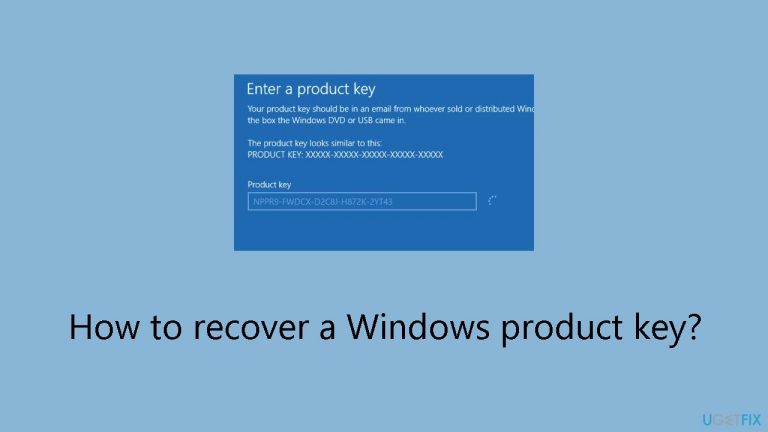
What leads to How to recover a Windows product key?
- Significant hardware changes to the device
- Windows unable to recognize the digital license
- Using the wrong product key for the Windows edition
- Activation failure due to version mismatch
- Inability to obtain a working product key
Repairs Windows system files, removes malware, and restores a clean OS state — without reinstalling.
Hello. How can I find my Windows product key? Windows is asking to activate, but I don't know where to find the code. Any suggestions would help.
A 25-character code that is essential for activating your Windows operating system is called a Windows product key. In Windows 11 and 10, the digital license activation technique has been used, saving customers from having to manually enter the product key during system upgrades or clean installations. Because there is no longer a need for repetitive manual entry, this streamlined process improves user experience.
But in other cases, you might need to get out and utilize the product key. One such instance is when there are significant hardware changes to your device. Under certain circumstances, Windows might not be able to recognize and reassign the license linked to your device automatically. Moreover, a Windows 11 activation problem might require manual activation, which would include entering the 25-character product key.
It's crucial to remember that every Windows edition has a different product key. An activation failure will occur if you try to activate a different version, like Windows Pro, with a product key from another edition, like Windows 11/10 Home. Users must make sure they are using the appropriate product key for their Windows edition.
Users may have difficulties when they are unable to obtain a working product key, which prevents them from reactivating or activating Windows as needed. This circumstance might restrict access to specific functionalities and impair the operating system's smooth operation. Thus, for users in such situations, knowing how to get and use the product key becomes crucial.
In this guide, you will find 4 steps that should help you recover a Windows product key. If you experience any other OS issues, you can run a maintenance tool like [d1] that can fix most system errors, BSODs, corrupted files, and registry issues. Otherwise, follow the step-by-step instructions below.
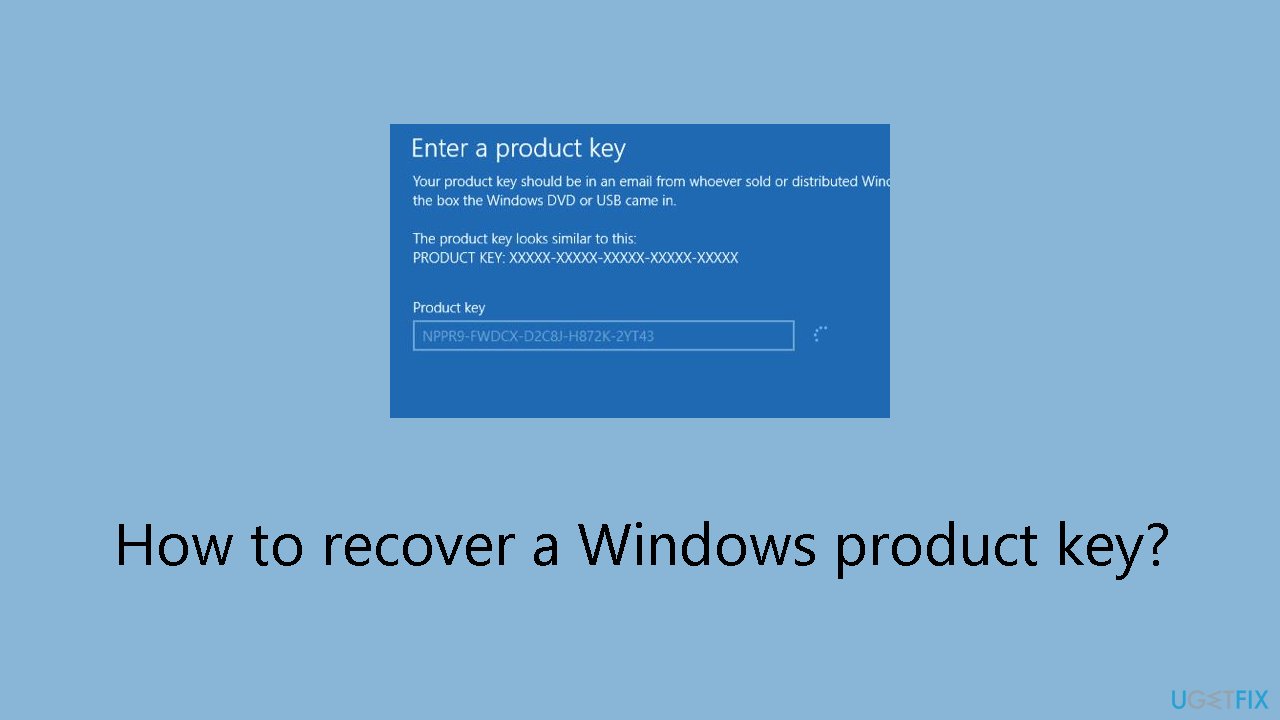
Method 1. Use the Command Prompt
- Press the Windows key + S to open the search field on the Start menu.
- Type cmd and click on Run as administrator from the search results.
- In the Command Prompt window, enter the following command:
wmic path SoftwareLicensingService get OA3xOriginalProductKey
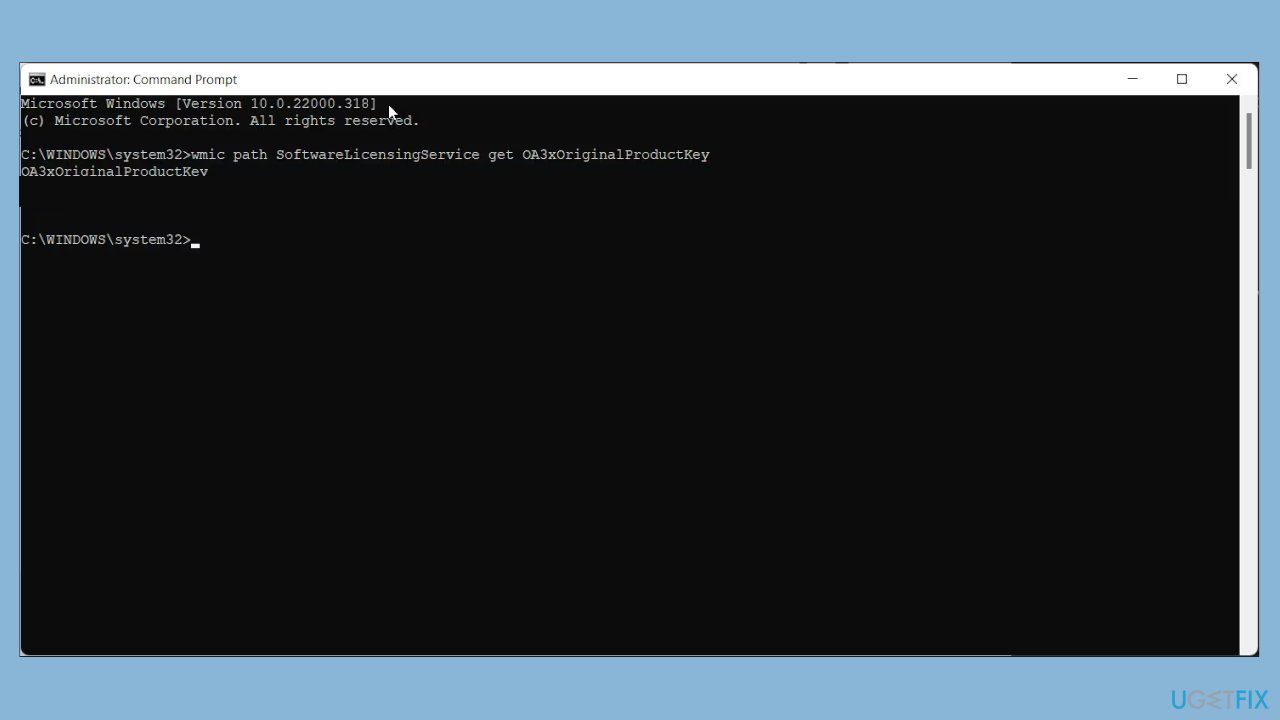
- Press Enter to execute the command.
- Your original product key will be displayed on the screen.
- Copy and save the key in a secure location, for future use.
Method 2. Use the Windows PowerShell
- Press the Windows key and type powershell.
- Right-click on PowerShell and choose Run as administrator.
- In the PowerShell window, either copy and paste or type the following command:
(Get-WmiObject -query 'select * from SoftwareLicensingService').OA3xOriginalProductKey
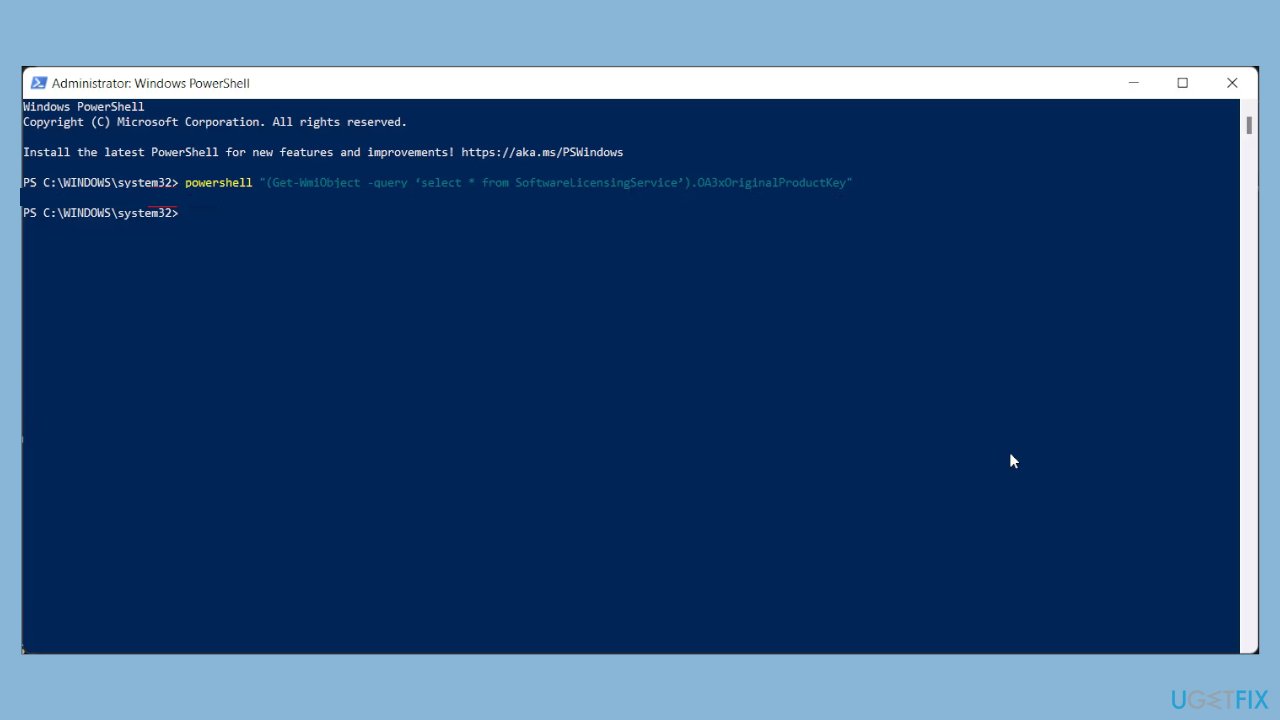
- Press Enter to execute the command.
- The command may take a few seconds to run, and upon successful execution, it will display the product key for your Windows copy.
Method 3. Check Your Purchase Receipt
If you purchased a Windows license key from an online retailer such as Amazon, you probably received the details through email. Conduct a search using keywords like "Windows license," "Windows product," and "Windows activation" to locate the confirmation email. Alternatively, check the Orders section in your account on the online retailer's website to find instructions on retrieving the key or information on how it was initially delivered.
Another approach is to inspect your computer for physical stickers containing details about your hardware and software configuration. These stickers may include the Windows product key or other relevant information, aiding you in locating it.
Method 4. Contact Microsoft Support
- Press the Windows key + I to open Settings.
- Navigate to the System tab and click on Activation.
- Click Get Help.
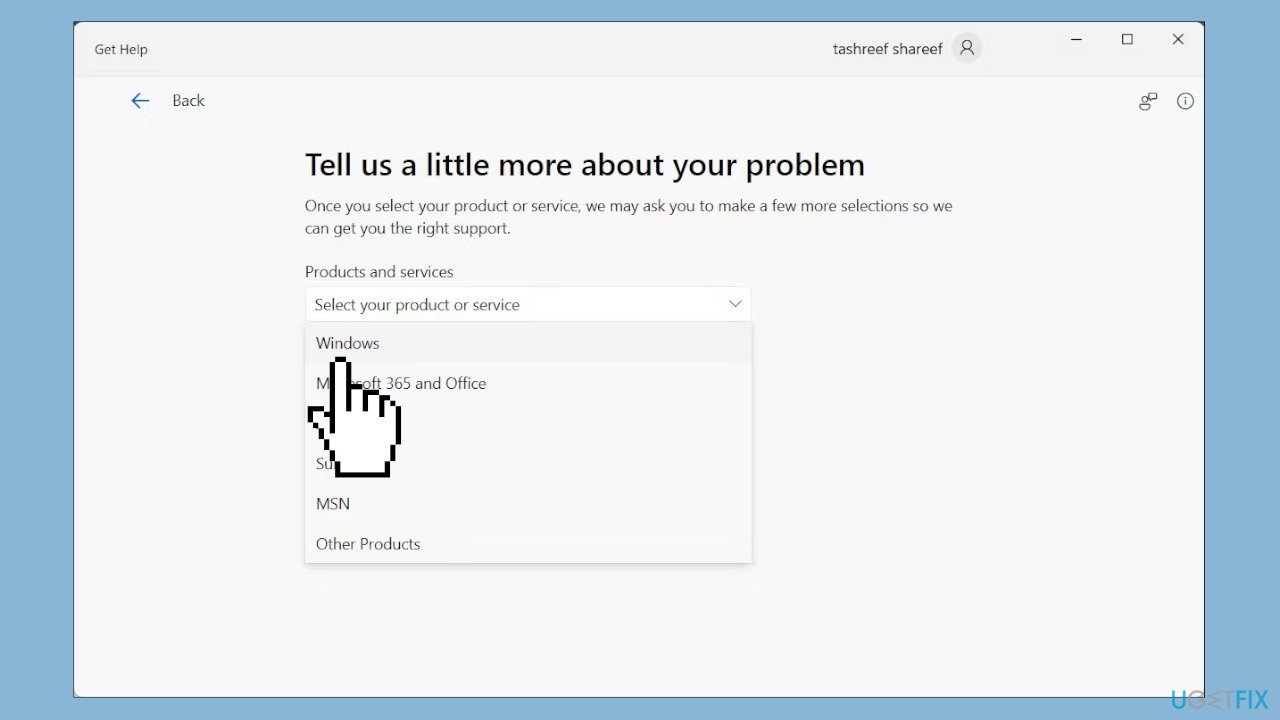
- Choose Contact Support and then select the product in question.
- Click on Provide your phone number, and a support agent will call you.
- Follow the on-screen instructions provided by the support agent.
Bottom line
To recover a Windows product key, you can use the Command Prompt method outlined in the guide. If you continue to experience issues, consider running a maintenance tool to address system errors.
Frequently asked questions
You can recover your Windows product key using third-party software like ProduKey or by checking your Microsoft account if your Windows 10 or Windows 11 is linked to it.
Yes, you can find your Windows product key by running the Command Prompt as an administrator and entering the command 'wmic path softwarelicensingservice get OA3xOriginalProductKey'.
If your Windows 10 or Windows 11 product key is not working, ensure that it matches the version of Windows you are using and consider contacting Microsoft Support for further assistance.




Report an issue
What's wrong with this guide? We review every report and update or remove content.
Report received — thank you. We'll review and fix it.
You need a free account to submit a report.
Be the first to comment