How to recover
Deleted files after emptying Recycle Bin
from Windows
Effortlessly recover deleted files from Windows 10 or 11 after emptying the Recycle Bin. Expert-tested methods ensure quick recovery with zero traces left.

What leads to How to recover deleted files after emptying Recycle Bin?
- File deleted from Recycle Bin
- File deleted from an external drive
- File too large for Recycle Bin
- Files marked as free space on hard disk
Repairs Windows system files, removes malware, and restores a clean OS state — without reinstalling.
Please help!!! I've accidentally deleted some important files from my Recycle Bin and I need to recover them as soon as possible? Is it possible to do it? I'm using Windows 7 OS.
It is a common knowledge that if you delete a file, it ends up in Recycle Bin[ref en-2] and restoring it is very simple. However, what can be done, if you empty Recycle Bin or if the deleted file has not been transferred to Recycle Bin? In this article, we will answer these questions and offer you a solution for recovering your files. First of all, let's find out how does Recycle Bin works.
Deleting a file from Windows 8/7/Vista/XP PC[ref en-1] will send it to Recycle Bin. However, if you are removing the file from an external drive, let's say a USB drive,[ref en-3] it will not end up in Recycle Bin and will be deleted directly. Moreover, Recycle Bin is of limited size and if the file you are trying to delete is too large to fit in there, it will be removed from your computer without being sent to Recycle Bin first.
First of all, you should know that when the files and folders are deleted from Recycle Bin, they are still on your hard disk. Windows is only marking this space as free so you would have enough space to fill it up with new files. Therefore, there is a chance for you to recover it, provided it has not been overwritten with new files.
How to recover deleted files and folders from Recycle Bin?
Step 1.
You should not use the computer any further after deleting the information you want to recover in order to avoid inducing some changes that may result in overwriting the files you want to recover. Avoid shutting it down, closing or rebooting at all costs. Also, avoid opening applications and programs because it might result in the installation of updates. Once it happens, the information you have deleted will be lost forever.
Step 2.
While the options to recover the deleted files are rather limited, it is still possible to do it. First of all, check if you do not have these files backed up.[ref en-4] This would save you a lot of trouble and you could reunite with the missing files once again.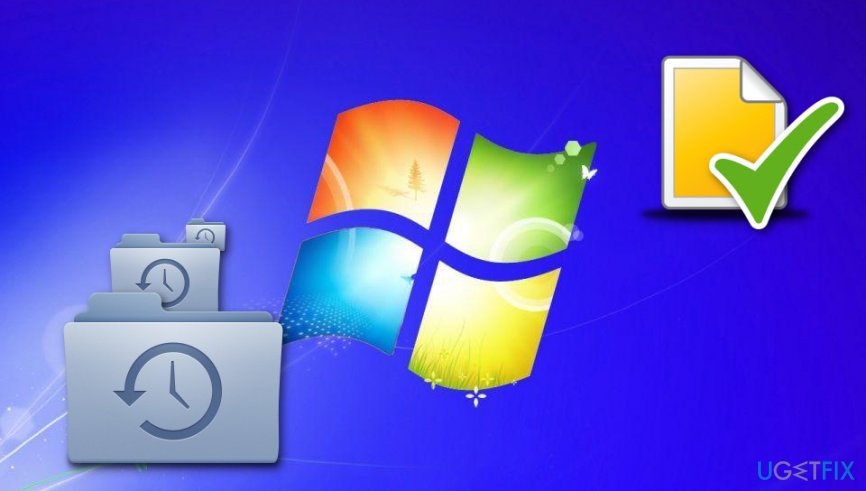
Step 3.
However, if you have not backed up your files (a thing you should do the next time you are saving something on your computer), you can still recover the files by using a specialized tool like [d1] which will do this for you. If you have this application installed on your computer, recovering the files will be easy. Just follow the instructions provided below and you will be able to recover the files you have removed from Recycle Bin.
Bottom line
To recover deleted files, avoid using the computer to prevent overwriting the data. Follow the steps outlined to attempt recovery. If these methods do not work, consider using specialized data recovery software.
Frequently asked questions
You can use data recovery software like Recuva or EaseUS Data Recovery Wizard to scan your hard drive for recoverable files after emptying the Recycle Bin.
Yes, if you have File History enabled, you can restore deleted files by going to the Backup settings and selecting 'Restore files from a current backup'.
Stop using the storage drive to prevent overwriting the deleted files, and then use reliable recovery software as soon as possible.




Report an issue
What's wrong with this guide? We review every report and update or remove content.
Report received — thank you. We'll review and fix it.
You need a free account to submit a report.
Be the first to comment