How to recover
Files Encrypted by BTCWare ransomware
from Windows
Recover your files encrypted by BTCWare ransomware on Windows 10 or Windows 11 quickly and safely. Expert-tested methods with screenshots ensure success.

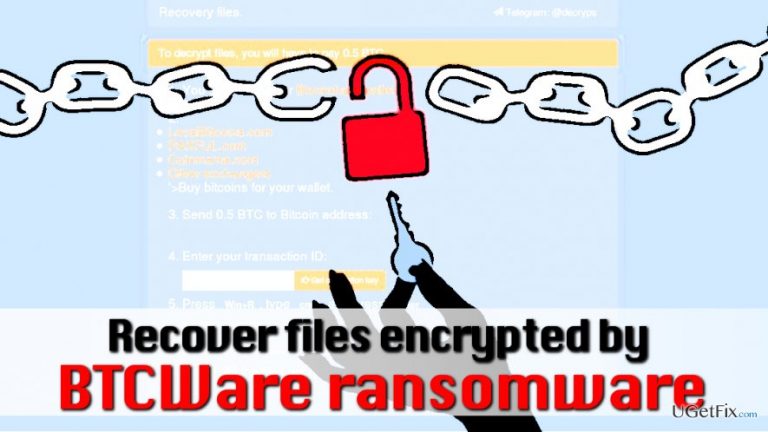
What leads to How to Recover Files Encrypted by BTCWare ransomware?
- Files encrypted by BTCWare ransomware
- Multiple versions of BTCWare ransomware
- Ransom notes saved on victim's computer
- Criminals demand ransom in Bitcoin
- Incompatibility with BTCWare Master ransomware
Repairs Windows system files, removes malware, and restores a clean OS state — without reinstalling.
My files were encrypted by BTCWare ransomware. Is this ransomware decryptable? I already know that there are a few versions of this ransomware, but my files were marked with .theva file extensions. I want nothing but to decrypt files that BTCWare virus locked. I am not going to obey criminals’ order to pay the ransom.
BTCWare ransomware is decryptable, and victims can not recover their files for free. We have already mentioned the decryption tool in our tutorial on how to decrypt files encrypted by OnyonLock ransomware, but BTCware virus has other versions that append .theva, .cryptowin, .cryptobyte or .btcware file extensions to encrypted files. The extension also contains criminal’s email address, for example, [email protected], [email protected], [email protected], [email protected], [email protected].
The virus typically asks for 0.5 BTC that equals 1340.40 USD. Such sum is extremely large, and we believe that no one wants to pay such amount of money, especially for cyber criminals who illegally encrypted victim’s personal files.
The ransomware typically saves a couple of ransom notes on victim’s computer, just to be sure that he/she gets the message. The names of the ransom notes were changed a couple of times - #_HOW_TO_FIX_!.hta.htm, !#_RESTORE_FILES_#!.inf or !#_DECRYPT_#!.inf.
NOTE. The decrypter cannot fix files locked by BTCWare Master ransomware version. Unfortunately, if your files have [email].master file extensions, the decryptor won’t work.
Remember that before trying to decrypt files locked by ransomware, you must delete the virus first. For that, we highly recommend using [d1] software. For full instructions on how to remove the virus, follow BTCWare removal instructions provided on 2-Spyware site.
Recover Files Encrypted by BTCWare Ransomware Virus
Method 1. Decrypt data using BTCWare Decryptor
The latest versions of BTCWare ransomware are more sophisticated; therefore the decryption tool by Avast might not be capable of restoring them. However, if your computer was compromised by earlier ransomware versions, you should successfully restore your files this way:
- Download BTCware decryptor by Avast.
- Launch the avast_decryptor_btcware.exe file and follow the instructions provided by the program.
Method 2. Use Data Recovery Pro
In case the decrypter did not help you to restore corrupted files, we suggest trying Data Recovery Pro tool.
- Download Data Recovery Pro and run it.
- Install the program according to provided instructions.
- Open the program and run a computer scan to detect encrypted files. Let it restore them.
Method 3. Use ShadowExplorer
ShadowExplorer is extremely useful when the virus fails to delete Volume Shadow Copies. If the virus accidentally fails to delete these copies, you can restore your files very quickly. Here’s how to use ShadowExplorer:
- Download ShadowExplorer software.
- Install it according to guidelines provided in its installer.
- Open the program and then use the menu in the top left corner to choose the disk that stores encrypted files. Select a preferred folder and hit Export. Select the location where you want to save restored files.
Method 4. Restore from a system restore point
If you had created a system restore point before the ransomware attacked you, restore individual files using this technique:
- Find an encrypted file that you want to restore.
- Right-click on it and then open Previous versions tab.
- Select preferable file version to recover and hit the Recover button.
Method 5. Restore files using data backup
If you have a data copy saved on an external data storage device such as USB, hard drive, DVD or elsewhere, you should follow these steps:
- First of all, you want to make sure that the virus won’t try to corrupt your data backup. Therefore, remove the virus using anti-malware tools like [d1].
- Once you get rid of the virus, plug the backup drive into the computer. If you want to be sure that the backup won’t get encrypted, create another copy of files on a clean computer (you can borrow your friend’s) before plugging the data storage device to the computer that was compromised by ransomware.
- Import files by dragging them to your computer.
Bottom line
To recover files encrypted by BTCWare ransomware, you can use the BTCWare Decryptor by Avast or Data Recovery Pro. If these methods do not work, ensure the virus is removed before attempting further recovery options.
Frequently asked questions
Immediately disconnect your device from the internet to prevent further damage and avoid paying the ransom. Then, use reputable antivirus software to scan and remove the ransomware from your system.
Yes, there are decryption tools available that may help recover your files without paying the ransom, but their effectiveness can vary. It's advisable to check for updates from cybersecurity experts regularly.
You can use System Restore to revert your operating system to an earlier point in time, provided you have restore points created before the ransomware infection.




Report an issue
What's wrong with this guide? We review every report and update or remove content.
Report received — thank you. We'll review and fix it.
You need a free account to submit a report.
Be the first to comment