How to recover
Files Encrypted by OnyoLock Ransomware
from Windows
Recover files encrypted by OnyoLock ransomware on Windows 10 and Windows 11. Get expert-tested solutions to restore your data quickly and securely.

What leads to How to Recover Files Encrypted by OnyoLock Ransomware?
- Infection by OnyonLock ransomware
- Files encrypted with .onyon extension
- Malware derived from BTCWare
- Lack of reliable decryption options
- Risk of paying ransom without guarantee of recovery
Repairs Windows system files, removes malware, and restores a clean OS state — without reinstalling.
Hello, do you how any idea how I can decrypt files? I got infected with this OnyonLock ransomware. Is it true that there is no way to restore files than pay the ransom?
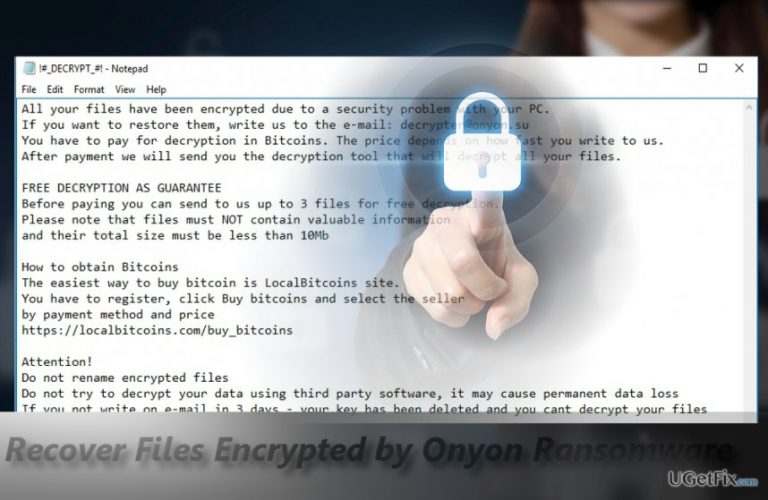
Files with .onyon file extension signify that the device has been compromised by OnyonLock ransomware. As a matter of fact, this malware is the version of the BTCWare malware. Netizens infected with this malware indeed face a dilemma how to decode files.
According to the developers, victims only have one option to decode files – contact them via [email protected] or [email protected]. Moreover, the felons assure that the victims will receive the files and even offer free decryption of files up to 10MB.
Certainly, you are supposed to purchase the decrypter from the cyber criminals. It is a common strategy among hackers. However, paying the money is too risky. It should be noted that fraudsters engaging in ransomware activities may not send the decryption tool even after receiving the transmitted money.
Instead, these solution methods might be more practical. Before proceeding further, netizens are encouraged to eliminate the threat. [rev id=”Reimage”] is an option.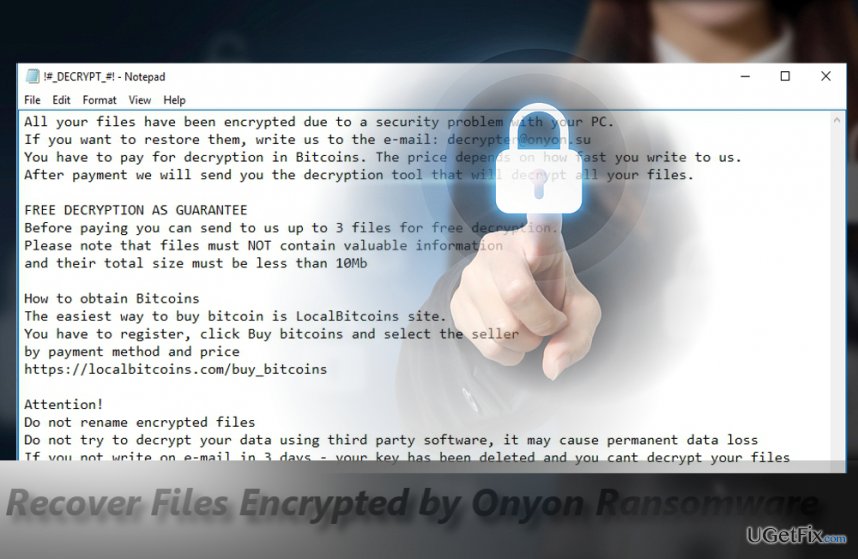
Option 1. Use BTCWare Decrypter to recover files affected by OnyonLock
Indeed, it is unfortunate to encounter this kind of threat, however, fortunately, there is a high probability of recovering the files for free with the help of BTCware decryption tool. Though it is created solely for this malware, since Onyon malware is a derivate version, there are chances that it might work in this case. This tool can be downloaded here.
Option 2. Retrieve files with Data Recovery Pro
If the first method failed to be assistance, then this tool might increase the chances of data recovery. It was created for restoring lost or damaged files after an unexpected system crash. Another benefit of this utility is its easy manual. Even if less proficient computer users will find the manual comfortable.
Option 3. Make use of Shadow Explorer
The key benefit of this tool lies in its ability to restore files based on volume shadow copies. Only a few number of ransomware viruses are known for deleting these copies beforehand. There are no reports that Onyon virus behaves this way as well. More information on how to use this utility is delivered here.
Bottom line
To recover files encrypted by OnyonLock ransomware, you can try using the BTCWare Decrypter, Data Recovery Pro, or Shadow Explorer. If these methods do not work, it is advisable to eliminate the threat and seek professional assistance.
Frequently asked questions
Immediately disconnect from the internet to prevent further damage, and do not pay the ransom. Then, consider using a reliable antivirus to scan and potentially remove the ransomware.
Currently, there is no guaranteed method to decrypt files locked by OnyoLock Ransomware, but you can try using data recovery software or restoring from backups if available.
Yes, keep your Windows 10 or Windows 11 system updated, regularly back up your files, and use reputable antivirus software to enhance your protection against ransomware threats.




Report an issue
What's wrong with this guide? We review every report and update or remove content.
Report received — thank you. We'll review and fix it.
You need a free account to submit a report.
Be the first to comment