
How to recover unsaved Snipping Tool video in Windows?

Prefer to fix it yourself? The manual steps follow.
5 methods in this guide
Hello. I recorded a video using the Snipping Tool on Windows but forgot to save it. Is there a way to get it back?
An unsaved Snipping Tool recording is usually still on the PC: in the open app window, in the Screen Recordings folder inside Videos, or in the app's TempState working folder. Do not close or reopen Snipping Tool yet. Save from the open window if you can, then copy the files out of TempState before you do anything else.
If the Snipping Tool window is still open, press Ctrl + S now. If it is closed, open %USERPROFILE%\Videos\Screen Recordings: current versions of the app save every recording there on their own. If it is not there, paste %LOCALAPPDATA%\Packages\Microsoft.ScreenSketch_8wekyb3d8bbwe\TempState into the File Explorer address bar and copy everything out before you open the app again. Microsoft does not document that folder as a backup, so the file may already be gone.
| What was lost | A Snipping Tool screen recording (video snip) or screenshot that you did not save by hand: the app was closed, it crashed, the save failed or the PC restarted. |
|---|---|
| Where the data is | In this order: the open Snipping Tool window, %USERPROFILE%\Videos\Screen Recordings (screenshots: %USERPROFILE%\Pictures\Screenshots), then %LOCALAPPDATA%\Packages\Microsoft.ScreenSketch_8wekyb3d8bbwe\TempState with its Recordings and Snips subfolders. |
| Chances | Likely while the window is open or when automatic save was on. Possible from TempState. Unlikely once that folder is empty and there is no backup. |
| First thing to do | Do not close or reopen Snipping Tool and do not start a new capture. Save from the window, or copy the TempState files to another folder first. |
| Works on | Windows 11 with the Snipping Tool app. The Snipping Tool of Windows 10 takes screenshots only and cannot record video. |
| Automatic save exists since | Screenshots: app version 11.2209.2.0 (Insiders, September 2022). Recordings: app version 11.2405.24.0 (Insiders, June 2024). Both are on by default. |
| Time | About 5 minutes for the folders. A scan with Windows File Recovery takes much longer and depends on the size of the drive. |
| Cost | Free. Every tool on this page is part of Windows or a free Microsoft app. |
| Stops working when | The app has cleared its working folder, or the space of a deleted file has been overwritten. Microsoft publishes no retention time for TempState. |
Facts checked on 11 October 2026. Steps written for Windows 11 25H2 and 26H2 with the current Snipping Tool app.
The first minute: what to do before you touch Snipping Tool again
Snipping Tool keeps an unsaved capture in its own working folder, and Microsoft does not say when the app empties that folder. Until you have saved the capture or copied the working files, leave the app exactly as it is: open if it is open, closed if it is closed.
- If the preview is still on screen, press Ctrl + S and save it to the Desktop.
- Open
%USERPROFILE%\Videos\Screen Recordingsin File Explorer and look for a file with the time of your recording. - Open
%LOCALAPPDATA%\Packages\Microsoft.ScreenSketch_8wekyb3d8bbwe\TempStateand copy every file and subfolder to another folder. - Open and test only the copies.
- Do not close the Snipping Tool window while the preview is still in it.
- Do not start a new snip or a new recording before the files are copied.
- Do not run Disk Cleanup, Storage Sense or any cleaner that deletes temporary files.
- Do not install a recovery program on the drive that held the recording.
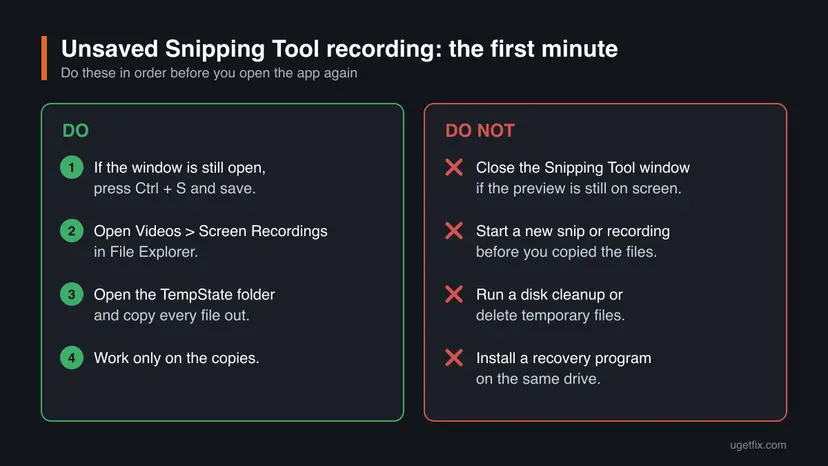
The reason for the order is simple. Saving from the window and looking in a folder change nothing on the disk, so they cannot make things worse. Opening the app again or starting a new capture can change the working folder, and nobody outside Microsoft knows exactly how.
Where Snipping Tool keeps recordings, screenshots and temporary files
Snipping Tool has two kinds of places: the folders where it saves finished captures, and the TempState folder inside its own app package where it keeps working files. Paste any of these paths into the File Explorer address bar and press Enter.
| What | Folder | When the capture is here |
|---|---|---|
| Screen recordings. | %USERPROFILE%\Videos\Screen Recordings | Automatic save for recordings is on. This is the default in current app versions. |
| Screenshots. | %USERPROFILE%\Pictures\Screenshots | Automatic save for screenshots is on. This is the default. |
| The same two folders with OneDrive. | %USERPROFILE%\OneDrive\Videos\Screen Recordings and %USERPROFILE%\OneDrive\Pictures\Screenshots | OneDrive backs up your Videos or Pictures folder, so both folders live inside OneDrive. |
| Working files for recordings. | %LOCALAPPDATA%\Packages\Microsoft.ScreenSketch_8wekyb3d8bbwe\TempState\Recordings | Automatic save for recordings is off, or the recording was never saved. |
| Working files for screenshots. | %LOCALAPPDATA%\Packages\Microsoft.ScreenSketch_8wekyb3d8bbwe\TempState\Snips | Automatic save for screenshots is off. |
Microsoft Support does not list TempState as a place to recover from. It is where a packaged app keeps temporary data, and the app may clear it. The forensic analysis found captures there long after they were made, while users on Microsoft's own forum report both finding a recording from the same day and finding the folder empty. Treat anything you find there as luck, and copy it at once.
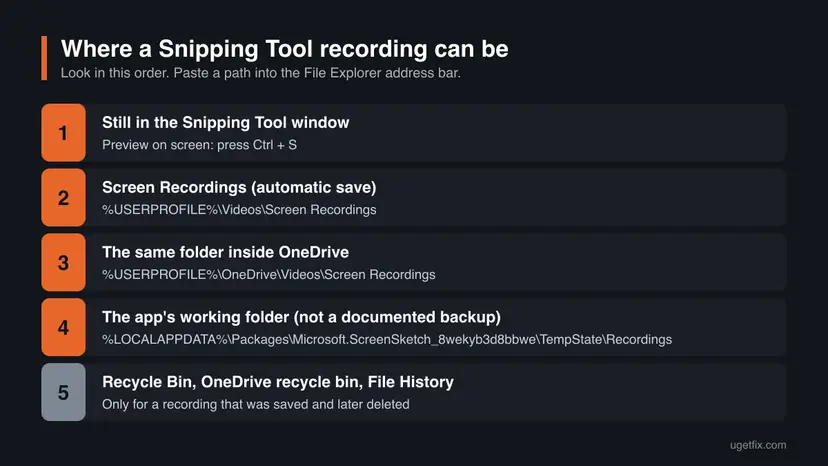
To recognise the right file, look at the date and time, not the name: pick the file whose time matches the moment you stopped recording. A recording is a video file, normally MP4, and a screenshot is an image file. We could not confirm from Microsoft how the files inside TempState are named, so do not search by name.
Why a Snipping Tool recording is not saved
When you select Stop, the recording opens as a preview in the Snipping Tool window. Whether a file also lands in a normal folder depends on the app version and on one setting.
- The app is older than version 11.2405.24.0. Before that version, a recording was kept only if you saved it by hand from the preview. Closing the window left no file in your Videos folder.
- Automatic save for recordings is turned off. The toggle is Automatically save original screen recordings in the app's Settings. With it off, the recording stays only in the working folder.
- The recording was saved to another folder. Since version 11.2408.13.0 the automatic save folder can be changed in Settings, and OneDrive folder backup moves Videos and Pictures into the OneDrive folder.
- The app or the PC stopped while recording. If Snipping Tool crashed or Windows restarted before you selected Stop, the video was never finished. A partial file may or may not exist.
- You expected video on Windows 10. The Snipping Tool of Windows 10 has no video snip, so there is no recording to find. Windows 10 left support on 14 October 2025.
- Screen recording added
- App version 11.2211.35.0, Windows Insiders, December 2022.
- Screenshots saved automatically
- App version 11.2209.2.0, Windows Insiders, September 2022. On by default.
- Recordings saved automatically
- App version 11.2405.24.0 and newer, Windows Insiders, June 2024.
- Save folder can be changed
- App version 11.2408.13.0 and newer, Windows Insiders, September 2024.
These are the versions Microsoft announced for Windows Insiders. We could not confirm the exact day each one reached every Windows 11 PC, so check the setting itself, as shown in the prevention section below, and do not rely on the date.
The chances of getting the recording back, by what happened
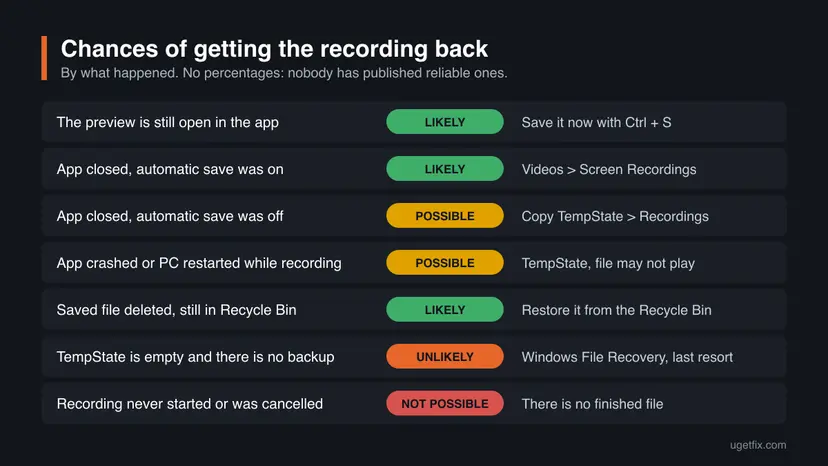
No one has published reliable recovery rates for Snipping Tool, so this table uses words, not percentages. Find your case and start with the method in the last column.
| What happened | Chances | Start with |
|---|---|---|
| The preview is still open in the Snipping Tool window. | Likely. | Method 1. |
| You closed the app without saving, and automatic save was on. | Likely. | Method 2. |
| You closed the app without saving, and automatic save was off or the app is old. | Possible. | Method 3. |
| The app crashed or the PC restarted while you were recording. | Possible, and the file may not play. | Method 3. |
| The save failed with an error, but the preview stayed open. | Likely. | Method 1, to a different folder. |
| The recording was saved and you deleted it later. | Likely from the Recycle Bin or a backup, unlikely without them. | Method 4. |
| TempState is empty, the capture was never saved and there is no backup. | Unlikely. | Method 5. |
| The recording never started, or you cancelled it before any video was captured. | Not possible. | Nothing to recover. |
For screenshots the picture is better than for video. A snip is also copied to the clipboard, and screenshots have been saved automatically for much longer than recordings.
How to recover an unsaved Snipping Tool recording or screenshot
Go in this order. The first three methods are free, take a few minutes and cannot damage anything. Methods 4 and 5 are for a capture that was saved and deleted, or for the last attempt when every folder is empty.
Method 1. Save from the Snipping Tool window if it is still open
1 minuteNo riskThe Snipping Tool window with the preview of your recording or screenshot is still on screen.
Until the window closes, the capture is loaded in the app, and the app's own save command writes it to a folder you choose. It is the only way that does not depend on any temporary file.
- Click the Snipping Tool window that shows the preview. Do not select New.
- Press Ctrl + S, or select the Save as button in the window.
- Choose a folder you will find again, such as Desktop, type a file name and select Save.
- Open the saved file from that folder and play it to the end before you close Snipping Tool.
Do not end the app yet. Go to Method 3 first and copy the TempState folder while the frozen app is still running, then close it. How to close it afterwards: Close a frozen app (Task Manager, Force Quit).
It worked if: The file is in the folder you chose and plays from the first second to the last.
If not: If the window is already closed, or the save gives an error even to a different folder, go to Method 2.
Method 2. Look in the Screen Recordings and Screenshots folders
2 minutesNo riskYou closed the app without saving, or you are not sure whether automatic save was on.
Current versions of Snipping Tool save every recording to the Screen Recordings folder inside Videos, and every screenshot to the Screenshots folder inside Pictures, without asking. Many recordings that look unsaved are already there.
Paste these paths one at a time into the File Explorer address bar:
%USERPROFILE%\Videos\Screen Recordings
%USERPROFILE%\Pictures\Screenshots
%USERPROFILE%\OneDrive\Videos\Screen Recordings
%USERPROFILE%\OneDrive\Pictures\Screenshots- Open File Explorer, click the address bar, paste the first path and press Enter.
- Look for a file with the date and time of your recording.
- Repeat with the other paths. The two OneDrive paths exist only when OneDrive backs up your Videos or Pictures folder.
- If you find the file, copy it to another folder and open the copy.
- If you once changed the save folder, it is shown in Snipping Tool under See more > Settings. Open the app to read it only after you finished Method 3.
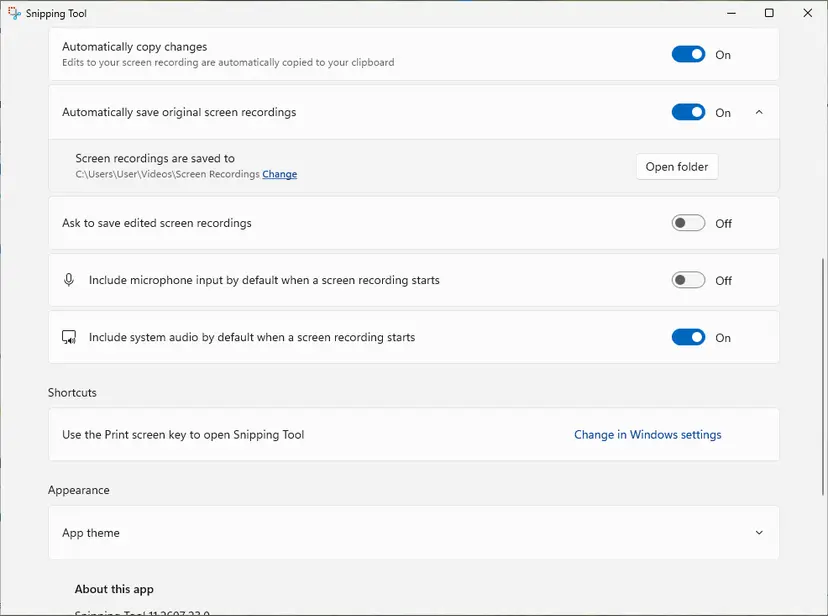
The same settings page has a second toggle, Automatically copy changes, described as "Edits to your screen recording are automatically copied to your clipboard". It was on in version 11.2607 on our test PC. So open any folder and press Ctrl + V before you copy anything else. We have not confirmed in which cases an unedited recording is copied, so treat it as a ten second check, not as a method.
It worked if: A video with the right date and time is in one of the folders and plays.
If not: If all four folders are missing or hold only older files, automatic save was off or the app is too old. Go to Method 3.
Method 3. Copy the working files out of the TempState folder
5 minutesNo riskMethods 1 and 2 found nothing, automatic save was off, or the app crashed.
Snipping Tool is a packaged app and keeps its working files in its own TempState folder. An independent forensic analysis found that with automatic save turned off, recordings are still written to the Recordings subfolder and screenshots to the Snips subfolder.
- Leave Snipping Tool as it is. Do not open it if it is closed, and do not start a new capture.
- Press Win + R, paste the path below and select OK.
- Open the Recordings folder for videos or the Snips folder for screenshots. If there are no such folders, look at the files directly in TempState.
- Copy everything you see to a new folder on the Desktop or, better, on another drive.
- Open the copies, starting with the file whose time matches your capture.
- Move the copy that plays to your Videos or Pictures folder and give it a clear name.
The Snipping Tool temporary folder:
%LOCALAPPDATA%\Packages\Microsoft.ScreenSketch_8wekyb3d8bbwe\TempState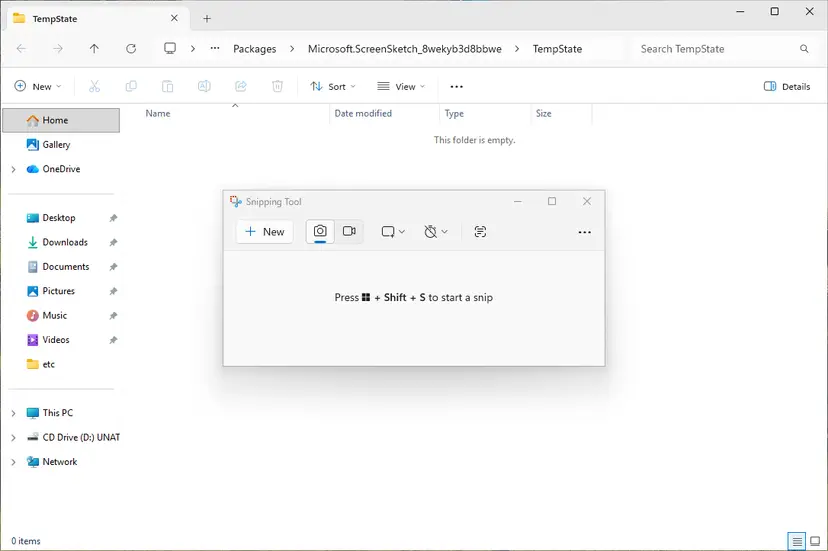
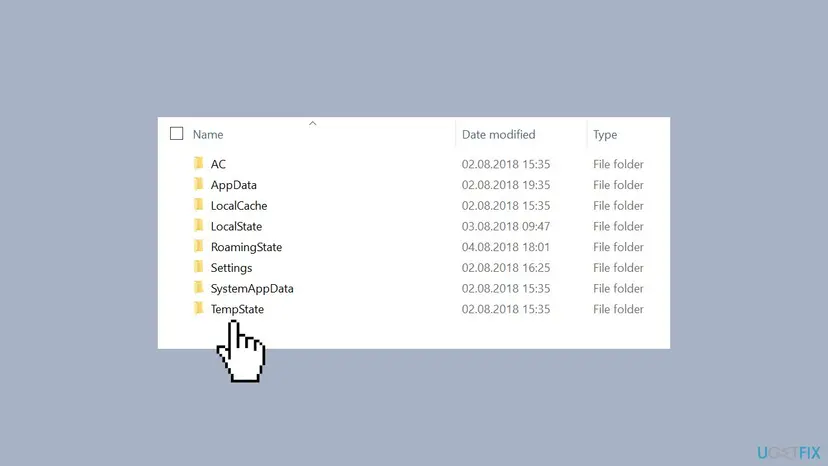
Users on Microsoft's forum report finding a large file here that every player calls damaged. That happens when the recording was not finished properly. Try the copy in a second video player and keep the copy, but know that Microsoft documents no way to repair such a file.
It worked if: A video or image with the time of your capture is in your new folder and opens.
If not: If the folder is empty or holds only other captures, the app has already cleared yours. Go to Method 4 if the file was ever saved, otherwise to Method 5.
Method 4. Restore a saved recording from the Recycle Bin, OneDrive or File History
10 minutesLow riskThe recording or screenshot was saved, by you or by automatic save, and was deleted or overwritten later.
These tools cover files that once existed in a normal folder. Automatic save puts captures in Videos and Pictures, which File History backs up and OneDrive can back up, so a deleted capture often has a second copy. By default none of them covers the TempState folder.
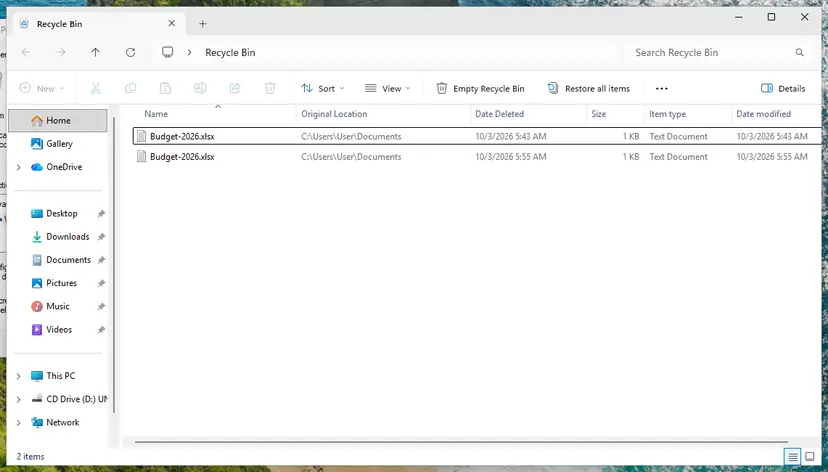
- Open the Recycle Bin, find the file, right-click it and select Restore. More ways: Recover deleted files (Recycle Bin, backups, OneDrive).
- If OneDrive backs up your Videos or Pictures folder, sign in at onedrive.com, select Recycle bin in the navigation pane, select the file and select Restore. Step by step: Restore deleted or older files in OneDrive.
- If File History is turned on, open your Videos folder in File Explorer, right-click the Screen Recordings folder and select Restore previous versions.
- Select a version from before the file was deleted, expand Open and select Open in File History to check that the recording is in it.
- Expand Restore, select Restore to and choose a different folder. Step by step: Restore an earlier version of a file or folder.
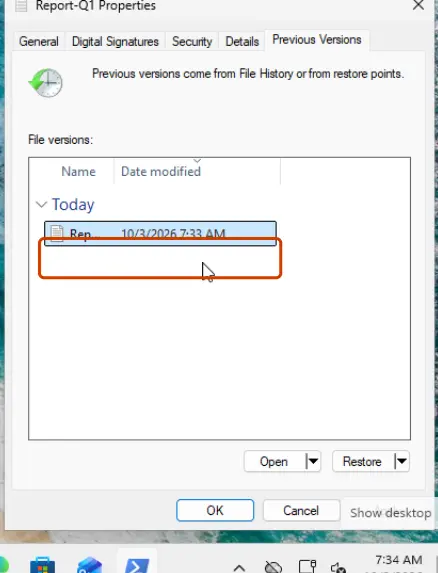
The plain Restore button replaces the current version of the folder on your PC, and Microsoft warns that this cannot be undone. Newer recordings in the folder could be lost. Restore to puts the old version in a separate folder and touches nothing else.
The OneDrive recycle bin keeps deleted files for 30 days on a personal account. On a work or school account it keeps them for 93 days, unless the administrator changed that.
It worked if: The recording is back in its folder, or in the folder you chose, and plays.
If not: If the Recycle Bin is empty and there is no OneDrive or File History copy, the only thing left is Method 5.
Method 5. Scan the drive with Windows File Recovery as the last resort
30 minutes or moreRead the warningEvery folder is empty, there is no backup, and the capture is worth a long scan with a small chance.
When a file is deleted, Windows marks its space as free, and the data stays there until something overwrites it. Windows File Recovery is Microsoft's free command line app that looks for such files. Microsoft itself says the space may already be overwritten, especially on a solid-state drive (SSD).
Anything written to the drive you scan can overwrite the deleted recording for good, and that includes the installation of a recovery app. Stop using the PC for other things, install nothing else, and send the results to a second drive such as a USB stick. Windows File Recovery refuses to recover to the same drive it scans.
- Connect a USB drive or an external disk and note its letter, for example
E:. - Install Windows File Recovery from the Microsoft Store.
- Press the Windows key, type Windows File Recovery, open it and select Yes when Windows asks to allow changes.
- For a capture that was never saved, enter
winfr C: E: /regular /n \Users\<username>\AppData\Local\Packages\Microsoft.ScreenSketch_8wekyb3d8bbwe\TempState\with your own user name in place of<username>. - For a saved recording that was deleted, enter
winfr C: E: /regular /n "\Users\<username>\Videos\Screen Recordings\*.mp4"and keep the quotes, because the folder name has a space. - Enter Y to start. The results go to a folder named
Recovery_<date and time>on the second drive. - If Regular mode finds nothing, run the same command with
/extensivein place of/regular. All switches: Recover deleted files with Windows File Recovery.
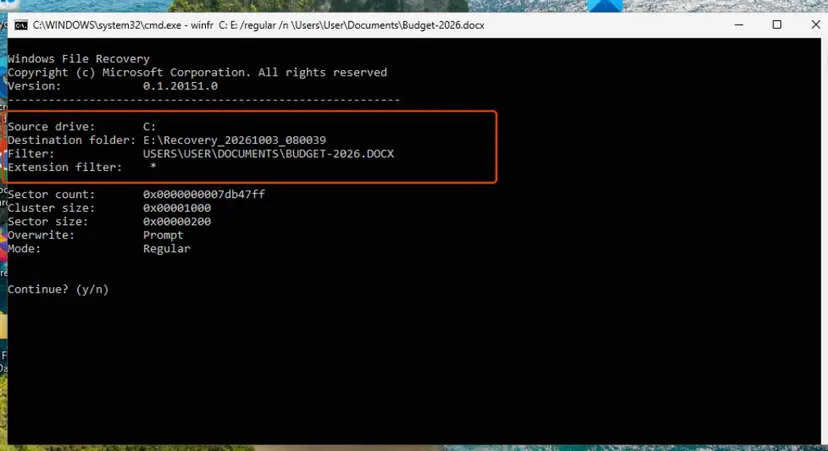
It worked if: The Recovery folder on the second drive holds a video or image that opens and shows your capture.
If not: If Extensive mode also finds nothing that plays, the capture cannot be recovered. Read the next section before you spend money on a tool.
When a Snipping Tool recording cannot be recovered
It is better to know this early than to lose an evening. In these cases there is nothing left to find, and no program changes that.
- The recording was cancelled or never finished. If the app or the PC stopped before you selected Stop and TempState holds no file from that time, no complete video was ever written.
- The capture was never saved and TempState is empty. With automatic save off there is only one copy, the working file. Once the app has cleared it, only a disk scan can look for traces.
- The space was overwritten. A deleted file survives only until new data lands on the same place. Microsoft warns that this is more likely on a solid-state drive (SSD).
- The file exists but is damaged. An unfinished recording can be found and still not play. We found no documented way from Microsoft to repair it.
- You hope for the clipboard. Clipboard history holds text, HTML and bitmap images of up to 4 MB per item, so it can hold a screenshot but never a video.
A paid program reads the same disk as the free Microsoft app. It cannot bring back data that was overwritten or a video that was never finished. If you still want to try one, do not install it on the drive that held the recording, and pay only after its free scan shows a preview of your file that actually plays.
How to make Snipping Tool save every recording from now on
Two toggles in the app decide whether a capture survives a closed window. Check them now, even if you got your recording back.
- Select Start, type snipping tool and open the Snipping Tool app itself, not the capture bar that the keyboard shortcut opens.
- Select See more (the three dots at the top right), then Settings.
- Turn on Automatically save original screenshots.
- Turn on Automatically save original screen recordings.
- Read the folder shown next to each toggle. Select Change if you want the files somewhere else.
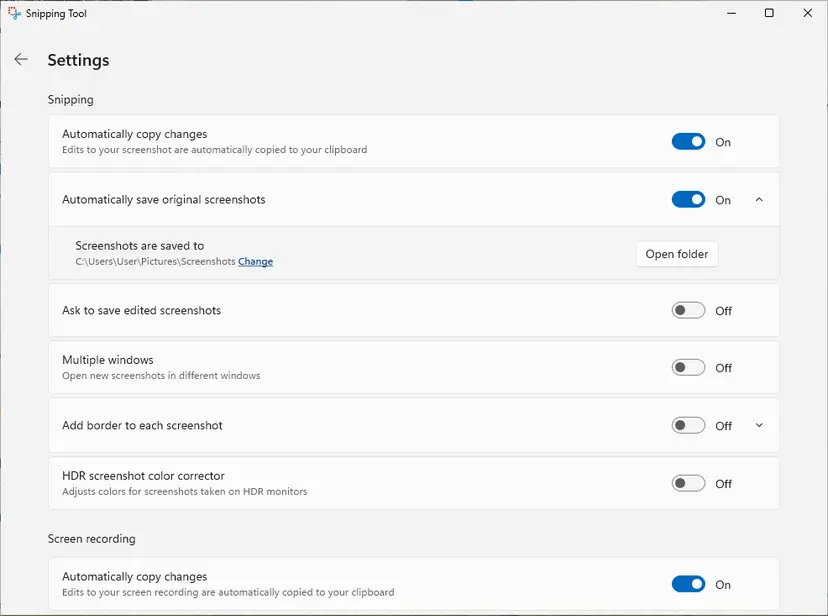
- The second toggle is missing. Then the app is older than version 11.2405.24.0. Update Snipping Tool in the Microsoft Store and look again.
- Add a second copy with OneDrive. Open OneDrive settings, go to Sync and backup, select Manage backup, turn on Videos and Pictures and select Save changes.
- Or use File History. In Control Panel, under System and Security, select Save backup copies of your files with File History and select Turn on. It needs an external drive or a network location. Full steps: Back up your files (Windows Backup, File History, Time Machine).
- After a long recording, check the file first. Open the Screen Recordings folder and play the new file before you close the preview.
- For screenshots, turn on clipboard history. Press Win + V and select Turn on. It keeps up to 25 copied items until the next restart.
With both toggles on, a recording you forget to save is in %USERPROFILE%\Videos\Screen Recordings without any action from you, and the question of temporary files does not come up again.
Frequently asked questions
Where does Snipping Tool save screen recordings in Windows 11?
Snipping Tool saves screen recordings to the Screen Recordings folder inside your Videos folder, which is %USERPROFILE%\Videos\Screen Recordings. This happens automatically in app version 11.2405.24.0 and newer, as long as Automatically save original screen recordings is on in the app's Settings. If OneDrive backs up your Videos folder, the folder is inside OneDrive: %USERPROFILE%\OneDrive\Videos\Screen Recordings. Since version 11.2408.13.0 you can also pick another folder in Settings, so check there if the default folder is empty. In older app versions nothing was saved until you saved the preview by hand.
Where does the Snipping Tool save temporary files?
The Snipping Tool temp file location is %LOCALAPPDATA%\Packages\Microsoft.ScreenSketch_8wekyb3d8bbwe\TempState. Paste it into the Run box (Win + R) or the File Explorer address bar. An independent forensic analysis found two subfolders there: Recordings for videos and Snips for screenshots, used when automatic save is turned off. Microsoft does not document this folder as a recovery location and does not say how long files stay in it. If you find your capture there, copy it to another folder before you open Snipping Tool again.
Can I retrieve a screen recording that did not save?
Often yes, if you act before the app clears its working files. First save from the Snipping Tool window if it is still open. Then look in the Screen Recordings folder inside Videos, because current versions save there on their own. Then copy the contents of the TempState folder. If all three are empty and the recording was never in a backed up folder, the chances are low, and only a scan with Windows File Recovery is left. A recording that stopped because of a crash may be found and still refuse to play.
How do I recover an unsaved Snipping Tool image or screenshot?
Start with the Screenshots folder, %USERPROFILE%\Pictures\Screenshots, because Snipping Tool has saved screenshots there automatically since app version 11.2209.2.0. If automatic save was off, look in the Snips subfolder of the TempState folder named on this page. A snip is also copied to the clipboard: open Paint and press Ctrl + V, or press Win + V if clipboard history was already turned on. Clipboard history keeps up to 25 items and is cleared when the PC restarts, so try this before a restart.
I found the recording in TempState but it will not open. Can it be repaired?
Maybe not. Users on Microsoft's forum report exactly this: a large file in the Recordings folder that players call damaged. It usually means the recording was interrupted before the app could finish the video file. First make a copy and work only on the copy. Try a second video player, because players differ in how they handle an incomplete file. Microsoft documents no repair for such a file, and we could not confirm any method that works reliably, so we do not recommend a specific repair tool here.
Does Snipping Tool keep a history of snips and recordings?
Not as a list inside the app. The history is the two automatic save folders: the Screenshots folder inside Pictures and the Screen Recordings folder inside Videos. Microsoft describes the Screenshots folder as the place to look for your screenshot history. Every capture goes there while the two automatic save toggles are on, whether or not you save it by hand. For screenshots there is also Windows clipboard history under Win + V, which holds up to 25 copied items until you restart the PC.
How long do files stay in the Snipping Tool TempState folder?
Nobody outside Microsoft can give you a number, and we will not invent one. Microsoft publishes no retention time for this folder. A forensic analysis from 2025 found captures there long after they were made. On Microsoft's forum some users found a recording from the same day, and others found the folder empty. The safe rule is to copy the files the moment you see them.
Can I recover an unsaved Snipping Tool video on Windows 10?
No, because the Snipping Tool of Windows 10 does not record video at all. Microsoft's help page lists the video snip only for Windows 11. On Windows 10 the app takes free-form, rectangular, window and full-screen snips, and you save each one by hand with Save Snip. If you recorded your screen on Windows 10, you used another program, such as Xbox Game Bar, which saves its clips to the Captures folder inside Videos. Look there, or in the save folder of the program you used.
I accidentally deleted a Snipping Tool recording. How do I get it back?
Open the Recycle Bin first, right-click the recording and select Restore. A file deleted from a normal folder on the PC normally goes there first. If your Videos folder is backed up by OneDrive, also check the recycle bin at onedrive.com, which keeps files for 30 days on a personal account. With File History turned on, right-click the Screen Recordings folder and select Restore previous versions. Without any of these, Method 5 on this page is the last attempt.
Should I buy a recovery program to get the recording back?
Not before you have tried the free steps, and often not at all. An unsaved recording is either in one of the folders on this page or it is not on the disk as a file any more. A paid program can only scan for deleted data, which the free Windows File Recovery app from Microsoft also does. No program can restore data that was overwritten or finish a video that was cut off. If you try one, install it on a different drive.
Sources
- Microsoft Support: Use Snipping Tool to capture screenshots (video snip, Save a snip, shortcuts, Windows 10 tab) (support.microsoft.com)
- Microsoft Learn: Launch Snipping Tool (the auto-save flag respects the user's automatic save setting) (learn.microsoft.com)
- Microsoft Support: Windows File Recovery (support.microsoft.com)
Did this fix work?
One click, no account. It tells the next reader which guides are worth their time.
Questions and experiences: recover unsaved Snipping Tool video in Windows
Still broken, or found a fix we did not cover? Ask here: members and our editors answer. Reading is open; writing needs a free account.
…