How to recover
Restore data on the new iPhone from an older device
from Windows
Recover lost files and settings on Windows 10 and 11 with our expert tips. Restore data easily and securely, ensuring zero traces left.

What leads to How to restore data on the new iPhone from an older device?
- Not having a backup copy of the older device
- Skipping steps during the restoration process
- Not using iCloud or iTunes for backup
- Failing to follow the setup procedure correctly
- Not transferring the SIM card from the old device to the new one
Repairs Windows system files, removes malware, and restores a clean OS state — without reinstalling.
Hello. I have bought a new iPhone and already set it up. Unfortunately, I need data from my older smartphone. Could you please help me to set up a new iPhone by restoring data from an older device? Thank you very much!
Even though there is a possibility to transfer the information from the older iPhone to your new device, many people do not take advantage of this function. Usually, people are aware how to set up a new smartphone with older contents when it is still not running. However, once it is already set up and doesn't have the information from the previous device, users just give up.
First of all, to restore data on the new iPhone from your older device, you must have a backup copy. People can choose between using iCloud[ref en-1] backups directly on their iPhone or connecting the smartphone to the computer and using backing up the device with iTunes[ref en-2].
If you wonder what's the difference, there is none. However, we would like to ask you to be extremely attentive since skipping steps might lead to data loss. For this reason, follow the instructions below and learn how to set up a new iPhone by restoring it from an older device.
Restore data on the new iPhone from an older device
As we have already mentioned, before transmitting content from the previous iPhone to the new one, you must backup[ref en-3] your device. Those who are not aware how to do that can follow the guide below.
Method 1. Restore information on the device using iCloud
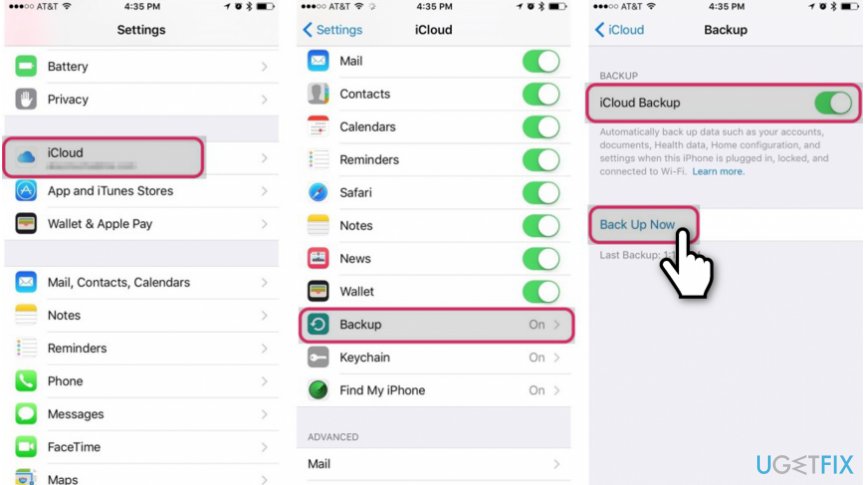
Step 1. Back up your older iPhone with iCloud
- Go to Settings on your iPhone;
- Click on iCloud and select Backup;
- Make sure that the Backup is on and press Back Up Now.
Step 2. Use the iCloud backup to transmit the information to the new iPhone
- Put the SIM card from the previous to the current device;
- Turn it one and continue with the setup procedure;
- Once you are asked how you would like to set up the iPhone, select Restore from iCloud Backup;
- You will be asked to sign in to the iCloud account;
- Use the same one you have used then backing up your older device;
- Select the back up you would like to use and proceed with the setup.
Method 2. Set up an iPhone by restoring data from the previous device with iTunes
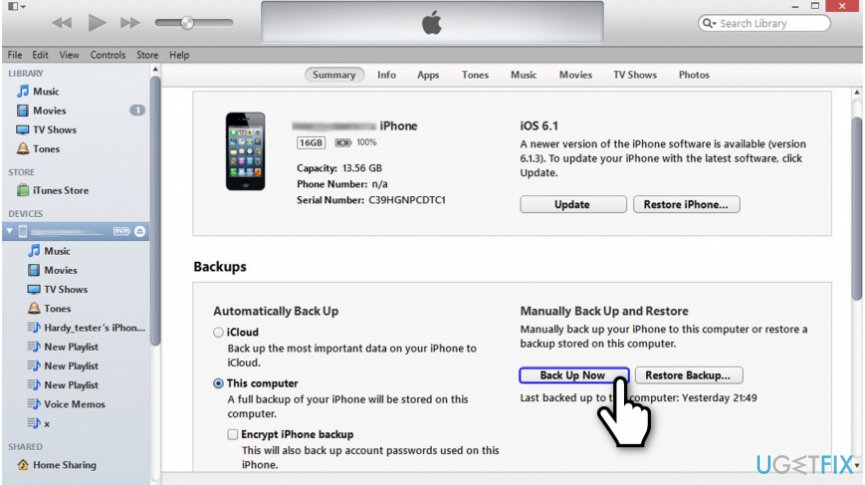
Step 1. Make backups of your information with iTunes
- Connect your iPhone to the computer;
- Open iTunes and select the icon of your device;
- On the bottom-right corner, click Back Up Now.
Step 2. Set up the device from iTunes backup
- Switch the SIM card from an older to the new smartphone;
- Turn it on and proceed with the setup process;
- When you are asked how to set up the device, select Restore from iTunes backup;
- Connect the iPhone to the computer where you have stored the backup;
- Open iTunes and select Restore Backup;
- Choose the Backup you have just made or the one you would prefer.
Bottom line
To restore data on your new iPhone from an older device, ensure you have a backup using iCloud or iTunes. Follow the steps to back up your older iPhone and restore from the backup during the setup process. If these methods do not work, consider seeking professional assistance.
Frequently asked questions
Yes, you can use iTunes on Windows 10 to create a backup of your iPhone, which allows you to restore data from an older device easily.
You can use third-party recovery software like Dr.Fone or EaseUS MobiSaver on Windows 11 to recover lost files from your iPhone while restoring data.
Yes, you can transfer settings by first backing up your old iPhone to iTunes on your Windows computer and then restoring that backup to your new iPhone.




Report an issue
What's wrong with this guide? We review every report and update or remove content.
Report received — thank you. We'll review and fix it.
You need a free account to submit a report.
Be the first to comment