How to recover
Restore deleted bookmarks in Google Chrome
from Windows
Recover your lost bookmarks in Google Chrome on Windows 10 or 11 with our easy-to-follow guide. Expert-tested solutions ensure no traces left!

What leads to How to restore deleted bookmarks in Google Chrome?
- Accidental deletion of bookmarks
- Loss of bookmarks due to browser update
- Lack of a restore bookmarks button in Google Chrome
- Inability to find backup files
- Not having exported backups previously
Repairs Windows system files, removes malware, and restores a clean OS state — without reinstalling.
I’ve accidentally deleted bookmarks in Google Chrome. Maybe there’s a way to restore them? That would be great!
Google Chrome is one of the most popular web browsers.[ref en-1] Functionality, performance, and security level made it stand out among its competitors. However, it still doesn’t have “restore bookmarks” button. However, it does not mean that it’s impossible to get back accidentally deleted bookmarks.[ref en-3]
Google Chrome creates backups of the bookmarks and overwrites them every time you open the browser. Thus, it allows recovering lost bookmarks. Below you can find the most common methods that help to restore bookmarks in Google Chrome. It doesn’t matter if you accidentally deleted them or lost them due to browser update, these methods should work.
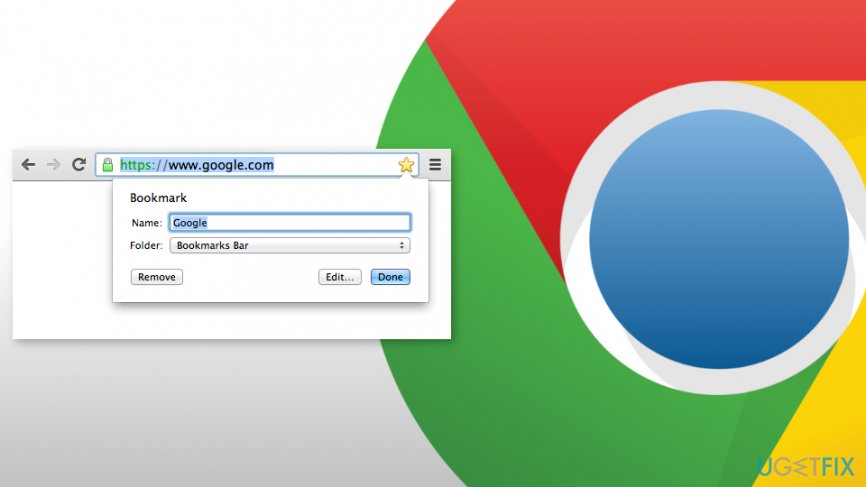
Ways to restore deleted bookmarks in Google Chrome
Before trying our suggested methods, you should check your Google account[ref en-2] (of course, if you created it). In the Google account’s website, navigate to Google homepage and choose options in the top right corner. In the new page, scroll down until you see GO TO MY ACTIVITY link. Click on it and browse through your online activities. Hopefully, you will soon find the deleted bookmark. If it does not help, try methods presented below:
Method 1. Use backed up files
If you have exported backups before accidental deletion, you can access your backup folder with Google Chrome browser history and bookmarks. Thus, if you did that, follow these steps:
- Open Internet Explorer and type this path:
C:\\User\\NAME\\AppData\\Local\\Google\\Chrome\\User Data\\Default
IMPORTANT: Change NAME with your Windows username. - In the directory, you should find Bookmarks and Bookmarks.bak files. One of them is the recent backup that was created when you opened the browser the last time.
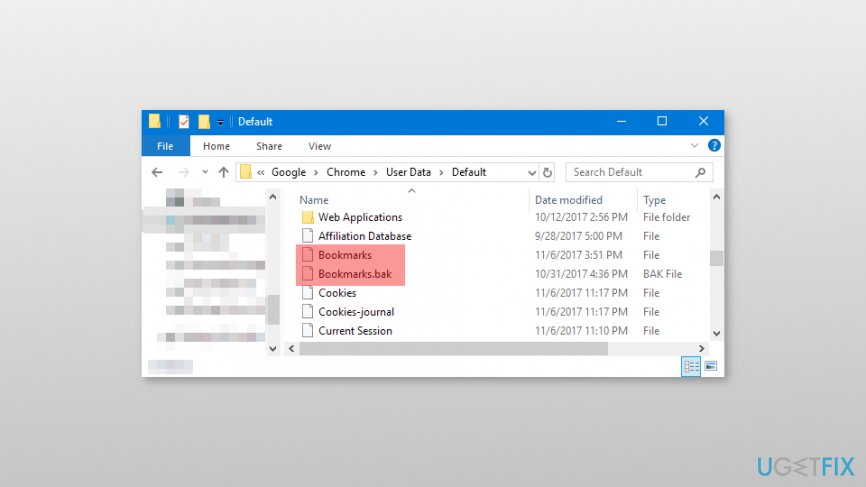
Restore deleted bookmarks in chrome
Note. If you cannot find Bookmarks and Bookmarks.bak files, you should access File Explorer and check the box near File name extensions (or uncheck the box near Hide extensions for unknown file types - it might differ based on the computer you use.) - Make sure that Chrome is closed.
- Rename the Bookmarks file to Bookmakrs.1.
- Rename Bookmarks.bak file to Bookmarks.
- Open Google Chrome to check if the bookmarks are back.
Method 2. Use Chrome Bookmarks Recovery tool
Typically Google Chrome keeps backups of bookmarks in the profile folder. This backup file is called bookmarks.back and you need to find it. In order to do that, follow these steps:
- Copy this path in the File Explorer: C:\\Users\\%username%\\AppData\\Local\\Google\\Chrome\\User Data
- In the search bar, type Bookmarks and click Enter. After a couple of minutes, you will receive the list of your bookmarks or bookmarks.back file itself.
Note. In the list, you will see all Chrome user’s bookmarks. Thus, you may need to choose the bookmarks that belong to you manually. - Select your bookmarks and drag and drop them to the box provided on this website.
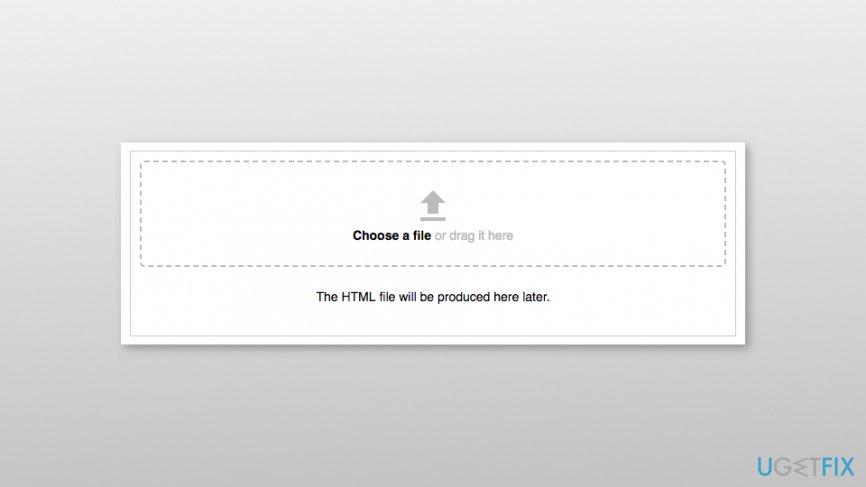
Import files - Once you receive the message saying “The download is ready,” click the link to download all the HTML files.
- Open each of the downloaded files with Google Chrome until you find your bookmarks. Most of the time it’s the biggest file.
- Once you find the bookmarks, click Chrome menu icon and access Bookmarks.
- From Bookmarks go to Bookmark Manager.
- Navigate to Organize and click Import bookmarks from HTML file.
- Upload the HTML file with your bookmarks.
- Once the upload is finished, your bookmarks should be brought back.
Method 3. Use DNS Cache
If you lost bookmarks due to the browser update, you should try to restore bookmarks in Google Chrome by following these steps:
- Click Windows + R.
- Enter cmd and click OK.
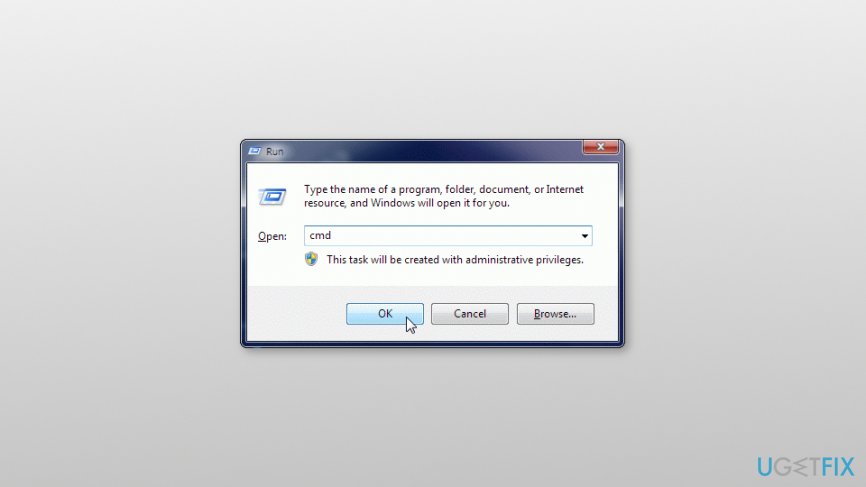
Run cmd command - Open the Command Prompt.
- Type ipconfig /dislaydns.
- You will receive the list of recently visited websites where you can find the needed bookmark and add it back to Chrome.
Bottom line
To restore deleted bookmarks in Google Chrome, you can check your Google account activity for the deleted bookmark, use backed up files if available, and follow the steps to rename the backup files. If none of these methods work, consider looking for third-party recovery tools or contacting Google support.
Frequently asked questions
You can restore deleted bookmarks by locating the 'Bookmarks.bak' file in the Chrome user data folder, renaming it to 'Bookmarks', and replacing the current bookmarks file.
Yes, you can recover lost bookmarks by navigating to the Chrome profile directory, finding the 'Bookmarks.bak' file, and restoring it to the proper location.
If the 'Bookmarks.bak' file is missing, you may need to check for previous versions of the Chrome profile folder or restore from a Windows backup if you have one.




Report an issue
What's wrong with this guide? We review every report and update or remove content.
Report received — thank you. We'll review and fix it.
You need a free account to submit a report.
Be the first to comment