How to remove
Uninstall Cortana
from Windows
Easily uninstall Cortana from Windows 10 or Windows 11 with our expert-tested guide, ensuring a streamlined experience with zero traces left.

How does How to uninstall Cortana end up on your PC?
- Cortana is a built-in app in Windows 10 that cannot be uninstalled through Programs and Features.
- Users experience random popups or complete non-functionality of Cortana.
- Some users face a persistent 'Cortana is not available in your region' error.
- Privacy concerns arise as Cortana requires access to personal information to function properly.
- Many users consider Cortana to be unnecessary bloatware.
Repairs Windows system files, removes malware, and restores a clean OS state — without reinstalling.
Hello. I never use Cortana, and it is just an app that sits there in my Windows 10. I tried, but I can't really uninstall Cortana via Programs and Features. Is there any way at all to get rid of it?
Cortana is a virtual assistant that comes pre-installed with Windows 10 operating system. It is available cross-platform and provides a variety of features that fit perfectly with a description of a virtual assistant - it can remind users about the upcoming events, manage the calendar, send out texts, track packages, and much more.
While many users considered Cortana a relatively neat addition to the Windows 10 operating system, the feature did not avoid criticism. Some users experienced issues related to it, e.g., Cortana would popup randomly,[ref en-1] or would not work at all, along with the Start Menu. Many also complained about the persistent Cortana is not available in your region error.
Other people had multiple privacy concerns as, for the app to function properly, users need to provide access to certain (personal) information. Finally, some even consider Cortana to be useless bloatware that comes pre-installed with Windows operating system and is not useful in any way.
In other words, there are plenty of reasons why many users would like to uninstall Cortana from Windows 10 once and for all, although this process is not as straight-forward as it may seem initially. Initially, the app was built-in in Windows, so there was no possibility to uninstall it through the Programs and Features or Control Panel sections.
Since May 2020, Microsoft introduced some of the changes to the digital assistant[ref en-2] - it is now a standalone application that can be downloaded from Microsoft Store. The app also lost some of its elements that focused on consumer skills, such as connection to home devices or music services support. Despite this, users will not find it easy to uninstall Cortana in a regular way.
Therefore, we will provide you with a few ways to uninstall the app for good. You can seemingly uninstall Cortana using PowerShell commands, although it does not completely eradicate the core app files from your system. Nonetheless, all the options available are provided below.
Before you begin, we highly recommend downloading and installing a PC repair application [d1]. If you commonly experience Windows problems, including BSODs,[ref en-3] missing DLLs, or other errors, this program will help you fix the underlying issues of the operating system automatically.
Option 1. Prevent Cortana from automatically starting
You don't have to uninstall Cortana to prevent it from running every time you boot Windows. If you are not bothered with it being installed but simply don't want it running, this choice is perfect for you:
- Press Ctrl + Shift + Esc on your keyboard to call up the Task Manager
- Here, go to the Startup tab
- Right-click on Cortana and pick Disable
- Close down the Task Manager
- Right-click on Start button and pick Apps and Features

How to uninstall cortana from windows disable via startup - Scroll down to find Cortana
- Click on it once and select Advanced options
- Scroll down to the Runs at log-in section
- Click the switch once to move it to the left and disable Cortana running at log-in.
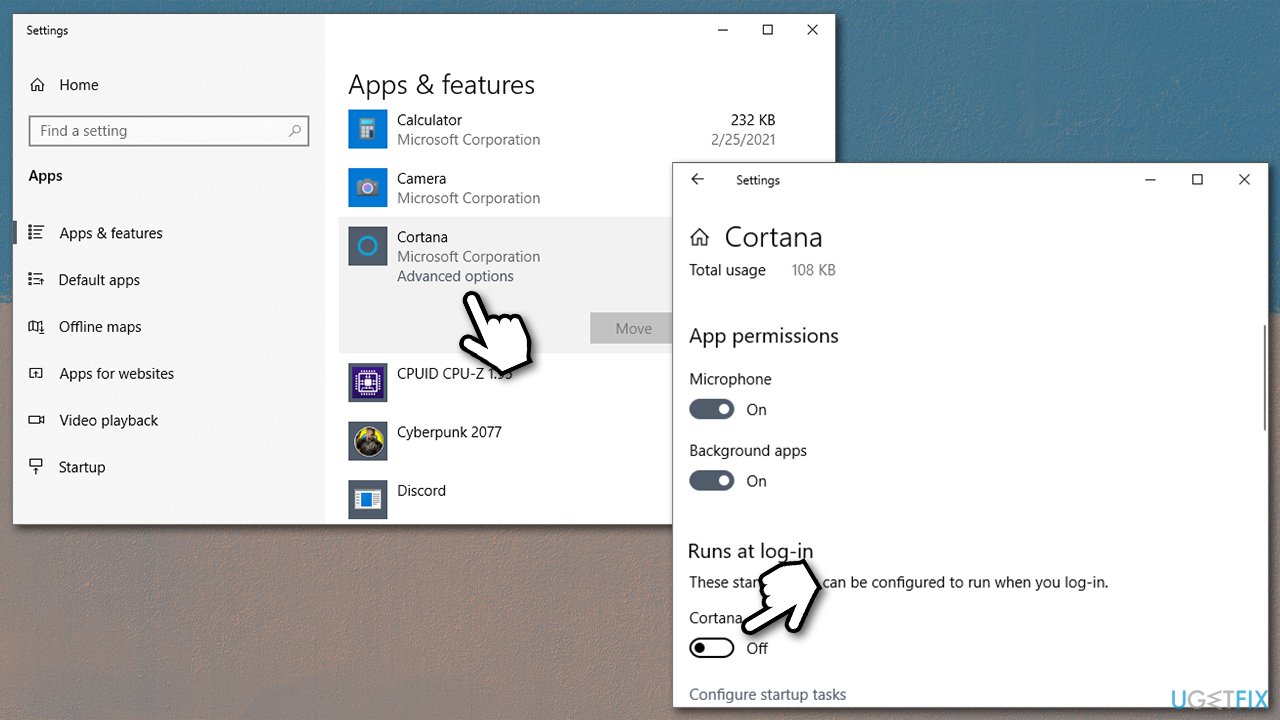
How to uninstall cortana from windows disable apps and features
Option 2. Uninstall Cortana via PowerShell
Using PowerShell, you can get rid of the app, although, as already mentioned, the core files will remain on your computer. Here's how to do it:
- Right-click on Start and pick PowerShell (Admin)
- When User Account Control (UAC) shows up, click Yes
- Once PowerShell shows up, copy (Ctrl +C) and paste (Ctrl +V) the following command:
Get-AppxPackage -allusers Microsoft.549981C3F5F10 | Remove-AppxPackage
- Press Enter.
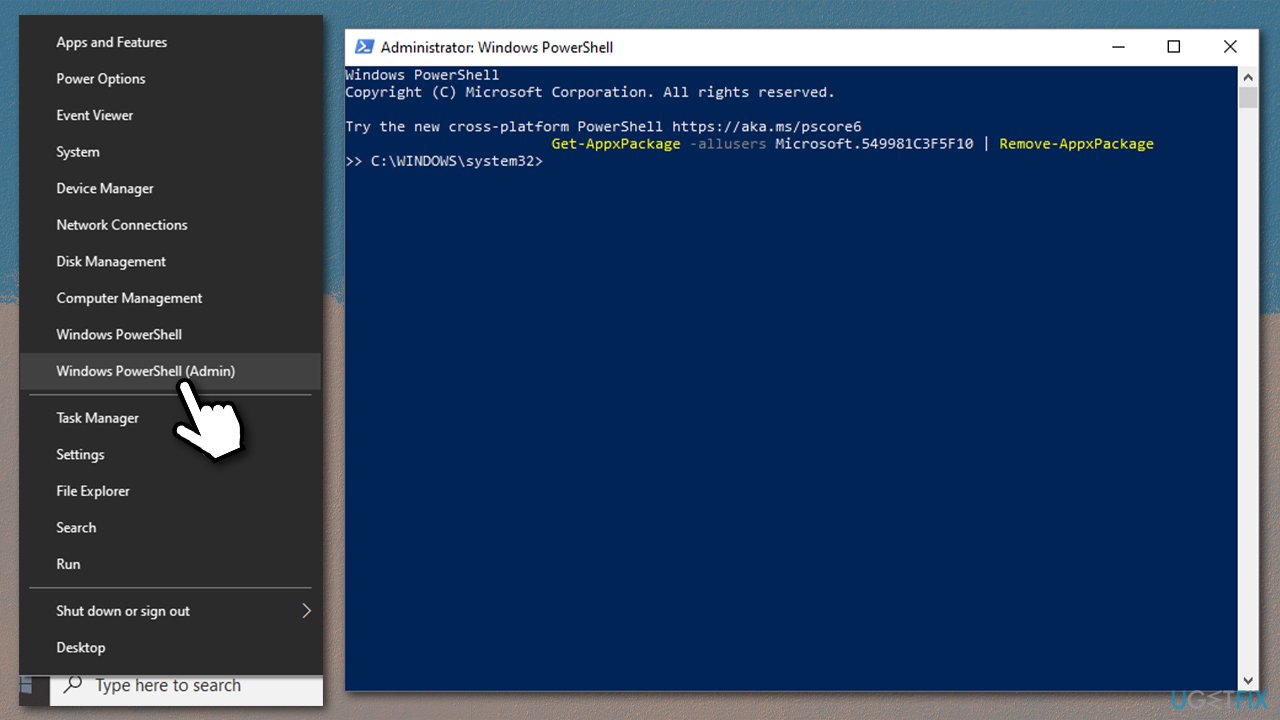
How to uninstall cortana from windows uninstall via powershell
If you want, you can reinstall Cortana at any time from the Microsoft Store as any other app.
Option 3. Change Windows Registry
Windows registry is a small database that holds the information about all settings of your operating system, along with those of the third-party programs. Therefore, every time you install an app, a registry entry is created within this database. It is an integral part of Windows OS and, if not handled correctly, it may cause serious system malfunctions.
Therefore, before you make any changes to the registry, we strongly advise you to prepare the backup. Note that this option is valid for Windows 10 Home users only.
- Type in regedit in Windows search and press Enter
- Click File > Export
- Under Export range, select All
- Name your backup and click Save
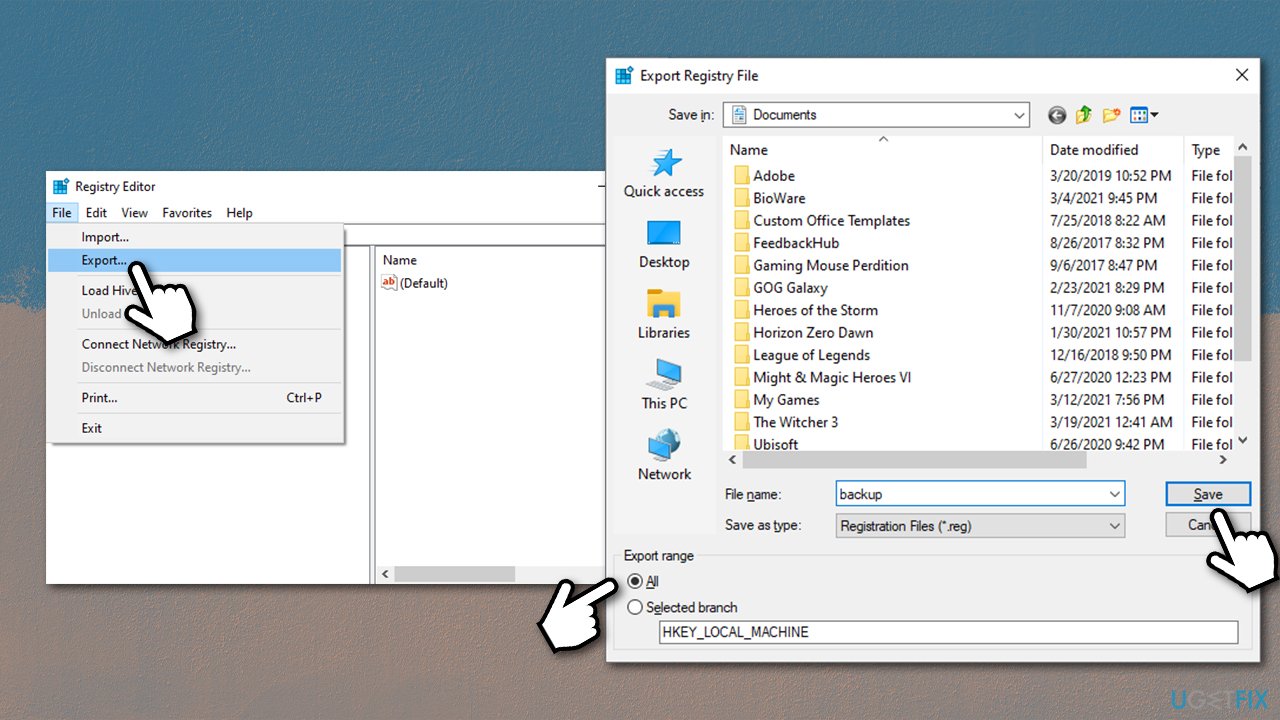
How to uninstall cortana from windows export registry - Go back to the registry and navigate to the following location:
HKEY_LOCAL_MACHINE\\SOFTWARE\\Policies\\Microsoft\\Windows
- Right-click on the Windows folder and select New > Key, name it Windows Search
- Mark Windows Search folder by clicking it once
- On the right side, right-click on a blank space and select New > DWORD (32-bit) Value
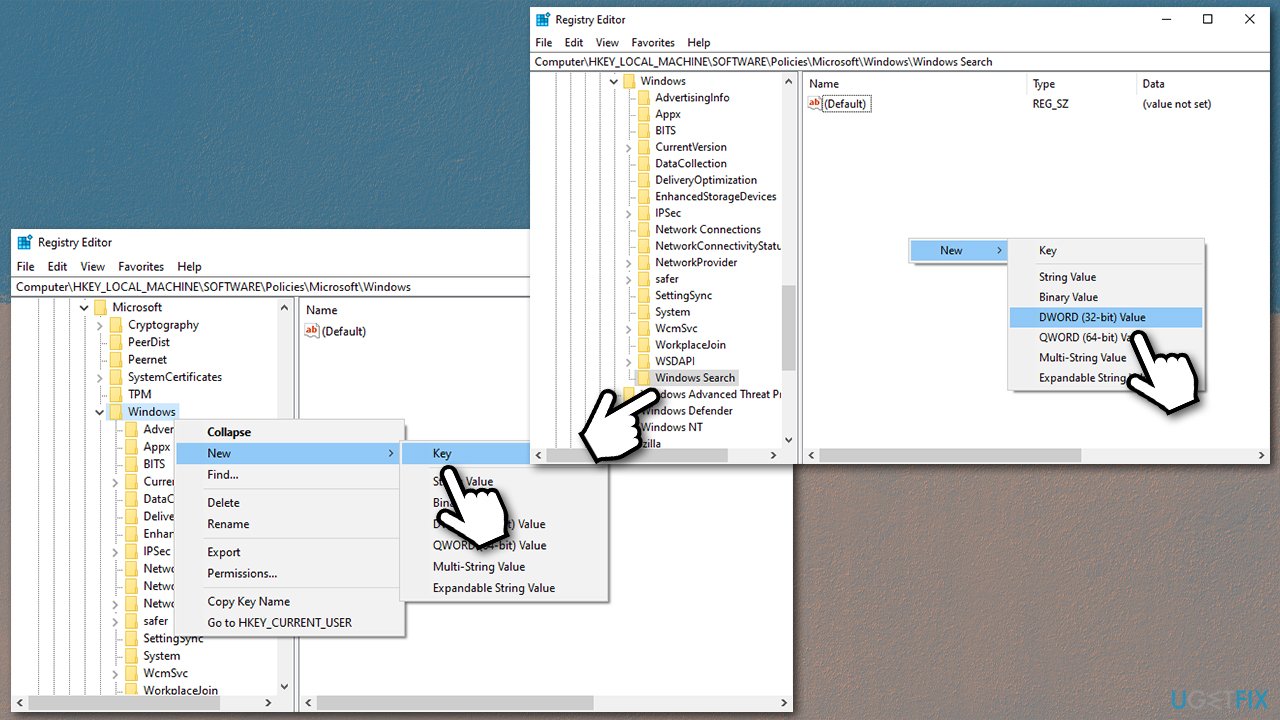
How to uninstall cortana from windows create windows search key - Name it AllowCortana
- Double-click it and set the value to 0
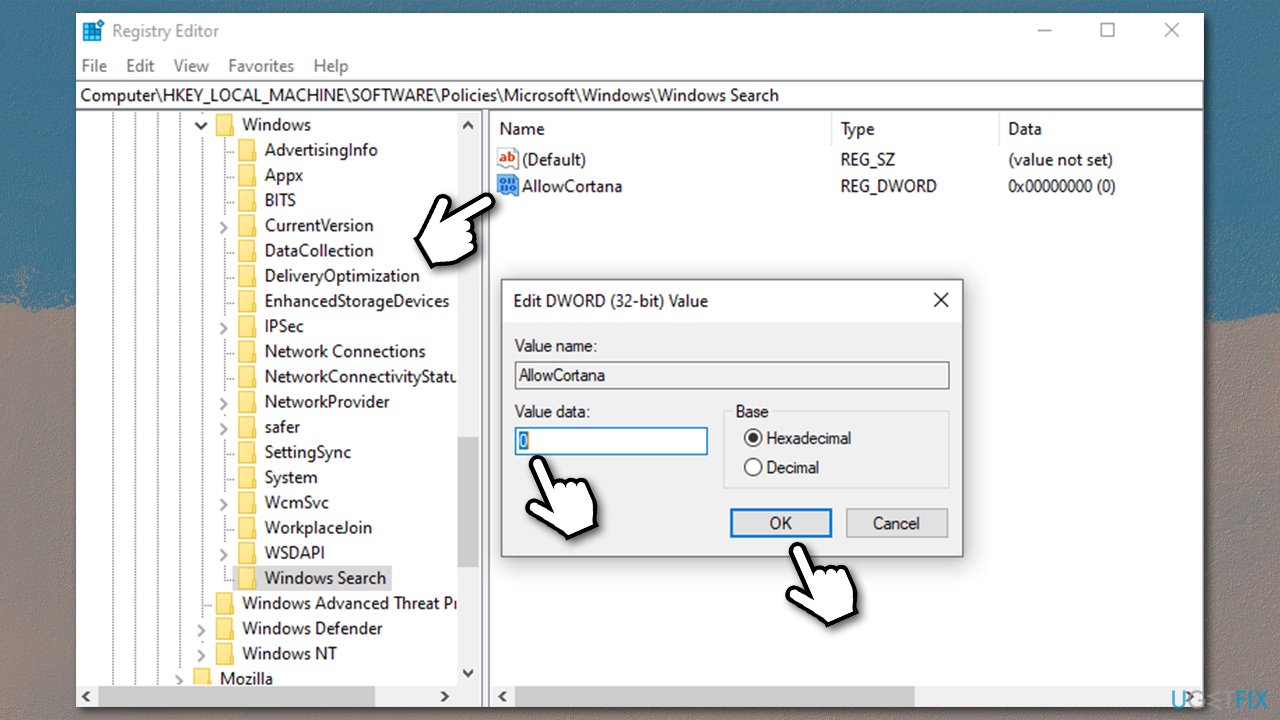
How to uninstall cortana from windows set dword value to zeo - Restart your device.
Option 4. Edit Group Policy
If you are using Windows 10 Pro, you can use Group Policy to remove Cortana.
- Type gpedit in Windows search and press Enter
- Go to the following location:
Computer Configuration > Administrative Templates > Windows Components > Search
- On the right side, double-click Allow Cortana
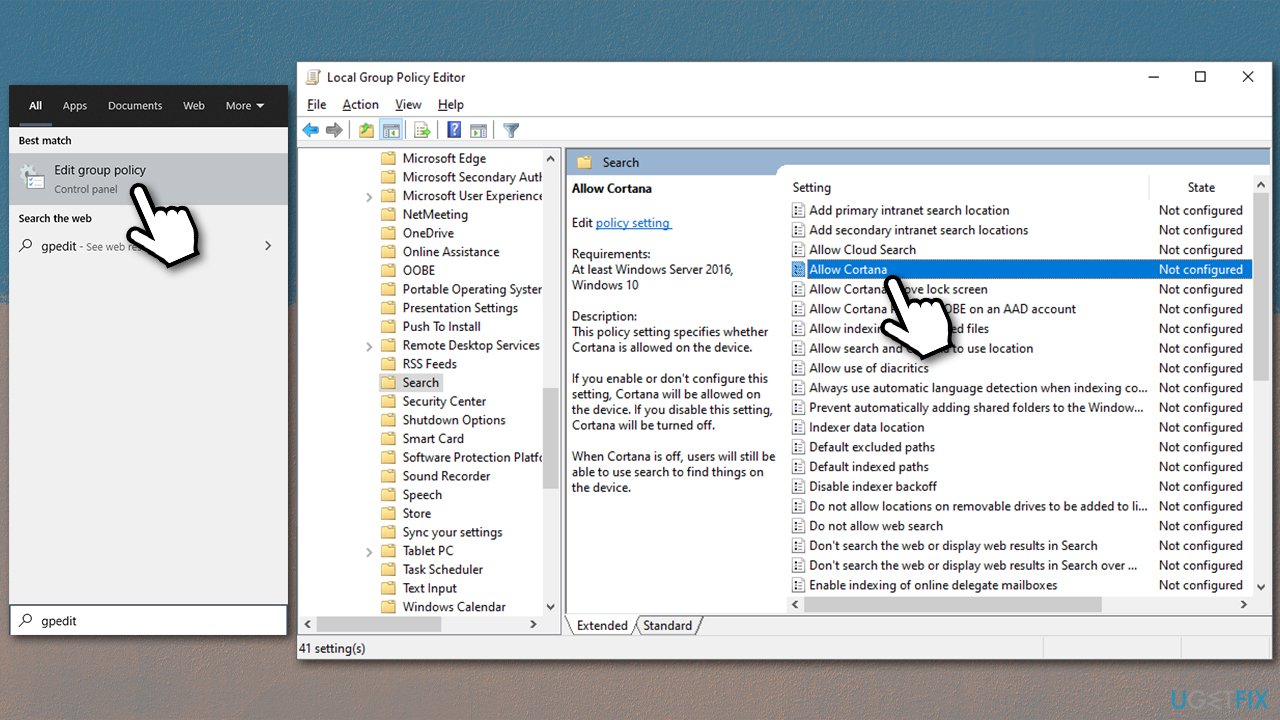
How to uninstall cortana from windows edit group policy - Select Disabled, click Apply and OK
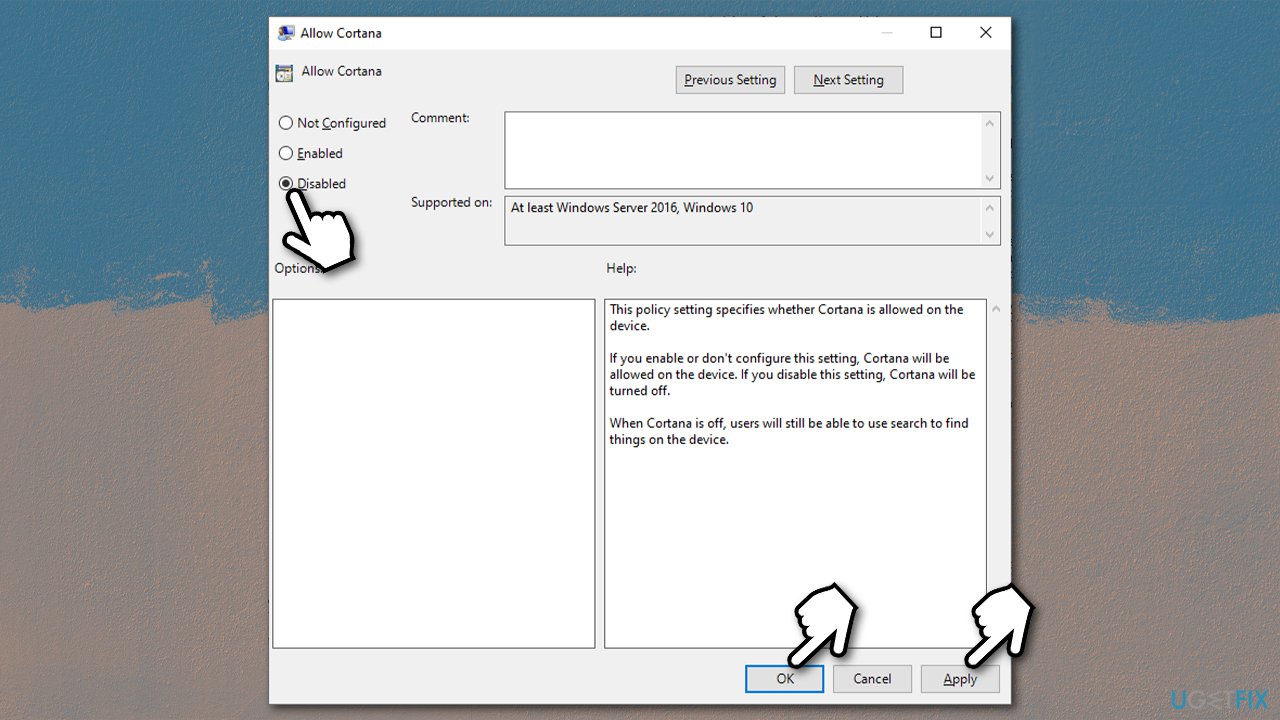
How to uninstall cortana from windows edit group policy2 - Restart your computer.
Bottom line
To uninstall Cortana, users can try using PowerShell commands or other methods outlined in the guide. If these solutions do not work, consider seeking further assistance or exploring alternative virtual assistant options.
Frequently asked questions
Yes, you can uninstall Cortana from Windows 10 using PowerShell commands, but note that this might affect other system functionalities.
To remove Cortana in Windows 11, go to Settings > Apps > Apps & features, find Cortana, and select 'Uninstall'.
Uninstalling Cortana may free up a small amount of space, but the main benefit is reducing background processes in Windows 10 or Windows 11.




Report an issue
What's wrong with this guide? We review every report and update or remove content.
Report received — thank you. We'll review and fix it.
You need a free account to submit a report.
Be the first to comment