How to remove
Uninstall MacKeeper
from Windows
Easily remove MacKeeper from your Windows 10 or 11 system with our expert tips. Uninstall unwanted software efficiently and enjoy a cleaner PC, fixed in…

How does How to uninstall MacKeeper end up on your PC?
- Users may have installed rogue software as a result of MacKeeper scam.
- Cached data may not have been removed properly during uninstallation.
- MacKeeper may be incompatible with other software on the system.
- Intrusive advertising and aggressive distribution may lead to persistent pop-ups.
- The original version of the program may not be properly identified.
Repairs Windows system files, removes malware, and restores a clean OS state — without reinstalling.
How do I uninstall MacKeeper? I see no use of this program anymore as I purchased other software to replace it. I tried uninstalling the program regularly, but that did not seem to do the trick as I still get MacKeeper pop-ups when the PC launches. I suppose there are some cached data that I have not removed properly.
In most cases, users uninstall MacKeeper from their Mac OS like any other software. Sometimes, however, a bit of extra effort may be needed to eliminate all of its residue files from the computer. Don’t get this wrong -- this software has already overstepped its dishonorable title as “MacKeeper virus” after a German company Kromtech Alliance Corp. has bought it out from its original developers ZeoBIT. The new owners were well aware of the questionable software functionalities, including intrusive advertising and aggressive distribution, so they took immediate action to fix them. Of course, the software is still not perfect, but the improvement is obvious. It is evident looking at the increasing number of positive MacKeeper reviews online. Besides, the closer attention to details was probably one of the aspects that contributed to this security software hitting 20 million downloads on its 5th anniversary. So, the struggles with its removal should not be associated with the supposedly malicious characteristics of the program. Users who are thinking about MacKeeper removal may simply find it incompatible with other software or don’t like its design. Thus, in this article, we have prepared useful tips that will help remove this program from your computer. Before you commence with the removal, make sure you are dealing with the original version of the program. It is not unusual for the users to purchase rogue software as a result of MacKeeper scam. In case your device is infected with some malicious application, the methods we list below won’t put the unwanted behavior to a stop. Instead, you will have to scan your system with some reputable antivirus software, say [d1] and eliminate malware virus automatically. In other cases, you can rely on the removal tutorial below.
How to uninstall MacKeeper from Mac OS X?
Compared to the earlier MacKeeper versions, the latest software variants are quite simple to uninstall. Of course, the Force Quit function is still useless in terminating the software. But there is a way to work around it. First, you will have to remove MacKeeper icon from the menu bar:
- Open your Applications panel via the Go tab in the top toolbar of your desktop
- Launch MacKeeper
- Go to the program’s menu and select "MacKeeper Preferences…"
- In the new window go to the General tab and remove the tick next to the option "Show MacKeeper icon in menu bar."
- Quit the application
After you complete the above-mentioned steps, you will no longer see the MacKeeper’s icon on your menu bar and will be able to proceed with the software elimination from your hard drive:
- Drag the MacKeeper application to the Trash or select the option "Move to Trash" after right-clicking the app’s icon.
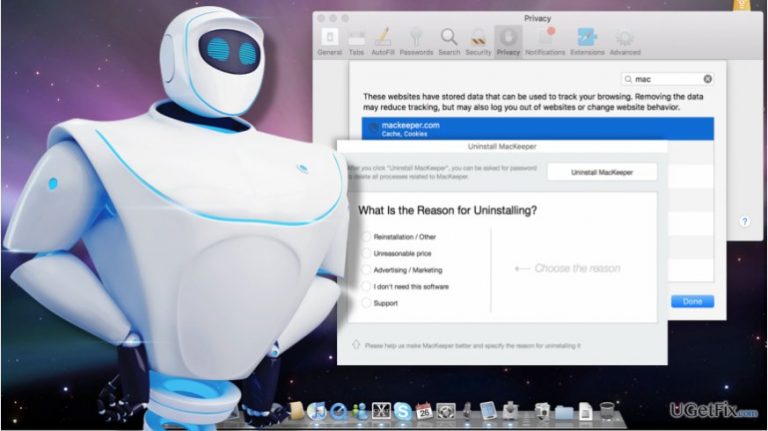
- In the uninstall window you may select the reason why you choose to uninstall the software or skip this step and simply click the "Uninstall MacKeeper" option
- Enter the administrator’s password to confirm.
Please keep in mind that some of the software files may stay on the computer after the elimination process is over. Typically it is the MacKeeper Helper folder that will remain installed in the ~/Library/Application Support directory. You will have to locate the folder and delete it manually:
- Press-hold the option key on your keyboard and open the Go tab in Finder’s toolbar
- You will see the Library show up in the selection menu
- In the new window, go to Application Support and send MacKeeper Helper folder to Trash
- Empty the Trash
- Restart the computer.
After you complete all of these steps, you should also reset your Safari browser in order to eliminate the cached information that may deliver MacKeeper ads.
Bottom line
To uninstall MacKeeper, users should ensure they are dealing with the original version of the program and follow the removal tutorial provided. If issues persist, it is recommended to scan the system with reputable antivirus software to eliminate any malware.
Frequently asked questions
Yes, you can uninstall MacKeeper from Windows 10 or Windows 11 by accessing the Control Panel, navigating to 'Programs and Features,' and selecting MacKeeper to uninstall it.
If MacKeeper doesn't show up in the list, try using a third-party uninstaller tool or check for any related files and folders to remove manually.
To ensure all traces of MacKeeper are removed, use a dedicated uninstaller software or follow up with a registry cleaner after uninstalling the program.




Report an issue
What's wrong with this guide? We review every report and update or remove content.
Report received — thank you. We'll review and fix it.
You need a free account to submit a report.
Be the first to comment