How to remove
Uninstall RegistryFix Registry Cleaner
from Windows
Easily uninstall RegistryFix Registry Cleaner from your Windows 10 or 11 PC. Follow our expert-tested steps for a smooth removal process, fixed in minutes.

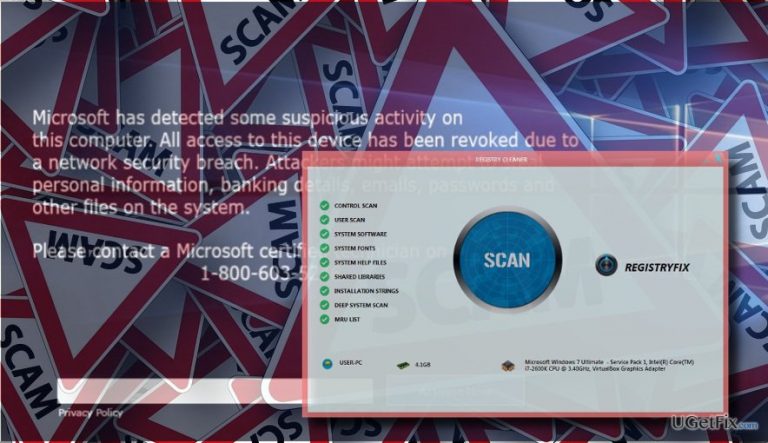
How does How to Uninstall RegistryFix Registry Cleaner end up on your PC?
- Accidental installation via bundled installers
- Distribution as optional downloads with free software
- Automatic startup installation
- Modification of web browser settings
- Display of forged scan results
- Execution of wmplayer.exe leading to tech support scams
Repairs Windows system files, removes malware, and restores a clean OS state — without reinstalling.
Accidentally installed RegistryFix. Indeed, I don’t want it but it keeps scanning my PC and brings a conclusion that my PC needs cleaning. I don’t believe it as it asks me to purchase the license to clean the PC. Is it rogue? Please help me to uninstall it.
While some security experts refer to RegistryFix Registry Cleaner as adware, its more precise description would be a rogue PC optimization tool. This application is a clone of Pcobserver Registry Cleaner, which we have described recently. Both tools share exact the same design, functionality, and distribution methods. It has been found, that RegistryFix Registry Cleaner, just like its clone Pcobserver, are distributed via bundled installers. In other words, they spread attached as “optional downloads” to freewares, such as download managers or media players.
IMPORTANT: don’t get us wrong. RegistryFix Registry Cleaner is not malicious. However, it’s distribution method and the initial purpose is highly questionable, which is why security experts want people to draw attention to this tool and, preferably, initiate its removal. As accidental software installed, RegistryFix Registry Cleaner PUP may be rather nasty. Once inside the system, it automatically installers on the startup, drops its files into the registry, corrupted web browser’s settings, and initiate a bunch of other important modifications. Consequently, the owner of the PC starts encountering full RegistryFix Registry Cleaner scans and is continuously prompted to purchase a licensed version of the tool to fix existent issues. However, this rogue registry cleaner has been exposed displaying forged, or rather predetermined, scan results. To convince inexperienced users to pay a considerable amount of money for the license key, this program would export the names of hundreds of system files and identify them as corrupted/damaged/missing. On top of that, RegistryFix Registry Cleaner virus has been accused of spreading Tech-Support-Scam pop-ups. The tool executes the wmplayer.exe file, which later establishes the Internet connection and installs a tech support scam into the web browser.
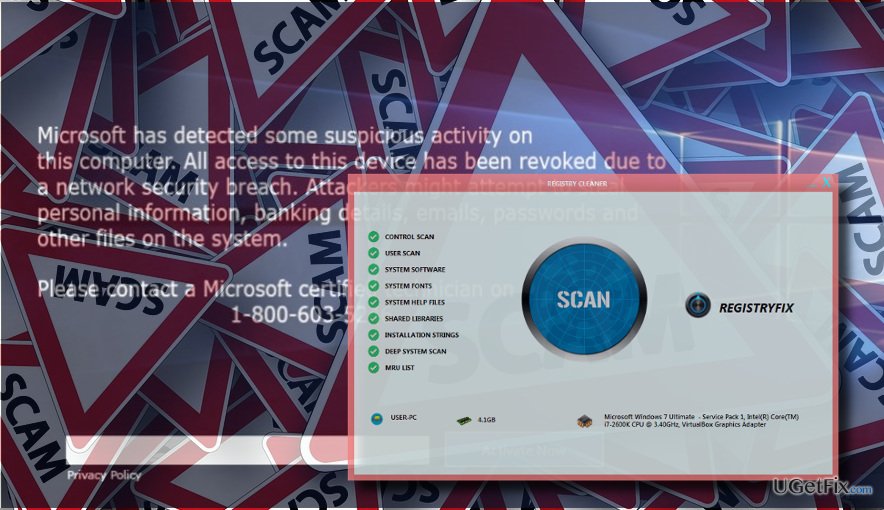
The RegistryFix Registry Cleaner scam mimics the Windows’ Blue Screen of Death environment and urges a PC user to call for Microsoft-certified technicians to fix the network security breach. Unfortunately, that’s just a scam, so NO phone calls should be initiated to the given number. The only way to terminate the tech-support-scam is to uninstall The RegistryFix Registry Cleaner permanently and then reset the web browser.
Delete the RegistryFix Registry Cleaner Automatically
RegistryFix Registry Cleaner can hardly provide people with any useful service. Contrary, it may initiate irritating system scans and lie about non-existent issues on the target system with an intention to shove useless, though costly, the license of the tool. Therefore, if RegistryFix Registry Cleaner scanner has started disrupting you out of nowhere, we would strongly recommend you to run a scan with a powerful anti-malware, for example, [d1], and delete this rogue tool right away. Once done, reset the settings of your web browser to delete the wmplayer.exe file and the tech-support-scam from it.
Terminate the RegistryFix Registry Cleaner Manually
- Disable the RegistryFix Registry Cleaner on Task Manager. Press Ctrl + Shift + ESC, find this rogue cleaner, click it, and select End Task.
- Close Task Manager, right-click on Windows key and select Control Panel.
- Open Programs and Features and find the RegistryFix Registry Cleaner. Click it and select Uninstall.
- Then check the list of programs for unknown or suspicious programs and uninstall them as well.
- Click OK to save the changes.
Reset your web browser to delete wmplayer.exe file and disable Tech-Support-Scam pop-up
RegistryFix Registry Cleaner is a nasty tool, which may initiate various modifications on a target system and cause its users many inconveniences. Once you remove the tool itself, don't forget to reset your web browser to disable the tech-support-scam pop-up ads that this program is set to distribute. For this purpose, select the browser, which delivers you the scam alert and reset it by following these instructions:
Bottom line
To uninstall RegistryFix Registry Cleaner, you should remove it from the list of installed programs, check for any remaining files in the registry, and reset your web browser settings. If these steps do not resolve the issue, consider using a reputable antivirus or anti-malware tool to ensure complete removal.
Frequently asked questions
To uninstall RegistryFix Registry Cleaner from Windows 10, go to Settings > Apps, locate RegistryFix in the list, click on it, and select 'Uninstall'.
Yes, in Windows 11, you can remove RegistryFix Registry Cleaner by going to Settings > Apps & features, finding it in the list, and clicking 'Uninstall'.
If RegistryFix Registry Cleaner fails to uninstall properly on Windows, try using a third-party uninstaller or perform the removal via Control Panel under Programs and Features.




Report an issue
What's wrong with this guide? We review every report and update or remove content.
Report received — thank you. We'll review and fix it.
You need a free account to submit a report.
Be the first to comment