How to fix
Error 0Xc000021A
on Windows
Resolve Error 0Xc000021A on Windows 10 and 8 effortlessly. Follow our expert-tested guide for swift solutions and get your system back on track!


What causes How to fix Error 0Xc000021A on Windows 10 and 8?
- Major software issues
- Hardware problems
- Corrupted system files
- Misplaced winlogon.exe file
- Damaged csrss.exe file
Repairs Windows system files, removes malware, and restores a clean OS state — without reinstalling.
Need fixes for the Blue Screen of Death crash with 0xc000021a on Windows 10. Thanks!!
The Blue Screen of Death (BSOD) is a stop error screen that is displayed on a Windows computer when it encounters a fatal system error. It is usually the result of a major software or hardware issue that prevents the operating system from running properly. When this happens, the computer will display a blue screen with white text indicating where the problem lies. In some cases, it shows an error code - 0xc000021A is our topic today.
BSODs can be caused by a variety of issues, ranging from hardware problems to corrupted system files. In most cases, the message shown is just a general one and will not provide instructions on how to resolve the issue. Luckily, there are other resources available online, and we will explain how to fix 0xc000021A crashes once and for all.
0xc000021A Error Code unexpectedly appears in a Blue Screen of Death (BSOD) window after a reboot. It may show up when trying to launch applications, do some system changes, download some software, or immediately after updating the system. As mentioned, only a generic message is displayed when this happens - it reads:
Your PC ran into a problem and needs to restart. We’re just collecting some error info, and then we’ll restart for you. (0% complete)
If you’d like to know more, you can search online later for this error: 0Xc000021A
Unfortunately, but system restart will not help. While some users encounter BSOD only occasionally, others might even be stuck in a reboot loop, which can be particularly problematic.
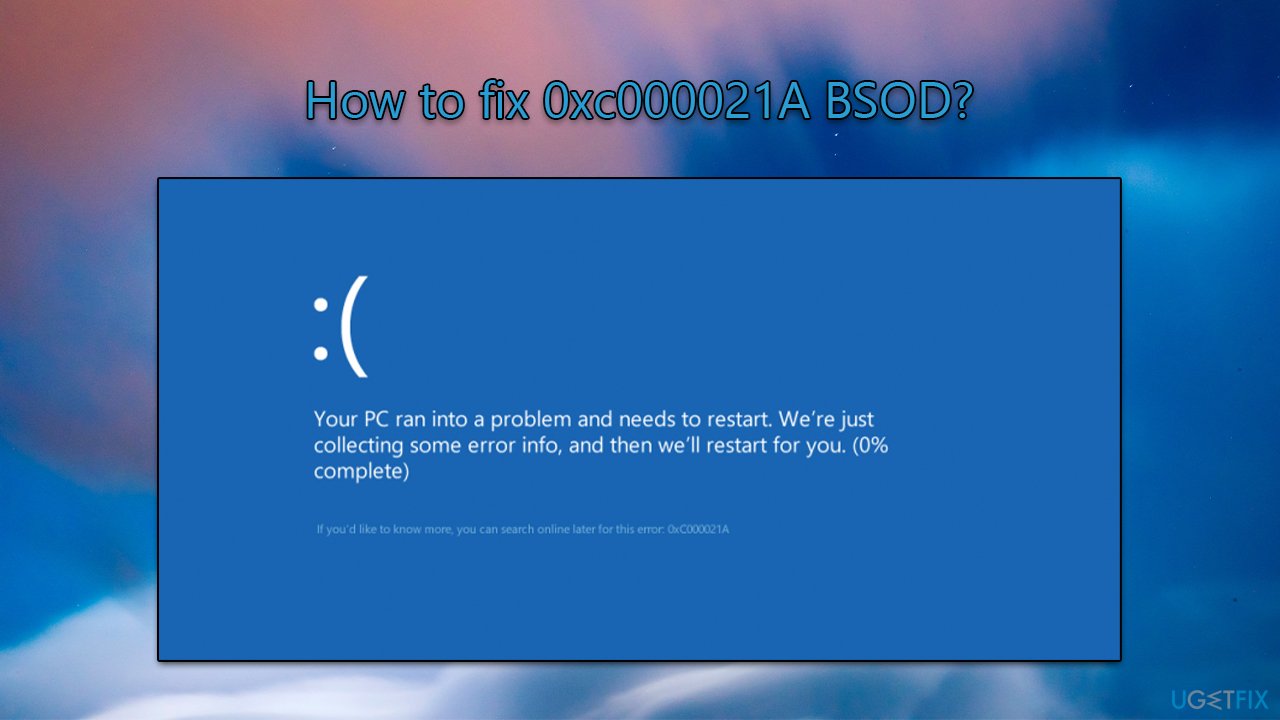
The reason why this error occurs is related to the winlogon.exe and csrss.exe files. The first one is responsible for system’s login/logout, while the other belongs to the Microsoft server/client. It is assumed that 0xc000021A BSOD emerges when these files get misplaced, damaged, or corrupted. Luckily, this issue can be fixed quite easily, so we are here to help you.
The easiest way to fix Blue Screen of Death crashes, errors, performance, and other issues is to run an automatic PC repair software [d1], which can find corrupted system files and repair them quickly.
If you can't access Windows
To restart your computer and enter safe mode, press the power button three times during the Windows booting process. This will bring up the Advanced Startup options. Select Troubleshoot > Advanced options > Startup Settings, then choose either option 4 or 5 to enter Safe Mode or Safe Mode with Networking.
Fix 1. Install the KB5022282 update or update to the latest Windows version
KB5021233 is an update that was released in December 2022 in the routine Patch Tuesday update. However, it was reported that many users were facing 0xc000021A crashes after installing it, so Microsoft rolled out the KB5022282 update in January 2023, which fixed the issue. Thus, make sure your Windows has the latest updates installed:
- Type Updates in the Windows search field and press Enter
- Here, click Check for updates
- If optional updates are available, install them too
- Restart your device.
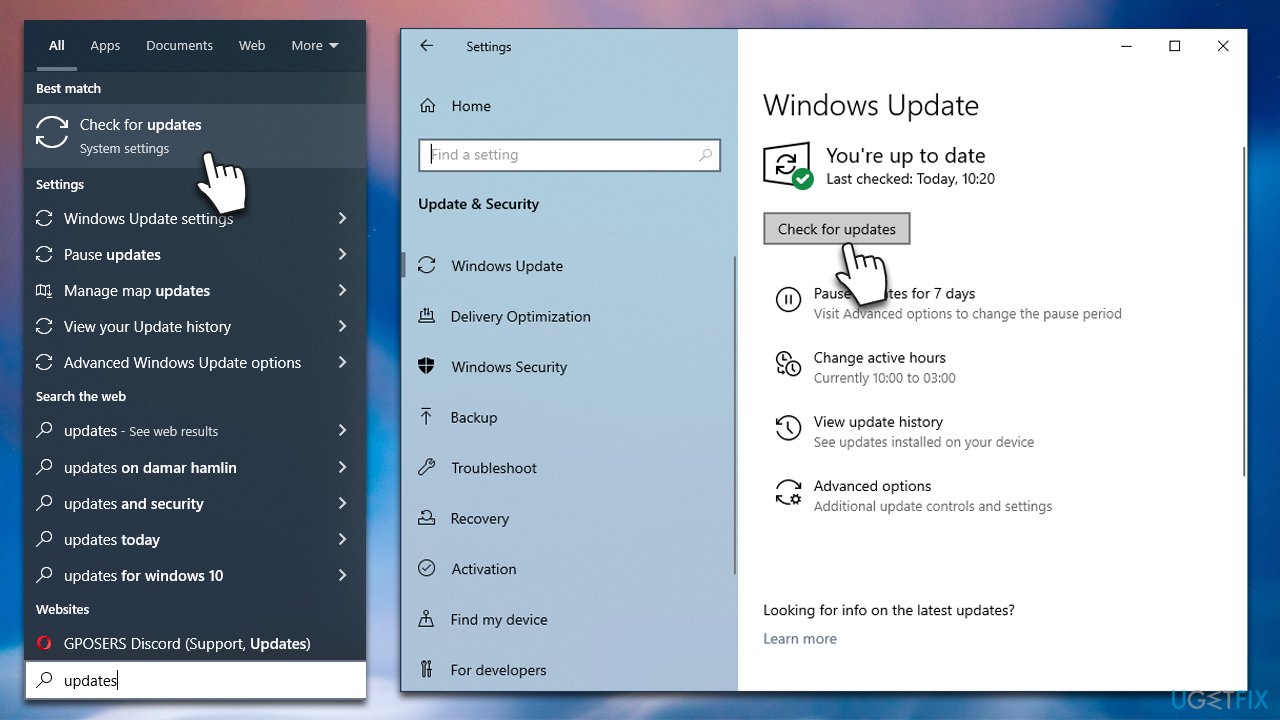
You can also install the KB5022282 update manually via the Microsoft Update Catalog.
Fix 2. Run System File Checker and DISM tools
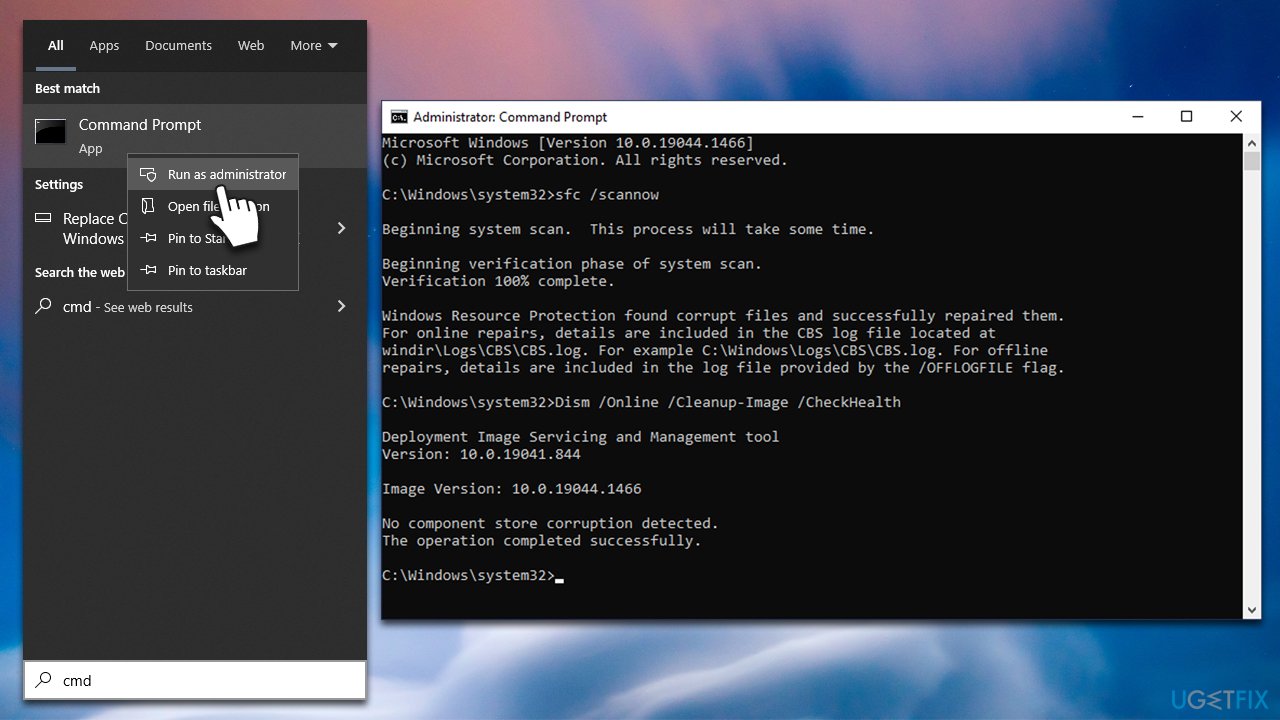
- Type cmd in Windows search
- Right-click on the Command Prompt result and select Run as administrator
- When User Account Control (UAC) window shows up, click Yes
- In the new window, type in the following commands, pressing Enter after each:
sfc /scannow
DISM /Online /Cleanup-Image /CheckHealth
DISM /Online /Cleanup-Image /ScanHealth
DISM /Online /Cleanup-Image /RestoreHealth - Restart your system after each of these commands is executed.
Fix 3. Rebuild the Boot Configuration Data
- Open Command Prompt as administrator as explained above
- Type the following commands and press Enter after each one:
sfc /scannow
dism /online /cleanup-image /restorehealth
bootrec.exe /rebuildbcd
bootrec.exe /fixmbr
bootrec.exe /fixboot - Reboot your device.
Bottom line
To fix the 0xc000021A error, you can try running an automatic PC repair, checking for hardware issues, or restoring system files. If these solutions do not resolve the problem, further troubleshooting may be necessary.
Frequently asked questions
Error 0Xc000021A on Windows 10 is often caused by corrupted system files, incompatible software, or issues with the system's configuration files.
To troubleshoot Error 0Xc000021A in Windows 11, you can boot into Safe Mode and run system file checks or uninstall recent updates that may have caused the issue.
Yes, you can attempt to fix Error 0Xc000021A on Windows 10 by using the Startup Repair tool or performing a System Restore, both of which aim to resolve issues without data loss.




Report an issue
What's wrong with this guide? We review every report and update or remove content.
Report received — thank you. We'll review and fix it.
You need a free account to submit a report.
Be the first to comment