How to fix
Share files between computers
on Windows
Seamlessly share files between Windows 10 and Windows 11 computers with our expert-tested tips. Enjoy hassle-free sharing in minutes, with zero traces l…

Why does How to share files between computers occur?
- Need for frequent data transfers
- Inconvenience of using USB drives
- Time constraints when transferring files
- Difficulty in large office environments
- Desire for remote file access
Repairs Windows system files, removes malware, and restores a clean OS state — without reinstalling.
Hello! I have been working in a quite big place with many computers and having the need for data transfers frequently. The idea of connecting a USB every time does not sound attractive. What other options do I have?
We all know that you can place files, documents, and folders on computer systems by plugging a USB device[ref en-1] or placing a CD/DVD into the disk zone. However, this works only if you have some time and if you have two computers next to you. If you have been running into a lack of time, then remotely connecting to another computer might be a time saver.
Additionally, file transfer by using the same networks to place the same data on multiple computers is a very handy feature that is used in many workplaces. If there are more than a couple of employees, it would be time-waisting to plug-in USB drives into multiple machines and maybe even difficult if it is a big office with more than one floor.
If you can ease your work, why shouldn't you do that? Below we have provided four easy ways how to get your data folders and files onto other computers for multiple contacts and even how to view other's files/documents on the desktop directly. Go ahead, view all the given methods and choose the one that seems most comfortable for you.
How to share files between computers?
Way 1. File transferring via email account
This is an easy way that allows you to transfer files to your friends via email account. If you do not know how to do that and what to learn everything about it, continue by going through the following guiding steps:
- Right-click the component that you are willing to transfer.
- Choose the option that says "Share".
- Then, a small Share window will open and you will be provided with your email contact list.
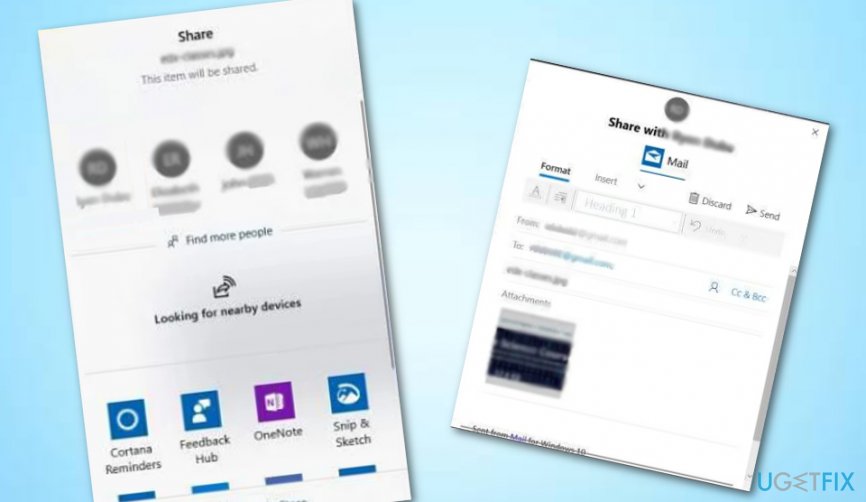
Use email - Also, you can select Find more people if you want to see a wider list of contacts.
- Choose the people you want to deliver the file/document to.
- You can now edit the email message if you want.
- Then, click the Send button. That's it!
Way 2. Use the "Nearby Sharing" feature
To share files with your friends or relatives, you have to enable the "Nearby Sharing" function first. You can complete this task by carrying out these steps:
- Go to Windows search and type "Settings".
- Launch the Settings window and click on System.
- Afterward, opt for Shared experiences.
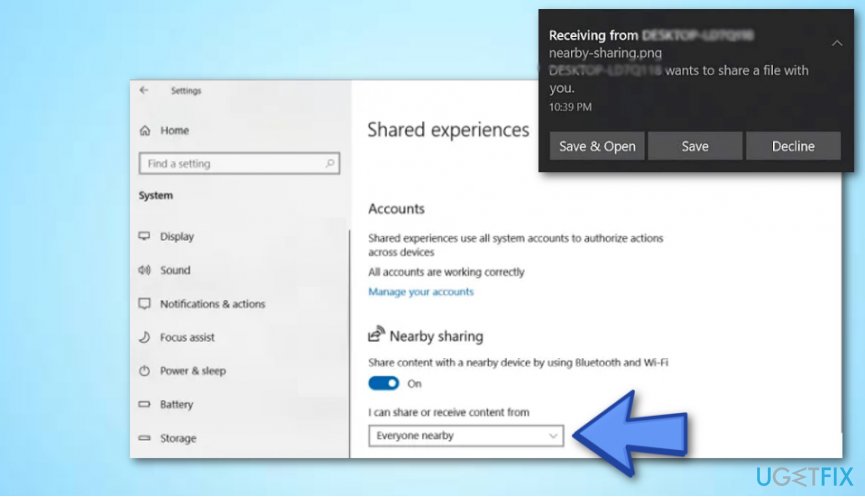
- Then, locate Nearby Sharing and turn the switch that is placed next to it to "On".
- Now you should set Everyone nearby.
Use everyone nearby
Once you are done and the "Nearby Sharing" feature has been activated, continue sharing your files and documents via File Explorer:
- Go to Windows search and find File Explorer.
- Then, right-click the component you want to deliver and choose Sharing.
- All available machines will be listed below the Find more people section.
- Select the computer you want to transfer the file to.
- When a small notification window appears, opt for Save & Open or just Save (for a faster sharing process).
Way 3. Employ LAN File Sharing service
This variant is especially suitable for computer users who are interested not in sharing files and folders but remotely viewing all these components on another person's computer directly. For this purpose, you can download a free LAN file sharing app on your Windows computer system. You can try using an app from here. Just launch the downloading/installing process and you will see that the application is very easy to use for even a regular or less-experienced computer user.
Way 4. Use Cloud services for transporting files and documents
Another handy way to transport data to other users is by using Cloud services[ref en-2] on Windows. You can share documents and folders to any type of Windows application that is based on Google Drive[ref en-3] or OneDrive services:
- Right-click the component you are willing to share.
- Opt for the Share feature.
- Then, the Share window will open and you will be provided with an entire list of Windows applications.
- Select the OneDrive one.
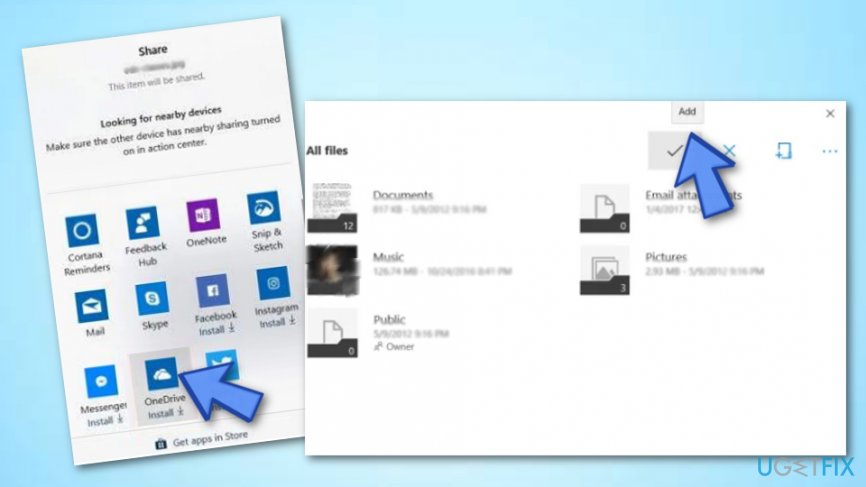
Use one drive - Wait for the app to launch and select Add to include the file/document to your OneDrive account.
- The person on the other computer should launch the OneDrive app, right-click the file and choose Download.
Bottom line
This article covers several methods for sharing files between computers, including transferring files via email, using shared networks, and remote connections. If these methods do not work for you, consider exploring additional file-sharing software or services.
Frequently asked questions
You can share files by enabling file sharing in the Network and Sharing Center, then right-click the folder you want to share, select 'Properties', and configure sharing options under the 'Sharing' tab.
Ensure both PCs are on the same network, then use the 'Nearby sharing' feature in Windows 11 to send files directly to the Windows 10 computer.
Yes, you can use OneDrive to securely share files between Windows 11 devices, allowing you to manage permissions and access easily.




Report an issue
What's wrong with this guide? We review every report and update or remove content.
Report received — thank you. We'll review and fix it.
You need a free account to submit a report.
Be the first to comment