How to fix
Black screen with cursor
on Windows
Resolve the black screen issue on Windows 10 or 11 with easy fixes. Get your desktop back quickly and efficiently, with expert-tested solutions.


What causes How to fix black screen with cursor?
- Windows system crash
- Critical error during boot
- Corrupted user profile
- Graphics driver issues
- Malware infection
Repairs Windows system files, removes malware, and restores a clean OS state — without reinstalling.
Hello. Something has happened to my Windows 10 computer - it suddenly crashed and, once booted, nothing was visible. I mean, it was just a mouse cursor that I can move, but nothing else. How do I recover from this? With only black screen with cursor, I can't use my PC in any way, apart from opening the Task Manager, which helps little to solve this.
Black screen with cursor, otherwise known as a black screen of death,[ref en-1] is typically a result of a Windows system crash - it occurs during a critical error, and the system is incapable of booting. As a result, all users see is a movable cursor, but nothing else is visible on the screen apart from a black background. Many might believe that they are in a dire situation and that their Windows systems are broken. However, the issue is relatively common, and it is fairly easy to fix as long as correct troubleshooting steps are performed.
Typically, once users boot into Windows 10 (or another version of the OS, for that matter), they can see the distinctive Graphic User Interface (GUI) components, such as the Start button and menu, taskbar, system tray, etc. However, once a critical error occurs, users cannot see anything else but a black screen with cursor.
Consequently, they cannot use very basic functions of the system, such as loading programs, changing settings, viewing pictures or videos, etc. Most people can still open the Task Manager with a combination of keyboard shortcut keys, although they usually don't know what they can do. In other words, the computer becomes essentially useless.
There are two versions of the issue:
- Users can log in to Windows, but none of the GUI elements are visible
- Users cannot log in to Windows, as the operating system does not bypass the initial loading phase
In this article, we will provide solutions for both so you can fix Black screen with cursor regardless of whether you can boot into Windows or not.
Unlike Blue Screen of Death[ref en-2] errors, Black screen with cursor does not provide any information as to why the issue occurred, and there is also no error code that would help users seek answers online. Nevertheless, the black screen might happen due to a variety of reasons, including graphics drivers,[ref en-3] hardware problems, system file corruption, malware infections, and much more.
Note: if you can boot into Windows and do not want to waste time with this problem, or you are not that good with computers and want a quick fix, we suggest you try using [d1] - a PC repair software that can fix most common Windows issues automatically. If you are willing to proceed with manual solutions, check them below.
Fix 1. Check for technical issues
First of all, we would like to point out that the Black screen with cursor can occur due to various technical issues, such as defective connection cable, faulty monitor, dual monitor issue, etc. Therefore, before you proceed and try to access Safe Mode, we suggest you check the basics:
- Check for connection problems. Make sure that the cable connecting your monitor and computer is properly inserted. Additionally, you should check for cable damage visually (note, do that while the computer is off).
- Connect your computer to a different monitor and see if it works. If the latter is true, your monitor needs replacing or fixing.
- Disconnect all external devices, such as cameras, phones, printers, etc. Reboot and see if it fixes the problem.
- In case you are using a laptop, shut it down and remove the battery. Press the Power button for 60 seconds and then reequip the computer with battery, and attempt to log in to Windows once again.
- If you use multiple displays, press Win + P to select the PC screen-only option.

How to fix black screen with cursor multiple displays
Note: if you are able to access Windows, proceed with fix number 2.
Fix 2. Reboot in Safe Mode [if applicable]
If none of the above helped to fix Black screen with cursor, you should access Safe Mode by following these steps:
- Reboot your machine
- Once the Windows logo shows up, press the Power button on your PC to interrupt the boot sequence
- Repeat the above step two more times - this should automatically boot you into Advanced Startup mode
- Now pick Troubleshoot > Advanced options > Startup Settings and Restart
- After another reboot, pick F4/4 to access Safe Mode or F5/5 to access Safe Mode with Networking
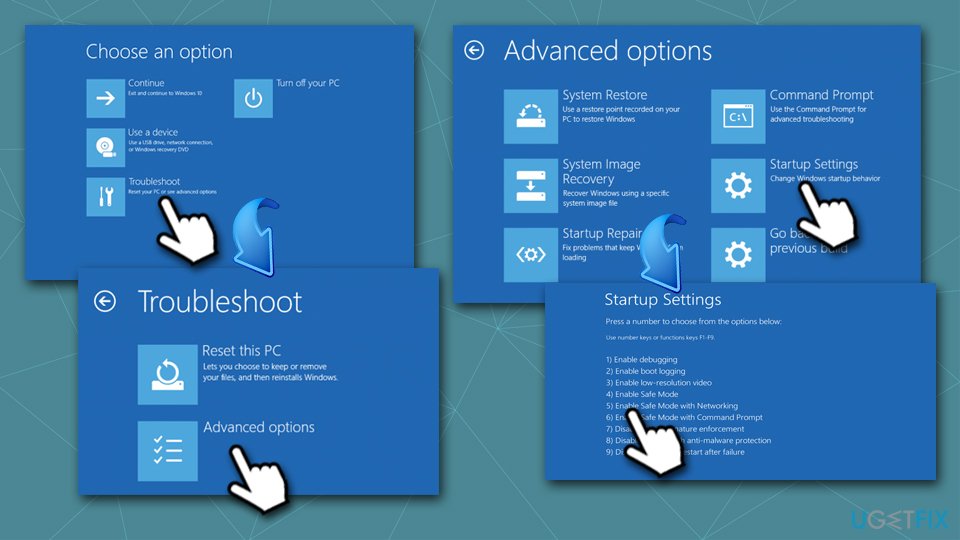
How to fix black screen with cursor accesss safe mode with networking
You should be able to operate your machine as normal in Safe Mode. Thus, proceed with the fixes provided below. If, for some reason, you were unable to access this mode, please follow the next method.
Fix 3. Disable App Readiness Service
If you were unable to access the Safe Mode, you could still try to fix Black Screen with the cursor via the Task Manager:
- Press Ctrl + Shift + Esc to all up the Task Manager
- Click File > Run ew task
- Type in services.msc and press Enter or click OK
- Once Services open, locate AppReadiness and double-click it
- Under Startup type, click on the drop-down button and select Disabled
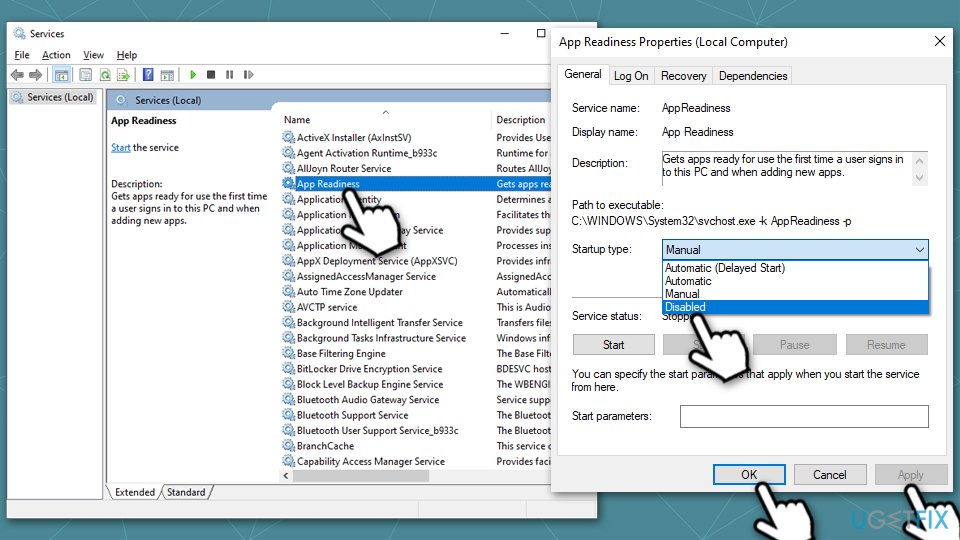
How to fix black screen with cursor disable app readiness - Click Apply, OK, and restart your system.
Fix 4. Reset your graphics driver
If your scene is not responsive and all you see is just a cursor, you should try restarting your graphics driver. To do that, all you have to do is press Win + Ctrl + Shift + B on your keyboard simultaneously.
Fix 5. Disable the Fast Startup option
Fast Startup technically is a great addition to any Windows machine - it helps users to login into Windows faster once their computers wake up from sleep mode. However, this function also has several negative effects on the computer in some cases,[ref en-4] including the Black screen with cursor issue. Because the feature is turned on by default, most users are unaware that they are using it in the first place. Thus, follow these steps to disable it:
- Type in Control Panel into Windows Search and hit Enter
- Once Control Panel opens, select the Small icons view
- Click on Power Options
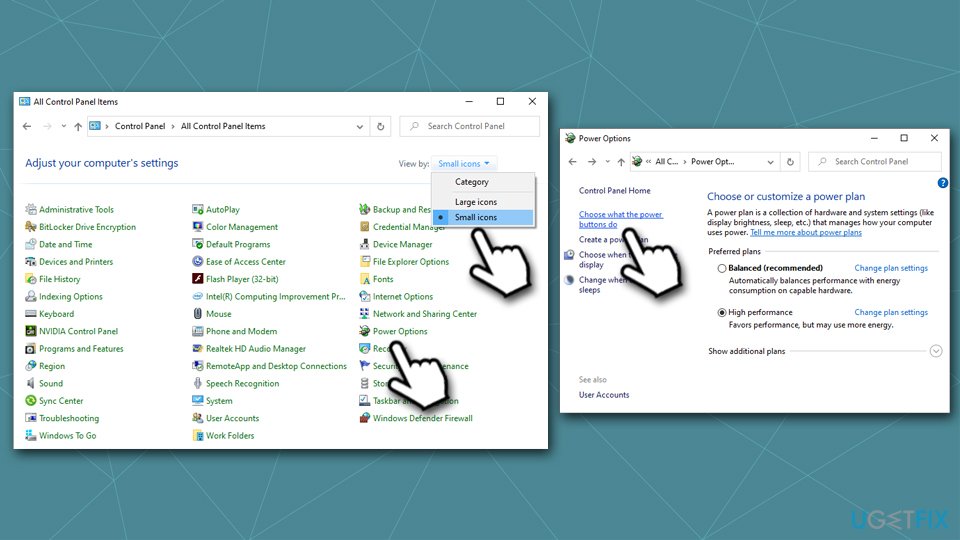
How to fix black screen with cursor cpntrol panel chooses small icons - On the left side of the window, select Choose what the power buttons do
- Select the Change settings that are currently unavailable option at the top
- Untick the Turn on fast startup (recommended) option and press Save changes
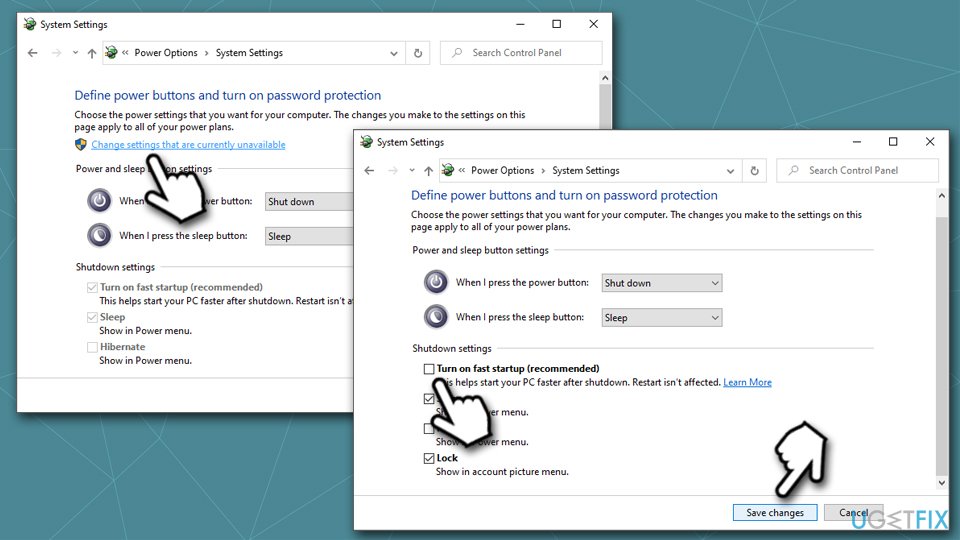
How to fix black screen with cursor turn off fast startup - Reboot into normal mode and see if the problem is gone.
Fix 6. Reinstall graphic drivers
Corrupted drivers can cause this issue. To make sure that the correct drivers are applied, you should reinstall them via the Device Manager:
- Right-click on the Start button and pick Device Manager
- Expand the Display adapters section
- Right-click on the currently installed driver and pick Uninstall device
- Tick the Delete the driver software for this device box
- Click Uninstall and reboot your PC
- Launch Device Manager once again
- Click on Scan for hardware changes at the top
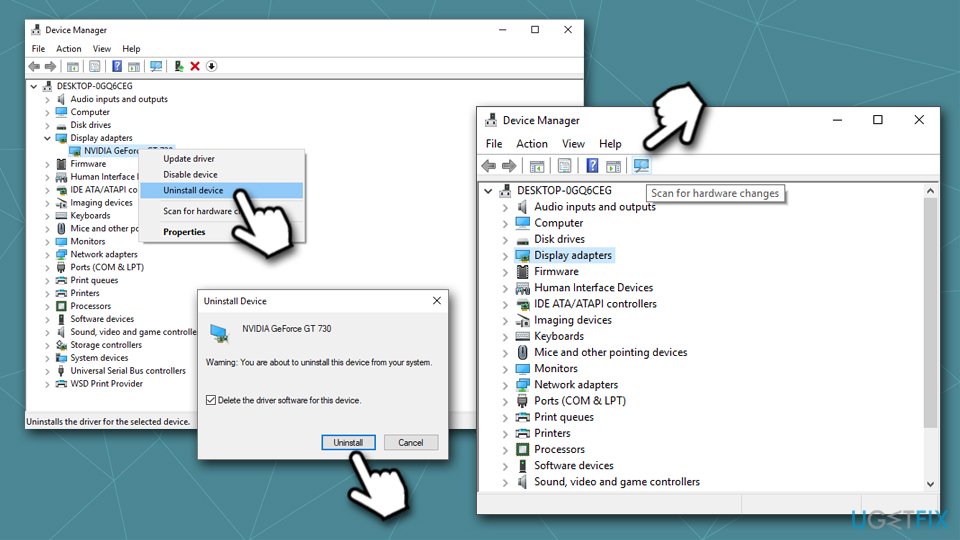
How to fix black screen with cursor reinstall graphics drivers - Reboot once again.
Protip: if you are a novice computer user, dealing with drivers can be time-consuming and rather difficult. Therefore, if you want a quick solution for any driver-related problems, we recommend using [rev id="DriverFix"]. It can update your drivers automatically and prepare backups if something goes wrong, avoiding compatibility-related issues.
Fix 7. Restart Windows Explorer
- Press Ctrl + Shift + ESC to open Task Manager
- Pick More Details.
- Find Windows Explorer and right-click it
- Select Restart
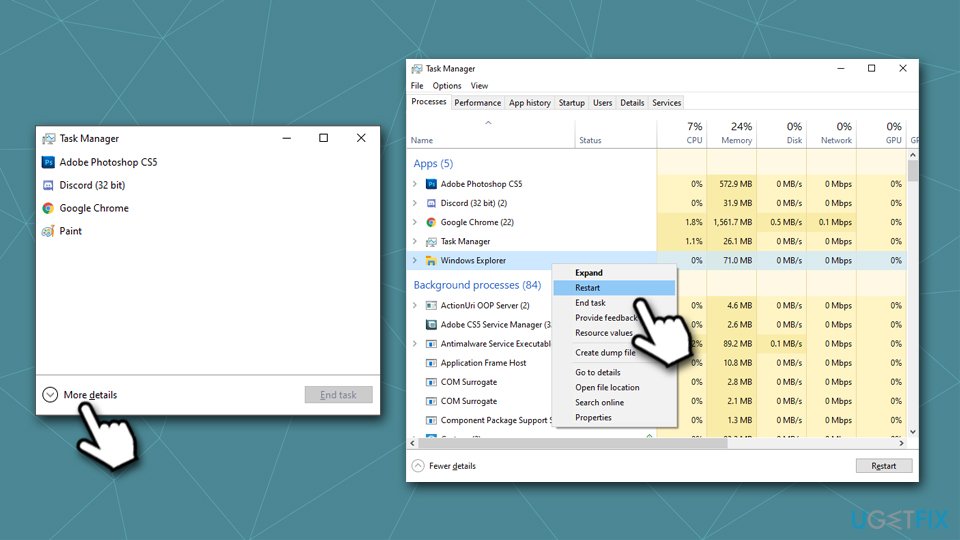
How to fix black screen with cursor restart file explorer - A short flash will restart Windows Explorer.
Fix 8. Reinstall recent updates
Windows updates can often cause various problems if they were not installed correctly, or they might simply be buggy. Here's how to uninstall recent Windows updates:
- Type in Control Panel into Windows search and press Enter
- Select Programs > Uninstall a program
- On the left side, pick View installed updates
- Right-click on the most recent update and select Uninstall
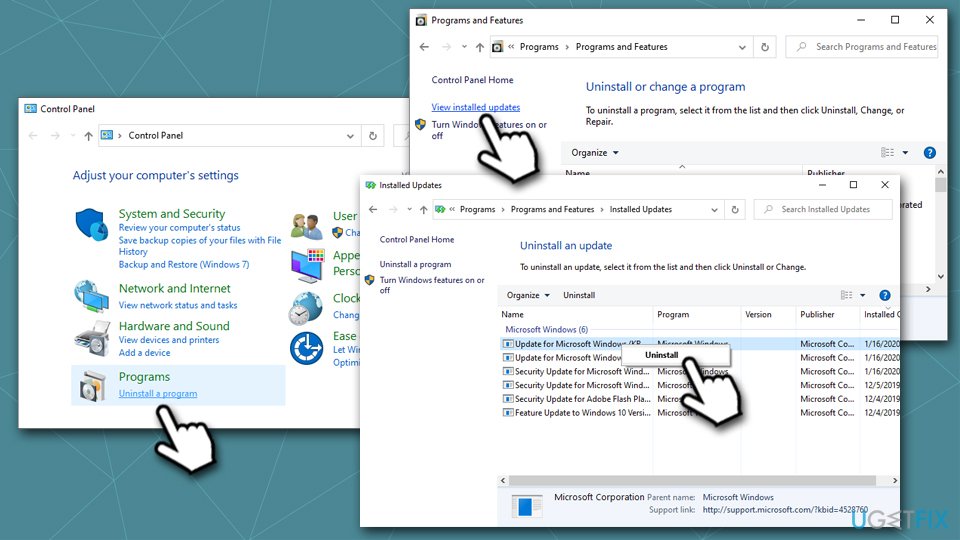
How to fix black screen with cursor uninstall windows updates - Reboot your PC
- Right-click on Start, pick Settings
- Go to Update & Security
- Click on Check for updates - wait till Windows downloads and installs the newest updates
- Reboot once again.
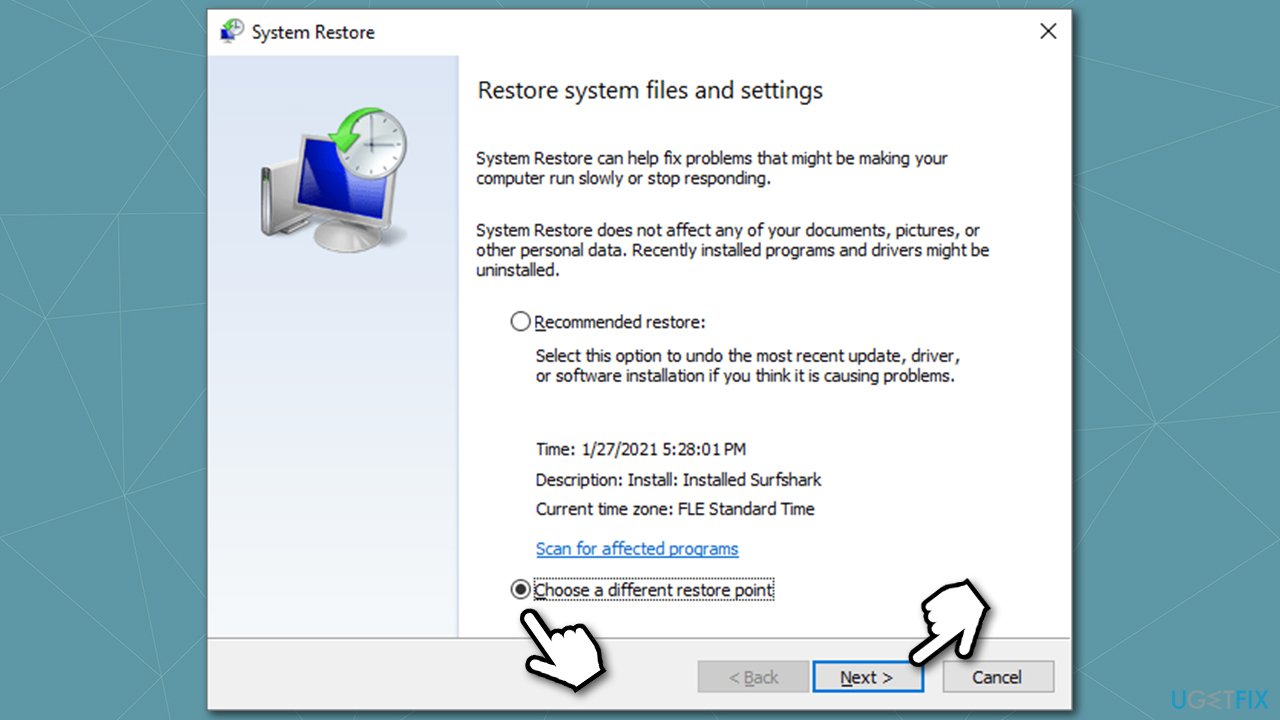
Fix 9. Use System Restore
System Restore can be used to bring back the state of your computer to an earlier date. In other words, if you did not have a problem before, you should rollback:
- Press Win + R on your keyboard
- In the new window, type in rstrui.exe and press Enter
- Select Choose a different restore point and pick Next
How to fix black screen with cursor use system restore - Tick Show more restore points
- Pick a restore point at which the problem was absent
- Click Next and then select Finish
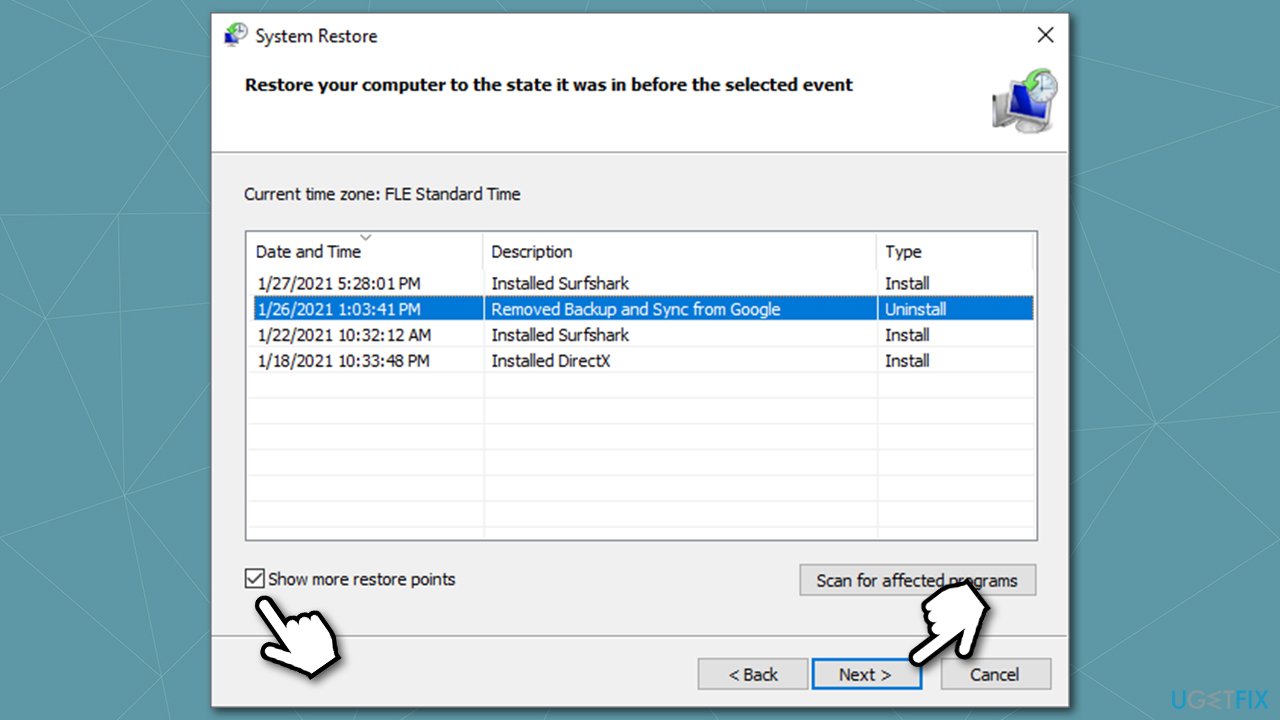
How to fix black screen with cursor use system restore2 - Your PC will restart and will be brought back to an earlier date. Note that you might have to reinstall some programs after this process.
Fix 10. Reset your computer
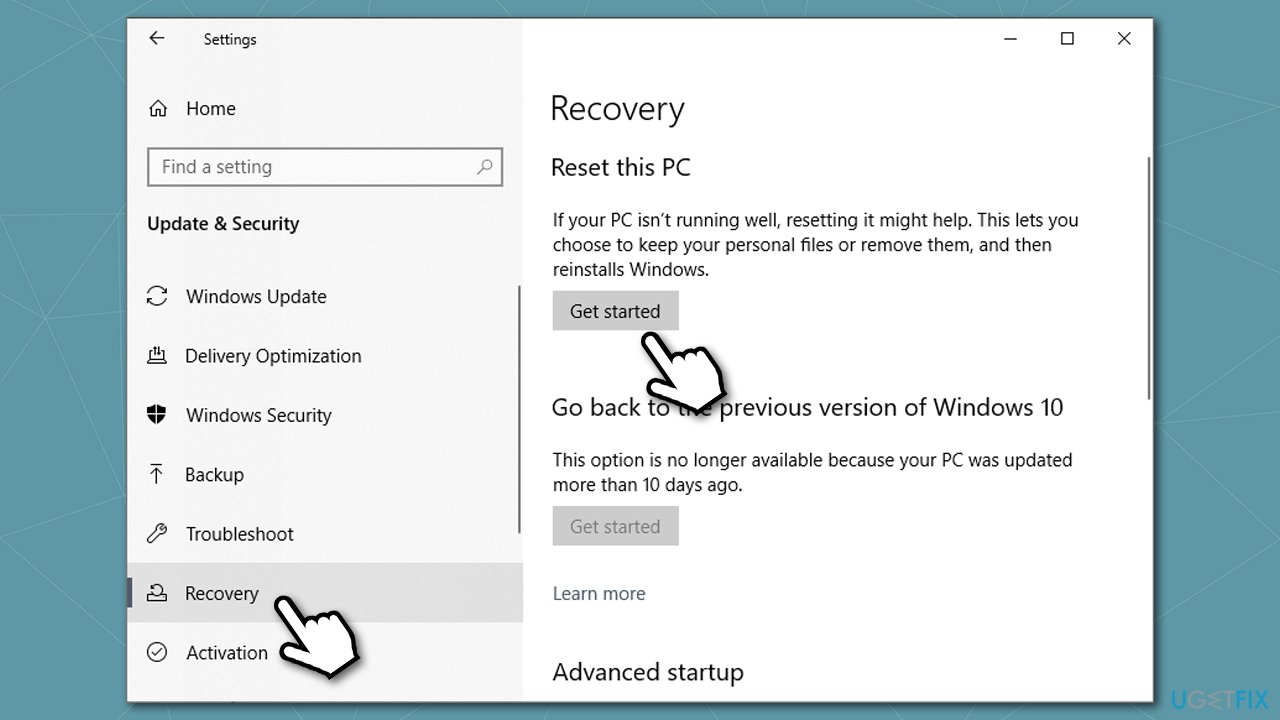
In nothing else helped, try to reset your PC - this option will not touch any of your personal files but will remove all the installed programs.
- Right-click on Start and select Settings
- Go to Update & Security
- On the left side, select Recovery
- Under Reset this PC, click Get Started
How to fix black screen with cursor reset windows - Pick the Keep my files option
- Proceed with the on-screen instructions to finish the process.
Fix 11. Reinstall Windows
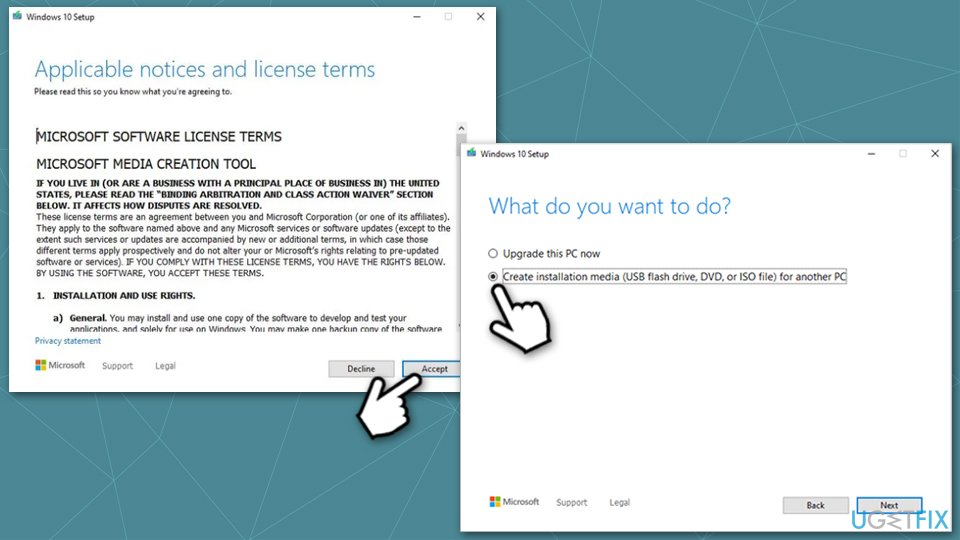
If none of the solutions above helped, please reinstall Windows using Media Creation Tool by Microsoft:
- Visit the official Microsoft website and download Windows 10 installation media (Windows 11 version)
- Double-click the installer and select Yes when UAC shows up
- Agree to terms
- Pick Create installation media (USB flash drive, DVD or ISO file) for another PC option and click Next
How to fix black screen with cursor reinstall windows - Select the Use Recommended options for this PC checkbox and click Next
- Choose the ISO file and click Next
- Once you have prepared the ISO, put it into the malfunctioning PC
- Restart your machine and rapidly press F8, F10, F12, Del, or another button that would let you load into BIOS
- Here, go to the Boot section and set the boot priority to Flash drive
- Restart your system, and then proceed with on-screen instructions to reinstall Windows.
You can find more options available in our "How to reset Windows to factory settings" article.
Bottom line
To fix the black screen with cursor issue, users can try booting into Safe Mode, updating graphics drivers, or performing a system restore. If these solutions do not work, further troubleshooting may be necessary, such as checking for malware or creating a new user profile.
Frequently asked questions
Try booting into Safe Mode and uninstalling the latest update, as this may resolve any conflicts causing the black screen issue.
Access the Advanced Startup Options by holding the Shift key while selecting Restart, then navigate to Troubleshoot > Advanced options > Startup Settings and choose to restart with Safe Mode.
Yes, you can attempt to perform a System Restore to a point before the issue occurred, which can often fix the black screen problem.




Report an issue
What's wrong with this guide? We review every report and update or remove content.
Report received — thank you. We'll review and fix it.
You need a free account to submit a report.
Be the first to comment