How to fix
Clear your history in any browser
on Windows
Easily clear your browsing history in any browser on Windows 10 or 11 for optimal performance and privacy. Expert-tested for a seamless experience!

Why does How to clear your history in any browser occur?
- Cached data accumulation
- Excessive browsing history entries
- Privacy issues due to accessible history
- Tracking cookies from extensions and add-ons
- Potential login problems
- Web browser slowdowns and long load times
Repairs Windows system files, removes malware, and restores a clean OS state — without reinstalling.
Hello, I read somewhere that clearing browsing history regularly is necessary. Actually, I don’t know where that history is and why should I clear it. I’m using Google Chrome. Would appreciate your help.
Web browsers, be it Google Chrome, Mozilla Firefox, Safari, or any other, have a section of browser history[ref en-1]. It's a full list of websites that have been previously viewed, which also contains a link of a domain, date, and time when it has been visited. Normally, the web browser’s software stores information about people’s past activities for 90 days by default. Subsequently, browser history is overwritten by the new entries.
One may consider why storing browsing history service is needed. In fact, people take advantage of this service to find a useful website that they have previously visited. Besides, we browsers use a prediction service, which helps to complete searches and URLs typed in the address bar. The suggestions are based on people’s web browsing history, so if you delete search history, suggestions will vanish.
However, even though search history may sometimes be helpful, experts recommend people to take care of the browser’s hygiene by clearing history on a regular basis. There are many reasons why keeping the entries pointing out to your activities on the web is not recommended, but cache and privacy issues are most important.
First of all, Google Chrome and other web browsers often get cached. Since people perform hundreds of searches, clicks, and logins during a single day, an excessive amount of browsing history entries may result in logging in problems, web browser slowdowns, or long website load time.
Second of all, keeping browsing history for a long period may lead to privacy issues[ref en-2]. Not only because other people having access to your PC can easily open the history and check what websites you have visited. It’s not a secret that extensions, add-ons, and other browser-based software uses tracking cookies[ref en-3], which may seek to gather URL addresses, clicks, search queries, and similar information that advertising business use for statistics and other purposes.
In fact, it doesn’t matter if people seek to clear search history because of cache problems or privacy implications. All browsers come with a built-in option to delete registered past activities on the web and we will briefly explain how to do that on the most widely used web browsers, including:
- Google Chrome
- Mozilla Firefox
- Safari
Remove browsing history on Google Chrome
Just like other web browsers, Google Chrome provides access to search history within the inner browser's settings. You should open the web browser and locate three vertical dots at the upper-right corner of the screen.
- Open Google Chrome.
- Click the three vertical dots positioned at the upper-right corner of the screen.
- Select History.
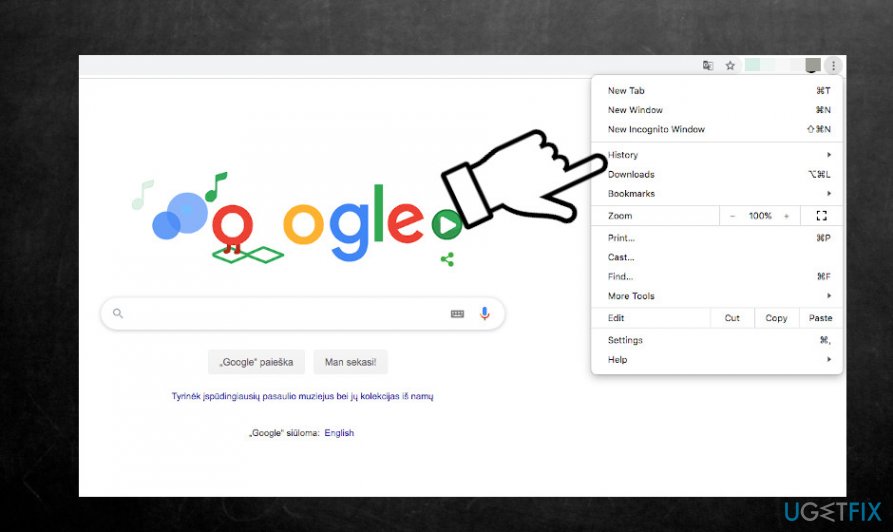
- When the list of visited websites opens, click the Clear browsing data on the left.
Now, before initiating further actions, you have to decide whether you wish to clear google search history from the very beginning, including passwords, cookies, cached data, autofill forms, and other entries. If you seek to delete basic browsing history records, you should:
- While on the Basic tab on the Clear browsing data window, select the Time range. For that, click an arrow to open the selection menu. Click on the option you prefer (last hour, last 24 hours, last 7 days, last 4 weeks, all-time).
- Make sure that checkboxes next to Browsing history, Cookies and other site data, Cached images and files.
- Finally, click Clear data and wait while the task is being processed.
Additionally, you can delete passwords, download history, autofill form data, and other history entries.
- Open the Clear browsing data page just like explained above.
- Open Advances tab.
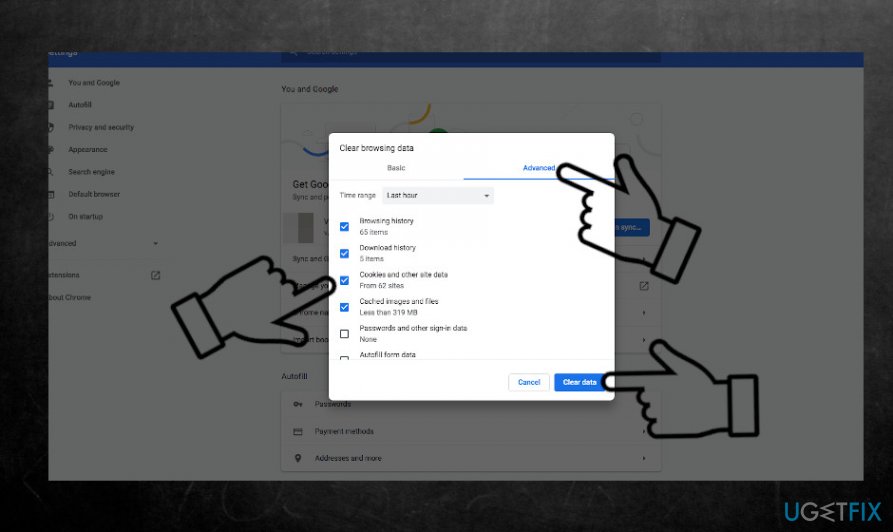
- Mark the entries that you want to remove and click Clear data.
Please note that all saved passwords, search queries, and URL suggestions will be removed and you will not be able to restore them.
Clear browsing data on Mozilla Firefox
If you have never cleared browsing history on Mozilla Firefox, follow these steps:
- First of all, open Mozilla Firefox.
- Click on the three horizontal lines in the upper-right corner and History entry.
- You can choose between Show All History or Clear Recent History entries.
- Show All History loads the whole list of visited websites and you can delete the entries one-by-one.
- Click on the history entry that you opt for deleting and hit the Delete button.
- If you want to delete the entire history, open Clear Recent History.
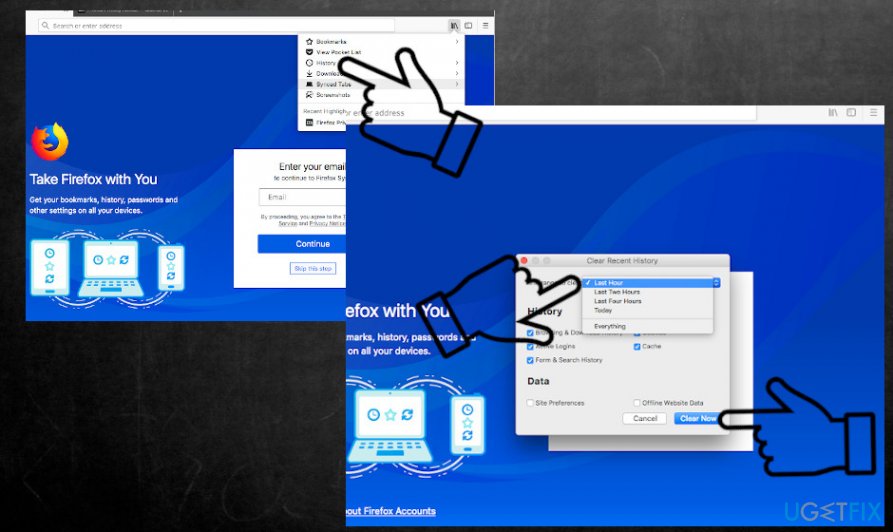
- Select the Time range (last hour, two hours, four hours, today, or everything).
- Finally, place a checkmark next to entries that you want to get rid of (Browsing and download history, Form & Search History, Cookies, Cache, Active Logins, Offline Website Data, Site Preferences).
- Finally, hit the Clear now button.
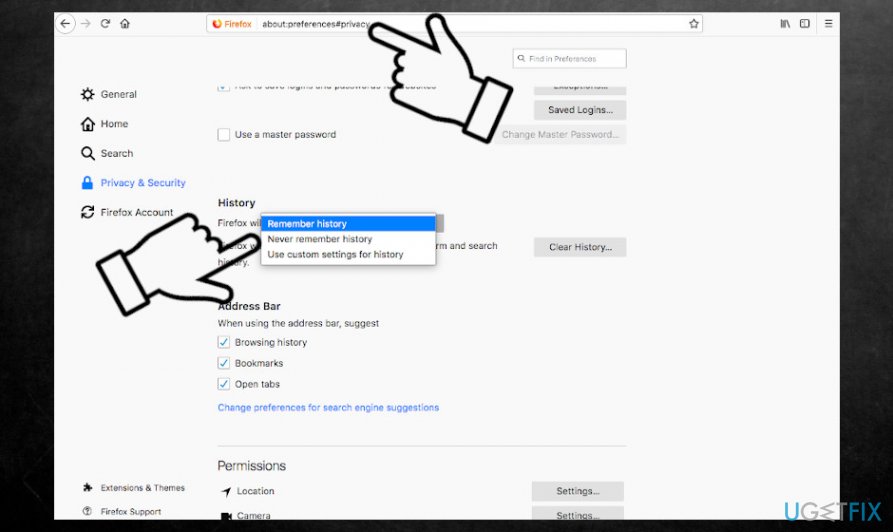
In addition, you can access the Privacy tab while on History and change the policies of browsing history recording. If you are not using history for your needs, select Never remember history option.
Delete browsing history from Safari
Safari is a web browser mainly used on Mac OS and iOS devices. Just like it is possible to delete google history, Safari history can also be cleaned. All you have to do is:
- At the top of Mac's screen, you should see Safari's toolbar. Find and click History.
- You can also open the Safari web browser and open the History tab on the left side of the screen.
- Select Show History option at the top of the drop-down menu.
- Now you can delete separate entries by clicking on a link and dragging it to the right side.
- If you want to delete the entire history, select Clear history option at the very bottom of the drop-down menu.
- Select time span from the last hour, today, today and yesterday, and all history options.
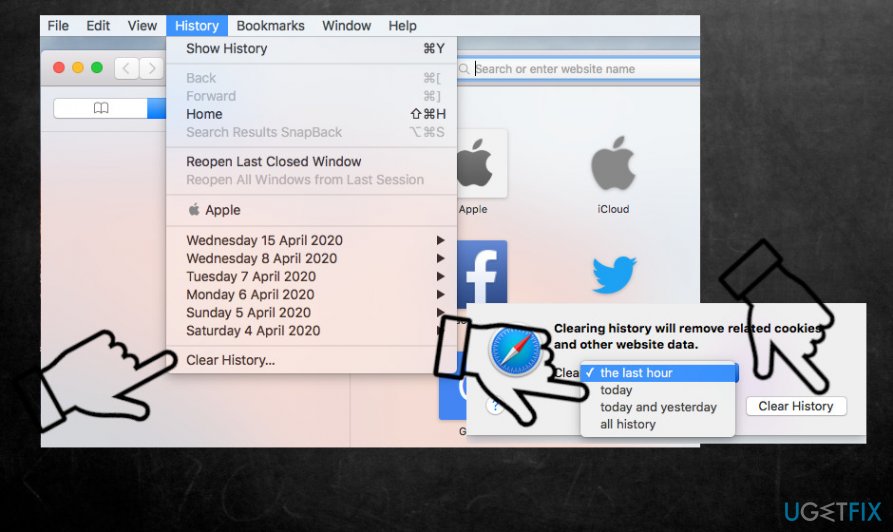
- Click the Clear History button to approve the task.
If you want to ensure regular cleaning of Safari browsing history, you have to:
- Open Safari preference (Command +) and select the General tab.
- Select Remove History items option and device how often the browser should eliminate the history (after one day, one week, two weeks, one month, one year).
TIP: not only web browser requires a regular optimization. You should also ensure that your device is clear from the cache, duplicate files, unnecessary registry entries, and similar content that takes up space and may eventually cause malfunctioning. We recommend our visitors to use [d1] optimization tool to ensure smooth system's performance.
Bottom line
To clear your browsing history, you can access the settings in Google Chrome and select the option to clear browsing data. Regularly clearing your history can help improve browser performance and protect your privacy. If these steps do not resolve your issues, consider checking for browser updates or reinstalling the browser.
Frequently asked questions
Open Edge, click on the three dots in the upper right corner, select 'Settings', then navigate to 'Privacy, search, and services' and click 'Choose what to clear' under 'Clear browsing data'.
Launch Chrome, click on the three vertical dots in the top right, select 'History', then 'History' again, and click on 'Clear browsing data' to remove your history.
Yes, in Firefox, click on the three horizontal lines in the upper right, select 'Library', then 'History', and choose 'Clear Recent History' to remove your browsing history.




Report an issue
What's wrong with this guide? We review every report and update or remove content.
Report received — thank you. We'll review and fix it.
You need a free account to submit a report.
Be the first to comment