How to fix
Delete Bookmarks on Chrome / Firefox / Safari / IE / Edge
on Windows
Easily remove bookmarks on Chrome, Firefox, Safari, IE, and Edge for a cleaner browsing experience on Windows 10 and 11. Expert-tested tips included!


Why does How to delete Bookmarks on Chrome / Firefox / Safari / IE / Edge occur?
- Too many bookmarks synchronized from multiple devices
- Bookmarks not useful or outdated
- Difficulty in finding the option to delete multiple bookmarks
- Different terminology used by browsers (bookmarks vs favorites)
- Settings for removing bookmarks hidden deep in preferences
Repairs Windows system files, removes malware, and restores a clean OS state — without reinstalling.
Hey. I got a new computer and synchronized that device to my old one and my iPhone. But now there are too many bookmarks on the browser and many of them are not useful right now. Can I somehow delete multiple bookmarks at once? I want to do that on Google Chrome. Also, would be great to clean some off of the Edge browser since it becomes a default one on my new Windows. Can you help?
Changing from one web browser to another, especially when one of them contains favorites and bookmarks can take some time. Of course, there are some synchronization functions, but there is an issue when changing devices.[ref en-1] You need these organization tips and tricks, so there is more time for you to set up more important parts.
It is especially crucial when you start working on one device, for example, during the quarantine[ref en-2] and then got to your workspace where you need to start from scratch. Transferring bookmarks is one issue, but deleting unwanted ones can create some questions.
First of all, some browsers call those bookmarks favorites and hide settings, removing functions deep in settings and preferences tabs. Some of the web browsers have the easy option to bookmark the site by clicking the star on the address bar once or twice to confirm.
This is the place where you can remove the bookmark too by selecting the star or clicking the remove button further on the menu. However, removing all bookmarks, eliminating more than one piece, all folders, takes a few steps.
Fortunately, this is not the issue regarding the Windows updates[ref en-3] or malware, so optimization is not too difficult. Even when you are not a tech-savvy or advanced computer user, you can follow through the steps and delete unwanted bookmarks, or clean the web browsers from suspicious material.

How to delete Bookmarks on Chrome / Firefox / Safari / IE / Edge
The question of how to delete bookmarks and history becomes an issue when you want to manage the content on the web browsing tools or try to update the material on multiple devices of yours. It can consume a good amount of your time because you may need to delete each bookmark from the browser by hand. However, there are some methods that allow removing groups/ folders of the bookmarks at the time.
How to delete Bookmarks on Chrome
You can edit, delete, and optimize your webpages, bookmarks. This easy you make it easier to find them. Updating bookmarks also allows you to see them across all your devices. You can delete a bookmark from the site when you see the Star near the address bar. Simply click the star and then Remove.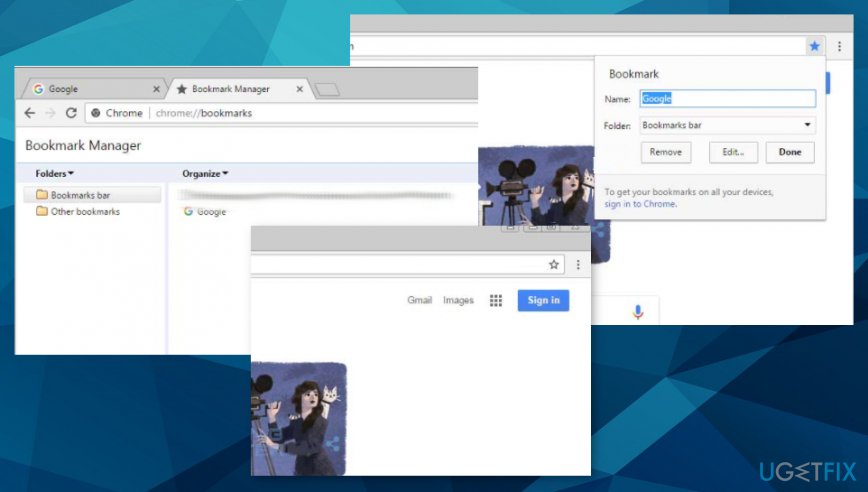
Delete Bookmarks on Chrome
- Open the browser and click on the three dots to open the menu.
- There click Bookmarks and select Bookmark Manager.
- Select the bookmark you want to edit or delete.
- Click More or three dots on the right of the bookmark and choose Delete.
- You can choose ALL by clicking Ctrl+A at once.
These steps are the same when you want to delete multiple bookmarks on Chrome.
Delete all Bookmarks in the folder on Chrome
You can edit a full folder of bookmarks and delete a bulk of them at once.
- Open the Bookmark Manager from the menu.
- Choose the folder you want to edit.
- Click Delete to permanently delete all the bookmarks in that folder.
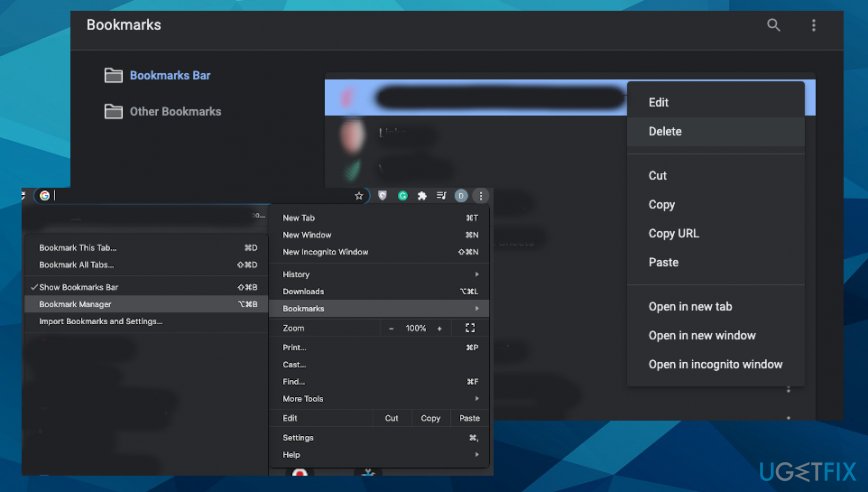
How to delete bookmarks on browsers chrome
How to delete Bookmarks in Firefox
You can delete one Bookmark or all bookmarks listed in the folder on Mozilla Firefox.
Delete a single Bookmark on Firefox
- Open the page that is bookmarked.
- Click the Star and choose to Remove.
Delete multiple Bookmarks on Firefox
- Click the Library button on the browser and select Bookmarks.
- Then Show All Bookmarks, and on the left, click on the folder you want to view.
- Select items. With Command or Ctrl you can choose more of them.
- Then click the gear icon and select Delete.
How to delete Bookmarks in Microsoft Edge
- Tap the Hub button on the browser.
- Choose the Favorites tab with the Star icon.
- This is the Bookmarks folder, so you can check the bookmark and select Delete.
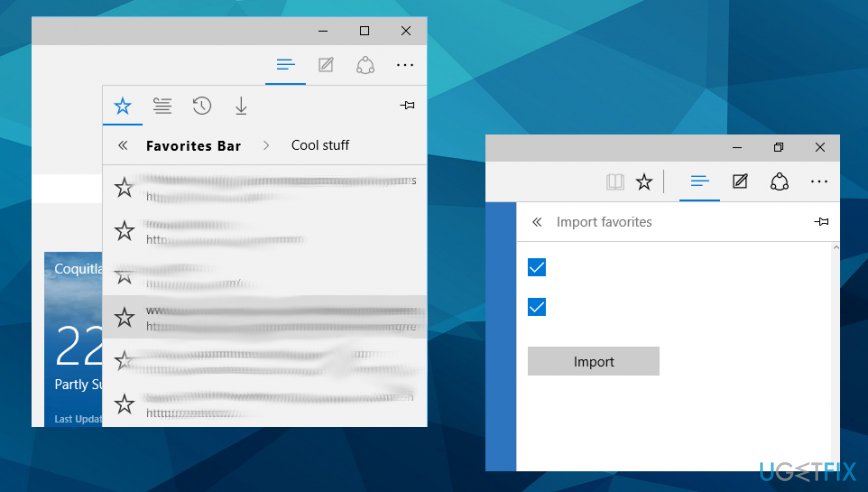
How to delete bookmarks on browsers edge
How to delete Bookmarks on Internet Explorer
- Go to the IE browser and right-click on any of the Bookmark.
- Select Delete.
- Click the Star to see the Favorites tab and press Alt + C, click the tab.
- Favorites manager can show you all the bookmarks. You can then delete the full folder.
How to delete bookmarks on mac
Delete Bookmarks on Safari
- Open Safari and click the Sidebar button in the toolbar.
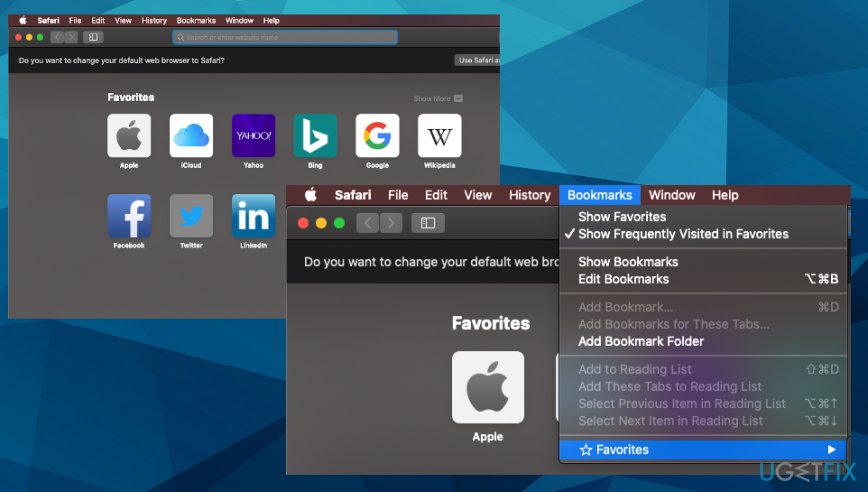
How to delete bookmarks on browsers safari - Choose Bookmarks/ Favorites button.
- Control-click the bookmark you need and Delete.
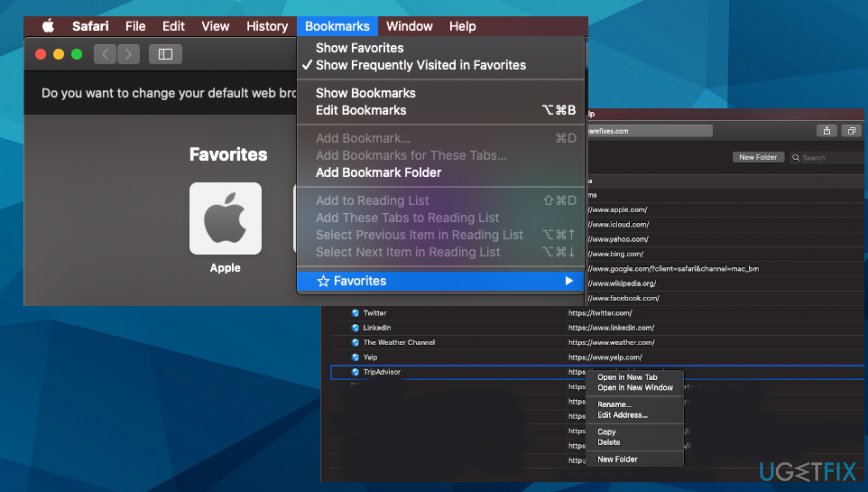
How to delete bookmarks on browsers safari delete
Delete bookmarks on iPad or iPhone
- Open Safari and tap on the Bookmarks button.
- You now can see the saved Bookmarks.
- Select the Edit button and tap the - button next to it. Choose to Delete it and confirm.
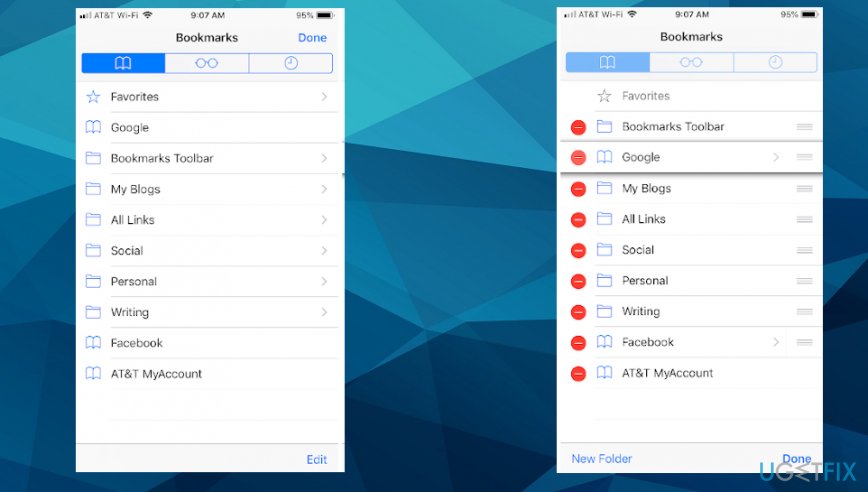
How to delete bookmarks on browsers ios
How to delete Bookmarks on Android
You may have your bookmarks exported from other devices on the mobile phone. If so, the only step needed is to synchronize the content. Also, Google Chrome steps also go for mobile browser options too. If you use other applications, you should see Bookmarks at the bottom of your screen and then click the icon to open the Bookmark Manager.
Bottom line
To delete bookmarks on Chrome, Edge, and other browsers, you can select and remove them individually or use the settings to delete multiple at once. If you encounter issues, ensure you check the preferences for each browser. If none of these methods work, consider looking for browser-specific support or guides.
Frequently asked questions
To delete bookmarks in Chrome, open the bookmarks bar, right-click on the bookmark you want to remove, and select 'Delete.' Alternatively, you can access the Bookmark Manager by pressing Ctrl + Shift + O, then right-click on the bookmark and choose 'Delete.'
Yes, in Firefox, click on the bookmarks icon, right-click on the bookmark you wish to delete, and select 'Delete.' You can also manage bookmarks by pressing Ctrl + Shift + B to open the Library and delete them from there.
In Edge, click on the three dots in the upper right corner, go to 'Favorites,' hover over the bookmark you want to delete, click on the three dots next to it, and select 'Delete.' You can also access your favorites by pressing Ctrl + Shift + O to open the Favorites page.




Report an issue
What's wrong with this guide? We review every report and update or remove content.
Report received — thank you. We'll review and fix it.
You need a free account to submit a report.
Be the first to comment