How to fix
Corrupted Google Chrome sync
on Windows
Restore seamless Google Chrome sync on Windows 10 and 11 with our expert-tested solutions. Fix issues quickly and effortlessly, zero traces left.


What causes How to fix corrupted Google Chrome sync?
- Corrupted bookmarks
- Unrecoverable hardware failure
- Malware affecting Windows
- Improper connection to Google servers
- Issues with syncing extensions and settings
Repairs Windows system files, removes malware, and restores a clean OS state — without reinstalling.
Hi. I can't enable bookmarks and other Chrome sync data. Is there any way to fix the problem? Help would be much appreciated.
Google is a tech giant that began a revolution in the way we handle our accounts on different devices, such as PCs, phones, or tablets. Some time ago, users had to re-do their bookmarks, accounts, logins, and other relevant information under particular circumstances, e.g., when one moves from Opera to Mozilla Firefox web browser. Without a doubt, such an experience was frustrating and made the change rather annoying than something to look forward to.
With the release of Gmail in 2004,[ref en-1] first Google accounts began to emerge and, while some Google services still had to be logged in separately, it served as a start for the unified system that makes everyone's life's easier - Google sync was born.
There are two ways your Google account data can be stored - on your computer and the company's servers. Sync is what enables you to hop on another web browser or a machine and make it your own, as you can easily access your bookmarks, email, YouTube, and many other accounts with just a few mouse clicks.
If your system suffers unrecoverable hardware failure or Windows gets destroyed by malware (note, with the case of the latter, you can still fix many system issues with a PC repair tool [d1]), you can easily recover your data that was synced via your Google Account.
Chrome Sync saves the following on the company's servers:
- Apps
- Extensions
- Settings
- Autofill
- History
- Themes
- Bookmarks
- Passwords
- Open tabs
As soon as you decide to change your browser or a computer - you should have no trouble doing so after enabling Google Sync. Unfortunately, many users reported that their sync data was corrupt, and they were unable to establish a proper connection. As a result, they could not bring in their passwords, extensions, and other attributes from before.
One of the main culprits for corrupt Chrome Sync - bookmarks. Therefore, many people managed to fix the issue when they disabled Bookmarks to be synced. Here is how to do it (keep in mind that other attributes could be related to the corrupt Chrome Sync files, so you should try others as well).
Fix corrupted Google Chrome sync
- Open Google Chrome
- Go to Menu > Settings
- Select Sync and Google services
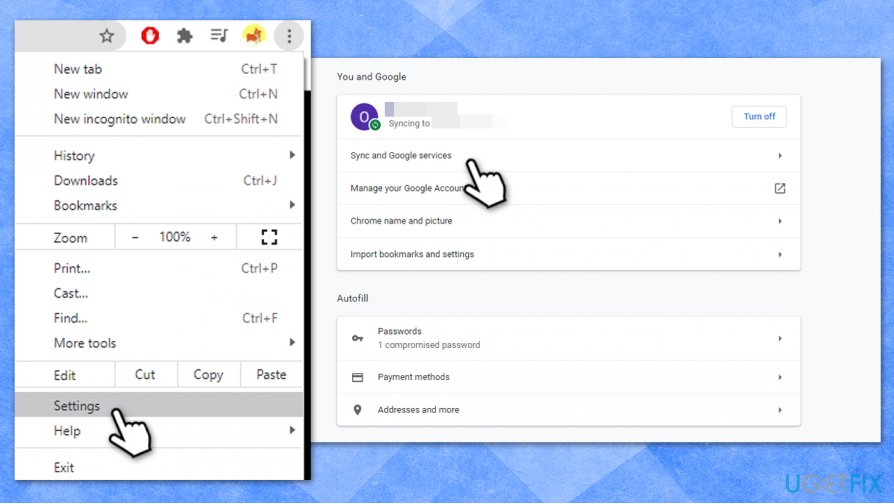
How to fix corrupted google chrome sync access settings - Select Manage what you sync
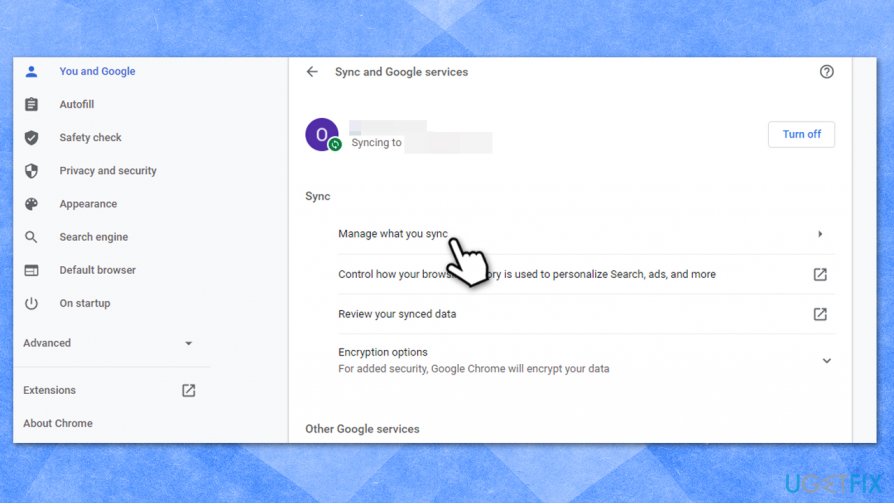
How to fix corrupted google chrome sync manage what you sync - Click Customize sync
- Select the fields that could cause you problems (e.g., bookmarks or history).
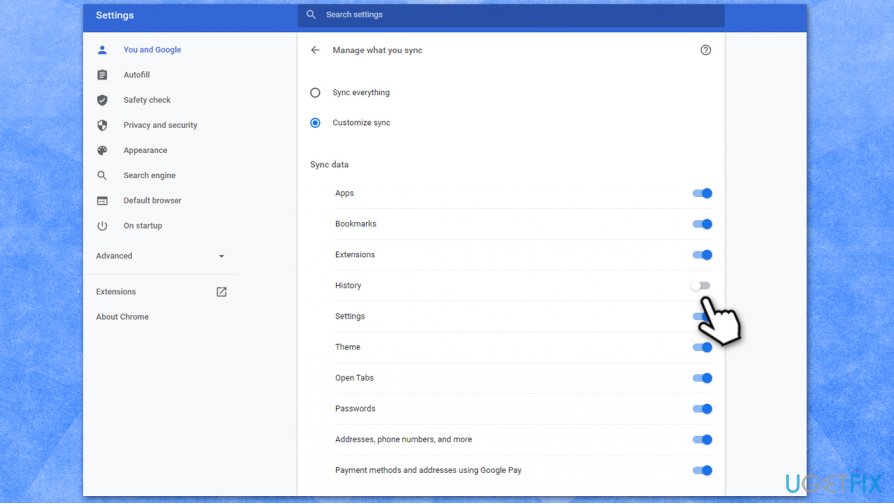
How to fix corrupted google chrome sync disable sync elements - Go to Google Chrome Sync page
- Click Reset Sync at the bottom
- Wait 5-10 minutes.
How to reset Chrome Sync correctly when dealing with malware/adware
If you have a problem with synced data, it is always a good idea to reset Sync fully. For example, if you see unexpected browser changes, such as altered homepage, increased number of advertisements, or other disturbances, you should clear your web browser correctly, resetting Google Sync in the process, as malware[ref en-2] could embed malicious files into your Google Account.
This is one of the main reasons why browser hijackers and other potentially unwanted programs,[ref en-3] as well as their leftovers, come back. For example, your security software can detect several entries within the AppData folder of your Chrome browser, and, even if you delete those entries, they will be re-applied as soon as your data is synced via your account again.
Here's what you need to do to ensure that browser infections go away for good.
Turn off Chrome Sync
First of all, you should stop syncing your data with Chrome servers.
- Go to Menu > Settings
- You will see that your account is being synced
- Click Turn off
- Confirm with Turn off
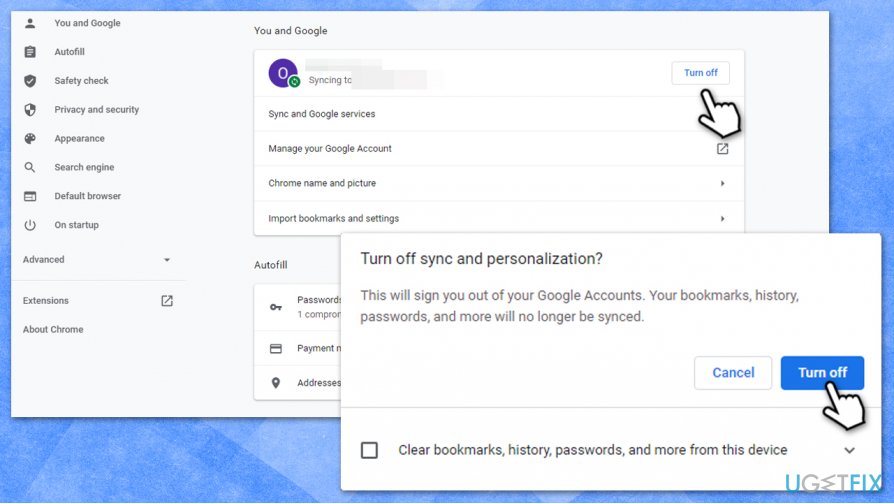
How to fix corrupted google chrome syncturn off sync
Note: re-enable sync once you are done with cleaning your web browser and the computer).
Remove all the extensions from the web browser
- Go to Menu > More Tools > Extensions
- Find all the third-party extensions and pick Remove
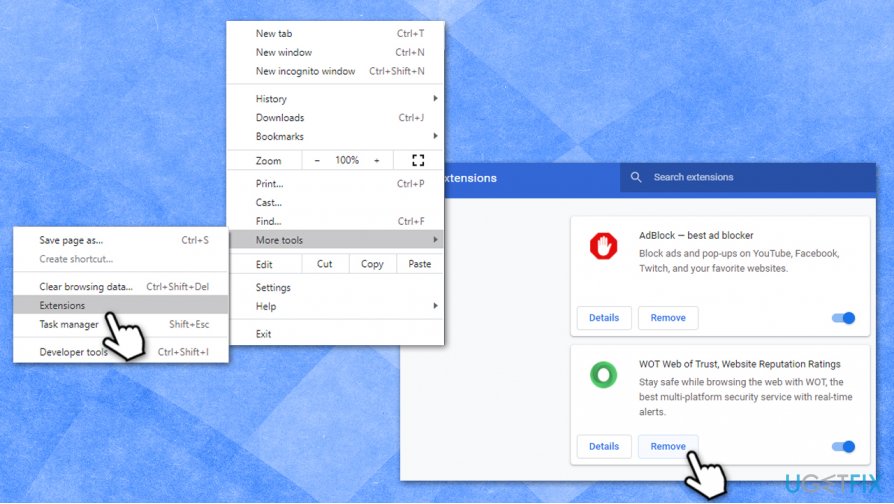
How to fix corrupted google chrome sync remove extensions
Clear browser cache and data
- Click on Menu and select Settings
- Under Privacy and security, pick Clear browsing data
- Select Browsing history, Cookies and other site data, as well as Cached images and files (make sure All time is picked under the Time range)
- Click Clear data
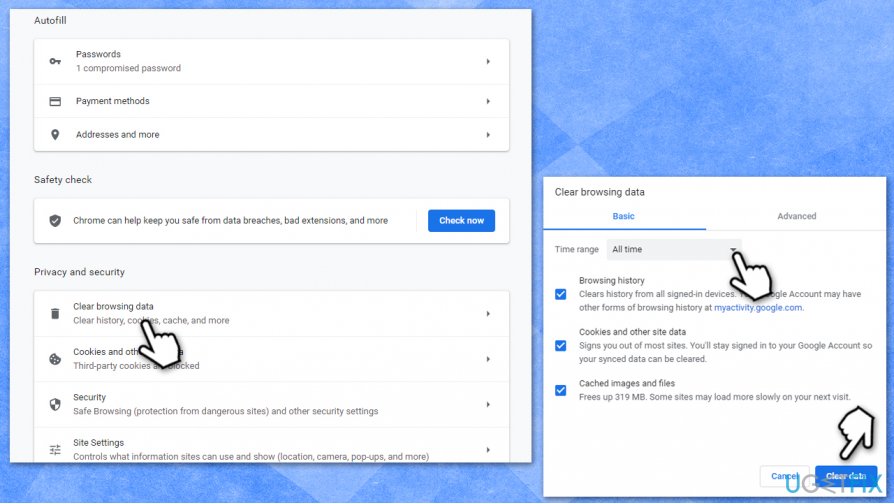
How to fix corrupted google chrome sync clear browser data cache
Reset Sync
- Go to Chrome Sync page
- Click Reset Sync at the bottom of the page
- Confirm with OK
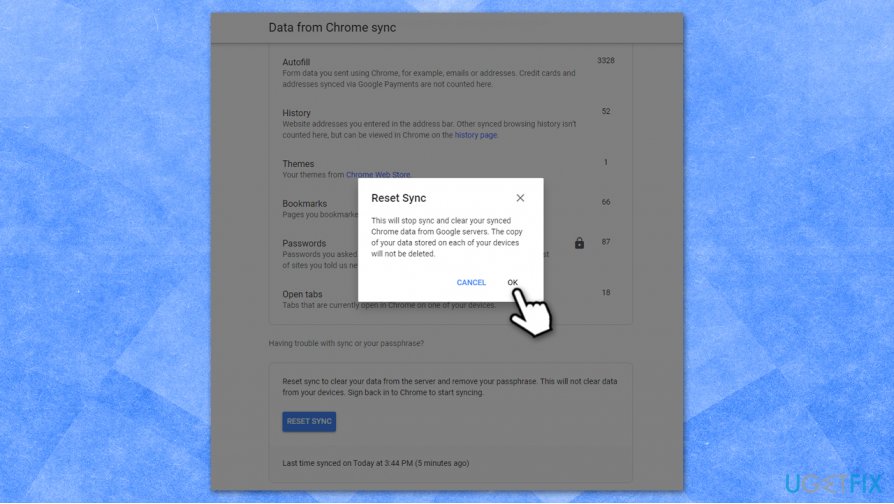
How to fix corrupted google chrome sync reset sync
Scan your machine with anti-malware
Finally, you should initiate a scan with anti-malware software to ensure that all the malicious components are gone from your device. You can use third-party security tools or built-in ones, such as Windows Defender.
Bottom line
To fix corrupted Google Chrome sync, users can disable bookmarks syncing, which has resolved the issue for many. If the problem persists, consider checking for malware or using a PC repair tool. If none of these solutions work, further investigation into account settings or contacting support may be necessary.
Frequently asked questions
To reset Google Chrome sync on Windows 10, go to Settings in Chrome, select 'Sync and Google services', then click on 'Manage what you sync' and turn off sync. After that, turn it back on to refresh the sync process.
If Chrome sync isn't working on Windows 11, try signing out of your Google account in Chrome and signing back in, or clear your browser cache and cookies to resolve potential conflicts.
Yes, you can check for sync errors by going to Chrome Settings, selecting 'Sync and Google services', and looking for any notifications or alerts indicating issues with your sync.




Report an issue
What's wrong with this guide? We review every report and update or remove content.
Report received — thank you. We'll review and fix it.
You need a free account to submit a report.
Be the first to comment