How to fix
Use Optimized Storage
on Windows
Unlock optimized storage on Windows 10 and 11 with our expert-tested tips. Maximize your system's space and performance today—zero traces left!

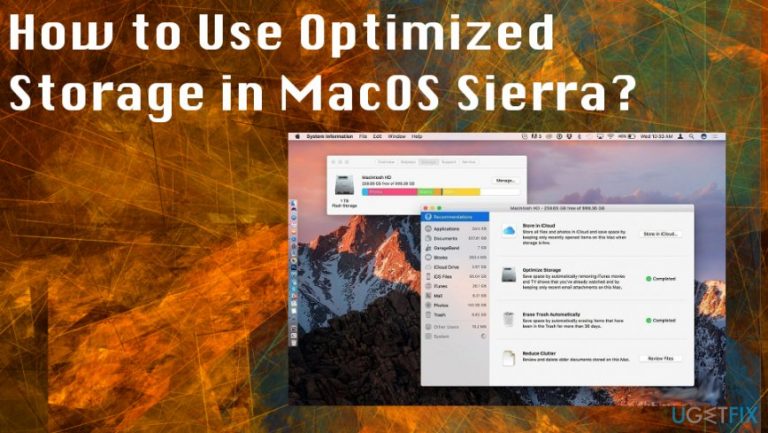
Why does How to Use Optimized Storage in MacOS Sierra occur?
- Not cleaning the Mac regularly
- Accumulation of unnecessary files
- Storing rarely used files without optimization
- Lack of free storage space
- Failure to utilize iCloud for storage management
Repairs Windows system files, removes malware, and restores a clean OS state — without reinstalling.
I haven’t cleaned my Mac for ages, and I noticed that it’s getting slow gradually. Please tell me what’s the easiest way to clean junk on Mac? Or should I wash my time going through all the folders and remove each unnecessary file manually? Would appreciate all suggestions…
It doesn’t matter which OS you prefer and what kind of device you use, it’s a must to take care of it in order to keep its best performance. Unfortunately, but only the majority of users are seriously concerned about security and optimization of the system, which is why Internet forums are full of questions how to increase Mac’s speed, how to fix freezes, and so on.[ref en-1]
There’s no need to say how many tasks we perform with our Macs every day. Probably you, just like any of us, download tens of iTunes files, movies, updates, software, games, and so on. Have you ever wondered how much programs, files, and data that you store in your Mac are really in use?
We believe that not even a half. It’s very important to keep in mind that Mac is not an endless storage device which absorbs everything that you are interested in. It’s rather complex storage reminding a garage full of little drawers that get filled up over time. The more ‘drawers’ are full, the slower your Mac may start working.
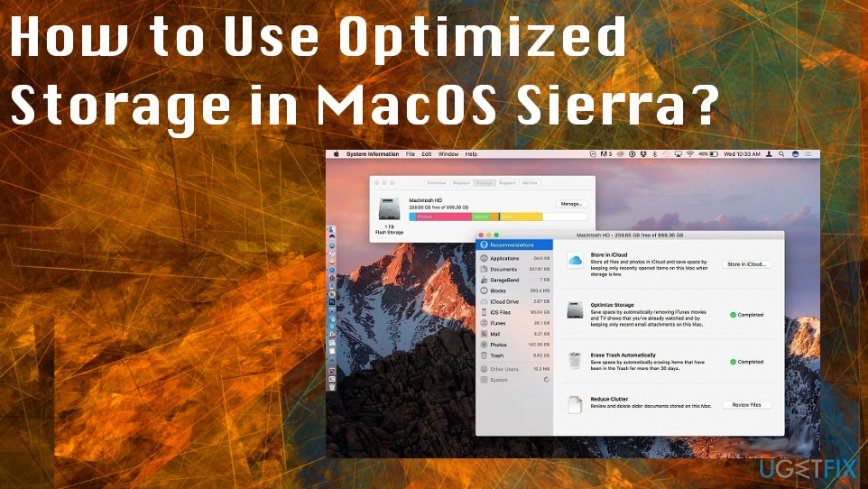
Luckily, Mac engineers are not wasting time. Mac OS Sierra has been released back in 2016 but is still considered the best since there are some major benefits and fixes in the PS. This is the version that presented a new, improved way to optimize your Mac and keep its hard disk loaded on an average.[ref en-2] Mac OS Sierra has two improved features – iCloud and Optimized Storage.
How to clean up your Mac
There are features responsible for freeing up storage space by storing rarely used files in iCloud, regularly emptying trash, removing useless files, and so on. This way, there are fewer chances that your Mac is going to get slow due to lack of free space. You can find the new built-in features by accessing the following:
- Click the Apple logo (top left side) and select About this Mac.
- When the new window opens, locate Storage tab, click it, and then select Details.
Now you should see the window with the newly built-in Mac features, which include Store in iCloud, Optimize Storage, Erase Trash Automatically, and Reduce Clutter.
- Store in iCloud function transfers pics, photos, videos, and rarely used files to iCloud in order to save space on Mac’s hard disk.
- Optimize Storage is responsible for movies and TV shows that you have already viewed. They are automatically removed after a certain period of time.
- Erase Trash Automatically is a great way that saves you extra space by deleting files from trash permanently after they sit there for 30 days.
- Erase Clutter sorts out old documents, as well as allows reviewing and deleting them.
Use Store in iCloud function
- Click on Store in iCloud.
- Here you have to put a tick on Store files from Desktop and Documents in iCloud Drive option.
- After that, tick the box for Store photos and videos in iCloud Photo Library.
- Finally, click on Store in iCloud and you’re done!
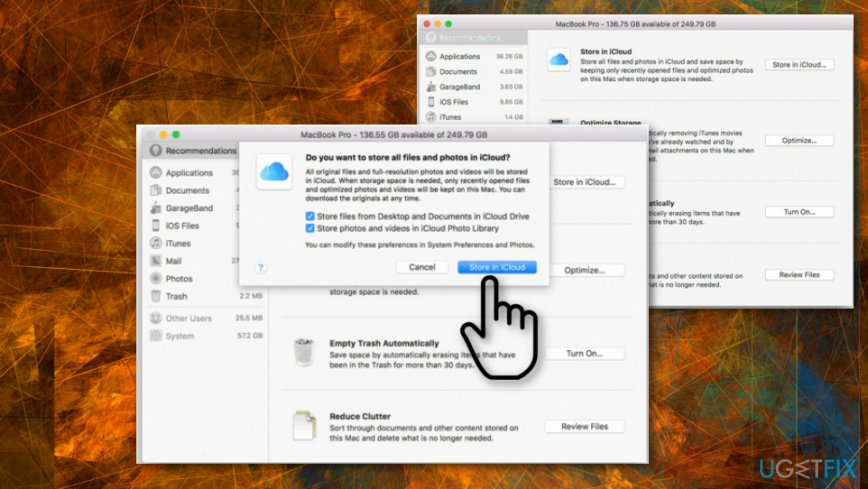
How to use optimized storage in macos sierra cloud
Use Optimize Storage
- Click the Apple logo (top left side) and select About this Mac.
- When the new window opens, locate Storage tab, click it, and then select Details.
- Click on Optimize and then Optimize again on the newly opened window.
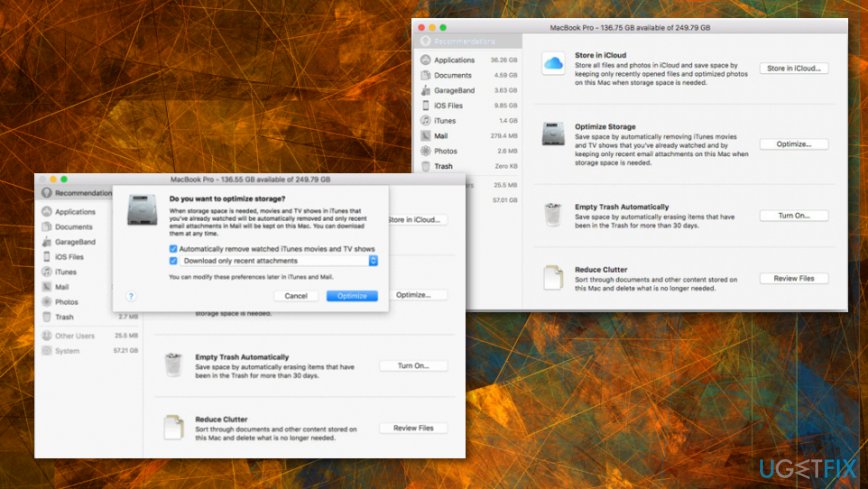
How to use optimized storage in macos sierra optimize
Enable Empty Trash Automatically
- Click Apple logo (top left side) and select About this Mac.
- When the new window opens, locate Storage tab, click it, and then select Details.
- Locate Empty Trash Automatically section and click on Turn On.
- After that, confirm that you want to enable this feature by clicking Turn On again.
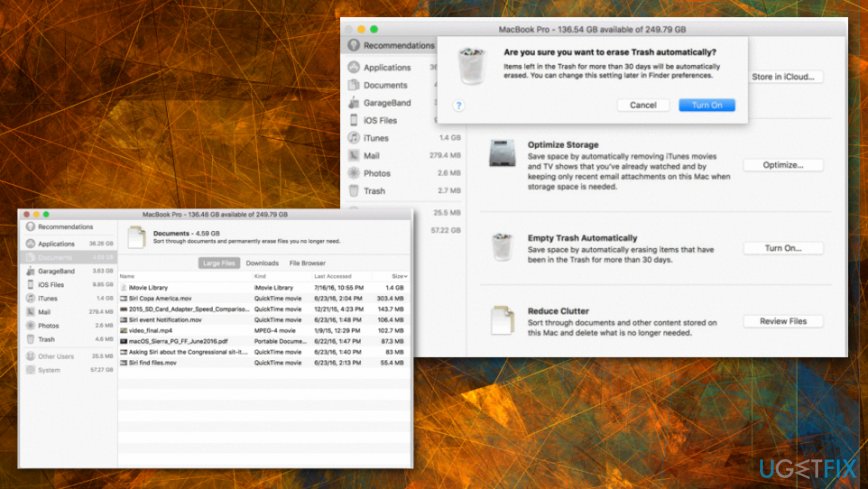
How to use optimized storage in macos sierra trash
Use Reduce Clutter function
Reduce Clutter function sorts out the files that old and seldom used. However, none of them are deleted automatically. It means that you have to do this manually. As previously, you have to open Optimize Storage window by:
- click on Apple logo .
- Then go to About This Mac, and Storage.
- Then select Details.
- On the left side of this window, you should see several folders that store old/useless files.
- You can either select Review Files under Reduce Clutter or view then in separate folders that are provided on the right side of the window.
- Now it’s your turn to go through the list of files and decide which ones to keep and which once to remove.
As you can see, Mac OS Sierra iCloud and Optimize Storage features remind a kind of optimization tool. The difference is that you don’t need third-party software that also takes up free space. Makes sure to rely on the professional tool, not a rogue Mac software.[ref en-3] What you have to do enable these functions as we explained above. Good luck and take care of your Mac!
Bottom line
To clean up your Mac, utilize features like iCloud and Optimized Storage to free up space by storing rarely used files. Regularly empty the trash and remove useless files to maintain performance. If these methods do not improve your Mac's speed, consider seeking professional assistance.
Frequently asked questions
Windows 10 and Windows 11 do not have a direct equivalent to MacOS Sierra's Optimized Storage, but you can manage disk space using Storage Sense and Disk Cleanup features.
To free up space in Windows 11, utilize the Storage Sense settings to automatically delete temporary files and manage local content.
Yes, there are several third-party applications available that can help optimize storage and manage files on Windows 10 and Windows 11, such as CCleaner and WinDirStat.




Report an issue
What's wrong with this guide? We review every report and update or remove content.
Report received — thank you. We'll review and fix it.
You need a free account to submit a report.
Be the first to comment