How to fix
WhatsApp white screen error
on Windows
Resolve the WhatsApp white screen error on Windows 10 and 11 effortlessly. Get expert-tested solutions that work, with screenshots for clarity.

What causes How to fix WhatsApp white screen error?
- Corrupted installation files
- Outdated application version
- Conflicts with other software
- Insufficient system resources
- Malware or viruses affecting the app
Repairs Windows system files, removes malware, and restores a clean OS state — without reinstalling.
Hello, my WhatsApp goes white screen as soon as I open it. The problem happened seemingly out of nowhere - I open the app and there is nothing visible. I cannot use the application, and it is very important to may day-to-day communication. Please help me fix WhatsApp white screen! I am using Windows 10, if that helps.
WhatsApp white screen error is not a new occurrence and has been affecting users on various platforms, including Windows, macOS, iOS, or Android. In other words, regardless if you use a desktop version of the app or the mobile one, you can still encounter WhatsApp going white screen.
The issue can arise as soon as it is launched or during the operation of the program. All users can see is a white blank screen and are unable to chat with anybody, use app settings, or interact with it in any other way. Without a doubt, that can cause many incidences to all the WhatsApp users.
WhatsApp is one of the most popular Voice over IP (VoIP)[ref en-1] applications around, allowing people to send text messages, make calls, share pictures, and other media. First launched in 2009, it gained significant popularity among users due to its end-to-end encryption[ref en-2] log policy and ease of use. Currently, WhatsApp is used by more than 2 billion users, making it the most popular communications app out there.
Despite the achievements and popularity, the app does not evade problems completely. Security researchers noticed that WhatsApp is used to spread viruses and scams[ref en-3] - just like Facebook Messenger or Discord, or other platforms are. When it comes to technical problems, while they do not arise that often, some of the issues tend to return, and WhatsApp goes blank is just one of them - this problem has been around since at least 2016.
WhatsApp white screen error can be fixed, however, and we will provide several methods below. Keep in mind that each of the devices is different, and there could be many different causes of the problem. Therefore, we highly recommend you first run a scan with [d1] repair tool that could sometimes fix issues automatically.
Also, you should not forget to damaged programs might be a sign of malware infection, as such malicious programs like Trojans might cause device malfunctions. Thus, before you proceed with the below methods to fix WhatsApp white screen problem, perform a full system scan with powerful anti-malware.
Fix 1. Reboot your device and WhatsApp
First of all, let's start with the basics. The very first thing you should do when something is not working is rebooting the application or the operating system. If the program "hangs," you should reboot the device instead. Regardless if it is a phone or a desktop computer you are using, just try this first.
Fix 2. Run the program in the compatibility mode
In order to get rid of this annoying issue on a Windows computer, you should run WhatsApp in compatibility mode. This is very easy to do, just follow these steps:
- Right-click on the app and select Properties
- Go to Compatibility tab
- Under Compatibility mode, tick the Run this program in compatibility mode for option
- From the drop-down menu, pick Windows Vista (Service Pack 2)
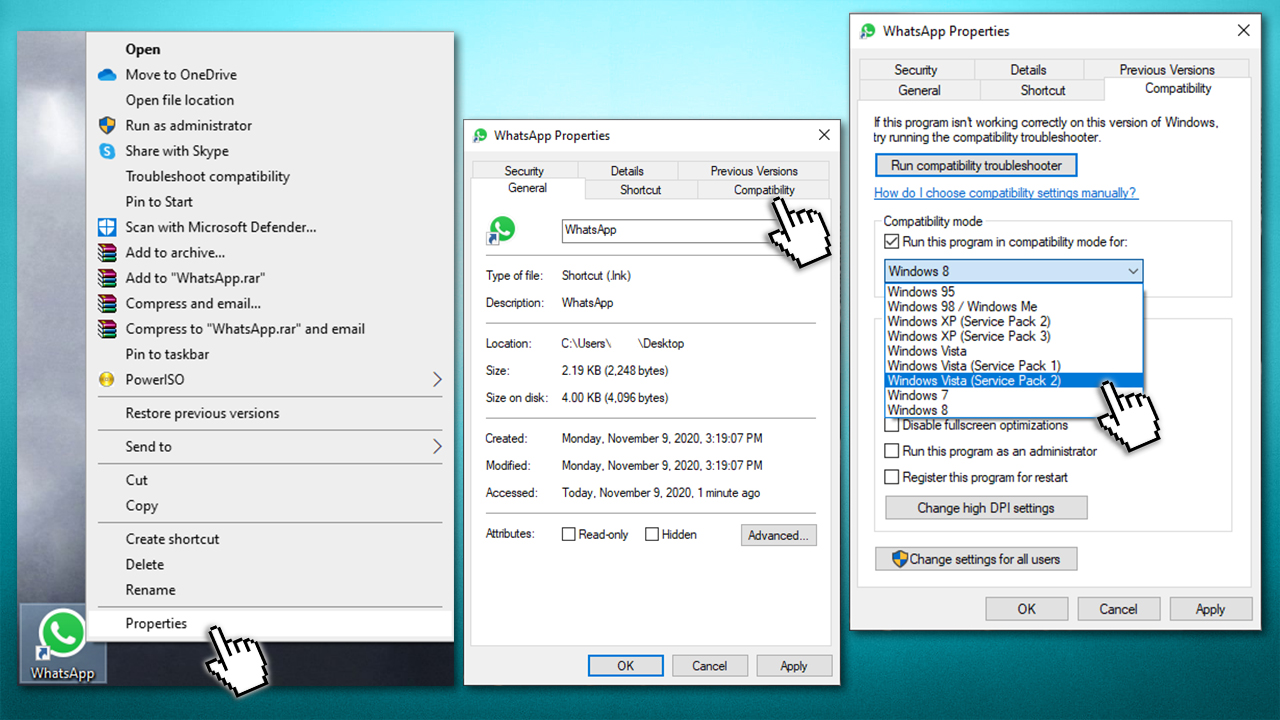
Whatsapp white screen error fix run in compatibility mode - Click Apply and OK.
Fix 3. Run the app as administrator
- Right-click on the WhatsApp icon
- Select Run as administrator
- If the User Account Control shows up, pick Yes
- See if WhatsApp white screen is gone
Fix 4. Reinstall the app
In some cases, you might not install the app correctly, hence the installation is bugged. Thus, we suggest you try to uninstall the application:
Windows
- Type in Control Panel in Windows search and press Enter
- Go to Programs > Uninstall a program
- From the list, select WhatsApp
- Right-click and pick Uninstall
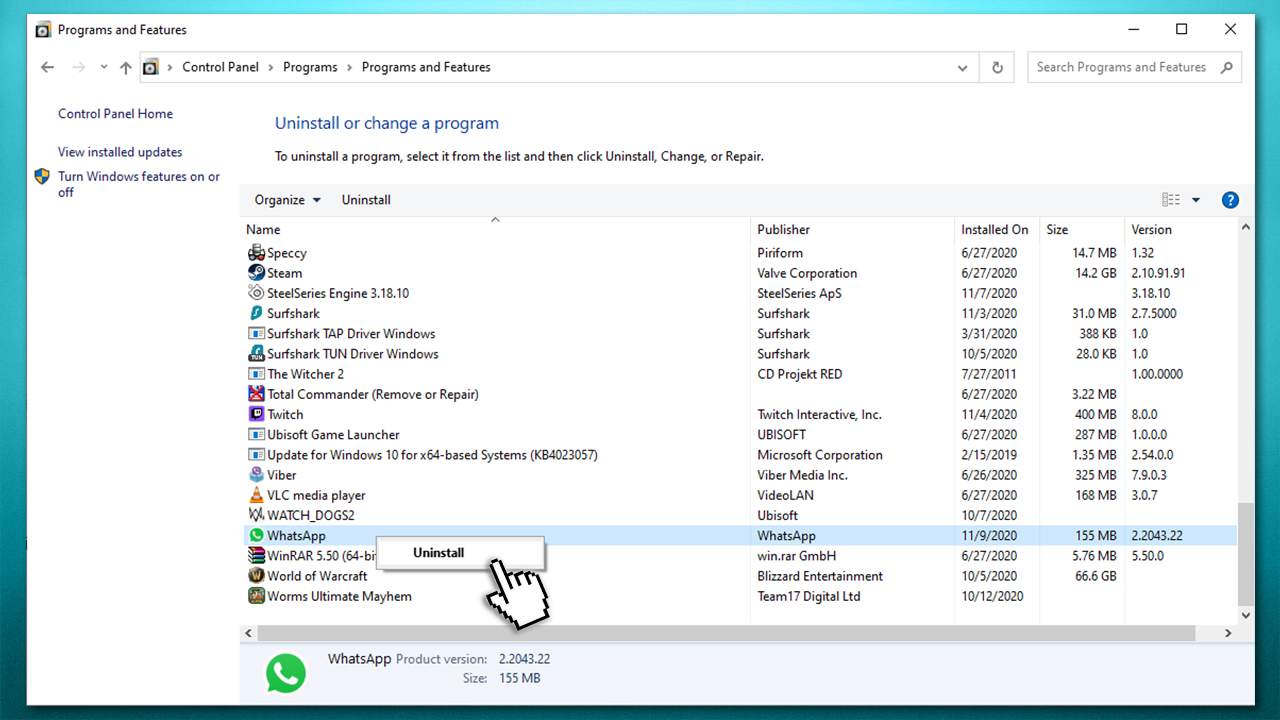
Whatsapp white screen error reinstall on windows - Follow the on-screen instructions
Mac
- Click on Finder (can be found on your dock)
- Select the Applications folder
- Right-click on WhatsApp and select Move to Trash or drag it to Trash with your mouse
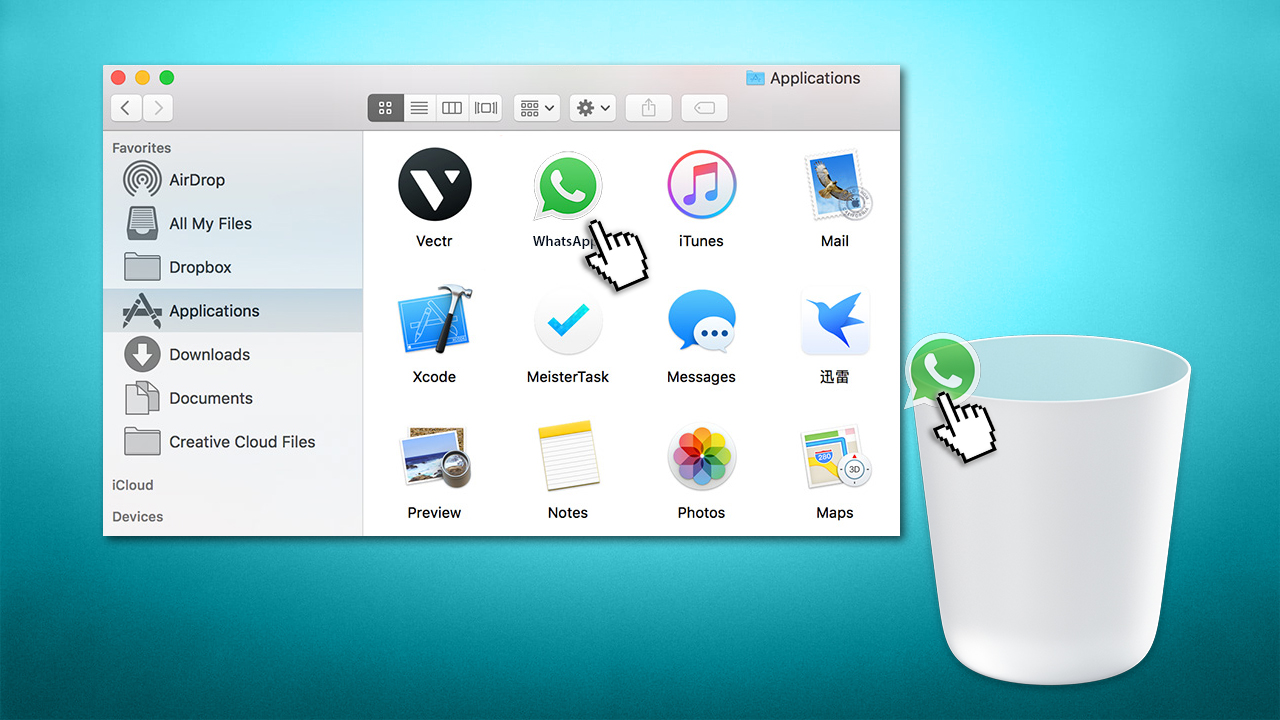
Whatsapp white screen error reinstall on mac
If you want to delete the app from a mobile phone, you can find all the details in our step-by-step guide.
Once you have uninstalled WhatsApp fully, go to the official website, download and install it once again.
Fix 5. Attempt to find older version of the program
Keep in mind that this fix is not fully reliable, as you would have to download WhatsApp from a third-party source. It was reported that version 2.2043.21.0 is the one that caused users issues, and the 2.2041.7 was fine to use. Thus, find yourself a reliable third-party source and download WhatsApp 2.2041.7 from there.
Bottom line
To fix the WhatsApp white screen error, you can try reinstalling the application, updating it to the latest version, or checking for software conflicts. If the issue persists, consider running a system scan for malware or ensuring your system has enough resources to run the app.
Frequently asked questions
The WhatsApp white screen error on Windows 10 can be caused by outdated app versions or corrupted cache files. Ensuring that your app is updated and clearing the cache can help resolve this issue.
To fix the WhatsApp white screen error on Windows 11, try reinstalling the app or resetting its settings. This can often restore functionality and eliminate display issues.
Yes, you can quickly fix the WhatsApp white screen error by checking your internet connection and restarting the app. If that doesn't work, consider updating your Windows to the latest version.




Report an issue
What's wrong with this guide? We review every report and update or remove content.
Report received — thank you. We'll review and fix it.
You need a free account to submit a report.
Be the first to comment