How to fix
Update Error Code 0x800703f1
on Windows
Resolve update Error Code 0x800703f1 on Windows 10 quickly and effectively. Expert-tested solutions with screenshots ensure a smooth experience. Fixed i…


What causes How to fix update Error Code 0x800703f1 on Windows 10?
- Windows configuration settings
- Installed programs
- Enabled services
- Customization of the PC
- Issues during major updates
Repairs Windows system files, removes malware, and restores a clean OS state — without reinstalling.
Hello, I have an issue which I hope you could help me with. Recently my Windows updates fail to be applied, as the system returns the error 0x800703f1. Any advice on this please?
0x800703f1 Error Code is Windows OS-specific and only occurs when trying to run updates - this is particularly prevalent when major updates are to be applied from Microsoft. As evident, even if Windows 10 is considered to be the safest and advanced operating system, users might face errors that put them at risk of cyberattacks,[ref en-1] stability, and performance issues, etc.
Windows update errors like 0x800703f1 are fairly common, but usually, they can be fixed by performing a variety of troubleshooting. While this might be pretty annoying to many users who are not that familiar with the process, we promise that the steps provided below will help you fix 0x800703f1 safely and easily, although you should view these instructions on a different device or print them out, as some solutions involve a PC restart, during which you won't be able to view the website.
0x800703f1 error could be caused by various issues, as each Windows PC is unique due to different configuration settings, installed programs, enabled services, and so much more. While the amount of customization is great and appreciated by many computer users, this is precisely a reason why errors like 0x800703f1 occur.
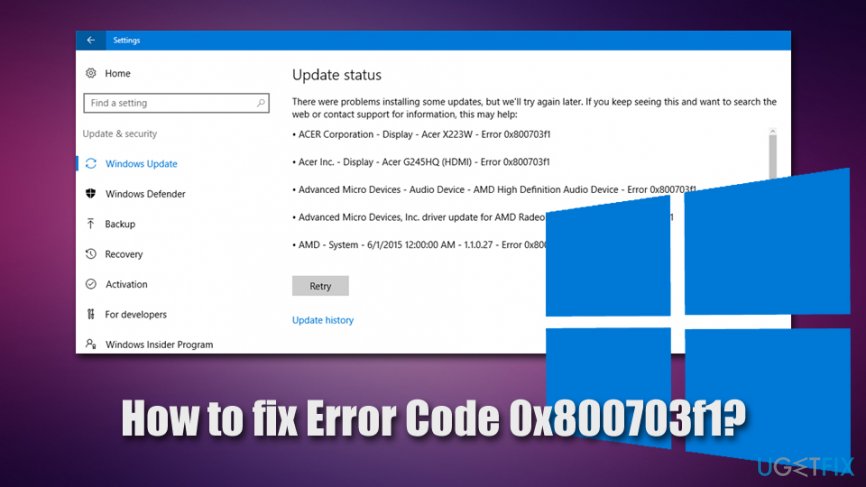
Luckily, error code can pinpoint users to potential solutions that can be acquired via the official Microsoft or other support services. The good news is that you can follow the steps below and aim to fix 0x800703f1 error yourself, even if you are not a proficient PC user. For automatic Windows repair, we highly recommend trying [d1].
When trying to update Windows to the latest version, users face error 0x800703f1 in the Settings panel. It states the following:
There were problems installing some updates, but we'll try again later. If you keep seeing this and want to search the web or contact support for information, this may help:
Error 0x800703f1
Unfortunately, 0x800703f1 error fix might not be successful even after applying the basic solutions, such as running Windows Update Troubleshooter, checking for corrupted system files, disabling anti-virus, etc. In such a case, we recommend backing up all your personal data and then proceeding with the reinstallation on Windows operating system, which should not be that difficult as long as you follow our instructions below carefully.
Solution 1. Run Windows Update Troubleshooter
When errors like 0x800703f1 occur, the very first and basic thing you should try is running the built-in troubleshooter. Here's how to find it:
- Right-click on Start button and select Settings
- Select Troubleshoot on the left
- On the right site, scroll down until you see Windows Update entry
- Click on it once and pick Run the troubleshooter
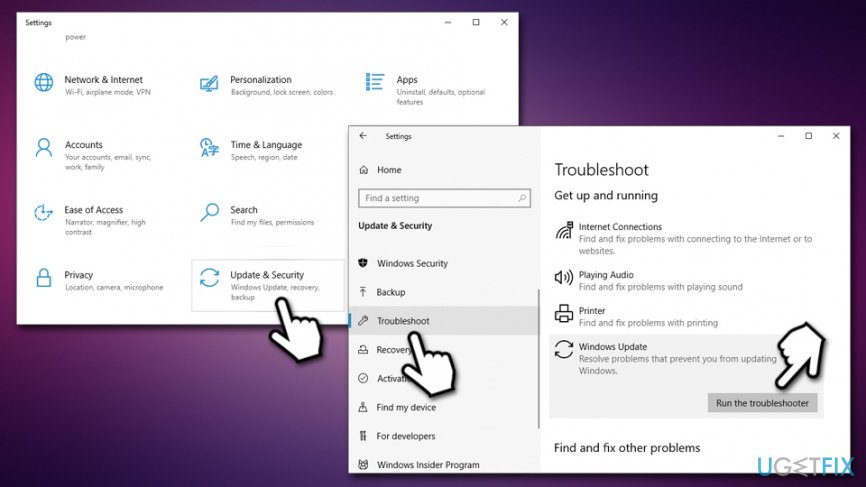
Fix windows update error code 0x800703f1 run windows update troubleshooter - Wait till Windows diagnoses errors and reports back
Solution 2. Check for malware with a full system scan
Malware[ref en-2] can cause a variety of issues on a Windows machine, including the update failure errors. Thus, it is important to make sure that no malware is involved. If you do not use any third-party anti-virus, initiate a scan with Windows Defender:
- Type in Security into Windows search and select Windows Security
- Pick Virus & Threat protection
- Go to Scan options
- Select Full scan and then click on Scan now
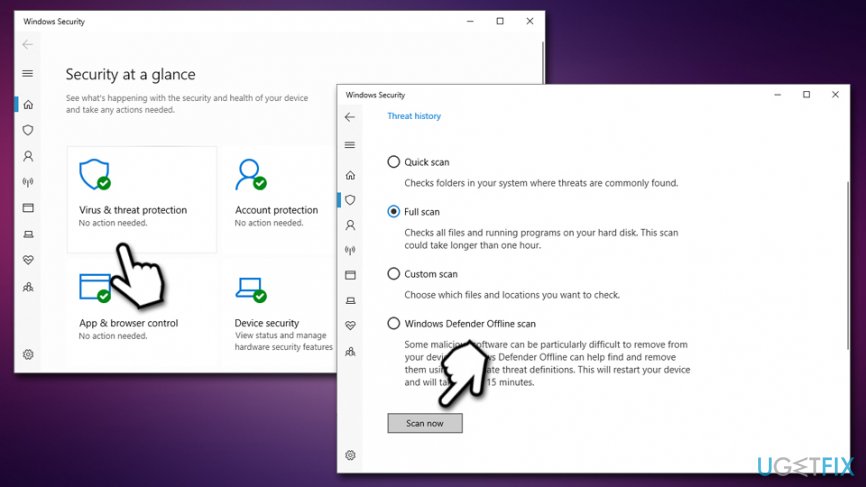
Fix windows update error code 0x800703f1 scan for malware
Note: some anti-malware applications might be overly aggressive and might prevent connections even from legitimate sources such as Microsoft. Therefore, even if it is unlikely, we recommend temporarily disabling anti-malware software and then trying to apply Windows updates.
Solution 3. Uninstall latest Windows updates
In some cases, new updates fail to apply because of previous ones that failed to be implemented properly. Therefore, you might want to try uninstalling the latest updates:
- Type in Control Panel into Windows search and hit Enter
- Go to Program > Uninstall a program
- On the left side, pick View installed updates
- Select the most recent Windows updates
- Right-click and pick Uninstall
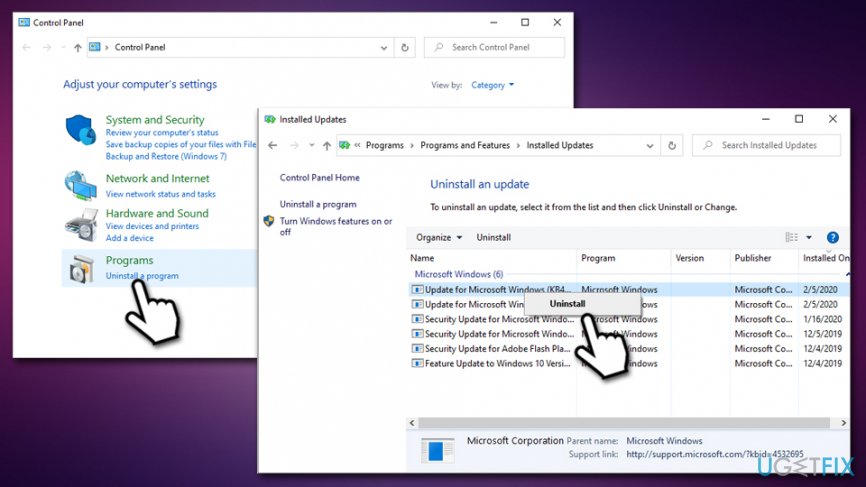
Fix windows update error code 0x800703f1 uninstall latest updates - Reboot Windows and try to apply updates once again
Solution 4. Run SFC and DISM scans
0x800703f1 error might be cause by Windows OS file corruption. To fix this, you should run System File Checker via Command Prompt:
- Type in cmd into Windows search
- Right-click on Command Prompt search result and select Run as administrator
- In the newly opened window, type in the following command and press Enter:
sfc /scannow
- Wait till Windows finishes the scan and fixes system errors
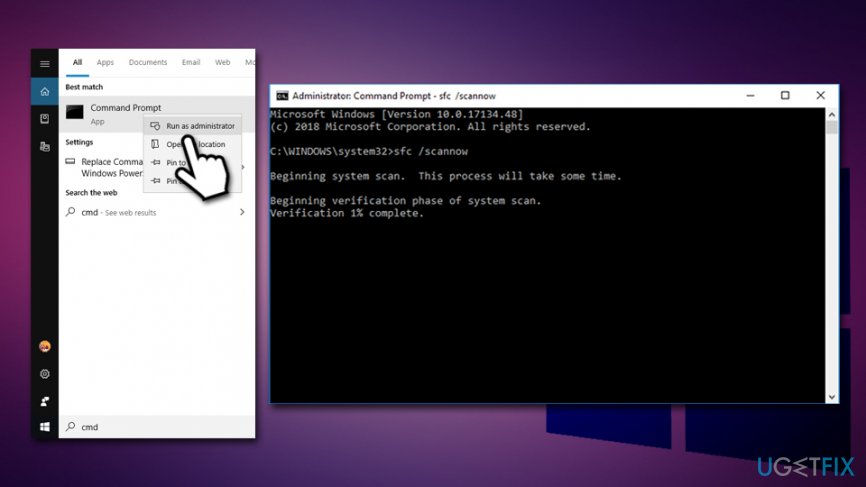
Fix windows update error code 0x800703f1 run sfc scan
If that does not help, you should employ the DISM tool - it can perform a cleanup and recovery of the operating system:
- Open Command Prompt with administrative privileges once again
- Type in the following command and hit Enter:
DISM /Online /Cleanup-Image /RestoreHealth
- The scan might run for awhile so be patient
Solution 5. Restart Windows Update service
Restarting Windows Update service might help you resolve the issue causing error 0x800703f1:
- Press Win + R
- Type in services.msc and hit Enter
- Scroll down to Windows Update
- Right-click and select Restart
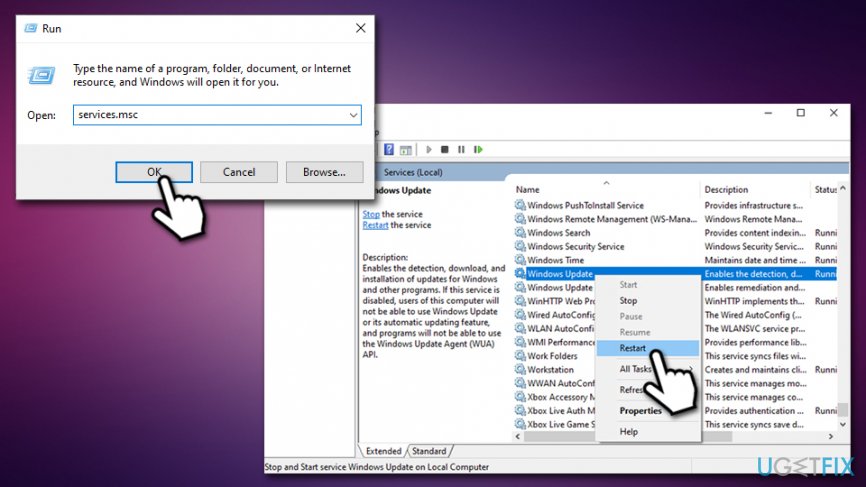
Fix windows update error code 0x800703f1 restart windows update service - Reboot your PC
Solution 6. Reset Windows Update components via Command Prompt
This step requires heavy usage of Command Prompt commands. You should try the following, pressing Enter after each:
- Access Command Prompt (Admin) as explained in the solution no. 4
- Type in each of these commands, pressing Enter after each:
net stop wuauserv
net stop cryptSvc
net stop bits
net stop msiserver
ren C:WindowsSoftwareDistribution SoftwareDistribution.old
ren C:WindowsSystem32catroot2 Catroot2.old
net start wuauserv
net start cryptSvc
net start bits
net start msiserver
If that does not help, you could try more solutions listed in this Microsoft article.
Solution 7. Check your drivers
Drivers[ref en-3] are vital for any Windows system operation. In case they get corrupted, they might cause all types of problems. Thus, you should try to look for drivers that are marked with a yellow exclamation mark and reinstall them. In other cases, it is known that reinstalling Nvidia drivers helped users to fix error 0x800703f1. Here's what to do:
- Right-click on Start and pick Device Manager
- Expand Display adapters section
- Right-click on NVIDIA driver and select Uninstall Device
- Select the Delete the driver software for this device
- Click Uninstall
- Reboot the machine and launch Device Manager once again
- At the top of the window, click on Scan for hardware changes
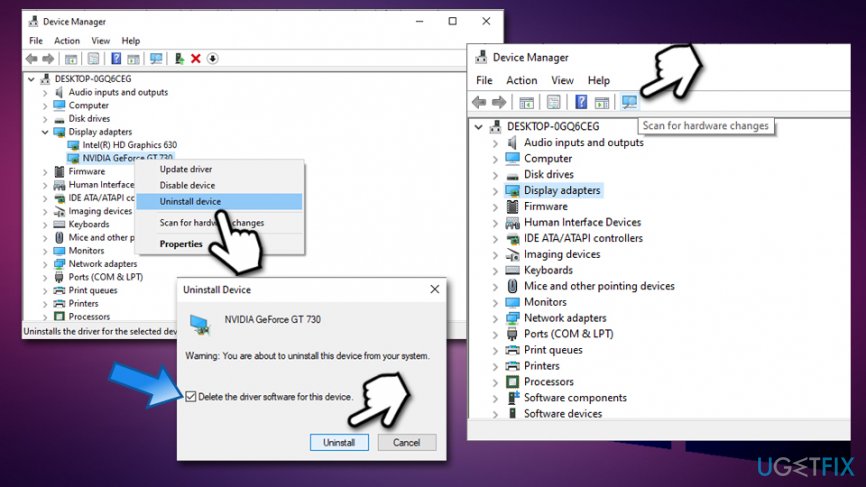
Fix windows update error code 0x800703f1 reinstall drivers - Wait till Windows installs new device drivers
Solution 8. Reinstall Windows
If everything else fails, you can try to reinstall Windows. There are several ways you could do that, so we suggest you follow the guide provided in this article: How to reset Windows 10 to factory settings?.
Bottom line
To fix the 0x800703f1 error, you can try various troubleshooting steps such as running Windows Update troubleshooter, performing a system scan, or using automatic Windows repair. If these solutions do not resolve the issue, consider seeking help from official Microsoft support or other technical assistance.
Frequently asked questions
The error code 0x800703f1 typically indicates a problem with the Windows Update service, often related to corrupted files or missing system components.
To fix the 0x800703f1 error, you can run the Windows Update Troubleshooter, check for corrupted system files using the SFC tool, or reset the Windows Update components.
Updating to Windows 11 may help resolve the 0x800703f1 error, but it's recommended to troubleshoot the issue on Windows 10 first to ensure a smoother transition.




Report an issue
What's wrong with this guide? We review every report and update or remove content.
Report received — thank you. We'll review and fix it.
You need a free account to submit a report.
Be the first to comment