How to fix
Increase Google storage space for free
on Windows
Maximize your Google storage space for free with easy tweaks for Windows 10 and Windows 11. Expert-tested tips to optimize your storage efficiently.

Why does How to increase Google storage space for free occur?
- Running out of space due to large file sizes
- Backup of high-quality photos and videos
- Accumulation of temporary and useless files
- Using older versions of Windows
- Syncing issues with Google Drive
Repairs Windows system files, removes malware, and restores a clean OS state — without reinstalling.
Hello. I have constantly been running out of space on my Google account (I backup all my photos and some documents there). Is there any way besides using paid plans to increase Google storage available? Thanks.
Google Drive is one of the solutions to backup your files, be it your photos, important work documents, or personal projects you have been working on for a while. Creating backups is essential when trying to avoid data loss due to failing hardware, accidental removal, or a ransomware attack - security researchers have been asking users to backup their data for years now.
Indeed, Google storage provides 15 GB of data to be stored on remote servers for free. While initially, it may seem like a lot, it is important to remember that file sizes are nowhere near as small as they used to be, especially when it comes to videos or photos. The quality of those is constantly improving, with people watching videos in 4K or 8K. Thus, it is not unusual to run out of space on Google Drive.
Of course, you can always buy some more storage space - plans are relatively cheap. For example, you could get an extra 100GB for just $1.99 a month;[ref en-1] if you need a lot of space, you can also opt for a terabyte, which would cost you $9.99/month.
However, there is a way to increase your Google storage space without paying anything. In order to do that for free, you will have to perform several steps to clean temporarily and useless files that are clogging your drive. Below you will find all the instructions necessary to do that.
Note: if your hard drive is getting full, you should wait no longer and employ an automatic Windows cleaning tool [d1]. It can find all the unnecessary and temporary files and delete them automatically. This is particularly important to users who run their Windows on order hardware or use older versions of the operating system, such as Windows 7. Also, if you are having troubles with syncing your files, check our "How to Fix Google Drive Syncing Problems in Windows 10?" article.
Step 1. Check how much storage you have
Google connects all user accounts, which can then be accessed across all devices, including PCs, laptops, tablets, or phones. All you have to do is use the app within your phone/tablet in order to use backup services or access your hard drive via the official website.
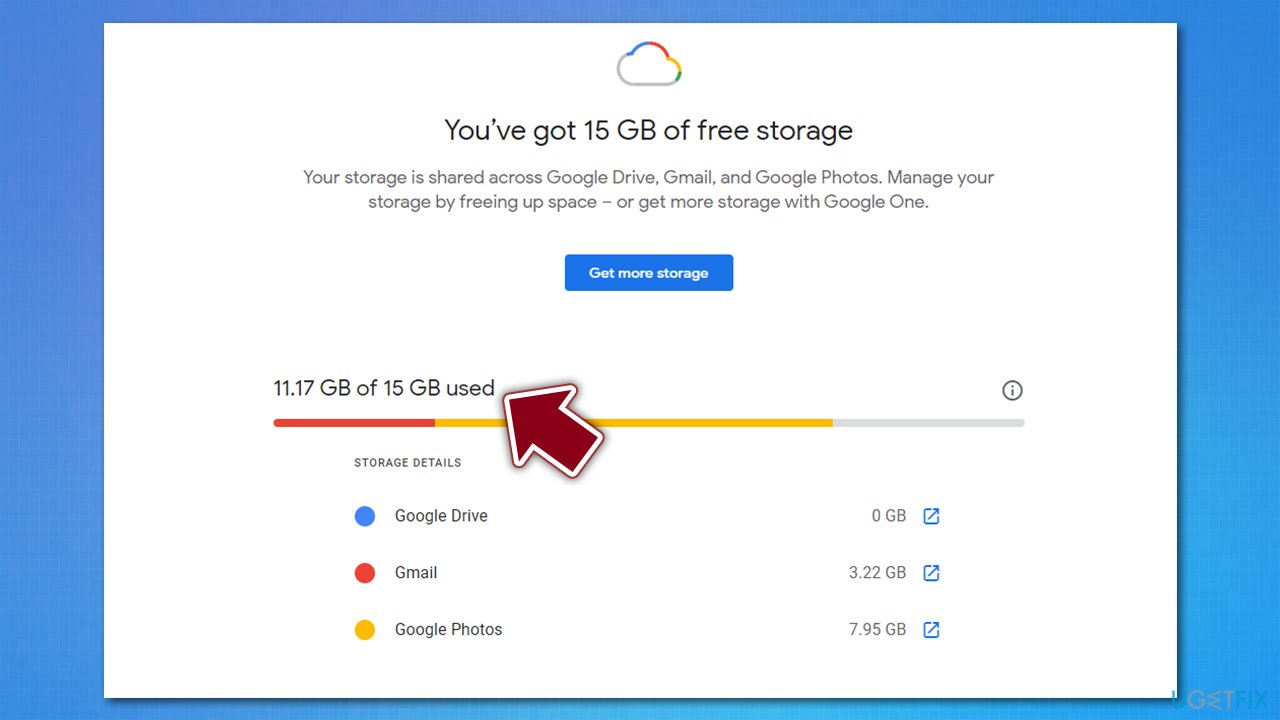
However, knowing how much exactly space you got let might not be that apparent. There are several ways to do that - you can either check it by accessing your Drive portal or by visiting the Google One portal.
Step 2. Clean your Gmail account
Gmail is the most popular email service,[ref en-2] which first became active in 2004. People now use the same email addresses for over a decade, and for a reason - the service has been drastically improved. Besides, it also works very well with Google accounts cross-platforms. If you are using Gmail for years, you should most definitely clear the the junk from it.
- Open your Spam folder
- You should see several Spam emails list
- At the top of the list, click on Delete all spam messages now
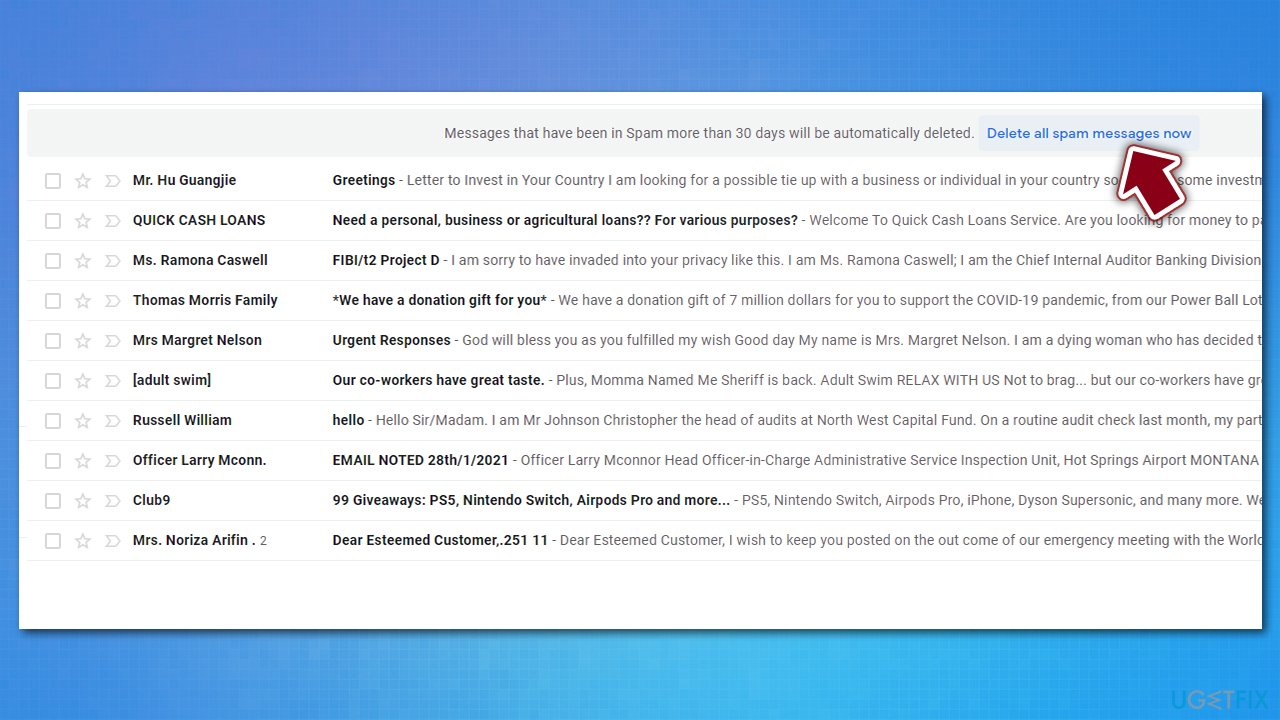
How to increase google storage space for free delete spam emails - Confirm the action.
Spam folder is a place where most phishing emails go to. Do not open attachments or click on links within these emails, as you could get infected with malware
Next, you should delete emails with large attachments:
- Open your email account
- Type in the following in your Gmail search bar (note: you can replace 5 with any other number - it represents the file size in megabytes):
has:attachment larger:5M
- Mark emails you no longer need or pick Select all at the top
- Click on the trash can icon.
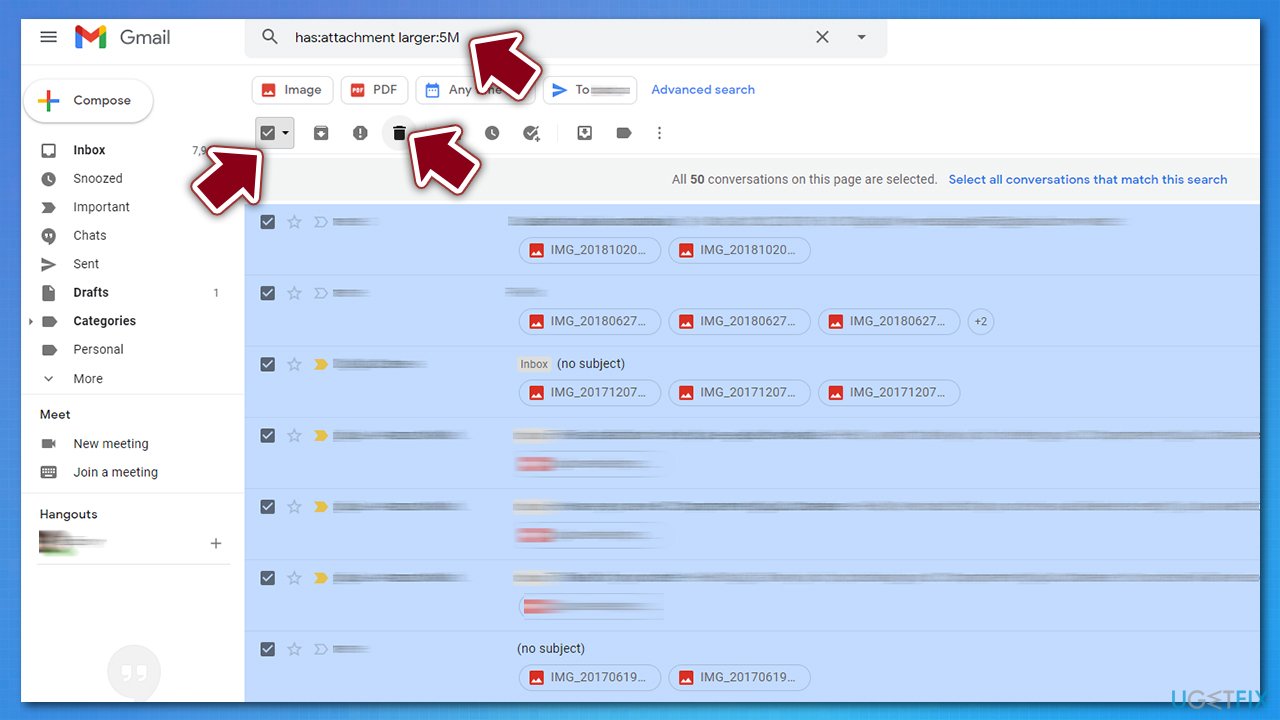
How to increase google storage space for free delete large attachments
Finally, open Trash folder and eliminate everything located there.
Step 3. Change your photos storage settings
Initially, Google said that it would only backup photos in original quality. Any modern phone is shipped with cameras with a high resolution being used as a default setting. While it might be needed in general, users can now reduce the size of the photo that is being backed up. Here is now:
- Go to your Google Photos page
- Click on cogwheel icon at the top-right and pick Settings
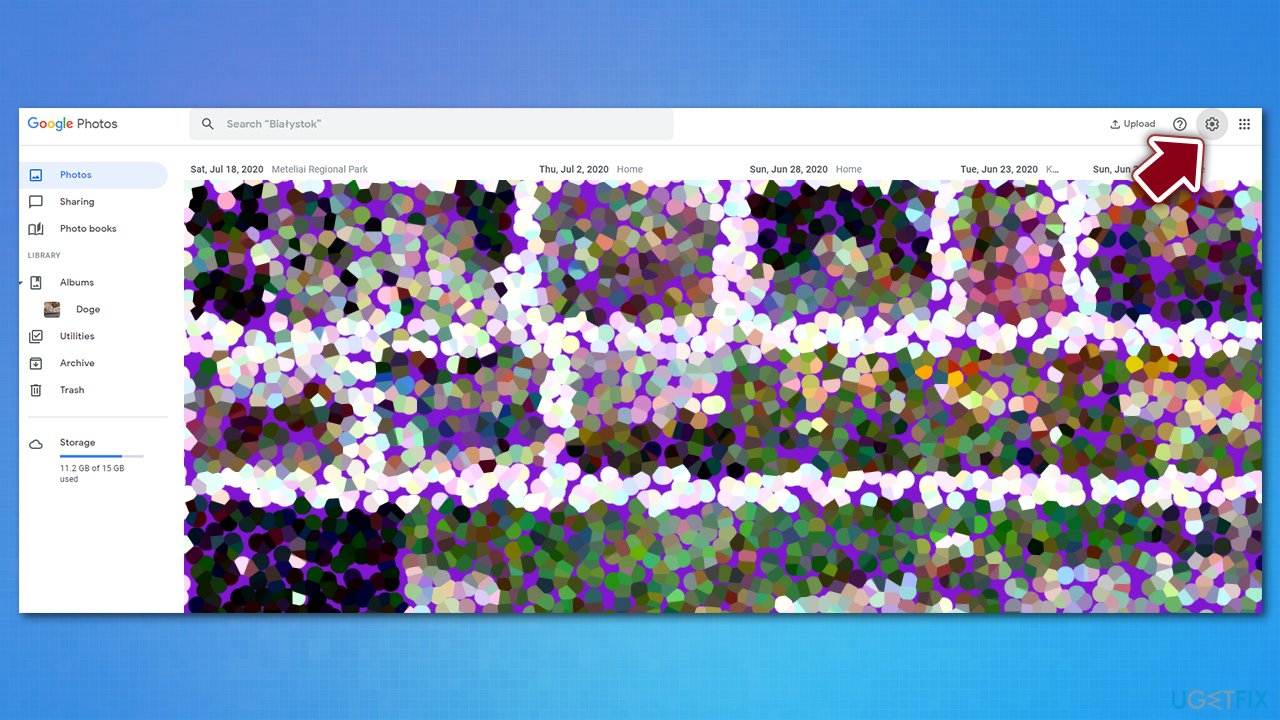
How to increase google storage space for free go to photos settings - Here, pick High Quality option
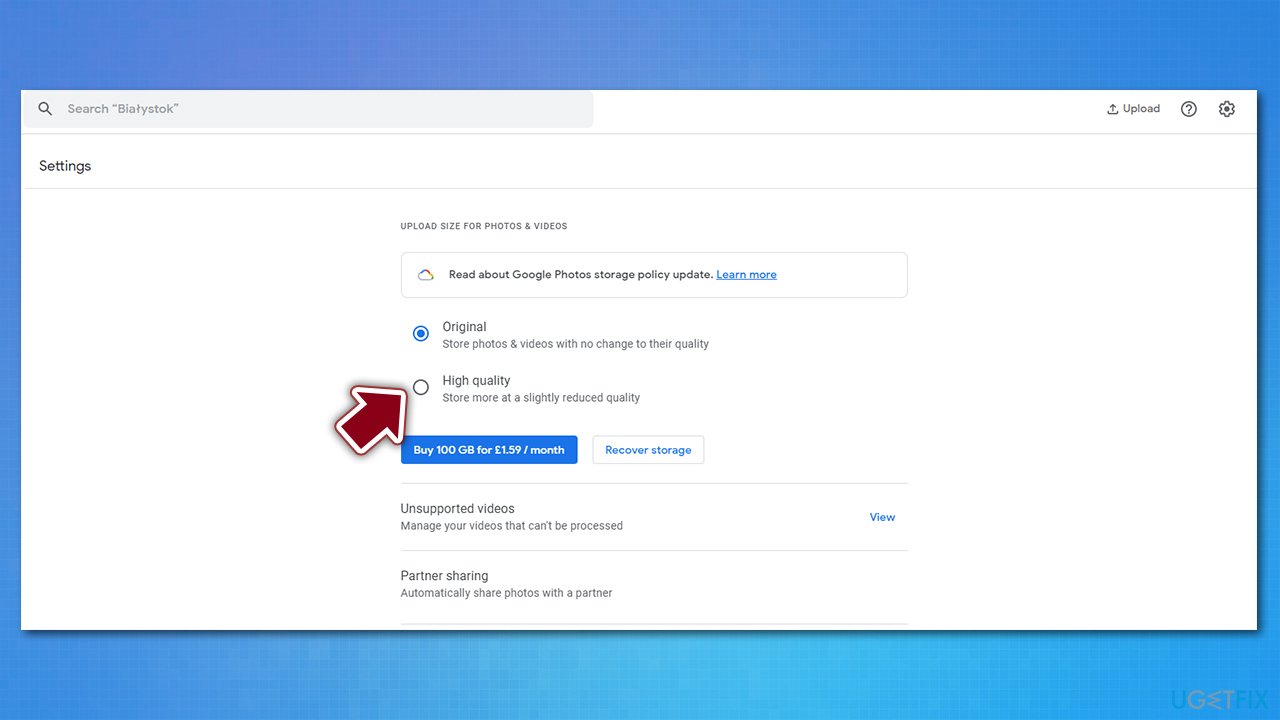
How to increase google storage space for free swap to high quality - Now you will be asked whether you want to compress the existing photos, which would increase Google storage space significantly. If you want to do that, tick this option and then click Confirm
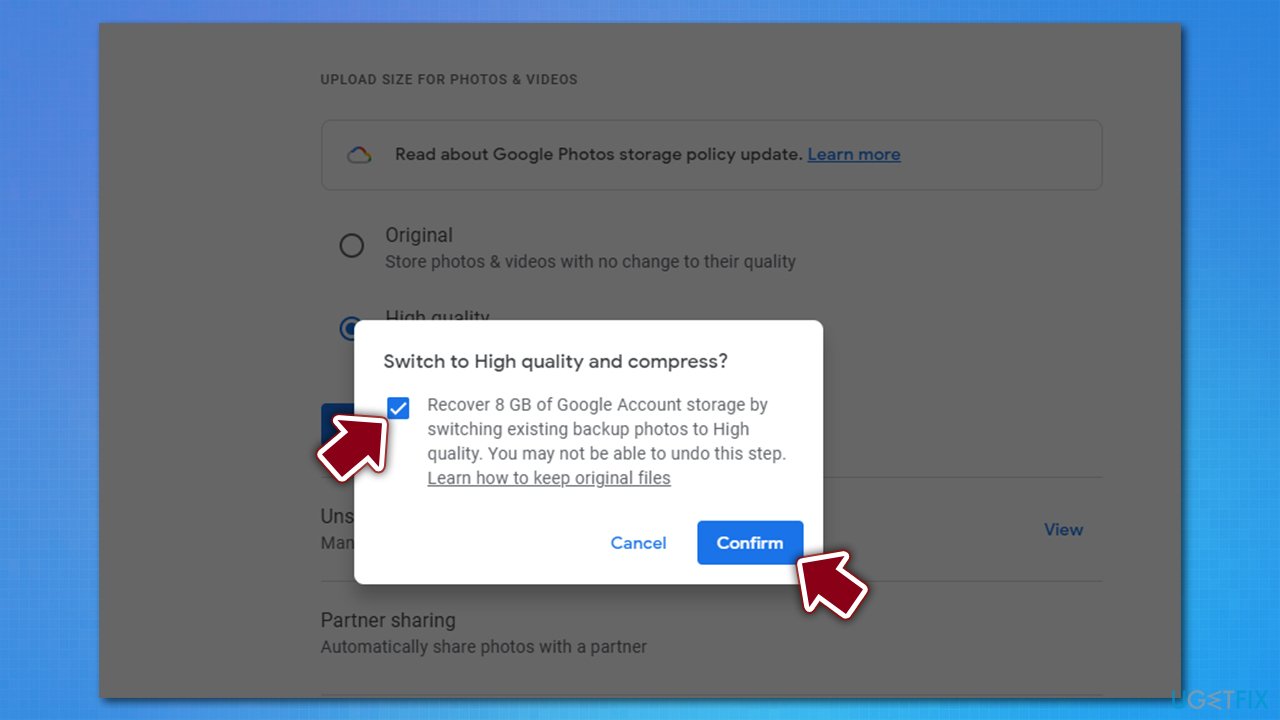
How to increase google storage space for free swap to high quality2 - This process might take some time - Google will inform you with the Compressing photos & videos to high quality... notification that the process is being carried out.
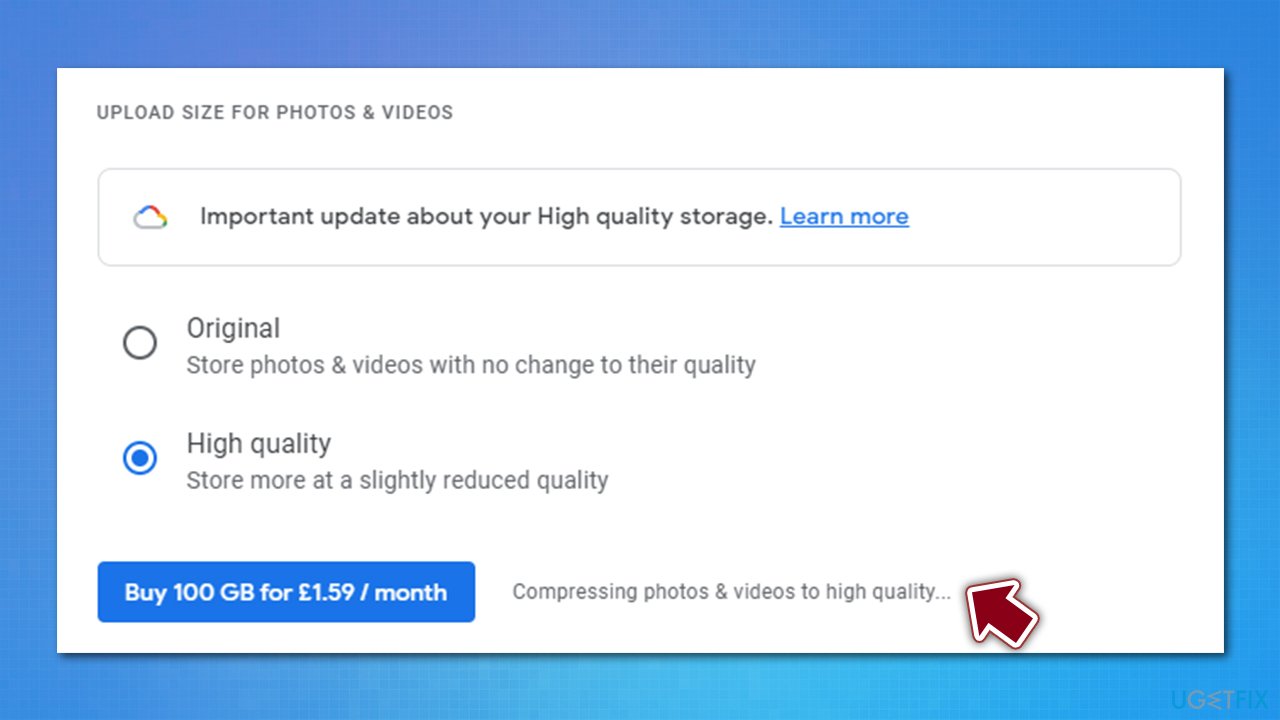
How to increase google storage space for free swap to high quality compressing
For those who use Pixel phones, this step can be skipped, as Google allows unlimited storage for these device owners (although keep in mind that this is only going to be true until June 1, 2021).[ref en-3]
Step 4. Delete hidden app files and other data on your Google Drive
This might not be that apparent, but Google keeps hidden app data within your Google Drive account. If those files are not cleaned for a longer period, the data can accumulate and take up precious space. Therefore, it is worth clearing the app files from time to time:
- Open your Google Drive
- Click on cogwheel icon at the top-right and pick Settings
- Go to Manage Apps section
- Under each app, click Options and select Delete hidden app data.
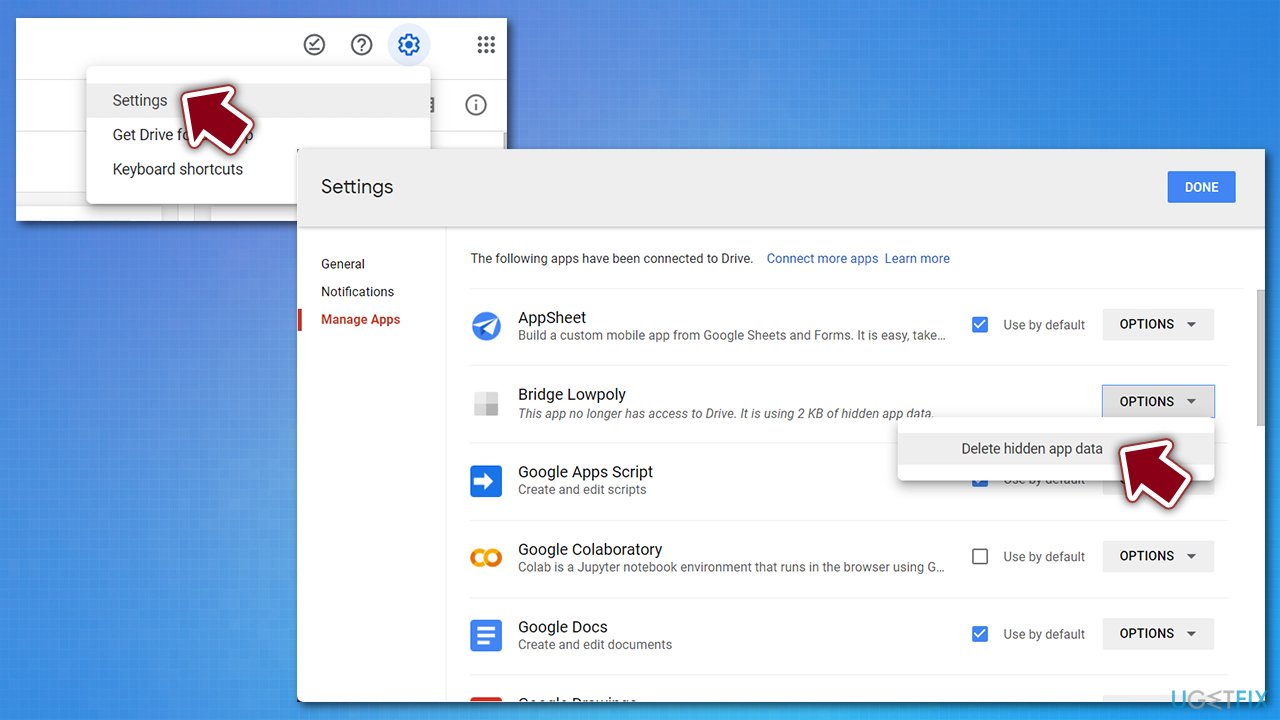
How to increase google storage space for free delete hidden app data
Also, you can view items taking up storage on Google Drive and delete everything that is no longer needed there.
Bottom line
To increase your Google storage space for free, you can clean up temporary and unnecessary files clogging your drive. Additionally, using an automatic Windows cleaning tool can help manage storage effectively. If these solutions do not resolve the issue, consider upgrading to a paid storage plan.
Frequently asked questions
You can check your Google Drive storage usage by visiting drive.google.com and clicking on the 'Storage' option in the left sidebar. This will show you how much space you have used and how much is available.
Yes, you can use applications like Google Drive for Desktop to manage your files and optimize storage directly from your Windows 10 PC. It allows you to easily upload and organize files while keeping track of your storage usage.
To free up Google Drive space on Windows 11, delete unnecessary files or large attachments from your Drive, and empty the Trash folder. You can also consider using Google Photos to store images and videos, which can help save space.




Report an issue
What's wrong with this guide? We review every report and update or remove content.
Report received — thank you. We'll review and fix it.
You need a free account to submit a report.
Be the first to comment