How to fix
PIN not working
on Windows
Resolve PIN issues on Windows 10 quickly and effortlessly. Follow expert-tested solutions to regain access to your device in minutes!


What causes How to fix PIN not working on Windows 10?
- Incorrect PIN
- System file corruption
- Changes triggered by PUP or cyber infections
- Issues with Windows Hello PIN
- Recent Windows update
Repairs Windows system files, removes malware, and restores a clean OS state — without reinstalling.
Hello. I have an issue with my PIN code and can't log in to my Windows 10 computer. The latest update has something to do with that because there are no other issues or applications that I have installed recently or changes made to some functions. I turned the laptop off, and now once I want to login in, PIN is not working. I tried restarting again and again. Once the pin box even disappeared. How can I fix this?
PIN not working on Windows 10 is a frustrating issue because it might be caused by various issues besides the simple one - incorrect PIN. Recreating the PIN could fix the issue, or sign in using another option can solve the problem.[ref en-1] If you managed to do so, you could troubleshoot the problem with not working the PIN function.
Windows devices are secured with such PIN options, so many users use this convenient and quick option. It is easier than the password since PIN can be short and easy to memorize. However, the PIN not working is a problem that should get fixed.
PIN not working issue can be related to Hello Pin issues like the error "Something happened, and your PIN isn't available" problem. This particular error is related to system file corruption and other issues with the Windows system.[ref en-2] So fixing the problem with your PIN-code and login problems might involve resetting the OS or some settings in particular.
When such issues with system files and functions are triggered, it is common that PUP[ref en-3] or a similar threat of a cyber infection type triggered changes to the system files and damaged the machine. It means that you would need to remove the problem to fix the PIN not working.
You need proper help to solve issues with the altered, corrupted, damaged files, especially system files. The best option for system repair and even virus damage fix is anti-malware tools or PC repair applications like [d1]. This program might be the first step when you try to fix PIN not working on Windows 10, so you can be sure that system issues are not triggering this log-in issue. The follow with solutions listed.

#1 Recreate the PIN
Remove the PIN first
- Go to Settings and navigate to Accounts.
- Choose Sign-in option on the left.

How to fix pin not working on windows sign up options - Scroll down to the Pin section and click Remove.
- Confirm the change and click Remove.
- Put in the password to continue.
Set up the new PIN
- Click Add button in the PIN section.
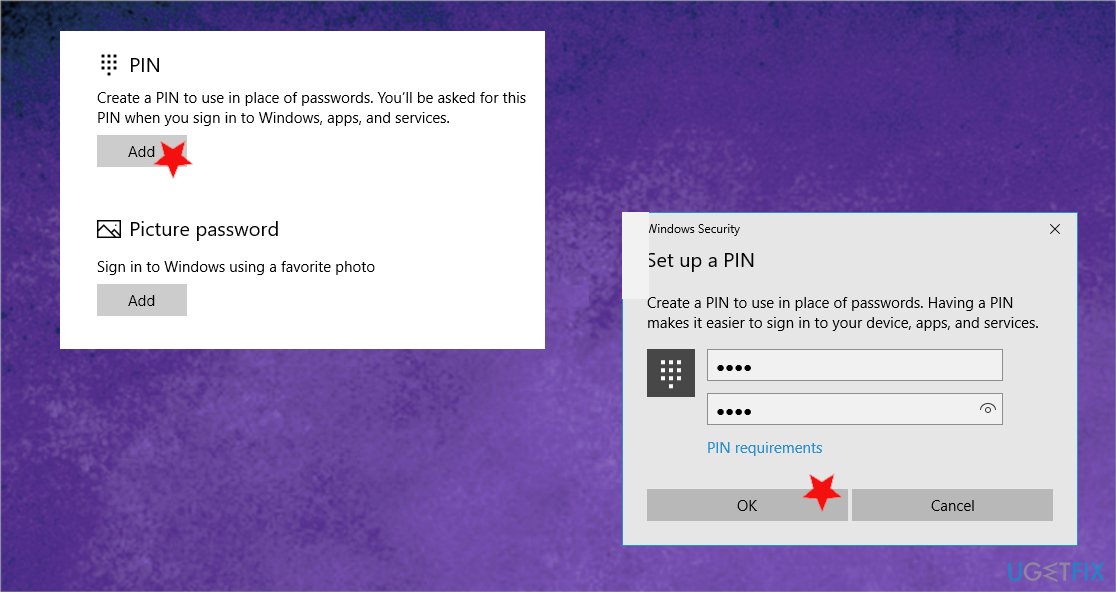
How to fix pin not working on windows pin set up - Enter the PIN and confirm with OK.
#2 Rely on I forgot my PIN option
- Go to Settings by pressing Win and I on the computer.
- Find Accounts.
- Click Sign-in options and choose I forgot my PIN.
- Confirm the option.
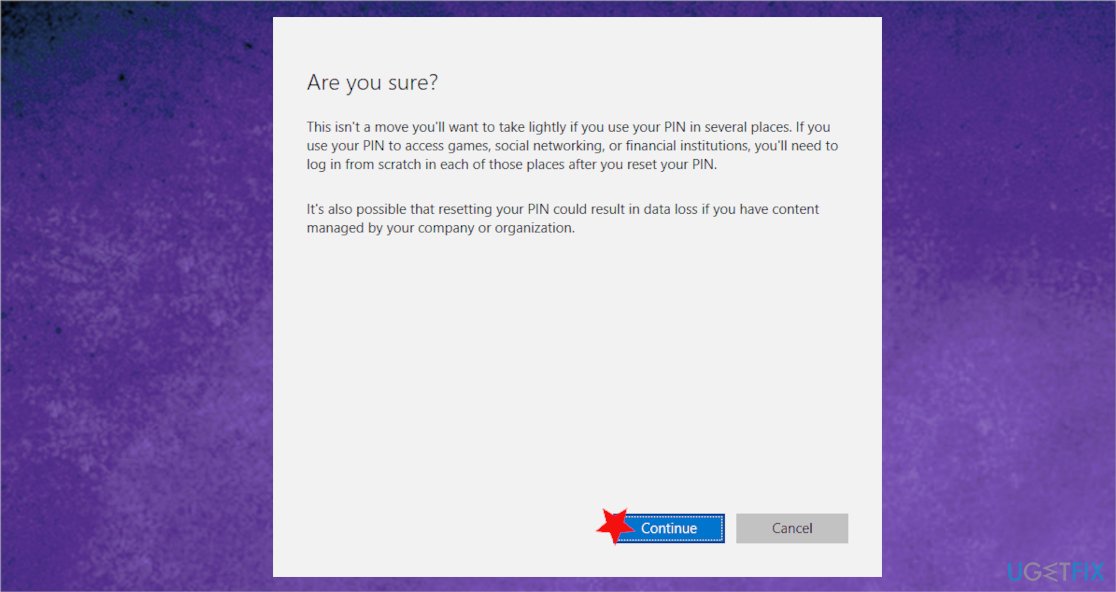
How to fix pin not working on windows confirm - Follow instructions to set the new PIN code.
#3 Go back to the previous build to fix the PIN not working on Windows 10
- Open Start Menu and choose Power.
- Hold the Shift key and choose Restart from the menu.
- Once the list appears, choose Troubleshoot.
- Then follow with Advanced options.
- Choose See more recovery options.
- Click Go back to the previous build and select administrator account.
- Enter pass if needed.
- Select Go back to the previous build button.
- The process should start. Please do not interrupt the process until it is done.
#4 Create a new user account
- Go to Settings and find Accounts.
- From there go to Family & other people.
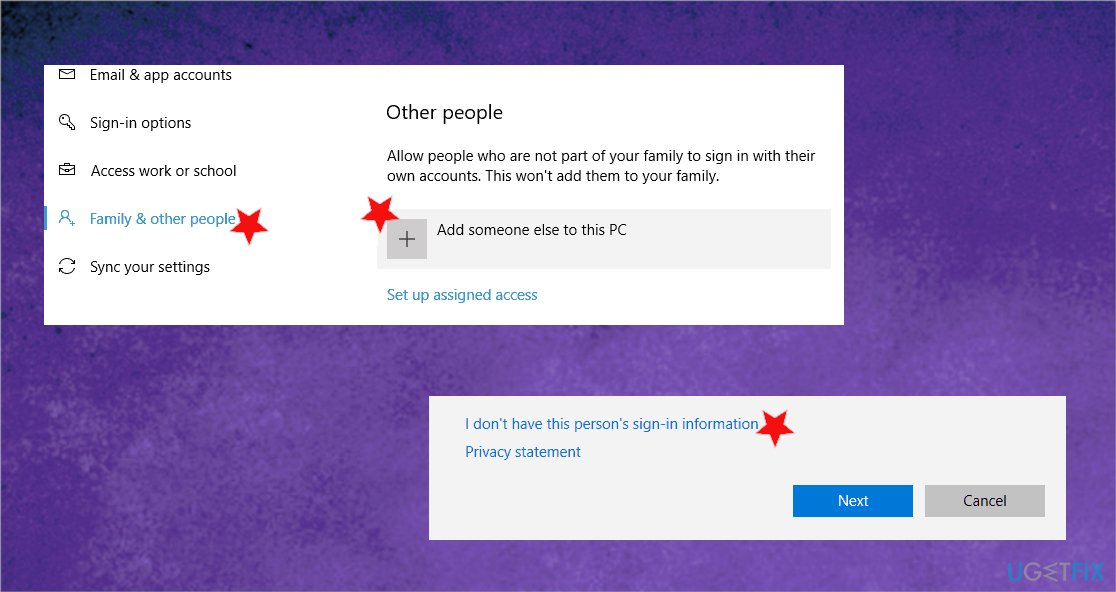
How to fix pin not working on windows add other - Choose to Add someone else to this PC under Other people.
- Select I don't have this person's sign-in information.
- Then Add a user without a Microsoft account.
- Enter the desired username and click Next.
#5 Change Group Policy settings
- Press Win and R to open the Run box.
- Type gpedit.msc there and hit enter.
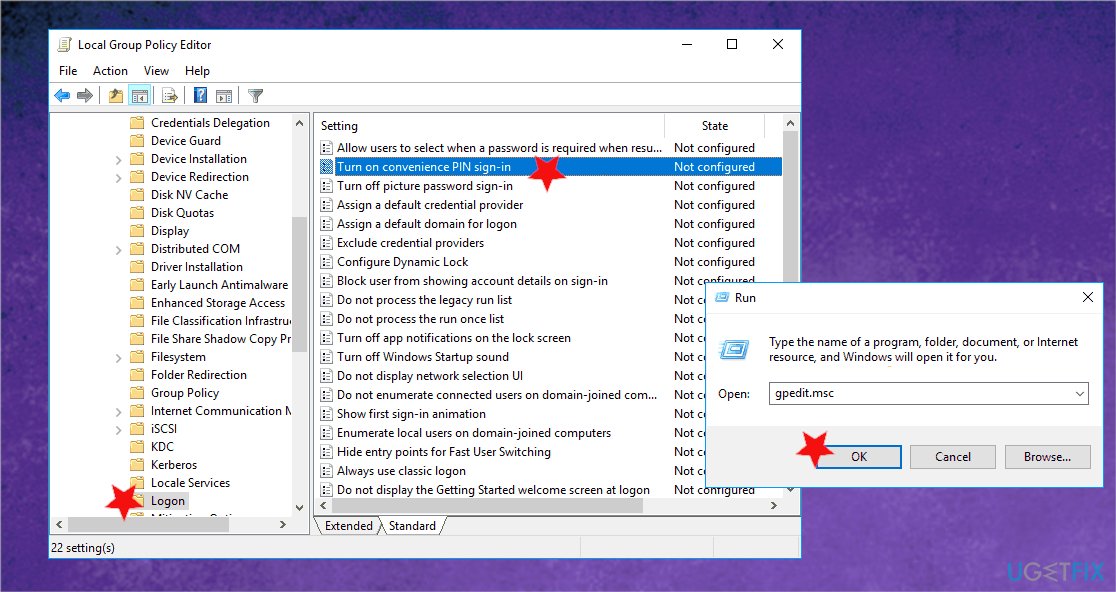
How to fix pin not working on windows group policies - Once the window is opened, go to Administrative Templates.
- Choose System and Logon.
- On the right, double-click Turn on convenience PIN sign-in.
- Choose Enabled and click on Apply.
- Hit OK to save changes.
#6 Alter the Startup type to fix PIN not working on Windows 10
- Open Run box.
- Type services.msc and hit OK.
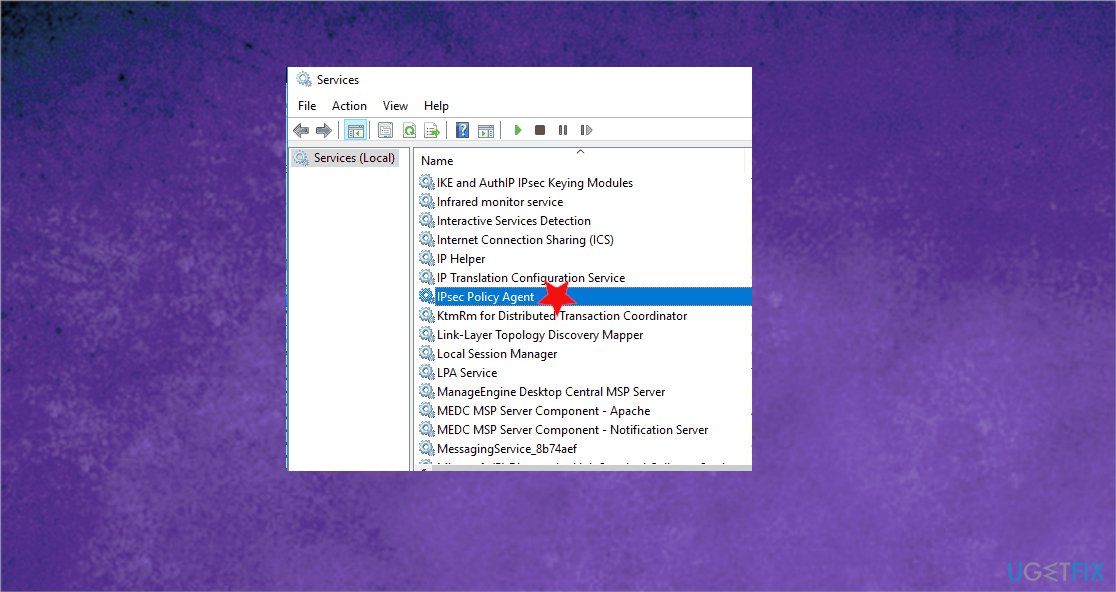
How to fix pin not working on windows ipsec - On the list, double-click IPsec Policy Agent and open its properties.
- Once there, set the Startup type to Automatic and click on Apply and OK to save changes.
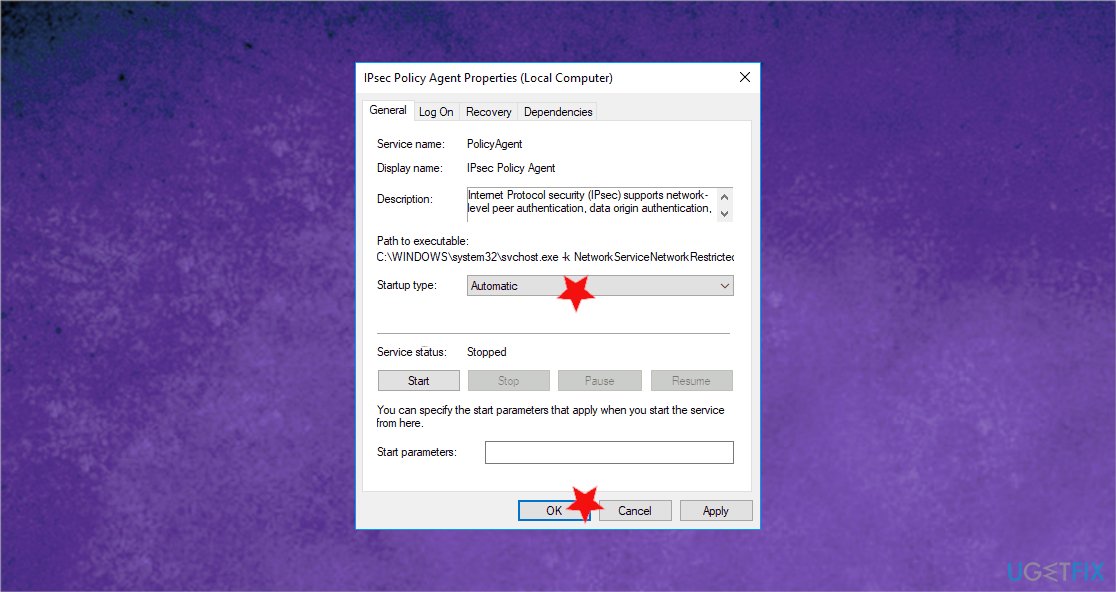
How to fix pin not working on windows auto
Bottom line
To fix the PIN not working issue on Windows 10, you can try recreating the PIN or signing in using another option. If the problem persists, consider using anti-malware tools or PC repair applications to address potential system file damage. If none of these solutions work, you may need to reset the operating system.
Frequently asked questions
First, try restarting your computer and then attempt to log in again. If that doesn't work, use the 'I forgot my PIN' option to reset it.
Go to Settings > Accounts > Sign-in options, then click on 'I forgot my PIN' to follow the prompts for resetting it.
Yes, you can use your Microsoft account password or switch to another sign-in method like a password or fingerprint if your device supports it.




Report an issue
What's wrong with this guide? We review every report and update or remove content.
Report received — thank you. We'll review and fix it.
You need a free account to submit a report.
Be the first to comment