How to fix
Laptop speakers bass is boosted after 20H2 Windows update
on Windows
Boosted bass from your laptop speakers after the 20H2 Windows update? Discover effective fixes and restore your audio quality today. Expert-tested solut…

What causes How to fix laptop speakers bass is boosted after 20H2 Windows update?
- Faulty update
- Compatibility issues with software
- Compatibility issues with hardware
- Corrupted or missing audio files
Repairs Windows system files, removes malware, and restores a clean OS state — without reinstalling.
Hello. I tried to fix it myself, but I cannot figure out what happened. After a recent upgrade of the OS, my laptops' speaker bass seems to be boosted a lot. This happened after the 20h2 update. I rolled back the update - it doesn't change anything with the sound. This boosted audio is not okay, so help me change it back, please.
The issue when laptop speakers bass is boosted after 20H2 Windows update is frustrating because users[ref en-1] report not changing any settings themselves, so the alteration happened out of nowhere and cannot be easily changed back. Windows 10 updates can fix various issues and bugs, solve problems known from the previous upgrade version, so recent OS updates can help, but in this case, they also trigger different problems.
Stability and performance issues like laptop speakers bass are boosted after 20H2 Windows update can occur out of nowhere because of the faulty update or the particular issue with compatibility with software, hardware, other applications. It is a common cause of issues with Windows devices because the system requires a bunch of various files and pieces that are needed for all the activities.
This issue can be annoying because when speakers' bass is boosted after the 20H2 update, people cannot properly use their machines. Various other issues might occur alongside this problem with audio when files are corrupted or missing.[ref en-2] It is important not to only fix the problem but to find a root cause of this issue, so additional problems do not interfere with your usage of the computer.
You should go through the methods below to fix laptop speakers' bass is boosted after 20H2 Windows update, but you might want to check some issues before. You must be sure that the right audio drivers are used and check if the version is up to date, so the procedures using those drivers run smoothly. You can install those pieces yourself, or they come with the OS installation and get updated. You can make sure and check or even update them using the method below.
As for the reasons behind this sound issue on Windows 10, troubleshooting can offer some information. We just want to note that security is not an issue in this case. Malware or PUPs[ref en-3] cannot affect such settings or different processes, but infections might trigger changes in the system folders, so running a [d1] can help check for infections and damage of the malware.
#1 Run Windows audio troubleshooter
- Press Windows + I to open the Settings.
- Click Update & Security.
- Then Troubleshoot.
- And additional tprubleshooters.
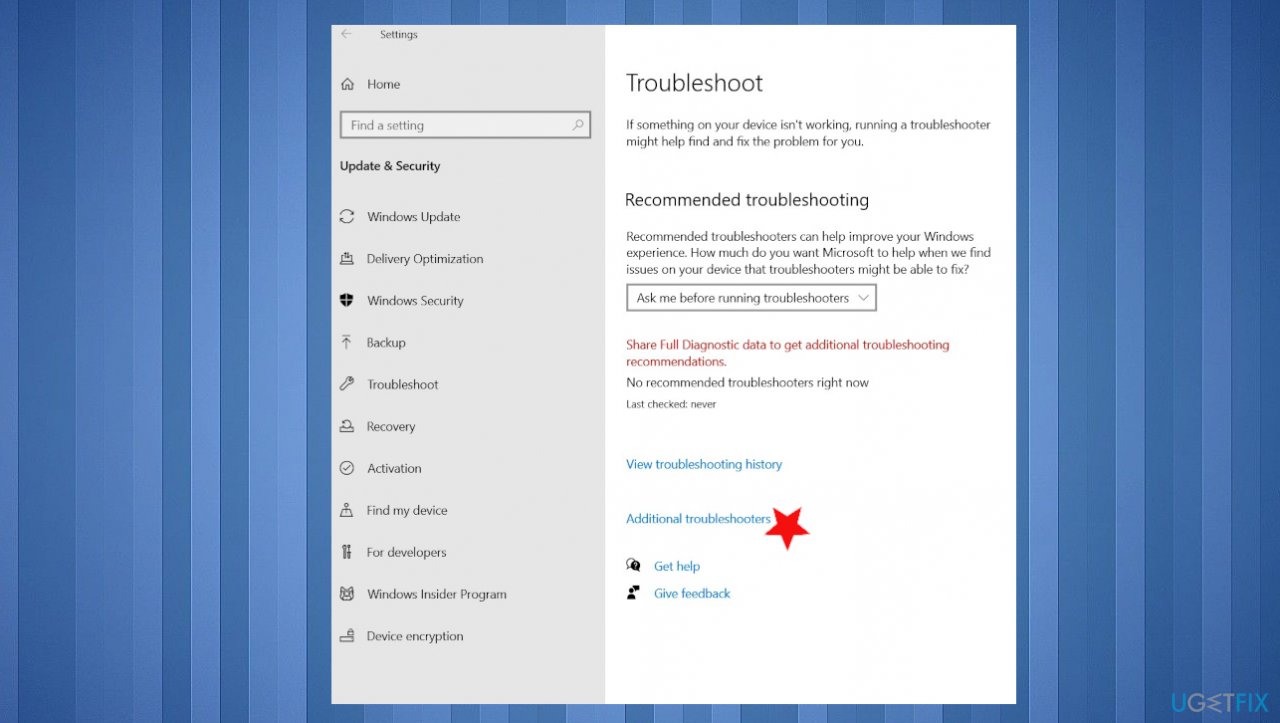
Laptops speaker bass boosted after 20h2 update fix audio troubleshooter - On the right-hand side, look for and select Playing audio.
- Click on Run the troubleshooter.
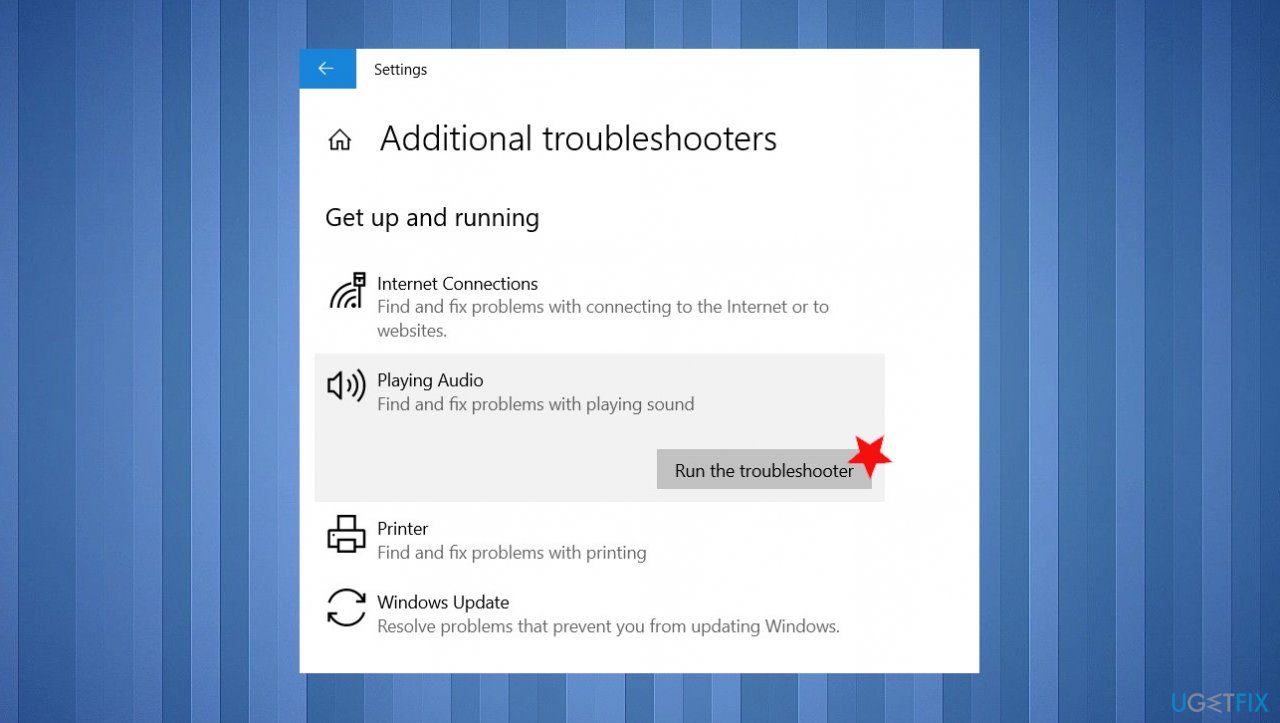
Laptops speaker bass boosted after 20h2 update fix run audio troubleshooter - This will detect and fix windows 10 audio sound problems.
- Restart Windows after that and check the audio.
#2 Restart Audio service to fix laptop speakers bass is boosted after 20H2 Windows update
- Press Windows + R.
- Type services.msc and ok.
- Scroll down and look for Windows Audio Service.
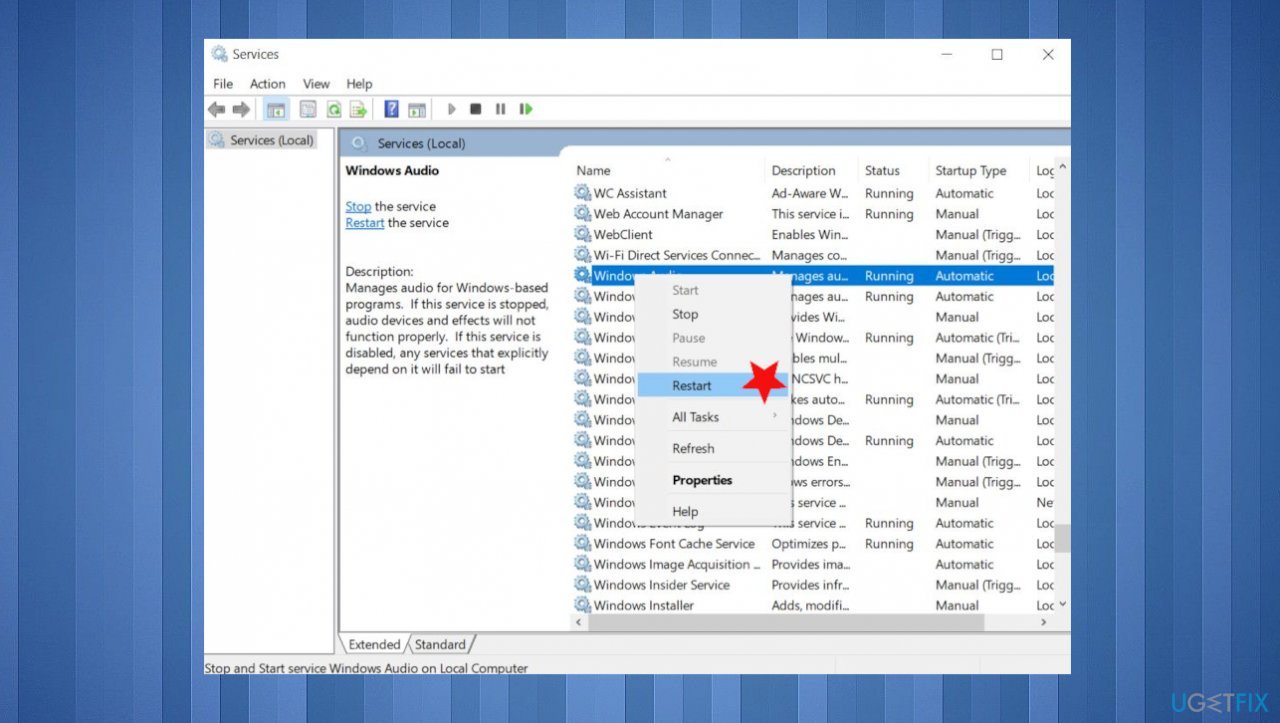
Laptops speaker bass boosted after 20h2 update fix audio service restart - Right-click on Windows audio service and select restart.
- Check if the startup type is set to automatic in Properties.
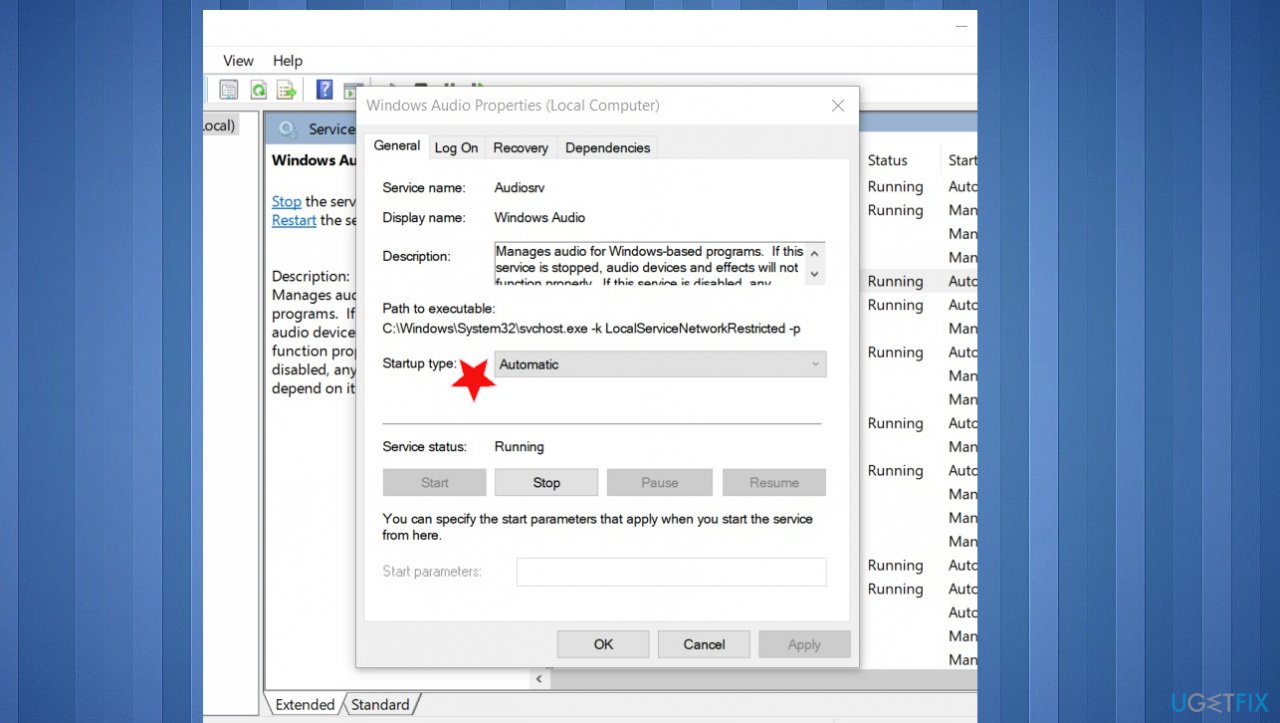
Laptops speaker bass boosted after 20h2 update fix automatic - Click apply and ok to make save changes.
- Do the same with AudioEndpointbuildert service.
#3 Update drivers
- Press Windows + X select Device manager.
- Expand Sound, video, and game controllers.
- Right-click installed sound driver and then select Update Driver.
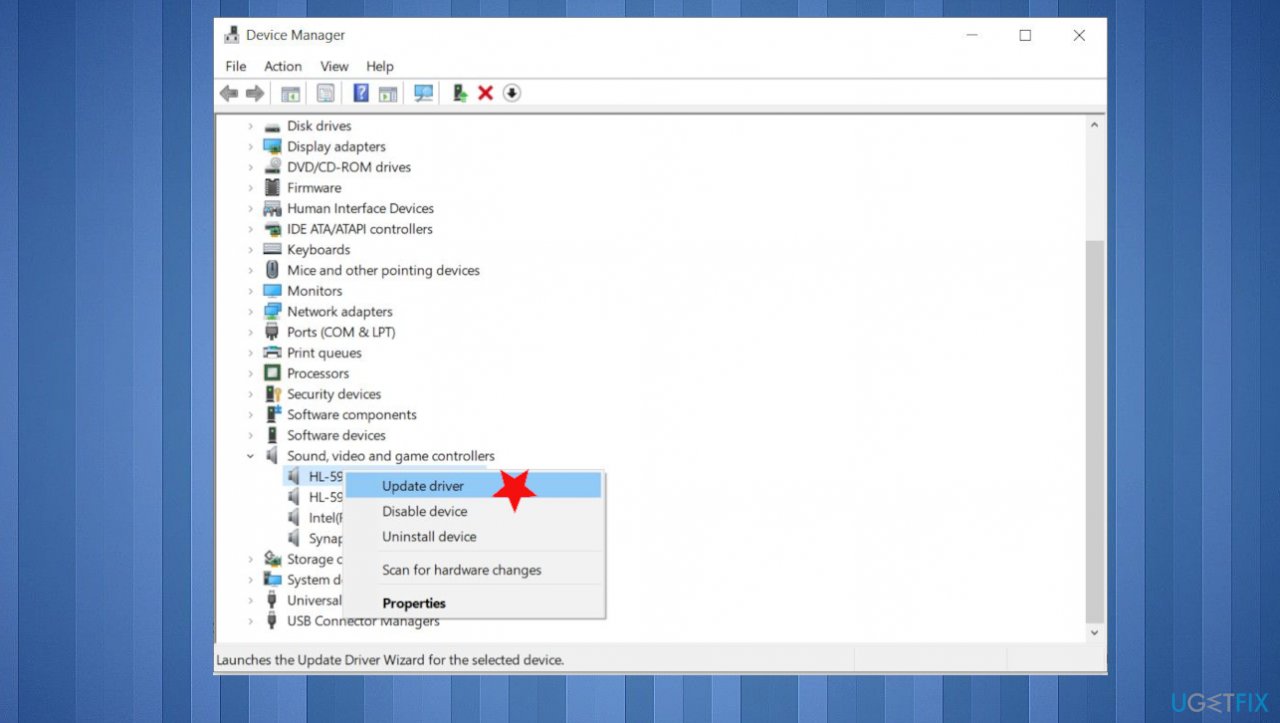
Laptops speaker bass boosted after 20h2 update fix drivers - This will check for the latest updated audio driver for your PC.
- Choose to automatically download and install drivers for you.
- Restart Windows.
[rev id="DriverFix"] can also do this updating and checking for you automatically.
#4 Reinstall drivers to fix speakers bass is boosted after Windows update
- Again open device manager.
- Expand Sound, video, and game controllers.
- Right-click the sound driver and then select uninstall the device.
- Now download the latest audio driver software for your PC from the device manufacturer’s website and follow their instructions.
- Restart Windows and check if this helps after the reinstallation.
#5 Turn off enhancements of the audio
- Select the Start button.
- Type Sound in the search box.
- Then select the Sound Control Panel from the list of results.
- On the Playback tab, right-click the Default Device.
- Then select Properties.
- On the Enhancements tab, select the Disable all enhancements checkbox and try to play your audio device.
- If that doesn’t work, select Cancel.
- Then on the Playback tab, select another default device if you have one.
- Select the Disable all enhancements check box, and try to play audio again.
- Do this for each default device.
Bottom line
To address the boosted bass issue after the 20H2 update, ensure that the correct audio drivers are installed and up to date. If the problem persists, consider rolling back the update or checking for additional audio settings adjustments. If none of these solutions work, further investigation into the root cause may be necessary.
Frequently asked questions
The bass boost issue may be caused by audio driver conflicts or settings changes introduced in the 20H2 update. You can adjust the audio settings or roll back the driver to resolve this.
You can modify the bass settings by right-clicking the sound icon in the taskbar, selecting 'Sounds', and adjusting the enhancements under the 'Playback' tab.
If the problem persists, consider updating your audio drivers or performing a system restore to revert to pre-update settings on Windows 10 or Windows 11.




Report an issue
What's wrong with this guide? We review every report and update or remove content.
Report received — thank you. We'll review and fix it.
You need a free account to submit a report.
Be the first to comment