How to fix
0x0000000d error
on Windows
Resolve the 0x0000000d error in Windows 10 or 11 with our expert-tested solutions. Get your system running smoothly again in minutes!

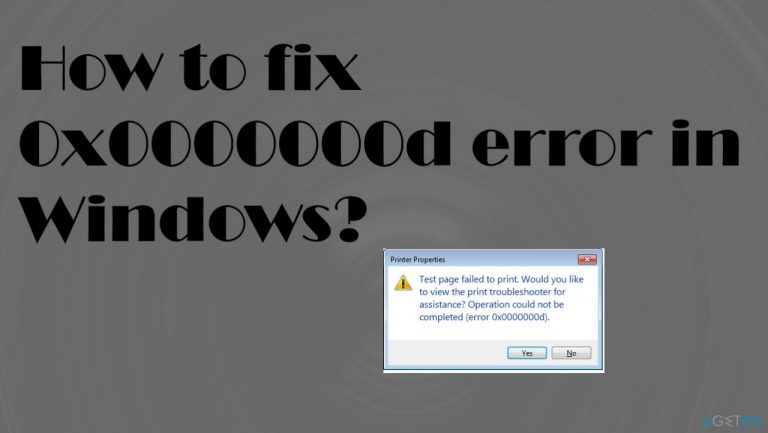
What causes How to fix 0x0000000d error in Windows?
- Faulty driver issue
- File damage and corrupted system files
- Malfunction of system operation
- Faulty installation
- Consequences of malware attack
Repairs Windows system files, removes malware, and restores a clean OS state — without reinstalling.
I receive this 0x0000000d error on my Windows device and I cannot use a wireless network, connect to the printer. The error pop-up occurs, but it doesn't determine what should I do next. It sometimes states that the print troubleshooter is needed, but I cannot find the cause or solution for this. Help!
0x0000000d error in Windows is the stop code or the BSOD[ref en-1] that appears mainly due to the faulty driver issue. Trying to install the drivers as a legacy printer can sometimes fix the issue, but people report[ref en-2] that this issue is persistent and annoying.
You might also want to check particular firewall settings if the problem occurs on the machine, so the 0x0000000d error in Windows gets fixed. The cause for this problem can be related to file damage and corrupted system files, entries. The malfunction of the system operation is the meaning of the stop code, so common reasons include faulty installation and even consequences of the malware[ref en-3] attack.
Since one of the most common issues with the machine is caused by file corruption, you can fix the 0x0000000d error in Windows and other issues by running a PC repair tool or the application designed to find and replace corrupted data like [d1]. This is one of the quick troubleshooting steps like disabling your AV tools or uninstalling third-party software that was recently added.
Compatibility issues are also often triggering issues with Windows devices, upgrades to 10 version get often rolled back for bugs and issues. 0x0000000d error in Windows is one of the more common problems, checking for recent updates, updating drivers, repairing system files, and altering some minor settings can help you quickly get back to using the machine normally.
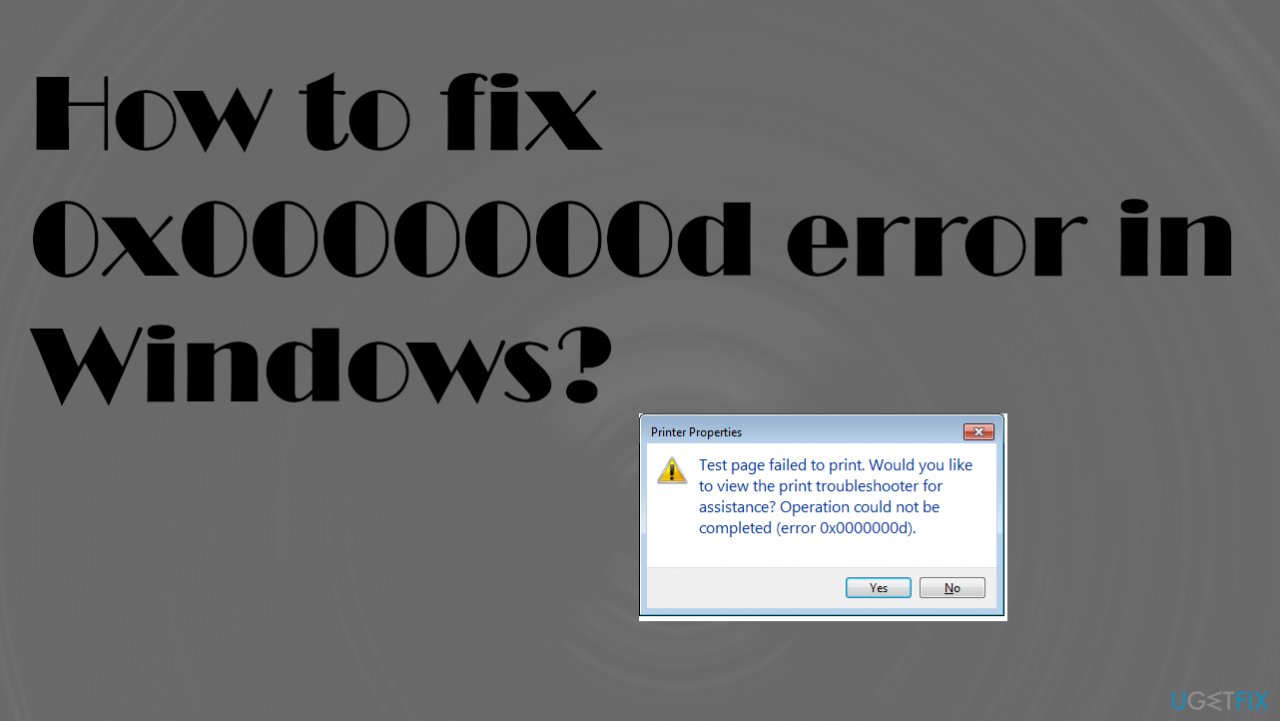
1. Troubleshooting printer errors
- Click Start and select Settings.
- Go to the Update and Security topic.
- Open the Troubleshooting tab.
- Choose Additional troubleshooters.
- Click the Printer option, and then click Run Troubleshooting.
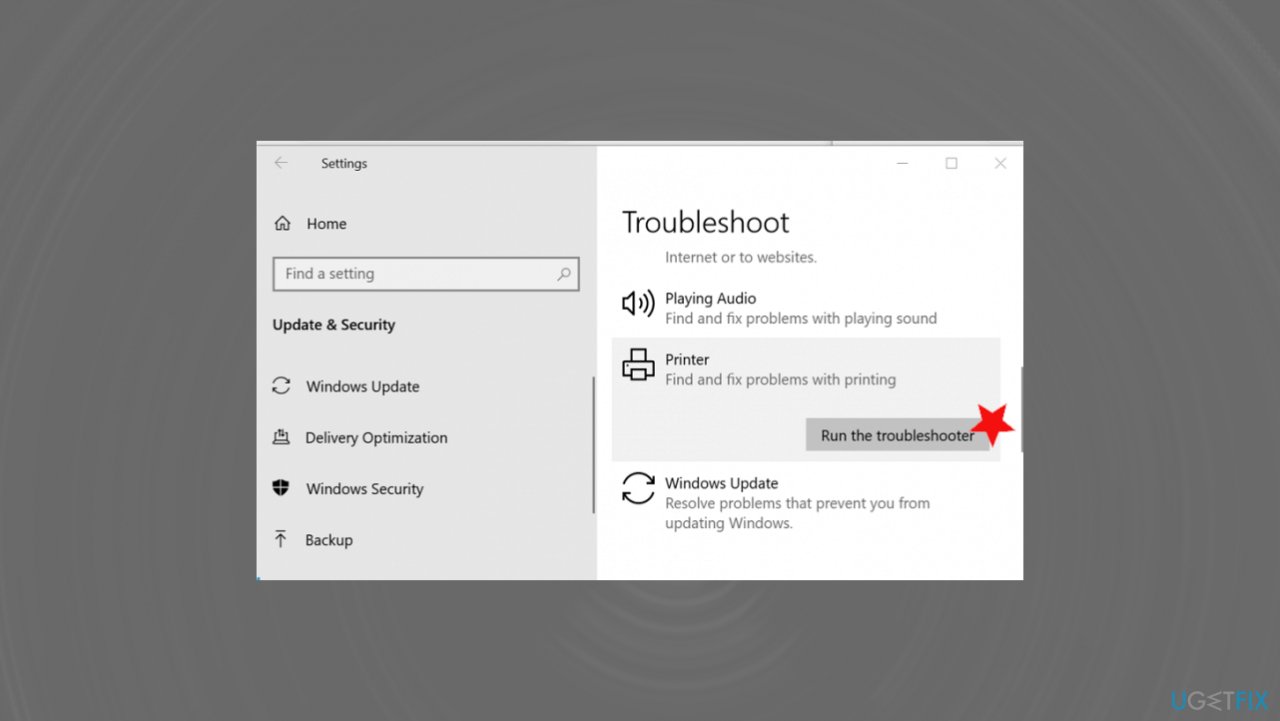
0x0000000d error fix printer troubleshoot - The troubleshooter analyzes the system for printer problems and recommends corrective actions.
- Apply the patches and see if you can connect to the network/shared printer without triggering the error.
2. Update device drivers o fix 0x0000000d error in Windows
- Click Start and enter the Device Manager.
- Open the Device Manager from the options.
- Expand the Print Queues category.
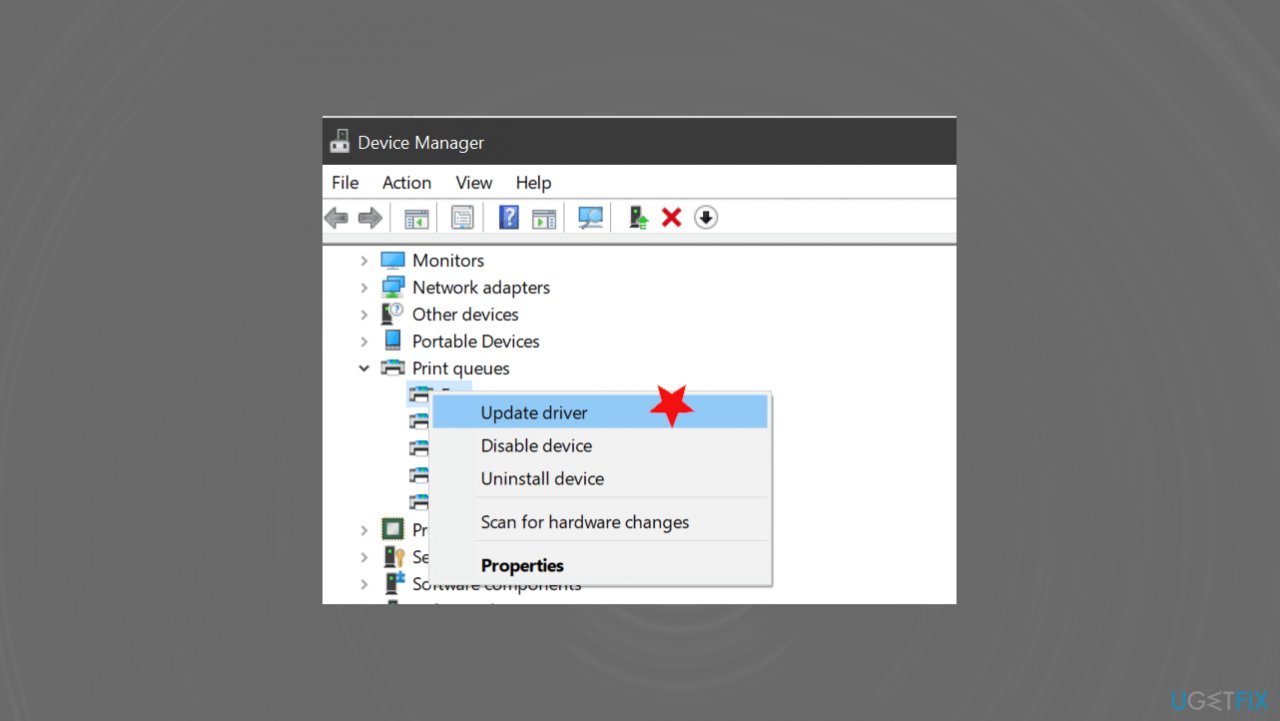
0x0000000d error fix driver update - Right-click your printer and select Update Driver.
- Select the option Automatically check the software update.
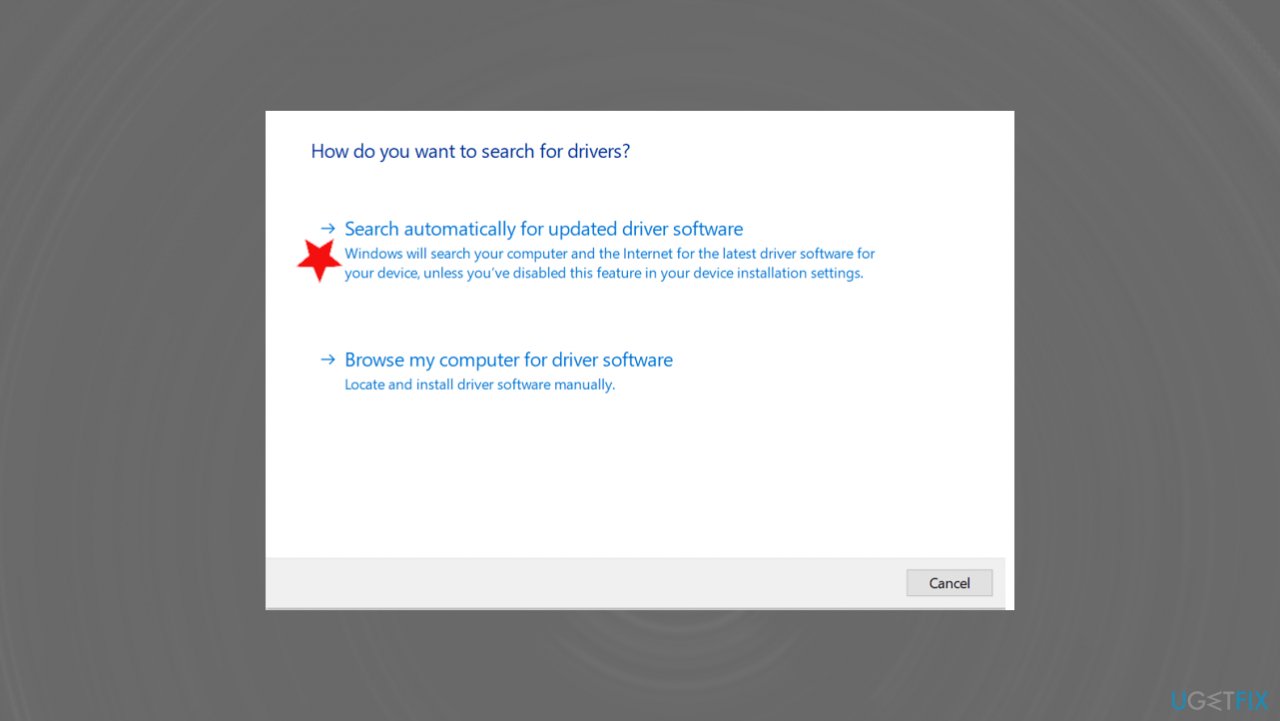
0x0000000d error fix automatic search - Windows will download and install all pending driver updates.
- Restart your computer and check for improvements.
3. Restore Windows Firewall to default
- Click on Start and select Settings.
- Go to Update and Security.
- Open Windows Security.
- Click on Firewall and Network Protection.
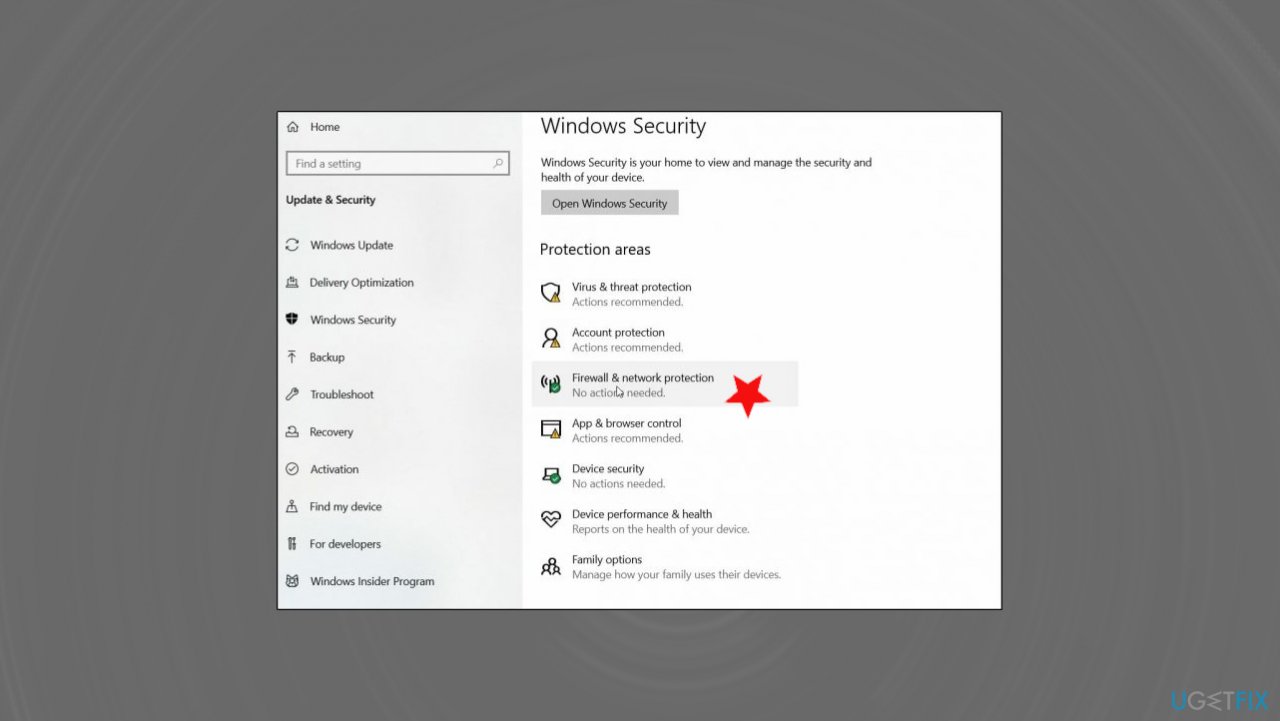
0x0000000d error fix firewall - Open your currently active network and turn off Firewall.
- Do this for Public, Private, and Domain Network if required.
- After disabling the firewall, try connecting to the network.
- If the printer works without any error, restore firewalls to default.
- Go to Firewall and Network Protection.
- Scroll down to Restore firewall to default link.
- Click the Restore Defaults.
4. Add the device as legacy hardware to fix 0x0000000d error in Windows
- Press Windows Key + R to open Run.
- Type devmgmt.msc and click OK.
- Select your computer name in Device Manager.
- Click on Actions.
- Select Add legacy hardware.
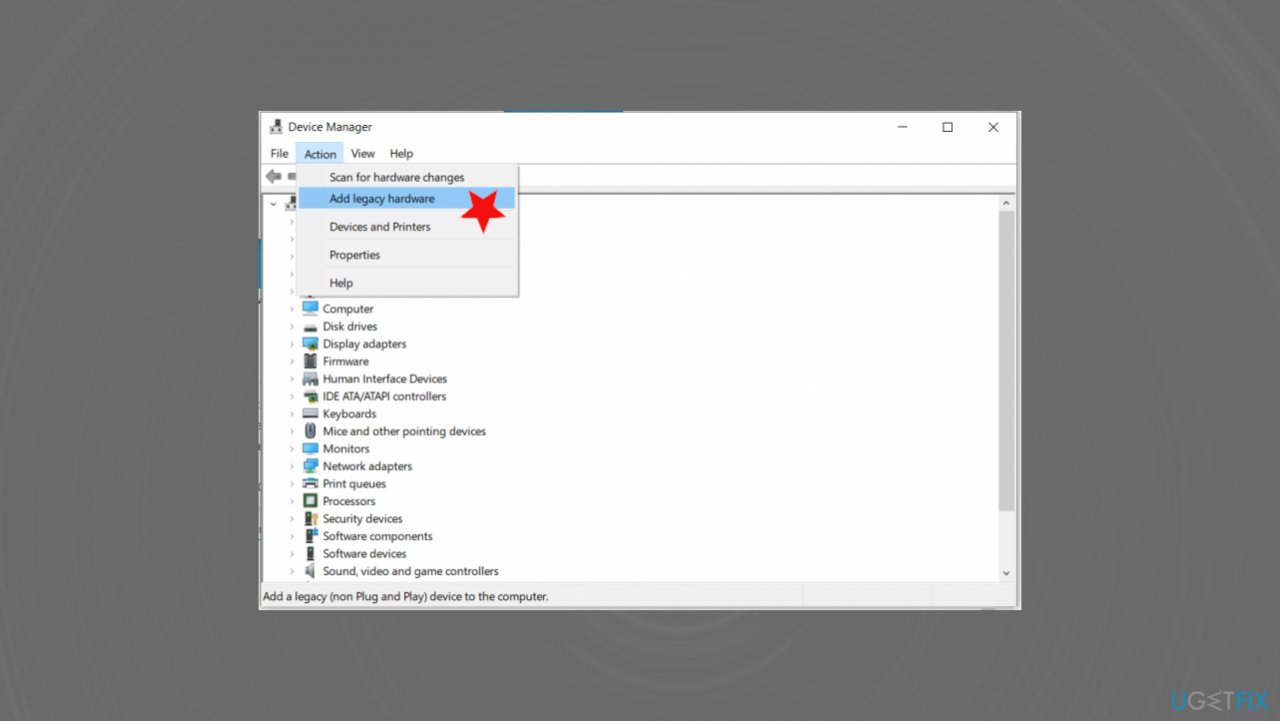
0x0000000d error fix legacy - Click Next.
- Select Install the hardware that I manually select from a list (Advanced).
- Select your device category from the list and click Next.
- Choose your manufacturer’s model and click Next.
- Install the device and close Device Manager.
Bottom line
To fix the 0x0000000d error in Windows, you can try installing drivers as a legacy printer, checking firewall settings, and running a PC repair tool. Additionally, updating drivers, repairing system files, and troubleshooting printer errors may help resolve the issue. If none of these solutions work, consider seeking professional assistance.
Frequently asked questions
The 0x0000000d error is often caused by hardware issues, corrupted system files, or incompatible drivers in Windows 10 and Windows 11.
To troubleshoot the 0x0000000d error on Windows 10, you can run the System File Checker tool and update your drivers to ensure everything is compatible.
Yes, you can attempt to fix the 0x0000000d error by performing a system restore or using the Startup Repair feature in Windows 11.




Report an issue
What's wrong with this guide? We review every report and update or remove content.
Report received — thank you. We'll review and fix it.
You need a free account to submit a report.
Be the first to comment