How to fix
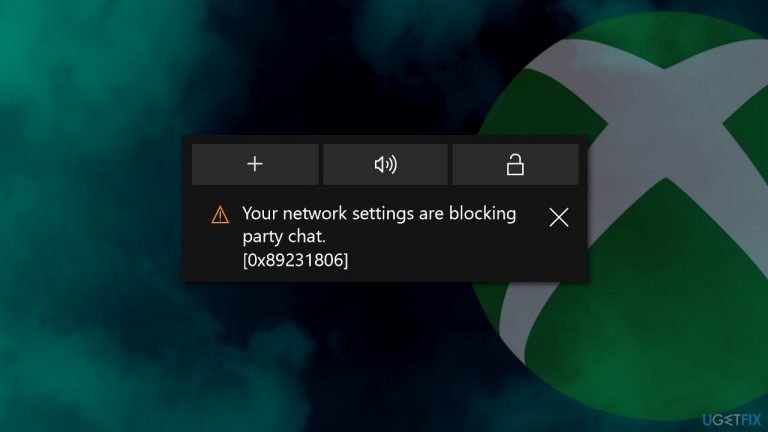
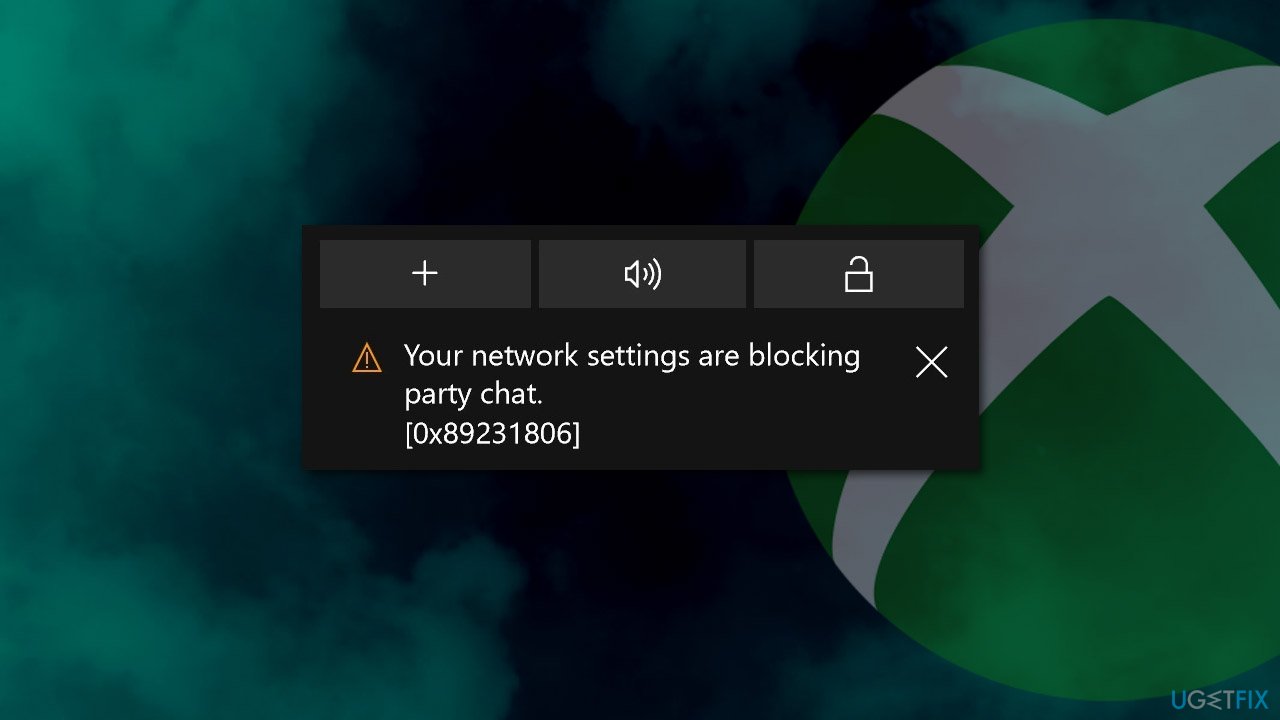
0x89231806: Your network settings are blocking party chat
on Windows
Resolve the 0x89231806 error on Windows 10/11 and enjoy seamless party chat. Quick fixes and expert-tested solutions await!

What causes How to fix 0x89231806: Your network settings are blocking party chat?
- Teredo adapter issues
- IPv6 services not running
- Network configuration problems
- Firewall settings blocking communication
- Router settings preventing party chat
Repairs Windows system files, removes malware, and restores a clean OS state — without reinstalling.
Hello. Every time I try to chat on my Xbox app, I receive the following error: Your network settings are blocking party chat [0x89231806]. This is very annoying - it prevents me from using the chat feature in the first place. Please, can somebody help me fix this? Thanks in advance.
0x89231806 error occurs when users are trying to join party chat via the Xbox app on Windows 10. Party chat is a very useful feature while playing games, as it provides communication possibilities with teammates, providing an advantage within the match. Without it, players are forced to play without having a conversation going, which is obviously extremely disadvantageous.
Xbox app[ref en-3] in Windows 10 is a platform dedicated to all things gaming, it allows users to add friends, change game settings, launch, stream, or record games, communicate with others, and much more. Those who play Microsoft games are accustomed to using this app, so when things go wrong, it can be an extremely frustrating experience.
Your network settings are blocking party chat 0x89231806 error is just one of several issues that users encounter with this app while using it. For example, players said they could not hear anyone in party chat or faced other errors such as 0x80073d13.
Receiving 0x89231806 makes Xbox party chat not working completely. According to the message " Your network settings are blocking party chat," it seems like the problem lies within the network used to connect the party chat. However, many users reported that they had no issues using the internet for everything else, including online gaming.
So, how do you fix Your network settings are blocking party chat error? The answer to this question is not that straightforward, as there could be several reasons for the error to show up in the first place. For example, those who use Teredo adapter or having IPv6 services not running can be facing this issue.
The issue has been present for quite a few years now, or, rather, as soon as the Xbox app was introduced in Windows 10. In this article, we will explore methods that would help you fix 0x89231806 error and party chat not working issues.
Before you begin, we would like to suggest you run a scan with [d1]. In case the issue lies within system file corruption, missing DLLs, or broken Windows registry[ref en-2] files, it will help you resolve the error automatically within just a few minutes. Besides, this tool can also remove malware, fix BSODs,[ref en-1] protect your privacy by cleaning your web browsers from cookies/other web data and clear the system from junk.
Fix 1. Reset your internet connection
Since one of the main reasons for the error to occur is a network connection, resetting it might provide you with a solution to this problem. For that, you need to launch Command Prompt as administrator:
- Type in cmd in Windows search.
- Right-click on Command Prompt result and select Run as administrator.
- Once the new window opens, type in the following commands, pressing Enter after each:
ipconfig /flushdns
ipconfig /registerdns
ipconfig /release
ipconfig /renew
netsh winsock reset - Reboot your computer and see if the problem persists.
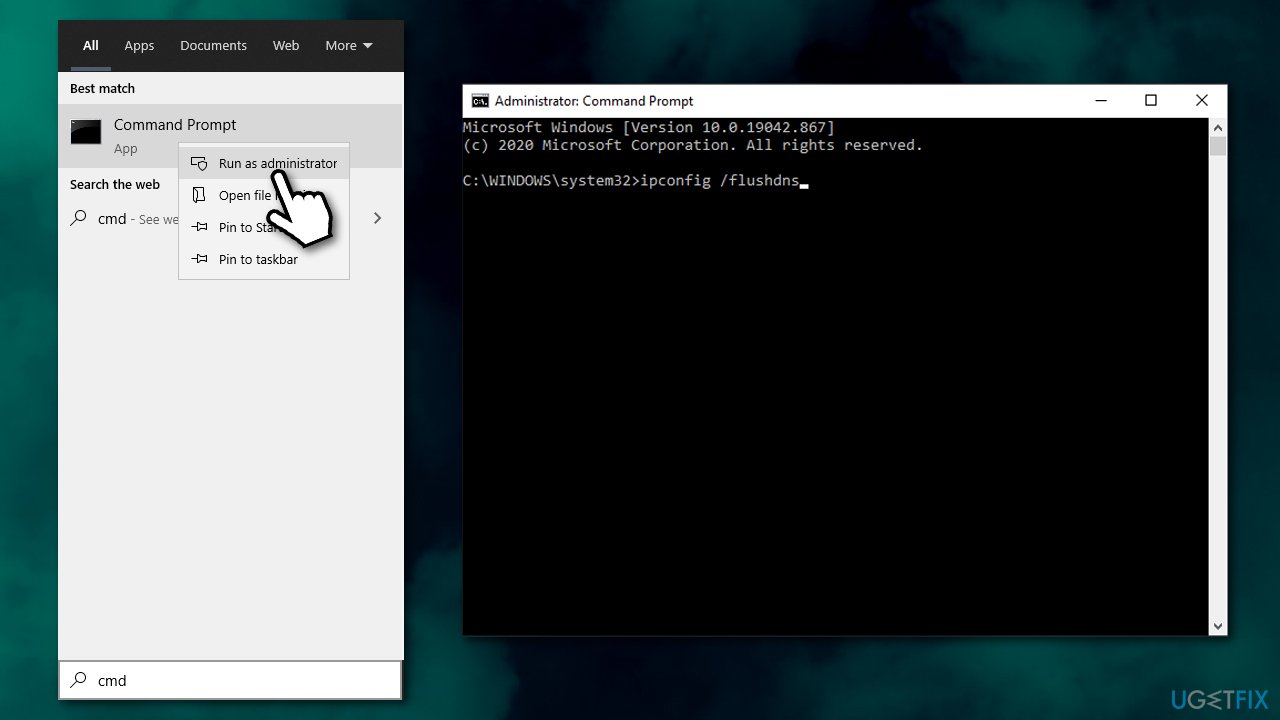
How to fix 0x89231806 your network settings are blocking party chat reset internet connection
Fix 2. Restart the IP Helper service
Microsoft is using an IPv6 server to support communication via Xbox. Hence, if something goes wrong with the service that supports it, it might prevent users from using party chat. Restarting this service might resolve the issue:
- Type in Services in Windows search and press Enter.
- Scroll down and locate the IP Helper service.
- Right-click and it and select Restart.
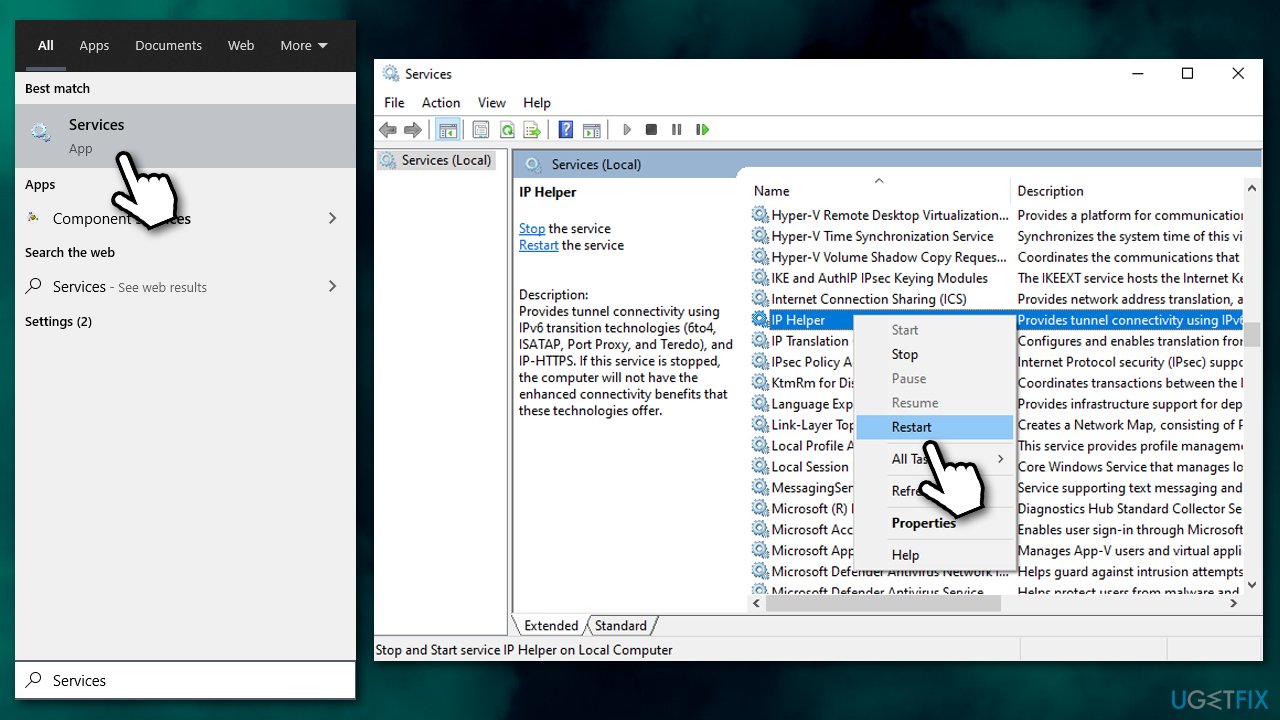
How to fix 0x89231806 your network settings are blocking party chat restart ip helper service - Now, double-click IP Helper.
- Under Startup type, make sure it is set to Automatic.
- Press Apply and OK.
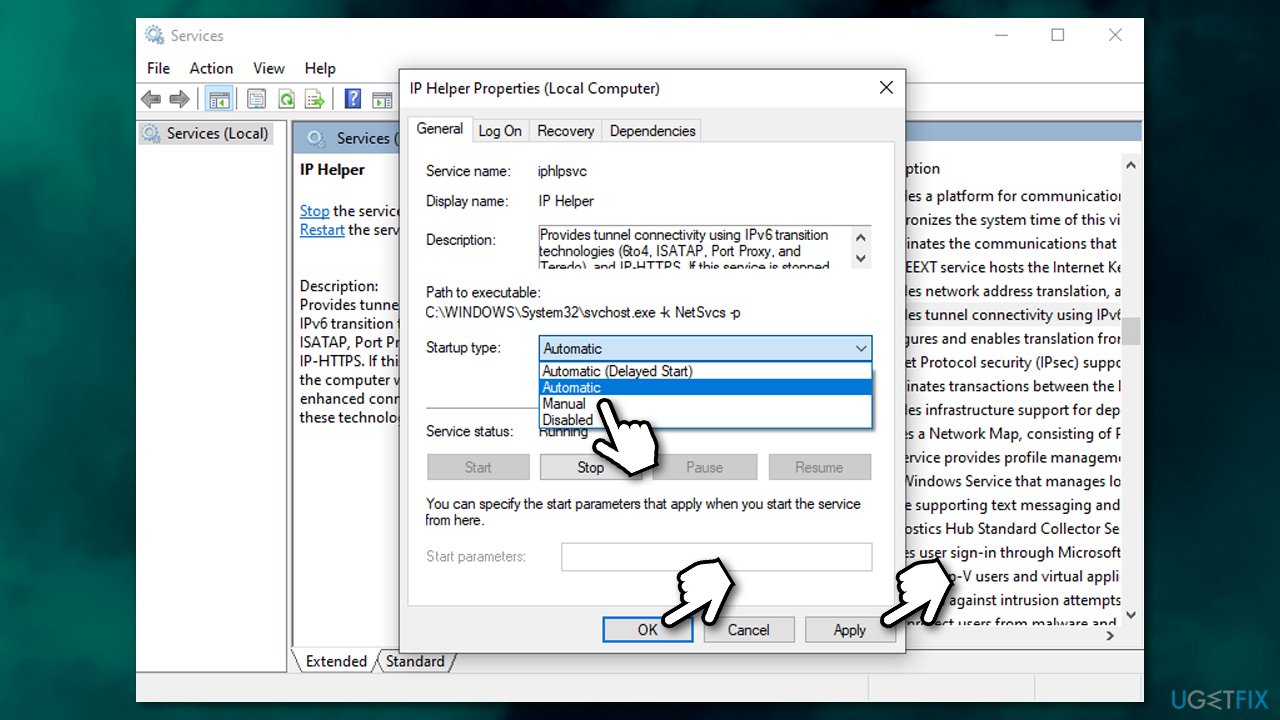
How to fix 0x89231806 your network settings are blocking party chat restart ip helper service2
Fix 3. Check your Firewall and VPN
First of all, you should ensure that Windows Firewall is enabled and running, as it could be causing the problem. By default, all Xbox-related apps should be allowed through Windows Defender Firewall unless some settings were changed manually.
Another reason for the Your network settings are blocking party chat error to show up is a third-party firewall, as it might be blocking the connection to Microsoft servers. To check whether that is the case, disable (or uninstall) your Firewall temperately and check if that helps. If it does, either swap to a different Firewall app or add Xbox connections to the exceptions list.
Finally, some VPN providers might be interfering with a proper network connection (users reported that disabling Hamachi worked for them). If you are looking for a reliable VPN that does not track you and does not interfere with other common programs, we recommend using [rev id="Private Internet Access"].
Fix 4. Tweak Xbox account settings
- Visit the official Xbox website and login with your account.
- Click on your gamertag and select More options (three horizontal dots).
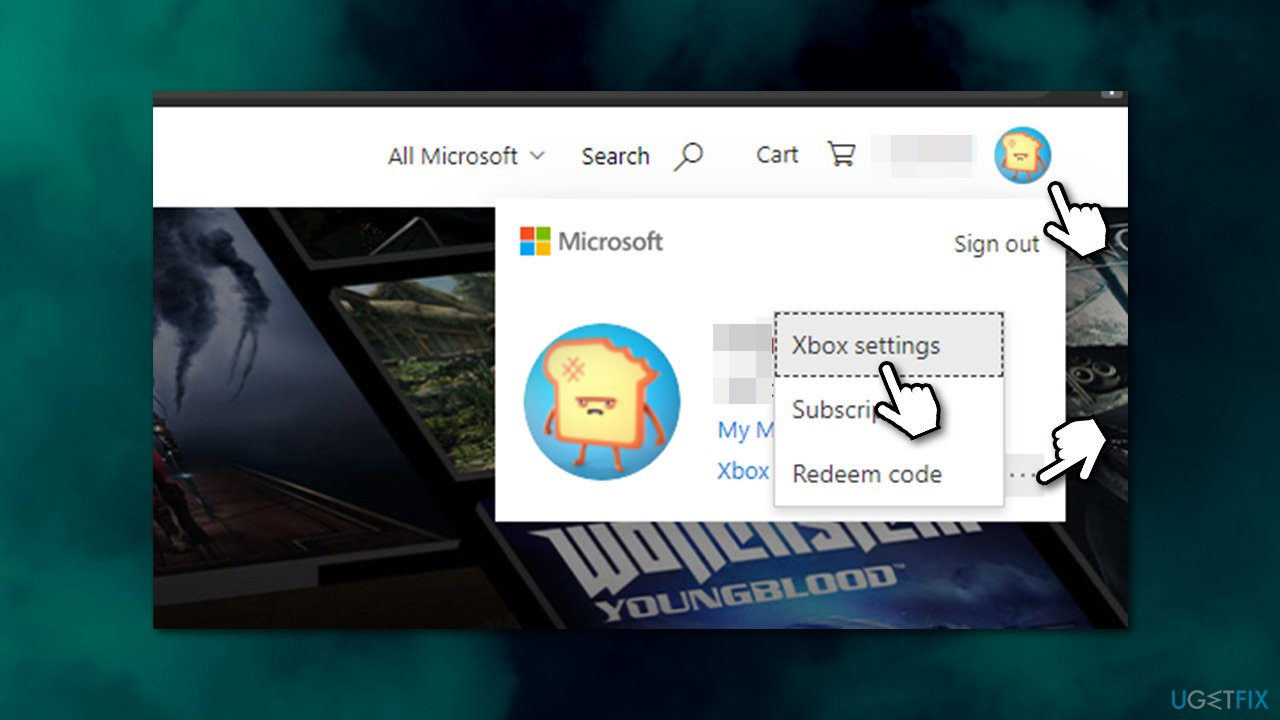
How to fix 0x89231806 your network settings are blocking party chat tweak xbox one privacy settings - In Xbox settings section, pick Privacy & online safety.
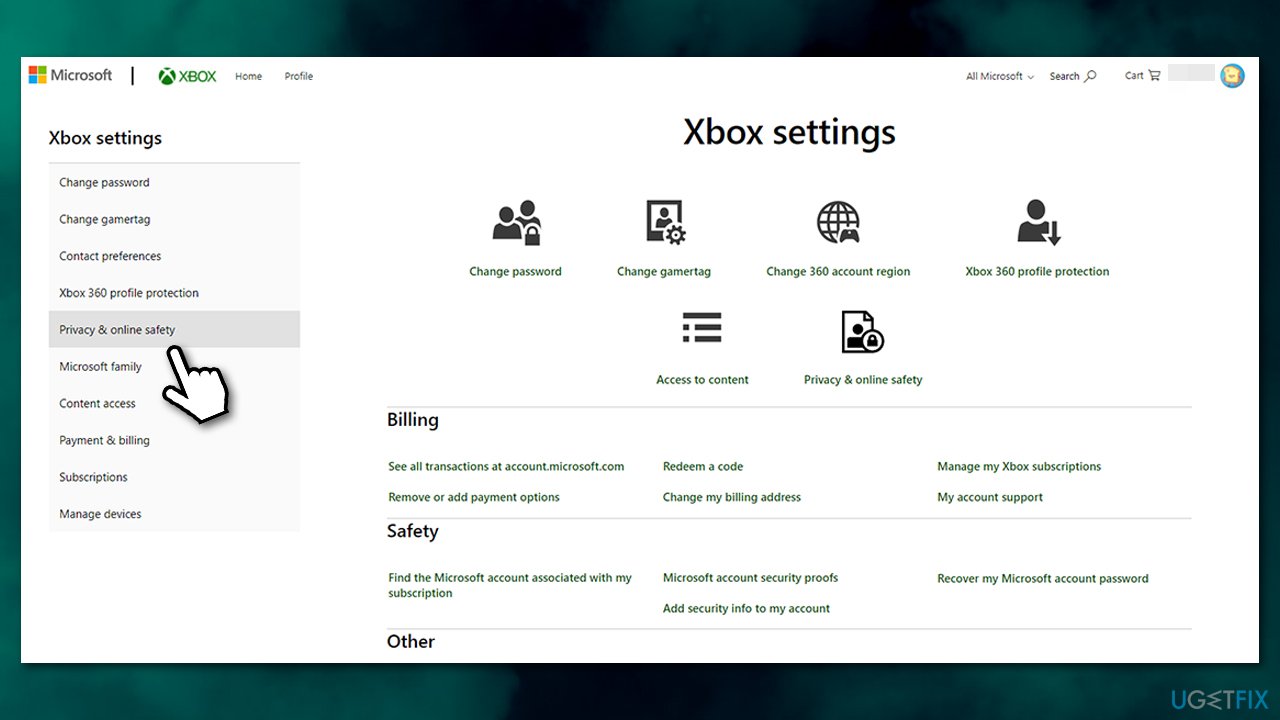
How to fix 0x89231806 your network settings are blocking party chat tweak xbox one privacy settings2 - On the right side, make sure that appropriate settings (set for Allow or Friends instead of Block) are set to:
You can communicate outside of Xbox Live with voice & text
Others can communicate with voice, text, or invites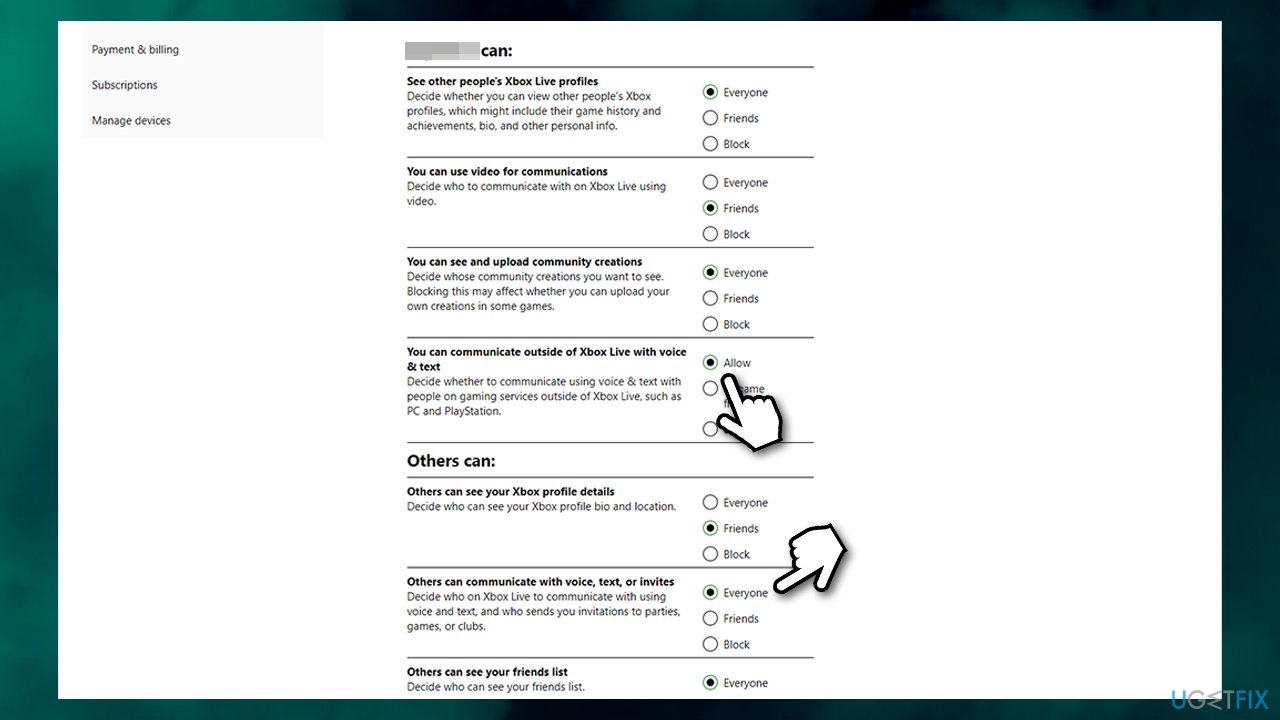
How to fix 0x89231806 your network settings are blocking party chat tweak xbox one privacy settings3
Note: if you are configuring settings for your child's account, don't forget to select the appropriate account
Fix 5. Enable Teredo Tunneling Interface driver
- Right-click on Start and pick Device manager
- At the top of the window, select View > Show hidden devices
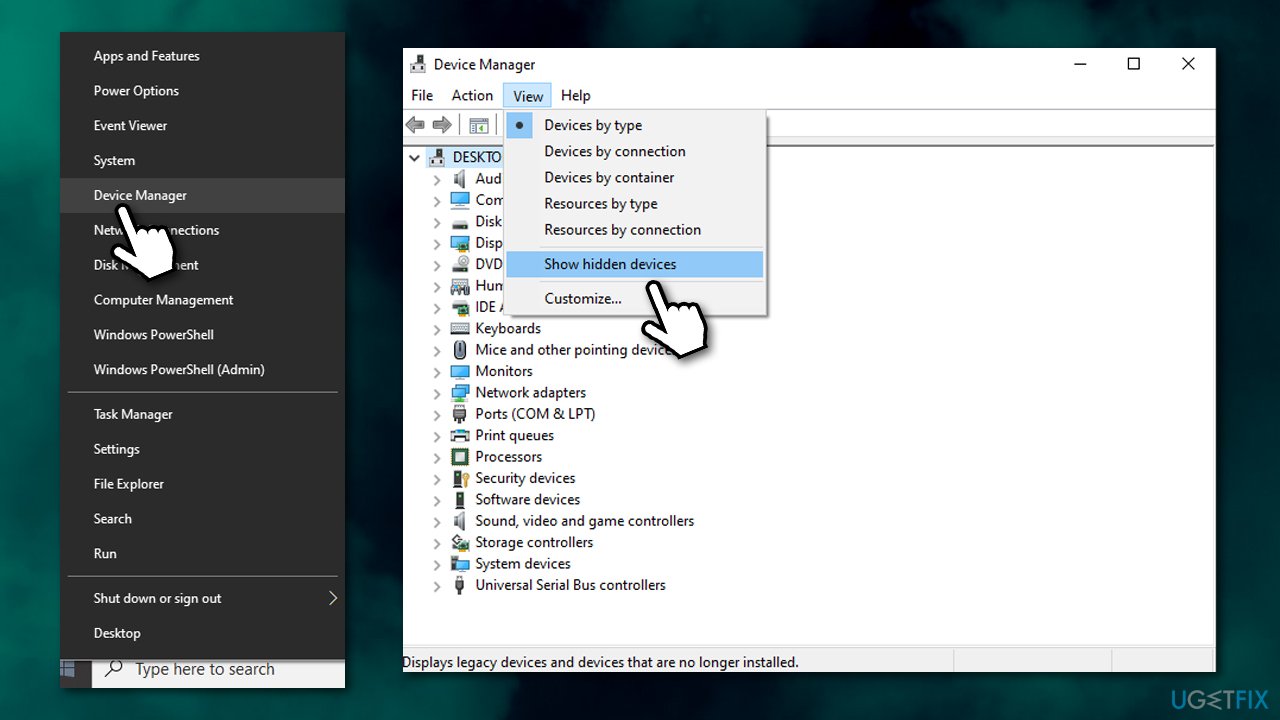
How to fix 0x89231806 your network settings are blocking party chat enable teredo adapter - Expand Network adapters section.
- Right-click on Microsoft Teredo Tunneling Adapter and select Enable.
How to fix Your network settings are blocking party chat on Xbox One 0x89231806 error?
If you are experiencing the same problem on Xbox One console, you should try the following solution:
- On your Xbox, press the Xbox button to call up the menu.
- Go to Profile & system and select Settings.
- Go to General > Network settings.
- Locate the Current Network Status section
- Here, make sure that NAT Type is set to Open.
Bottom line
To fix the 0x89231806 error, you can try enabling the Teredo adapter, ensuring IPv6 services are active, adjusting firewall settings, and checking your router configuration. If these steps do not resolve the issue, consider seeking further assistance from support forums or contacting Xbox support.
Frequently asked questions
The error code 0x89231806 typically indicates that your network settings are preventing you from accessing party chat features in Xbox services on Windows 10 or Windows 11.
To fix the 0x89231806 error on Windows 11, check your network settings, ensure that your Xbox app is updated, and verify that your NAT type is set to 'Open' in your network configuration.
Yes, in Windows 10, you should ensure that your firewall is not blocking the Xbox app, and consider resetting your router or adjusting your DNS settings to improve connectivity.




Report an issue
What's wrong with this guide? We review every report and update or remove content.
Report received — thank you. We'll review and fix it.
You need a free account to submit a report.
Be the first to comment