How to fix
PNP_DETECTED_FATAL_ERROR
on Windows
Resolve the PNP_DETECTED_FATAL_ERROR in Windows 10 quickly with expert-tested solutions and tips for a smooth computing experience. Fixed in minutes!

What causes How to fix PNP_DETECTED_FATAL_ERROR in Windows 10?
- System file corruption
- Driver issues
- Hardware failure
- Malfunction of Plug and Play feature
Repairs Windows system files, removes malware, and restores a clean OS state — without reinstalling.
Help! I can't access Windows because of PNP_DETECTED_FATAL_ERROR Blue screen. I tried restarting several times, but the screen returns the same error each time. Now I can't even access Windows at all. Why is this is happening, and what can I do to fix it?
Windows 10 and all its previous versions use a safeguard mechanism to prevent fatal system damage under certain circumstances. This event is typically viewed by users as a Blue Screen of Death[ref en-2] error, when the system interrupts all the work done on a PC, automatically reboots, and shows an error code for a moderate amount of time until data is collected.
In most cases, Windows recovers as soon as it boots back on, and users can proceed using their machines with no problems. In fact, BSODs are relatively common and usually mean nothing serious - it is simply a stop error that prompted the PC to restart in order to recover from it.
However, some errors might indicate that something is very wrong, especially if it recurs several times, shows up when some action is performed on a computer (for example, when a program is being launched) or when it prevents users from launching Windows altogether. PNP_DETECTED_FATAL_ERROR is one of such errors and needs to be addressed as soon as possible.
PNP stands for "Plug and Play" - it is a system of external devices that provides an interface for hardware component discovery, consequently allowing it to work without user intervention. When such a feature malfunction for one reason or another, users can receive the PNP DETECTED FATAL ERROR.
One of the main reasons for this error to occur is system file corruption, which can also be related to drivers. Therefore, rolling back drivers or updating them might help you solve the issue. Additionally, hardware failure can also be the cause of this issue, although it is not necessarily the case for you.
Some users reported that they could not access Windows UI at all, as they were stuck in a reboot loop ending with the same BSOD. In order to find out what is causing the problem and attempt fixing it, you should first access Safe Mode, as we explain below.
Fix PNP DETECTED FATAL ERROR when unable to access Windows
If you can't get to Windows at all, your one and only option, for now, is to boot into Safe Mode. From there, you can troubleshoot the problem further. If you can boot to Windows without problems, proceed with the next step.
- Reboot your PC by pressing and holding Power button or simply press Rest button
- Once Windows starts booting back up, interrupt this process by pressing and holding Power button again - do this two more times
- After that, Windows should automatically enter the Advanced Startup mode
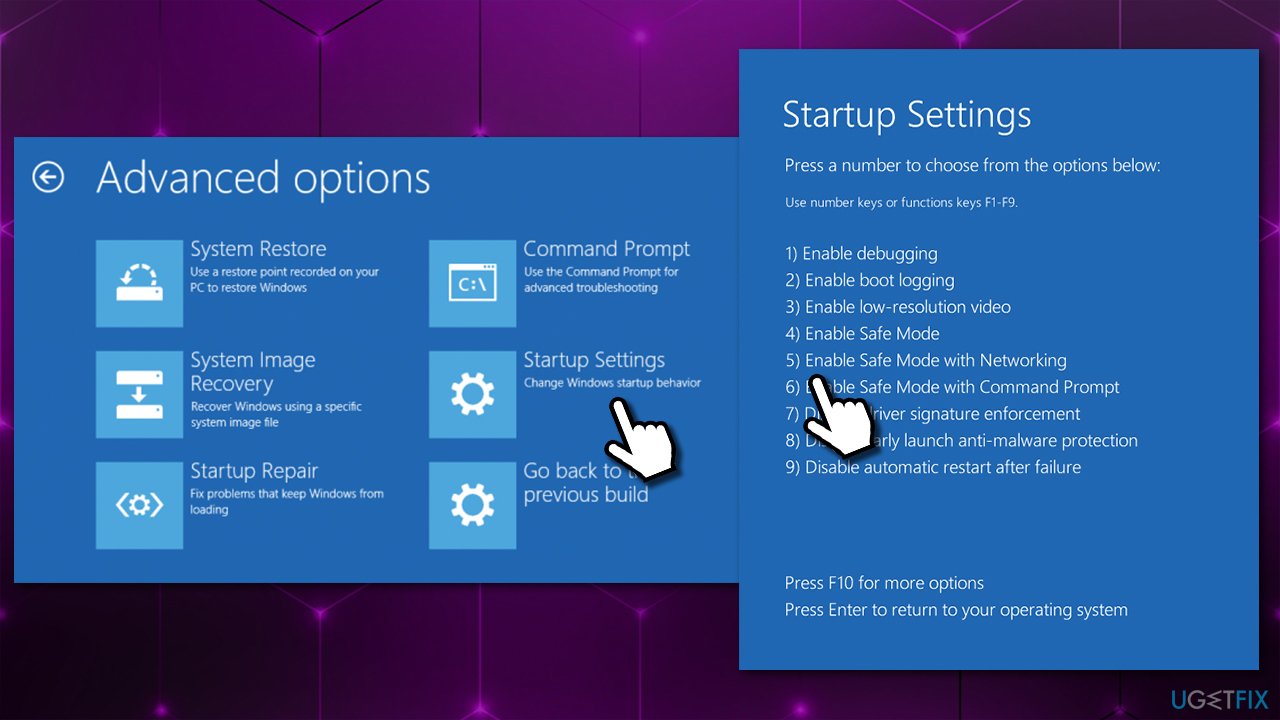
- From here, choose Troubleshoot > Advanced options > Startup Settings and Restart
- After a reboot, choose 5/F5 option to access Safe Mode with Networking.
Fix 1. Disconnect all external devices
External devices connected to your computer or laptop can cause PNP_DETECTED_FATAL_ERROR BSOD. Therefore, if you have any external Hard drives, cameras, phones, or other devices connected to your machine, disconnect them and see that that helps you solve the issue.
The exact same principle works for recently installed hardware. For example, if you have recently replaced your RAM[ref en-1] sticks, you should put your old ones back in and see if that solves your problem.
Fix 2. Use automatic repair tool
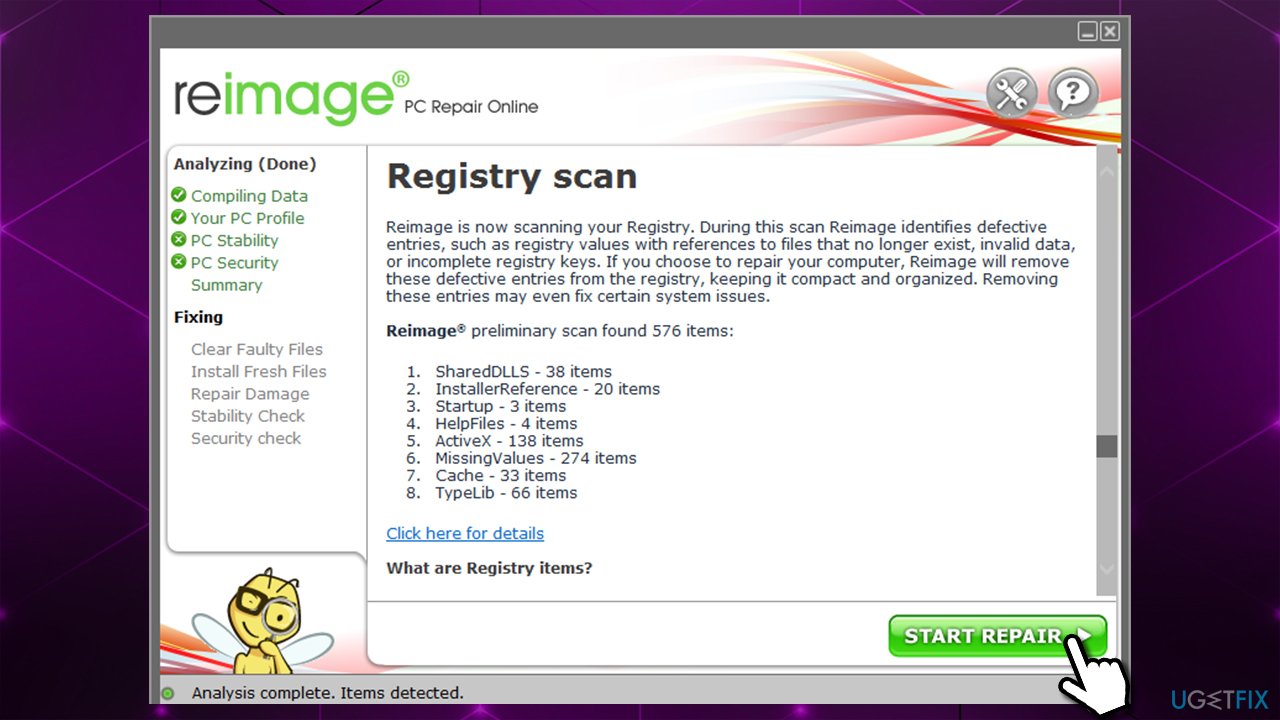
Reasons for Blue Screen errors can be many, and more often than not, it is difficult to determine what causes the crash. Therefore, it is much easier and quicker to let a professional repair tool do the job for you - [d1]. The app can find and replace damaged or missing Windows system files without you having to reinstall the operating system. This way, Blue Screen errors, registry[ref en-3] errors, and other issues can be fixed quickly. It can also perform diagnostics and maintenance tasks on you, e.g., clean web browsers and junk files.
Fix 3. Roll back drivers
If you have recently updated drivers and started experiencing problems, you should roll them back. You can do that via the Device Manager:
- Right-click on Start and pick Device Manager
- Expand the relevant section
- Right-click on the device and select Properties
- Go to Driver tab
- Here, click on Roll Back Driver
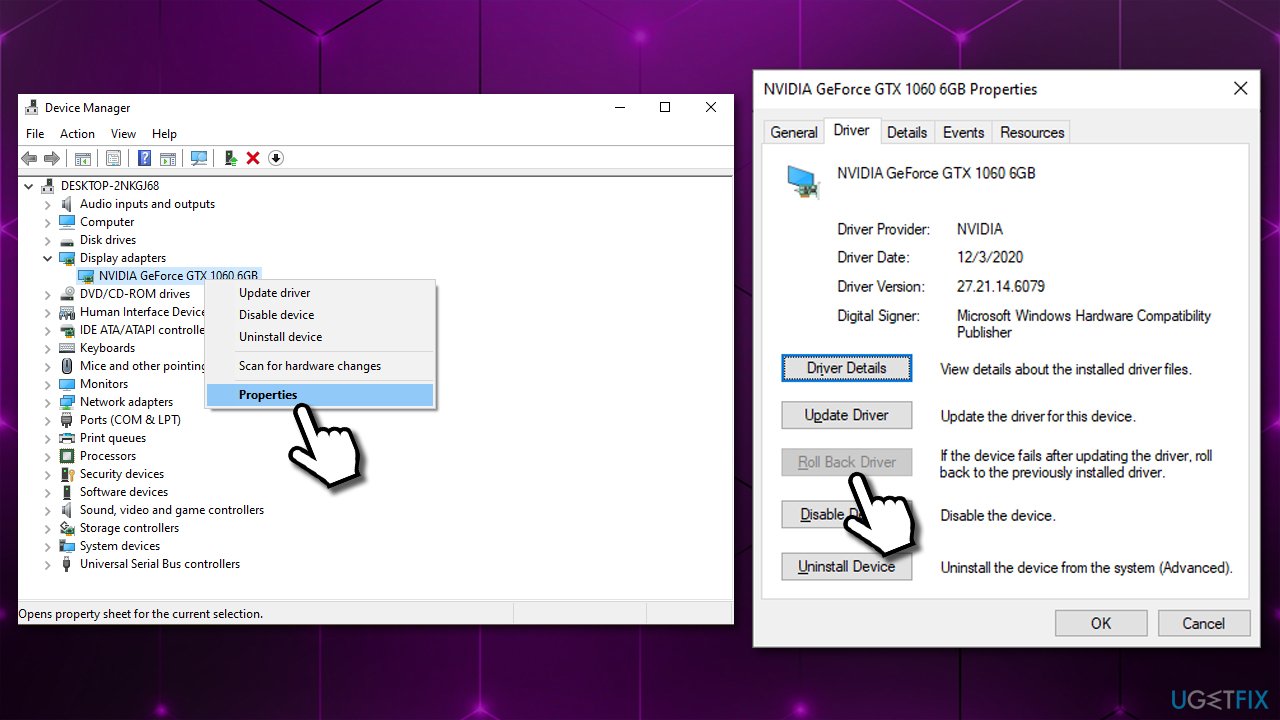
- Pick the reason for rolling back and click Yes
- Reboot your computer.
Fix 4. Update drivers
Updating Drivers can also sometimes help you fix the PNP DETECTED FATAL ERROR BSOD. You can do that via the Device Manager:
- Open Device Manager
- Expand the section you want to update drivers for, e.g., Display adapters
- Right-click on the device and select Update driver
- Pick Search automatically for drivers
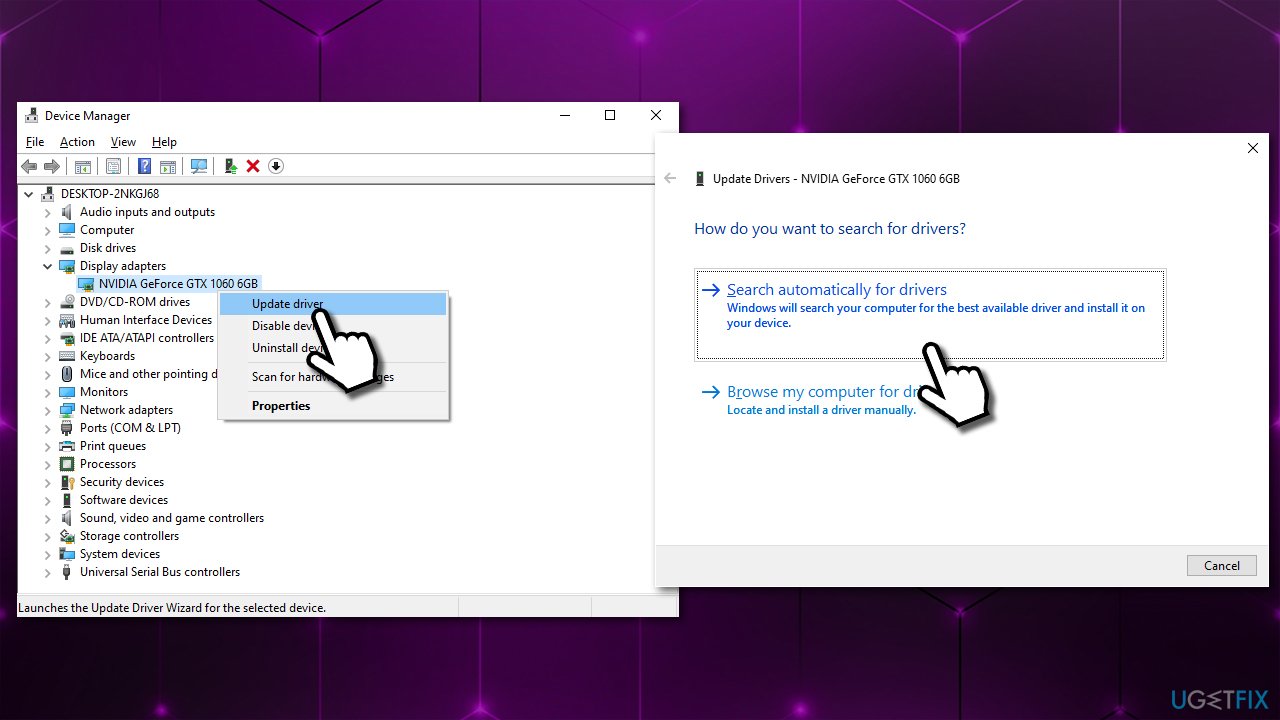
- Wait till new drivers are installed and reboot the system.
However, this method is not optimal, as the Device manager often fails to find the newest driver for your hardware. Thus, either visit the manufacturer's website and download the most recent drivers for your device model or employ [rev id="DriverFix"] to update drivers automatically for all your hardware - in just a few minutes.
Fix 5. Check system for file corruption
- Type cmd in Windows search
- Right-click on Command Prompt result and select Run as administrator
- Type sfc /scannow and hit Enter
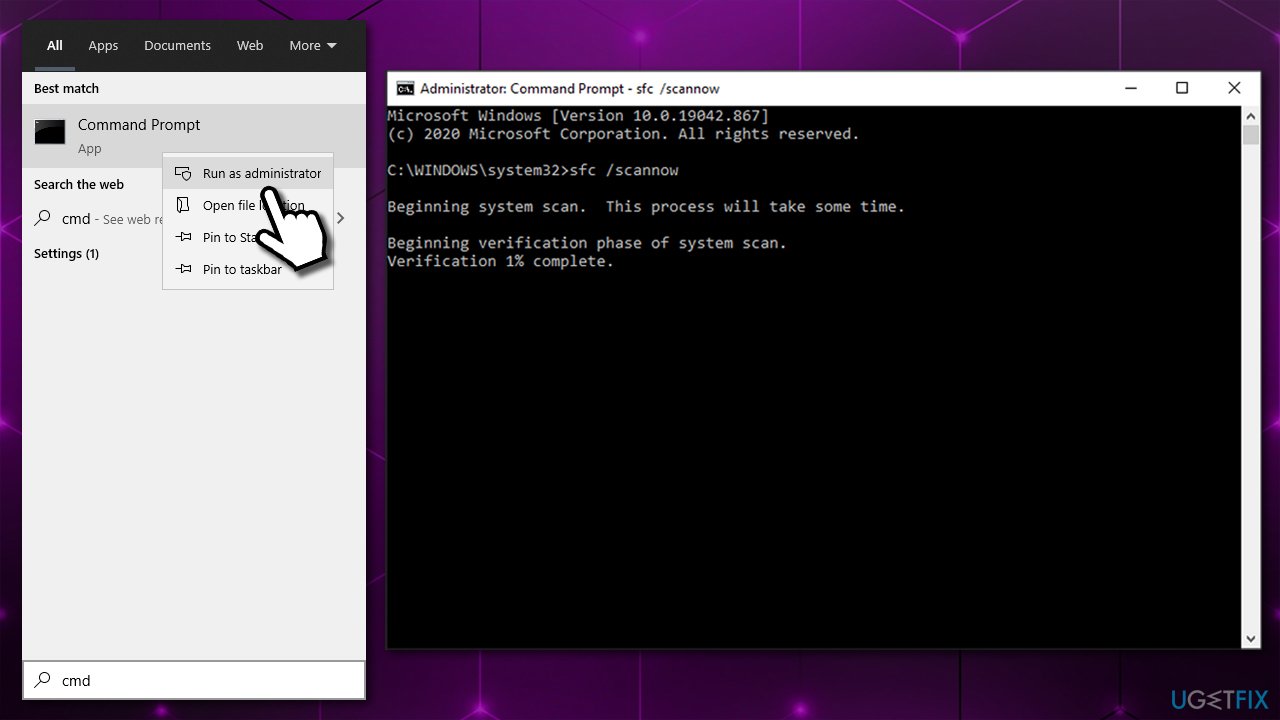
- Wait till Windows finishes the scan and reports results
- Restart your PC.
Fix 6. Reset Windows
You can reset/reinstall Windows in various ways. However, this method will allow you keeping all your personal files intact.
- Right-click on Start and pick Settings
- Go to Update & Security section and pick Recovery on the left
- Under Reset this PC, click on Get Started
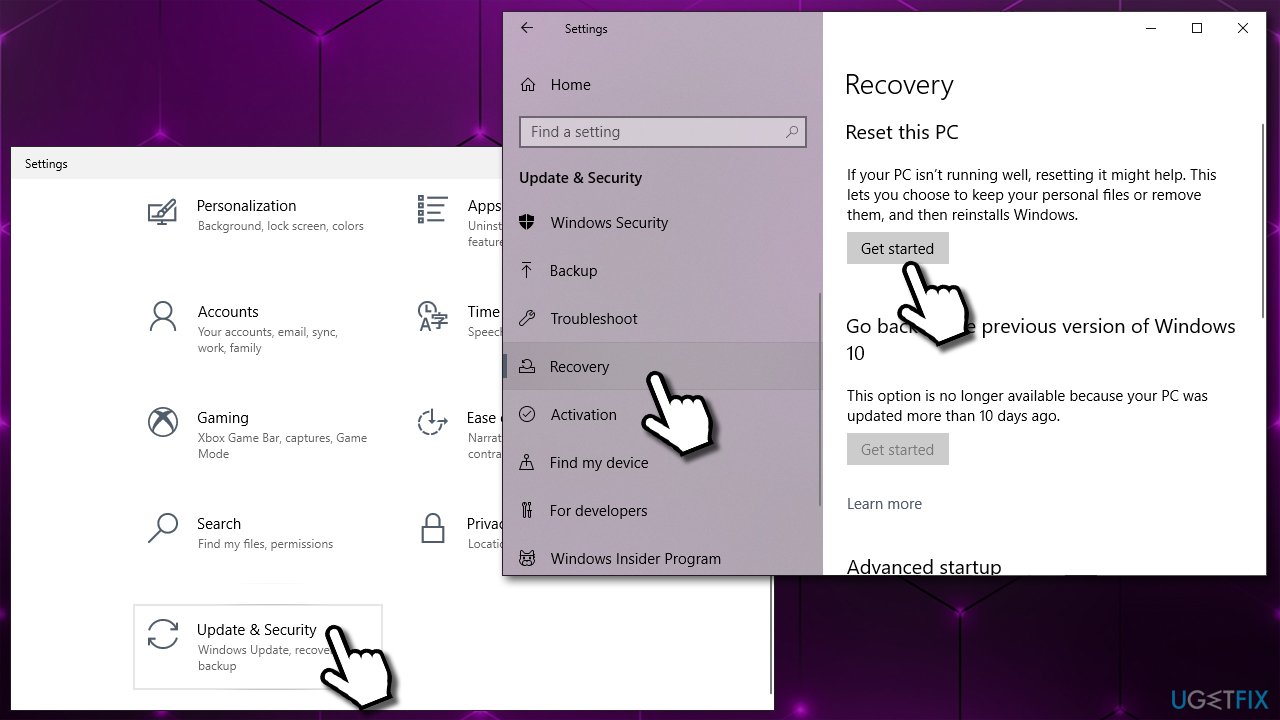
- Pick Keep my files and Cloud download to finish.
Bottom line
To fix the PNP_DETECTED_FATAL_ERROR, you can try rolling back or updating your drivers, as well as checking for any hardware failures. If these solutions do not resolve the issue, further troubleshooting may be necessary.
Frequently asked questions
The PNP_DETECTED_FATAL_ERROR usually occurs due to issues with device drivers or hardware conflicts in Windows 10. It can also be triggered by faulty hardware components.
To troubleshoot this error, you can start by booting into Safe Mode and updating or rolling back device drivers. Additionally, running the Windows Memory Diagnostic tool may help identify any memory issues.
Yes, performing a reset of Windows 10 can resolve the PNP_DETECTED_FATAL_ERROR by restoring the system to its default settings, which may eliminate driver conflicts or corrupted files.




Report an issue
What's wrong with this guide? We review every report and update or remove content.
Report received — thank you. We'll review and fix it.
You need a free account to submit a report.
Be the first to comment