How to fix
The system cannot write to the specified device error
on Windows
Resolve "The system cannot write to the specified device" error on Windows 10 quickly and easily, with expert-tested solutions and updated tips.


What causes How to fix The system cannot write to the specified device error on Windows 10?
- System file corruption
- Malware infection
- Failing hardware
- Driver malfunction
- Issues with Windows updates
Repairs Windows system files, removes malware, and restores a clean OS state — without reinstalling.
Hello, my Discord was not working properly, so I decided to reinstall it. However, each time I try to install it, I now receive an error "The system cannot write to the specified device." Any ideas about how to fix this?
The system cannot write to the specified device is a Windows error that can occur on any version of the operating system, including 7, 8, or 10. The problem is usually related to a process when users are unable to install programs on their computers. Alternatively, the problem can occur when trying to update Windows or drivers for different hardware.
The system that cannot write to the specified device is typically also marked with ERROR_WRITE_FAULT code and can be known as error 29.
While write errors can be observed when using several different applications such as Steam, usually users have no idea what is causing it. The most important thing when trying to troubleshoot problems is to remember when the error occurred and whether some changes were made to the system.
The system cannot write to the specified device error can be caused by many different issues, although the most probable cause is system file corruption. This, in itself, can be a result of many factors, such as malware[ref en-3] infection or failing hardware.

As evident, not being able to install applications or update drivers, Windows updates can cause serious problems, including not being able to secure the operating system from dangerous software vulnerabilities. Thus fixing the problem becomes very important.
Nonetheless, below you will find all the relevant information and solutions for this problem. Keep in mind that not all of the fixes will for everybody, so try all the methods to see which one works for you.
Fix 1. Use System repair tool
Windows errors can be either minor or cause some serious problems with its operation. For example, Blue Screen of Death[ref en-2] errors might sometimes even prevent users from accessing their devices and result in the so-called reboot loop. There could be many different reasons for serious problems to arise, e.g., driver malfunction, system file corruption, Windows registry errors, and much more.
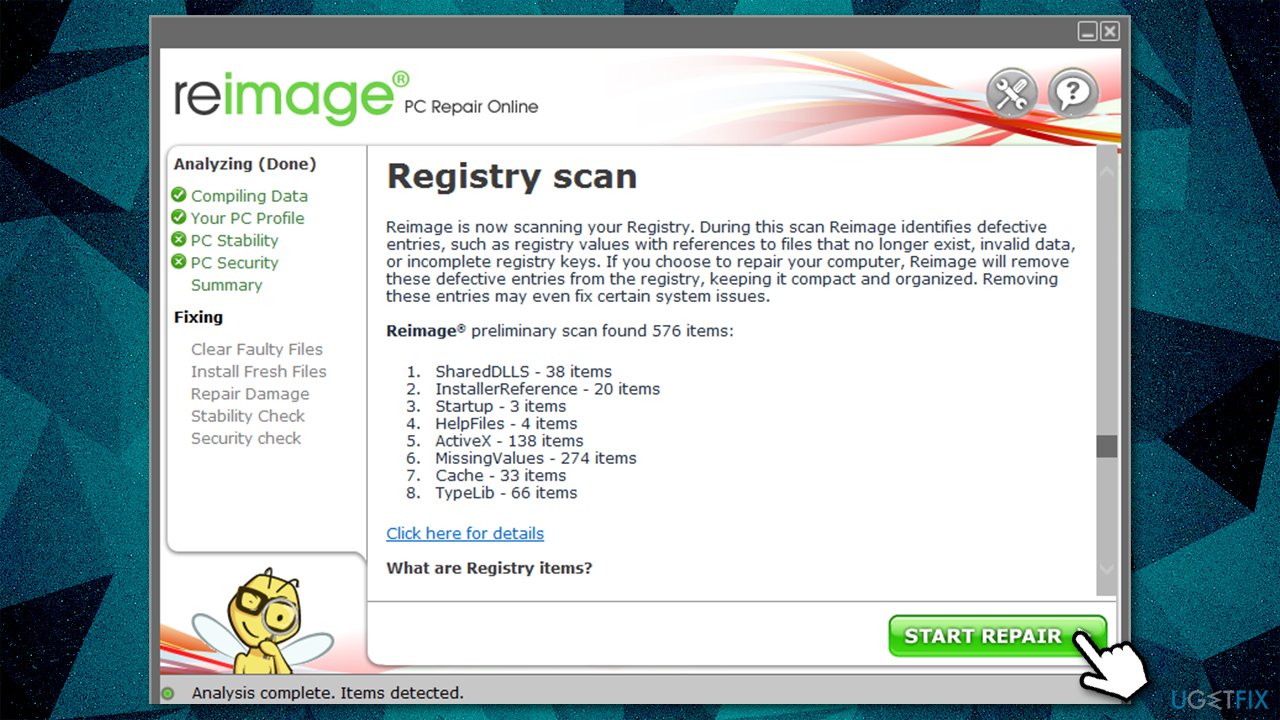
That being said, it might sometimes be difficult to find the reason for these PC problems is. Using an automatic repair tool such as [d1] can save you a lot of time, as it can find and replace corrupted system sectors automatically.
Fix 2. Update Windows
If you encounter The system cannot write to the specified device error, you should first make sure that your Windows is up to date, as Microsoft constantly releases patches to fix various bugs.[ref en-1]
- Type Updates in Windows search and hit Enter
- On the right side, click Check for updates
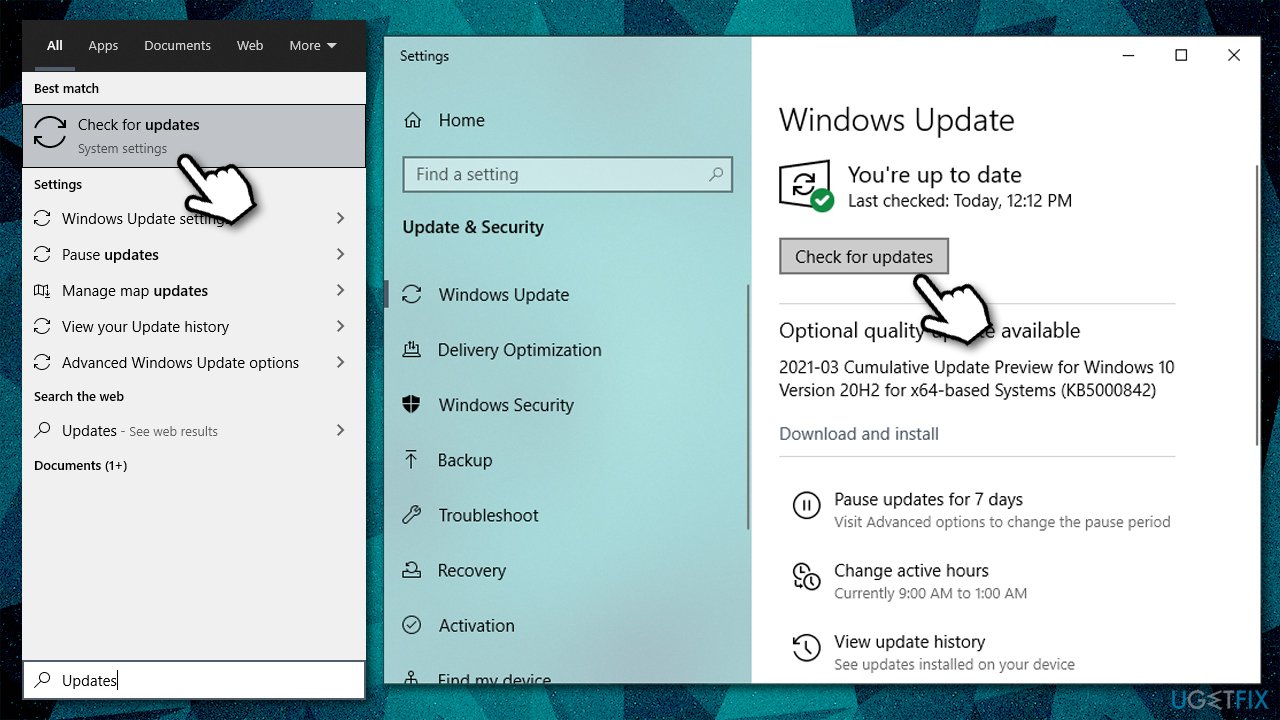
- Wait till everything is downloaded and installed (don't forget to install optional updates)
- Restart your computer.
Fix 3. Scan your system for malware
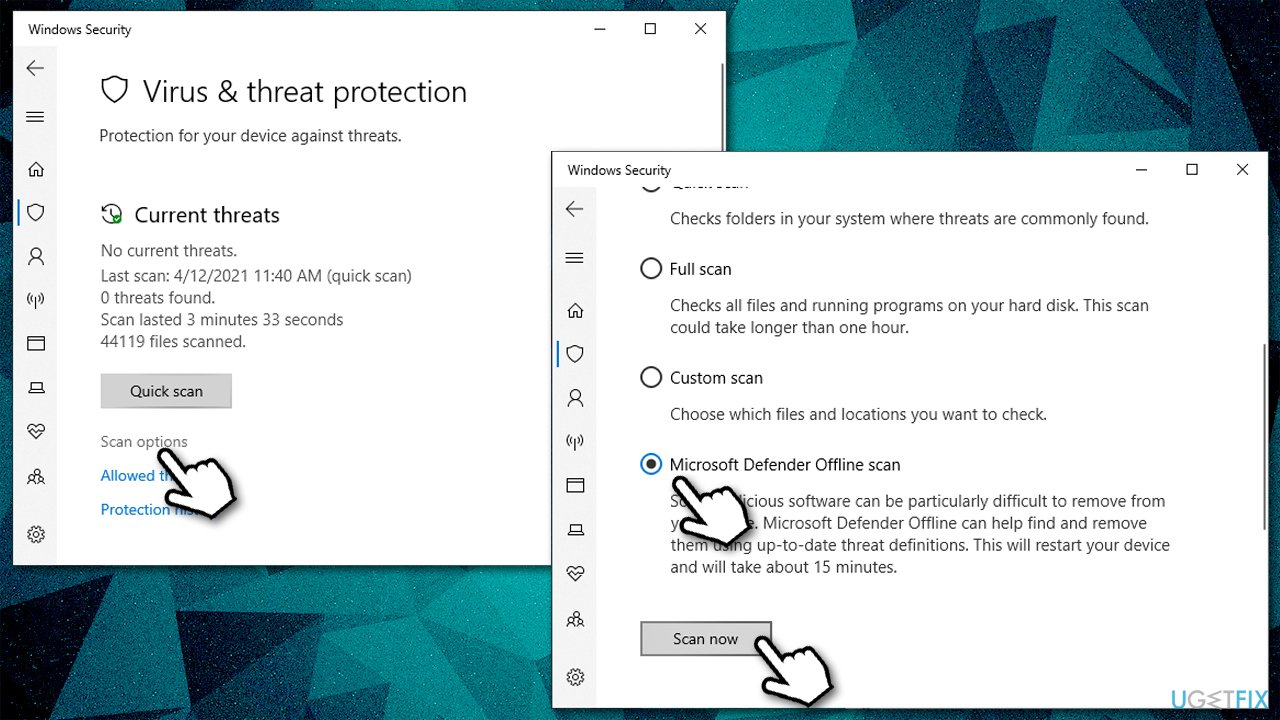
You can use a third-party security application, although a scan with Windows Defender should suffice. Use Offline scan for more thorough examination:
- Click on Show hidden items arrow within your taskbar
- Click Windows Security icon
- Go to Virus and threat protection
- Select Scan options and pick Microsoft Defender Offline scan
- Click Scan now - your system will reboot immediately and scan performed.
Fix 4. Repair corrupted system files
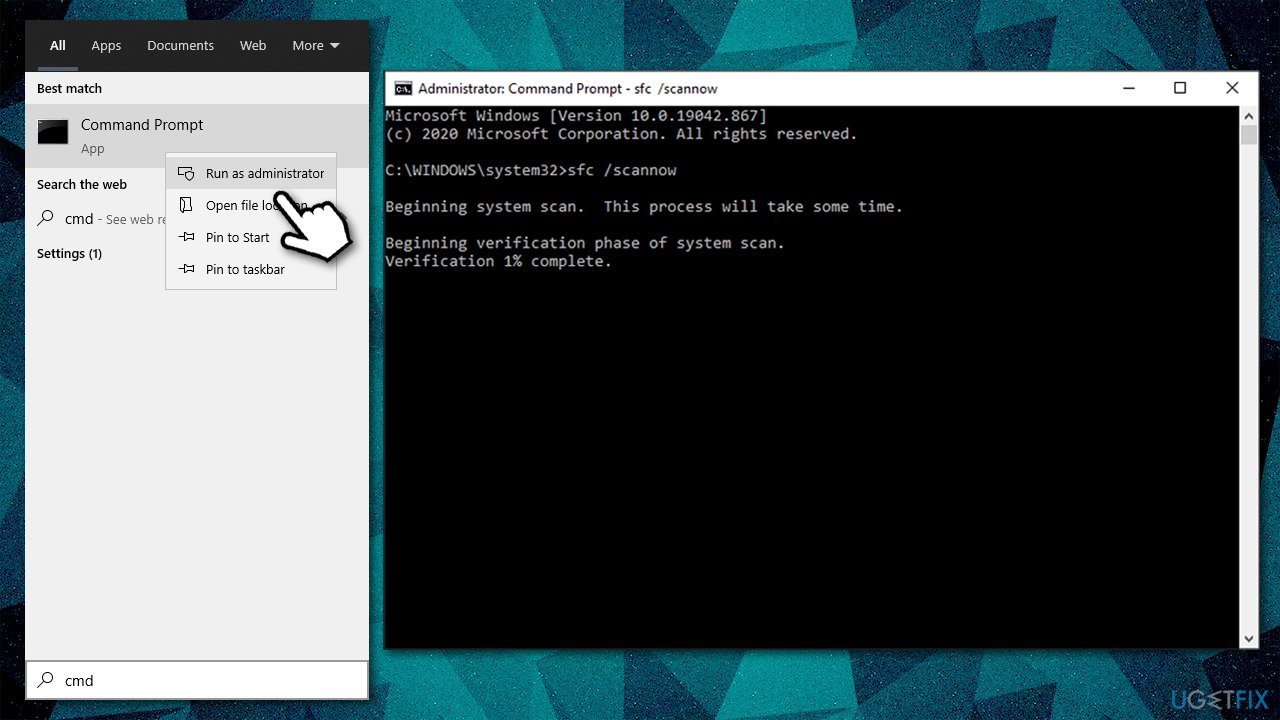
- Type cmd in Windows search
- Right-click on Command Prompt and select Run as administrator
- Type the following command and press Enter:
sfc /scannow
- Wait till scan finishes and reboot your PC.
Fix 5. Run chkdsk
Check your disk for errors with Command Prompt:
- Open Command prompt as administrator
- Paste the following command:
chkdsk C: /f /r /x
- Press Enter
- If the scan does not start and instead you receive an error, type in Y and hit Enter
- Restart your PC.
Fix 6. Change permissions in your drive
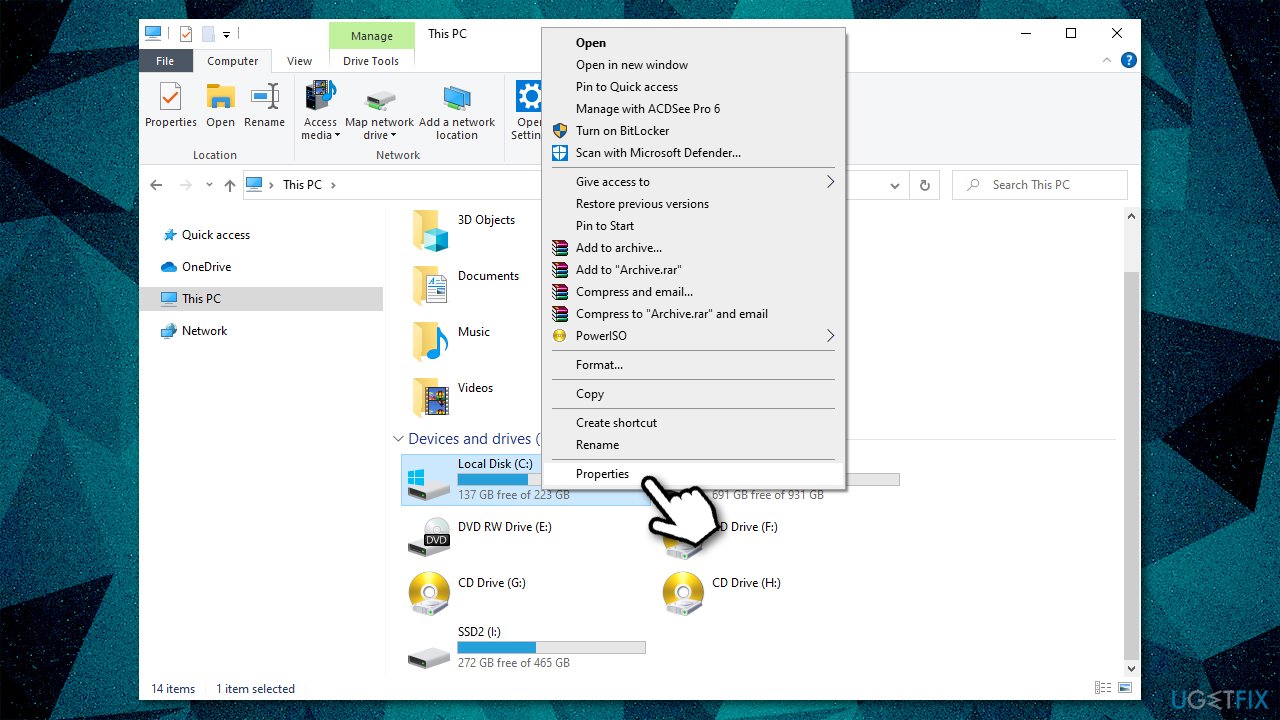
- Right-click on the drive you can't install programs to (C: by default) and select Properties
- Go to Security tab and click Advanced
- Select Users and click Change permissions
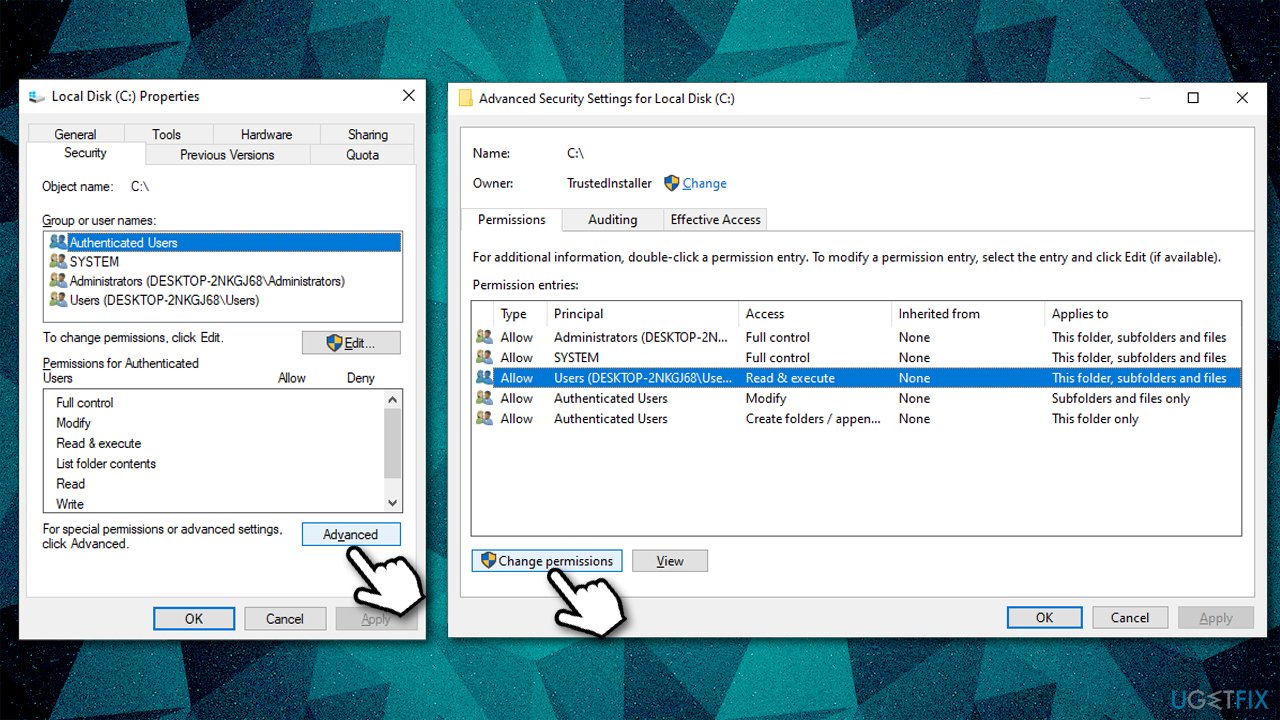
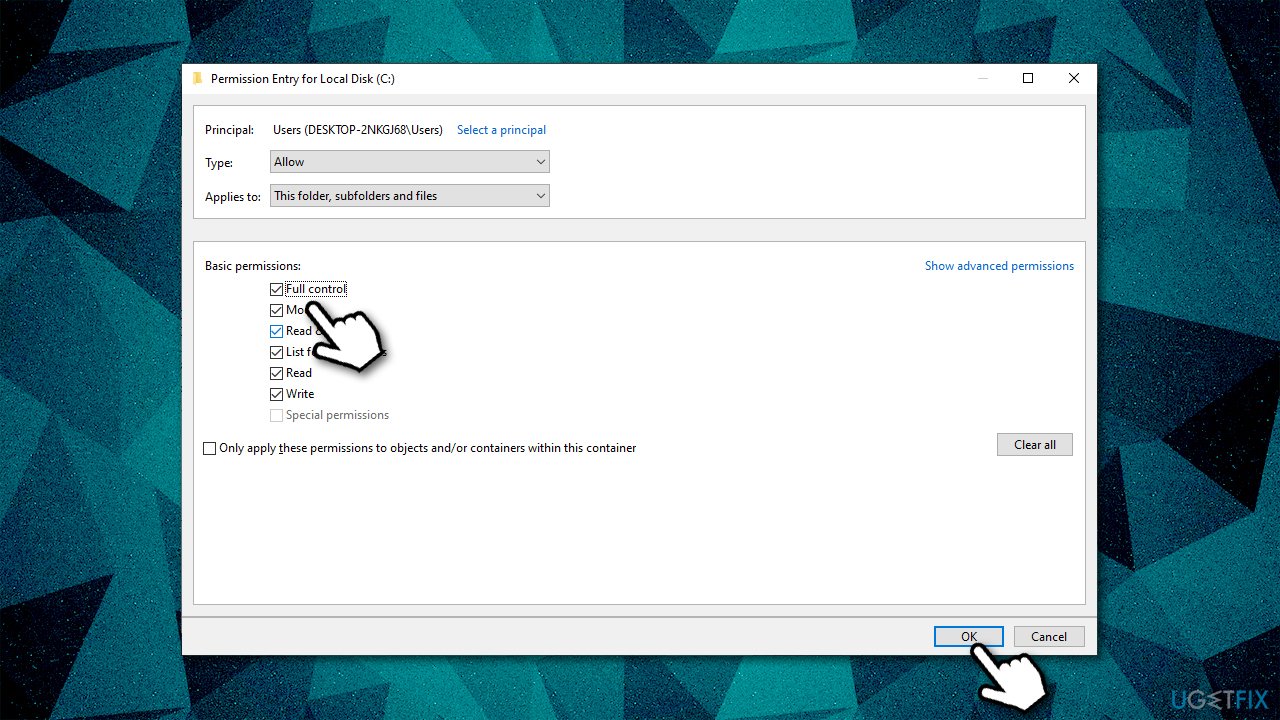
- Click Users once more and select Edit
- Here, tick the Full Control and click OK.
Fix 7. Clean system from junk
Various errors could occur due to lack of space on the drive.
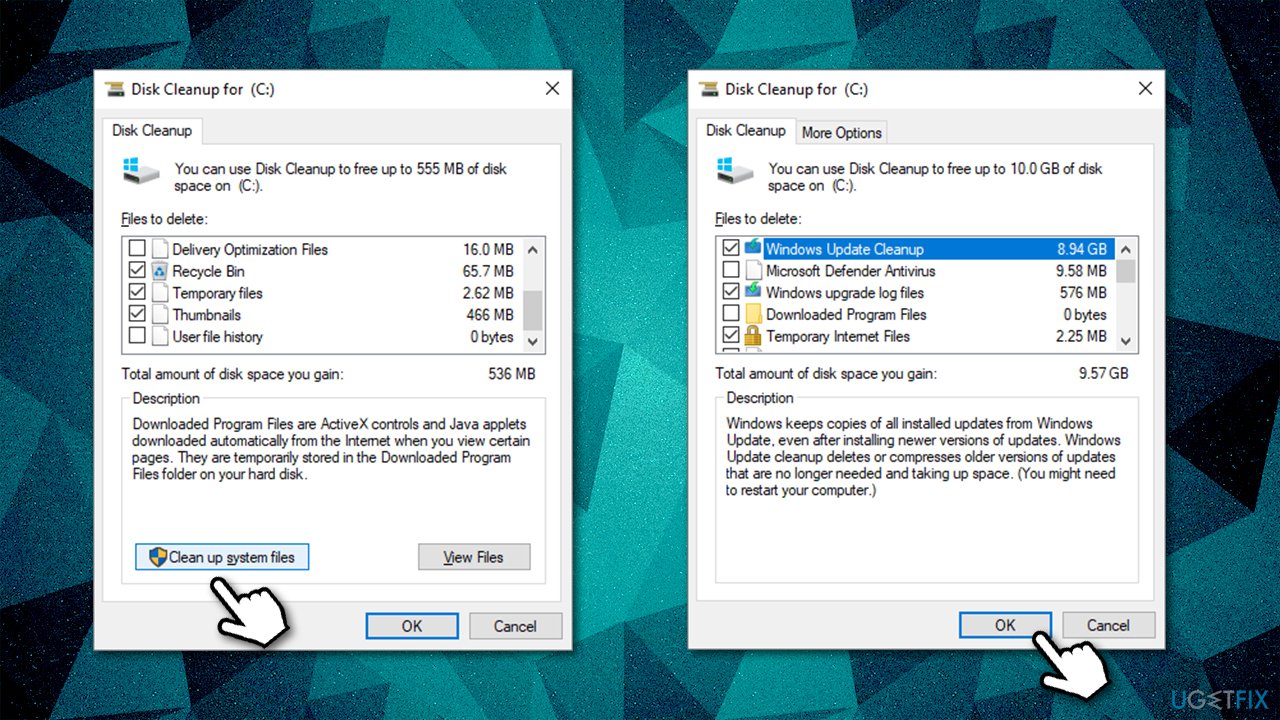
- Type Disk Cleanup in Windows search and press Enter
- Select your main drive (C:) and click OK
- Here, tick the relevant sections, such as Temporary files
- Click Clean up system files
- Select all the relevant sections again (warning: if you select to delete Windows update files you will not be able to go to previous Windows version) and click OK.
Bottom line
To fix the 'The system cannot write to the specified device' error, you can use the System repair tool among other methods. It's important to try all suggested fixes to determine which one resolves the issue. If none of the solutions work, further investigation into the system's health may be necessary.
Frequently asked questions
This error typically arises due to issues with disk permissions, a corrupted file system, or hardware malfunctions affecting the storage device.
You can run the built-in CHKDSK utility by opening Command Prompt as an administrator and typing 'chkdsk /f C:' (replace C: with the appropriate drive letter) to scan and fix any disk errors.
Yes, ensuring your Windows 10 is up to date can fix compatibility issues and bugs that may trigger this error, so check for updates regularly.




Report an issue
What's wrong with this guide? We review every report and update or remove content.
Report received — thank you. We'll review and fix it.
You need a free account to submit a report.
Be the first to comment