How to fix
Fix: Can’t access complete power options
on Windows
Resolve missing power options in Windows 10 effortlessly. Follow our expert-tested solutions for a smarter, more efficient system. Fixed in minutes!

What causes Fix: Can’t access complete power options in Windows 10?
- Power plan information not available
- Operating system upgrade issues
- Alterations or damage in system folders
- Malware infections affecting system files
- Registry alterations due to cyber threats
Repairs Windows system files, removes malware, and restores a clean OS state — without reinstalling.
Hello. The issue that I have is related to Windows power options. I cannot access these settings, so modification is not possible. Even the message that states about not available power plan information appear. I haven't changed anything, so I don't know what the cause is for this. How can I access these settings and control these power options myself?
People report online[ref en-1] that they can't access complete power options in Windows 10 out of nowhere without changing any settings. Some people indicate that the issue is persisting and appearing after the operating system upgrade. It is common because some Windows updates, especially the latest upgrades, can trigger problems with the machine and common functions.[ref en-2]
Not accessible power plan options and other problems with these settings often annoy people, so we already talked about the Power plan is not available issue and the Missing default power plans problem. You might experience the issue after a particular upgrade of the operating system. If so, a solution in your case could be an update to Windows that might include particular patches and fixes to the OS issue that caused problems with your machine.
Other causes for the Can't access complete power options in Windows issue can include different alterations or damage in system folders or affected pieces of data that are needed for the machine to perform as it is supposed to. Malware[ref en-3] infections can often cause these problems because leftovers of the cyber threat lead to alteration in such parts as the registry and other directories.
However, even though there are various causes that can trigger the issue, you can still fix the problem and forget about the issue where you can't access complete power options in Windows 10. Troubleshooting can be a great option since the reasoning behind this error is unknown. We have another quick option - scan using the tool like [d1] that possibly finds and repairs issues with affected files for you.
If you cannot solve anything with these methods, the list should provide options that require a bit more knowledge and interaction. Follow these steps and try to fix the problem yourself. Do not hesitate to try a few of the fixes to find the one that helps you eventually.
Fix 1. Troubleshoot Power issues
- Go to Settings.
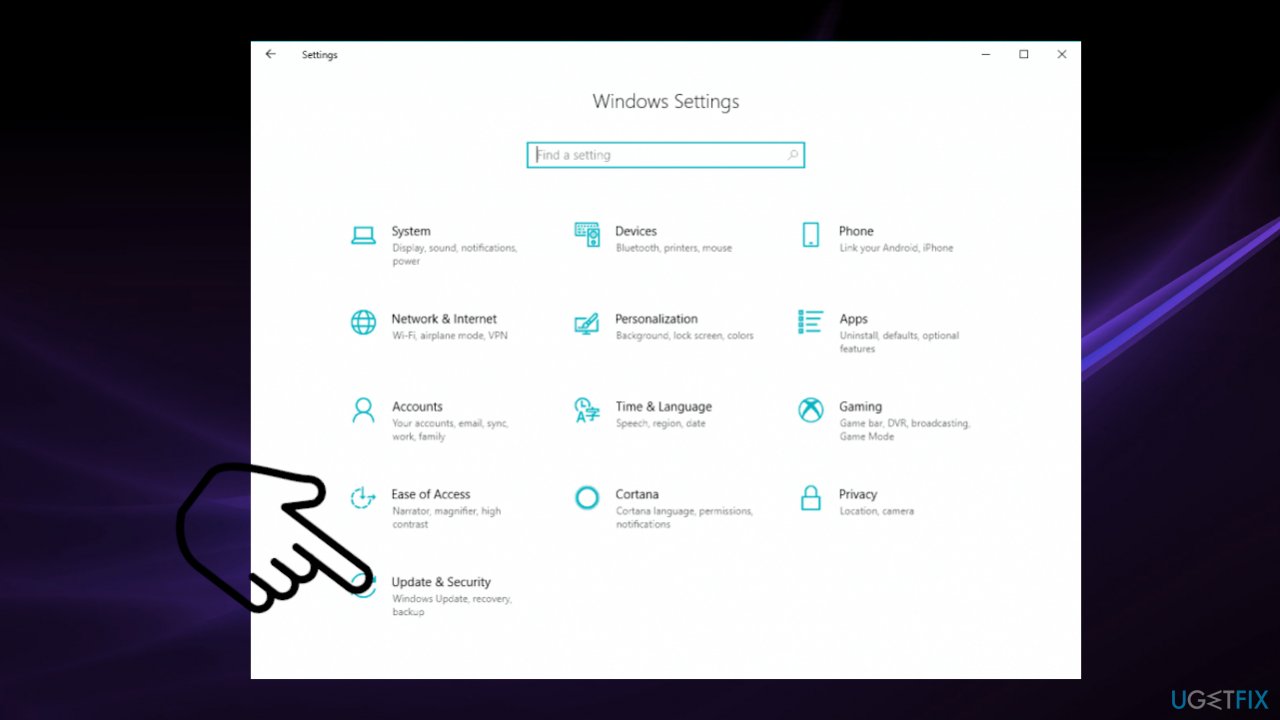
Cant access complete power options in windows settings - Update & Security.
- Click Troubleshooting.
- Choose Additional troubleshooters.
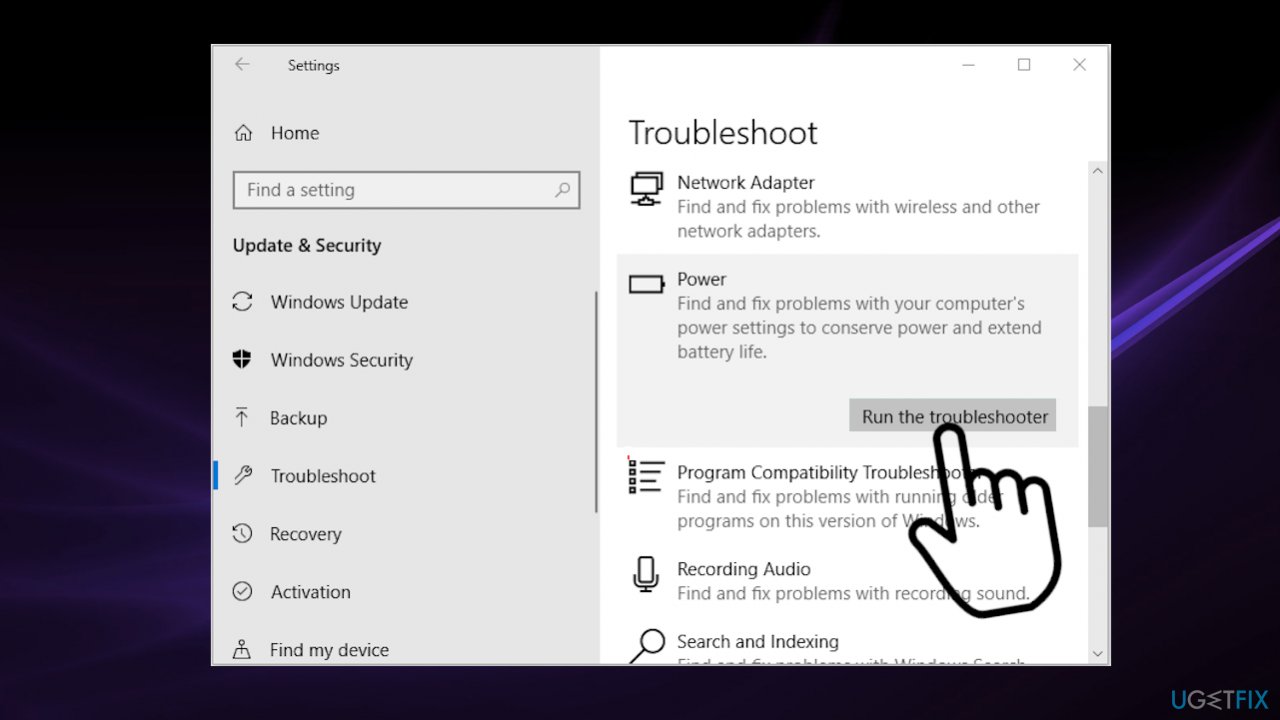
Cant access complete power options in windows power troubleshooting - Then find Power.
- Hit the Run troubleshooter button.
Fix 2. Create a Power Plan
- Right-click Start.
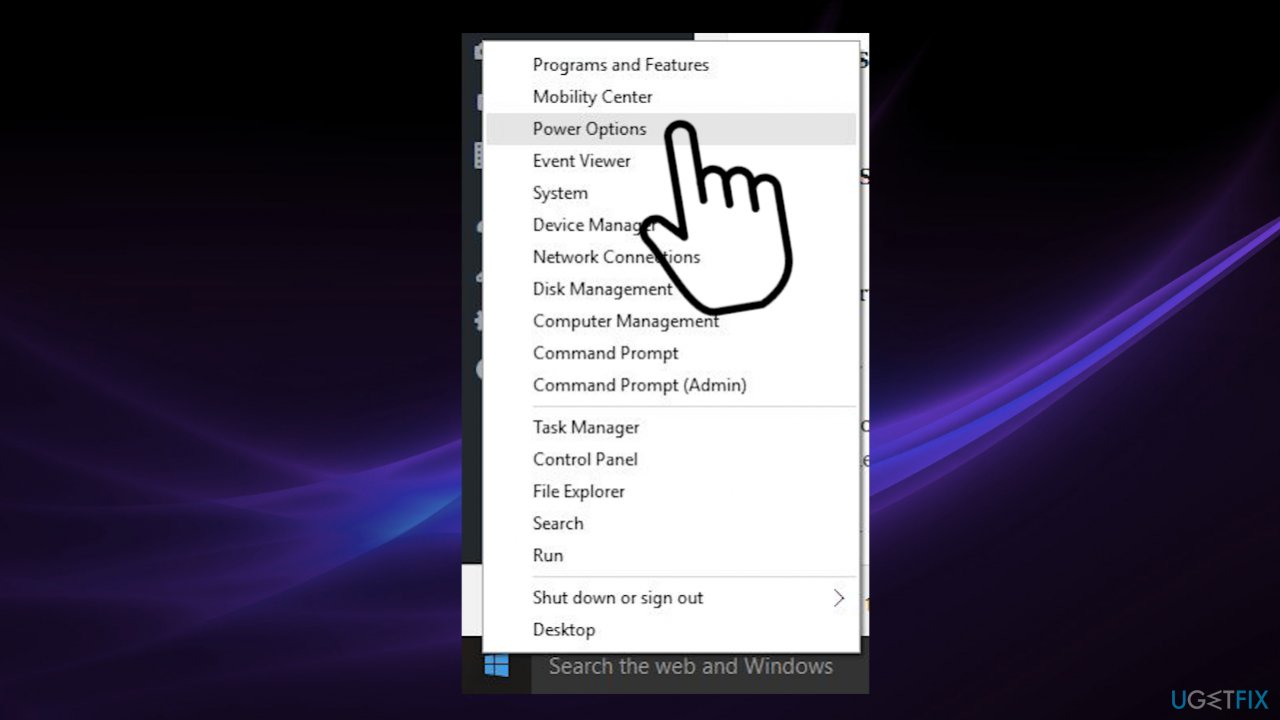
Cant access complete power options in windows power options - Choose Power Options.
- Click the Additional Power Settings link under the Related settings.
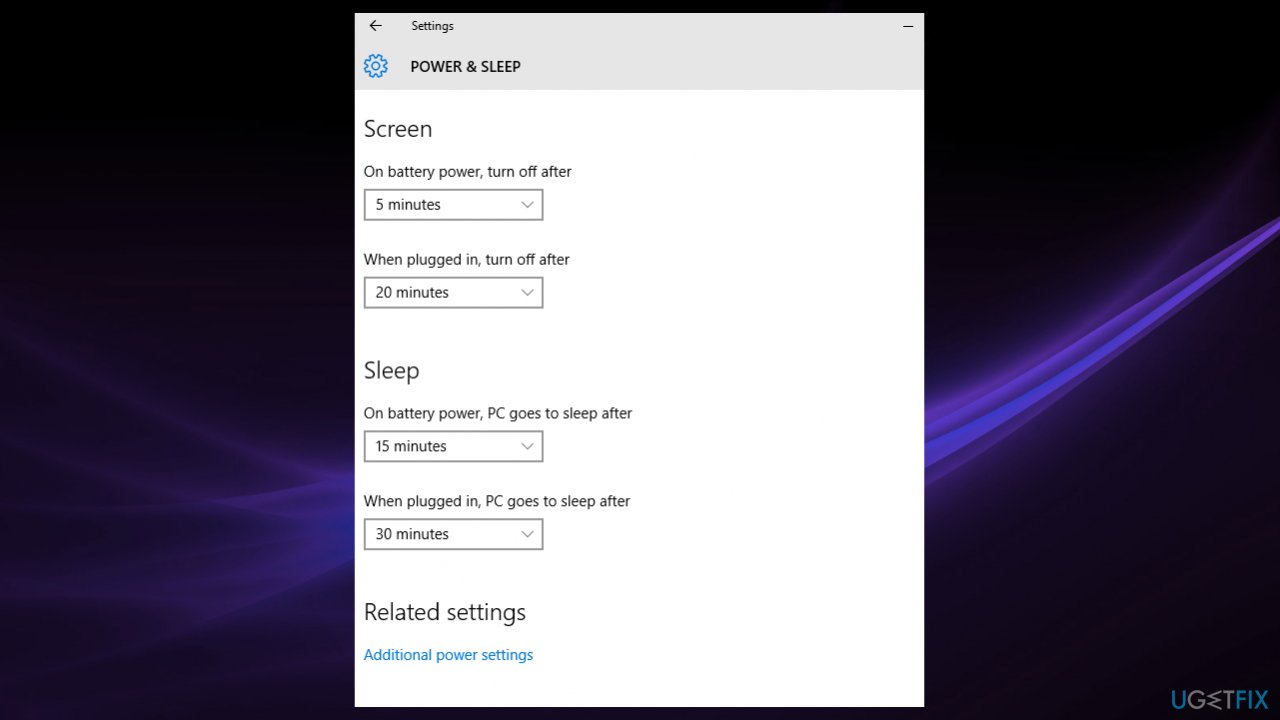
Cant access complete power options in windows additional troubleshooters - Click Create a power plan.
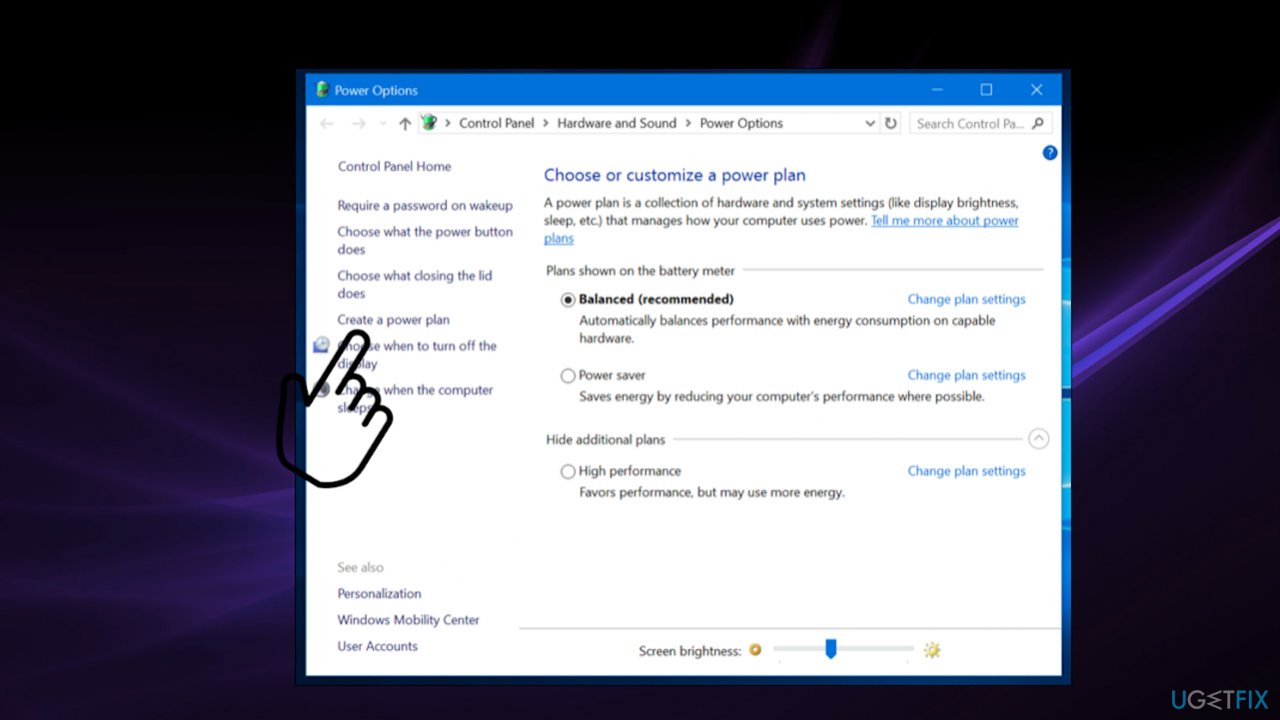
Cant access complete power options in windows create - Select High performance.
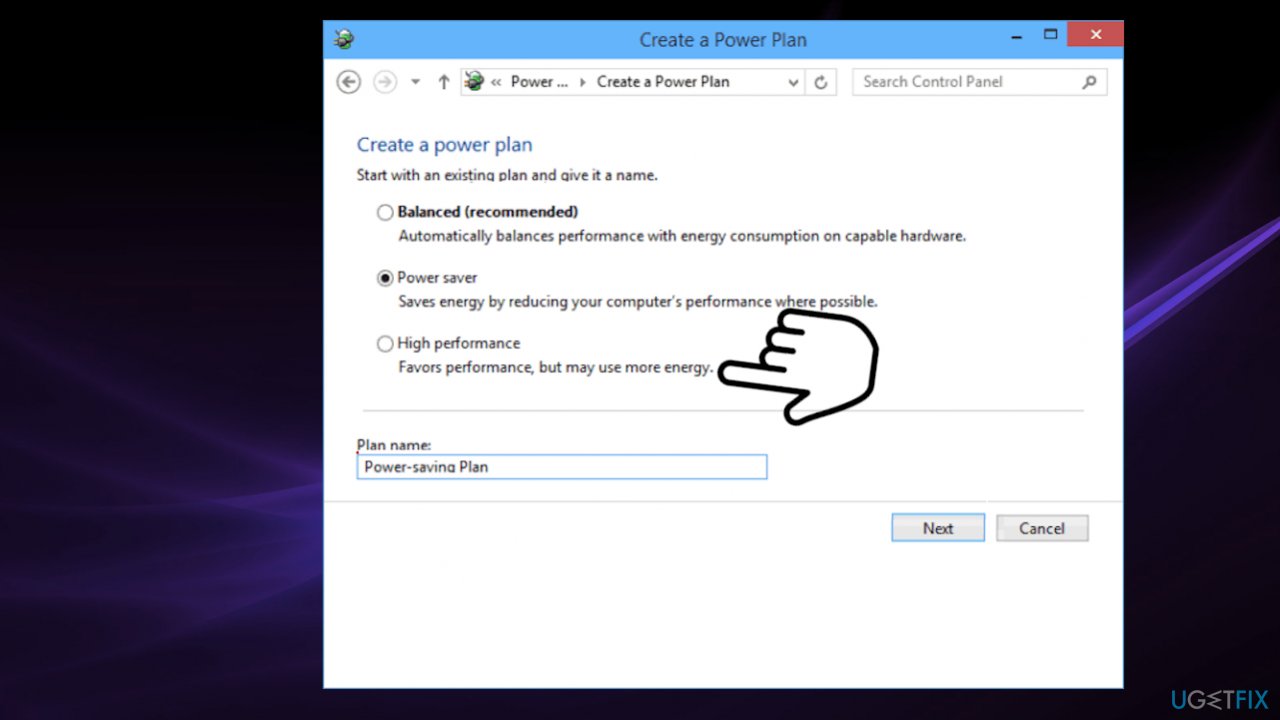
Cant access complete power options in windows high performance - Specify the name for your new plan.
- Click Next.
- Choose the timeouts for sleep mode and display that you prefer.
- Click on Create.
- The new power plan will be added and activated.
- To customize it, click on the Change plan settings link.
- Click on Change advanced power settings.
- In this window, you can tune all the settings.
- Click OK.
Fix 3. Restore default power plans
- Search for CMD and click Run as administrator.
For Power saver scheme, use the command: powercfg.exe -duplicatescheme a1841308-3541-4fab-bc81-f71556f20b4a
For the Balanced scheme, use the command: exe -duplicatescheme 381b4222-f694-41f0-9685-ff5bb260df2e
For the High Performance scheme, use the command: exe -duplicatescheme 8c5e7fda-e8bf-4a96-9a85-a6e23a8c635c
For the High Performance scheme, use the command: exe -duplicatescheme e9a42b02-d5df-448d-aa00-03f14749eb61
Fix 4. Import a Power Plan
- Open the CMD with admin rights.
- Type the following command and hit Enter:
powercfg -import “The full path to your .pow file - Provide the path to your *.pow file
- Exit the command prompt.
Fix 5. Check Power Options settings
- Click Start.
- Locate to the gear icon and open Settings.
- Choose System.
- Click Power Options.
- Check if your power plans are there.
Fix 6. Alter Registry
- Press Windows key and R at the same time.
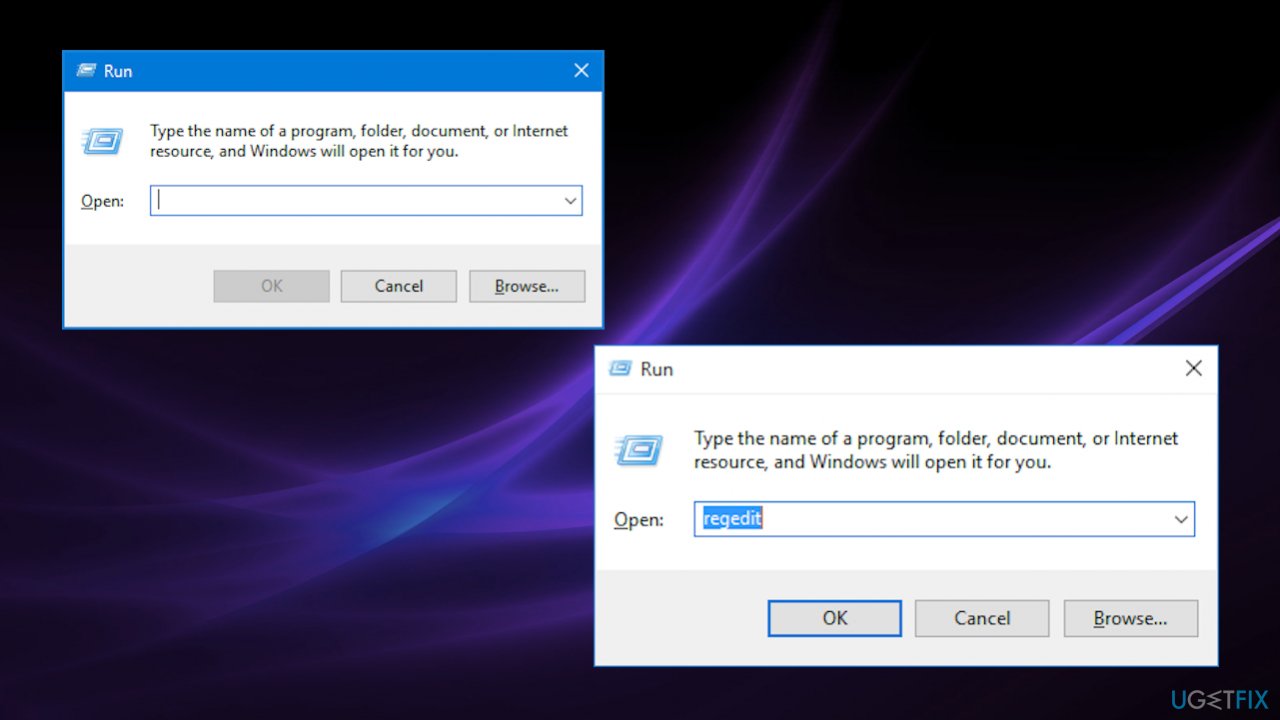
Cant access complete power options in windows regedit - Type regedit in the Run box and press Enter.
- Registry Editor opens up.
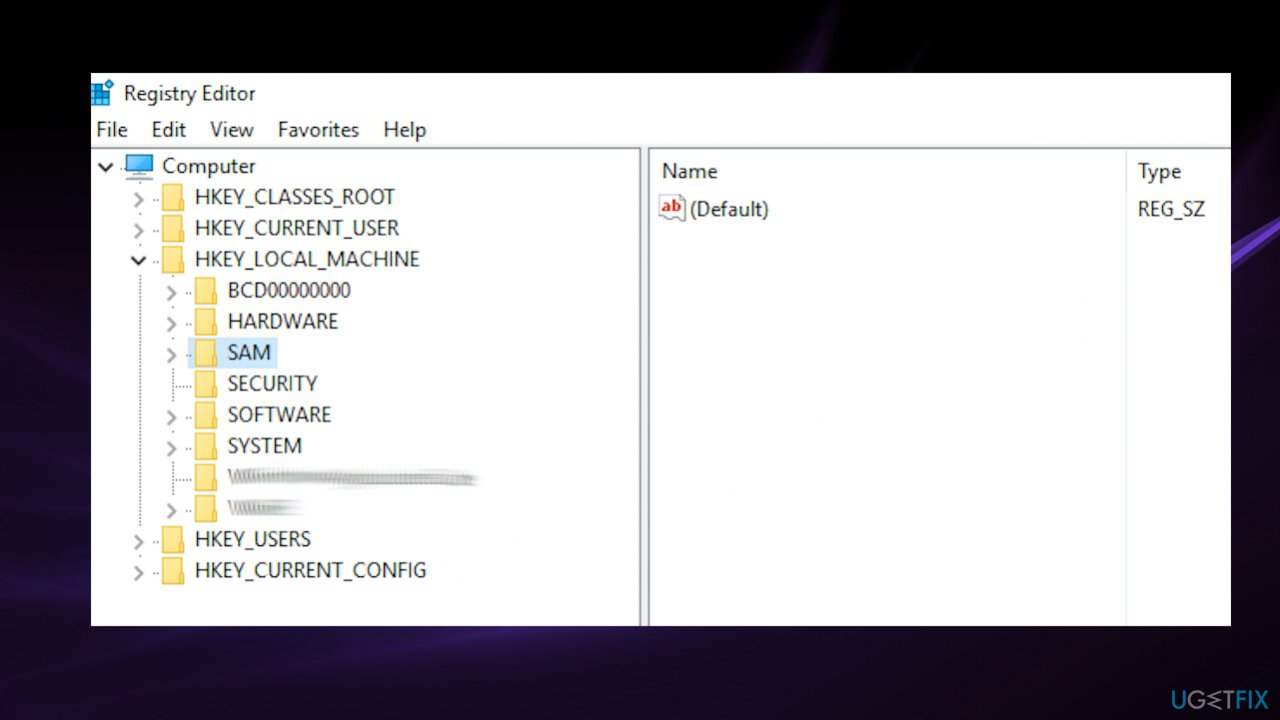
Cant access complete power options in windows registry editor - Go to the folder:
HKEY_LOCAL_MACHINE\\SYSTEM\\CurrentControlSet\\Control\\Power - Check one of the keys called CsEnabled on the right.
- Click on that key.
- Change the value from 1 to 0.
- Restart your computer and check for the Plans.
Bottom line
To resolve the issue of not being able to access complete power options in Windows 10, you can try updating Windows, scanning for system file issues, or troubleshooting the settings. If these methods do not work, consider seeking more advanced solutions that require additional technical knowledge.
Frequently asked questions
Missing power options in Windows 10 may occur due to corrupted system files or incorrect power settings. You can restore them by running the Power Troubleshooter or using the Command Prompt to reset your power settings.
To restore missing power options, open the Control Panel, navigate to Power Options, and select 'Change plan settings' for your active plan. From there, click on 'Restore default settings for this plan' to retrieve the complete options.
Yes, Windows 11 users can also encounter problems with missing power options, often due to system updates or configuration changes. The same troubleshooting steps apply, such as using the Power Troubleshooter or resetting the power plan settings.




Report an issue
What's wrong with this guide? We review every report and update or remove content.
Report received — thank you. We'll review and fix it.
You need a free account to submit a report.
Be the first to comment