How to fix
Steam error code 118
on Windows
Resolve Steam error code 118 on Windows 10 and Windows 11 effortlessly. Get expert-tested solutions and enjoy uninterrupted gaming with zero traces left.

What causes How to fix Steam error code 118?
- Unstable internet connection
- Steam server may be offline
- Issues with network settings
- Corrupted system files
- Firewall or antivirus blocking Steam
Repairs Windows system files, removes malware, and restores a clean OS state — without reinstalling.
Hi. I opened my Steam today and noticed that nothing was being loaded, and instead, I received error code 118. It's weird because my internet is working when I try to do anything else online, but Steam says it can't connect to the server. Is there anything that can be done about this?
Steam, the most popular game distribution and management platform in the world, is used by millions of people every day.[ref en-3] It hosts thousands of games and provides opportunities for various developers to sell their product and bring it to a larger audience. All players have to do is launch the program, purchase the game (although there are plenty of free games on the platform), install it, and enjoy.
Unfortunately, some users can't do that because of Steam error code 118. It shows up as soon as the launcher is opened, which prevents people from doing anything, including playing some installed games. While there is an offline mode that could let people play single-player games, online games would not be accessible due to this error, which can be particularly frustrating.
Here's the full error message that players receive:
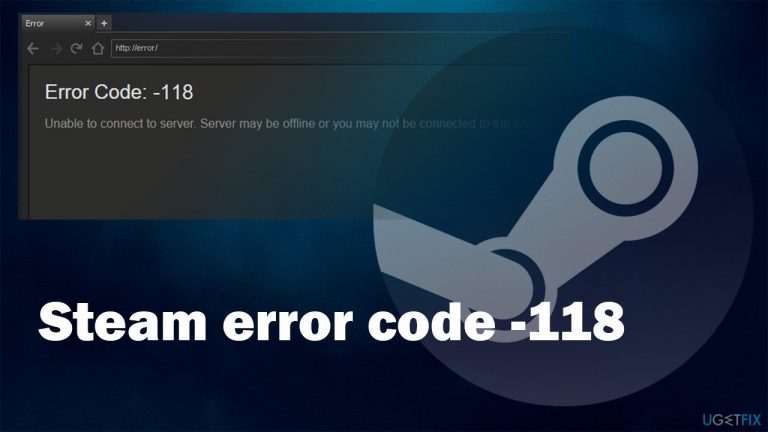
Error Code: -118
Unable to connect to the server. Server may be offline or you may not be connected to the internet.
This can be confusing because many people said that their internet worked just fine, and only the cached version of the app works, which is almost the same as offline mode. Without a doubt, this needs to be investigated because Steam shouldn't behave like this.
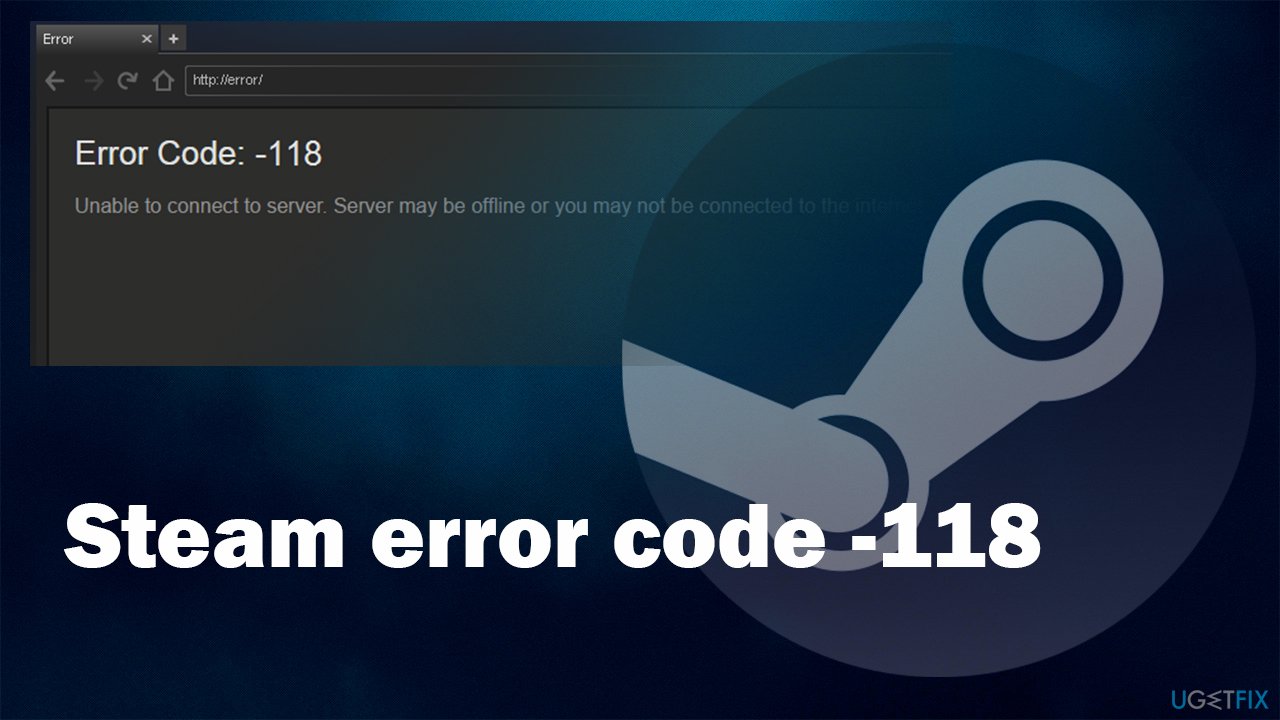
As evident, the problem lies within internet connectivity and Steam's ability to connect to its servers. There are plenty of reasons why this could be happening (for example, unstable internet connection), and we provided several methods that should help you fix Steam error code 118 one and for all.
Before you proceed, we would like to recommend you [d1] PC repair tool that can diagnose and repair the underlying Windows issues automatically. This includes problems you may have with your network or internet stability. Also, it is capable of repairing damaged system files that could cause random reboots, BSODs,[ref en-2] program crashes, etc.
Solution 1. Check your Firewall
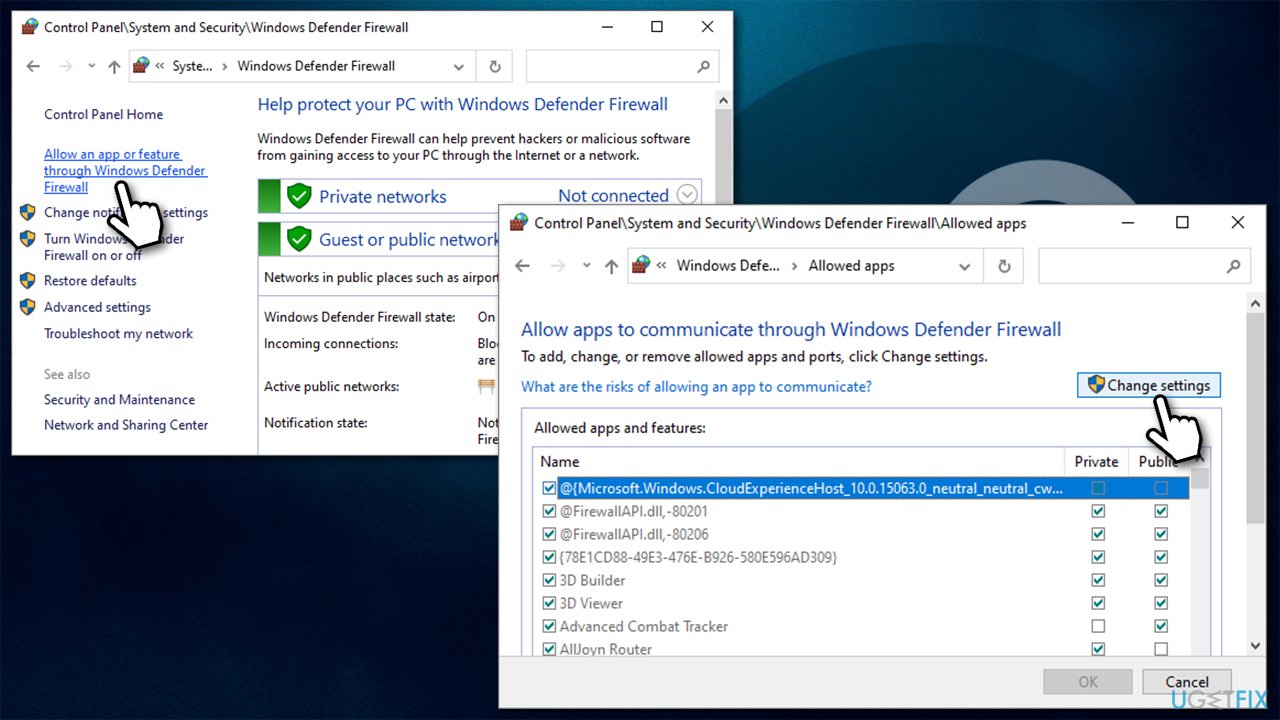
Firewall might be blocking the Steam connection. You can allow the app through Firewall as follows:
- Type in Control Panel in Windows search and press Enter
- Go to System and Security and click on Windows Defender Firewall
- On the left side of the window, click Allow an app or feature through Windows Defender Firewall
- Click Change settings (if you are not on an administrator account, you will be asked to enter a password)
How to fix steam error code 118 enter firewall settings - Scroll down and enable Private and Public access for Steam and Steam Web Helper
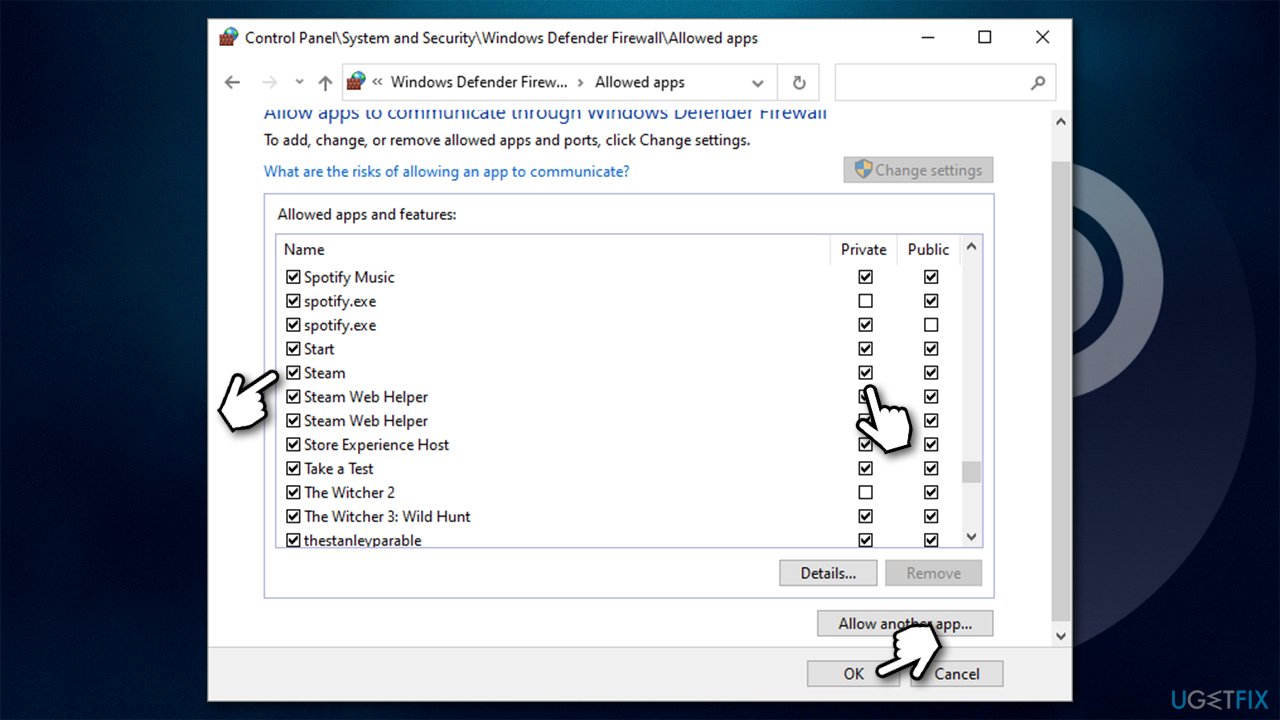
How to fix steam error code 118 allow steam through firewall - Click OK.
Solution 2. Run internet connections troubleshooter
To ensure there are no problems with the internet, run the built-in troubleshooter:
- Type in Troubleshoot in Windows search and hit Enter
- Click Additional troubleshooters on the right
- Select Internet Connections and click Run the troubleshooter
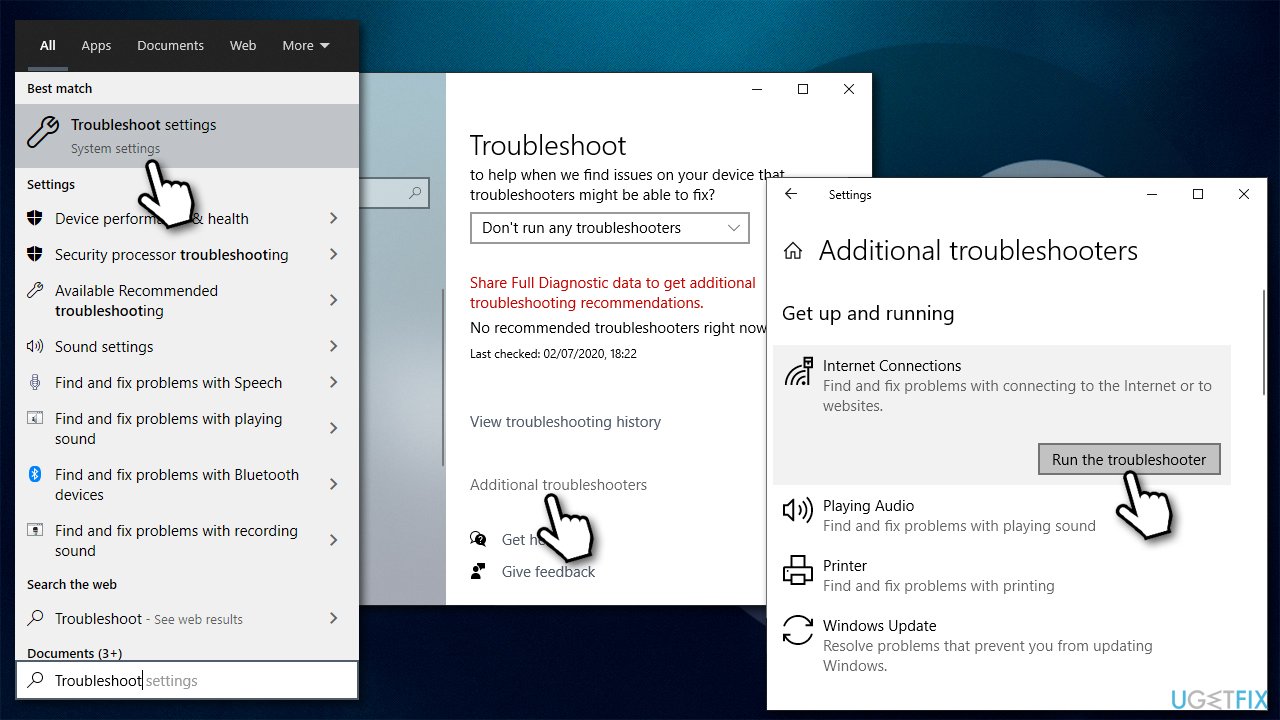
How to fix steam error code 118 run internet connection troubleshooter - Wait till the scan finishes and the fixes are applied.
Solution 3. Try different DNS settings
You can use Google's DNS and see if the problem lies with your automatically assigned DNS settings.
- Right-click on Start and pick Network Connections.
- Under Advanced network settings, pick Change adapter options.
- In the Network Connection window, right-click on your main connection (for example, Ethernet) and select Properties.
- Select Internet Protocol Version 4 (TCP/IPv4) and click Properties below.
- Click Use the following DNS server address and paste the following into the fields:
Preferred DNS server: 8.8.8.8
Alternate DNS server: 8.8.8.9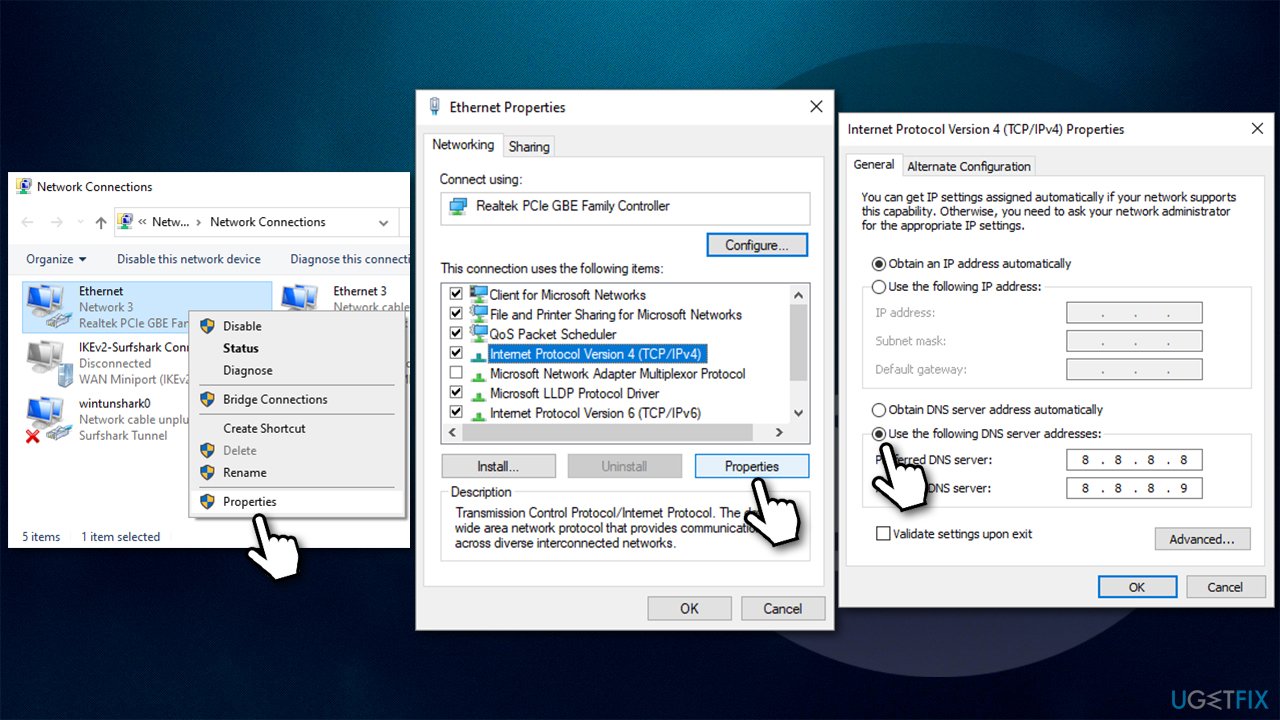
How to fix steam error code 118 change your dns settings
Solution 4. Reset your internet connection
- Type cmd in Windows search.
- Right-click on Command Prompt result and pick Run as administrator.
- When the User Account Control window shows up, click Yes
- In the new window, copy and paste the following commands, pressing Enter each time:
ipconfig /flushdns
ipconfig /registerdns
ipconfig /release
ipconfig /renew
netsh winsock reset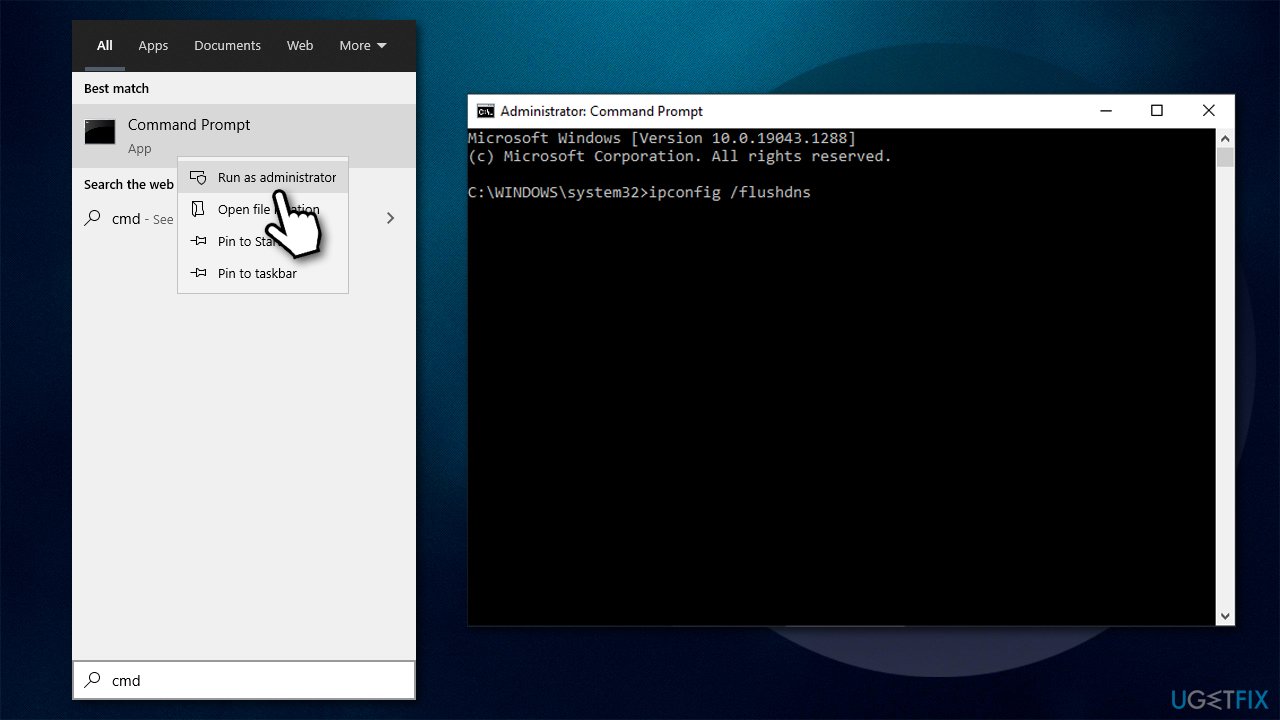
How to fix steam error code 118 reset internet connection - Reboot your system and see if that resolved the issue.
Solution 5. Wait
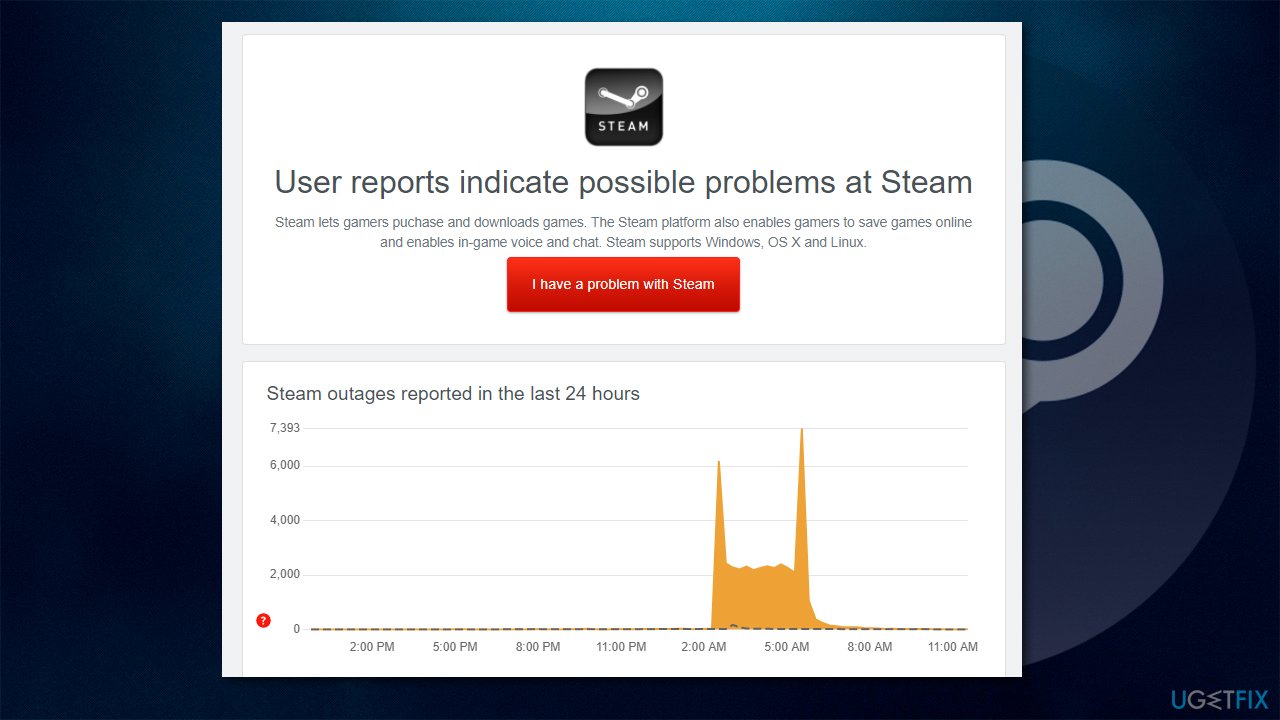
If you encountered this error just recently, Steam's servers are likely experiencing technical difficulties. During some special events, such as summer or winter sales, there could be simply too many people buying games, to the point where servers can no longer support everyone.
Also, even the most prominent tech companies sometimes experience service disruptions. In early October 2021, Facebook, Instagram, and other social media platforms went down for as long as six hours, preventing users from interacting with them.[ref en-1] Therefore, Steam can also be a victim of unexpected issues, and there is nothing that could be done before it is resolved by tech support. You can also always check whether Steam servers are working fine on special websites.
Bottom line
To fix Steam error code 118, you can try checking your internet connection, adjusting network settings, or repairing corrupted system files. If these methods do not resolve the issue, consider using a PC repair tool or contacting Steam support for further assistance.
Frequently asked questions
Steam error code 118 typically occurs due to network connectivity issues, server problems, or corrupted Steam files on your Windows system.
To fix this error, try restarting your router, checking your firewall settings, and verifying the integrity of your game files through the Steam client.
Yes, clearing the download cache can resolve various Steam errors, including code 118, by refreshing your connection to Steam's servers on Windows 10.




Report an issue
What's wrong with this guide? We review every report and update or remove content.
Report received — thank you. We'll review and fix it.
You need a free account to submit a report.
Be the first to comment