How to fix
INVALID_KERNEL_HANDLE
on Windows
Resolve the INVALID_KERNEL_HANDLE error on Windows 10 and Windows 11 quickly and efficiently with expert-tested solutions that work every time.

What causes How to fix INVALID_KERNEL_HANDLE on Windows?
- Corrupted disk drive
- Damaged RAM
- Outdated device drivers
- Files altered by third-party programs
- General system issues
Repairs Windows system files, removes malware, and restores a clean OS state — without reinstalling.
Hello. I get the Blue screen error. I might start panicking right now. I think this is a major issue. INVALID_KERNEL_HANDLE is the explanation that is listed once the screen gets locked and blue. The error number is not provided. Can you explain this and offer any solution?
The particular Blue Screen of Death[ref en-1] or the INVALID_KERNEL_HANDLE error has the code 0x00000093 on Windows mainly. The sudden crash and the blue screen can most definitely frustrate users.[ref en-2] The issue is prohibiting users from accessing the machine and logging into the system. The problem may be caused by other issues and have many reasons behind the spot error.
Mainly, such errors occur due to the corrupted disk drive or when the RAM gets damaged. Outdated device drivers and files altered by the third-party programs can also lead to stop error code. Sometimes these crash errors can still allow you to restart the machine because the sudden stop was initiated to avoid particular system damage.
You can solve the issue easier if you manage to restart the system after this INVALID_KERNEL_HANDLE error code on Windows. The problem is not a particular Windows 10[ref en-3] issue, so any person running Windows can encounter the BSOD. The particular code is indicating that the resource or reference to an entity is not accessible or is damaged.
The particular error code 0x00000093 is linked with this invalid kernel error on Windows and can be solved by updating particular drivers, repairing files, or been running the general troubleshooter for BSOD errors. Performing a clean boot would be another but more difficult fix.
You can start with the scan using [d1], so possibly altered or damaged files can get recovered, sorted out. Then other solutions might not be needed if the affected files get restored automatically. Check the instructions below and follow the steps closely to solve the reason for the stop code.
Option 1. Update drivers
- Right-click on the Start menu and select Device Manager from the list.
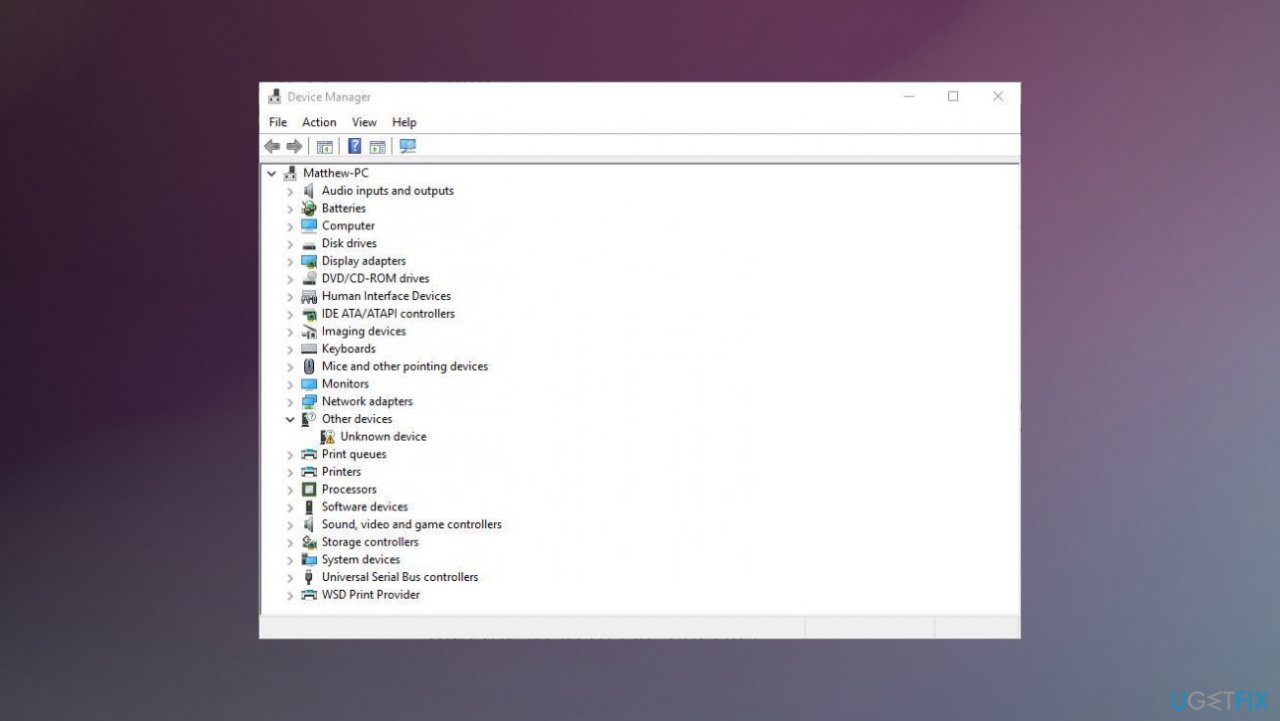
Invalid kernel handle on windows fix device manager - Locate the device having an exclamation mark.
- Select to expand the driver list and right-click on driver having yellow indication.
- Choose the Update option from the menu.
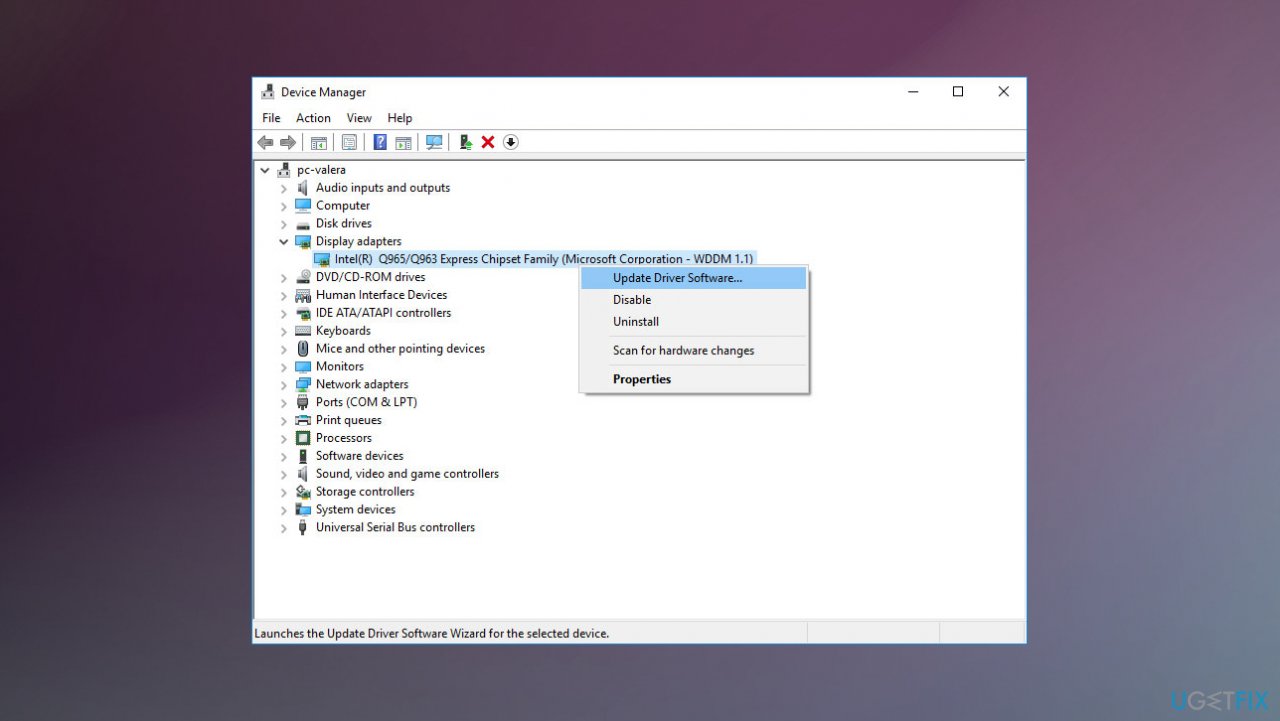
Invalid kernel handle on windows fix update driver - Search for the drivers online.
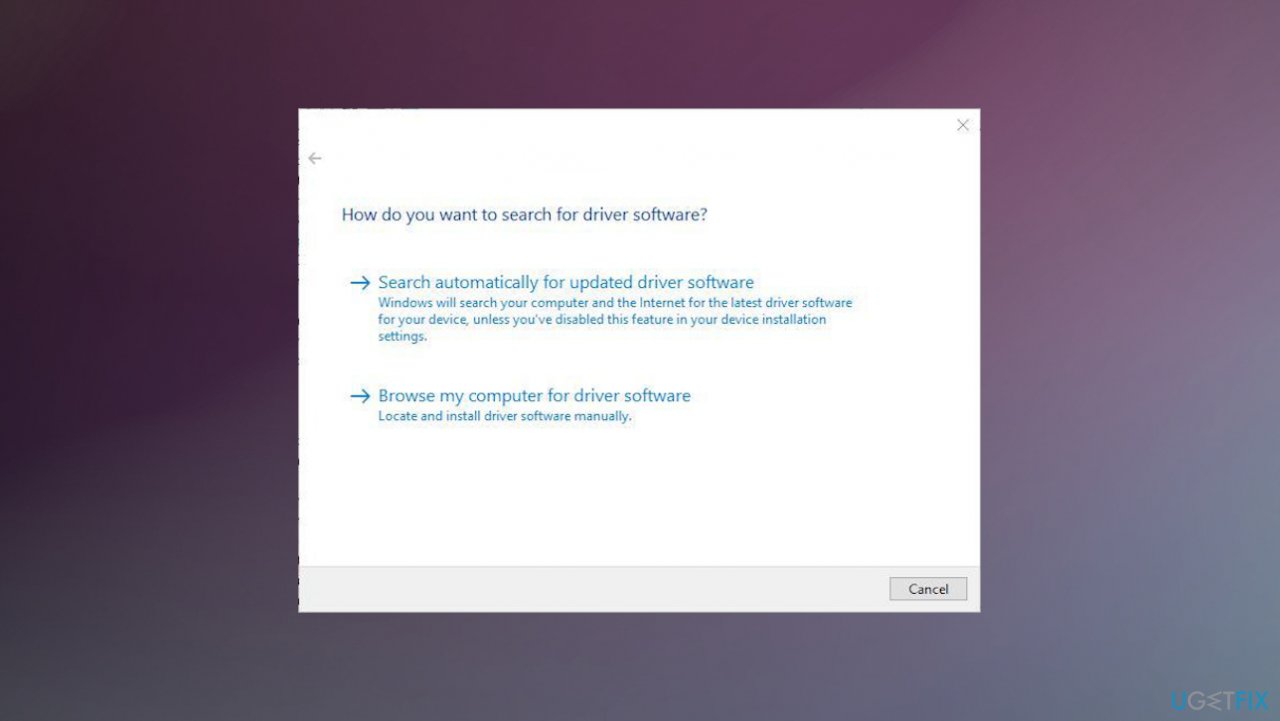
Invalid kernel handle on windows fix auto search - Repeat the same process for all the devices having an exclamation mark – indicating that there are problems.
- Reboot Windows to save changes.
You can also do that automatically with a program like [rev id="DriverFix"] that is designed to check for any outdated device drivers and upgrade them with the proper versions compatible with the particular device and system. You can rely on the application and save a lot of time that you would spend while trying to take care of those drivers manually.
Option 2. Run the troubleshooter
- Open the Settings app and go to Update & Security section.
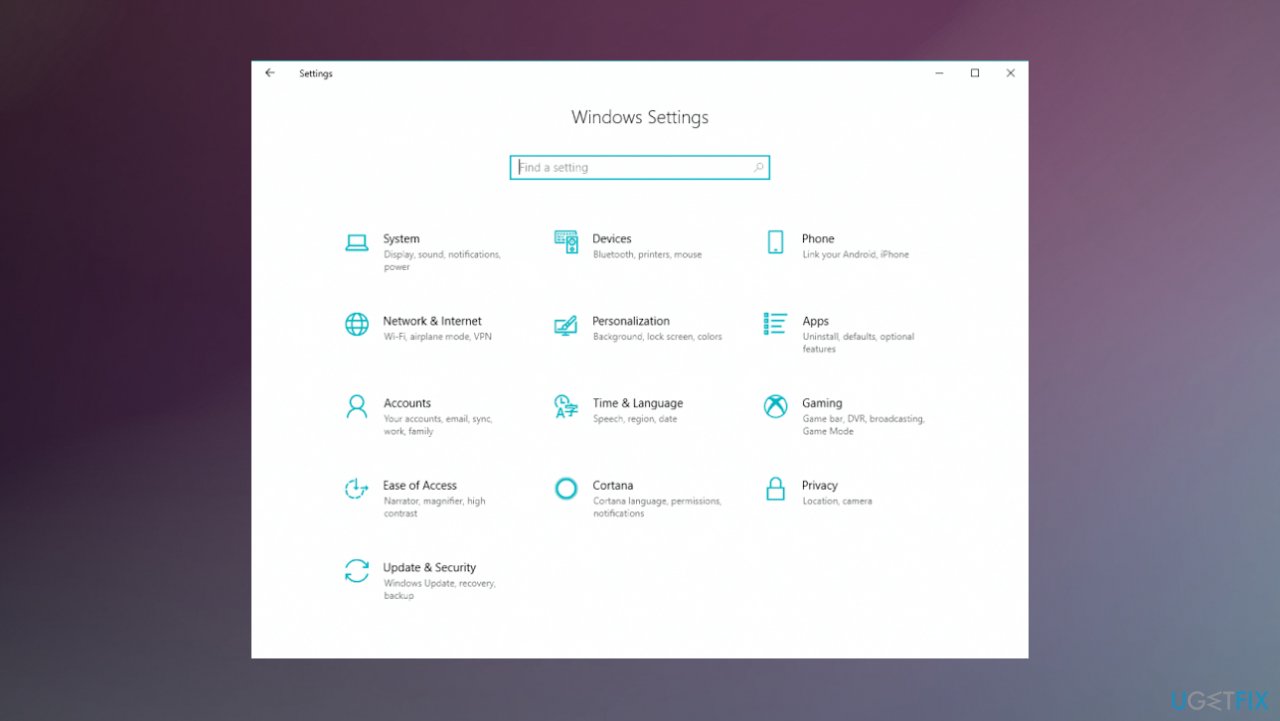
Invalid kernel handle on windows fix settings - Select Troubleshoot from the menu on the left.
- Select BSOD from the right pane and click Run the troubleshooter.
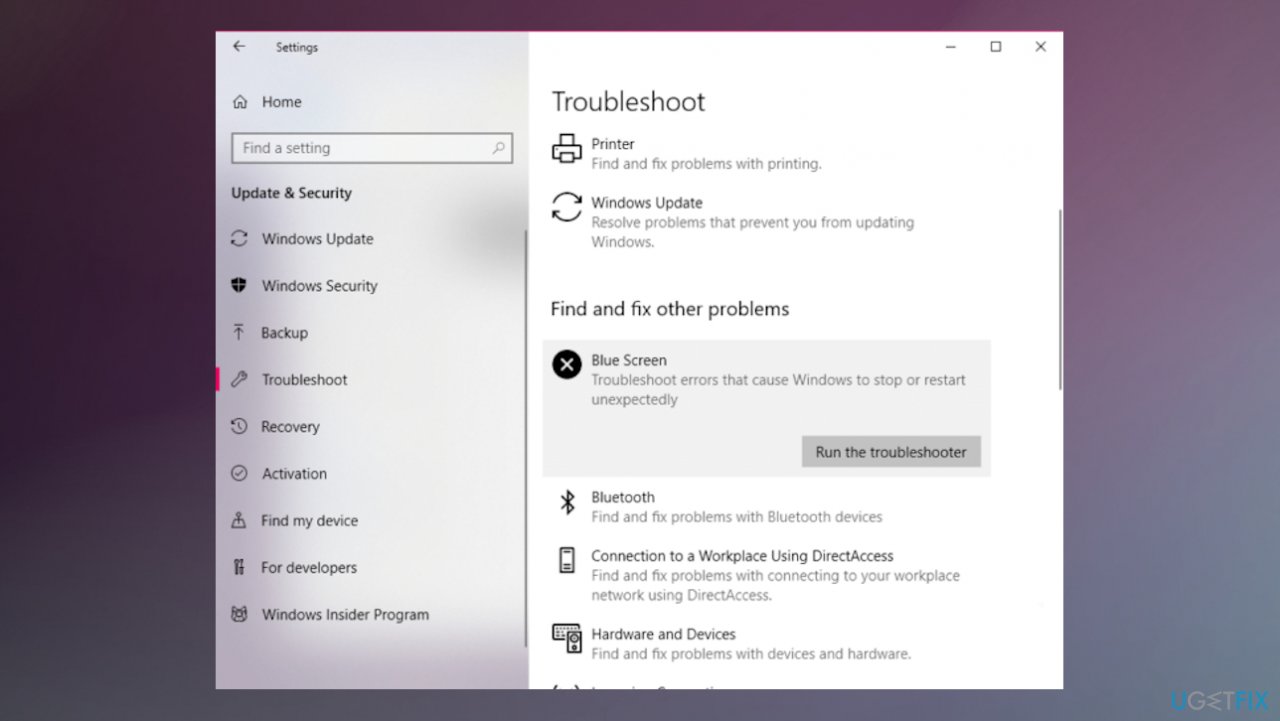
Invalid kernel handle on windows fix troubleshooting bsod - Follow the instructions on the screen to complete the troubleshooter.
Option 3. Run the SFC scan
- Type cmd in search.
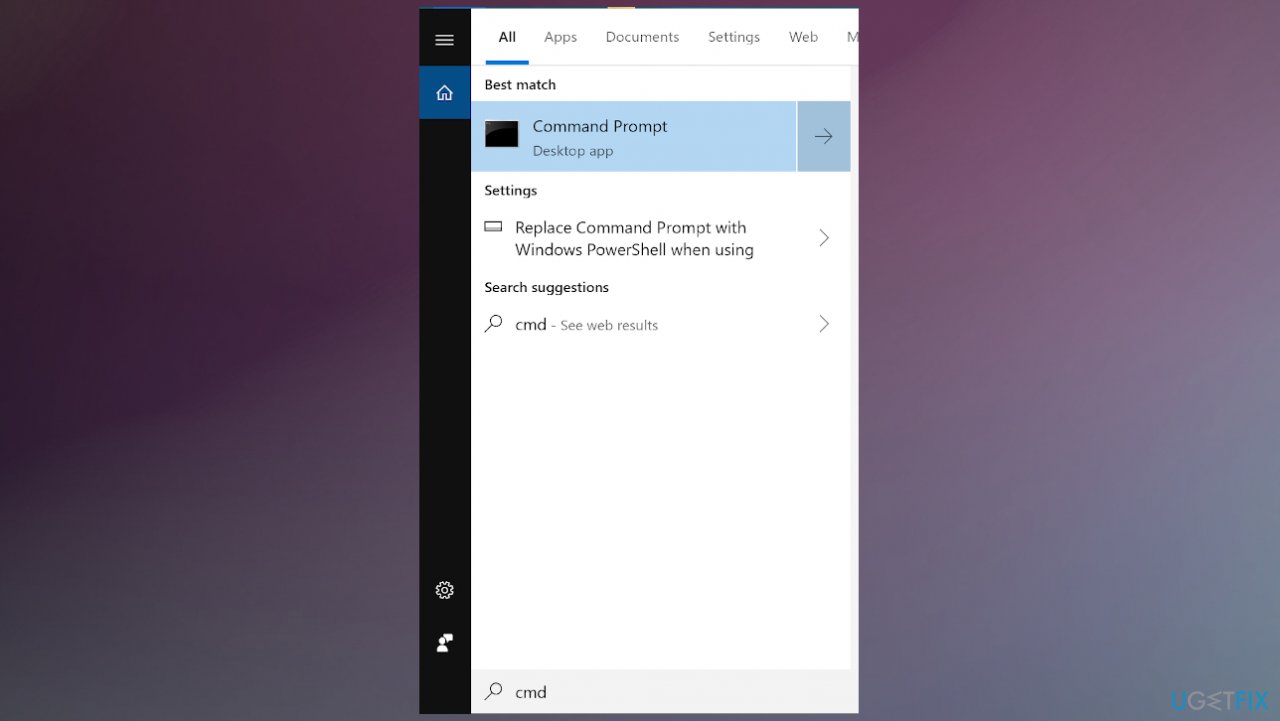
Invalid kernel handle on windows fix cmd - Launch CMD as administrator.
- Type in sfc /scannow and press Enter.
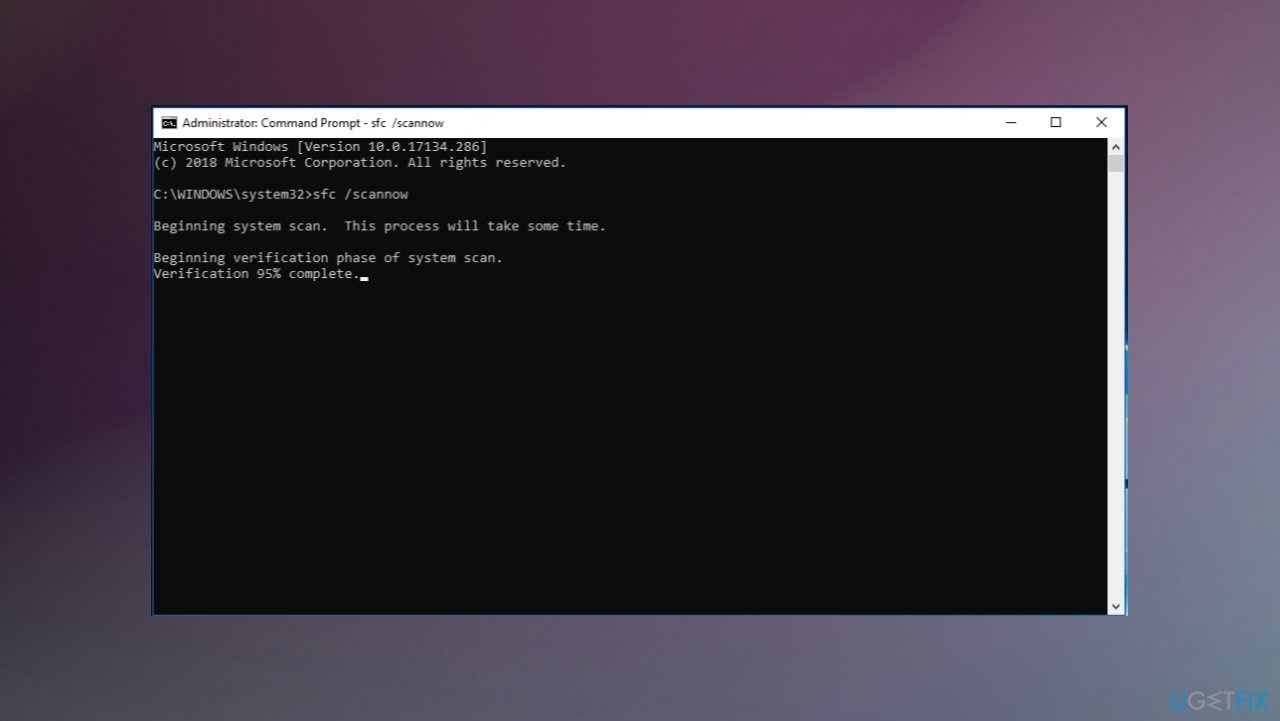
Invalid kernel handle on windows fix sfc - This process may take several minutes.
Option 4. Test your RAM
- Go to Control Panel and then System and Security.
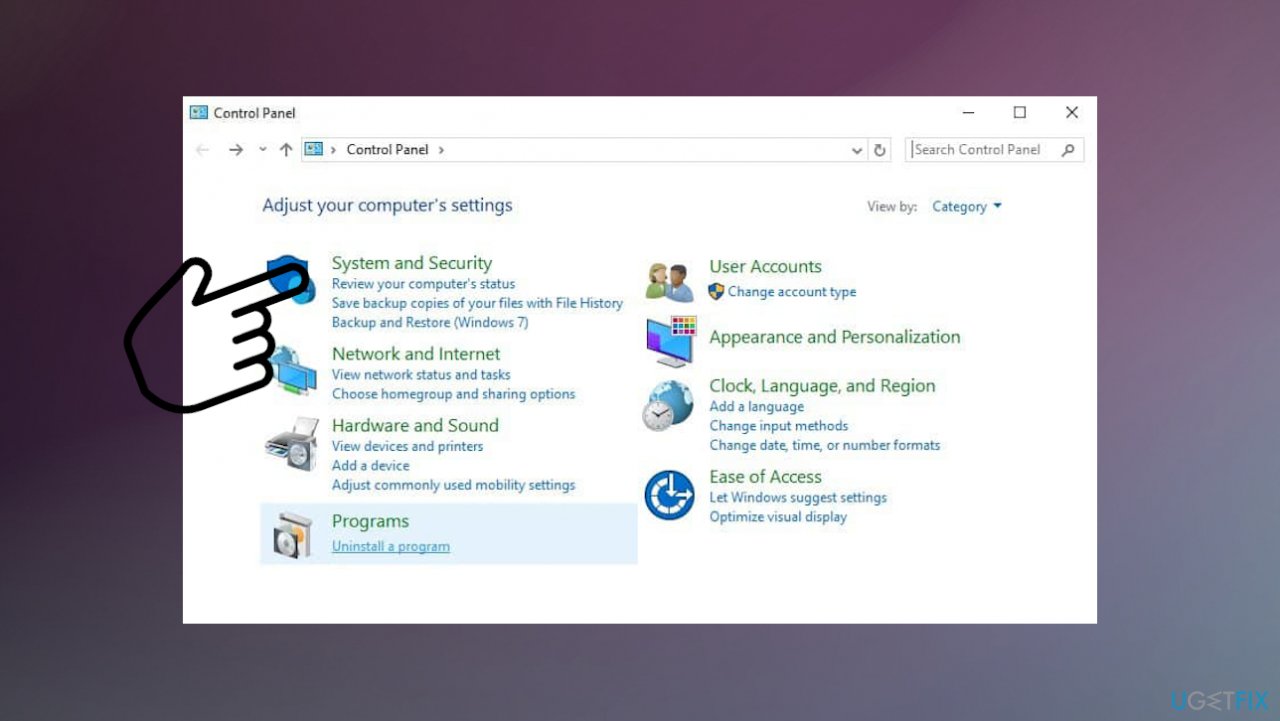
Invalid kernel handle on windows fix system security - Choose Administrative Tools.
- Find and launch the Windows Memory Diagnostic.
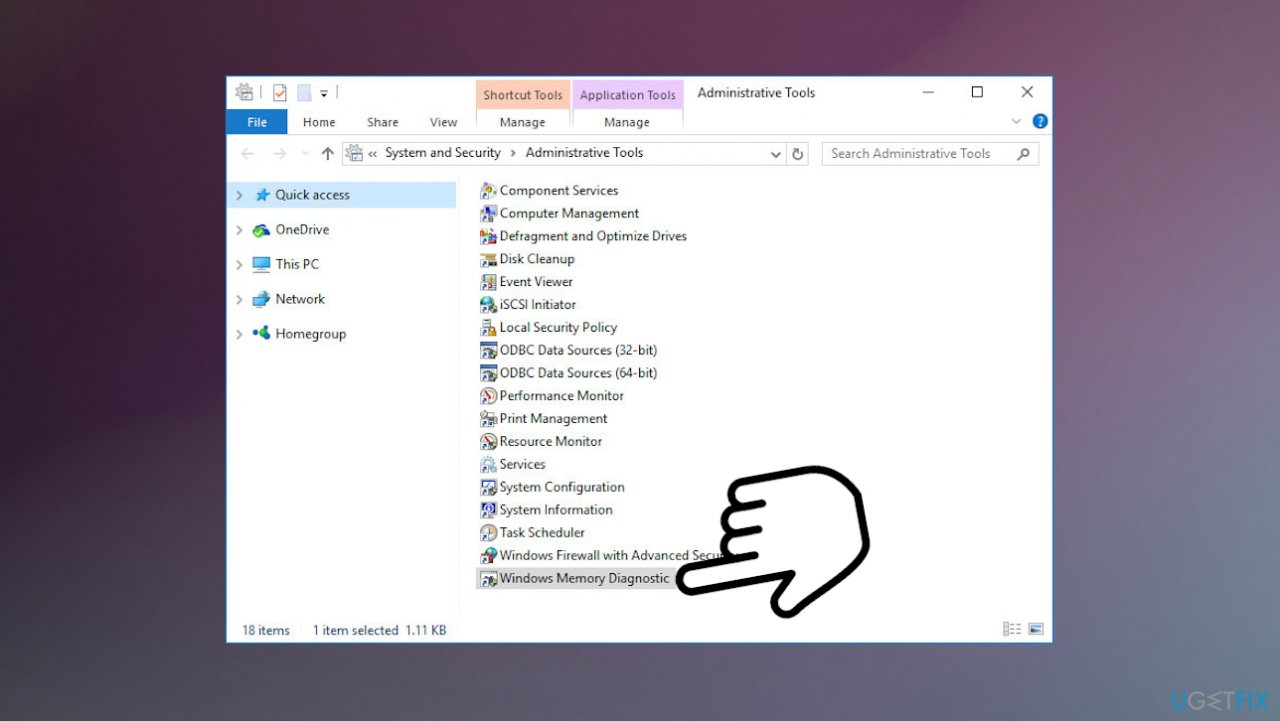
Invalid kernel handle on windows fix memory diagnostics - Launch the Run tool with the combination of keys Windows + R.
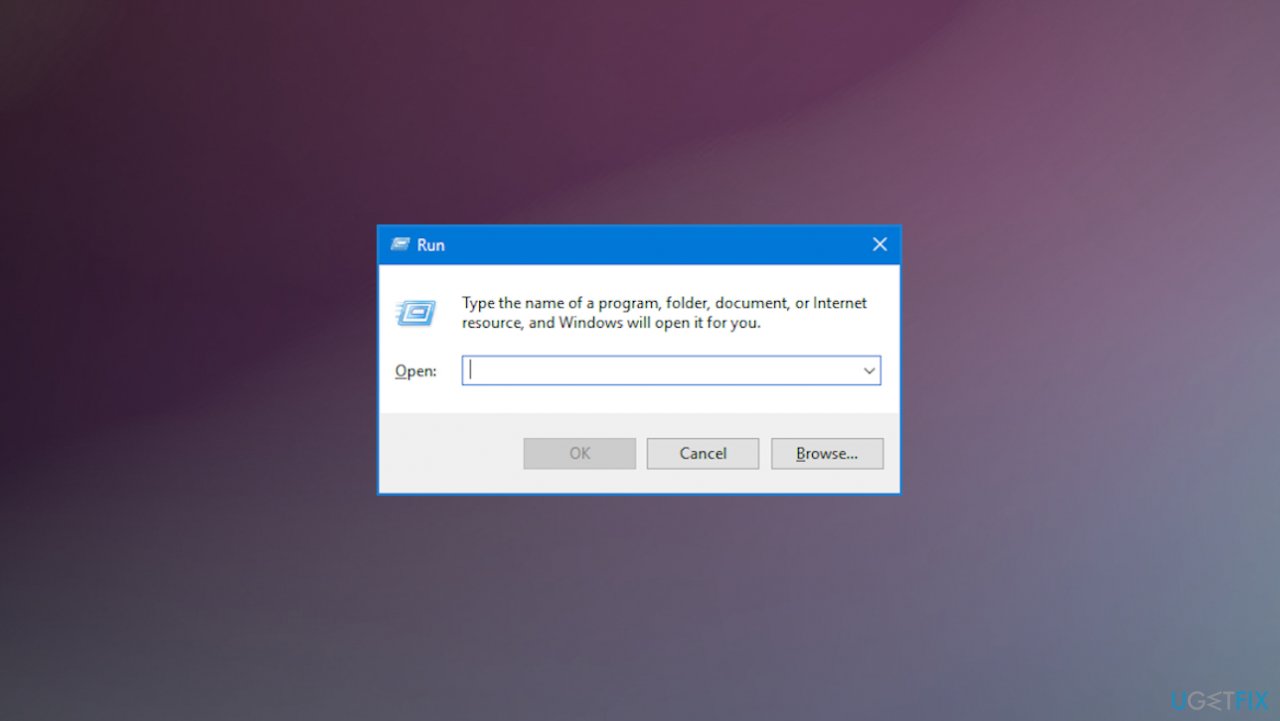
Invalid kernel handle on windows fix run box - Type in mdsched and press Enter.
- The Windows Memory Diagnostic tool will start.
- Allow the machine to restart.
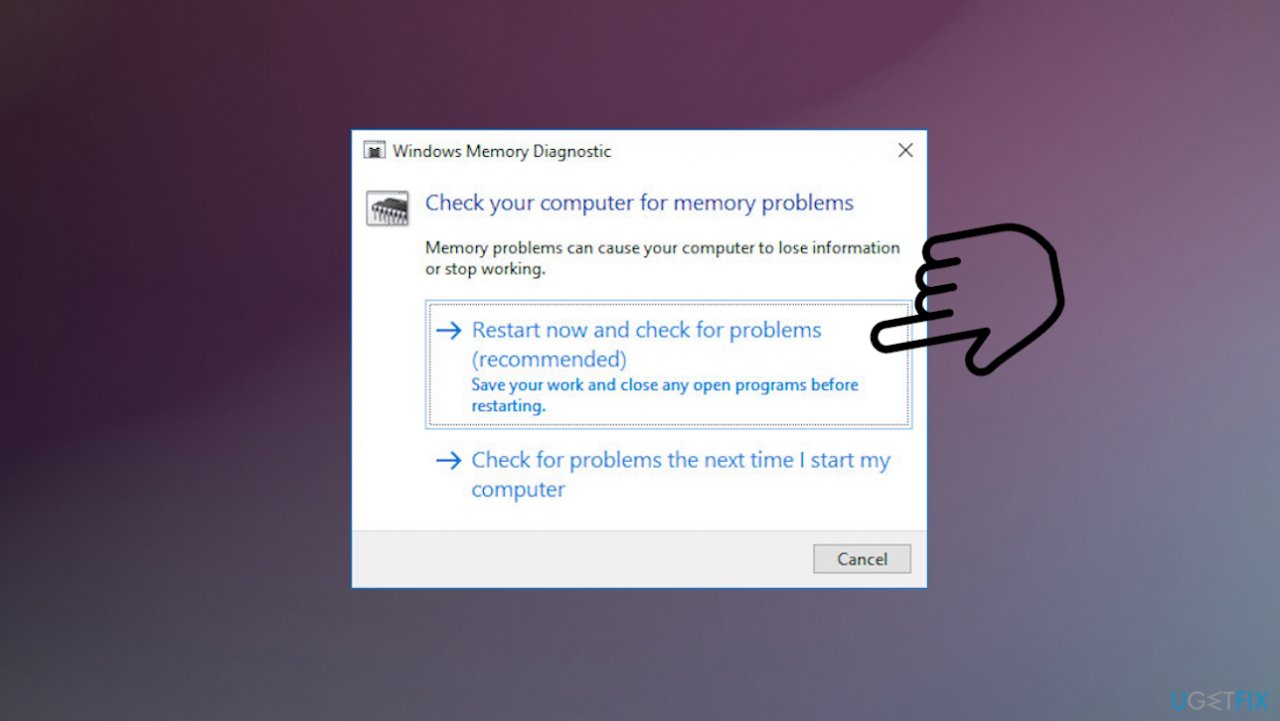
Invalid kernel handle on windows fix memory test
Option 5. Perform a clean boot
- Press Windows + R.
- Type msconfig, and hit Enter.
- Go to Services tab and tick the Hide all Microsoft services checkbox.
- Select Disable all.
- Go to Startup tab and click Open Task Manager.
- Here, right-click on each of the non-Windows entries and select Disable.
- Close down the Task Manager.
- Go to Boot tab and tick the Safe boot option.
- Click Apply, OK, and restart your computer.
Bottom line
To fix the INVALID_KERNEL_HANDLE error, you can update drivers, repair files, or run the general troubleshooter for BSOD errors. Performing a clean boot may also help, though it's more complex. If none of these solutions work, consider scanning for altered or damaged files.
Frequently asked questions
The INVALID_KERNEL_HANDLE error is often caused by corrupted system files, outdated drivers, or issues with hardware components. It can also occur due to software conflicts or improper system configurations.
You can resolve the INVALID_KERNEL_HANDLE error by running the System File Checker tool, updating your drivers, or performing a clean boot to eliminate software conflicts. Additionally, checking your hardware connections may help if the issue persists.
To prevent the INVALID_KERNEL_HANDLE error on Windows 10, ensure that your system is regularly updated, drivers are kept current, and you perform routine maintenance like disk checks and system scans. Keeping your software environment stable and free of conflicts can also reduce the chances of this error.




Report an issue
What's wrong with this guide? We review every report and update or remove content.
Report received — thank you. We'll review and fix it.
You need a free account to submit a report.
Be the first to comment