How to fix
FIX: Can’t create a New Folder on a Windows 10 Desktop
on Windows
Resolve the issue of not being able to create a new folder on your Windows 10 desktop effortlessly. Expert-tested solutions await you!


What causes FIX: Can’t create a New Folder on a Windows 10 Desktop?
- Missing registry keys
- Registry keys deleted by malware
- User accidentally deleted registry keys
- System files are missing or corrupted
- System restore point not available
Repairs Windows system files, removes malware, and restores a clean OS state — without reinstalling.
Hi guys! Need help as I can’t add a new folder to my desktop. When I try to add one, an error code <%NULL:OpText occurs and no folder is created. How this should be fixed? Thanks in advance!
Recently several Windows 10 users reported an issue related to the inability to create a New Folder on the desktop.[ref en-2] When the user right-clicks on the desktop, clicks Add and selects New Folder, they receive <%NULL:OpText error and zero New Folders on the screen. In the majority of the cases, PC owners can create New Folders in other locations, such as C:/ drive or within other folders.
This bug may occur due to the missing registry keys,[ref en-1] which might have been deleted by malware or the user might have deleted it himself/herself by accident. Luckily, that’s a minor issue, which might be fixed in several ways. Thus, to fix "can't add a New Folder" issue on Windows,[ref en-3] try the following methods.
How to Fix Unable to Create a New Folder on Windows 10 Desktop Issue?

Fix 1. Use a System Restore Point
If you have created a System Restore Point earlier, you should try to should go back to the last point created. For this purpose, do the following:
- Click Win key and type Create a Restore point in the search bar.
- Select System Protection on the new window.
- Click on System Restore and then hit Next.
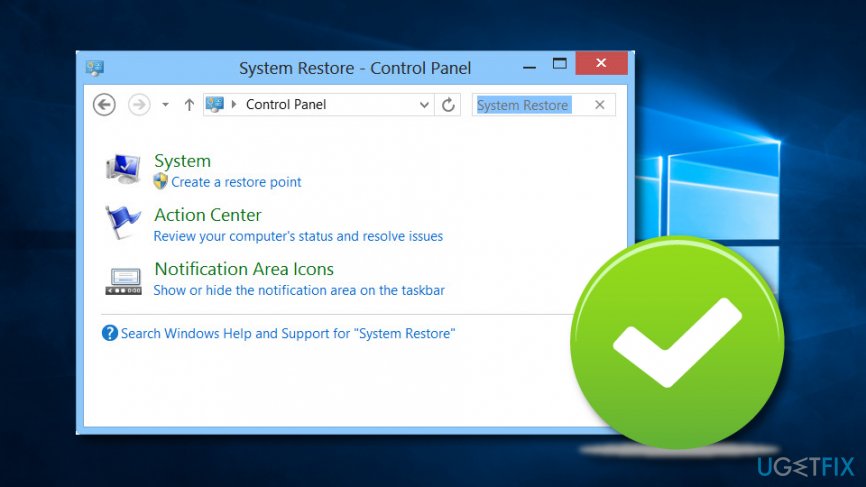
Fixing 1 - Select the last Restore point that you have created and then click Next.
- Click Finish and wait for the system to restore. After that, restart the system.
Fix 2. Run sfc/scannow
To fix missing system files, try to run a sfc/scannow. For that, you should:
- Click Win key + X and select Command Prompt (Admin).
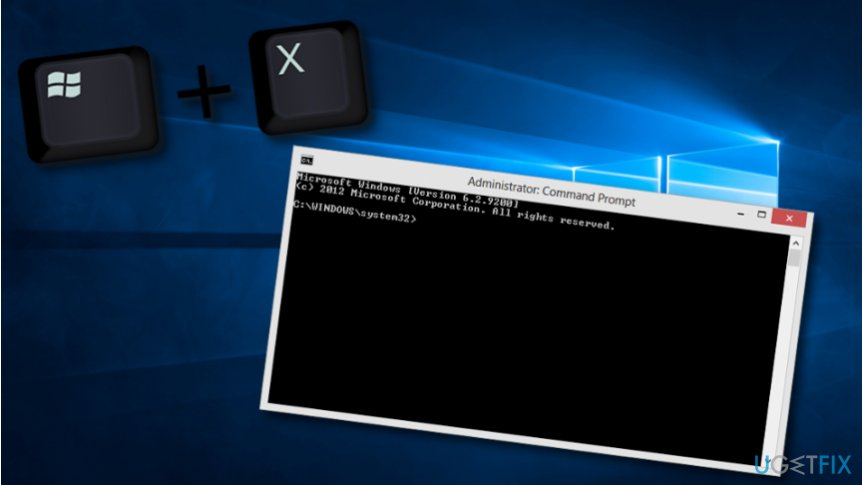
Fixing 2 - Type sfc /scannow command and press Enter.
- Wait for the system to execute the scan and repair issues. After that, restart the system.
Fix 3. Boot the system using Safe Mode
- Click Power button and press Shift key before the Windows logo appears.
- Select Restart and then Troubleshoot.
- Click Advanced options and select Startup Settings.
- Finally, select Restart.
Fix 4. Backup and restore the Registries
- Click Win key + R, type regedit, and press Enter.
- Type in your administrator password if required and click OK.
- Once the Registry Editor opens, click on the Computer on the left pane.
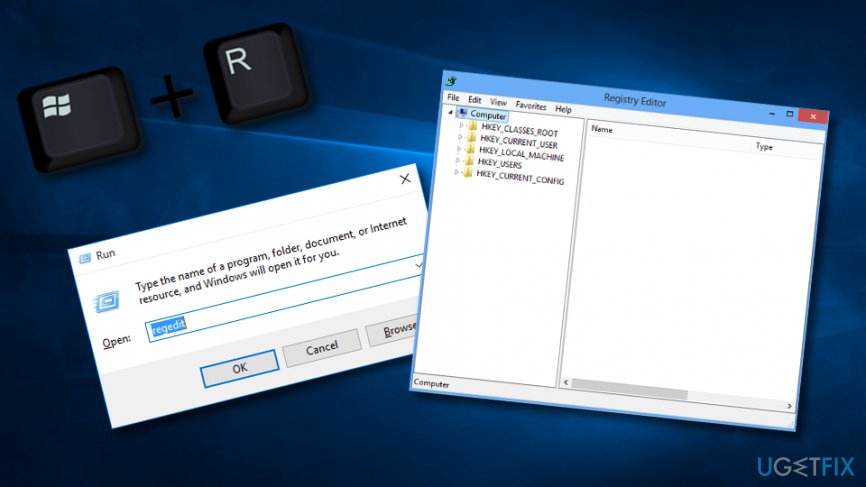
Fixing - After that, click File and select Export to create the backup of the entire registry.
- Select the location and click Save.
When you create a backup of your registry, you can proceed to restore the registries:
- Click Win key + R, type regedit, and press Enter.
- Type in your administrator password if required and click OK.
- Find File on the left pane and select Import.
- Navigate to the location where the REG file is stored, click on it, and select Import.
Fix 5. Try eliminating some Windows updates
- Go to the search zone on your Windows desktop and find Settings.
- Opt for the Update & Security variant.
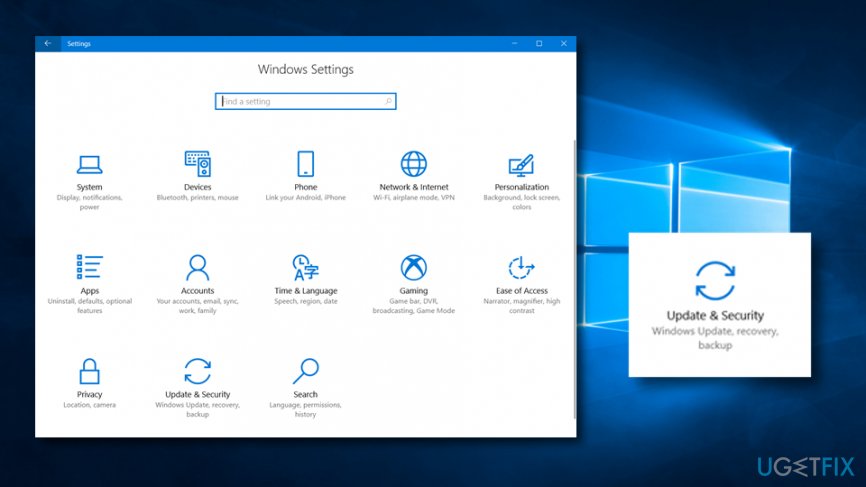
Fixing - Find and click on View installed update history.
- Double-click on an update you are likely to remove.
Fix 6. Fix the problem by accessing the Windows Defender Security Center
- Find the Windows Defender Security Center and open it.
- Select Virus & threat protection.
- Pick the Virus & threat protection settings.
- Find the Controlled folder access and opt for the "off" function.
- You can also find the App & browser control section.
- Open it and opt for off in order to enable the "Check apps & files" feature.
Finally, if none of these steps helped to fix “Can’t add a New Folder on a desktop” error on Windows 10, you should try to scan the system with [d1]. It will scan the system for malware,[ref en-4] registry errors that might have not been solved, damaged system files, and similar problems that might be preventing you from created new folders.
Bottom line
To fix the issue of not being able to create a New Folder on the Windows 10 desktop, you can try using a System Restore Point, running the sfc/scannow command, or booting the system in Safe Mode. If none of these methods work, further investigation into system settings or a complete system reset may be necessary.
Frequently asked questions
Try restarting your computer, as this can resolve temporary glitches. If that doesn't work, run the System File Checker tool to repair any corrupted system files.
Yes, check if your user account has the necessary permissions for the desktop folder. You can do this by right-clicking the desktop, selecting 'Properties', and then navigating to the 'Security' tab.
For Windows 11, ensure that your system is up to date, as updates can fix bugs related to folder creation. Additionally, you can try creating a new user account to see if the issue persists.




Report an issue
What's wrong with this guide? We review every report and update or remove content.
Report received — thank you. We'll review and fix it.
You need a free account to submit a report.
Be the first to comment