How to fix
“GameLaunchHelper.exe missing” error
on Windows
Resolve the "GameLaunchHelper.exe missing" error on Windows 10 or 11 effortlessly. Quick tips and expert-tested solutions await you! Fixed in minutes.

What causes How to fix “GameLaunchHelper.exe missing” error in Windows?
- Corrupted installation of the game
- Missing GameLaunchHelper.exe file
- Faulty installation package
- Issues with game distribution servers
- Damaged system components
Repairs Windows system files, removes malware, and restores a clean OS state — without reinstalling.
Hello. I reinstalled Forza Horizon 5 and started to receive this error message when I attempt to launch the game: "Windows cannot find 'C:\\Program Files\\WindowsApps\\Microsoft.624F8B84B80_3.410.860.0_x64__8we...\\GameLaunchHelper.exe'. Make sure you typed the name correctly, and then try again." How can I fix this?
Forza Horizon 5 is a 2021 racing video game that became a huge success upon release. The game is set in an open-world environment based on a fictional representation of Mexico. It has the largest map in the Forza Horizon series which lets gamers drive around freely or compete in multiplayer races. However, some PC gamers run into issues when trying to launch the game.
Users report receiving a "GameLaunchHelper.exe missing" error in Windows after installing the game. They are unable to launch it and this has caused a lot of frustration. Players are left looking for answers in online forums as they run out of options. We previously wrote about other issues with games, for example, FIFA 22 not launching in Windows. It seems that the issue for Forza Horizon 5 not being able to launch is a particular .exe file that could have gotten corrupted during the installation.
In this guide, you will find a few methods that could help you fix this error. Besides those, depending on the platform that you installed the game from, there should be an option to verify integrity of game files. If none of our solutions work, we suggest you contact Steam, Microsoft Store, or another distributor's support where you got the game, because the issue might be caused by a faulty installation package or their servers.
There is a wide range of issues that can cause the GameLaunchHelper.exe to be missing. As there are many potential causes for this problem we suggest using a repair tool [d1] that can scan your system automatically to avoid going through all of the solutions. This software can identify the damaged system components, fix BSODs,[ref en-1] and registry[ref en-2] issues, free up the space by clearing cache and cookies,[ref en-3] so you will be able to potentially get more out of your device while gaming.
If you want to start with manual solutions to fix the "GameLaunchHelper.exe missing" error in Windows you can start here. Make sure to go through all the steps carefully:
Method 1. Run Windows Store Apps Troubleshooter
- Type Troubleshoot in Windows search and hit Enter
- In the new window, on the right side, click Additional troubleshooters
- Scroll down to find the Windows Store Apps entry
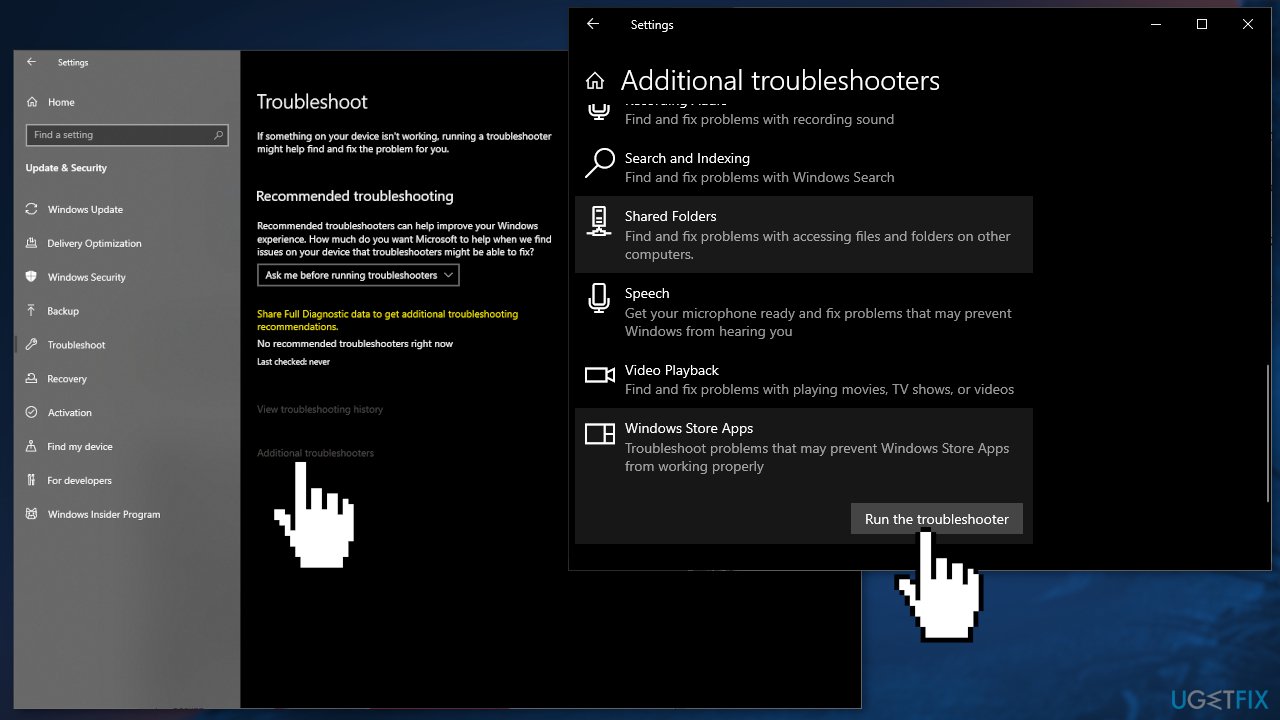
- Select it and click Run the troubleshooter
- Apply the suggested fixes
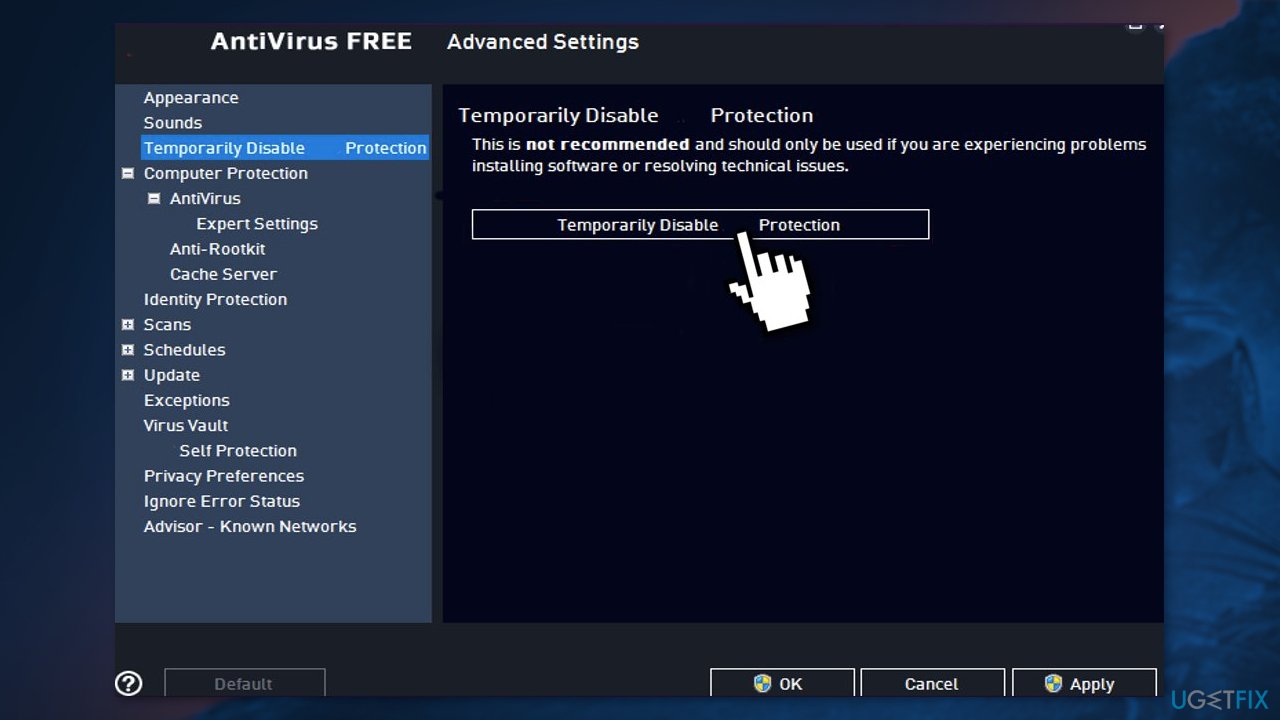
Method 2. Disable Third-Party Antivirus Software
Some security programs might be conflicting with Microsoft servers and data packages that they send during the installation process, mistakenly perceiving some files as insecure. Thus, it is known that removing AV software helped some users when trying to fix GameLaunchHelper.exe missing in Windows.
- Right-click the antivirus icon and select Disable
- You can also double-click the antivirus icon and look for a Disable option there
Method 3. Repair Corrupted System Files
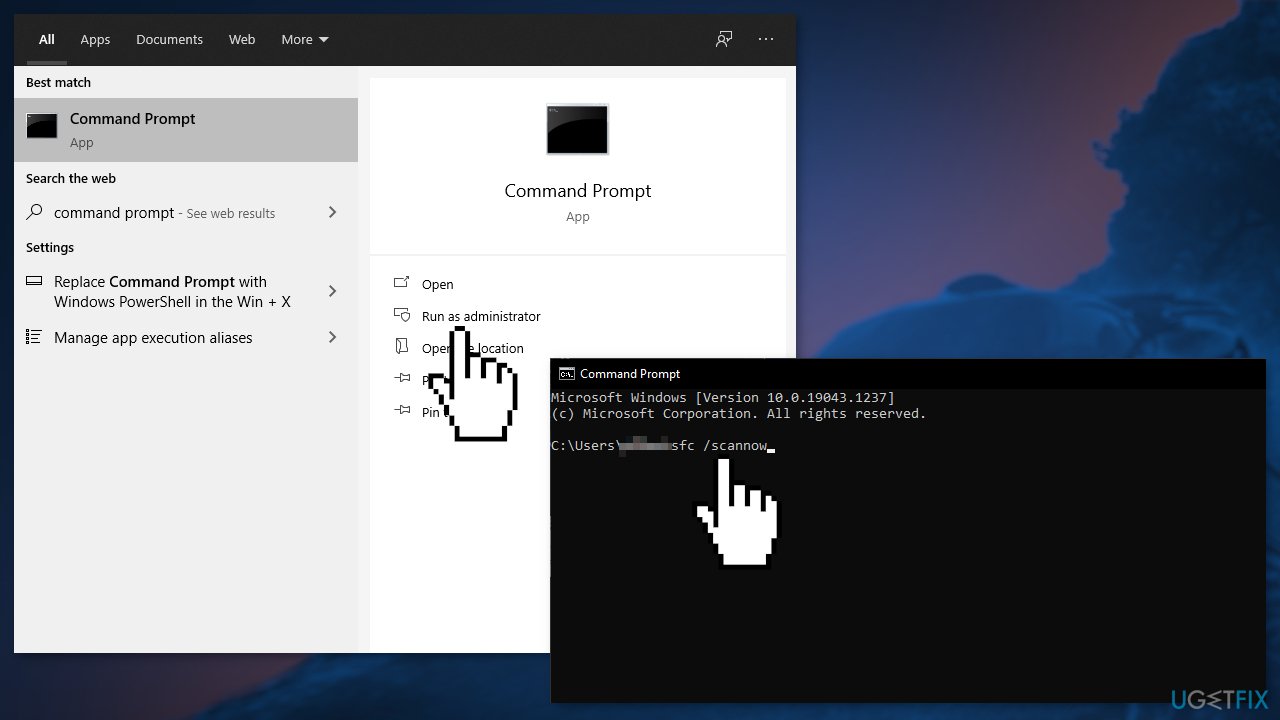
Use Command Prompt commands to repair system file corruption:
- Open Command Prompt as administrator
- Use the following command and press Enter:
sfc /scannow
- Reboot your system
- If SFC returned an error, then use the following command lines, pressing Enter after each:
DISM /Online /Cleanup-Image /CheckHealth
DISM /Online /Cleanup-Image /ScanHealth
DISM /Online /Cleanup-Image /RestoreHealth
Method 4. Repair Windows Store Apps
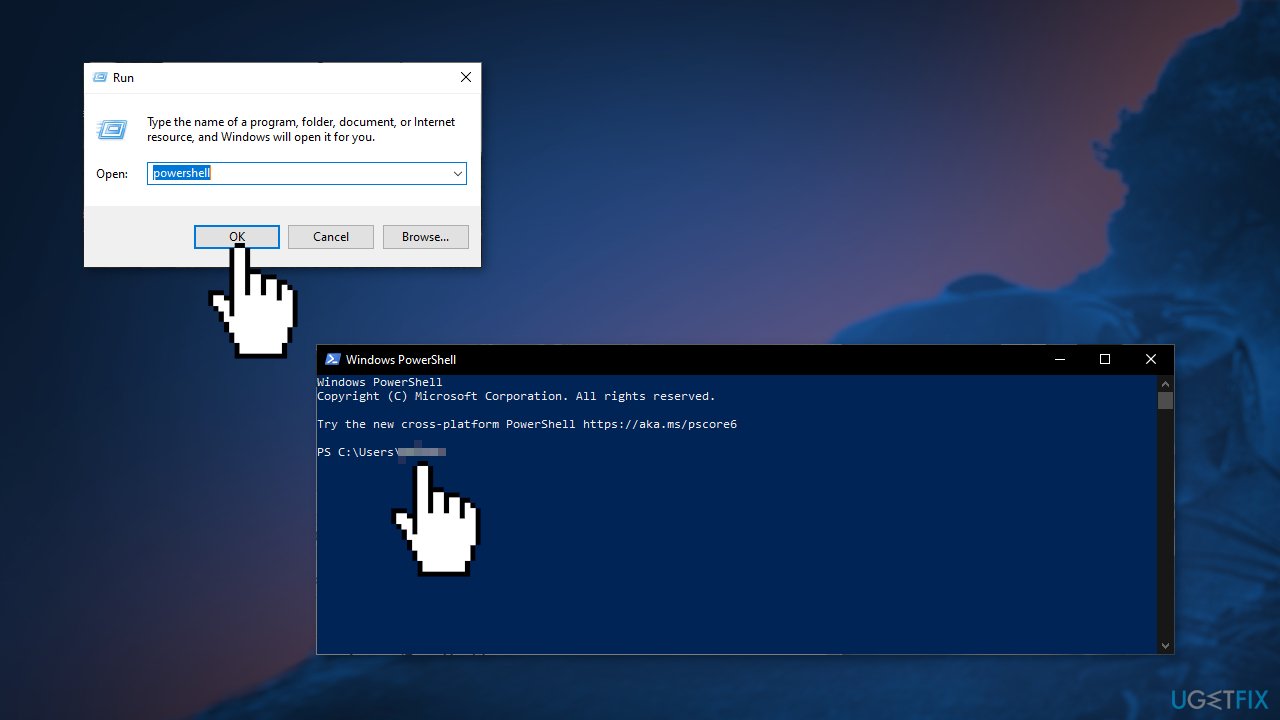
- Press Windows + R to open the Run box and type in Powershell
- Copy and paste the command below:
Get-AppXPackage | Foreach {Add-AppxPackage -DisableDevelopmentMode -Register "$($_.InstallLocation)\\AppXManifest.xml"}
- Restart your PC
- Check if the issue persists
Method 5. Reset every Windows Update Component
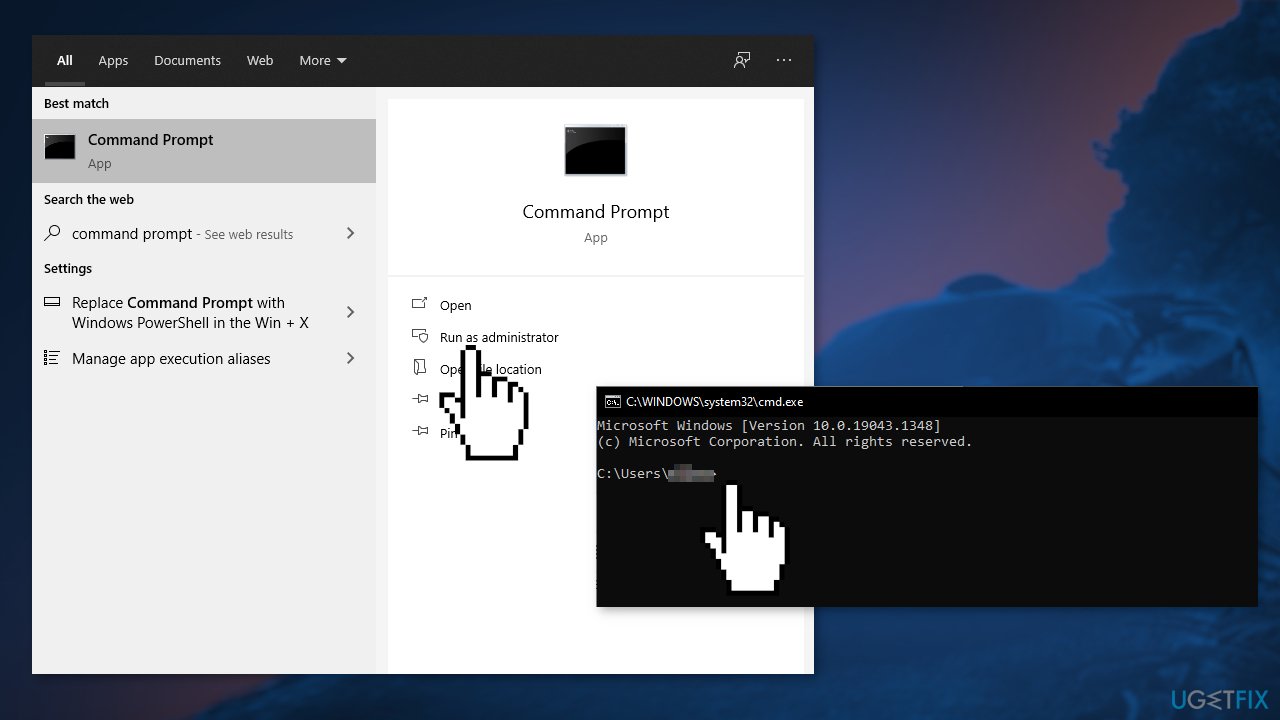
- Open Command Prompt as administrator again
- Copy and paste the following commands, pressing Enter after each:
net stop bits
net stop wuauserv
net stop appidsvc
net stop cryptsvc
Del “%ALLUSERSPROFILE%\\Application Data\\Microsoft\\Network\\Downloader\\*.*”
rmdir %systemroot%\\SoftwareDistribution /S /Q
rmdir %systemroot%\\system32\\catroot2 /S /Q
regsvr32.exe /s atl.dll
regsvr32.exe /s urlmon.dll
regsvr32.exe /s mshtml.dll
netsh winsock reset
netsh winsock reset proxy
net start bits
net start wuauserv
net start appidsvc
net start cryptsvc
- Restart your PC
Method 6. Upgrade Windows Using Installation Media
- Download Windows 10 installation media from the official page
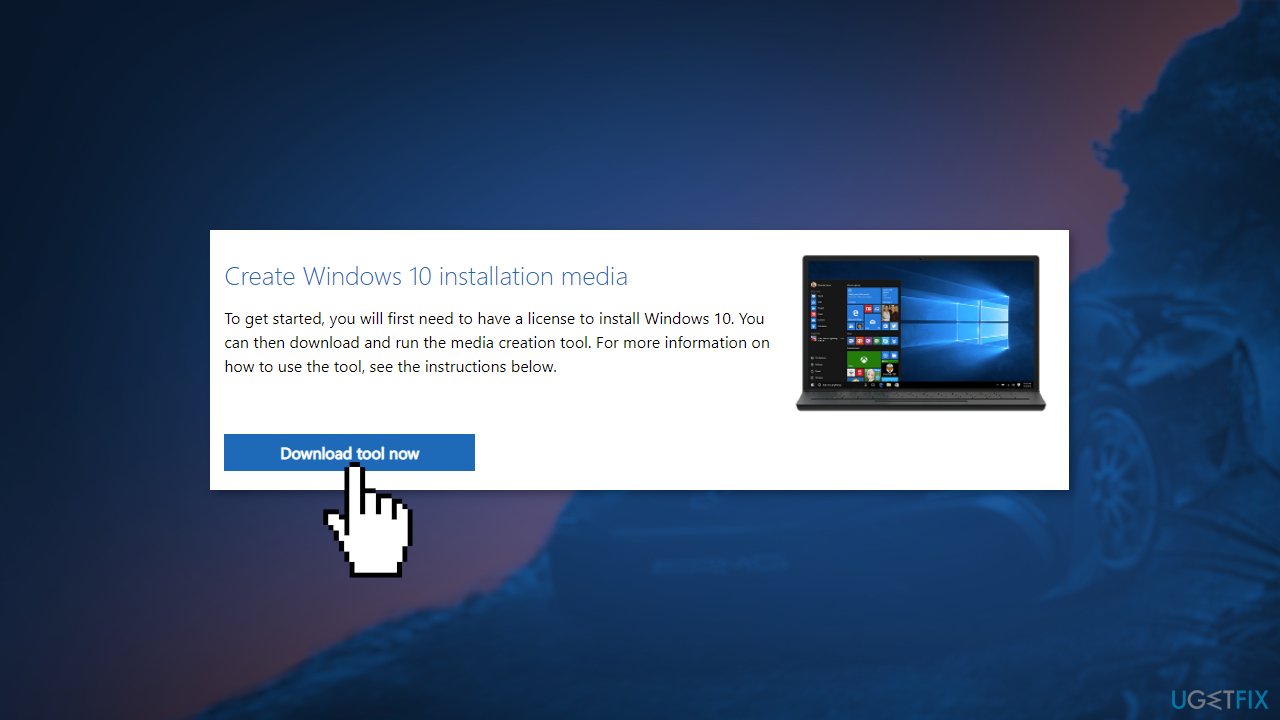
- Once installed, run the tool with administrator privileges
- On the License terms page, select Accept
- On the What do you want to do? page, select Upgrade this PC now and then select Next
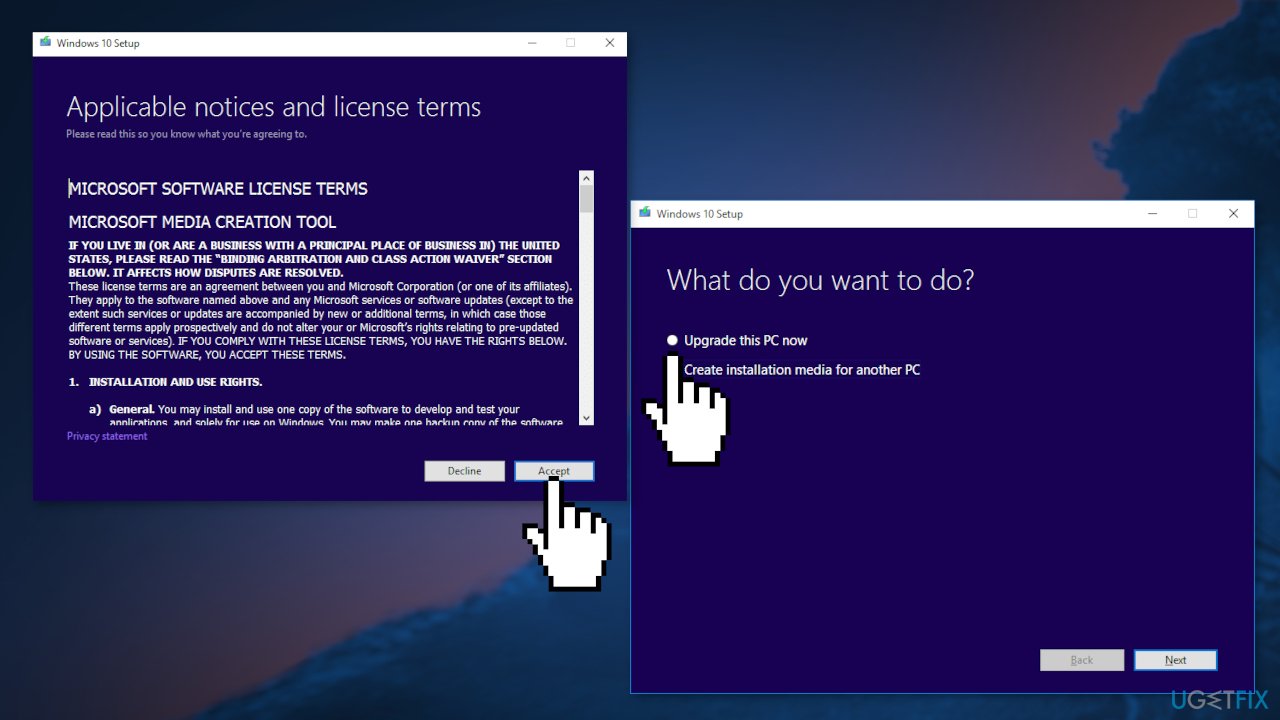
- Wait for the upgrade to finish
Bottom line
To fix the 'GameLaunchHelper.exe missing' error, you can try verifying the integrity of game files, using a repair tool to scan for system issues, or reinstalling the game. If none of these solutions work, it is recommended to contact support for the platform from which the game was purchased.
Frequently asked questions
This error typically occurs due to a corrupted game installation, missing files, or issues with the game launcher. It can also be triggered by antivirus software mistakenly deleting the GameLaunchHelper.exe file.
You can restore the missing GameLaunchHelper.exe by verifying the game files through the game launcher, or by reinstalling the game to ensure all necessary components are properly installed.
If the error persists, try updating your Windows 10 or Windows 11 system and the game launcher, or check for any conflicting software that may be affecting the game's performance.




Report an issue
What's wrong with this guide? We review every report and update or remove content.
Report received — thank you. We'll review and fix it.
You need a free account to submit a report.
Be the first to comment