How to fix
Ksecdd.sys blue screen error
on Windows
Resolve the ksecdd.sys blue screen error in Windows 10 or 11 with expert-tested solutions. Fix your issues quickly and efficiently, zero traces left.

What causes How to fix ksecdd.sys blue screen error in Windows?
- Driver issues
- Interacting with files or programs
- System file corruption
- Conflicting software
- Hardware malfunctions
Repairs Windows system files, removes malware, and restores a clean OS state — without reinstalling.
Hello, I have some strange crashes on my relatively new Windows PC. The blue screen has happened several times already, and I'm not sure what to do to get rid of it - it's really annoying. Usually, this happens when I try to open some files on my PC, which is really strange. The BSOD references ksecdd.sys file.
Windows machines can be very powerful if run on the newer hardware. The newest versions of the operating system, such as 10 or 11, are also more polished, have a comfortable UI, and have more features than ever before. Despite all these advantages, users still might experience Blue Screen of Death errors such as ksecdd.sys, regardless of what type of computer they own and which versions of Windows they are using.
Blue Screen errors, otherwise known as stop errors, can be really frustrating to deal with, as they can happen abruptly and prompt an immediate restart, regardless of what the user is doing at the time. While the frustration is understandable (people might lose important work they have done or get interrupted while having an important video call), BSODs play an important role in the Windows ecosystem.
Without the forced crash - in this case, due to the ksecdd.sys file - the computer might be subjected to unrepairable damage to it. In most cases, Windows would restart automatically and would perform some troubleshooting steps in the process. Even though this process usually ends there, persistent BSODs might indicate something more serious and should be addressed as soon as possible.
First of all, it is important to note that the crash can occur under different circumstances, but most commonly happens when users interact with files or programs located on the device. Additionally, some people reported that they experience other BSODs alongside it - Ntoskrnl.exe is the most common one that occurs interchangeably.
Ksecdd.sys, which is a part of Kernel Security Support Provider Interface from Microsoft, is a system file that simply can't be removed, or the OS would malfunction. In most cases, these types of crashes occur due to driver issues, although it is not always the case. Thus, below we will provide several solutions that should help you resolve the recurring BSODs.
Fix 1. Run an automatic repair tool
Windows requires thousands of components and files to run without interruptions, bugs,[ref en-3] errors, and other issues. Blue screen errors are just one form of unfortunate problem that users might encounter while using the operating system - people might also struggle with DLL errors, registry corruption, Windows update failures, application errors, or a combination of those.
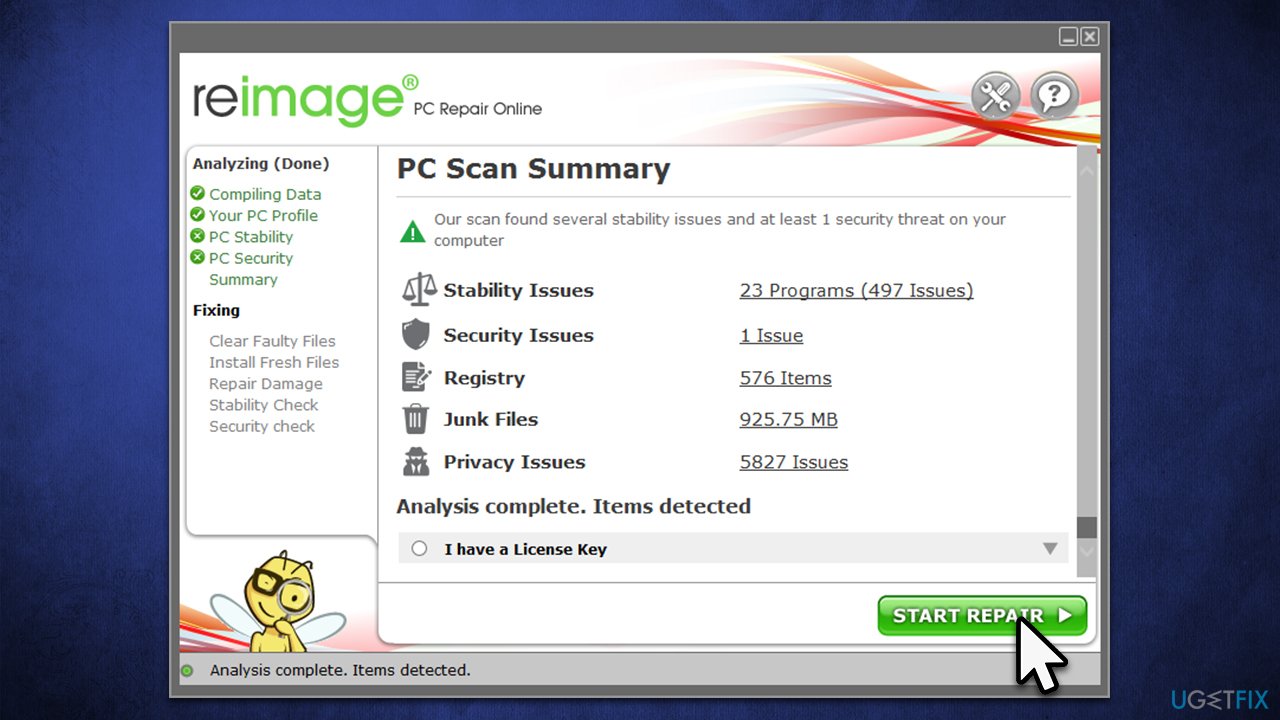
While the solution is almost always can be found manually, it might take many hours of troubleshooting, which can be a particularly daunting task for less experienced PC users. If you would like a much quicker, automatic solution for such problems that would also be beneficial in the long run, we recommend firstly running a scan with [d1] PC repair software, which can fic most common computer issues, remove malware, and clean browsers/system from junk.
Fix 2. Update all drivers
Drivers[ref en-2] are vital computer components that allow hardware to interact with software correctly. If drivers become corrupted in some way, it might lead to persistent BSODs. Thus, make sure all your drivers are up to date:
- Type Update in Windows search and hit Enter
- Click Check for updates
- Click View optional updates
- Find the Driver Updates section, tick the checkboxes, and click Download and Install
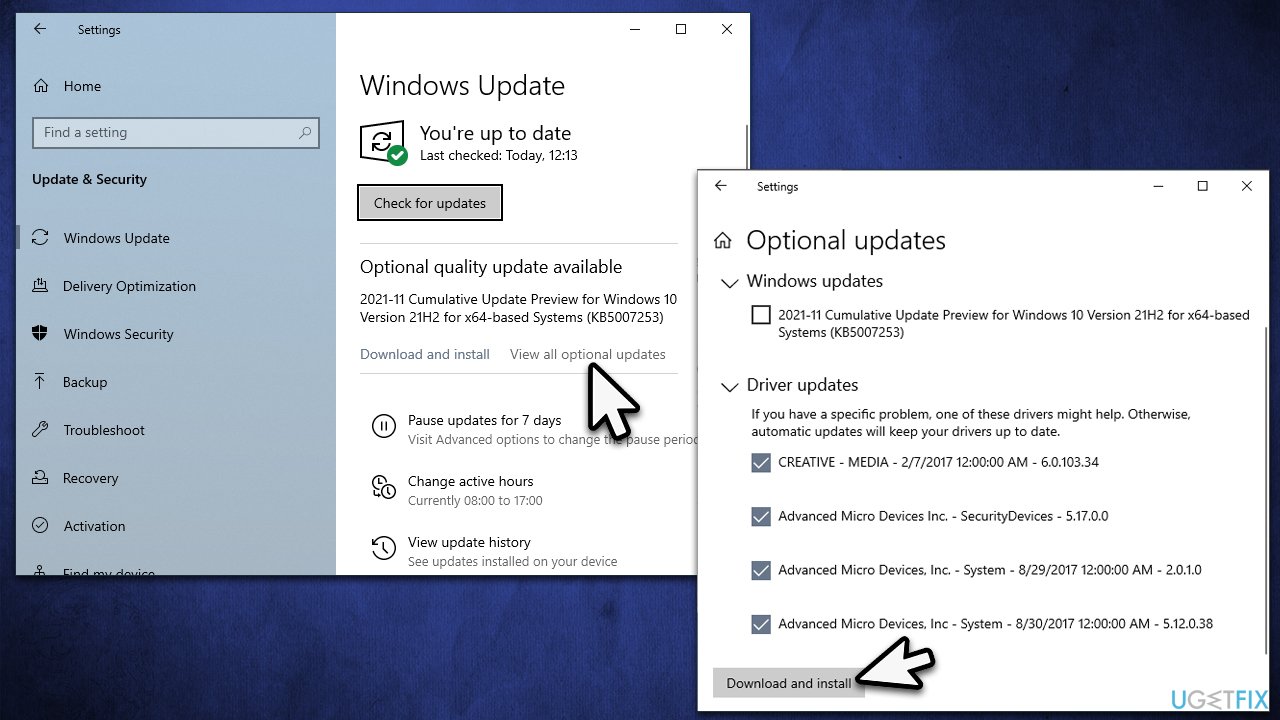
How to fix ksecdd sys blue screen error in windows update drivers - Restart the PC once all the drivers are installed.
If you don't want to deal with manual updates, you can employ [rev id="DriverFix"], as Windows can also fail to find all relevant updates for your particular hardware.
Fix 3. Run SFC and DISM
Several commands can be run in order to check the system files for corruption. For that, you need to call up an elevated Command Prompt as explained below:
- Type cmd in Windows search
- Right-click on Command Prompt search result and select Run as administrator
- If the UAC window shows up, click Yes
- Next, type in the following command and press Enter:
sfc /scannow - Once done, run the following commands as well:
dism /online /cleanup-image /checkhealth
dism /online /cleanup-image /restorehealth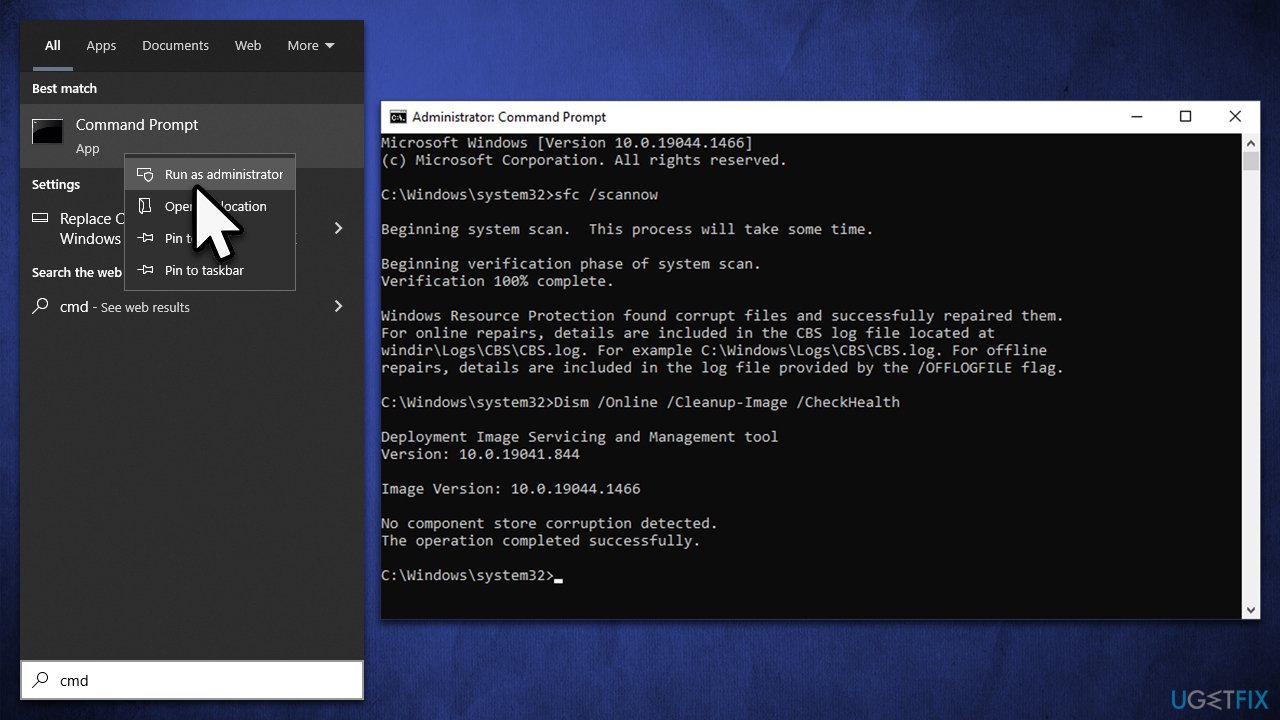
How to fix ksecdd sys blue screen error in windows run sfc - Restart your system.
Fix 4. Stop overclocking your system
Overclocking is a process that allows users to go beyond the regular capabilities of CPU or GPU, providing a better experience when it comes to gaming or other GPU-intensive tasks. Overclocking also has its downsides – it might result in overheating, consequently crashing the system.
Therefore, if you are dealing with Blue Screen errors and are overclocking your hardware, access BIOS[ref en-1] and turn off the feature or set the settings to the default option. If you have not enabled this option, it shouldn't be operational in the first place, so don't worry about this.
Fix 5. Run Windows Memory Diagnostic
In some cases, the issue might be related to memory corruption. You can run a memory check as follows:
- Type Windows Memory Diagnostic in Windows search and press Enter
- Click the Restart now and check for problems (recommended) option
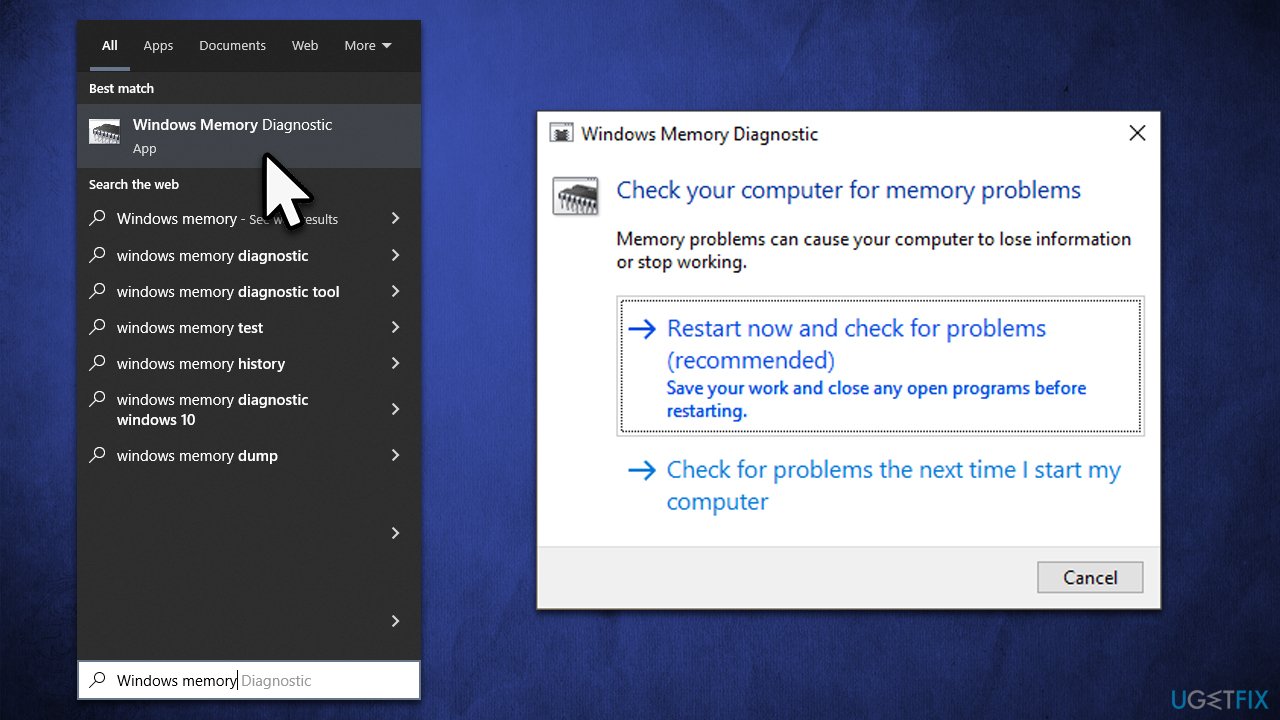
How to fix ksecdd sys blue screen error in windows check memory - This will immediately restart your device to perform a full memory check
- The results will be displayed after the restart.
Fix 6. Reset Windows
If none of the above solutions helped you, you might consider resetting Windows. Before you proceed, uninstall third-party anti-malware software, disconnect all unnecessary devices, and backup your files as a precautionary measure.
- Right-click on Start and then select Settings
- Go to Update & Security and pick Recovery on the left side of the window
- Find Reset this PC section and click Get Started
- Select Keep my files and Cloud download
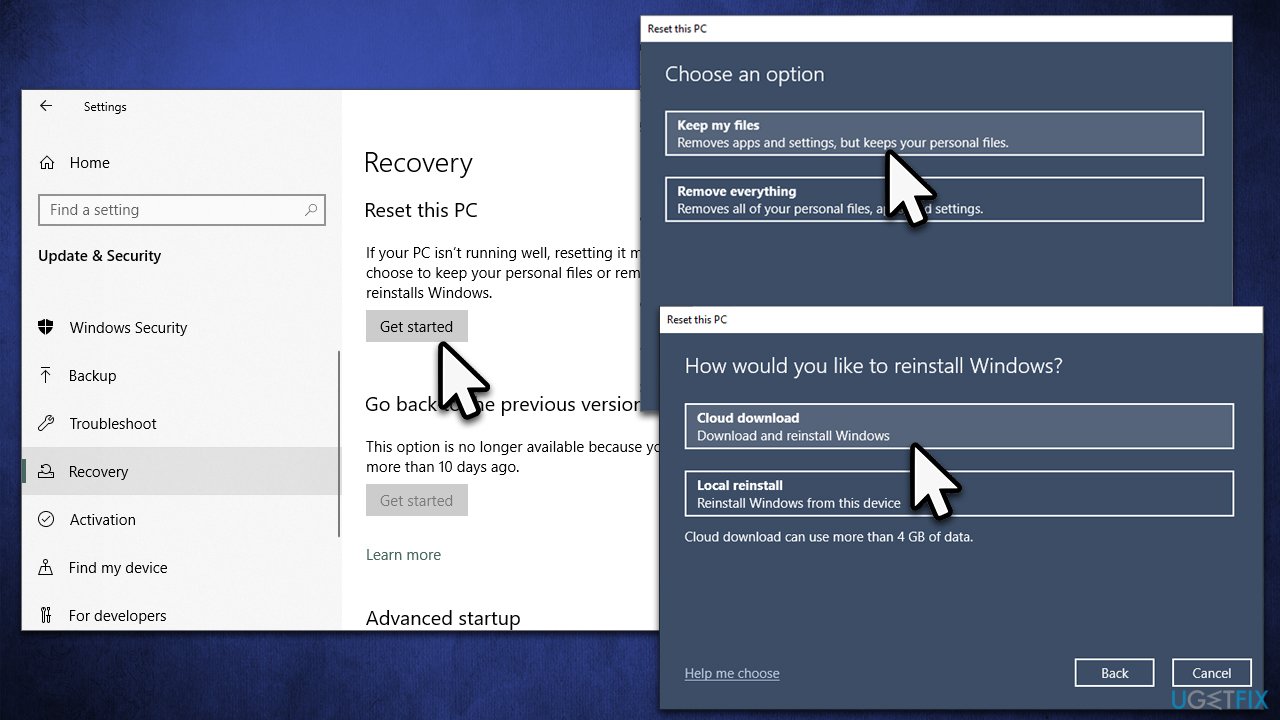
How to fix ksecdd sys blue screen error in windows reset windows - Your system will restart.
Bottom line
To fix the ksecdd.sys blue screen error, you can update your drivers, check for system file corruption, and ensure that your hardware is functioning properly. If these steps do not resolve the issue, consider seeking professional help or further troubleshooting.
Frequently asked questions
The ksecdd.sys blue screen error is typically caused by corrupted system files, outdated drivers, or software conflicts that affect the security subsystem of Windows.
To troubleshoot the ksecdd.sys error on Windows 11, you can run the System File Checker tool and update your device drivers to ensure they are compatible and functioning properly.
Disabling ksecdd.sys is not recommended as it is a critical system file related to Windows security; instead, focus on repairing or updating your system.




Report an issue
What's wrong with this guide? We review every report and update or remove content.
Report received — thank you. We'll review and fix it.
You need a free account to submit a report.
Be the first to comment