How to fix
Bad Request error code 400 in Roblox
on Windows
Resolve the Bad Request error 400 in Roblox on Windows 10 and 11 with our easy guide. Get expert-tested solutions that work in minutes!

What causes How to fix Bad Request error code 400 in Roblox?
- Problem related to browser cookies and cache
- Internet connection issues
- Server maintenance
- Interference from third-party antivirus
- Corrupted files or registry issues
Repairs Windows system files, removes malware, and restores a clean OS state — without reinstalling.
Hello. I have tried to connect to a Roblox server but I received a "Bad Request" error code 400. Why can't I connect and play?
Roblox is an online game platform and game creation system developed by Roblox Corporation. Users can program games and play games created by others. It is free-to-play with in-game purchases available through a virtual currency called "Robux." As of August 2020, Roblox had over 164 million monthly active users. It became the third highest-grossing game of 2020, with a revenue of $2.29 billion, below PUBG and Honor of Kings.
However, some users ran into trouble when trying to connect to the game's servers. They received this error:
Bad Request
400 | There was a problem with your request
There are a number of reasons why this client error could happen. Some speculate that it could be a problem related to browser cookies and cache.[ref en-1] Others found that it was caused by internet connection issues. We also cannot rule out that Roblox Error Code 400 can appear because of Server Maintenence.[ref en-2] If you have a third-party antivirus installed it is worth checking if it does not interfere with the connection process.
Bad Request error code 400 in Roblox might also be fixed by a maintenance tool like [d1]. This powerful software can fix most system errors, BSODs,[ref en-3] corrupted files, and registry issues. It can also clear cookies and cache with a click of a button which also could be the culprits of the problem. If you want to have a multipurpose repair tool that can keep your system running smoothly, we definitely recommend it.
The guide that could fix Bad Request error code 400 in Roblox is below. Please follow the steps carefully:
Method 1. Reset your Internet Connection
- Go to Windows Settings
- Click on Control Panel
- Go to Internet Options
- Choose the Advanced Settings
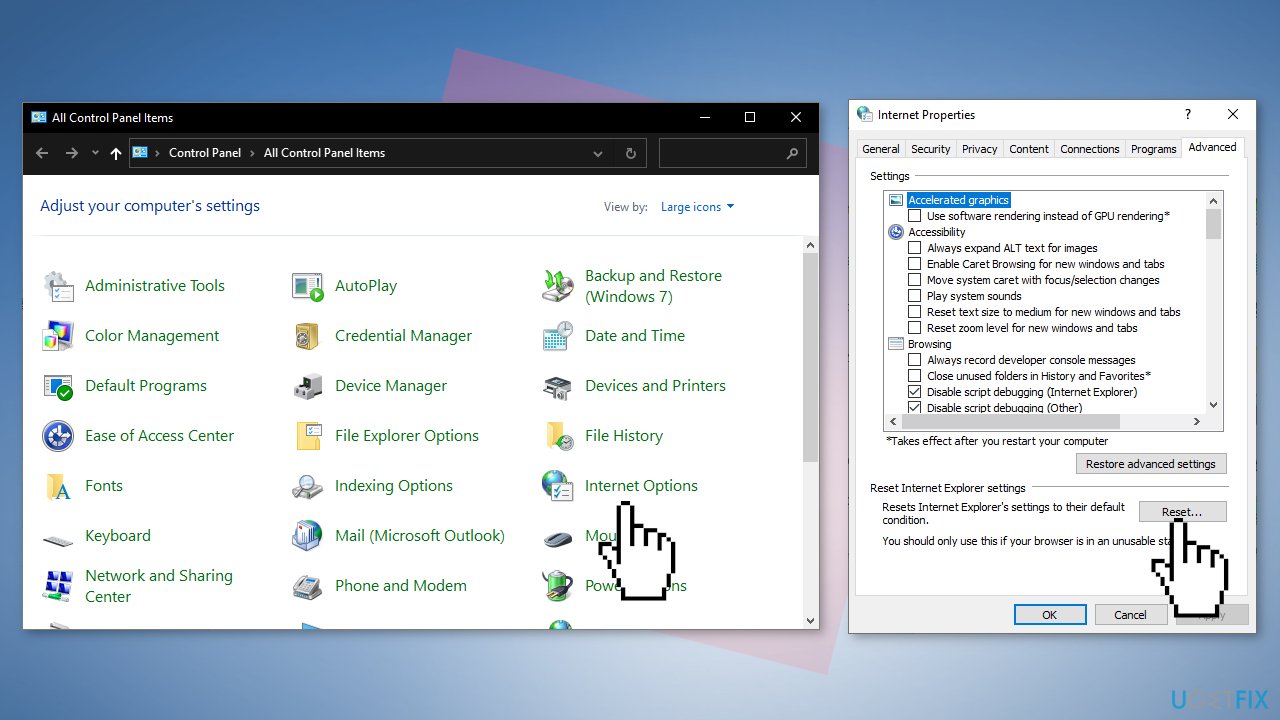
- Click on Reset
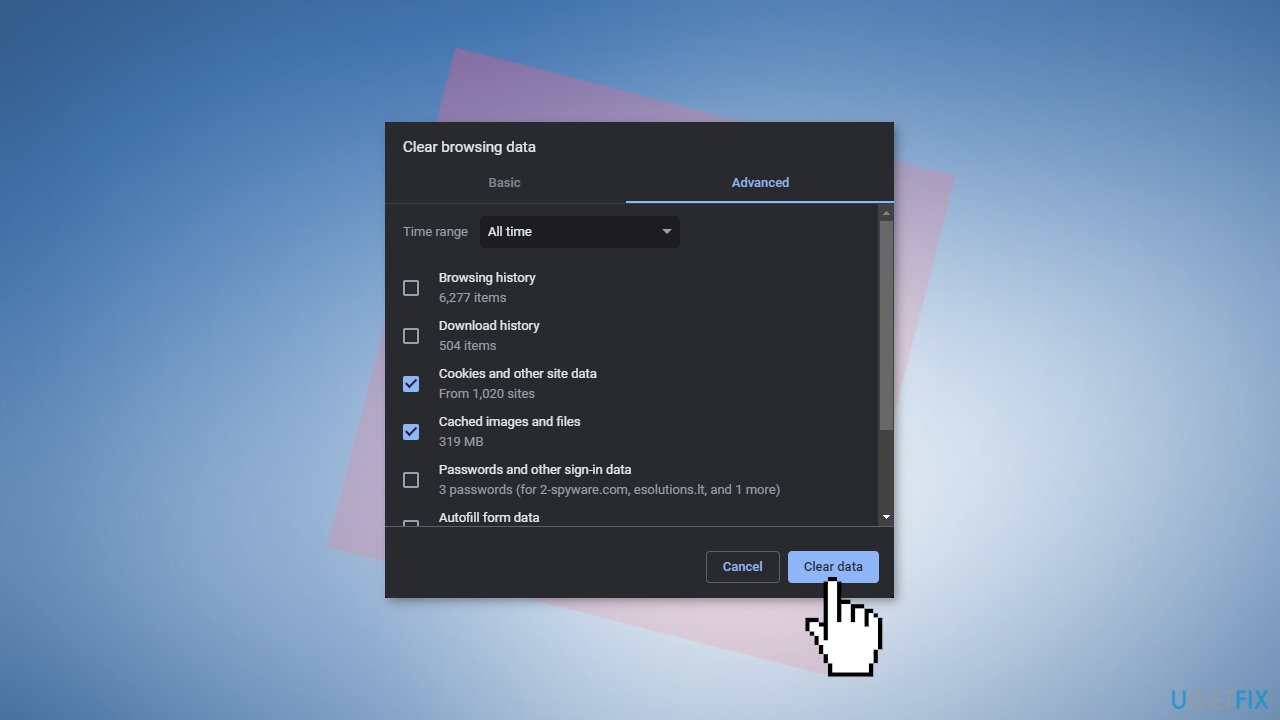
Method 2. Clear Cookies and Cache
To delete cookies and cache from Chrome follow the guide below. If you want to find instructions for other browsers, read How to delete cookies from browsers?
- On your computer, open Chrome
- At the top right, click More
- Click More tools and Clear browsing data
- At the top, choose a time range. To delete everything, select All time
- Next to Cookies and other site data and Cached images and files, check the boxes
- Click Clear data
Method 3. Disable Antivirus Software
Some security programs might be conflicting with Microsoft servers and data packages that they send during the activation process, mistakenly perceiving these servers as insecure. Thus, it is known that removing AV software helped some users when trying to fix Windows errors.
Disable Windows Defender:
- Press Windows + R button to launch the Run box
- Type gpedit.msc and press Enter
- Click the Computer Configuration tab and select Administrative Templates
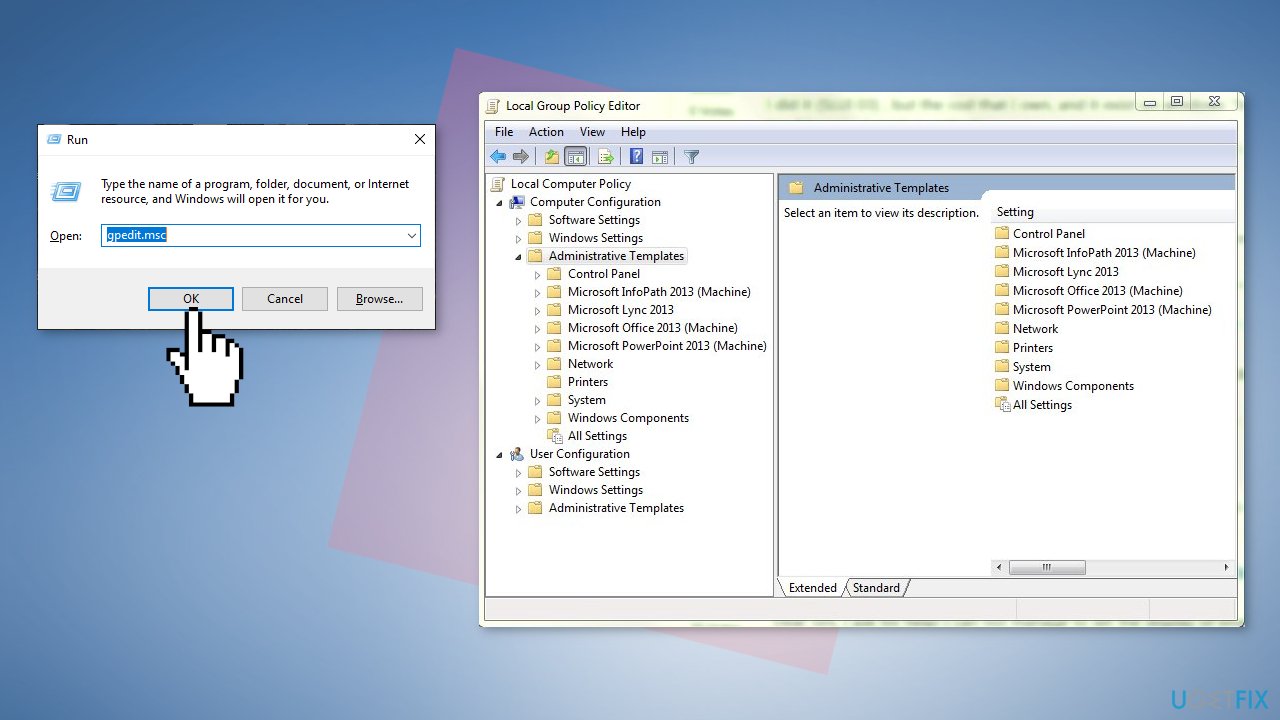
- Click on the folder of Windows Components and select Windows Defender
- Select Turn off Windows Defender
- Select Enabled to turn Windows Defender off
- Apply settings and press OK
- Restart your computer
Disable third-party security software:
- Right-click the antivirus icon and select Disable
- You can also double-click the antivirus icon and look for a Disable option there
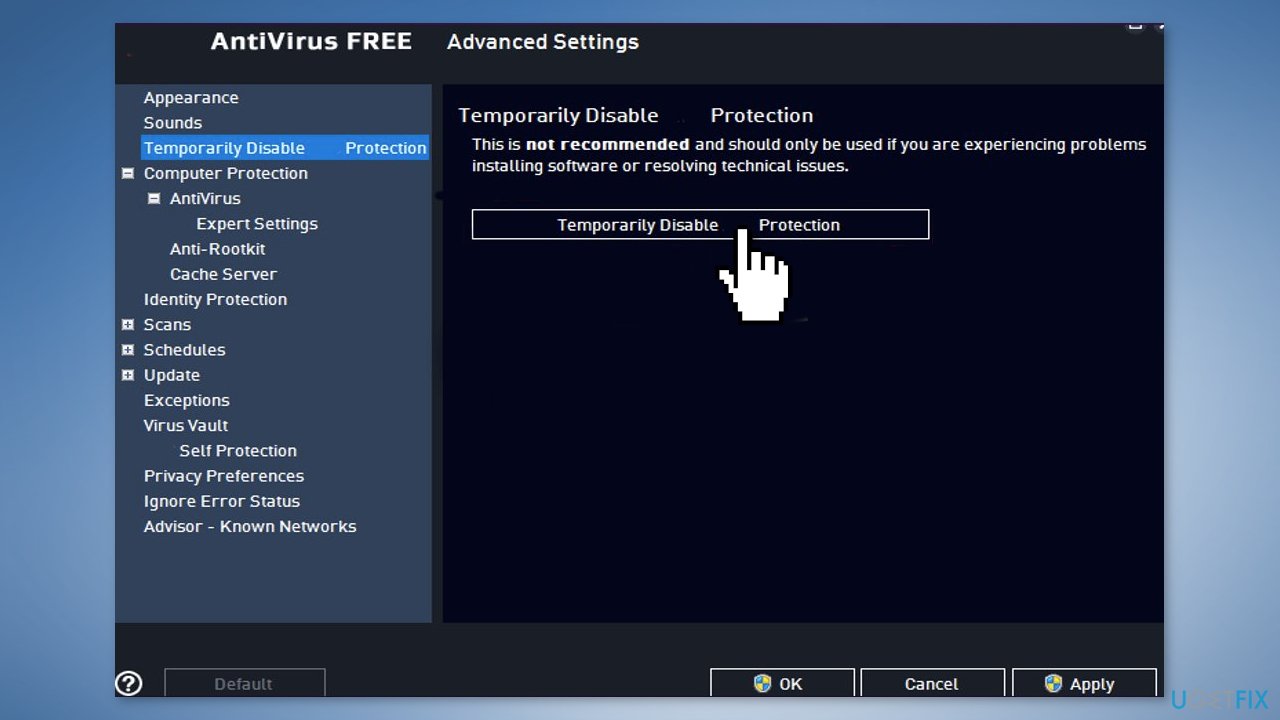
Method 4. Reinstall Roblox
- Go to Apps & features
- Search the list for Roblox and click it
- Choose Uninstall
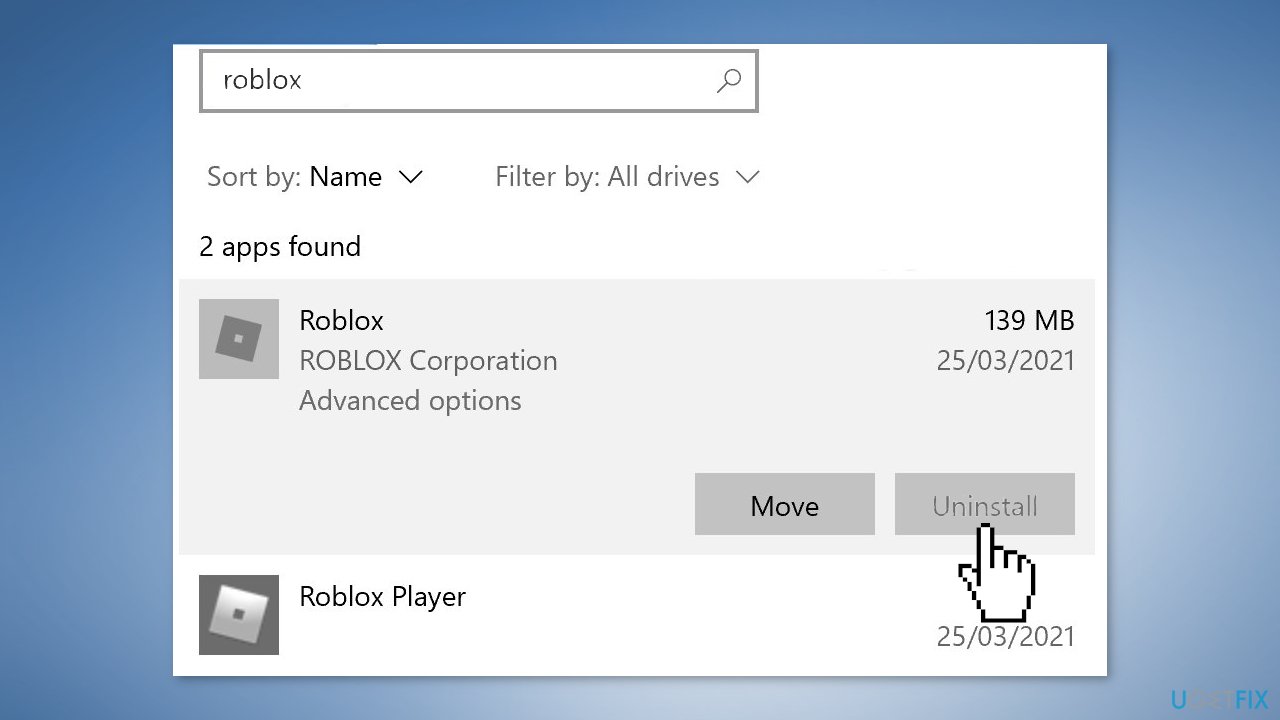
- Repeat the installation process
Bottom line
To fix the Bad Request error code 400 in Roblox, you can reset your internet connection, clear cookies and cache, and check for any interference from antivirus software. If these methods do not resolve the issue, consider using a maintenance tool to address system errors.
Frequently asked questions
The Bad Request error code 400 in Roblox typically occurs due to invalid URL requests, corrupted cache, or misconfigured settings in your browser or the Roblox app.
To clear your browser cache in Windows 10 or Windows 11, go to your browser settings, find the privacy or history section, and select the option to clear browsing data, making sure to include cached images and files.
Yes, you can try resetting your network settings in Windows 10 or Windows 11 by navigating to Settings > Network & Internet > Status, then selecting Network reset to restore default configurations.




Report an issue
What's wrong with this guide? We review every report and update or remove content.
Report received — thank you. We'll review and fix it.
You need a free account to submit a report.
Be the first to comment