How to fix
EasyAntiCheat.sys BSOD
on Windows
Resolve the EasyAntiCheat.sys BSOD issue in Windows 10 and 11 quickly with our expert-tested guide. Get back to gaming in minutes!

What causes How to fix EasyAntiCheat.sys BSOD in Windows?
- Inconsistent performance of EasyAntiCheat
- Conflicting software running in the background
- Anti-malware tools treating EasyAntiCheat as a rootkit
- Corrupted EasyAntiCheat installation
- Game Security Violation Detected errors
Repairs Windows system files, removes malware, and restores a clean OS state — without reinstalling.
Hello, sometimes, whenever I launch Apex Legends, my PC crashes to a blue screen and it references EasyAntiCheat.sys. So my guess is this is caused by Easy AntiCheat, although I am not sure how to solve this. I am running Windows 10. Thanks for the help.
Apex Legends, Fornite, and Far Cry 5 are among a few massively popular titles that use EasyAntiCheat - most gamers have probably seen in running in the background wherever they launch a particular game. Nonetheless, some people are not quite sure or aware of what is it exactly doing and only notice its presence when it starts causing problems. In this case, we are talking about EasyAntiCheat.sys Blue Screen[ref en-1] crash issue which occurs under various circumstances.
In most cases, users claimed that the crashes are relatively random and can occur at any time when a dependent game is being launched and played. In some extreme cases, players said that the EasyAntiCheat.sys crash occurs as soon as they launch the game, making it unplayable.
So what is it that causes these crashes? EasyAntiCheat is a tool designed by an independent developer and used by many game developers to prevent users from cheating in an online game environment, which would provide them with an unfair advantage. It can stop the cheats from being activated, although this not always works, as bots and other cheats were spotted in the affected games regardless.[ref en-2]
Its inconsistent performance is not the only issue that plagues the app, as users have also reported problems like "Couldn't start the game" in Battlefield 2042 or Game Security Violation Detected errors caused by it. Thus, if you have run into EasyAntiCheat.sys Blue Screen, you are not alone.
In order to fix the problem, you might have to repair or reinstall EasyAntiCheat. In some cases, the crashes might be caused by conflicting software running in the background, e.g., anti-malware tools (the app is installed on the system's Kernel, hence it might be treated like a rootkit[ref en-3] by some AVs).
In any case, we provide all the solutions below. Before you do so, we recommend you run a scan with powerful PC repair and maintenance utility [d1], as it can save you some time and perform many of the checks for you automatically, ultimately fixing the underlying issue that causes the EasyAntiCheat.sys BSOD.
Solution 1. Update your GPU drivers
Drivers are one of the building blocks of your operating system and are extremely important. Therefore, make sure that your video card drivers are updated:
- Type Update in Windows search and hit Enter
- Click Check for updates
- Click View optional updates
- Find the Driver Updates section, tick the checkboxes, and click Download and Install
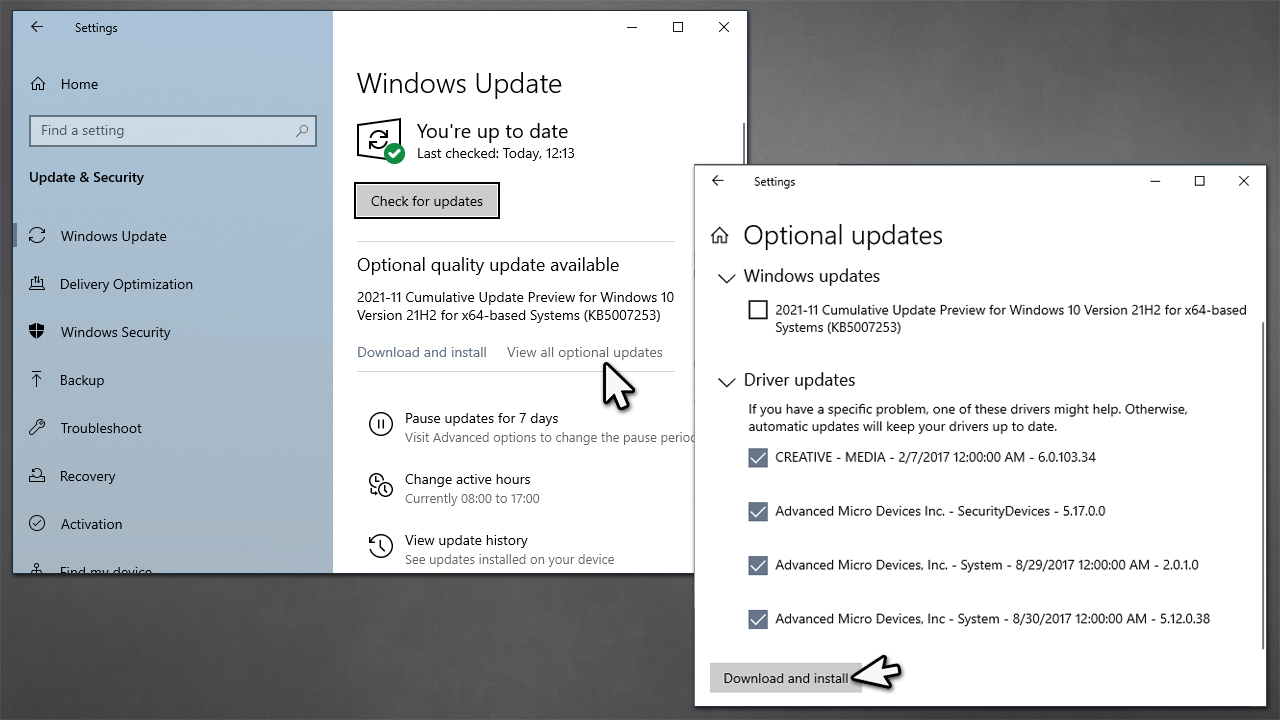
How to fix easyanticheat sys bsod in windows install driver updates - Restart your PC.
Windows does not always find all the newest drivers available for your hardware. Thus, we recommend checking your hardware manufacturer websites or employing DriverFix to ensure that all the latest drivers for all computer components are installed.
Solution 2. Disable or uninstall third-party software
Security software is one of the main reasons why crashes might occur. Therefore, we recommend you temporarily disable or uninstall all third-party security software from the machine to see if it helps the situation.
If it ends up being the culprit of the problem, you should add EasyAnti-Cheat and the game in question into the Exceptions list. Refer to the instructions provided by your security software provider on their official website.
Solution 3. Delete the easyanticheat.sys manually
Some users said that deleting the related file manually helped them solve the issue. You will have to have admin privileges for this:
- Press Win + E to open File Explorer
- Go to the View tab and make sure that the Hidden items option is ticked
- Navigate to the following location and delete the file:
C:\\Program Files(x86)\\Easy Anti Cheat\\easyanticheat.sys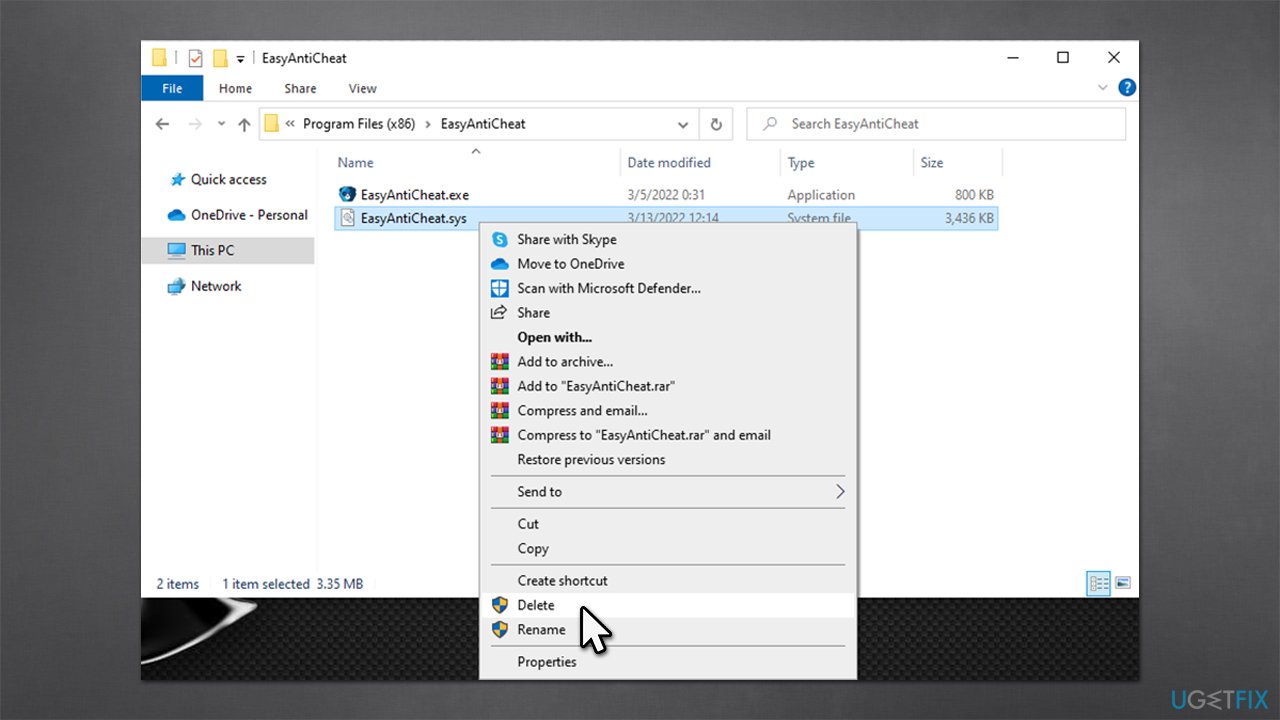
How to fix easyanticheat sys bsod in windows delete file - It should be recreated once you launch the game again.
Solution 4. Repair or reinstall EasyAntiCheat
To locate the EasyAntiCheat folder, you need to go to the folder where the game using it is installed. If using Steam, you can right-click the game and select Manage > Browse local files.
- Right-click EasyAntiCheat_Setup.exe and pick Run as administrator
- Here, select the game that makes the PC crash from the list and click Repair Service
- Follow on-screen instructions and reboot your system
- If that did not help, you could use the Uninstall button in the same window instead.
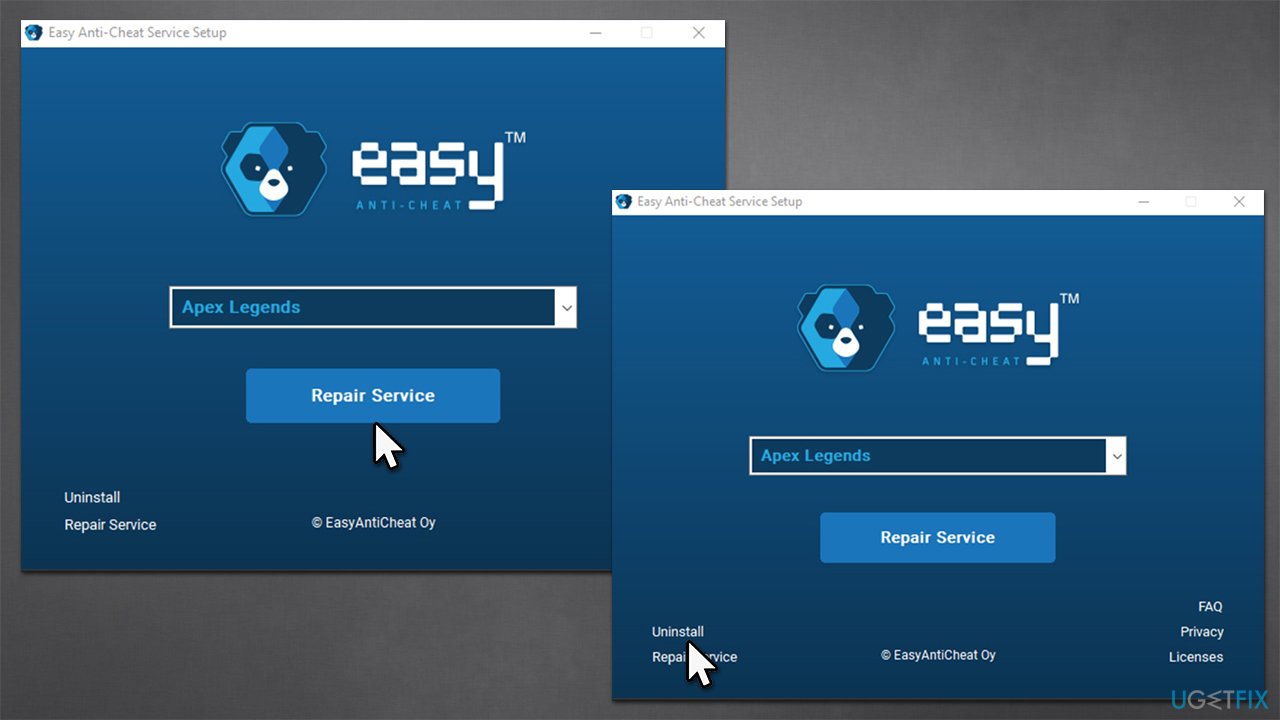
How to fix easyanticheat sys bsod in windows repair or reinstall easyanticheat
Solution 5. Try fixing corrupted system files
Corrupted system files might be the cause of the crashes. You can usually repair them by running commends via the elevated Command Prompt.
- Type cmd in Windows search
- Right-click on Command Prompt and pick Run as administrator
- When User Account Control shows up, click Yes
- Use the following command lines, pressing Enter after each (make sure you wait till each of the commands is executed properly):
sfc /scannow
DISM /Online /Cleanup-Image /CheckHealth
DISM /Online /Cleanup-Image /ScanHealth
DISM /Online /Cleanup-Image /RestoreHealth - Restart your system.
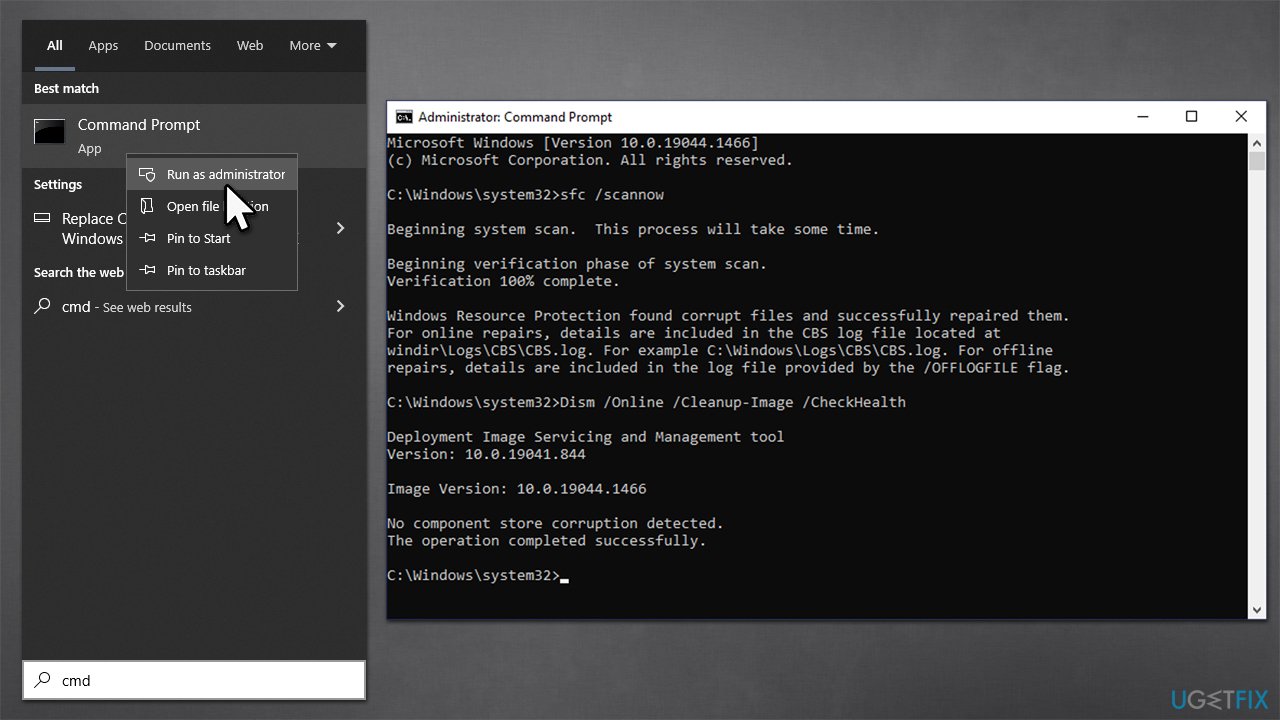
How to fix easyanticheat sys bsod in windows repair corrupted files with sfc dism
Bottom line
To fix the EasyAntiCheat.sys BSOD issue, you may need to repair or reinstall EasyAntiCheat. Additionally, check for any conflicting software, especially anti-malware tools. If none of these solutions work, consider seeking further technical support.
Frequently asked questions
You can try updating your graphics drivers, reinstalling EasyAntiCheat, or performing a system file check using the command 'sfc /scannow' in Command Prompt.
Yes, you can repair the EasyAntiCheat installation by navigating to its folder in your game directory and running the EasyAntiCheat_Setup.exe file.
You can check the Event Viewer for critical errors related to EasyAntiCheat.sys or use the Blue Screen Troubleshooter in Windows 10/11 to identify the specific cause.




Report an issue
What's wrong with this guide? We review every report and update or remove content.
Report received — thank you. We'll review and fix it.
You need a free account to submit a report.
Be the first to comment