How to fix
DellInstrumentation.sys Blue Screen Error
on Windows
Resolve the DellInstrumentation.sys Blue Screen Error in Windows 10 or 11 effortlessly. Get expert-tested solutions and fix it in minutes.


What causes How to fix DellInstrumentation.sys Blue Screen Error in Windows?
- Incompatible update for Support Assist
- Malfunction of related software and drivers
- Recent Windows updates causing issues
- Constant crashes due to DellInstrumentation.sys
- Issues with biometric drivers
Repairs Windows system files, removes malware, and restores a clean OS state — without reinstalling.
A few days ago, my Dell laptop updated automatically, and since then, it has kept crashing non-stop. The error code says SYSTEM_SERVICE_EXCEPTION with DellInstrumentation.sys. I can't use my computer at all as the crashes are just unbearable. Please help.
Blue Screen of Death[ref en-1] is a stop error that most users operating a Windows computer encounter at least once before. The crash happens when the system runs into a critical error, forcing an immediate reboot. This can make people lose their current work or interrupt other activities they are performing at the time.
In most cases, BSODs are a one-time occurrence that automatically resolves themselves after a reboot. The problems start when users start experiencing repeated crashes due to blue screens - it significantly diminishes the usability of the device. This also signifies that there's something inherently wrong, and the issue needs to be looked into.
DellInstrumentation.sys Blue Screen is a relatively new phenomenon that started bothering Dell computer users relatively recently. The issue is rather universal and started with the application of the latest Windows updates for most Dell, Alienware, or other related brand users. The error code provided is usually SYSTEM_SERVICE_EXCEPTION, with the failed Dell component shown as a reference.
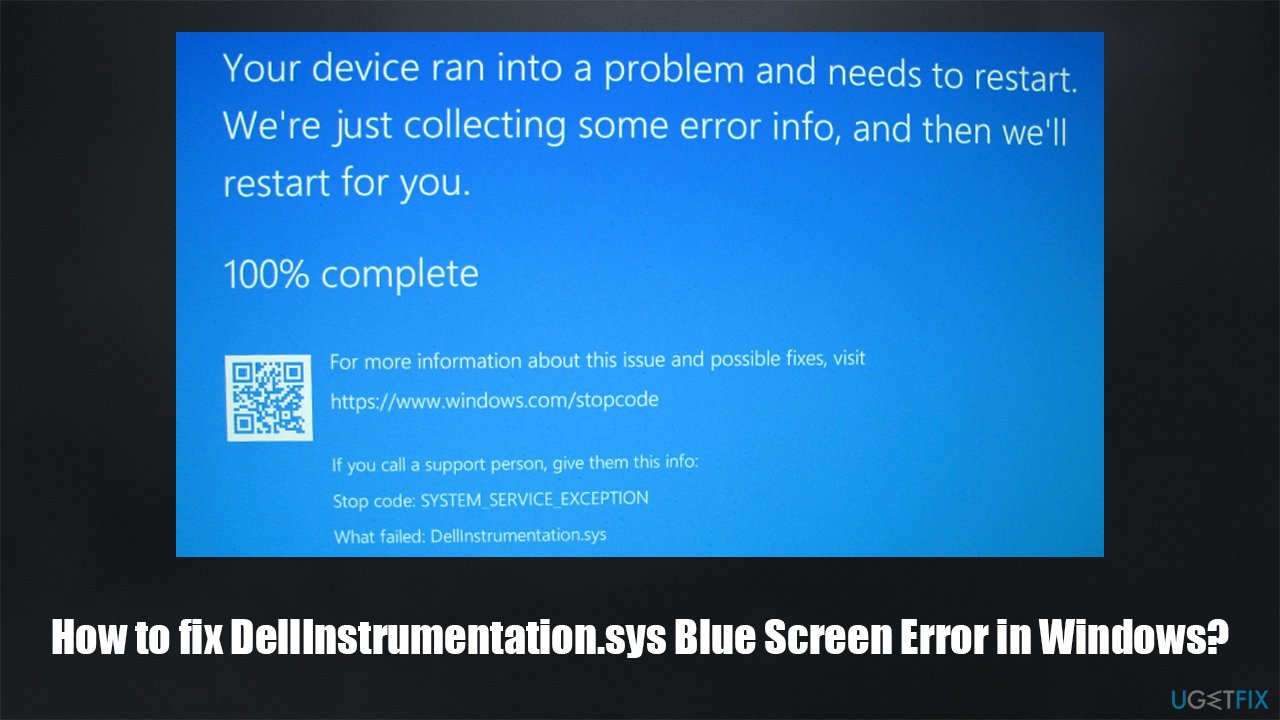
The problem lies within Dell launching an incompatible update for their software known as Support Assist. This prompted the related software and drivers' malfunction, resulting in constant DellInstrumentation.sys crashes. Users said that they couldn't even load into their computer properly, without it crashing straight away.
To solve this, you can uninstall the related application Support Assist. If you don't want to lose access to the said software, you can use the previous version of it without problems. Alternatively, disabling its related components, such as services of biometric drivers,[ref en-2] can also work. We recommend checking all three options and seeing which one works for you.
Access Safe Mode
This step is not mandatory if you are quick enough to perform the solutions shown below. However, many users said that Windows crashed before they managed to apply any of the changes to the machine, hence we recommend accessing Safe Mode and performing the DellInstrumentation.sys BSOD fix from there.
- Restart Windows
- Once the system starts booting, interrupt the loading process by pressing and holding the Power button – do this two more times
- Windows will automatically enter Advanced Startup mode
- Select Troubleshoot > Advanced options > Startup Settings and Restart
- After a system reboot, select 4/F4 or 5/F5 to access Safe Mode.
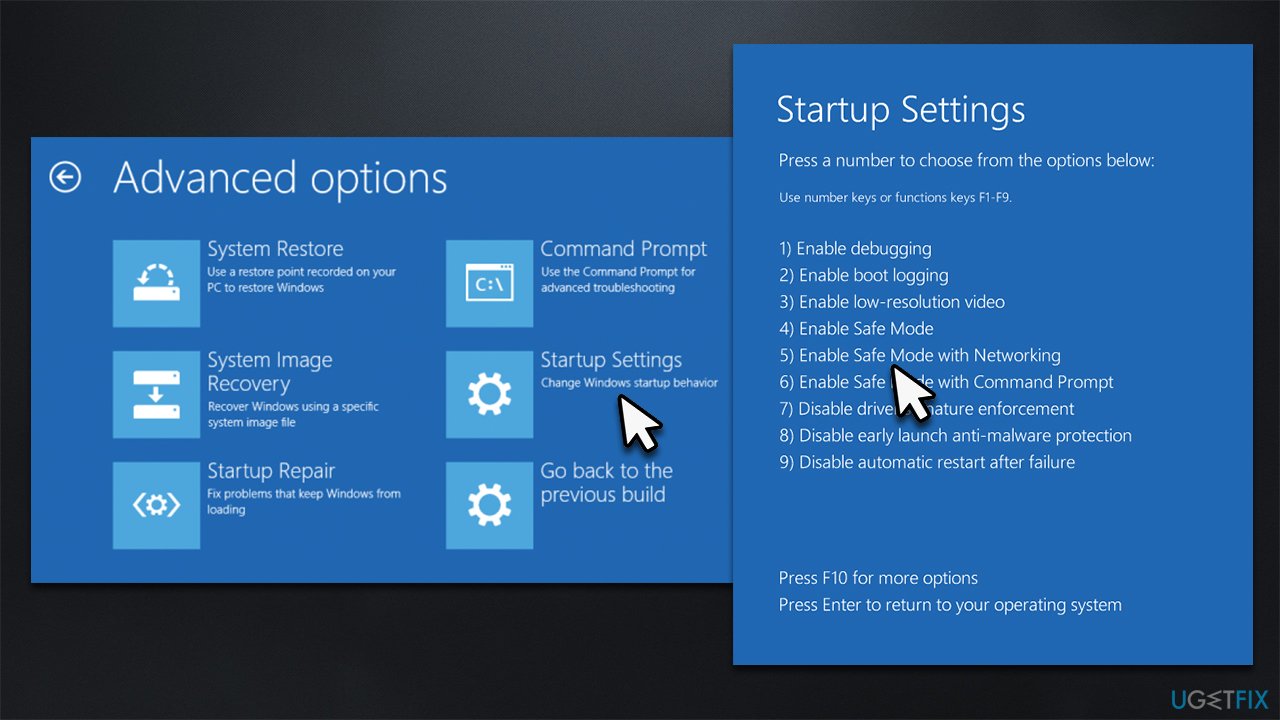
How to fix dellinstrumentation sys blue screen error in windows accesssafemode
Note that, for some people, one of the solutions below might work. For others, all three of the fixes need to be applied. Our recommendation is to either replace the Support Assist software with an older version or disable relevant services/drivers instead.
Option 1. Uninstall Support Assist
Once in Safe Mode, you can operate your device without crashing. Uninstall the app as follows:
- Type Control Panel in Windows search and hit Enter
- Go to Programs > Uninstall a program
- From the list, find the Support Assist entry
- Right-click on it and select Uninstall
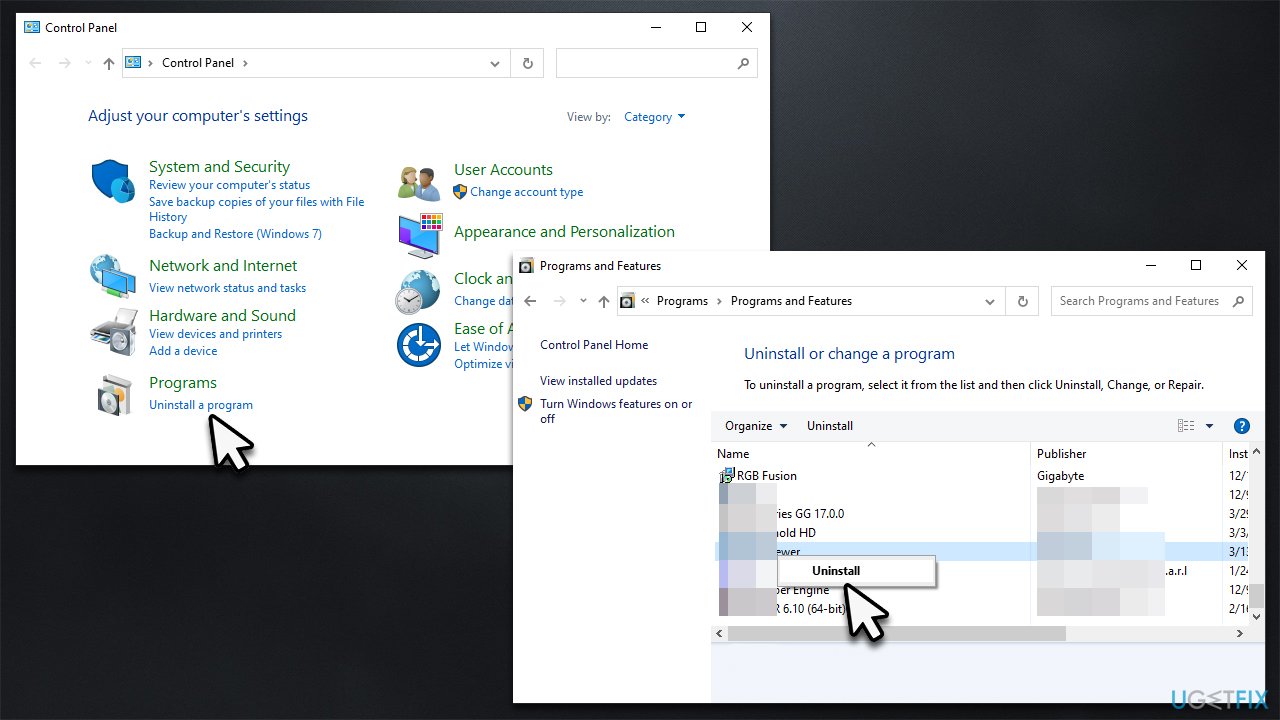
How to fix dellinstrumentation sys blue screen error in windows uninstall support assist - Proceed with on-screen instructions and restart your system. If the problem persists, or you were unable to uninstall the app, try the fixes below.
If you require to use Support Assist, you can install the previous software version 3.10.4, which does not have the problem.
Option 2. Disable Dell Data Vault Collector service and Support Assist scheduled task
It was determined that Dell Data Vault Collector is the service causing the issue. You should disable it as follows and then take care of the scheduled task that would otherwise launch the service automatically.
- Type Services in Windows search and hit Enter
- Scroll down to find Dell Data Vault Collector service and double-click it
- Under Startup type, select from Automatic (Delayed Start) to Disabled
- Click Apply and OK.
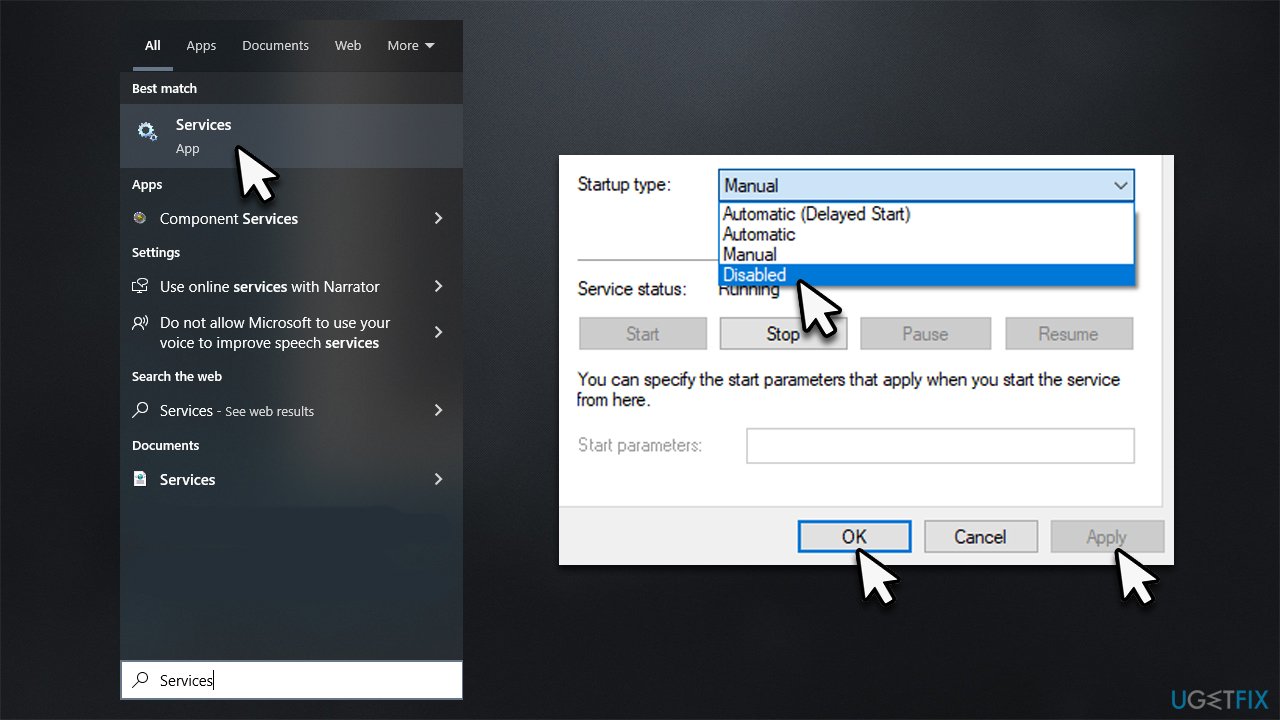
How to fix dellinstrumentation sys blue screen error in windows disable dell data vault collector service
The next step is to disable the relevant scheduled task.
- Type Task Scheduler in Windows search and press Enter
- Under Task Scheduler Library, find Dell Support Assist on the right side of the window
- Click it once and then click Disable in the far-most right window.
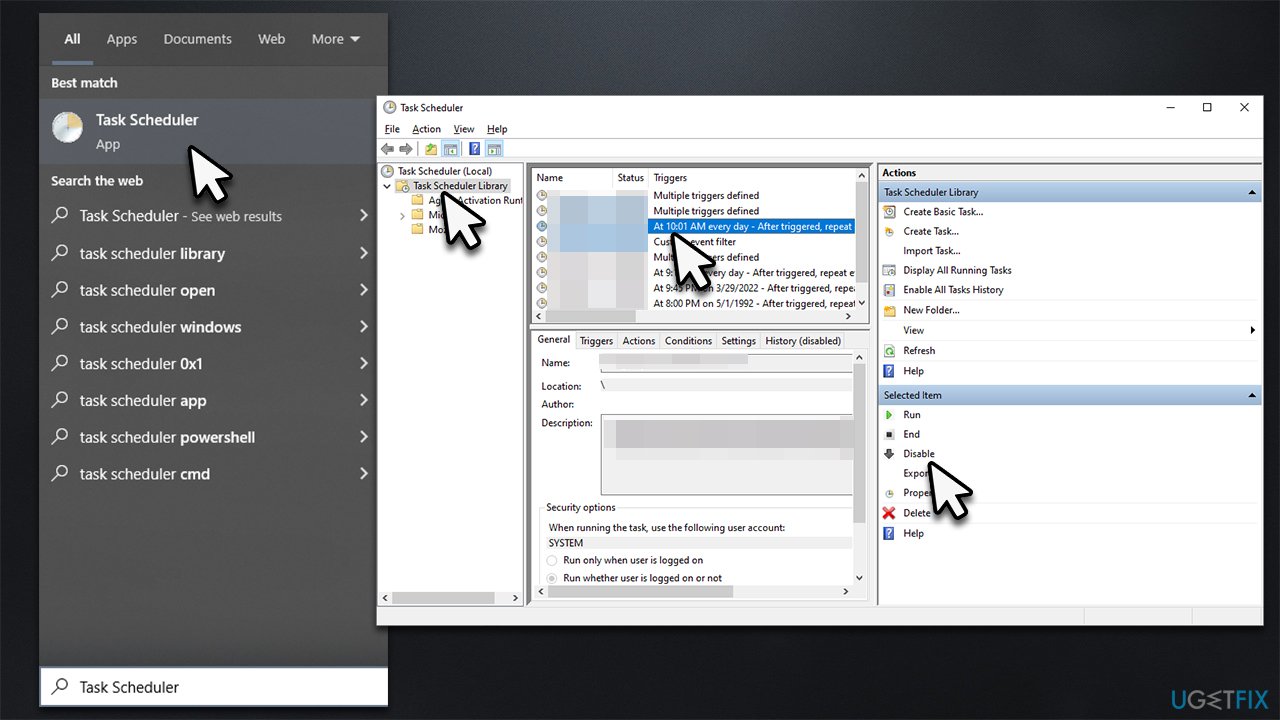
How to fix dellinstrumentation sys blue screen error in windows disable scheduled task
Option 3. Disable device drivers
- Right-click on Start and pick Device Manager
- Expand the Biometric Devices section
- Right-click on each of them and select Disable device
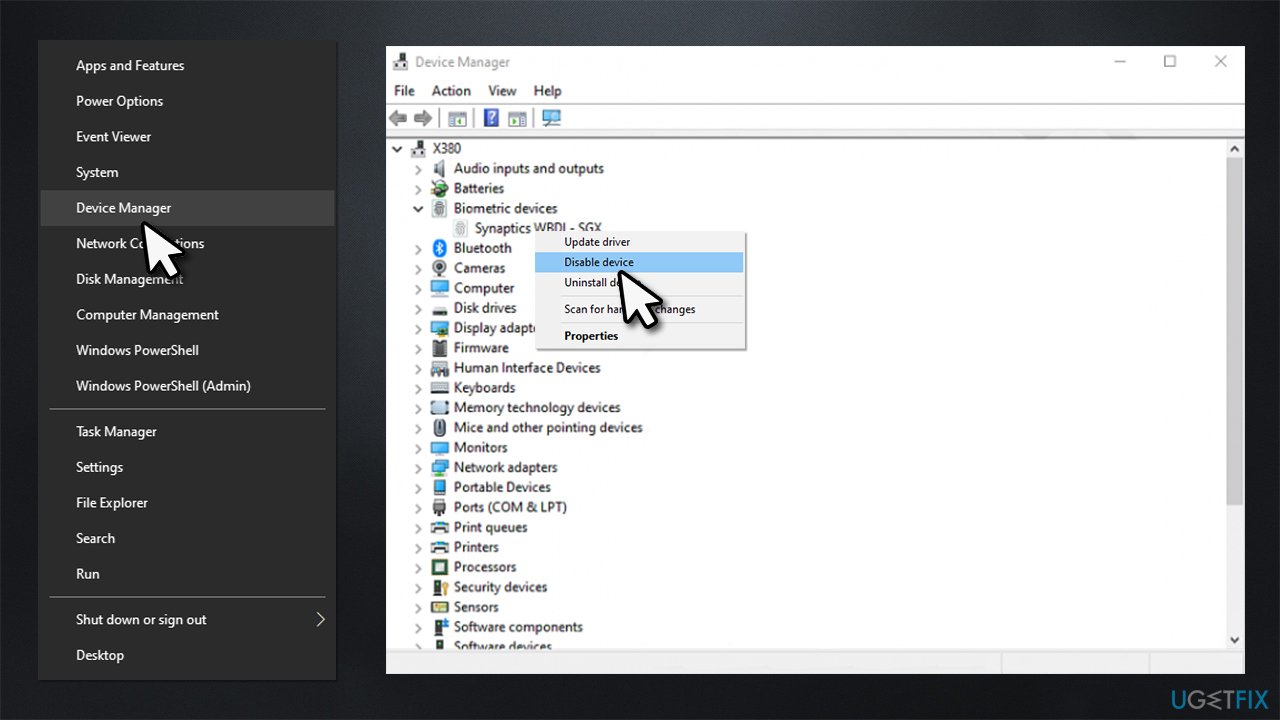
How to fix dellinstrumentation sys blue screen error in windows disable relevant drivers - Also, disable the DellInstrumentation driver.
Once you can boot into Windows, we recommend you employ [d1] and scan the system for underlying issues, which would ensure that the device is running smoothly.
Bottom line
To fix the DellInstrumentation.sys Blue Screen Error, you can uninstall the Support Assist application, revert to a previous version of it, or disable related components like biometric drivers. If these solutions do not resolve the issue, consider accessing Safe Mode to apply the changes.
Frequently asked questions
This error is typically caused by outdated or corrupted device drivers, particularly those related to Dell hardware or software. It can also occur due to system file corruption or incompatible software.
You can fix this error by updating your Dell drivers through the Device Manager or Dell's official support site. Additionally, running the Windows Memory Diagnostic tool may help identify any memory-related issues.
To prevent this error, ensure that all drivers are kept up-to-date and regularly check for Windows updates. Also, consider using system optimization tools to maintain your Windows 10 environment.




Report an issue
What's wrong with this guide? We review every report and update or remove content.
Report received — thank you. We'll review and fix it.
You need a free account to submit a report.
Be the first to comment