How to fix
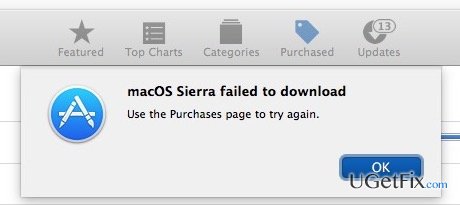
MacOS Sierra stuck or frozen while downloading or installing
on Windows
Struggling with Windows 10 or Windows 11 issues? Discover effective solutions for troubleshooting frozen installations with expert-tested methods for qu…

What causes How to fix macOS Sierra stuck or frozen while downloading or installing?
- Anti-virus software
- Internal system bugs
- File leftovers
- Insufficient memory
- Insufficient storage space
Repairs Windows system files, removes malware, and restores a clean OS state — without reinstalling.
I opt for MacOS Sierra update, but I can’t install it. I have installed the update via Mac app store, but the installation process gets stuck. Then I removed the update and tried to install it one more time, but this time the download failed. Please tell me why? Is there something I could do?
MacOS Sierra update was rolled out to all users in September 2016. The update aims at the improvement of Mac’s stability and performance. The update includes various bug fixes, features Siri integration, auto unlocking w/ Apple Watch, new storage optimization, cross-device copy/paste, new file system encryption, and many other new features. Unfortunately, but not all Mac users can enjoy MacOS Sierra advantages due to inability to install the update. Even though it’s available on Mac App Store since September, a considerable number of Mac OS X users are still struggling to upgrade el Capitan or older Mac OS versions to Sierra. The reason is simple – MacOS Sierra Update freezes or gets stuck when installing or downloading it. According to experts, the update may get stuck due to anti-virus software, some internal system bugs, file leftovers or similar issues, but the exact cause it not entirely clear. However, Mac OS experts have provided a couple of tips that may help you to fix stuck MacOS Sierra update.
How to Fix Stuck MacOS Sierra Download?
Before you start the download of MacOS Sierra, it’s advisable to check if your Mac device meets with the new OS’s requirements. In addition, make sure that the device has at least 2GB memory and 8.8 GB storage space.
Having in mind that OS updates may crash, it’s also advisable to create backups of your personal data, such as photos and documents. While in the case of data loss, you can always use a data recovery tool, these programs sometimes fail to restore all lost files. By the way, you should also create Mac data backups using Time Machine in case you could revert back to the earlier date.
As soon as you are prepared to install the update, navigate to the Mac app store and find the download. Click the Download button and wait for the process to complete. Then run the setup file. If the process gets stuck, press Command + L to check how much time is left for the installation to finish. It might be that Command + L, but no results have been delivered to you, hold the power button to shut your Mac down and then restart it. Try to install the update again and click Command + L again. If the process is stuck again, restart the Mac and hold Shift button to launch in Safe Mode. If the installation fails to complete, try to disable anti-virus. Still no progress? Then you might need to contact Apple Support…
Bottom line
To fix a stuck MacOS Sierra update, ensure your Mac meets the OS requirements, has at least 2GB of memory and 8.8GB of storage space, and create backups of your personal data. If the update continues to fail, consider using a data recovery tool or reverting to an earlier date with Time Machine.
Frequently asked questions
Yes, Windows 10 and Windows 11 users can experience freezing issues during downloads or installations, often due to network problems or corrupted files.
Try restarting your computer, ensuring a stable internet connection, and running the Windows Update Troubleshooter to resolve the issue.
Yes, ensuring that your Windows Firewall and antivirus settings allow downloads, along with checking for sufficient disk space, can help prevent freezing during installations.




Report an issue
What's wrong with this guide? We review every report and update or remove content.
Report received — thank you. We'll review and fix it.
You need a free account to submit a report.
Be the first to comment