How to fix
KB5007651 fails to install
on Windows
Resolve KB5007651 installation issues on Windows 10 and 11 quickly and easily. Get expert-tested solutions and fix it in minutes!

What causes How to fix KB5007651 fails to install on Windows?
- Corrupted system files
- Damaged NET Framework
- Damaged update components
- General bug with the update
- Error code variations
Repairs Windows system files, removes malware, and restores a clean OS state — without reinstalling.
Hello. I've been trying to install KB5007651 for the past few days but it keeps failing. I tried restarting my PC but the issue persists. Is there anything that can be done to fix this?
Windows is a complex operating system with thousands of components. It is not a secret that Microsoft operates the OS as a service, which means that security, feature, quality, and out-of-band updates are shipped to users regularly (most of the updates are shipped on the so-called Patch Tuesday). Without them, Windows might miss several new features, UI[ref en-2] improvements, bug fixes, or become vulnerable[ref en-1] to cyberattacks.
Windows update procedure can be initiated manually or automatically, and failures might follow in both of these scenarios. Most recently, users reported that KB5007651 fails to install with an error code 0x80070643, although it may vary under some circumstances. Any update might fail due to different reasons, hence the assigned error code may change, too.
Nonetheless, the error is associated with the update for the Windows Security platform. People claimed that all the other updates managed to be installed, while KB5007651 failed every time. The issue is consistent with various OS versions, including Windows 10 and Windows 11.
The failure to install this update is a known issue and is related to a general bug. Microsoft usually addresses these types of issues at some point, so the easiest way to fix the problem is by not trying to install the update. You can hide the update with a special, Microsoft-provided tool to make matters better.
However, it is important to note that there could be other reasons why KB5007651 does not install, especially if it comes up with a different error code. Corrupted system files, damaged NET Framework,[ref en-3] and damaged update components could all be the reason for the update failure. Thus, we provide several ways for you to remediate the situation. Alternatively, you could run a scan with [d1] to ensure that Windows components are not damaged.
Fix 1. Hide the update [workaround]
If you simply don't want to deal with the annoying error every time you update Windows, you can hide the particular KB5007651 update and you won't have to worry about it for now.
- Download the Show or Hide Updates Troubleshooter from the Microsoft website [direct download link]
- Run the wushowhide.diagcab file by double-clicking it from the download location or simply clicking on the downloaded file within the browser
- Pick Advanced
- Tick the Apply updates automatically option and click Next
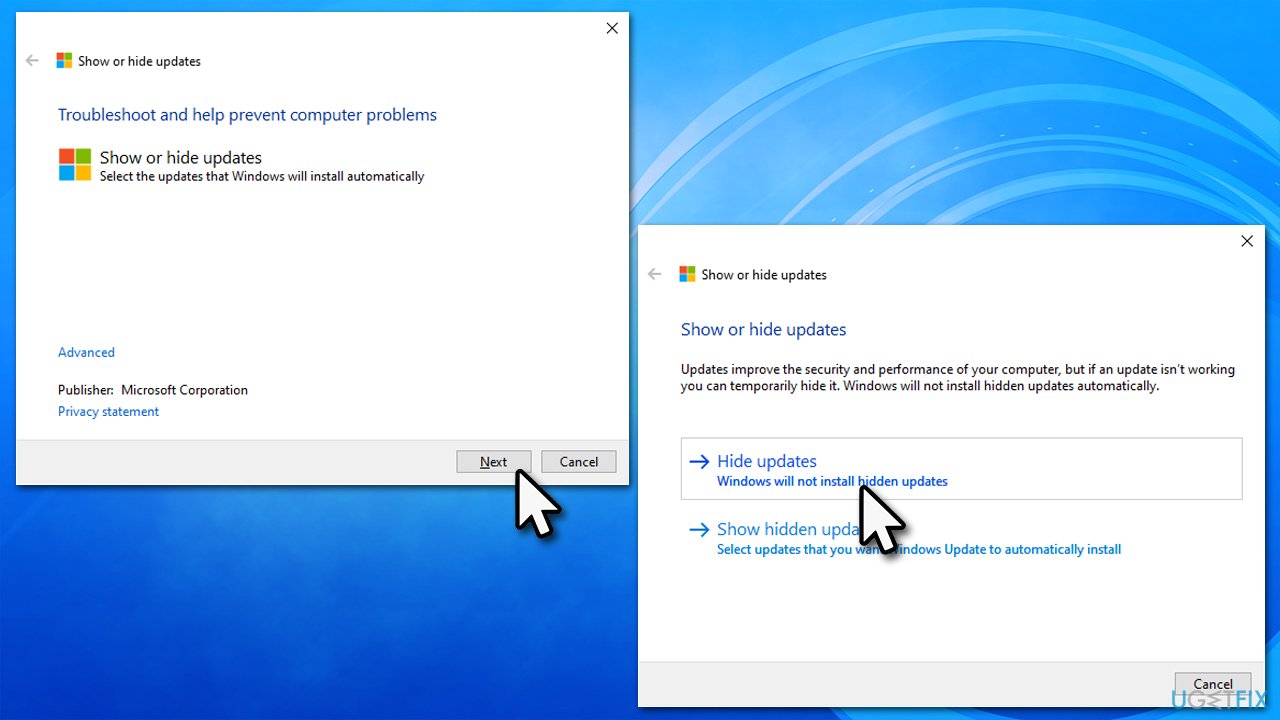
How to fix kb5007651 fails to install on windows hide updates - Select the Hide updates option
- From the list, select the KB5007651 update and click Next
- Apply changes and click Close.
Once Microsoft addresses this issue, you can use the same method to unhide and then install the update.
Fix 2. Run SFC and DISM
System file corruption is one of the most common reasons why users experience various Windows errors. You can attempt to fix them as follows:
- Type cmd in Windows search
- Right-click on Command Prompt result and select Run as administrator
- Paste the following command into the new window:
sfc /scannow - Press Enter and wait till the scan is finished
- Once done, run this set of commands, pressing Enter after each:
DISM /Online /Cleanup-Image /CheckHealth
DISM /Online /Cleanup-Image /ScanHealth
DISM /Online /Cleanup-Image /RestoreHealth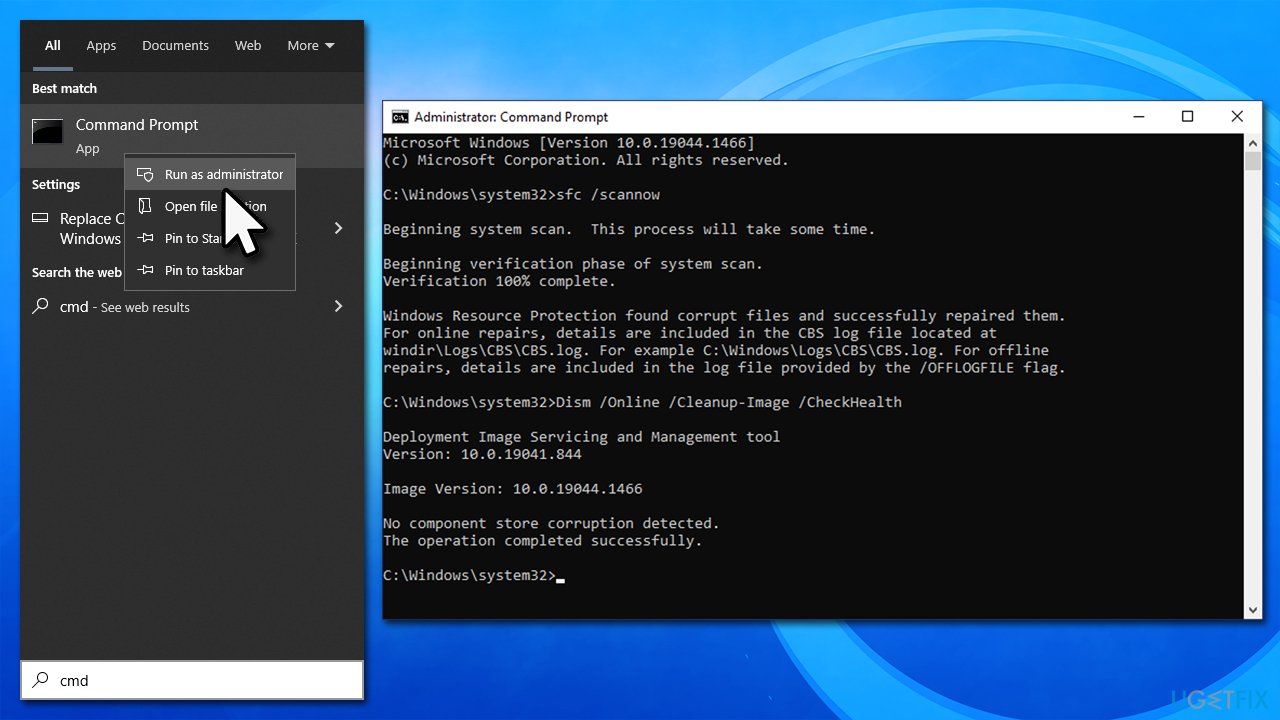
How to fix kb5007651 fails to install on windows run sfc dism - Restart your device.
Fix 3. Uninstall the duplicate update
In some cases, there could be a version of KB5007651 already installed on your system. If you spot this is the case, you should uninstall it as follows:
- Type Control Panel in Windows search and press Enter
- Here, go to Programs > Uninstall a program
- Select View installed updates
- Look for the relevant KB number, right-click and select Uninstall
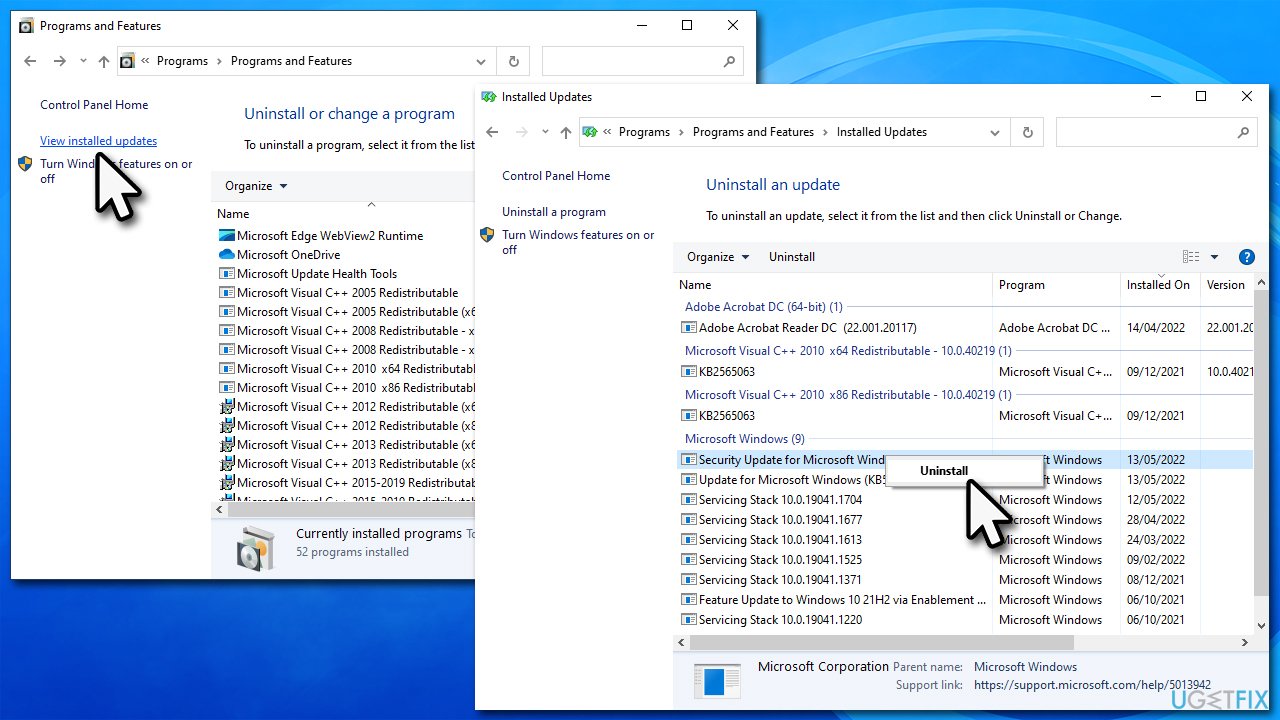
How to fix kb5007651 fails to install on windows run uninstall update - Follow on-screen instructions to finish the process
- Restart your PC and attempt to update Windows once again.
Fix 4. Repair .NET Framework
- Download Microsoft .NET Framework Repair Tool from the official Microsoft website
- Start the launcher and select NetFxRepairTool.exe, pressing Next after
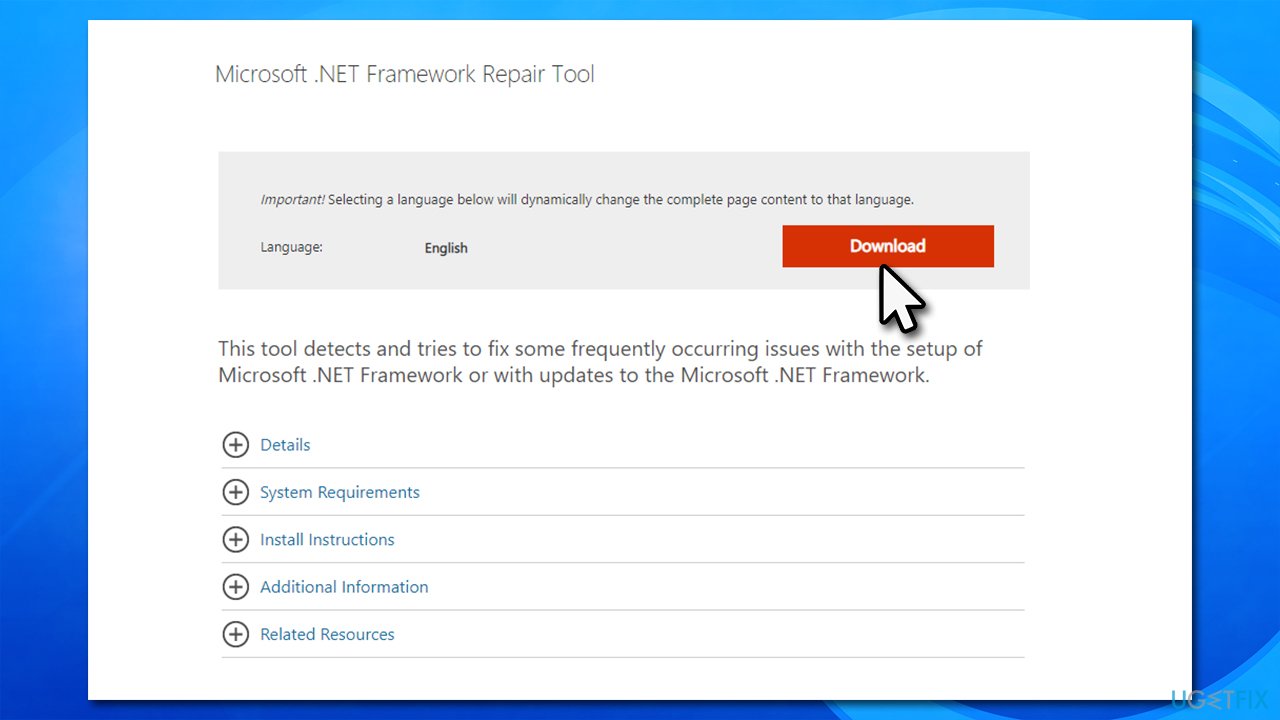
How to fix kb5007651 fails to install on windows repair net framework - Double-click the file to begin the repair process
- When prompted, mark the I have read and accept the license terms and click Next
- Windows will diagnose all the issues and repair them automatically for you
- Restart your computer if the utility doesn't do it for you.
Fix 5. Reset Windows update components
- Access Command Prompt as administrator (explained above)
- Use the following commands, pressing Enter each time:
net stop wuauserv
net stop cryptSvc
net stop bits
net stop msiserver - Press Win + E to open File Explorer (make sure Hidden Files are visible)
- Go to the following locations and delete the contents of these folders:
C:\Windows\System32\catroot2
C:\Windows\SoftwareDistribution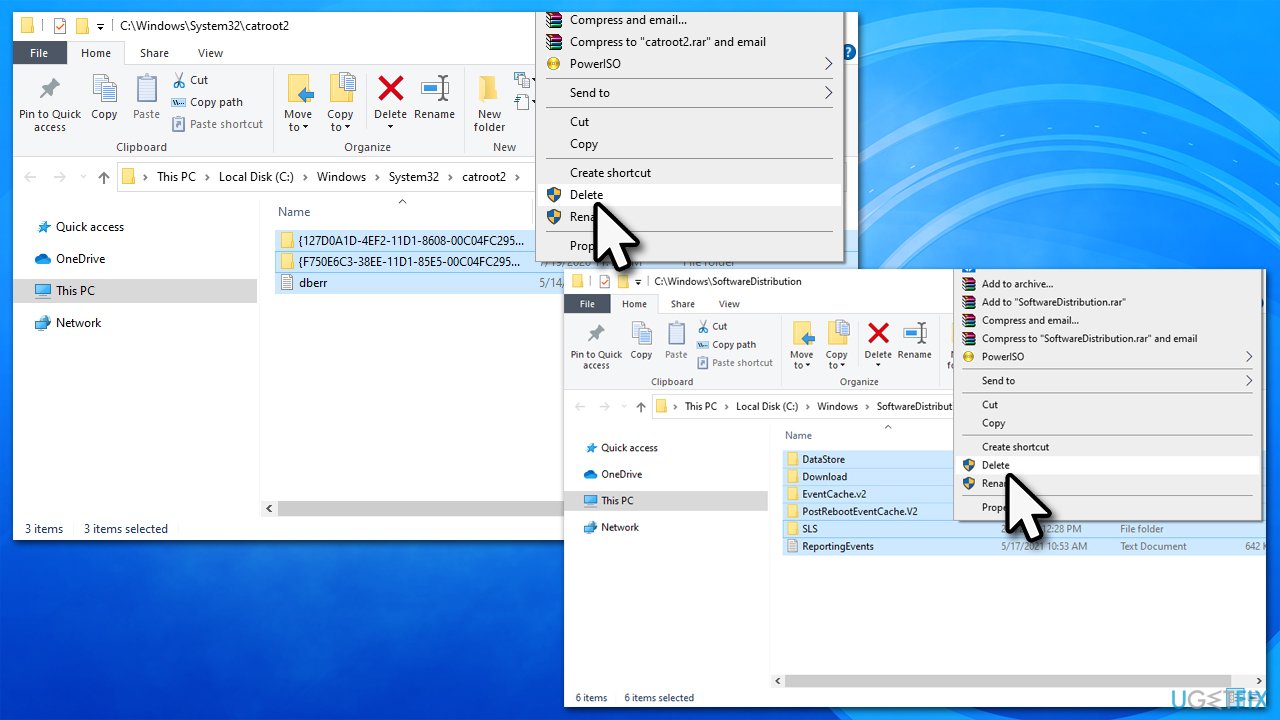
How to fix kb5007651 fails to install on windows reset windows update components - Go back to the Command Prompt window and use these commands, pressing Enter every time:
net start wuauserv
net start cryptSvc
net start bits
net start msiserver - Restart your computer.
Fix 6. Attempt to install the update manually
You can try installing the update via the standalone installer from Microsoft Update Catalog.
- Type Updates in Windows search and hit Enter
- Click View update history
- Here, note down the KB number which failed to be installed
- Go to the official Microsoft Update Catalog website
- Type the KB number into the search bar, and press Enter or click Search
- You will find many different versions on the update – you need to find the one that matches your PC specs and Windows version (as a home user, ignore Windows server versions)
- Right-click on Start and pick System
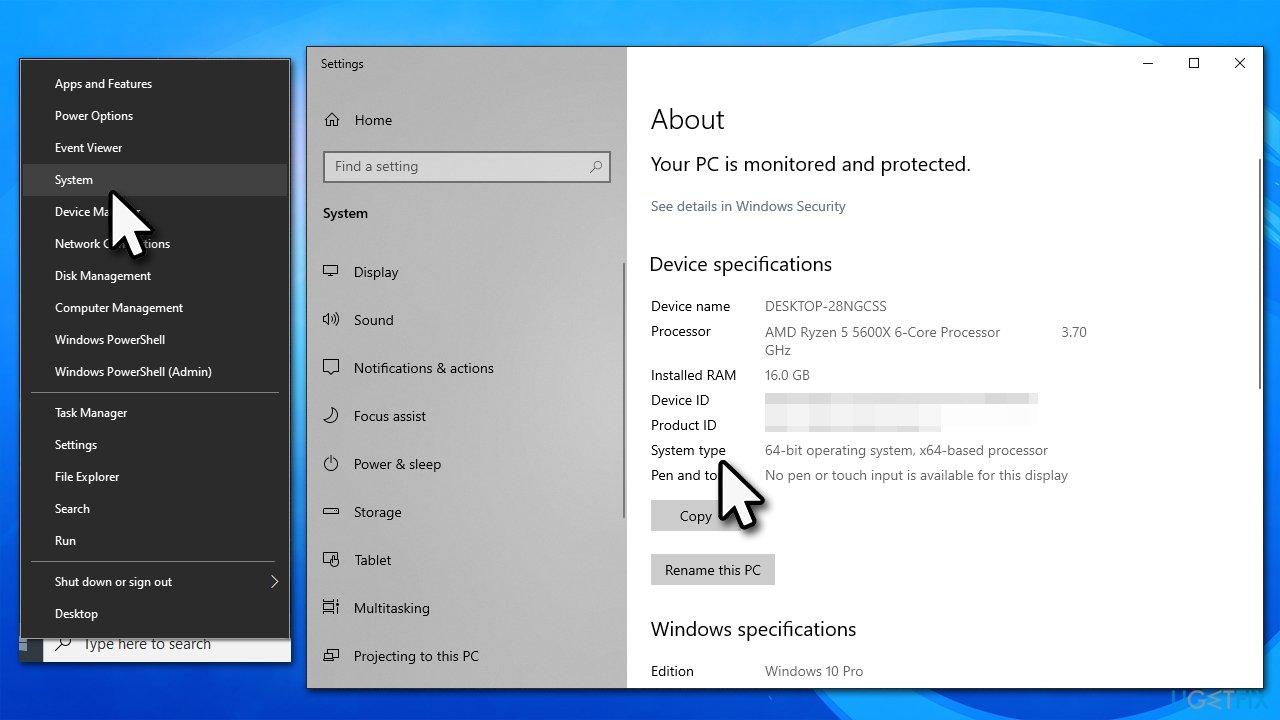
How to fix kb5007651 fails to install on windows check system type - Under Device specifications, check the System type section: it should either be 64-bit or 32 bit
- Scroll down to Windows specifications and check the Version section
- Now pick the correct version for your computer
- Go back to the Microsoft Update catalog, download the appropriate version, and install it
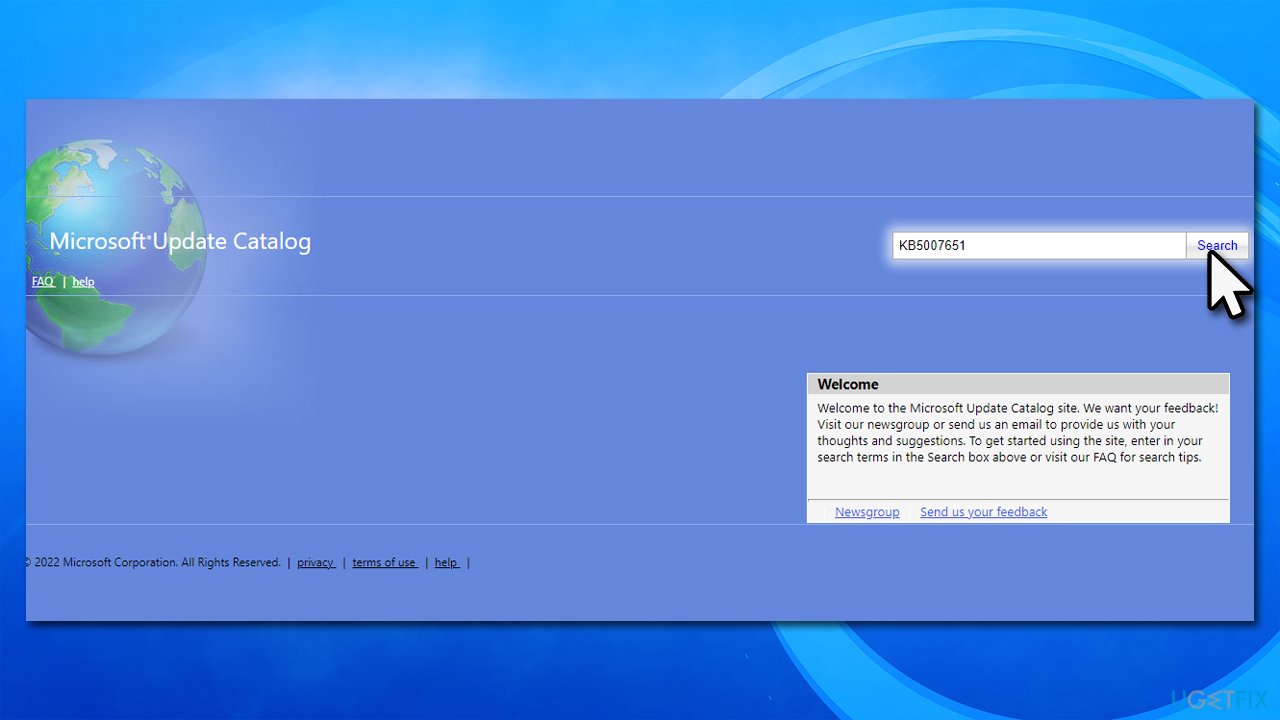
How to fix kb5007651 fails to install on windows install update manually - Restart your system.
Bottom line
To fix the KB5007651 installation failure, you can hide the update using a Microsoft-provided tool, run a scan to check for damaged Windows components, or address corrupted system files. If these solutions do not resolve the issue, consider waiting for Microsoft to release a fix.
Frequently asked questions
Try running the Windows Update Troubleshooter to identify and fix any issues that may be preventing the installation of KB5007651 on Windows 10.
Yes, you can manually download the KB5007651 update from the Microsoft Update Catalog and install it on Windows 11 if the automatic update fails.
Common reasons include corrupted system files, insufficient disk space, or conflicts with third-party software, which can be resolved by performing system scans or freeing up space.




Report an issue
What's wrong with this guide? We review every report and update or remove content.
Report received — thank you. We'll review and fix it.
You need a free account to submit a report.
Be the first to comment