How to fix
“Oops! We couldn’t save that one” error while editing photos
on Windows
Resolve the “Oops! We couldn't save that one” error on Windows 10 effortlessly. Get expert-tested solutions and regain seamless photo editing today!


What causes How to fix “Oops! We couldn’t save that one” error while editing photos on Windows 10?
- Windows 10 installation bugs
- Incompatibility with .png files
- Issues with Windows Photos app
- Corrupted photo files
- Insufficient permissions to edit files
Repairs Windows system files, removes malware, and restores a clean OS state — without reinstalling.
I have lots of photos on my computer, which sit there for a long time. Recently, I’ve upgraded my computer to Windows 10 and noticed that a part of .png format files could not be edited by the Windows Photos app. All these files are mine, but when I try to edit them or save edited files, I receive a pop-up “Oops! We couldn't save that one.” Did Windows 10 installation cause this bug?
The variety of bugs on Windows 10 operating system is unfortunately quite high, although many flaws were fixed since the release.[ref en-2] The most common errors are related to the installation of Windows 10 updates, WiFi connection problems, sound issue, mouse and trackpad issues, missing options, missing icons, and so on. One of the most annoying errors that have been bugging users for a while is the Oops! We couldn't save that one issue which prevents users from editing their photos.[ref en-3]
Windows users take into account all bug and often decide not to upgrade to Windows 10 from the earlier versions. However, we would highly recommend you to install Windows 10 and update it regularly because this operating system meets the highest security requirements, provides a variety of innovative features/apps, and improvements.
Microsoft will stop supporting Windows 7 on January 14, 2020.[ref en-1] It may be expected that the same fate will strike Windows 8 and 8.1 versions, so upgrading to Windows 10 would a right step forward.
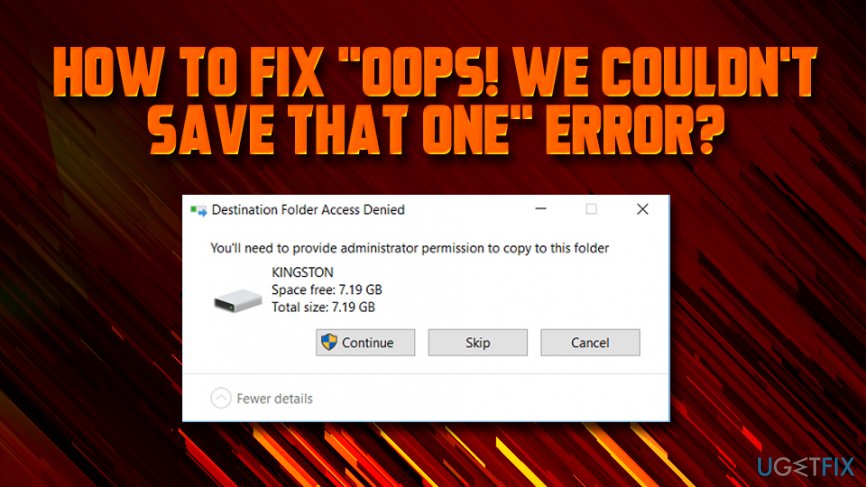
Despite positive Windows 10 features, errors like “Oops! We couldn't save that one” increase people’s anger and frustration. However, there’s no need to panic if you are encountering this bug while saving or editing photos with Windows Photo app.
Typically, “Oops! We couldn't save that one” error occurs when a PC owner clicks on Win key, selects Photos, and choose any photo and click Edit. These steps are followed by an error Oops… or “Can't Edit. We're having trouble opening this file for editing.”
There are several things you can do to fix Oops! We couldn't save that one error, and we provide the most common solutions below, so make sure you check it out.
Fix 1. Alter User account control settings
To start with, try to fix “Oops! We couldn't save that one” error by changing the security of the media folder where the uneditable photos are stored. Please perform the following steps:
- Right-click on the folder that photos are located and pick Properties
- Go to Security tab
- Select the account and click Edit
- Under Permissions. select Full control and click OK
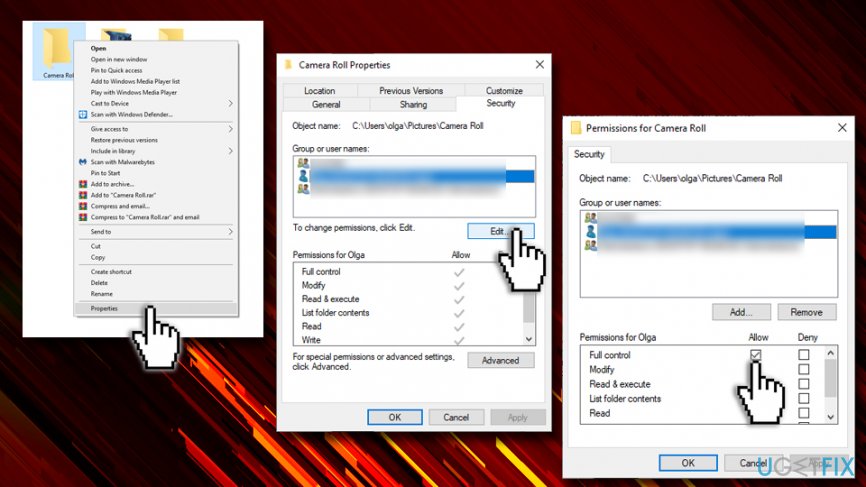
Fix oops we couldnt save that one error while editing photos change security permissions
Fix 2. Run SFC and DISM commands
These commands can be executed via the Command Prompt. According to Microsoft, these commands may recognize incorrect manifests, cabinets or registry data and replace them with correct ones. Since damaged/corrupted system files and registries may be triggering “Oops! We couldn't save that one” bug, running these commands is worth trying:
- Click Ctrl + Shift + Esc to open Task Manager
- Click File and select Run New Task
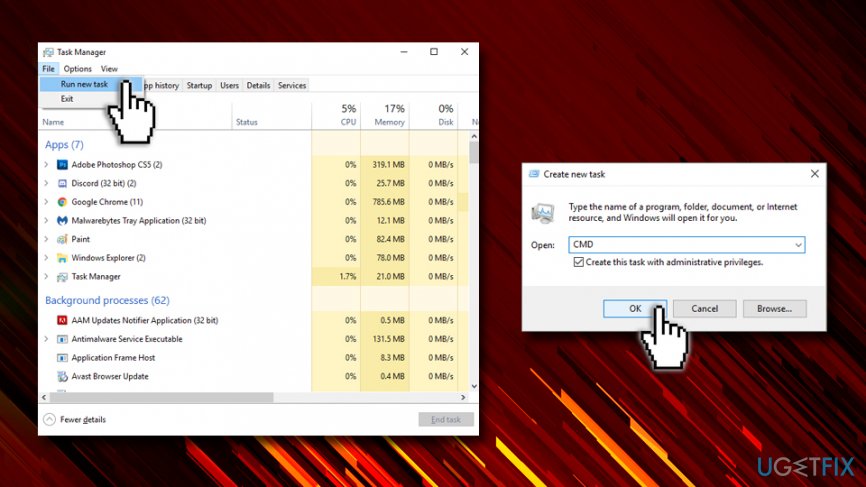
Fix oops we couldnt save that one error while editing photos run sfc dism scans - Mark Create this task with administrative privileges
- Type CMD in the search box and type the following commands in a Command Prompt window. Press Enter after each of them:
dism /online /cleanup-image /restorehealth
sfc /scannow
powershell
Get-AppXPackage -AllUsers |Where-Object {$_.InstallLocation -like "*SystemApps*"} | Foreach {Add-AppxPackage -DisableDevelopmentMode -Register "$($_.InstallLocation)\\AppXManifest.xml"} - Now close Command Prompt and reboot your PC
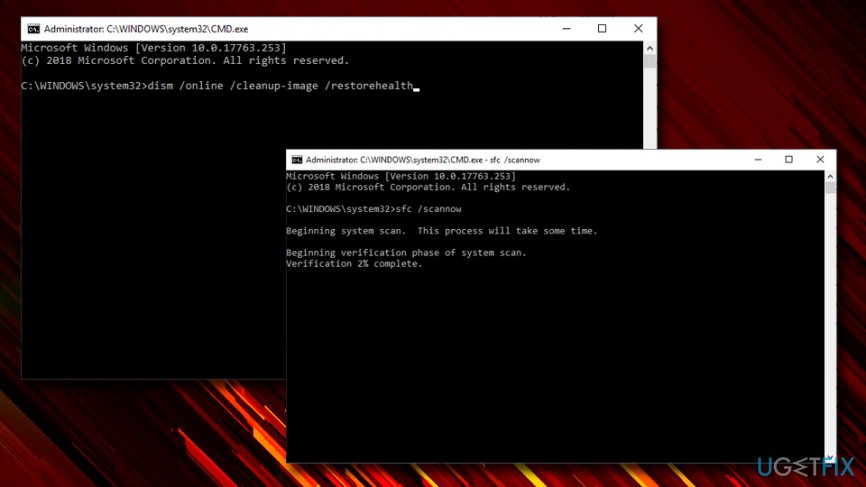
Fix oops we couldnt save that one error while editing photos use command prompt
Fix 3. Uninstall Windows Photo App
- Open search and type PowerShell in the search box
- Right-click on it and select Run as administrator
- Type get-appxpackage *Microsoft.Windows.Photos* | remove-appxpackage command and press Enter to uninstall the Photo app
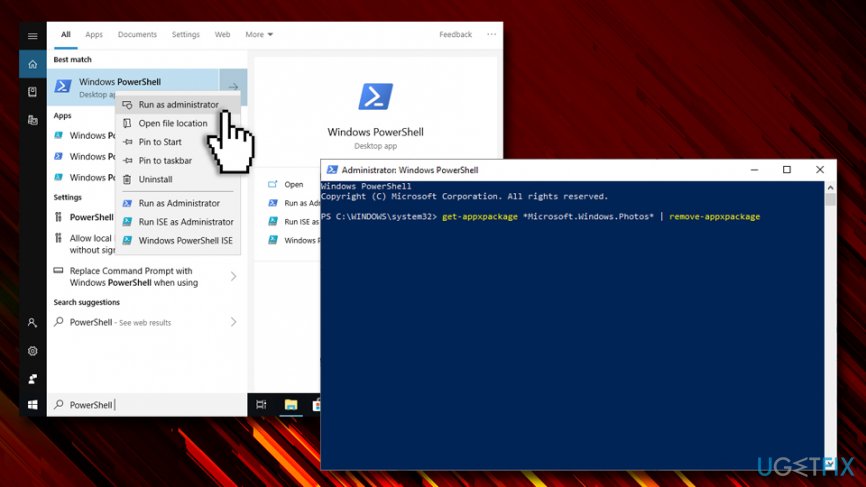
Fix oops we couldnt save that one error while editing photos uninstall windows photo app - After that, navigate to Windows Store and install the Photos app from scratch
- Reboot your PC and check if the “Oops! We couldn't save that one” error has gone
Finally, to ensure that your PC is fully optimized, run a scan with [d1].
Bottom line
To fix the 'Oops! We couldn't save that one' error, you can try updating the Windows Photos app, checking file permissions, or ensuring that your .png files are not corrupted. If none of these solutions work, consider using an alternative photo editing application.
Frequently asked questions
This error typically occurs due to insufficient permissions, a corrupted app, or an issue with the photo file itself. Ensure that you have the necessary permissions and try restarting the Photos app.
In Windows 11, you can fix this error by resetting the Photos app from the Settings menu, which clears any corrupted data and restores default settings.
Yes, keeping Windows 10 or Windows 11 updated can resolve compatibility issues that may lead to this error, so make sure your system is up to date.




Report an issue
What's wrong with this guide? We review every report and update or remove content.
Report received — thank you. We'll review and fix it.
You need a free account to submit a report.
Be the first to comment