How to fix
Microsoft GameInput is crashing the PC
on Windows
Resolve Microsoft GameInput crashes on Windows 10 and 11 with our expert-tested solutions. Get your gaming back on track in minutes!


What causes How to fix Microsoft GameInput is crashing the PC?
- Corrupted system files
- Issues with Microsoft GameInput
- Problems with Xbox App
- Problems with Microsoft Gaming Services
- Recent updates to Gaming Services
Repairs Windows system files, removes malware, and restores a clean OS state — without reinstalling.
Hello, I have recently noticed that my PC started crashing with random reboots or even BSODs. It can happen at random times, especially if I'm gaming. So I started to look into it via the Event Viewer and found out that "Microsoft GameInput" (with the message "Windows Installer reconfigured the product. Product Name: Microsoft GameInput) is causing these issues. Any advice on how to deal with this? Thanks in advance.
Users have recently started to complain about a recurring problem on their Windows PCs - their devices randomly crash, sometimes even with the Blue Screen of Death screen. Such catastrophic failures can indicate that there are some underlying issues on the machine that needs to be addressed as soon as possible.
According to multiple user reports, the system is usually crashing whenever they are playing games, browsing the web on any browser, or sometimes when using other programs such as Teams. Upon closer inspection in the Event Viewer (or Reliability Monitor), users discovered that the crashes are caused by Microsoft GameInput with the note which reads:
Windows Installer reconfigured the product. Product Name: Microsoft GameInput. Product Version: 10.1.22621.1011. Product Language: 1033. Manufacturer: Microsoft Corporation
Microsoft GameInput would usually show up on the list of installed programs via Control Panel. Since this is what caused crashes, users attempted to uninstall the app, but to no avail - the issues continued.
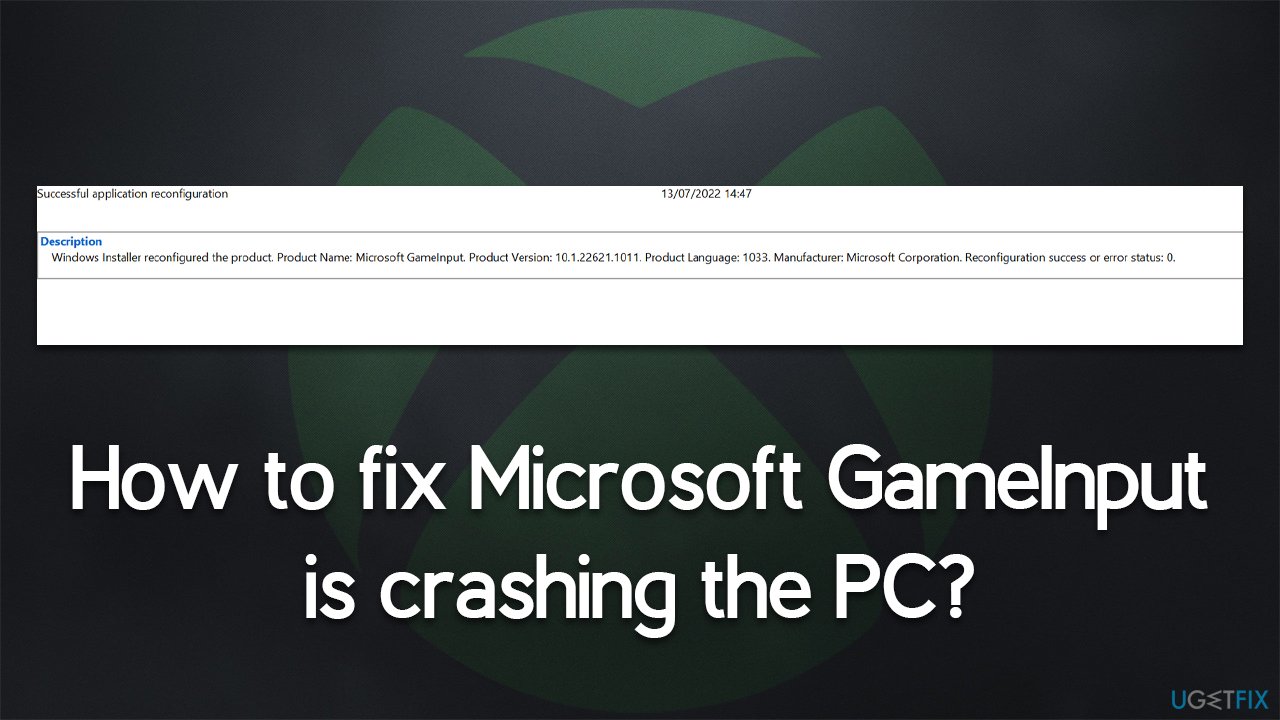
The component is actually related to Xbox App and Microsoft Gaming Services. Usually, it is implemented when Gaming Services are updated or when a game reliant on it is installed on the system, which later begins to have troubles. From that point, users begin to experience crashes caused by Microsoft GameInput.
Several methods could help you fix these crashes, although you will have to troubleshoot several before succeeding. If you would like a quicker solution, we recommend relying on the automatic PC repair tool [d1] instead.
Solution 1. Start with SFC and DISM
Corrupted system files could be one of the main reasons for system crashes and similar issues. We recommend you run the SFC and DISM scans to find the corruption and fix it:
- Type cmd in Windows search
- Right-click on Command Prompt result and select Run as administrator
- When User Account Control shows up, click Yes
- Paste the following command into the new window:
sfc /scannow - Press Enter and wait till the scan is finished
- Once done, run this set of commands, pressing Enter each time:
DISM /Online /Cleanup-Image /CheckHealth
DISM /Online /Cleanup-Image /ScanHealth
DISM Online /Cleanup-Image /RestoreHealth /Source:C:\RepairSource\Windows /LimitAccess - Restart your PC.
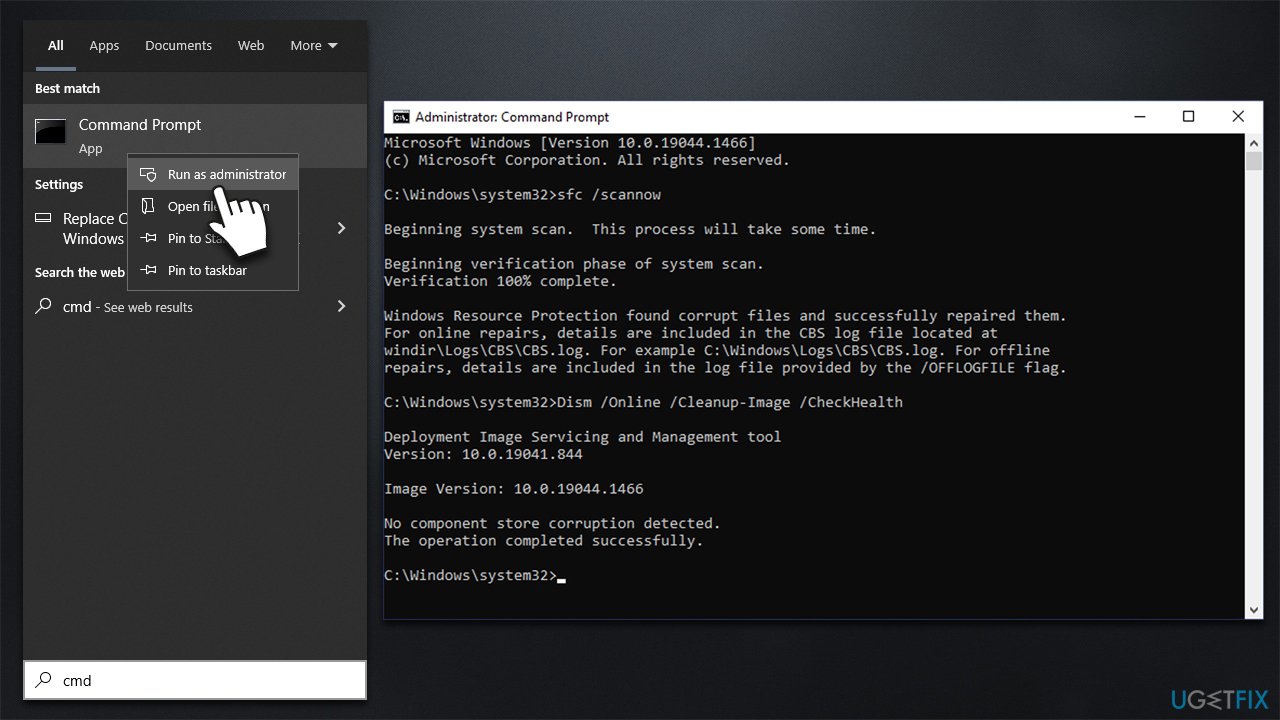
How to fix microsoft gameinput is crashing the pc run sfc dism
Solution 2. Install all available Windows updates
Sometimes, the problem could be caused by missing Windows bug[ref en-2] fixes or missing drivers.[ref en-3] For example, KB5015878 was released by Microsoft that specially addresses crashes while gaming.[ref en-1]
- Type Update in Windows search and hit Enter
- Click Check for updates and install everything available
- Then, click View optional updates
- Find the Driver Updates section, tick the checkboxes, and click Download and Install
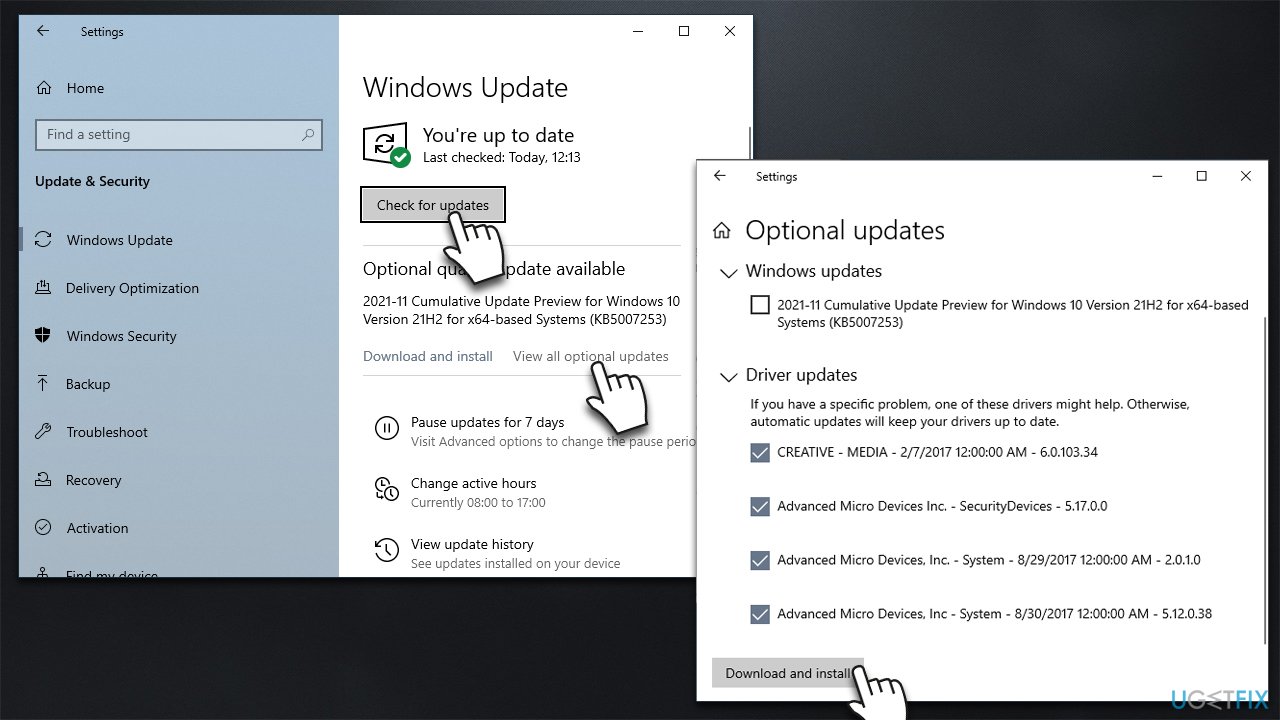
How to fix microsoft gameinput is crashing the pc install all updates - Reboot your machine.
Solution 3. Reinstall Gaming Services
- Right-click Start and pick PowerShell (admin)
- When User Account Control shows up, click Yes
- In the new window, copy and paste the following command, hitting Enter after:
Get-AppxPackage *gamingservices* -allusers | remove-appxpackage -allusers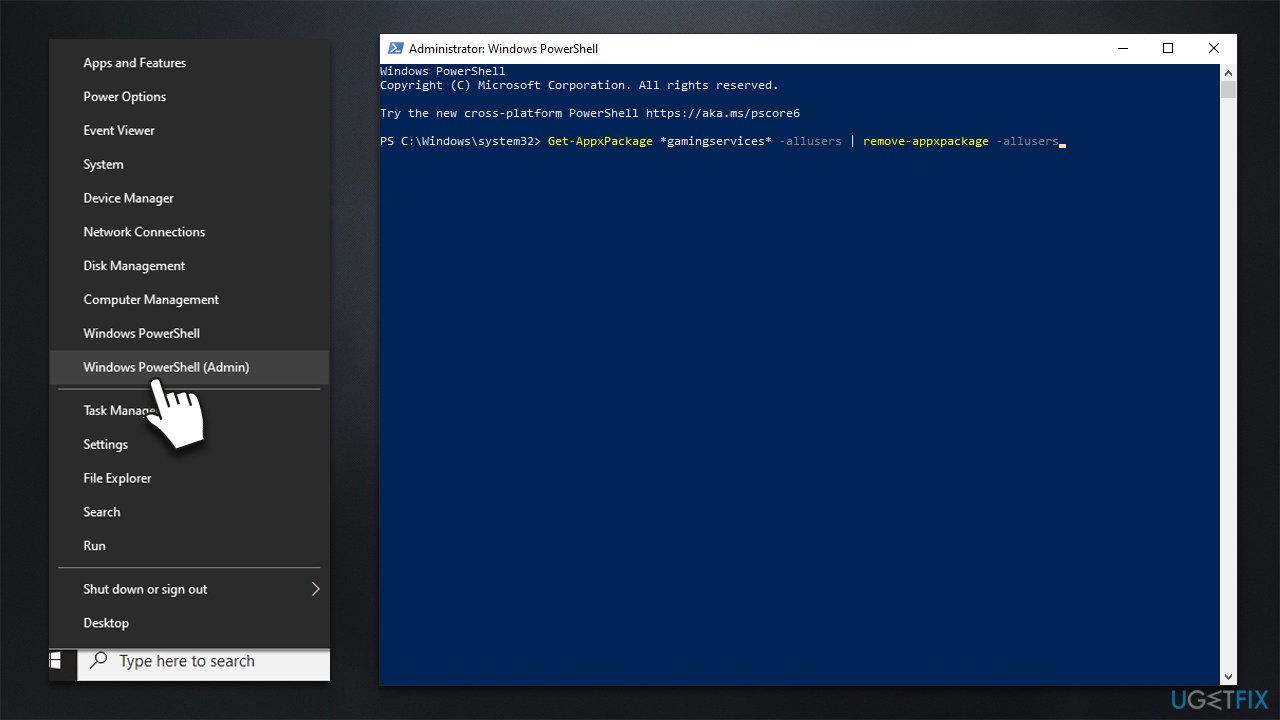
How to fix microsoft gameinput is crashing the pc reinstall gaming services - After command execution, follow up with these commands, pressing Enter after each:
Remove-Item -Path “HKLM:\System\CurrentControlSet\Services\GamingServices” -recurse
Remove-Item -Path “HKLM:\System\CurrentControlSet\Services\GamingServicesNet” -recurse - Restart your system
- After the reboot, start Xbox App to reinstall Gaming Services.
Solution 4. Rename GamingServices folder
Renaming the folders where GamingInput resides helped some users solve the problem.
- Open File Explorer (Win + E) and go to the View tab at the top
- Mark the Hidden items checkbox
- Next, you need to access the following folder:
C:\Program Files\WindowsApps - Depending on your system configuration, you may or may not access it. If you can't, you need to grant yourself permission first:
- Right-click on the WindowsApps folder and select Properties
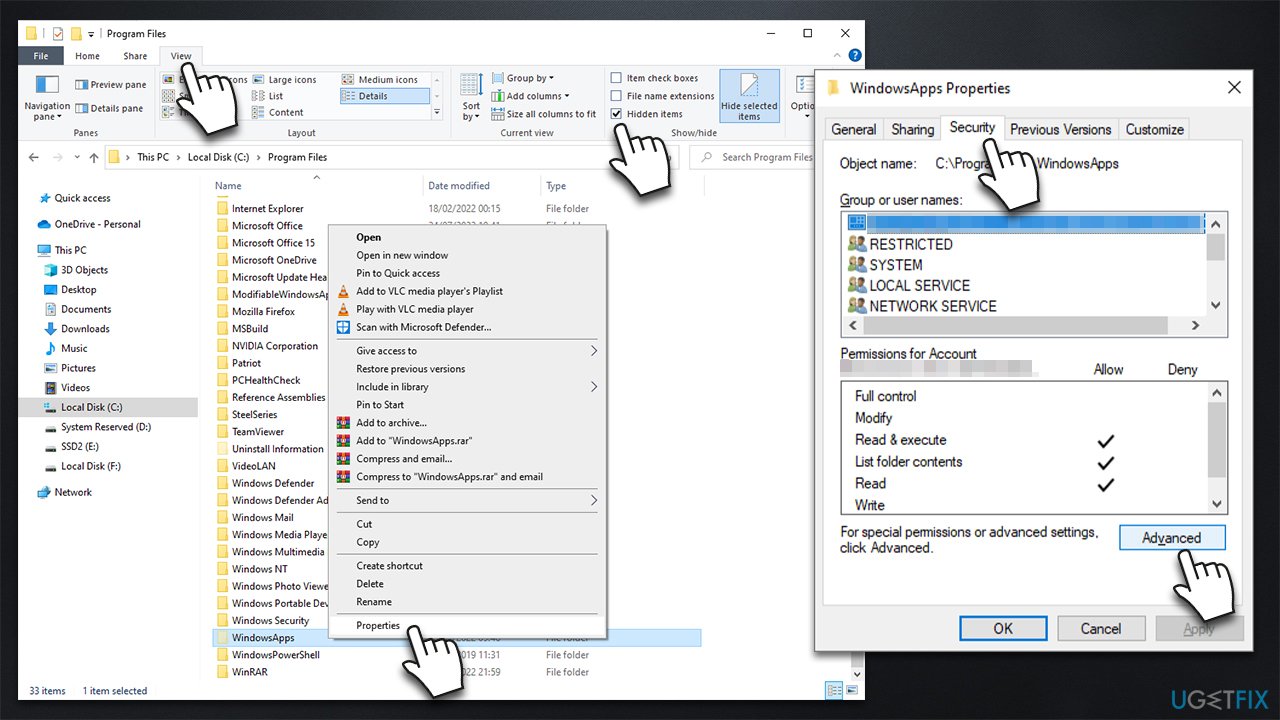
How to fix microsoft gameinput is crashing the pc rename gamingservices - Go to the Security tab and pick Advanced
- Select Change (under Owner)
- In the new window, type in your username or Administrator (if you are running an administrator account) and click Check names
- Select the appropriate account and click OK
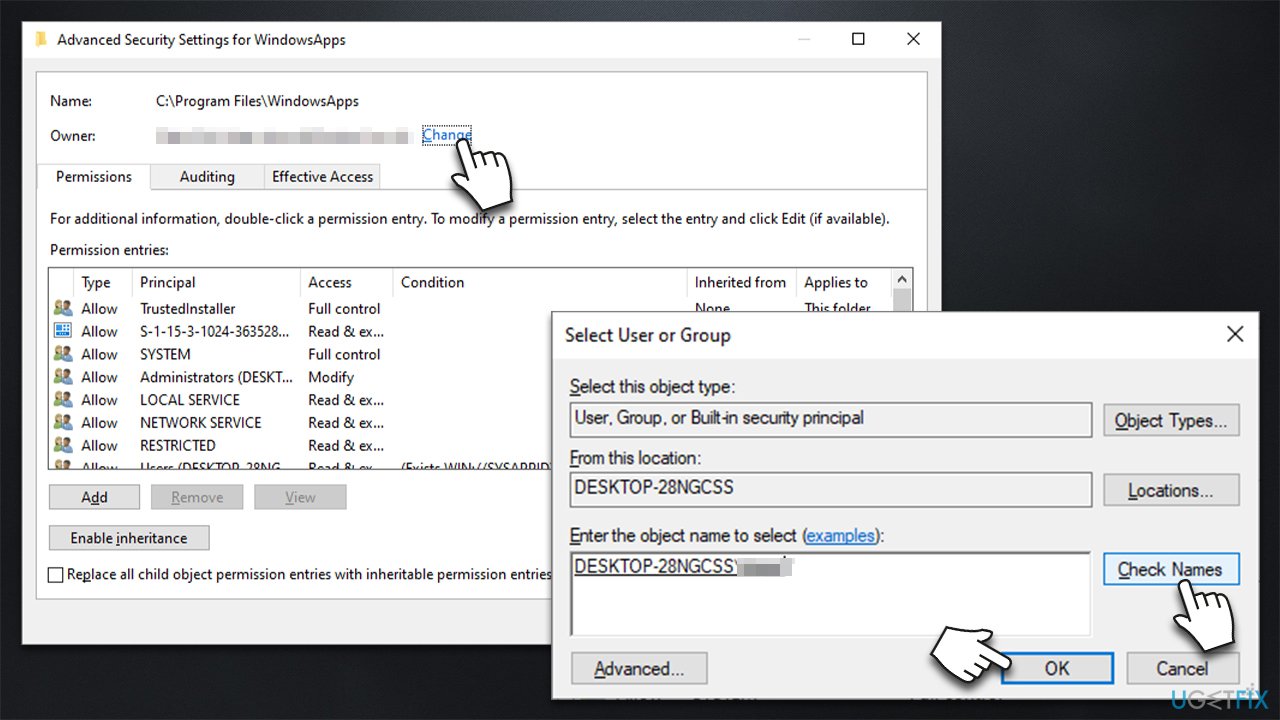
How to fix microsoft gameinput is crashing the pc rename gamingservices2 - At the bottom of the Advanced Security Settings window, mark the "Replace all child object permission..." option
- Click Apply and OK - you should now be able to access the WindowsApps folder
- In there, scroll down and locate the "Microsoft.GamingServices.X.XX.XXX.X_x64__XXXXXX" folder - there should be several of them there
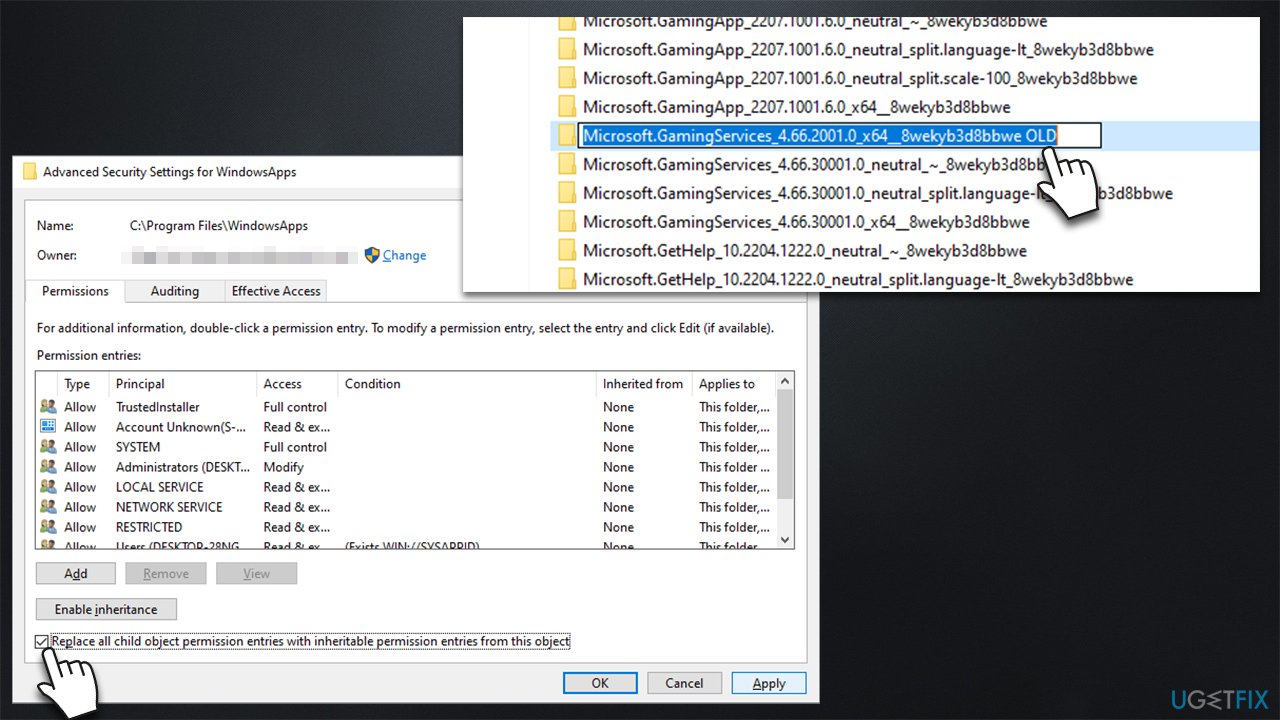
How to fix microsoft gameinput is crashing the pc rename gamingservices3 - You should rename every single one of them - you can simply add a letter or a word within the name.
Note: you will have to repeat the process every time your Windows updates, as these folders will automatically be renamed to their original titles.
Solution 5. Reinstall Windows
Before proceeding, make sure you disconnect all optional peripherals (printers, phones, external storage devices, etc.) and backup your personal files as a precautionary measure.
- Visit the official Microsoft website and download Windows 10 installation media (Windows 11 version)
- Double-click the installer and select Yes when UAC shows up
- Agree to terms
- Pick Create installation media (USB flash drive, DVD or ISO file) for another PC option and click Next
- Select the Use Recommended options for this PC checkbox and click Next
- Choose the ISO file and click Next
- Once you have prepared the ISO, put it into the malfunctioning PC
- Restart your machine and rapidly press F8, F10, F12, Del, or another button that would let you load into BIOS
- Here, go to the Boot section and set the boot priority to Flash drive
- Restart your system, and then proceed with on-screen instructions to reinstall Windows.
Bottom line
To address the crashing issues caused by Microsoft GameInput, users can start with running SFC and DISM to repair corrupted system files. If the problem persists, they may consider using an automatic PC repair tool. If none of these solutions work, further troubleshooting may be necessary.
Frequently asked questions
Try updating your graphics drivers and check for Windows updates, as these can resolve compatibility issues. Additionally, consider disabling the Microsoft GameInput service through the Services management console.
You can disable the GameInput feature by navigating to the GameInput folder in your system files and renaming it. This action can prevent it from interfering with your gaming experience on Windows 11.
Yes, you can reinstall Microsoft GameInput by uninstalling the related apps through the Settings app, then reinstalling them from the Microsoft Store. Make sure your Windows 10 is updated to the latest version for optimal performance.




Report an issue
What's wrong with this guide? We review every report and update or remove content.
Report received — thank you. We'll review and fix it.
You need a free account to submit a report.
Be the first to comment