How to fix
Error Code 0x80D0000A
on Windows
Resolve the 0x80D0000A error on Windows 10 Store quickly and easily. Get back to downloading apps seamlessly, fixed in minutes!


What causes How to Fix Error Code 0x80D0000A on Windows 10 Store?
- Network configurations interfering with downloads
- Server-side issues at Microsoft
- Corrupted system files
- Corrupted registry entries
- Third-party antivirus software blocking transactions
Repairs Windows system files, removes malware, and restores a clean OS state — without reinstalling.
Error code 0x80D0000A when trying to download a game from Microsoft Store. The download starts but then freezes at some point, giving me the error. Does anyone know how to fix it? Thanks!
The Microsoft Store is a centralized platform for Windows users to find and install applications, games, and other digital content. Designed for ease of use and a cohesive experience, the store comes pre-installed on Windows 10 and 11 versions. Users can browse through a wide range of software titles across various categories, download them securely, and receive regular updates through the platform. Microsoft Store thus plays an essential role in enhancing the user experience on Windows systems by providing convenient access to a multitude of software options.
However, like any other digital service, the Microsoft Store is not without its issues. One of the errors that some users encounter is the 0x80D0000A error code. This error typically appears when trying to download new apps or games and can also occur when attempting to update existing software. Although the message associated with this error is rather generic, it usually signifies a problem in the transaction between the user’s computer and the Microsoft Store servers.
Several factors can contribute to the 0x80D0000A error. Network configurations can interfere with the download or update process. It can also be the result of server-side issues at Microsoft, meaning the problem is not always on the user’s end. Corrupted system files or registry entries could also lead to this error. Additionally, third-party antivirus software may block the transaction as a false positive.
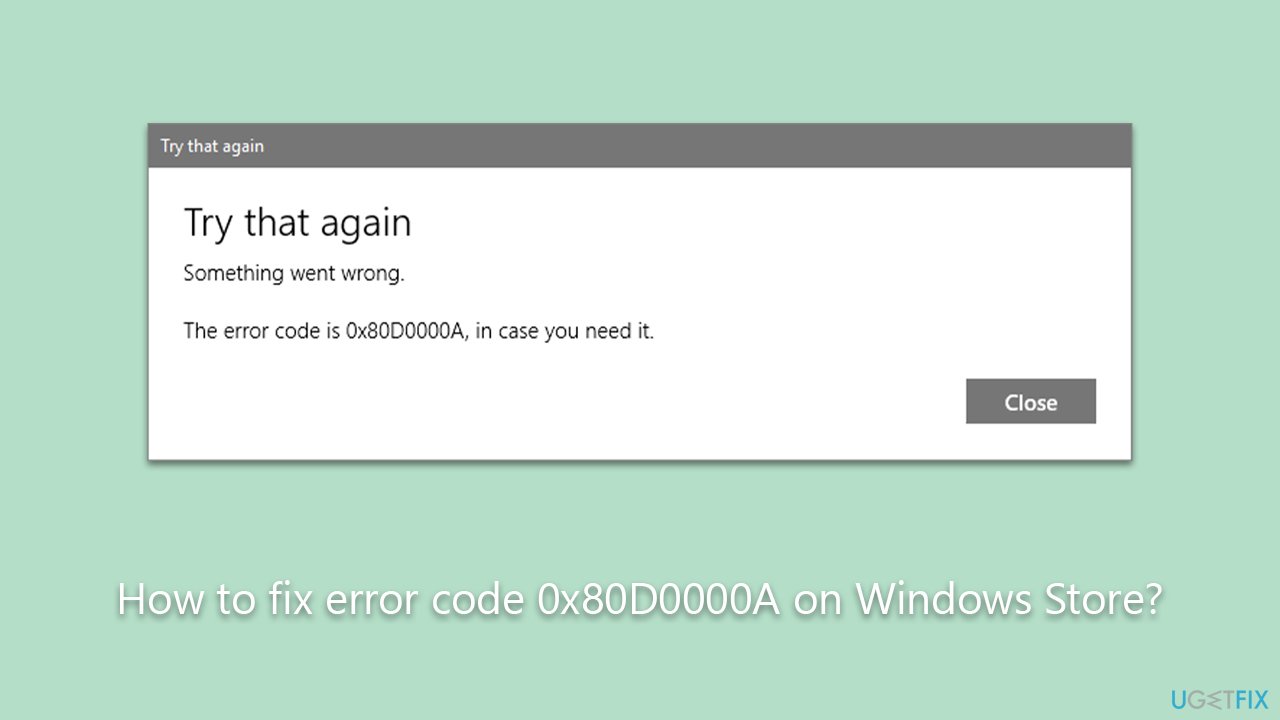
While it might be frustrating dealing with the 0x80D0000A error when trying to download or update apps, users should know that solutions are available. These typically involve a variety of approaches, from simple tasks like resetting the Microsoft Store cache to more complex operations like modifying network settings or repairing system files.
For users looking for an automated solution, utilizing a [d1] PC repair tool can often diagnose and fix the issue without requiring manual intervention.
Fix 1. Remove Microsoft Store cache
Clearing the cache for Microsoft Store can resolve issues caused by outdated or corrupted data files. The cache stores temporary files to speed up tasks, but sometimes, this data becomes outdated or corrupt, causing errors like 0x80D0000A.
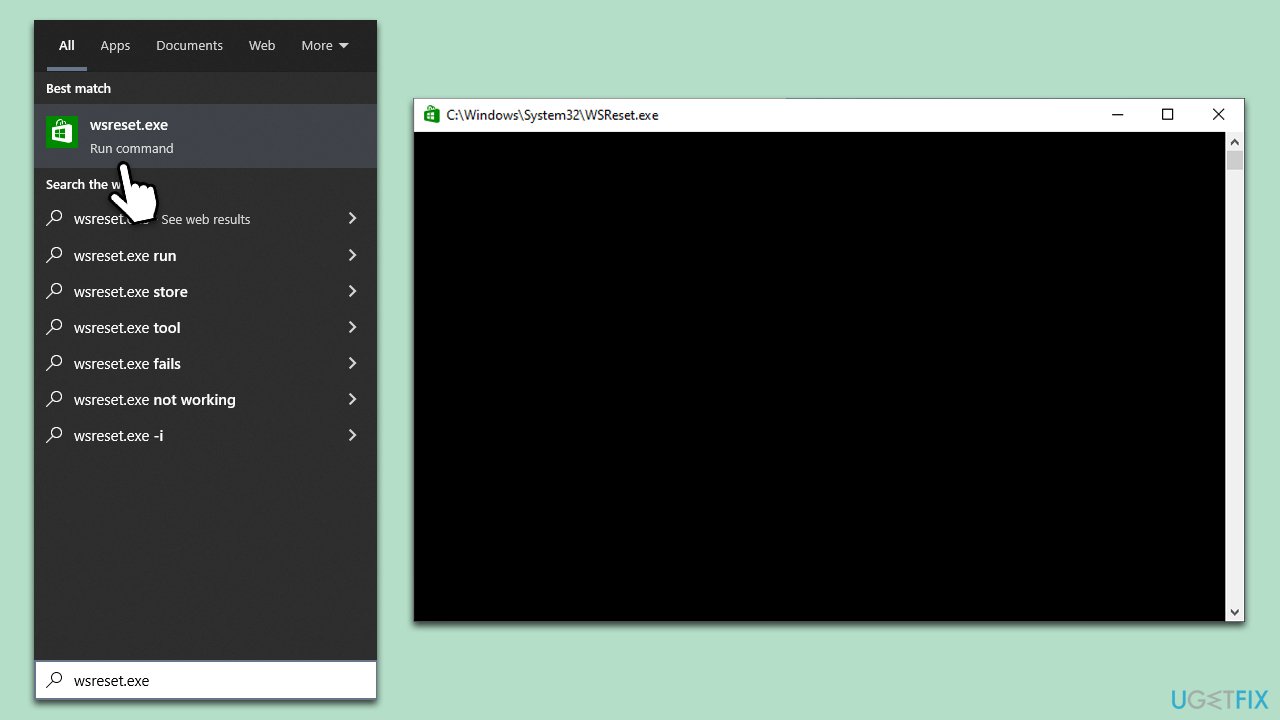
- In Windows search, type wsreset.exe and press Enter.
- Wait until a black window appears – do not interact with or close it.
- Once it's gone, the Microsoft Store should restart.
- Try downloading apps once again.
Fix 2. Start Windows update and other relevant services
Some services running in the background are essential for the Microsoft Store to function correctly.
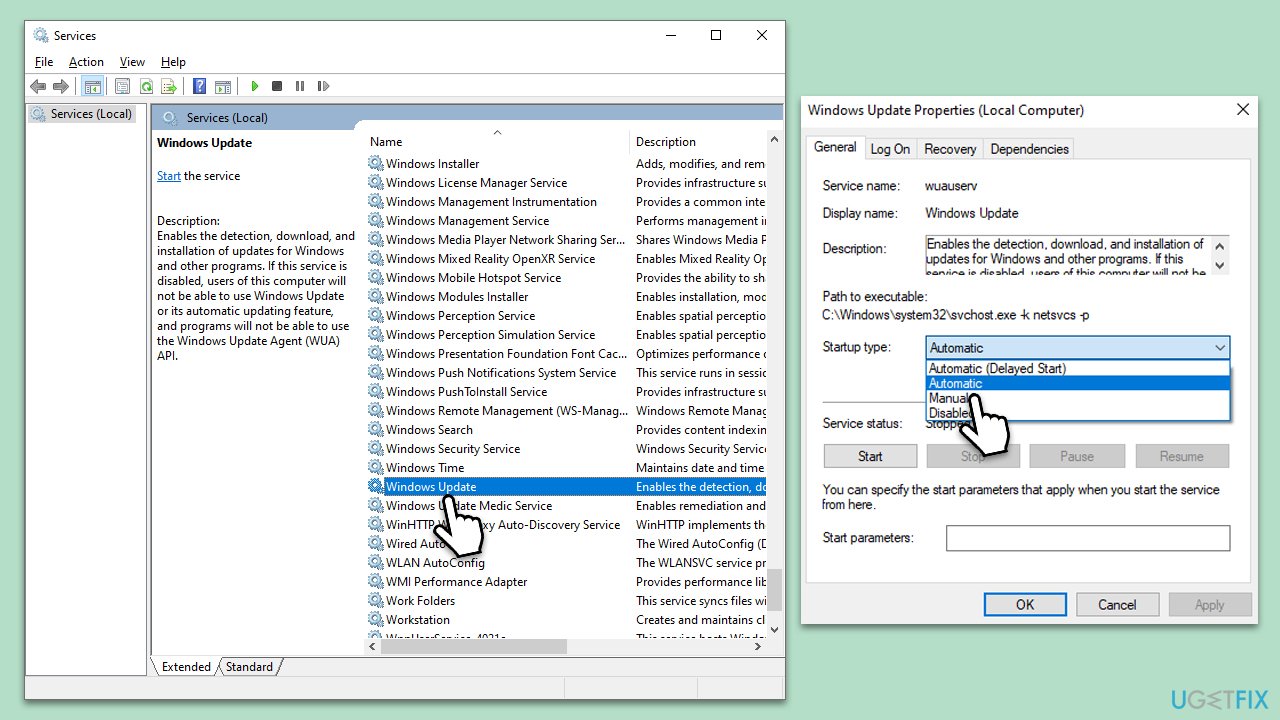
- Type Services in Windows search and hit Enter.
- In the new window, scroll down to find the Windows Update service.
- Double-click it to open Properties.
- Under the Startup type, select Automatic from the drop-down menu.
- Click Start, Apply, and OK.
- Repeat these steps with Windows Firewall service.
Fix 3. Check Date and Time settings
Incorrect date and time settings can cause certification and syncing issues, leading to errors during transactions with Microsoft Store.
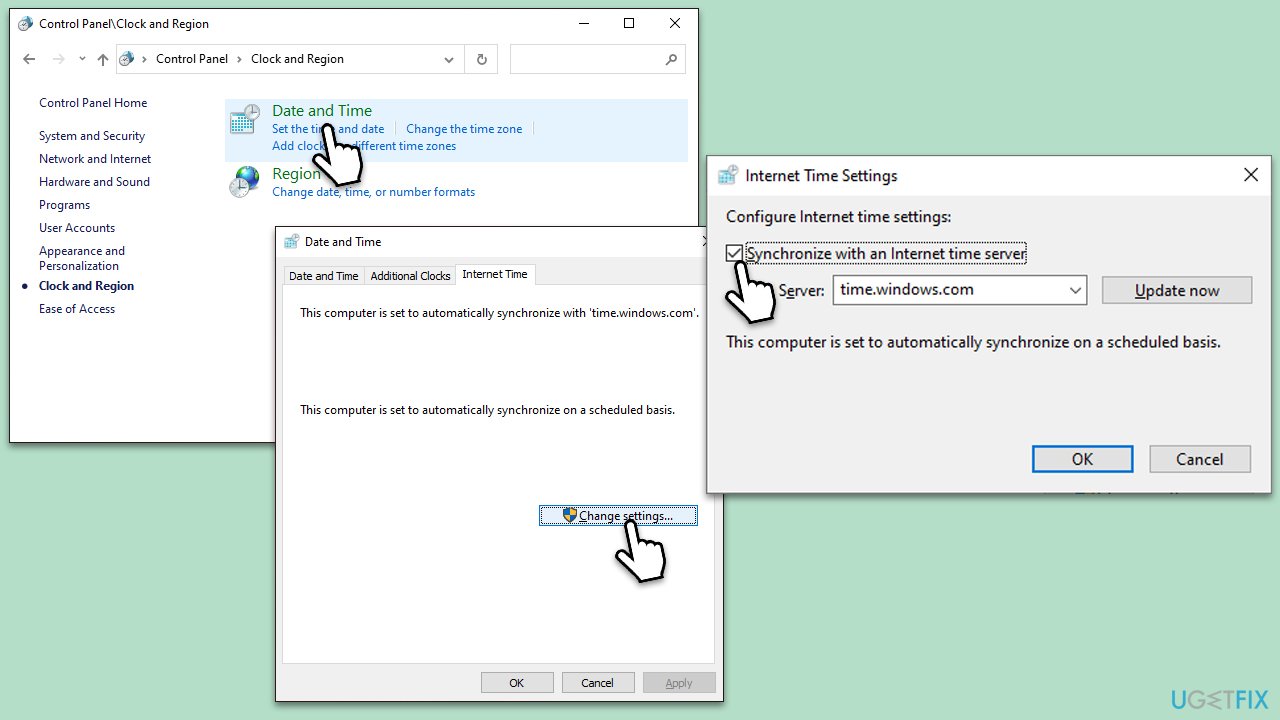
- Type in Control Panel in Windows search and press Enter.
- Go to Clock and Region and click on Date and Time.
- Pick the Internet Time tab and select Change Settings.
- Make sure that Synchronize with an Internet time server box is ticked.
- Click Update now and OK.
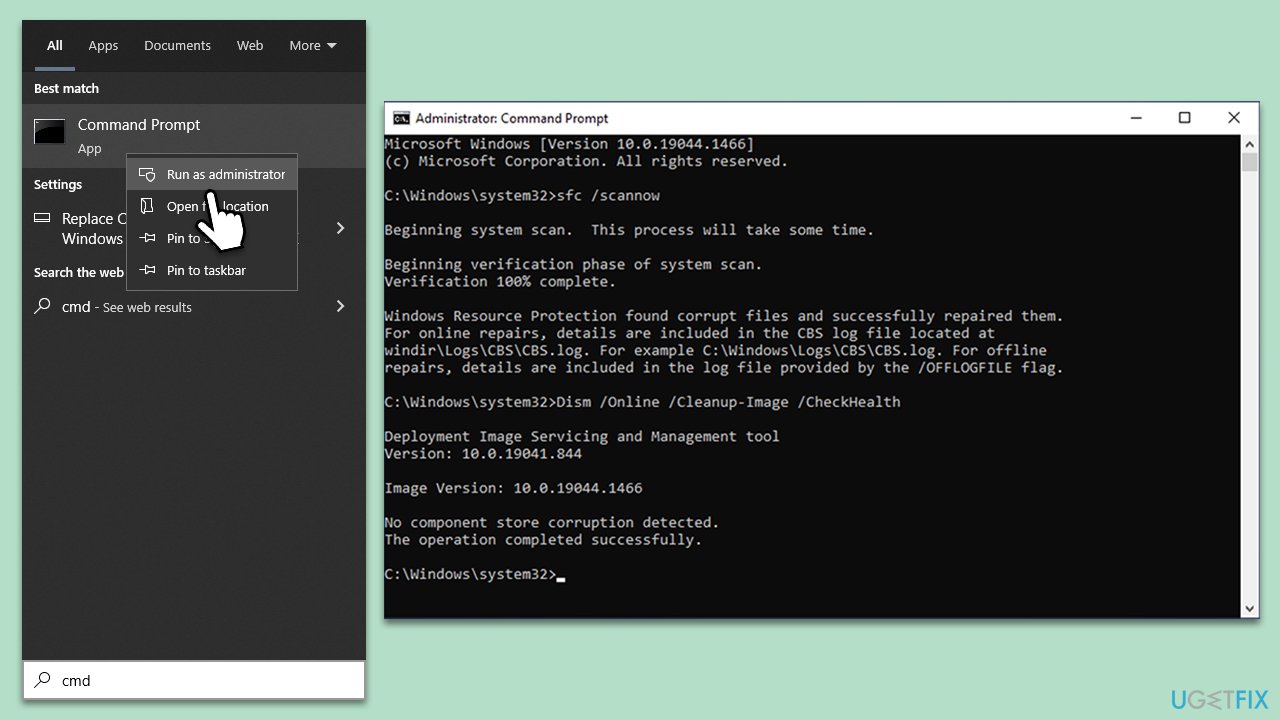
Fix 4. Run SFC and DISM
Running System File Checker (SFC) and Deployment Imaging Service and Management Tool (DISM) can fix corrupted system files that might be causing the error.
- Type cmd in Windows search.
- Right-click on Command Prompt and select Run as administrator.
- User Account Control should pop up – click Yes.
- Type this command and press Enter:
sfc /scannow - Wait for the scan to finish.
- As soon as the scan finishes, Windows will report whether integrity violations were found and if they could be fixed. Regardless of the outcome, use these commands next, pressing Enter after each:
Dism /Online /Cleanup-Image /CheckHealth
Dism /Online /Cleanup-Image /ScanHealth
Dism /Online /Cleanup-Image /RestoreHealth - Close down the Command Prompt and restart your system.
Fix 5. Disable third-party security software
Some third-party security software can block certain processes deemed risky. While the intention is to protect your system, this can sometimes result in false positives. It's advisable to temporarily disable this software and see if it solves the issue. Always remember to reactivate it afterward.
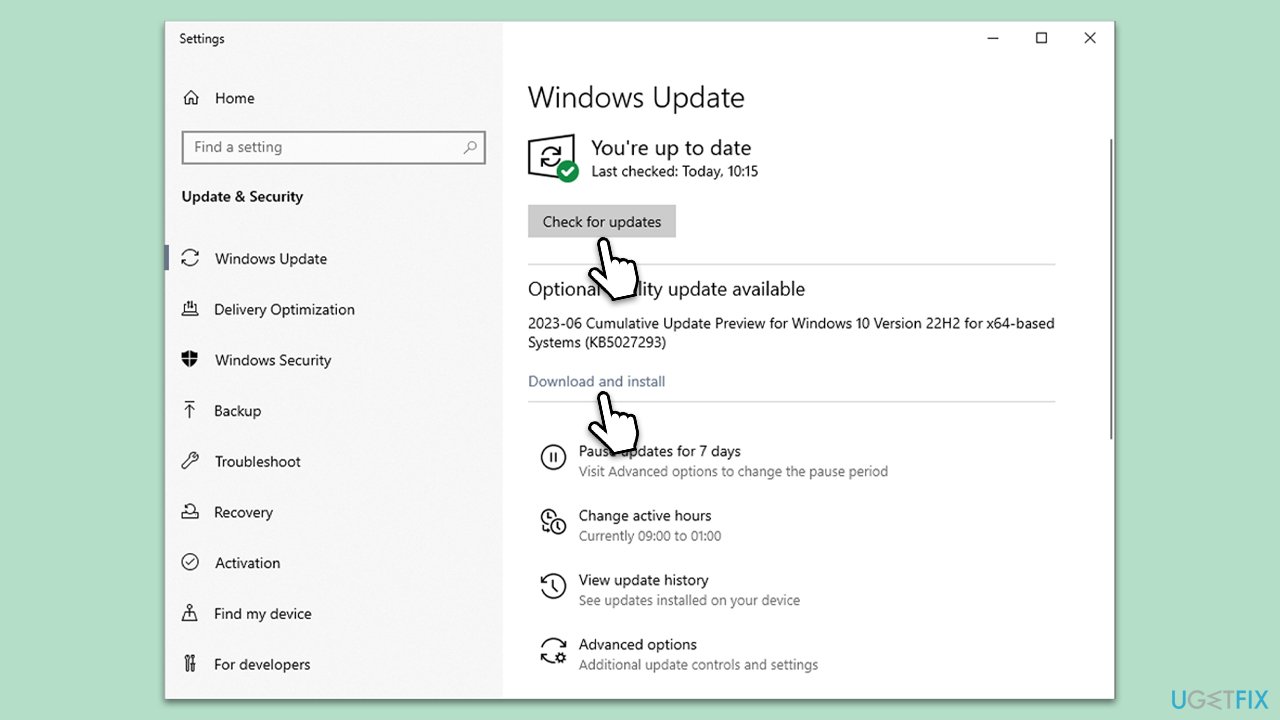
Fix 6. Install all Windows updates
Keeping your system up to date can fix various issues, including compatibility issues that can lead to Microsoft Store errors.
- Type Updates and press Enter.
- In the new window, click Check for updates.
- Wait till all the files are downloaded and installed.
- If optional updates are available, install them as well.
- Restart your device when done.
Fix 7. Run Windows Store Apps troubleshooter
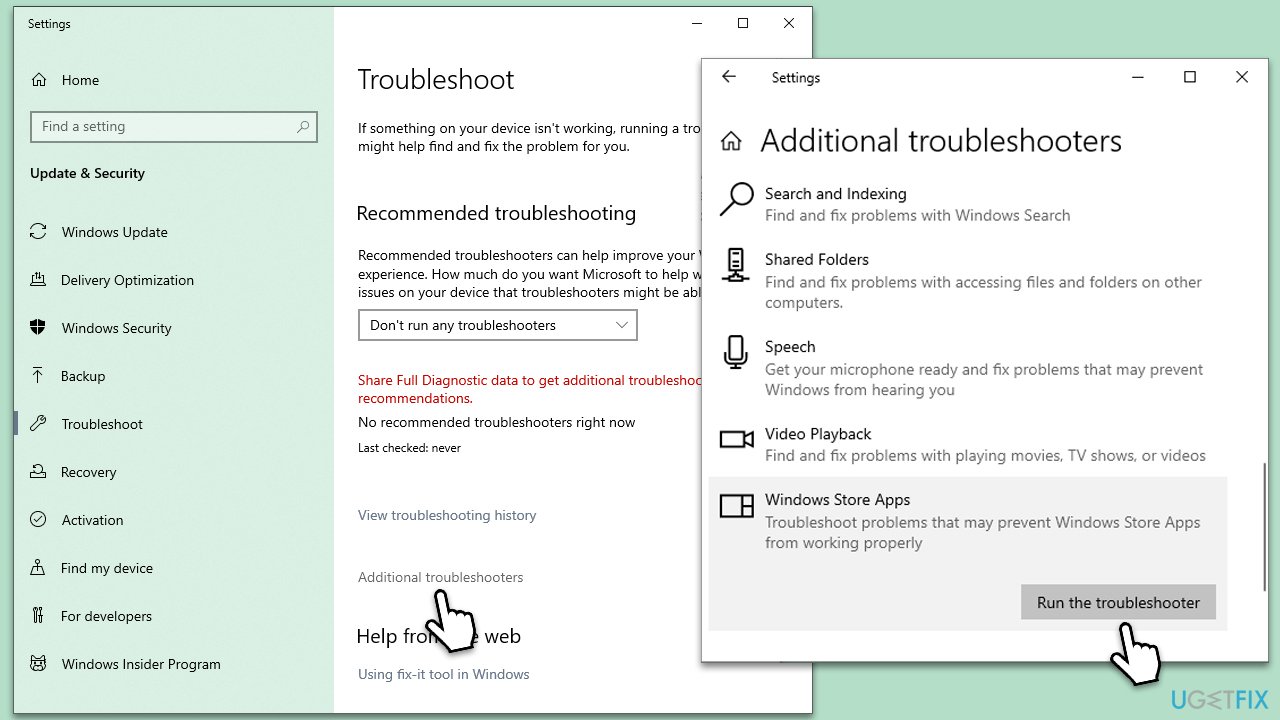
Windows has built-in troubleshooters for diagnosing and solving common problems, including Microsoft Store issues.
- Type in Troubleshoot in Windows search and hit Enter.
- Go to Additional Troubleshooters/Other troubleshooters.
- Pick a Windows Store apps option and click Run the troubleshooter/Run.
- Wait till the scan is finished, and then apply the suggested fixes.
- Restart your system.
Fix 8. Repair or reset the Microsoft Store
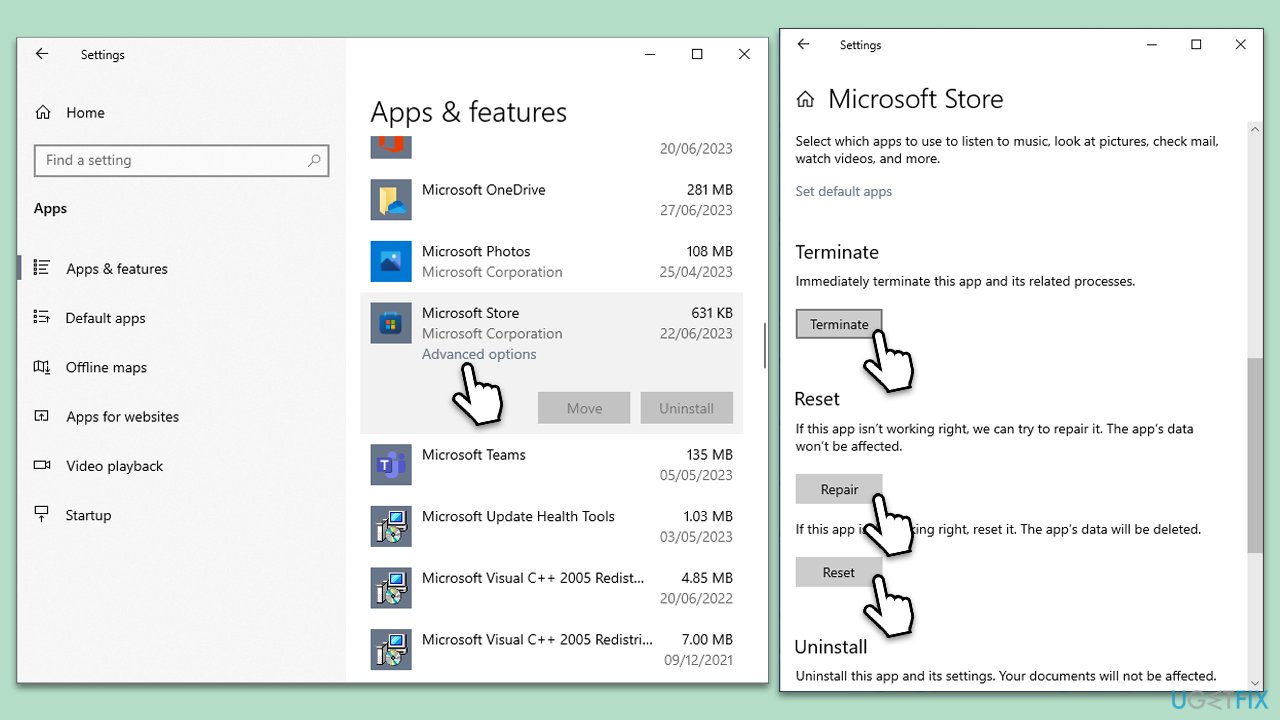
If all else fails, repairing or resetting Microsoft Store to its default settings can resolve persistent issues by wiping out any corrupt or problematic files.
- Right-click on Start and select Apps & Features.
- Scroll down to find Microsoft Store and click Advanced options.
- Scroll down again and click Terminate and Repair.
- If that does not work, try using Reset.
Bottom line
To fix the 0x80D0000A error, users can try clearing the Microsoft Store cache, modifying network settings, or repairing system files. If these solutions do not resolve the issue, consider using a PC repair tool for automated diagnosis and fixes.
Frequently asked questions
Error Code 0x80D0000A typically indicates a problem with your Microsoft account or issues with the Windows Store cache. This can prevent you from accessing or downloading apps from the store.
To reset the Windows Store cache, press Windows + R, type 'wsreset.exe', and hit Enter. This will clear the cache and may resolve the error.
Ensure that your date and time settings are correct in Windows 10, as incorrect settings can lead to issues with the Windows Store. Additionally, check that your Microsoft account is properly signed in and synced.




Report an issue
What's wrong with this guide? We review every report and update or remove content.
Report received — thank you. We'll review and fix it.
You need a free account to submit a report.
Be the first to comment