How to fix
KB5012170 fails to install
on Windows
Fix KB5012170 installation errors on Windows 10 and Windows 11 quickly with expert-tested solutions. Resolve issues and get back on track!

What causes How to fix KB5012170 fails to install on Windows?
- Secure Boot is enabled
- Missing security patches in the bootloader
- Outdated UEFI/BIOS version
- Damaged system components
- Other error codes or no code at all
Repairs Windows system files, removes malware, and restores a clean OS state — without reinstalling.
Hello. For the past two weeks, I have been trying to install KB5012170 on Windows 11, but to no avail. Every time I try it, the update fails with an error 0x800f0922. Any tips that could help me with this? Thanks.
Windows was upgraded to service with the release of the Windows 10 version back in 2015, which meant that Microsoft was bound to deliver regular updates at a certain pace. To be more precise, users could expect new features, security vulnerability patches, improvements to the existing aspects, and bug fixes regularly.
Microsoft releases updates on the second Tuesday of every month, which is broadly known as Patch Tuesday[ref en-2] by many. On August 9, 2022, the KB5012170 update was released and was meant to fix many well-known issues, such as security vulnerability that the attackers could exploit when the UEFI-based system was loaded via the Secure Boot option.
The update was released for various Windows operating versions, including Windows 11, 10, and 8. Unfortunately, regardless of the versions of the OS users were employing, some people suffered from the KB5012170 installation errors, which prevented them from patching their system with a rather important security patch. People reported receiving a 0x800f0922 error code, although this may vary.
Several reasons may cause the issue to arise; for example, if you have Secure Boot enabled, you will like to fail to install the update because the bootloader is missing security patches. In this case, installing the latest UEFI/BIOS update would fix the issue.
If you are experiencing KB5012170 installation failures with other error codes or no code at all, other solutions provided by us could help. Before proceeding, we recommend scanning the system with a powerful [d1] repair tool, capable of finding damaged system components and repairing them automatically, ultimately resolving BSODs, DLL errors, and similar common issues.
Tip 1. Update BIOS
If you are facing the 0x800f0922 error whenever you try to update your device, the issue lies within the outdated UEFI/BIOS[ref en-3] version.
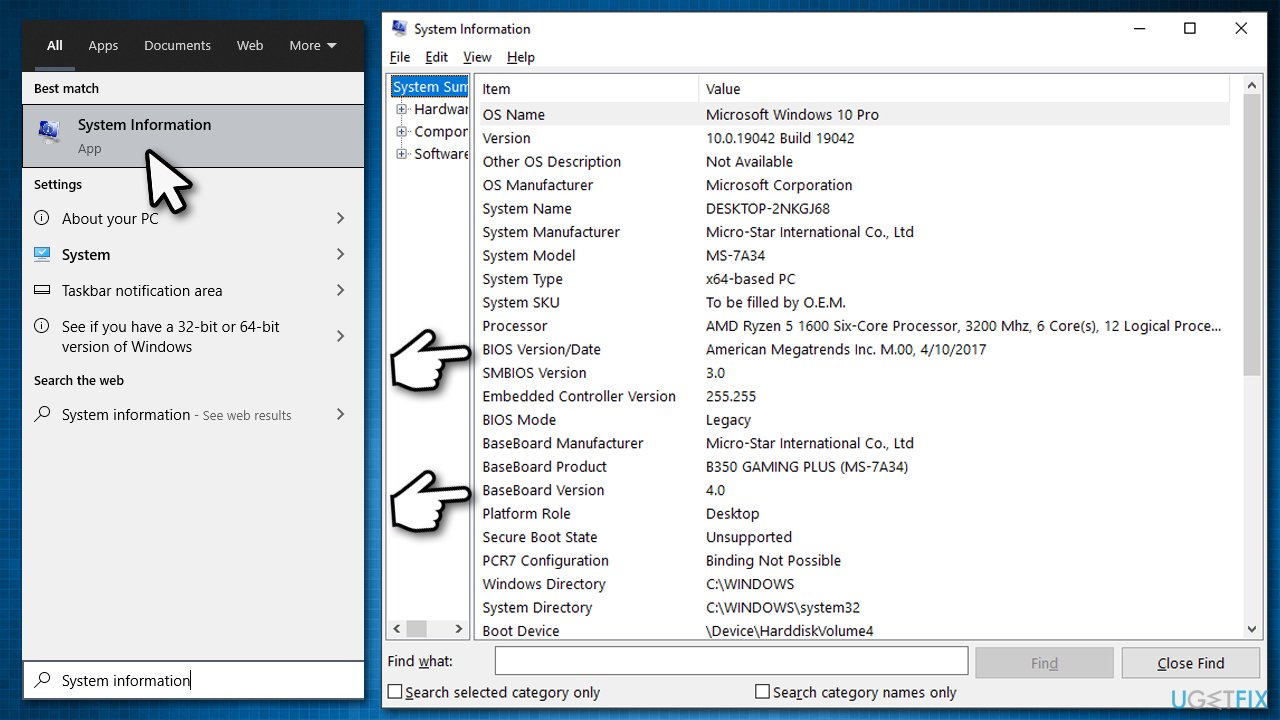
- Type in System Information in Windows search and hit Enter
- Note down info next to BIOS Version/Date and BaseBoard Product
- Open your web browser and visit the official site of your motherboard manufacturer
- Head to the Downloads section
- Download the appropriate version of BIOS for your motherboard and launch the installer
- Reboot your system once complete.
Some device manufacturers (especially laptops) provide utility tools that could have the BIOS update section included, so check if such software exists for your computer.
Tip 2. Disable third-party security software
While it is not easy to determine what is causing Windows update installation errors, there are certain aspects that could be applied to most cases. This is why we recommend disabling a third-party security tool if such is running on your device. Once such an app is installed, it changes certain aspects of the OS on the kernel[ref en-1] level, which changes how Windows responds to certain behaviors, and software/update installations are one of those.
You can either disable the real-time protection feature on your anti-malware or temporarily uninstall the app. Both methods work, and it is a matter of your preference. Once done, you should initiate the download and installation process of the KB5012170 update and see if it resolves the problem.
Tip 3. Check for system file corruption
Update errors can frequently occur due to system files that got corrupted. You can remediate this issue by running commands via elevated Command Prompt as follows:
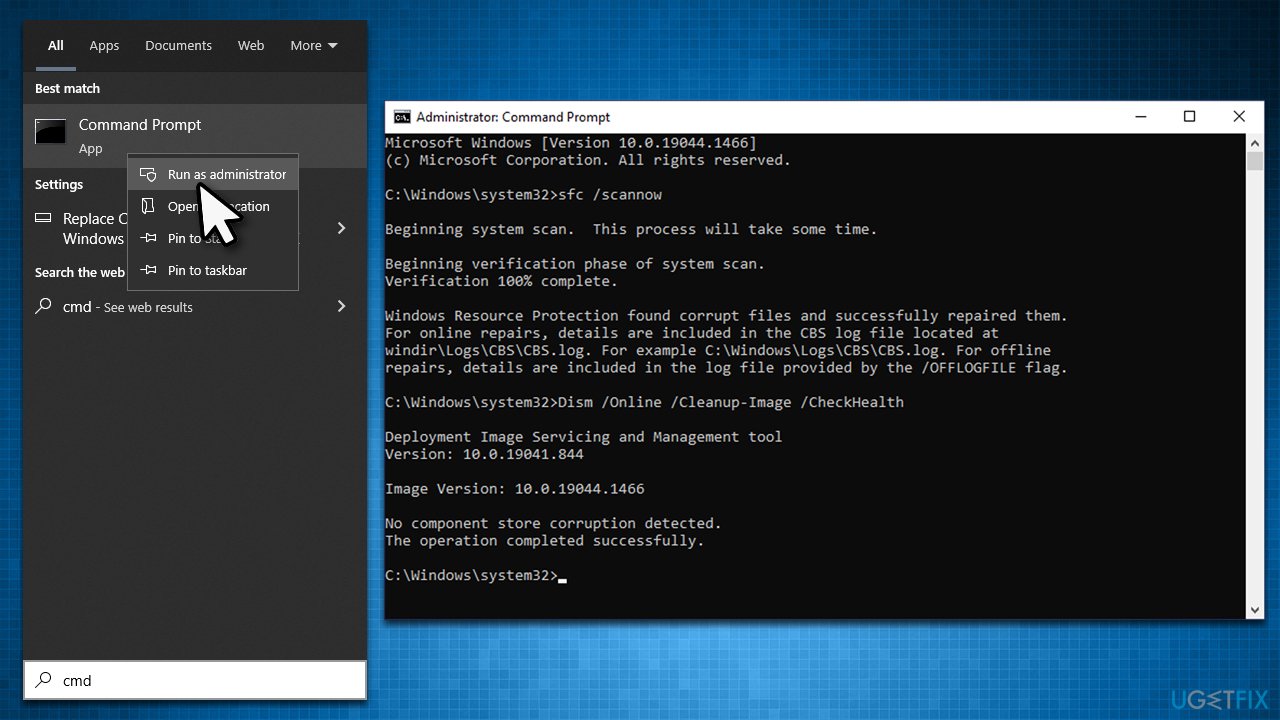
- Type cmd in Windows search
- Right-click on Command Prompt and pick Run as administrator
- When User Account Control shows up, click Yes
- Use the following command lines, pressing Enter after each:
sfc /scannow
DISM /Online /Cleanup-Image /CheckHealth
DISM /Online /Cleanup-Image /ScanHealth
DISM /Online /Cleanup-Image /RestoreHealth - Restart your computer.
Tip 4. Run Windows Update Troubleshooter
If you haven't done so yet, you should employ Windows Update Troubleshooter - a built-in tool that can often determine what needs to be done in order to resolve issues related to certain operational aspects of the system.
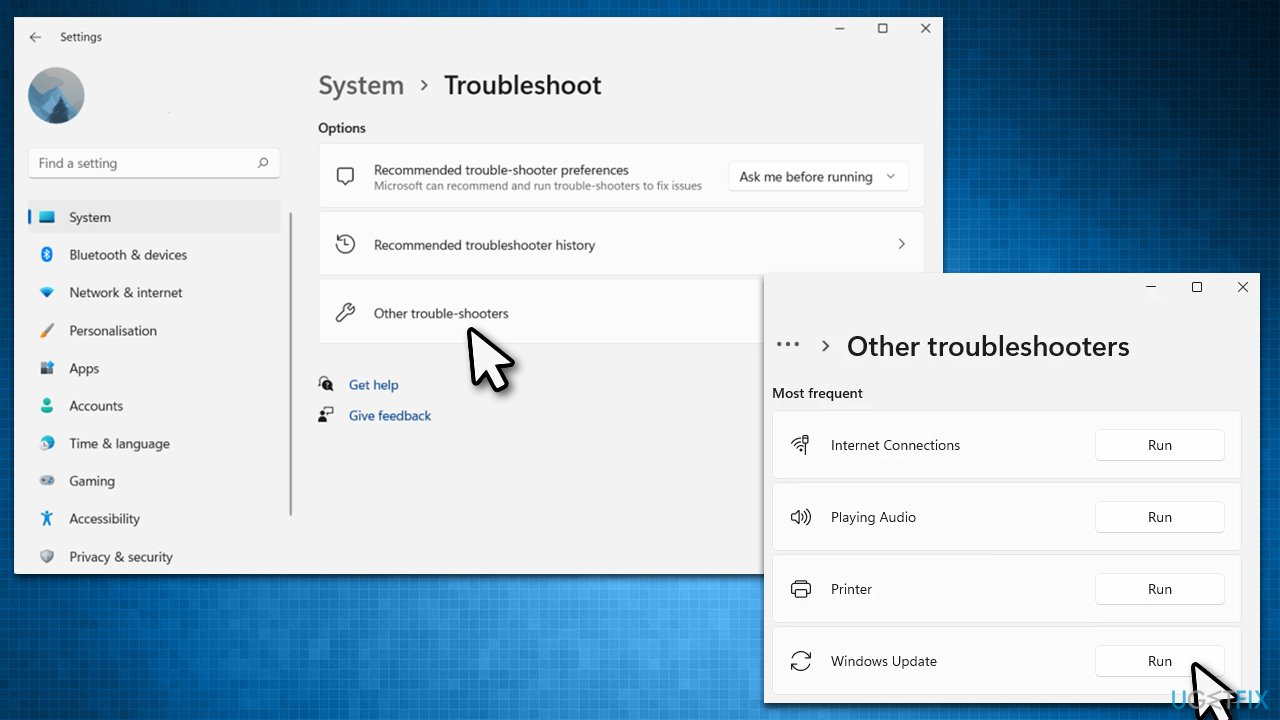
- In Windows search, type in troubleshoot and press Enter (you can also go to Start > Settings > System > Troubleshoot)
- Pick Other trouble-shooters (in Windows 10, pick Additional troubleshooters)
- Scroll down to locate the Windows Update option and click Run
- Wait till the scan is finished, apply the changes, and try running the update process once again.
Tip 5. Install manually
You can attempt to install the update manually.
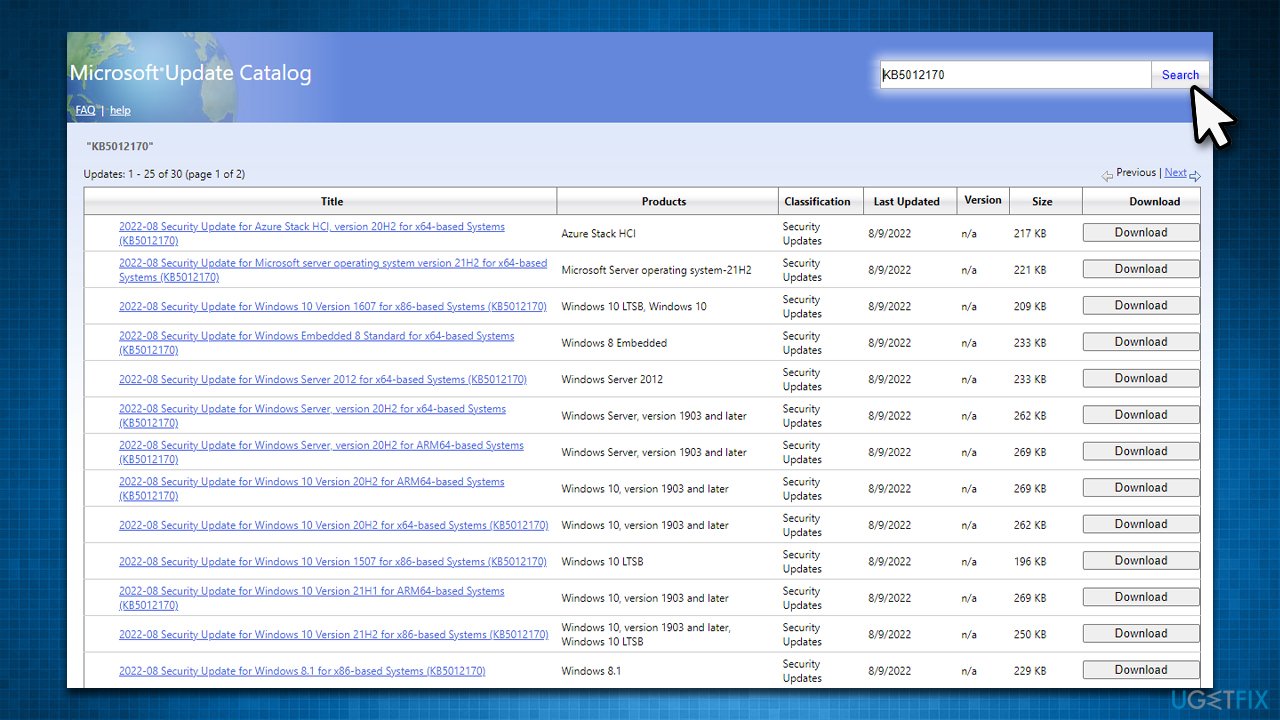
- Go to Microsoft Update Catalog
- Here, type in the KB number and click Search
- Pick the version that is compatible with your operating system (ignore updates for the server) and click Download
- Proceed with on-screen instructions and restart your system once done.
Tip 6. Reset Windows update components
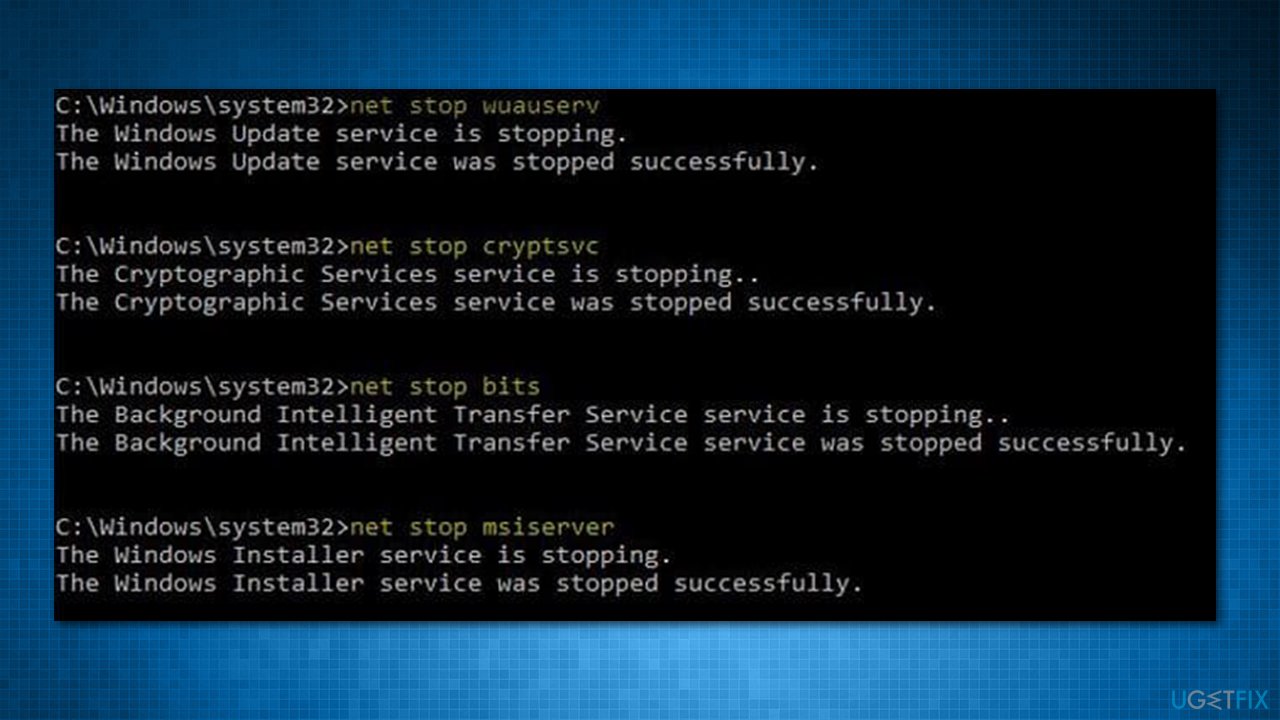
- Open Command Prompt as administrator
- Run the following commands, pressing Enter after each:
net stop bits
net stop wuauserv
net stop appidsvc
net stop cryptsvc
Del "%ALLUSERSPROFILE%\Application Data\Microsoft\Network\Downloader\*.*"
rmdir %systemroot%\SoftwareDistribution /S /Q
rmdir %systemroot%\system32\catroot2 /S /Q
regsvr32.exe /s atl.dll
regsvr32.exe /s urlmon.dll
regsvr32.exe /s mshtml.dll
netsh winsock reset
netsh winsock reset proxy
net start bits
net start wuauserv
net start appidsvc
net start cryptsvc - Restart your PC.
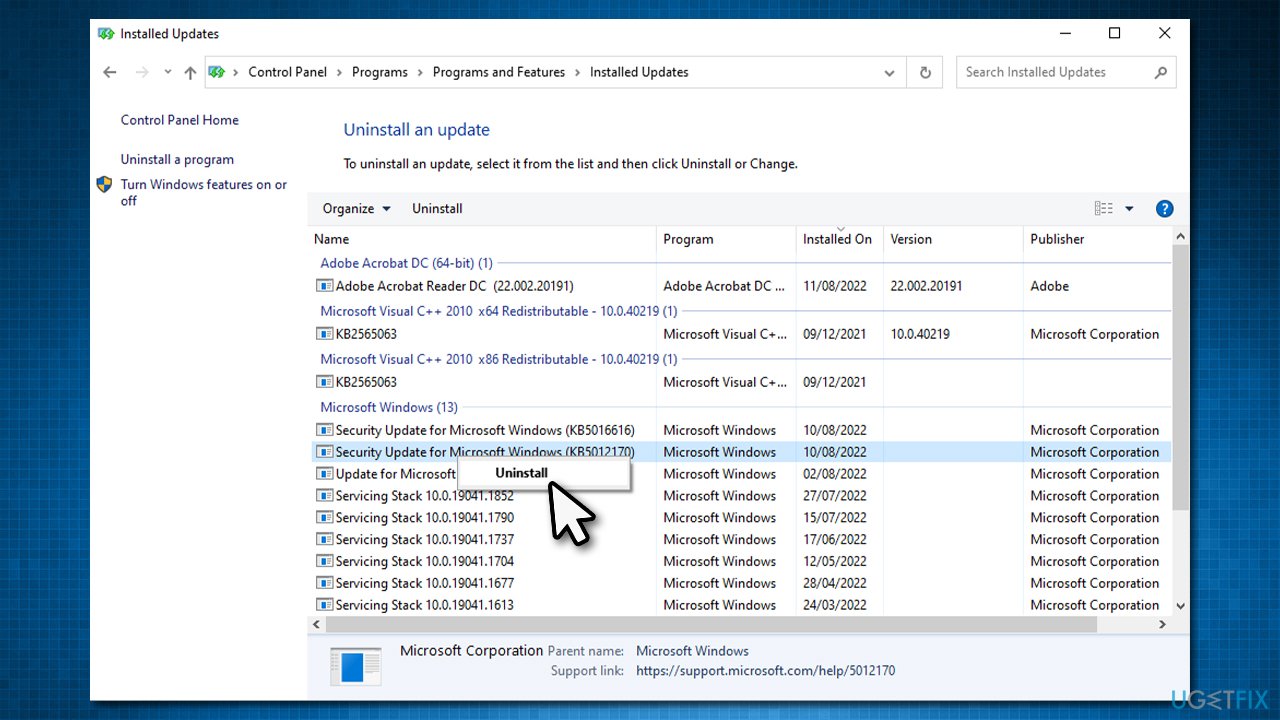
Note: KB5012170 is known to cause some issues for some users, including BitLocker recovery screens, or may even prevent people from booting into the system. In such a case, we recommend you uninstall the update by entering the Control Panel > Programs > Uninstall a program > View installed updates. Then, select KB5012170, right-click it, and pick Uninstall.
Bottom line
To fix the KB5012170 installation failure, consider updating your BIOS, scanning the system with a repair tool, and ensuring that Secure Boot is properly configured. If these solutions do not resolve the issue, further troubleshooting may be necessary.
Frequently asked questions
You can try running the Windows Update Troubleshooter to automatically detect and fix issues related to Windows Update. Additionally, ensure that your system has sufficient disk space and restart your PC before attempting the installation again.
Visit the Microsoft Update Catalog website, search for KB5012170, and download the appropriate version for your system. After downloading, double-click the file to manually install the update.
Common reasons include corrupted system files, insufficient storage space, or conflicts with third-party software. Running the System File Checker tool and ensuring your system is up-to-date can help resolve these issues.




Report an issue
What's wrong with this guide? We review every report and update or remove content.
Report received — thank you. We'll review and fix it.
You need a free account to submit a report.
Be the first to comment