How to fix
ERR_SPDY_INADEQUATE_TRANSPORT_SECURITY error in Google Chrome
on Windows
Resolve the ERR_SPDY_INADEQUATE_TRANSPORT_SECURITY error in Google Chrome on Windows 10 or 11 with effective solutions. Expert-tested tips inside!


What causes How to fix ERR_SPDY_INADEQUATE_TRANSPORT_SECURITY error in Google Chrome?
- Outdated Google Chrome browser
- Incompatibility with HTTP/2
- Issues with website security settings
- Browser configuration problems
- Corrupted system files
Repairs Windows system files, removes malware, and restores a clean OS state — without reinstalling.
Hello, I am trying to access a website via Google Chrome, and I keep receiving the ERR_SPDY_INADEQUATE_TRANSPORT_SECURITY error every time. I tried using incognito mode and restarting the browser, but that did not help. The website is reachable via other browsers perfectly fine, so I wonder what's up with Google Chrome?
Google Chrome is among the most used browsers in the world. With a market share of over 65%,[ref en-1] the browser has been dominating for over a decade now, and it doesn't seem to leave this position. Most users prefer Chrome's convenience, simplicity of use, expansive extension selection, and plenty of other useful functionality.
Nevertheless, it didn't avoid criticisms over the years, including privacy concerns[ref en-2] by users/security experts or extensive usage of hardware resources when in operation, and similar. There are also errors that plague the browser, including the ERR_SPDY_INADEQUATE_TRANSPORT_SECURITY error, which is the topic of this article today.
The error shows up when trying to access a specific website with the error message "This site can't be reached," although many users reported that the same site could be easily entered when using another browser, such as MS Edge or Opera. It is worth noting that some people might see the ERR_SPDY_INADEQUATE_TRANSPORT_SECURITY error when using Firefox as well, though.
The issue lies within HTTP/2. By default, it is enabled on all Windows versions from 2016 onwards, which may not be supported by some Chrome versions. That being said, sometimes regular users can't do anything about this, and the website admin needs to fix the problem.

There are a few ways to fix the ERR_SPDY_INADEQUATE_TRANSPORT_SECURITY error on Google Chrome, although we strongly advise you first check your system integrity with the help of powerful PC repair software [d1]. It can locate all the system inconsistencies and replace damaged system files with working ones, ultimately resolving BSODs,[ref en-3] and registry errors, fixing malware damage, and cleaning the system from junk.
Fix 1. Update your browser
One of the most common fixes for this problem is an outdated Google Chrome browser. Chrome usually updates automatically after you reboot it, so if you never shut it down, it wouldn't have a chance to do so. Thus, to update it, simply restart the browser or reboot your system altogether.
Alternatively, you can force Chrome to update by following these steps:
- Click Menu and select Settings
- On the left side of the window, click About Chrome
- The browser should immediately start the update
- After it is finished, click Relaunch.

Fix 2. Disable SPDY and HTTP/2
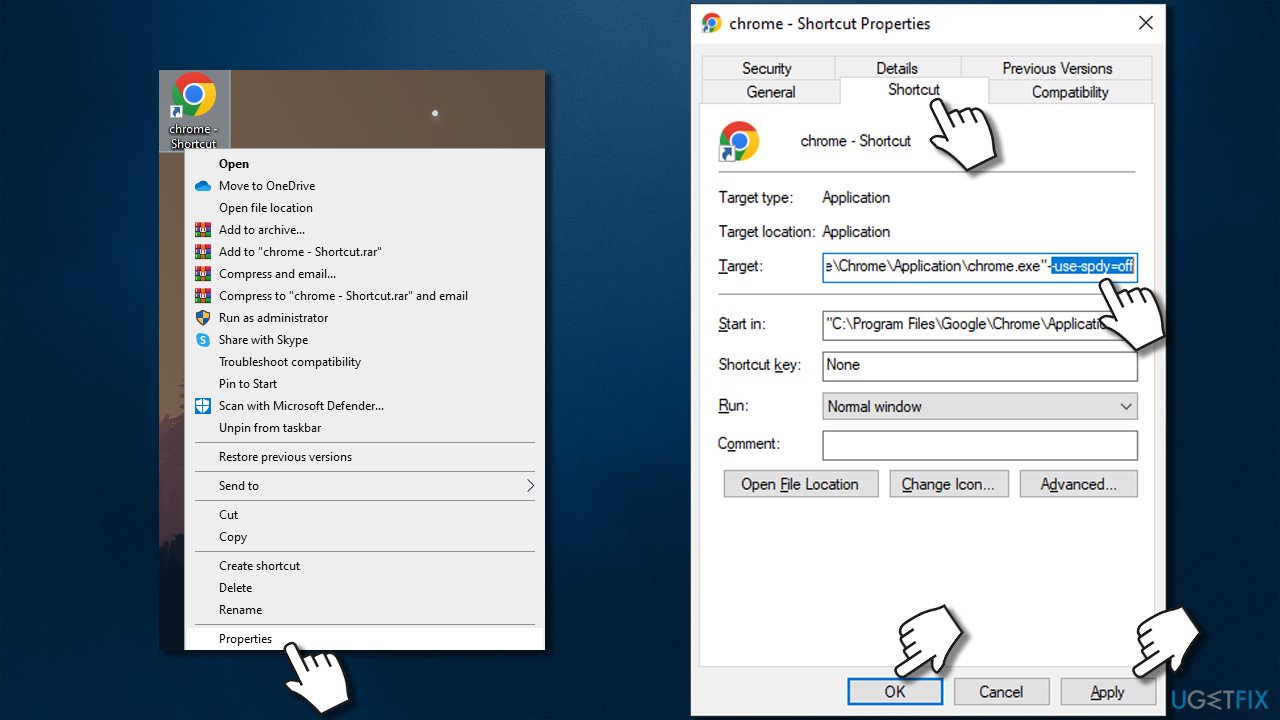
You can disable the HTTP/2 protocol and SPDY quite easily in Chrome. Here's how:
- Locate the Chrome shortcut icon, right-click it, and select Properties
- Go to the Shortcut tab
- In the Target box, type in one of the following lines:
--use-spdy=off
--disable-http2 - Click Apply and OK.
Fix 3. Alter Windows registry keys
The error commonly occurs on websites hosted on IIS 10.0, with the HTTP/2 protocol enabled. You can alter these settings via the Registry Editor as follows:
- Type regedit in Windows search and hit Enter
- When User Account Control shows up, click Yes
- Now navigate to the following location:
HKEY_LOCAL_MACHINE\System\CurrentControlSet\Services\HTTP\Parameters - Right-click anywhere on the empty space of the right pane and pick New > DWORD (32-bit) Value
- Name it EnableHttp2Tls and then double click it
- Make sure that the value is set to 0, then click OK or press Enter
- Create EnableHttp2Cleartext entry the same way, and make sure its value is set to 0 also.

Bottom line
To fix the ERR_SPDY_INADEQUATE_TRANSPORT_SECURITY error, you can start by updating your Google Chrome browser. Additionally, checking your system integrity with repair software may help resolve underlying issues. If none of these solutions work, consider contacting the website administrator for further assistance.
Frequently asked questions
This error typically occurs due to outdated security protocols or settings that are incompatible with the website's server. It can also be triggered by incorrect DNS configurations or network issues.
You can fix this error by updating your Chrome browser to the latest version and ensuring that your Windows network settings are correctly configured. Additionally, clearing your browser's cache and cookies may also help resolve the issue.
Yes, check that the 'Use a prediction service to load pages more quickly' option is enabled in Chrome settings, and consider disabling any security extensions that might interfere with the connection.




Report an issue
What's wrong with this guide? We review every report and update or remove content.
Report received — thank you. We'll review and fix it.
You need a free account to submit a report.
Be the first to comment