How to fix
System Image Backup error 0x80780119
on Windows
Resolve the System Image Backup error 0x80780119 in Windows 10 or 11 quickly and efficiently. Expert-tested solutions for lasting results.


What causes How to fix System Image Backup error 0x80780119 in Windows?
- Not enough free space in the System reserved partition
- Insufficient space for volume shadow copy creation
- Outdated drivers
- Too many language packs installed
- Issues with the USN Journal
Repairs Windows system files, removes malware, and restores a clean OS state — without reinstalling.
Hello. I tried to perform a System Image Backup on my Windows computer but I received a 0x80780119 error. Is there a way to fix this?
The system image[ref en-1] is a complete backup of everything on the computer's hard drive, so it saves everything, including Windows OS, system settings, executable files, installed programs, etc. However, recently some users encountered a System Image Backup error 0x80780119 in Windows. The full message reads as follows:
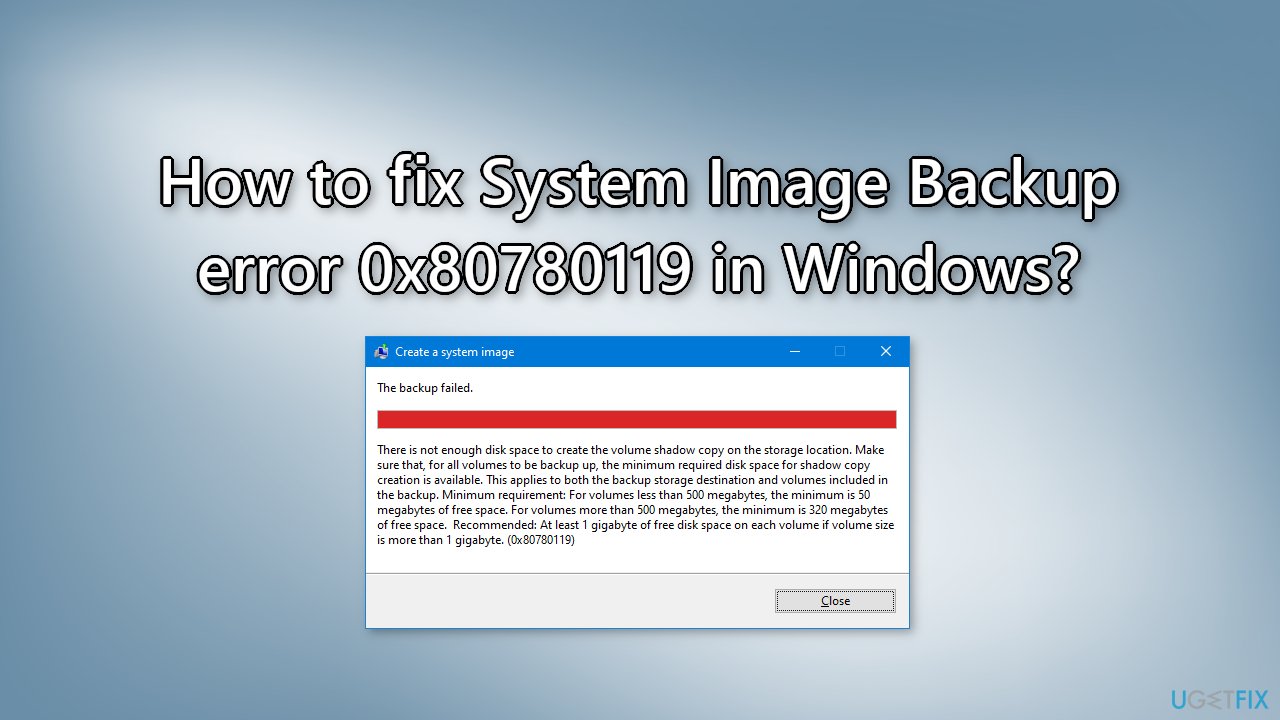
The backup failed.
There is not enough disk space to create the volume shadow copy on the storage location. Make sure that, for all volumes to be backup up, the minimum required disk space for shadow copy creation is available. This applies to both the backup storage destination and volumes included in the backup. Minimum requirement: For volumes less than 500 megabytes, the minimum is 50 megabytes of free space. For volumes more than 500 megabytes, the minimum is 320 megabytes of free space. Recommended: At least 1 gygabye of free disk space on each volume if volume size is more that 1 gigabyte. (0x80780119)
There are many reasons why the System Image Backup process may fail. First of all, there may be not enough free space in the System reserved partition. In that case, users have to expand the partition or create a new one. Another common issue is the USN Journal.[ref en-2] It keeps track of certain information regarding the partition. If there is not enough space - deleting it could solve the problem.
Other more simple reasons for the System Image Backup error 0x80780119 include outdated drivers or too many language packs installed on the system. In this guide, you will find 7 steps that should help you fix the error and allow you to backup your System Image
However, manual troubleshooting can be a lengthy process, so we recommend using a maintenance tool like [d1] to scan your machine. It can fix most system errors, BSODs,[ref en-3] corrupted files, and registry issues. Otherwise, follow the step-by-step instructions below.
Method 1. Update Drivers
- Click the Windows key + R to open the Run dialog box
- Type devmgmt.msc and click OK
- Locate your main storage device after expanding the Disk drives section
- Right-click your drive and choose the Update driver option
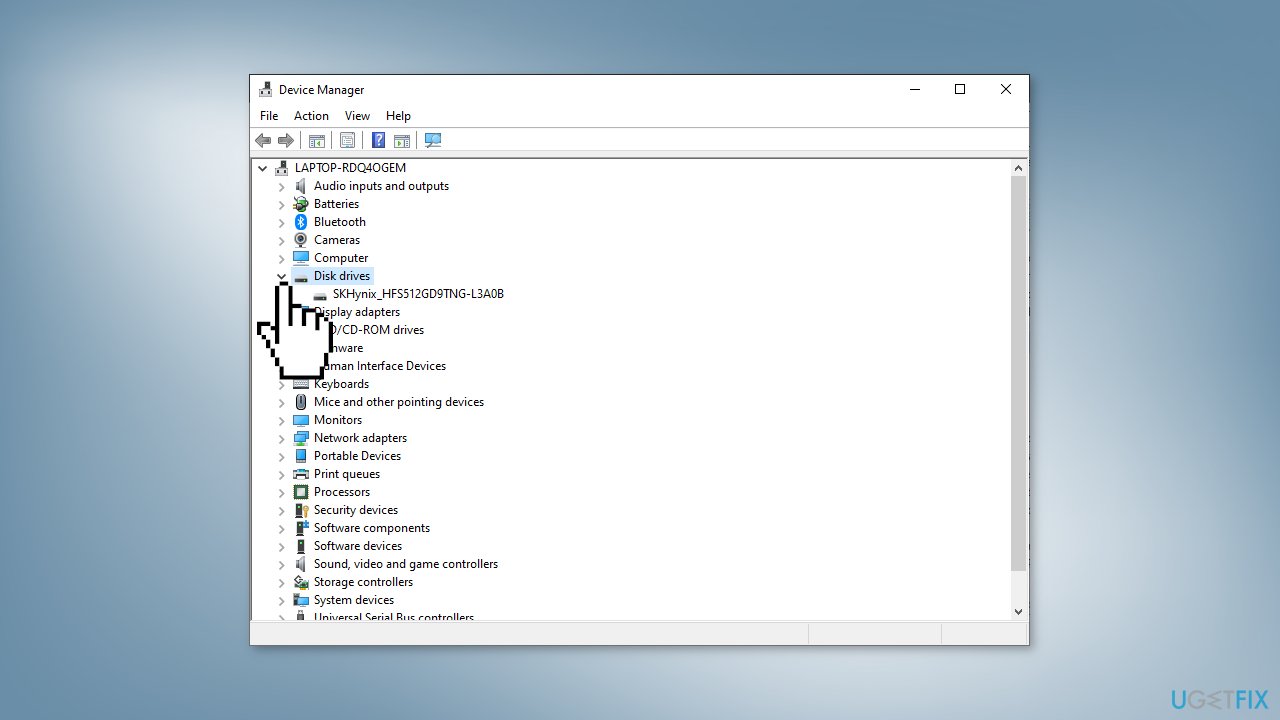
- Select Search automatically for updated driver software
- If a new driver is available, confirm that you want to install it and follow the instructions
- You can also use a dedicated utility like [rev id="DriverFix"] that can find the best drivers for your system and install them automatically
Method 2. Uninstall Language Packs
- Use the Windows key + I to open Settings
- Locate the Time & Language section
- Navigate to the Language tab
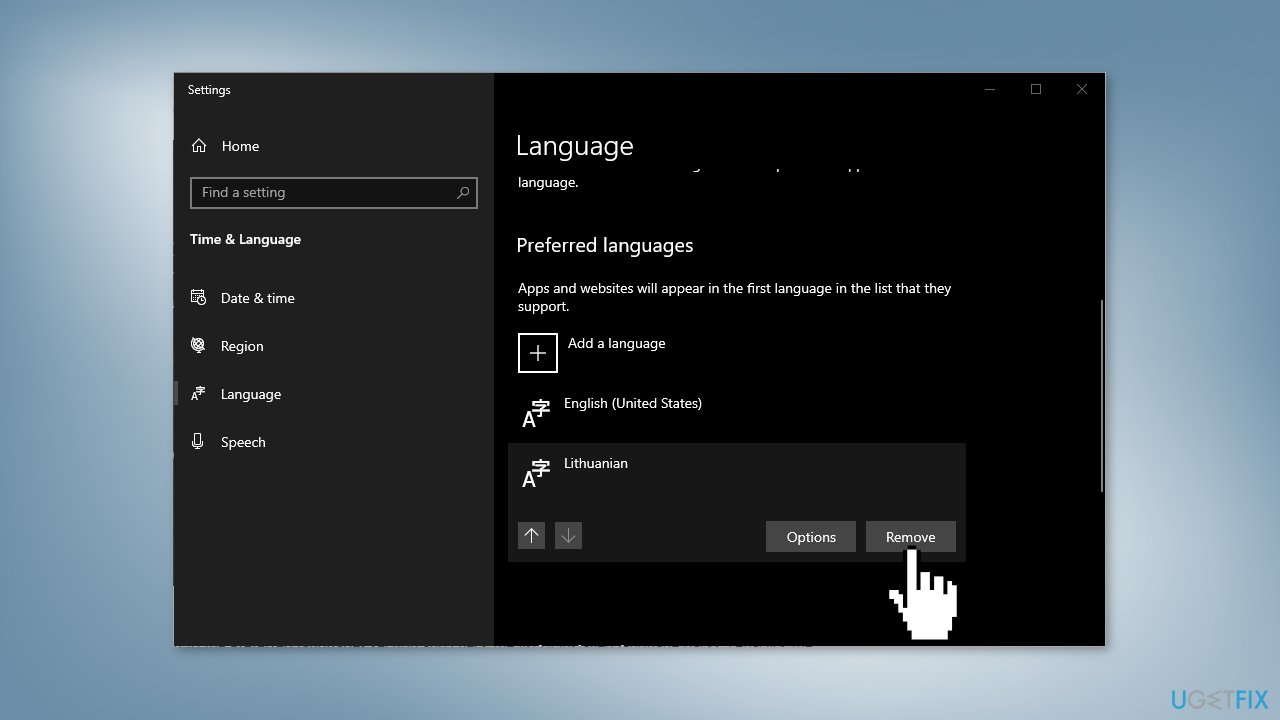
- Scroll down to the Preferred languages section and check the list of installed language packs
- Left-click the one you want to remove and click Remove
- Confirm any prompts which may appear
Method 3. Set up a Partition Correctly
- Use the Windows key + X to open a menu
- Choose the Disk Management option
- Left-click the System Reserved volume
- Right-click its entry and choose Properties from the context menu
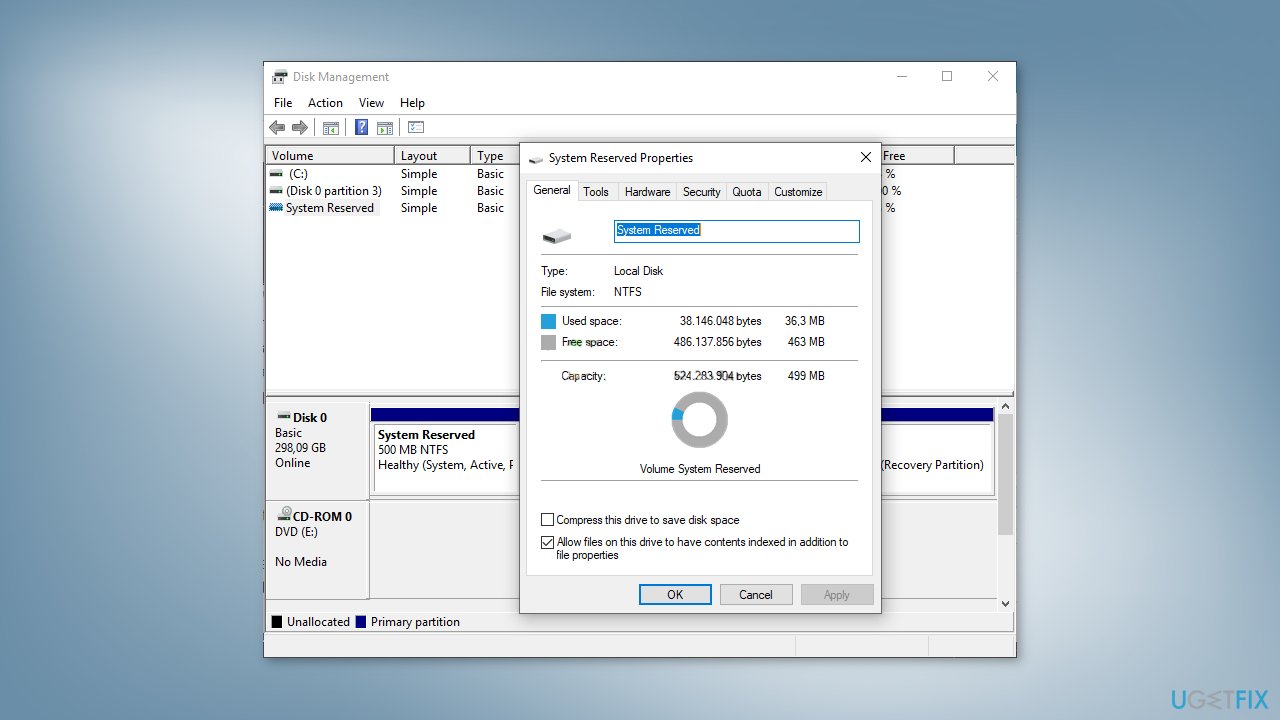
- The size of the System Reserved partition should be at least 100 MB
- Check the available free space and make sure it’s above 40 MB
It is impossible to extend the System Reserved partition, but you can use a workaround - create a new system volume.
- System volume can only be created on a primary partition of an MBR disk. We will use F: as an example
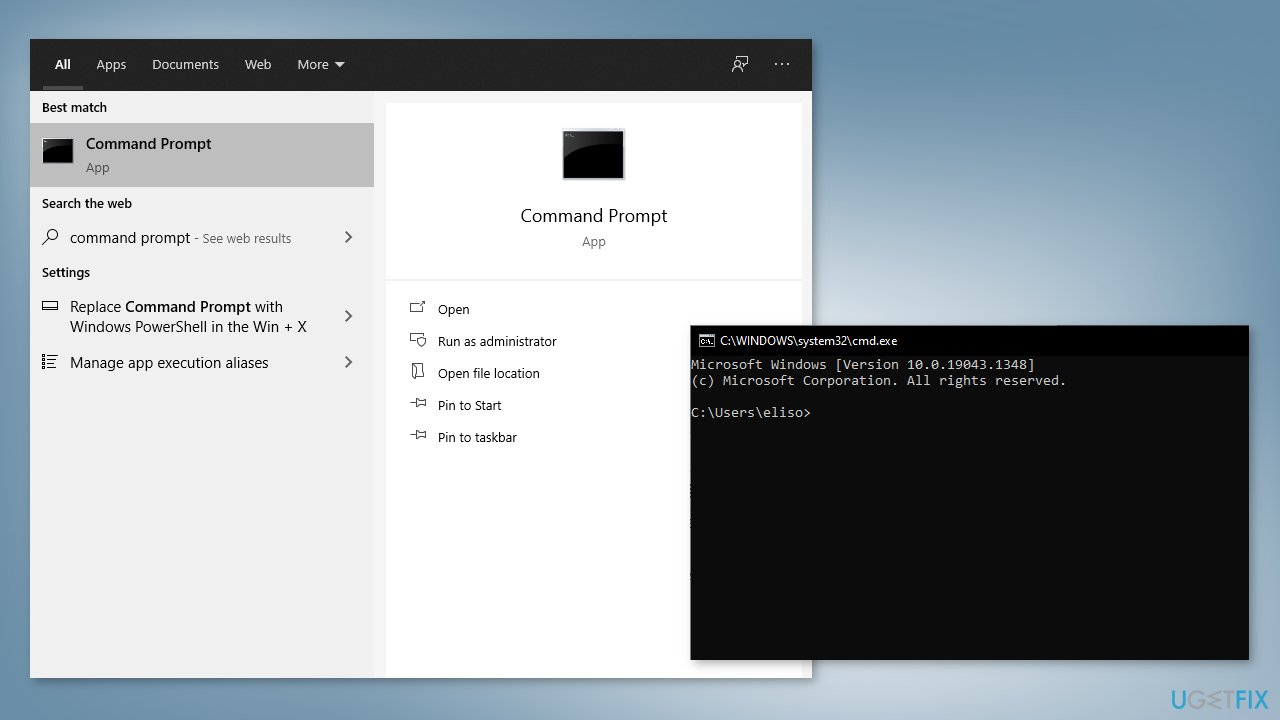
- Click the Start menu button and find the Command Prompt and choose Run as administrator
- The command below assumes that your Windows installation folder is C:\Windows. If it’s not, make sure you change it accordingly. If the F letter is occupied, use a different one.
- Type the command below and click Enter:
bcdboot.exe /s C:\Windows /s F:
- This should create a new F: volume
- Open DISKPART and make sure the F: volume is active
- Type the commands below and press Enter after each one:
DISKPART
DISKPART> select volume F
DISKPART> active
- Restart your computer and F: should become the system volume
Method 4. Set up Certain Parameters
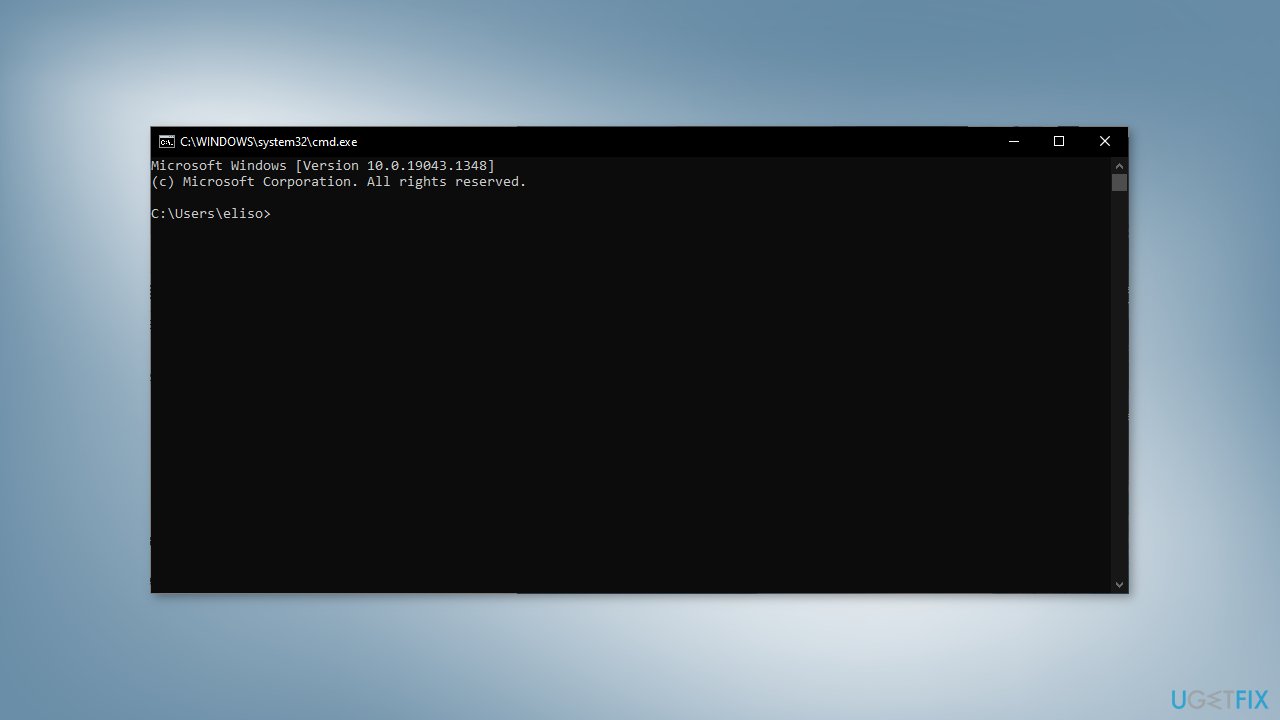
- Look for Command Prompt and choose Run as administrator
- Type the command below and press Enter:
winsat formal -v
- Close the Command Prompt and reboot your computer 3 times
Method 5. Delete the USN Journal
- Use the Windows key + X to open a menu
- Choose the Disk Management option
- Left-click the System Reserved volume
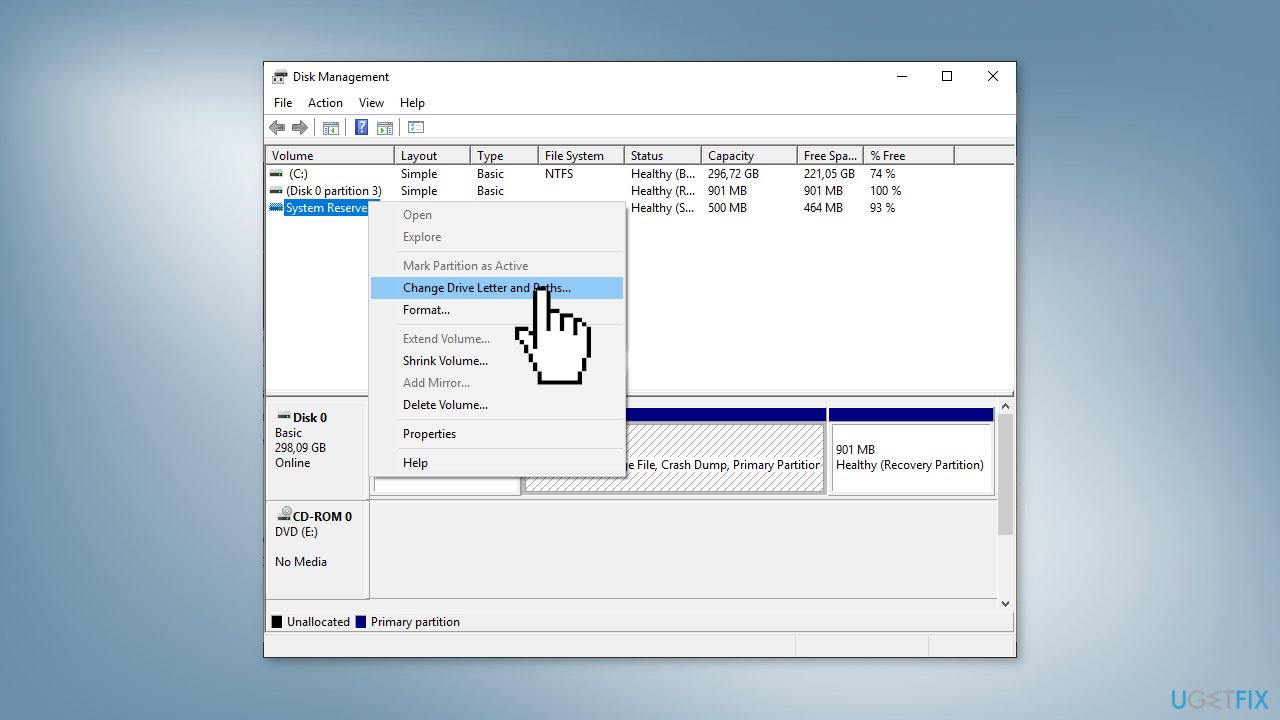
- Right-click its entry and choose Change Drive Letter and Paths
- Click the Add button and make sure the radio button is set to Assign the following drive letter
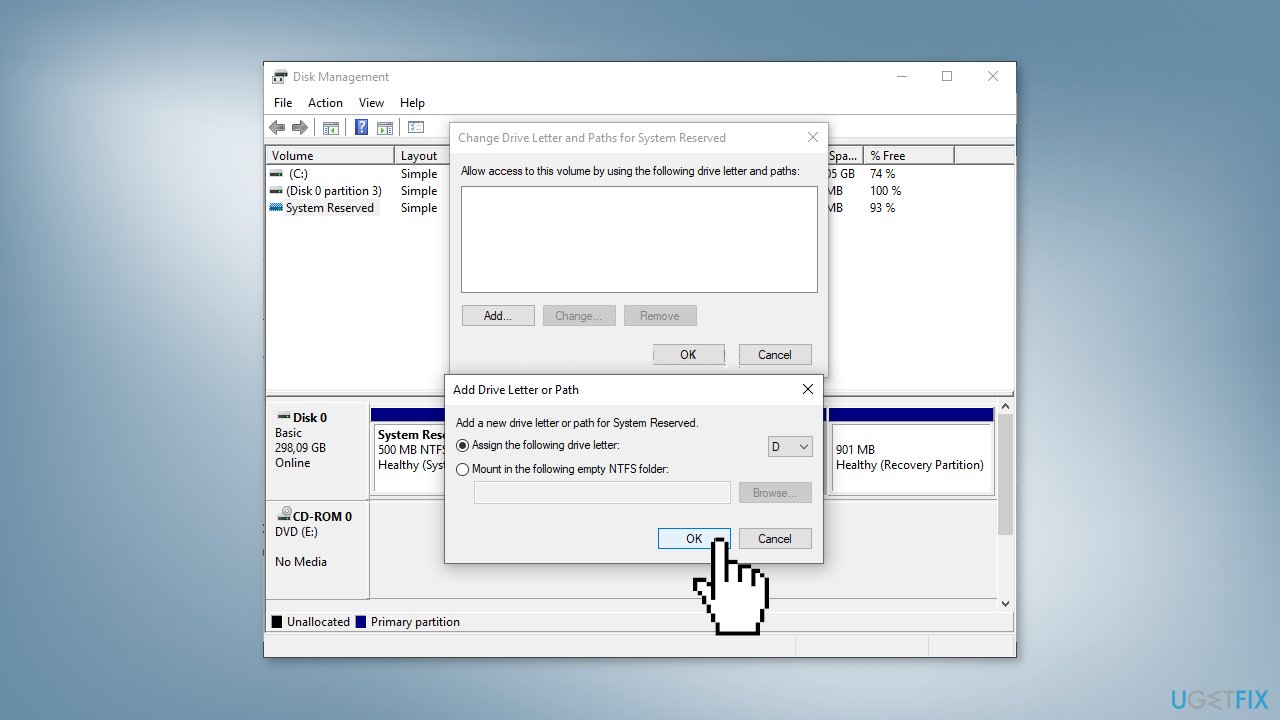
- Make sure the letter you’ve chosen hasn’t already been assigned to a different drive
- Click the OK button
- Click OK again to confirm your choice
- Open the Command Prompt as an Administrator
- Type the commands below and tap Enter after each one:
fsutil usn queryjournal F:
fsutil usn deletejournal /N /D F:
- This should free up space on your System Reserved partition and the 0x80780119 error should dissapear
Method 6. Increase the Size of the OEM Partition
- Use the Windows key + X to open a menu
- Choose the Disk Management option
- Left-click the System Reserved volume
- Right-click its entry and choose Extend Volume
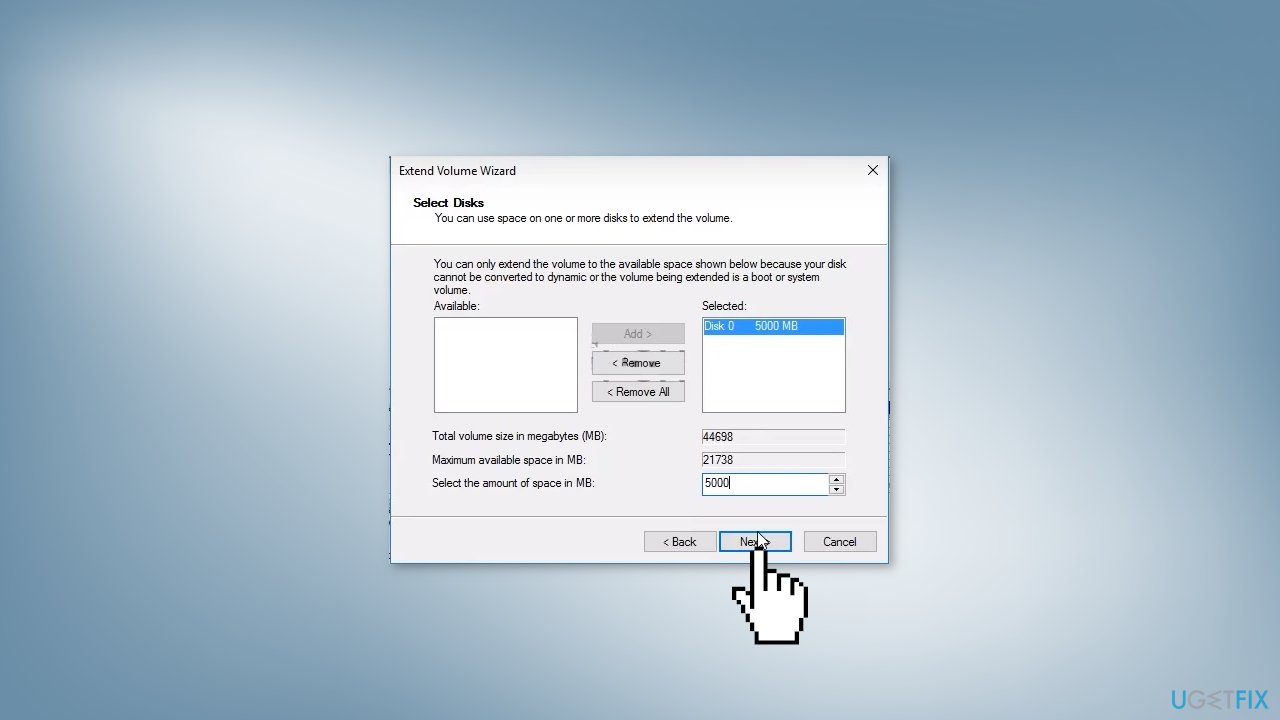
- Click Next. The drive you have chosen should be selected automatically
- Set the Select the amount of space in MB to your required value in order to expand the drive
- Check to see if the problem was fixed
Method 7. Enable System Protection for Your Drive
- In order to check if the system protection is disabled or not, open the Control Panel
- Click on System and then choose System protection settings
- Navigate to the System Protection tab and you will see the Protection Settings
- Check to see if the Protection option is switched to On for the drive you are using to create the system image
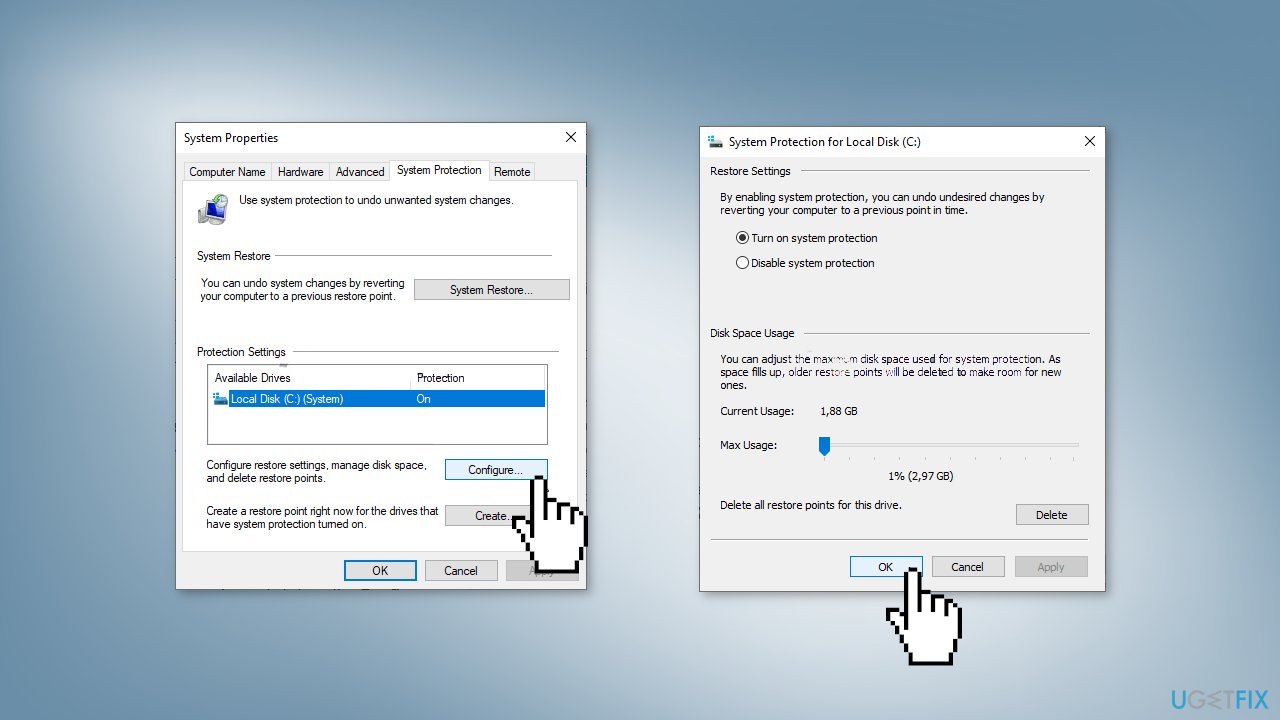
- If the option is set to off, select the drive you want to turn system protection on for and click on Configure
- Check under Restore Settings for the Turn on system protection button
- Make sure that this option is selected and click OK
Bottom line
To fix the System Image Backup error 0x80780119, you can update drivers, ensure there is enough free space on the System reserved partition, and manage language packs. If these solutions do not work, consider using a maintenance tool to scan your machine for additional issues.
Frequently asked questions
This error typically occurs due to issues with the backup drive or insufficient space on the destination drive for the backup files.
You can try freeing up space on the backup drive or changing the backup location to a different drive with sufficient space.
Yes, you can use the Disk Management tool in Windows 10 or Windows 11 to check if the backup drive is healthy and properly formatted.




Report an issue
What's wrong with this guide? We review every report and update or remove content.
Report received — thank you. We'll review and fix it.
You need a free account to submit a report.
Be the first to comment