How to fix
Netwtw10.sys Blue Screen
on Windows
Resolve the Netwtw10.sys Blue Screen error in Windows 10 or 11 with expert-tested solutions. Get your PC running smoothly in minutes!

What causes How to fix Netwtw10.sys Blue Screen in Windows?
- Driver corruption
- Outdated WiFi drivers
- Incompatible hardware
- Software conflicts
- Malware infection
Repairs Windows system files, removes malware, and restores a clean OS state — without reinstalling.
For the past few days, I keep receiving system crashes with the Netwtw10.sys Blue Screen of Death. This happens up to several times a day: the computer just stops responding, freezes, and then shows the Blue Screen. The issue is particularly damaging to me because it interrupts my work every time! Please, help me to fix this.
At some point, many users who regularly use Windows computers have come across the "Blue Screen of Death" error message. While it can be quite frustrating to deal with, it is actually an important safeguard that prevents further damage to the system that would otherwise occur.
Thus, at the time when a critical error occurs, all the actions are interrupted abruptly. At this point, a BSOD screen is shown, and an error code with "What failed" is displayed - Netwtw10.sys is one reason people may suffer from persistent crashes. Finally, the computer restarts, and that's where issues usually stop. However, it is not always the case.
Netwtw10.sys Blue Screen is one of many system crashes that users have to deal with constantly, as it returns all the time. People claim that it occurs quite frequently and does not go away, which can be particularly frustrating.
In order to find the solution for the problem, it is important to know what the referenced component is and what it means, as it will hint at fixes that should be applied. Netwtw10.sys is actually a reference to the WiFi drivers[ref en-2] from Intel, and it means you are using hardware from this company.
Drivers are critical components of any Windows operating system, and there are dozens of them installed at any given time. Without them, the hardware and software on the device would not be able to communicate. Whenever something goes wrong, issues can occur, and driver corruption or similar issues are among the most common reasons for BSODs.
Naturally, Netwtw10.sys mostly occurs on laptops that run Intel drivers, although desktop users may also experience the same issue. Regardless of which device you are using, you will find several solutions below.
Fix 1. Run a PC repair tool
There are hundreds of error codes that accompany every Blue Screen of Death crash. In fact, Netwtw10.sys can be associated with numerous error codes, including UNEXPECTED KERNEL MODE TRAP, SYSTEM THREAD EXCEPTION NOT HANDLED, and a few others. Thus, it may sometimes be difficult to determine where the issue actually lies.
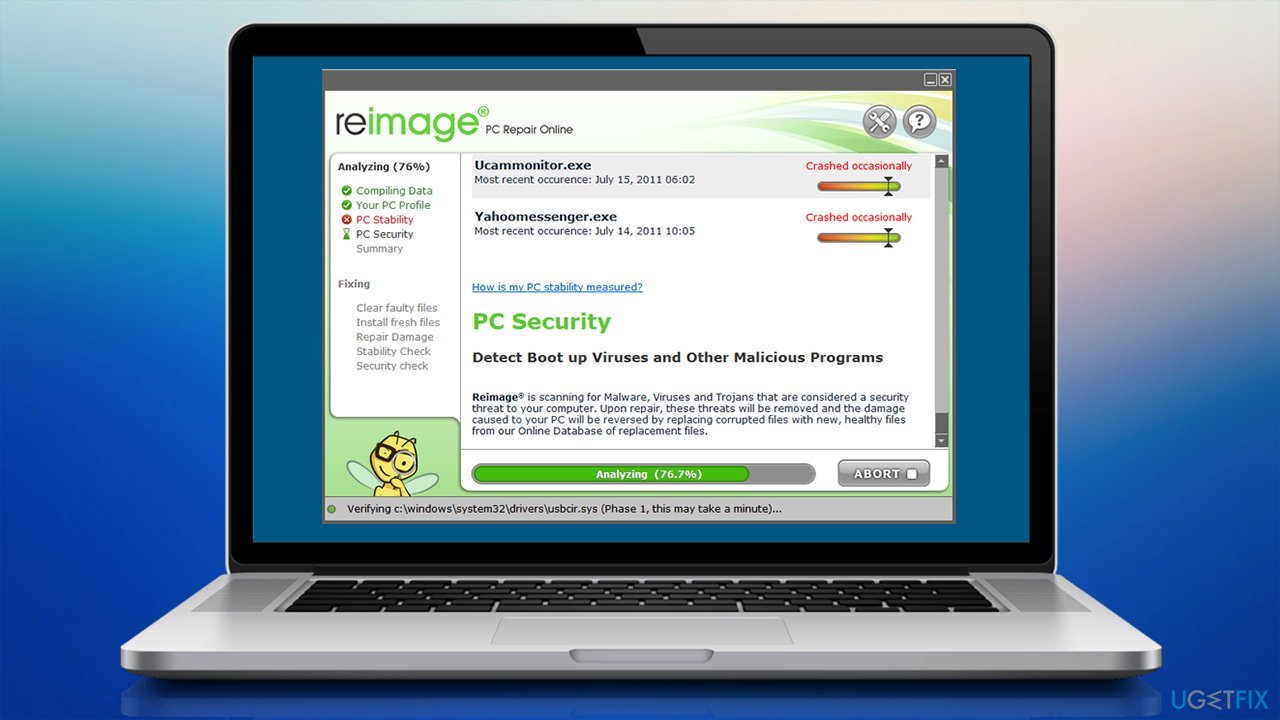
If you're experiencing issues with your PC, a repair and maintenance utility can be helpful in finding solutions. It can automatically search for solutions to the most common Windows errors, including BSODs, registry[ref en-3] errors, and other malfunctions. Additionally, the app can find and remove already installed malware from the system as well as fix any damage it may have caused.
- Download [d1].
- Click on the ReimageRepair.exe
- If User Account Control (UAC) shows up, select Yes
- Press Install and wait till the program finishes the installation process
- The analysis of your machine will begin immediately
- Once complete, check the results - they will be listed in the Summary
- You can now click on each of the issues and fix them manually
- If you see many problems that you find difficult to fix, we recommend you purchase the license and fix them automatically.
Fix 2. Roll back network driver
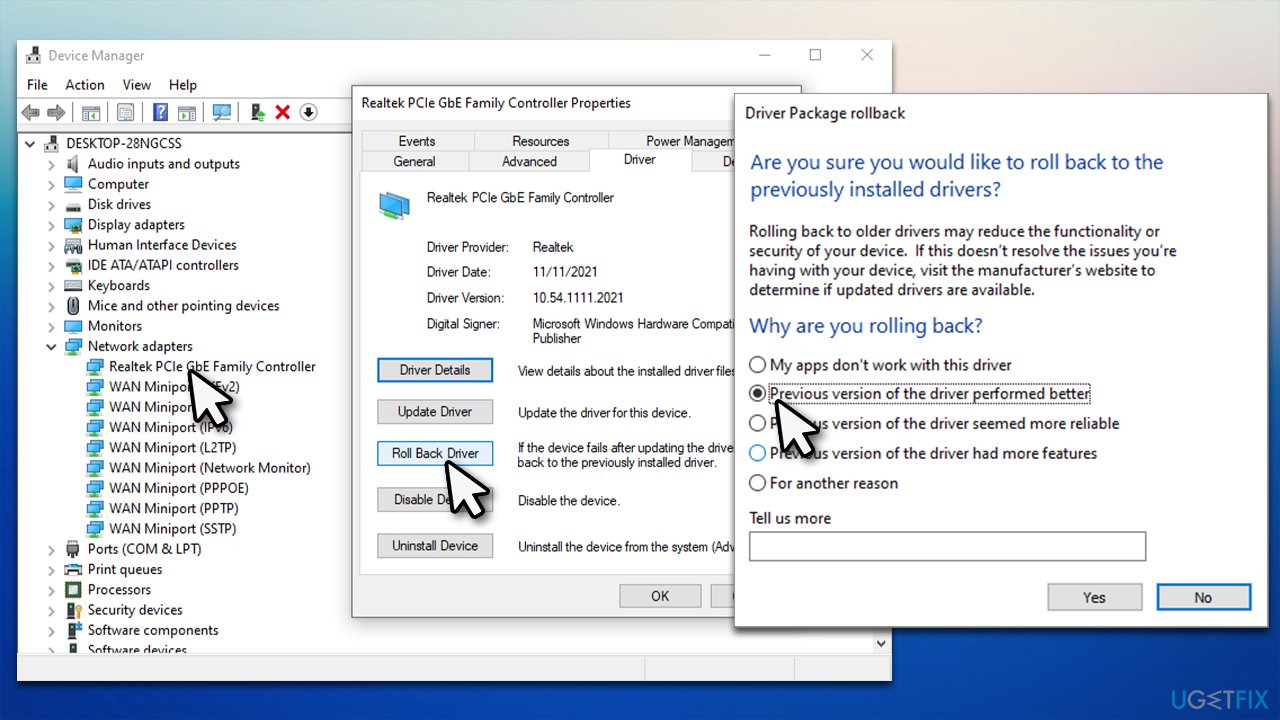
If problems started abruptly, it might be because you have installed the latest Windows updates that installed a buggy[ref en-1] driver. Usually, this happens when the device manufacturer releases an update that is not fully compatible with all machines using them. Therefore, you can try rolling back the driver and checking if that works.
- Right-click on Start and pick Device Manager
- Expand the Network adapters section
- Double-click the Intel network driver
- Go to the Driver tab and select the Roll back driver option
- Select the reason and then click Yes
- Restart your system.
Fix 3. Install the latest driver updates
Since the problem is the driver, you should ensure that updates for WiFi drivers are installed and running optimally. There are a few ways you could do this, and the simplest one would be by running an automatic driver updater such as [rev id="DriverFix"].
When it comes to manual driver updates, you can either run the Windows Update feature (which is not always reliable) or install the latest driver from Intel's official website. Remember that you need to know which driver you need to install and which network card you are using. Alternatively, use the Windows Update feature:
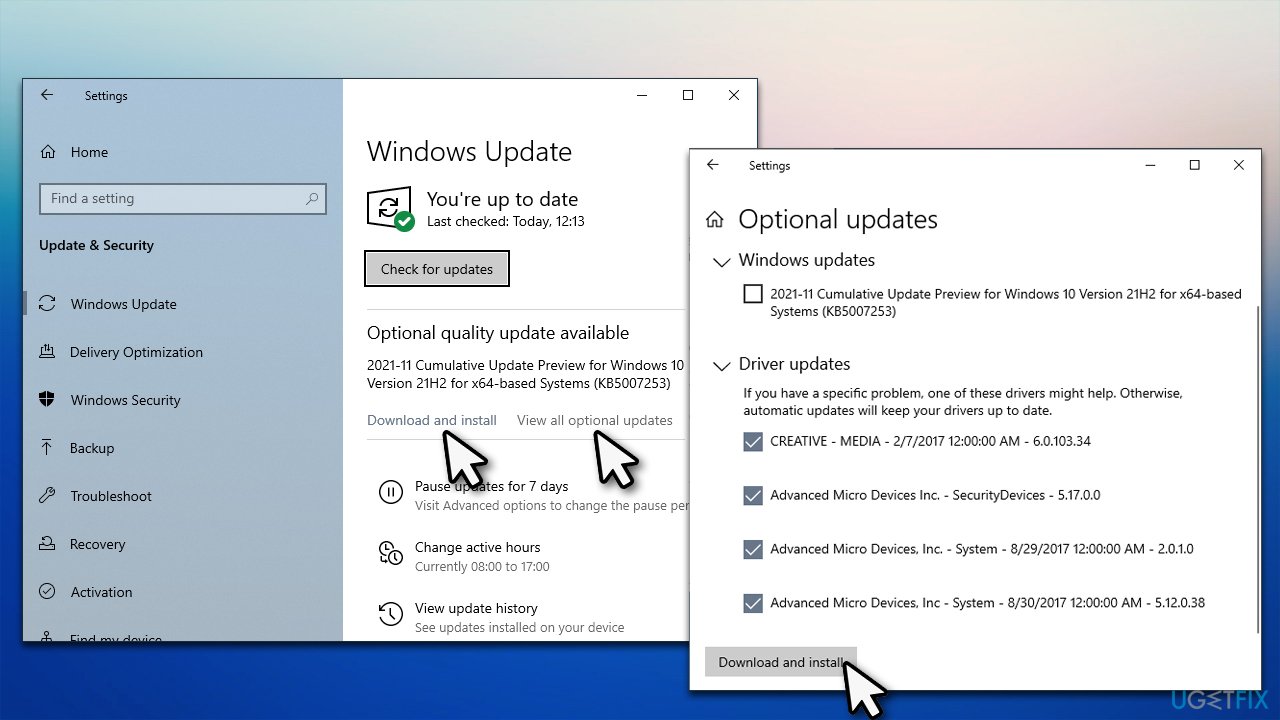
- Type Update in Windows search and hit Enter
- Click Check for updates
- Click View optional updates
- Find the Driver Updates section, tick the checkboxes, and click Download and Install
- Once done, reboot your system.
Fix 4. Check for damaged system files
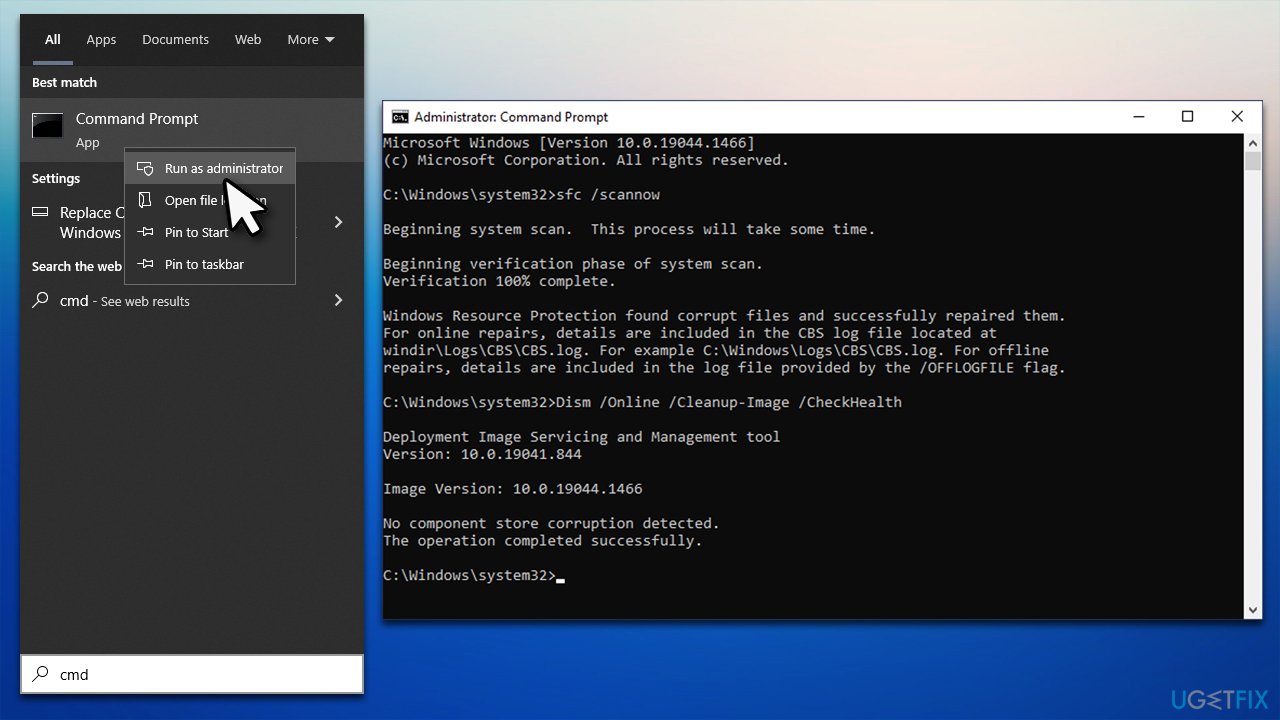
- Type cmd in Windows search
- Right-click on Command Prompt result and select Run as administrator
- Paste the following command into the new window:
sfc /scannow - Press Enter and wait till the scan is finished
- Once done, run this set of commands, pressing Enter after each:
DISM /Online /Cleanup-Image /CheckHealth
DISM /Online /Cleanup-Image /ScanHealth
DISM /Online /Cleanup-Image /RestoreHealth - Restart your system.
Fix 5. Use System Restore
You could try rolling back your computer to an earlier state if none of the above solutions helped.
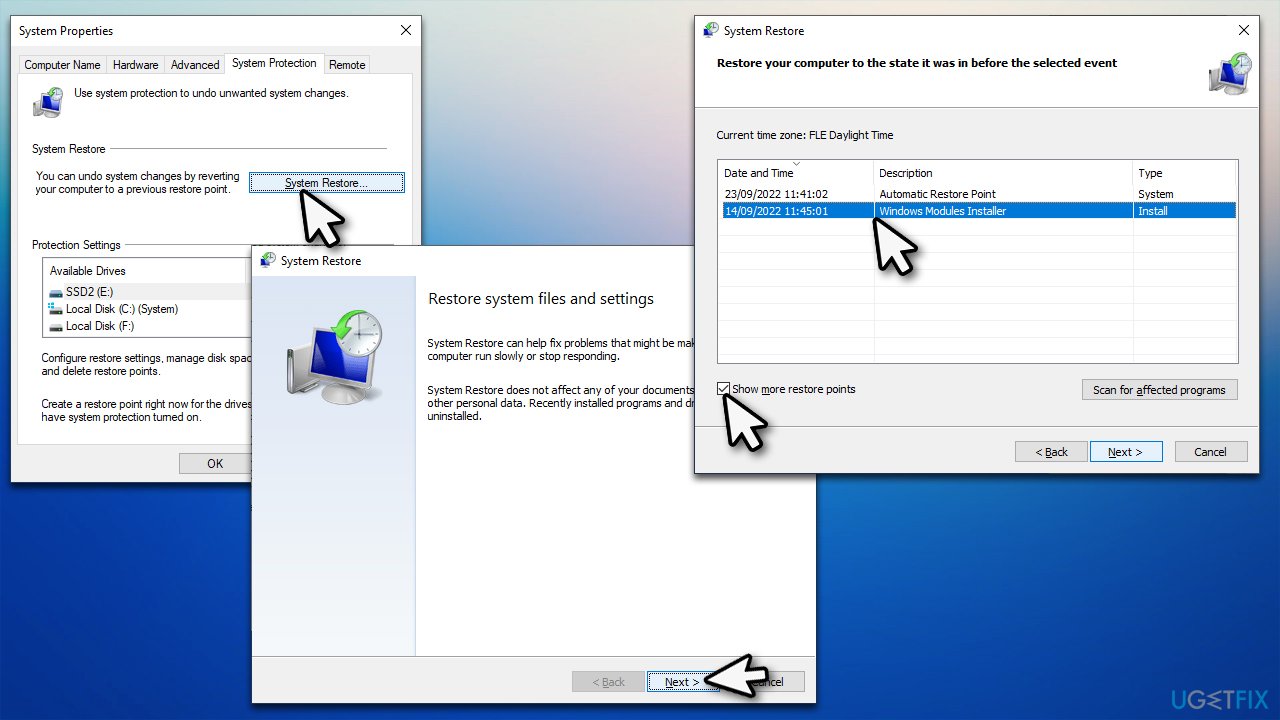
- Type in Create a restore point in Windows search and hit Enter
- Go to System Restore and click Next
- Mark the Show more restore points option
- Pick the time when the problem did not exist and click Next
- Finalize the process - your PC will restart.
Bottom line
To fix the Netwtw10.sys Blue Screen error, users should update their WiFi drivers, check for hardware compatibility, and scan for malware. If these solutions do not resolve the issue, consider seeking professional technical support.
Frequently asked questions
The Netwtw10.sys blue screen error is typically caused by outdated or corrupted network drivers, particularly for Intel wireless adapters. Updating or reinstalling these drivers can often resolve the issue.
In Windows 11, you can check for driver updates by going to Settings > Windows Update > Check for updates, or manually through Device Manager by right-clicking the network adapter and selecting 'Update driver'.
To prevent future occurrences of the Netwtw10.sys blue screen, ensure that your network drivers are regularly updated and consider disabling automatic driver updates if they lead to instability.




Report an issue
What's wrong with this guide? We review every report and update or remove content.
Report received — thank you. We'll review and fix it.
You need a free account to submit a report.
Be the first to comment