How to fix
Windows Defender error “This app is turned off by Group Policy?”
on Windows
Resolve the Windows Defender error "This app is turned off by Group Policy" effortlessly. Get expert-tested solutions to restore your security in minutes.

What causes How to fix Windows Defender error “This app is turned off by Group Policy?”?
- Windows Defender is turned off by Group Policy
- Another app is being used to check for malicious software
- The system is part of a domain with recently assigned policies
- Installation or removal of a third-party anti-virus/anti-malware
Repairs Windows system files, removes malware, and restores a clean OS state — without reinstalling.
I can’t turn on Windows Defender. I’ve noticed that it’s turned off a couple of days ago, but when I attempt to turn it on, I receive a pop-up alert “This app is turned off by Group Policy.” What should I do?
“This app is turned off by Group Policy” is a pop-up notification, which is specific to Windows 10. Older Windows versions may encounter this error as well, but only if the system is running Windows Defender anti-virus. As you probably already know, Windows 10 operating system is protected by default because it has an in-built anti-virus, Windows Defender, activated in the licensed Windows 10 OS version.
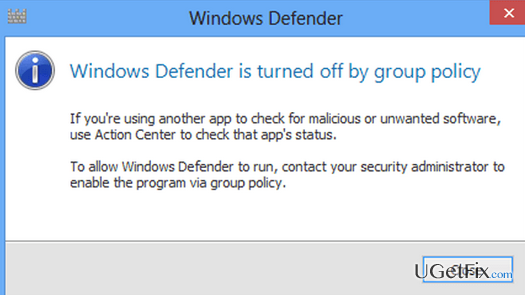
There are various diverse opinions concerning whether Windows Defender is capable of protecting the system in a proper way. Nevertheless, AV-TESTS revealed that it’s capable of catching more than 95% of cyber threats, including worms, Trojans, ransomware virus, PUPs, etc., which is not bad. Besides, it enables real-time protection and system scanning. Unfortunately, quite frequently people encounter Windows Defender bugs, one of which is “This app is turned off by Group Policy.” The full message reads as follows:
This app is turned off by Group Policy
If you’re using another app to check for malicious software or unwanted software, use Security and Maintenance to check that app’s status.
To allow this app to run, contact your security administrator to enable the program via group policy.
This bug may show up on the system if it’s a part of the domain, the policies of which have recently been assigned by the controller. “This app is turned off by Group Policy” pop-up on Windows 10 may be triggered by the installation/removal of a third-party anti-virus/anti-malware. In both instances, there is a fix, so don’t wait any longer and unblock Windows Defender via Group Policy right away.
How to fix Windows Defender error “This app is turned off by Group Policy?”
If your PC belongs to the domain, the only way to fix “This app is turned off by Group Policy” pop-up and unblock Windows Defender is to contact your administrator and ask him/her to enable Windows Defender via Group Policy. If you are the administrator of your machine, we would highly recommend you to uninstall a third-party anti-virus in the first place using [rev id="Perfect Uninstaller"] or another reliable software removal tool and then perform the following steps:
Method 1. Run Registry Editor
- Click Win key, type regedit, and press Enter.
- Using the left pane, navigate to the HKey_Local_Machine\Software\Policies\Microsoft\Windows Defender location.
- Find DisableAntiSpyware key and delete its value. For this purpose, you have to double-click on the REG –DWORD and set its value to 0.
Method 2. Modify Group Policy settings
- Log into your account as an administrator.
- Once done, type gpedit.msc, and press Enter.
- Click Local Computer Policy and select Administrative Templates.
- Then select Windows Components and open Windows Defender.
- Select Windows Defender and double-click Turn off Windows Defender option on the right pane.
- In the newly opened window, click Disable.
- Finally, click OK to save the changes.
After all, we would recommend you to scan the system with a professional optimizer, such as [d1]. It will ensure that there are not third-party software remnants, that there are no corrupted registry keys, damaged system files, malware, and similar problems that may be negatively influencing system’s performance.
Bottom line
To fix the error, contact your security administrator to enable Windows Defender via group policy. If you are not part of a domain, consider checking the status of any other security applications you have installed. If none of these solutions work, further troubleshooting may be required.
Frequently asked questions
This error indicates that a Group Policy setting has disabled Windows Defender, preventing it from functioning properly. You may need to change the Group Policy settings to re-enable Windows Defender.
To enable Windows Defender, open the Local Group Policy Editor, navigate to Computer Configuration > Administrative Templates > Windows Components > Microsoft Defender Antivirus, and set the 'Turn off Microsoft Defender Antivirus' option to 'Not Configured' or 'Disabled'.
Yes, altering Group Policy settings can impact the overall security and functionality of your system, so it’s essential to understand the implications before making changes.




Report an issue
What's wrong with this guide? We review every report and update or remove content.
Report received — thank you. We'll review and fix it.
You need a free account to submit a report.
Be the first to comment