How to fix
Intel Wireless AC 9560 not working (Code 10)
on Windows
Resolve Intel Wireless AC 9560 Code 10 issues on Windows 10 or 11 effortlessly. Get back online with expert-tested solutions and zero traces left!


What causes How to fix Intel Wireless AC 9560 not working (Code 10) in Windows?
- Corrupted system files
- Corrupted driver files
- Wireless adapter failure
- Driver not installed properly
- Temporary signal loss
Repairs Windows system files, removes malware, and restores a clean OS state — without reinstalling.
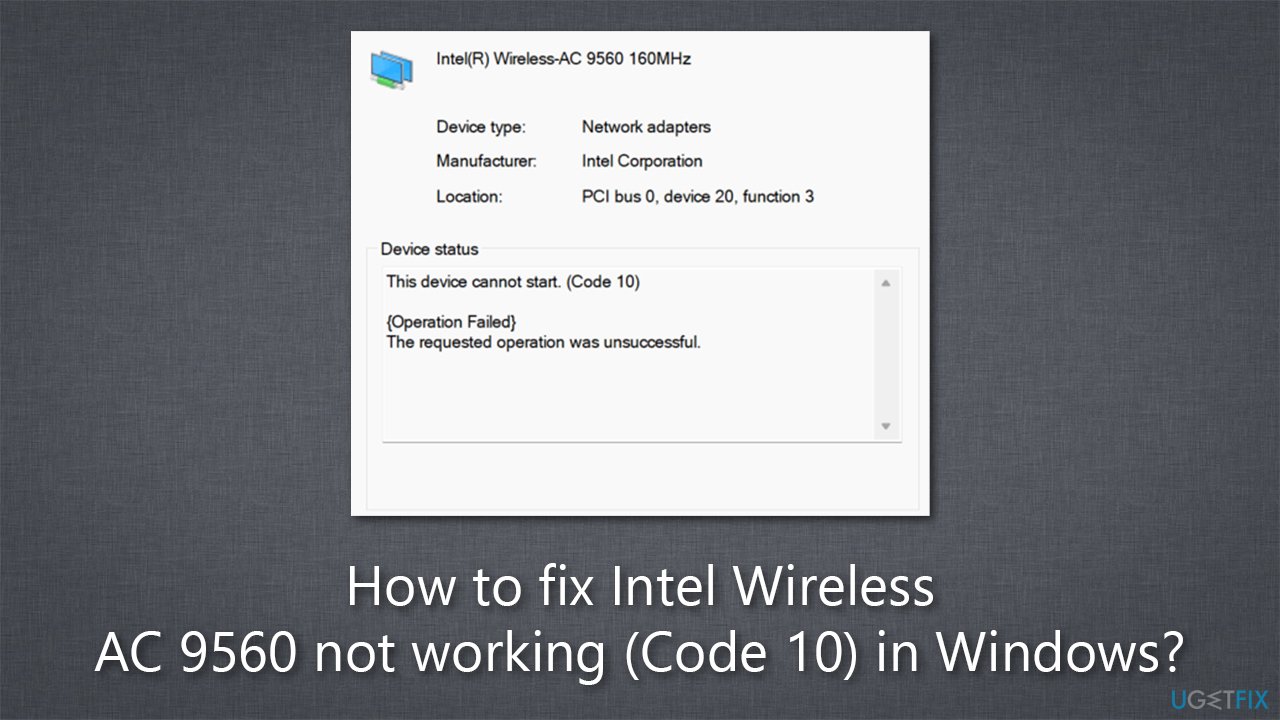
Hi, my WiFi connection is not working. I checked the Device Manager, trying to figure out what is going on, and in the Device Status section, it says, "This device cannot start. (Code 10)." I am using Intel Wireless-AC 9560 WiFi adapter, by the way.
There are two main methods of how users could connect their laptops or desktop computers to the internet - either by using an Ethernet[ref en-1] cable connected to a modem or a router or by employing a WiFi connection. For the latter method to work, a computer has to be equipped with a network adapter that would receive the signal from the router. The final step is making sure that drivers[ref en-2] for the network adapter are installed and working.
Many users have been reporting a problem with their Intel Wireless AC 9560 driver, which prevents them from using their WiFi. While some people said that the disappearance of a signal is only temporary, others claimed that they couldn't use WiFi at all due to this problem. Regardless of which instance one suffers from, both are annoying and should be fixed as soon as possible.
Most users find out that their Wireless driver is not working properly after accessing Device Manager and checking the properties of Intel Wireless AC 9560. In addition, under device status, they can see the message saying, "This device cannot start (Code 10)" and "Operation failed."
There could be plenty of reasons for Intel Wireless AC 9560 to stop working. For example, corrupted system files or those related to the driver could be one of the main reasons for this issue. In other cases, the wireless adaptor could even be failing - and there could be a myriad of other reasons as well.
To find out which case applies to you, you will have to perform several troubleshooting steps listed below. If you rather not waste time with manual solutions, we recommend running a scan with a PC repair tool [d1], as it can find corrupted system file sections and repair them automatically.
Fix 1. Run the troubleshooter
For the first solution, you should try running the built-in Windows troubleshooter.
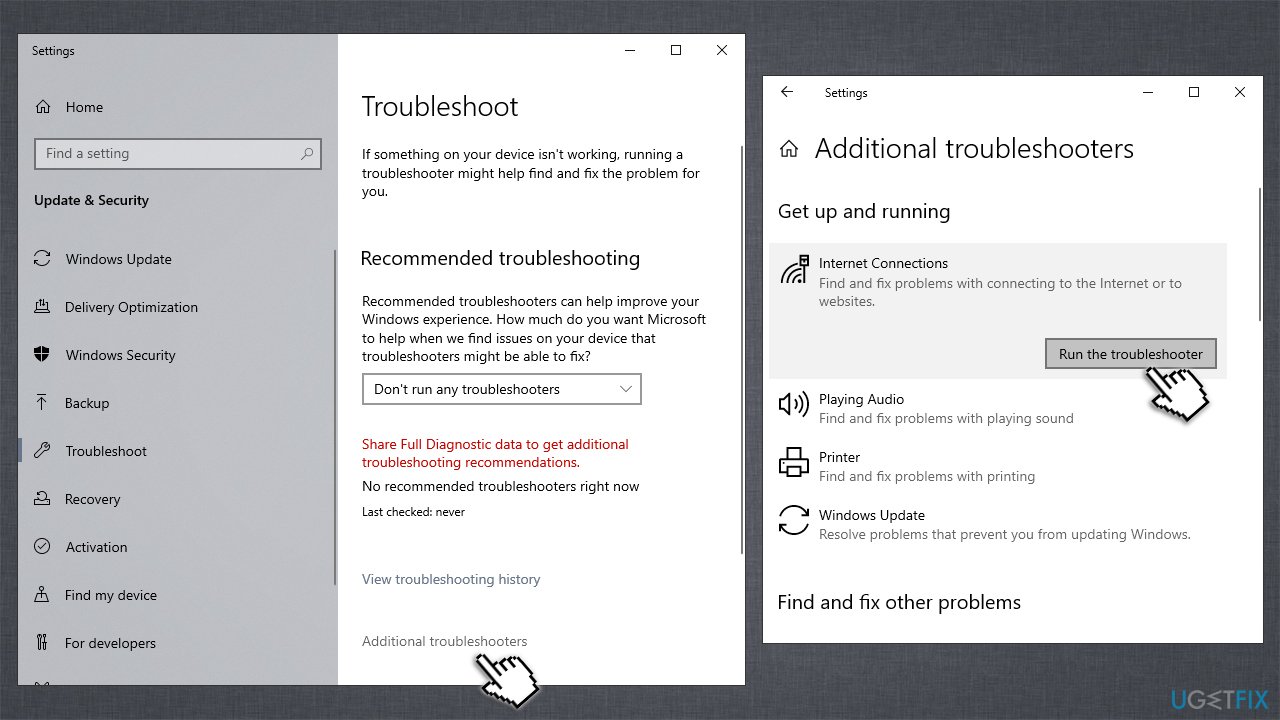
- Type Troubleshoot in Windows search and hit Enter on your keyboard
- Select Additional troubleshooters (or Other trouble-shooters in Windows 11)
- Find the Internet connections section and click Run the troubleshooter
- Wait until the scan finishes, apply the suggested fixes, and restart your device.
Fix 2. Update driver
Note: all solutions for drivers should also apply to Bluetooth drivers if such is installed on your system.
If the driver is malfunctioning, you should update. If you can't connect to the WiFi, use an ethernet cable. You can download the newest driver version from the official Intel website or use automatic solutions, such as [rev id="DriverFix"] or run a Windows update process:
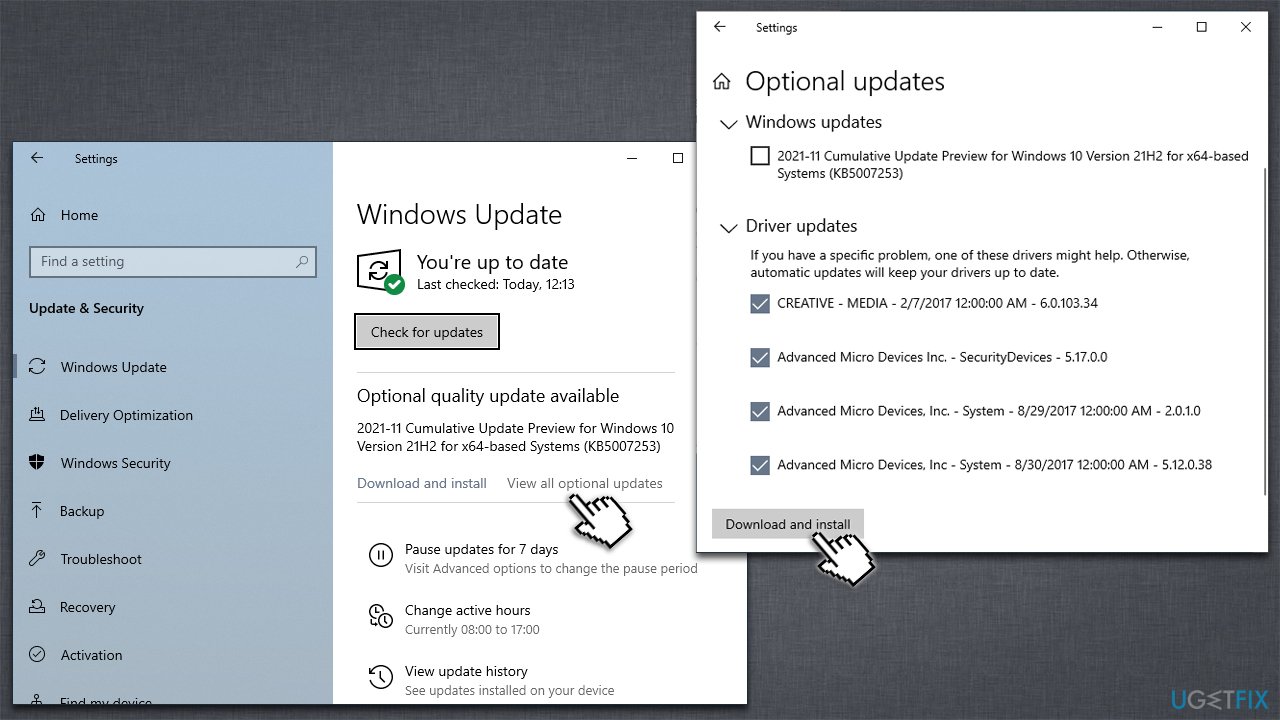
- Type Update in Windows search and hit Enter
- Click Check for updates
- Click View optional updates
- Find the Driver Updates section, tick the checkboxes, and click Download and Install
- Restart your PC.
Fix 3. Roll back driver
If you have the latest driver already installed on your system, you can try rolling it back to a previous version.
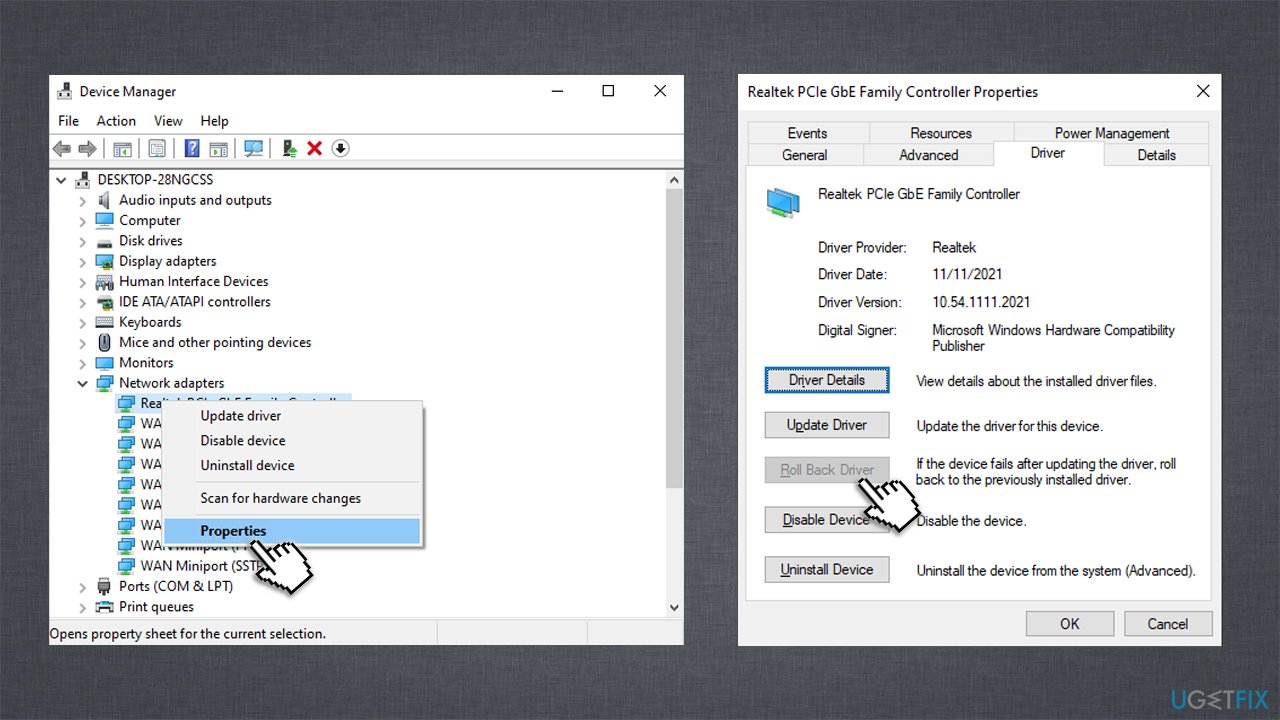
- Right-click on Start and pick Device Manager
- Expand the Network adapters section
- Right-click Intel Wireless AC 9560 driver and select Properties
- Go to the Driver tab
- Here, select the Roll Back Driver option
- Select the reason and click Yes.
Fix 4. Reinstall driver
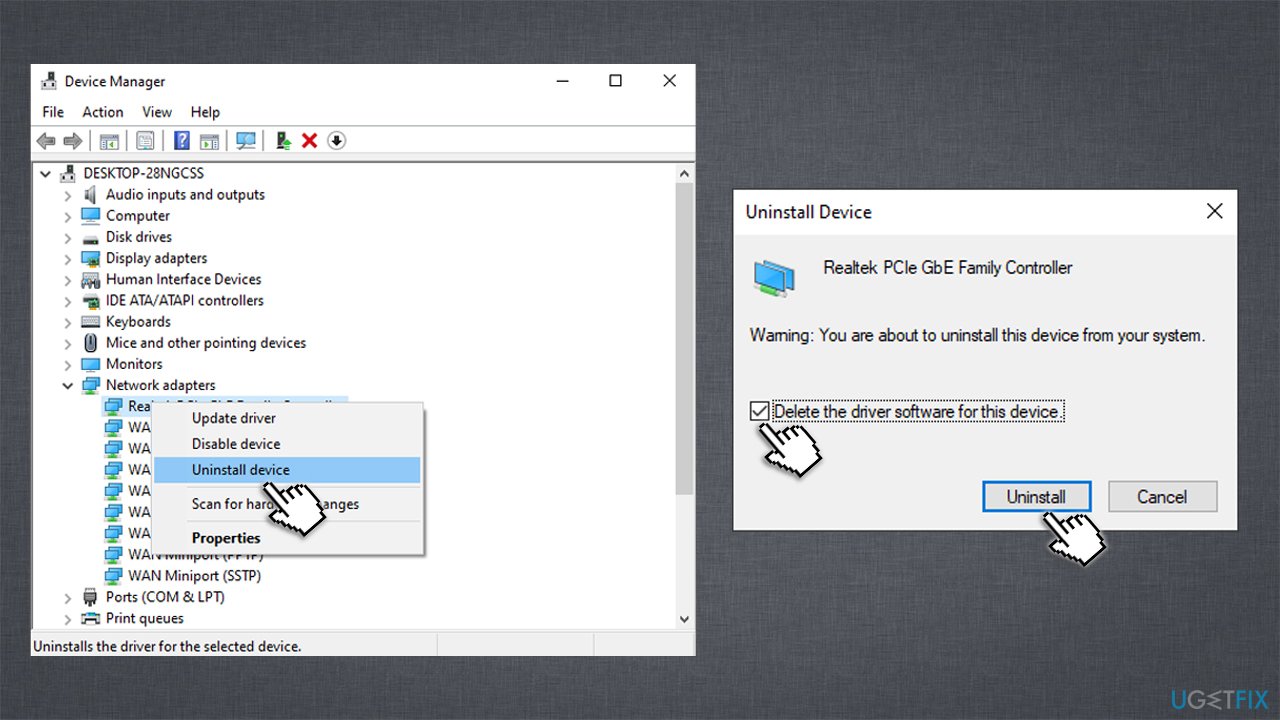
You can finally try reinstalling the driver altogether. Note
- Open Device Manager and expand the Network adapters section
- Right-click on the driver and select Uninstall device
- Mark the Delete the driver software for this device option
- Click Uninstall once again and follow the on-screen instructions
- Restart your system and then use one of the methods above to install the newest driver on your computer.
Fix 5. Reset your internet connection
In some cases, the device may not be able to start because there are issues with the connection itself. Therefore, you could try resetting it as follows:
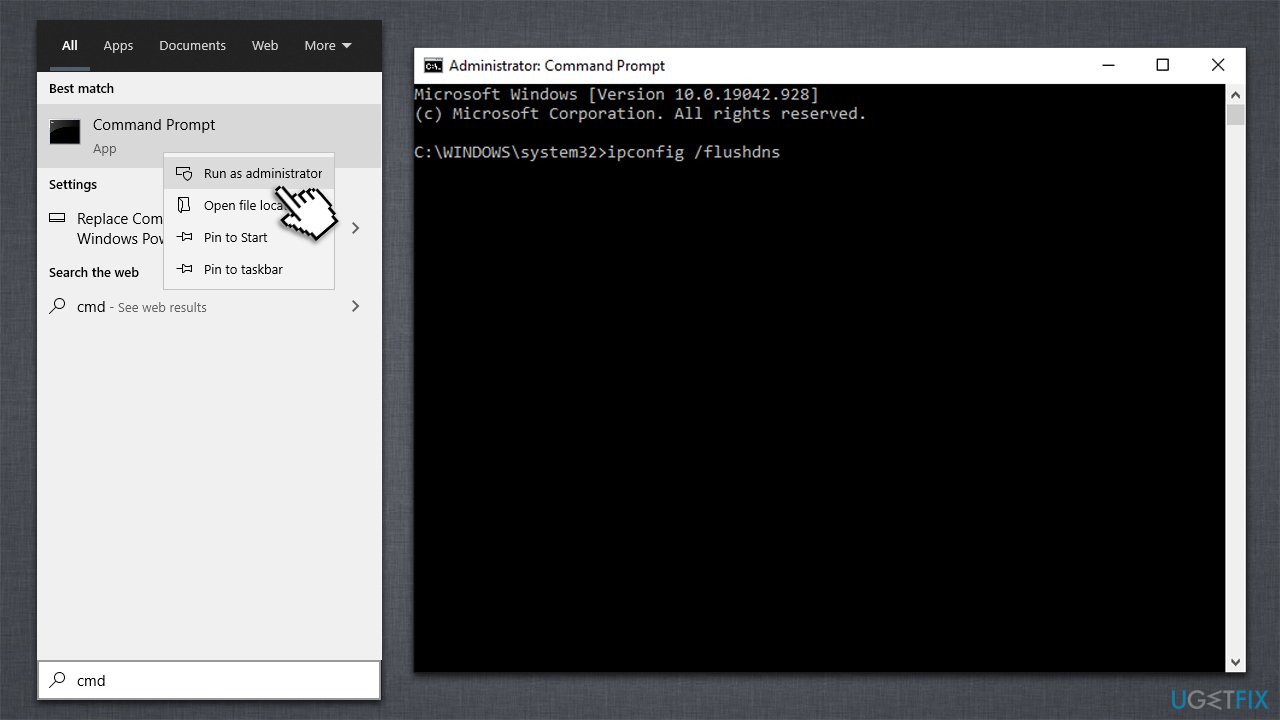
- Type cmd in Windows search
- Right-click on Command Prompt result and pick Run as administrator
- When User Account Control window shows up, click Yes
- In the new window, copy and paste the following commands, pressing Enter after each:
ipconfig /flushdns
ipconfig /registerdns
ipconfig /release
ipconfig /renew
netsh winsock reset - Wait for each of the commands to be executed
- Close down Command Prompt.
Fix 6. Set WLAN Autoconfig service to automatic startup type
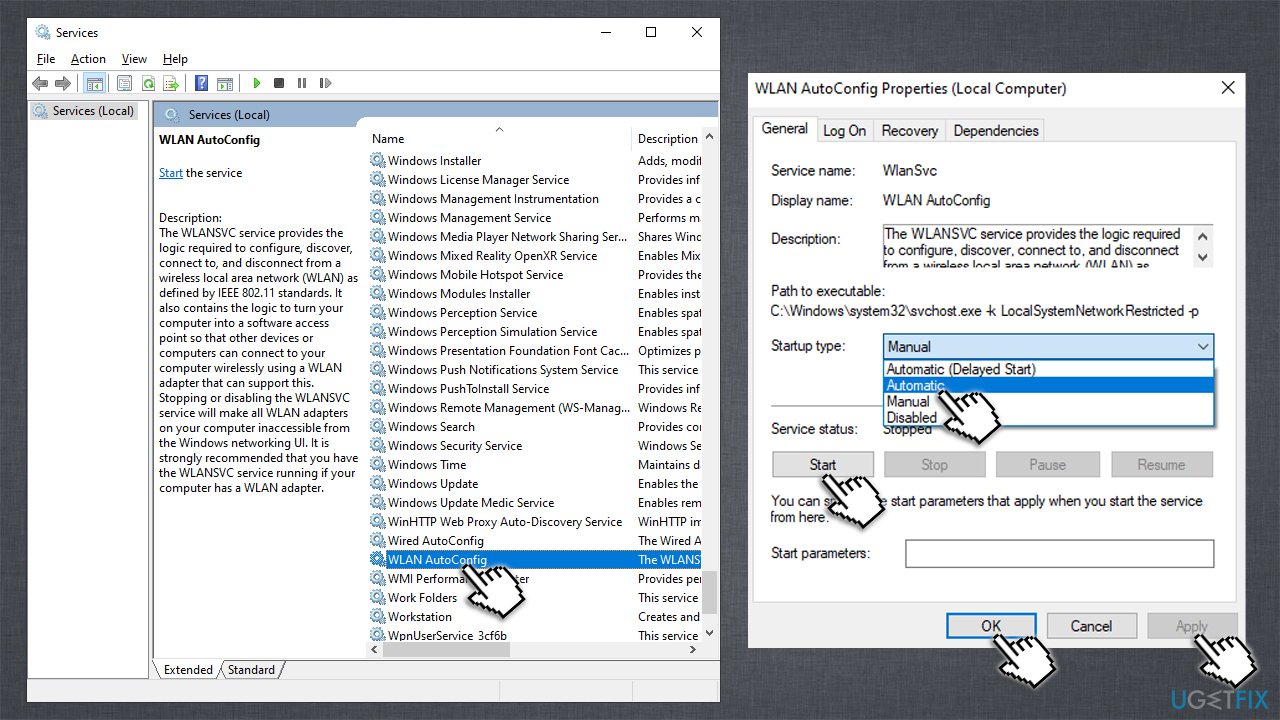
- Type Services in Windows search and press Enter
- Scroll down till you find WLAN Autoconfig, and double-click it
- Under the Startup type, select Automatic from the drop-down menu
- Click Start, Apply, and OK
- Reboot your device.
Fix 7. Change Power Management settings
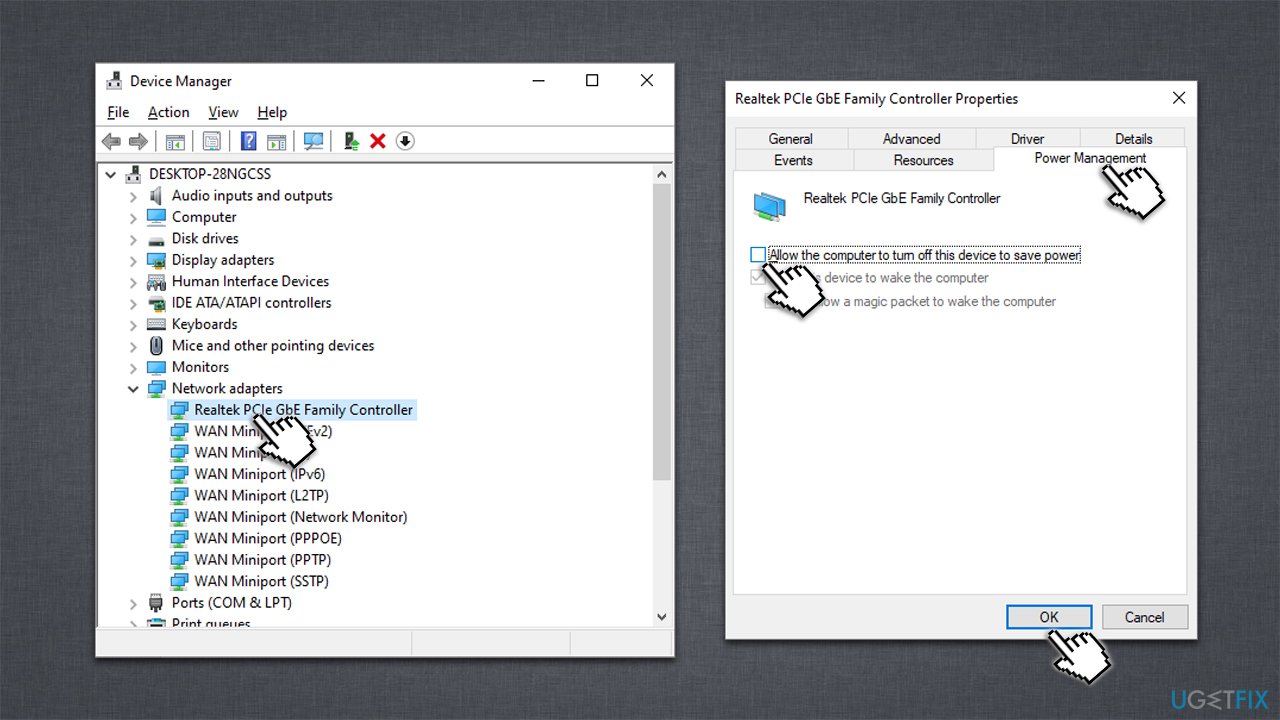
- Open Device Manager once again
- Expand Network Adapters and double-click on Intel Wireless AC 9560
- Go to the Power Management tab
- Untick the Allow the computer to turn off this device to save power option
- Click OK.
Other solutions
There are a few other things you could try if you haven't yet:
- Restart your PC: hold the Power button until it shuts down, wait 30 seconds and boot it back up
- Reset your router or modem
- Ensure that your WiFi is enabled on a laptop - use Fn + F5 (could be another combination depending on the model)
- Uninstall or temporarily disable third-party antivirus, VPN, Firewall,[ref en-3] or other software that could interfere with your network connection.
- Reinstall Windows.
Bottom line
To fix the Intel Wireless AC 9560 not working (Code 10) issue, users can perform troubleshooting steps such as checking the device status in Device Manager, reinstalling the driver, or running a scan with a PC repair tool. If these solutions do not resolve the problem, further investigation into hardware issues may be necessary.
Frequently asked questions
Code 10 error indicates that the device cannot start, often due to driver issues or conflicts within the operating system.
You can update the driver by going to Device Manager, right-clicking on the Intel Wireless AC 9560, selecting 'Update driver', and then following the prompts to search automatically for updated driver software.
If reinstalling the driver doesn't solve the issue, try resetting the network settings in Windows 10 or Windows 11 by navigating to Settings > Network & Internet > Status > Network reset.




Report an issue
What's wrong with this guide? We review every report and update or remove content.
Report received — thank you. We'll review and fix it.
You need a free account to submit a report.
Be the first to comment