How to fix
Windows 11 won’t shut down after upgrade
on Windows
Discover effective solutions for fixing Windows 11 shut down issues after an upgrade. Get your PC running smoothly again with expert-tested tips!

What causes How to fix Windows 11 won’t shut down after upgrade?
- Display driver issues
- Corrupted system files
- Improper shutdown settings
- Incompatible software after upgrade
- Power management settings
Repairs Windows system files, removes malware, and restores a clean OS state — without reinstalling.
Hello. I recently upgraded my laptop from Windows 10 to Windows 11. Since I upgraded, my laptop does not shut down or hibernate, it goes into sleep mode instead. What should I do?
Windows 11 is the newest operating system version from Microsoft released at the end of 2021. It came out with a new user interface, design, and features. However, many people have been running into various bugs. We previously wrote about Windows 11 issues such as Security Dashboard won't open, headphone jack not recognized, stuck in Dark Mode, etc.
Some users have run into an issue that prevents their Windows 11 devices from shutting down or hibernating. Every time people try to turn their laptop or computer off, it goes into Sleep mode instead. Most people report that this issue appeared after upgrading from Windows 10 to Windows 11. Some suggest that the problem is somehow related to the display drivers.[ref en-1]
In this guide, you will find 9 steps that should help you fix Windows 11 won't shut down after upgrade. Keep in mind that the manual troubleshooting process can be lengthy. You can use a maintenance tool like [d1] that can fix most system errors, BSODs,[ref en-2] corrupted files, and registry[ref en-3] issues. Otherwise, follow the step-by-step instructions below.
Method 1. Roll back the Display Driver
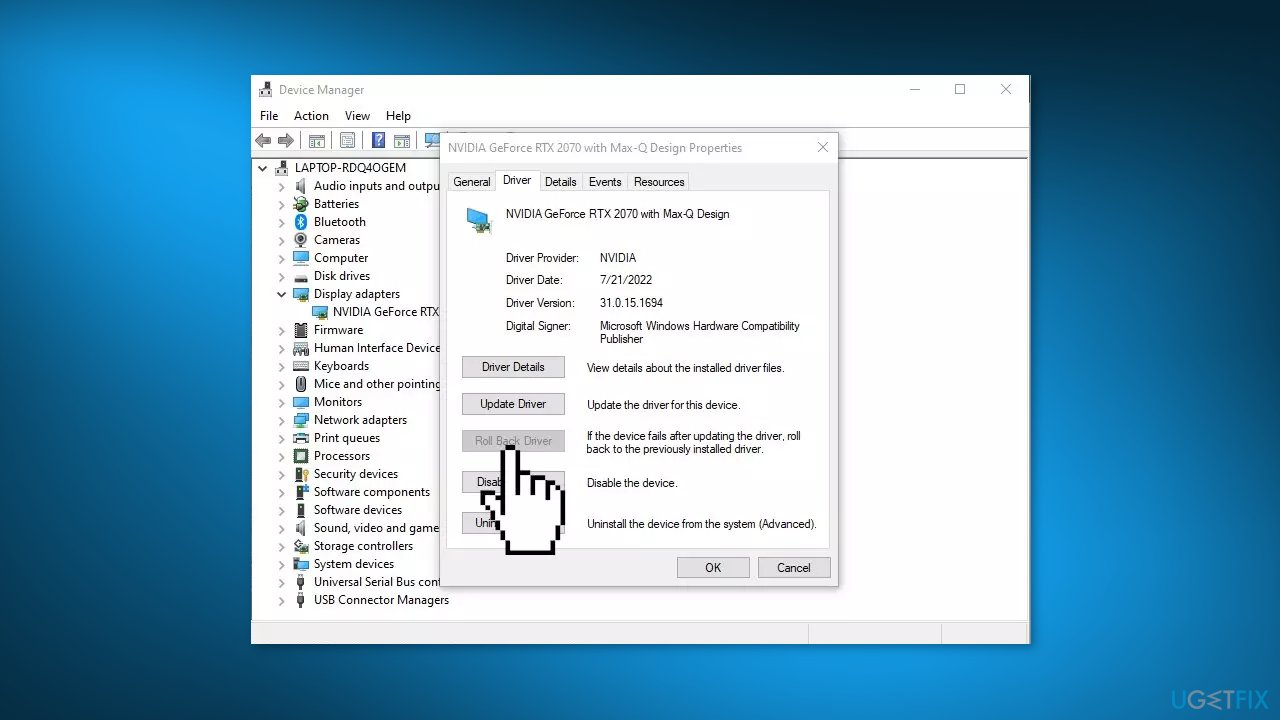
- Open Device Manager and expand the Display Adapters tab
- Right-click on your graphics driver and select Properties
- Go to the Driver tab and click on Roll Back Driver
- Follow the on-screen prompts to finish the process
- Restart your computer
Method 2. Reinstall the Display Driver
- Open Device Manager and expand the Display Adapters tab
- Right-click on your graphics driver and select Uninstall device
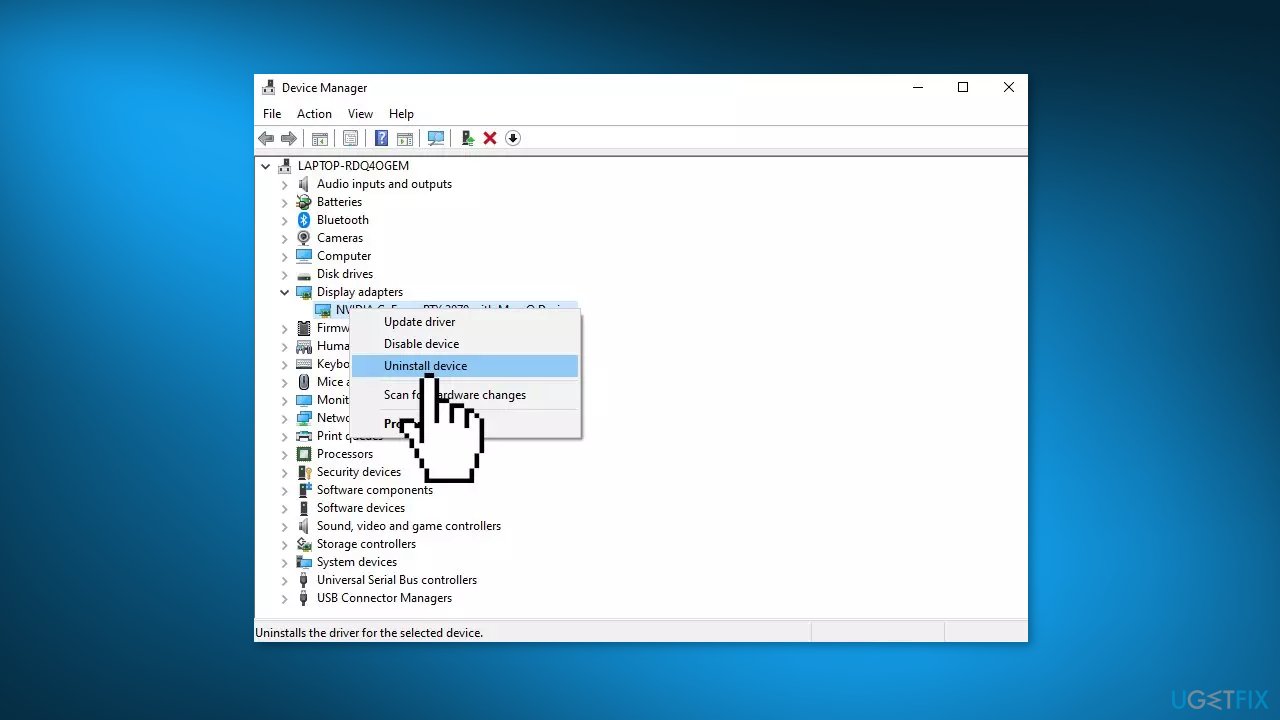
- Click Uninstall again in the second window and wait for the process to finish
- Restart your computer
- You can also download the driver from the manufacturer's website or for an easier process, you can use a dedicated utility like [rev id="DriverFix"] that can find the best drivers for your machine and install them automatically
Method 3. Fix Corrupted System Files
Use Command Prompt commands to repair system file corruption:
- Open Command Prompt as administrator
- Use the following command and press Enter:
sfc /scannow
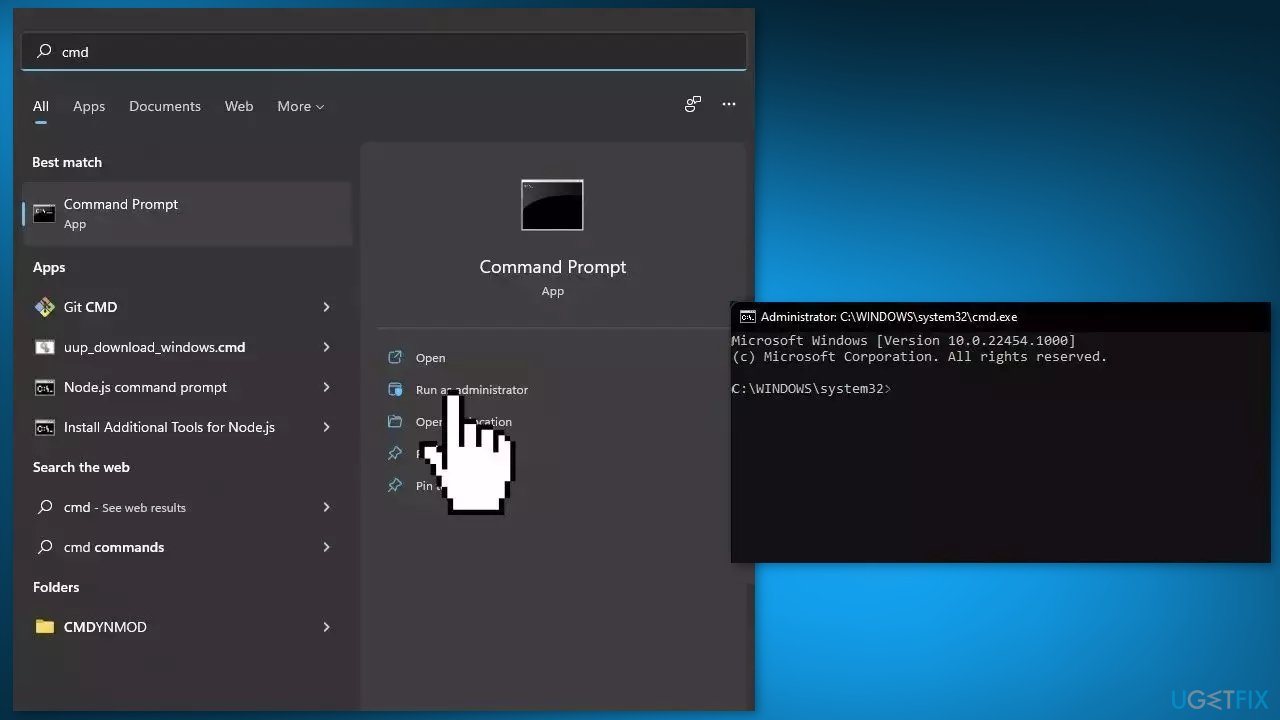
- Reboot your system
- If SFC returned an error, then use the following command lines, pressing Enter after each:
DISM /Online /Cleanup-Image /CheckHealth
DISM /Online /Cleanup-Image /ScanHealth
DISM /Online /Cleanup-Image /RestoreHealth
Method 4. Check for Updates
- Press the Windows key + R to open the Run box
- Type ms-settings:windowsupdate in the text box and press Enter
- Click the Check for Updates button
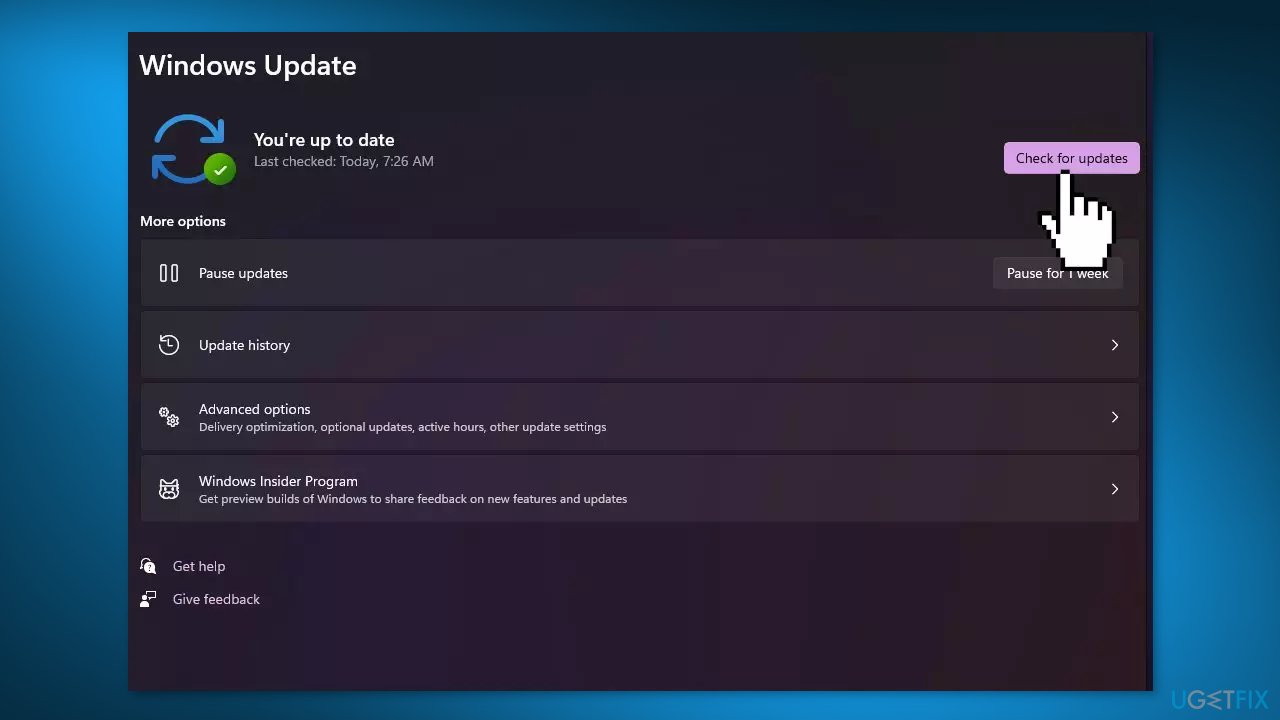
- If a new update is available, click the Download & Install all button.
- Restart your computer after the process is finished and check to see if the problem is fixed
Method 5. Disable Fast Startup
- Open the control panel and search for power options
- From the left pane, click on Choose what the power buttons do
- Choose Change settings that are currently unavailable
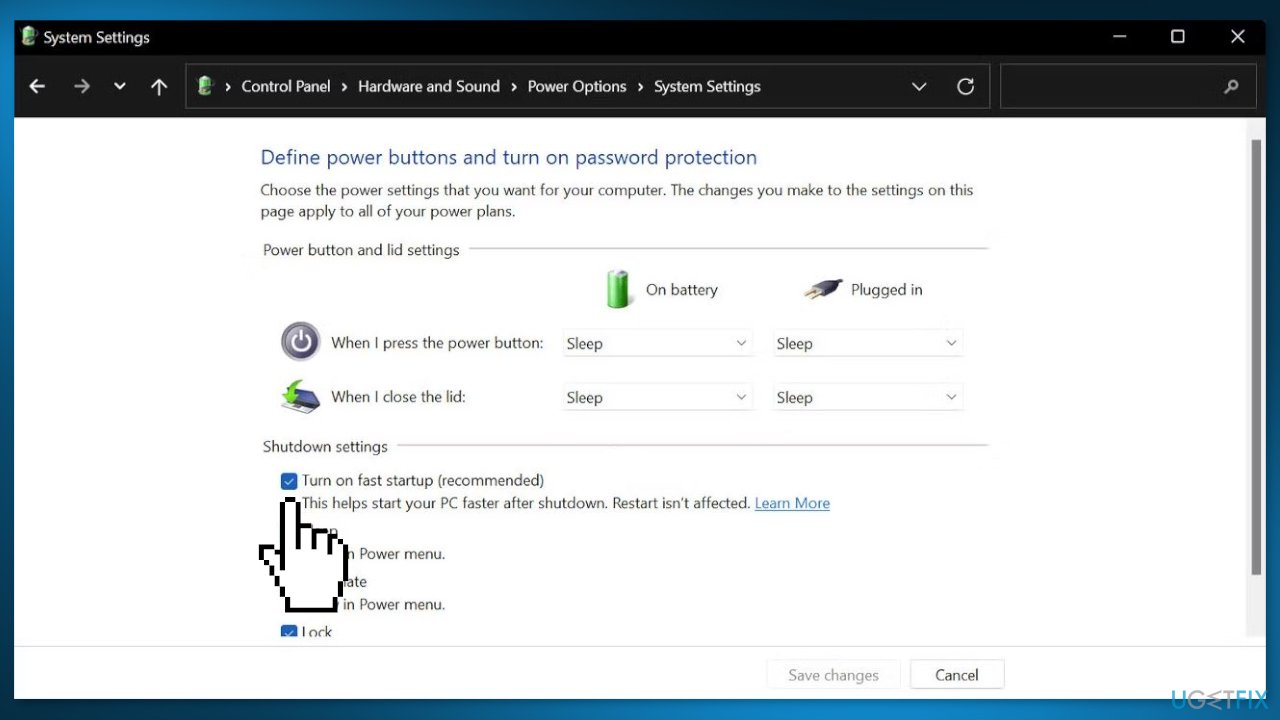
- Make sure the box before Turn on fast startup is unchecked
- Click on Save changes and close the window
Method 6. Shut Down using the Command Prompt
- In the Start Menu, type cmd and choose Run as administrator
- Type the following command and then press Enter:
shutdown /p
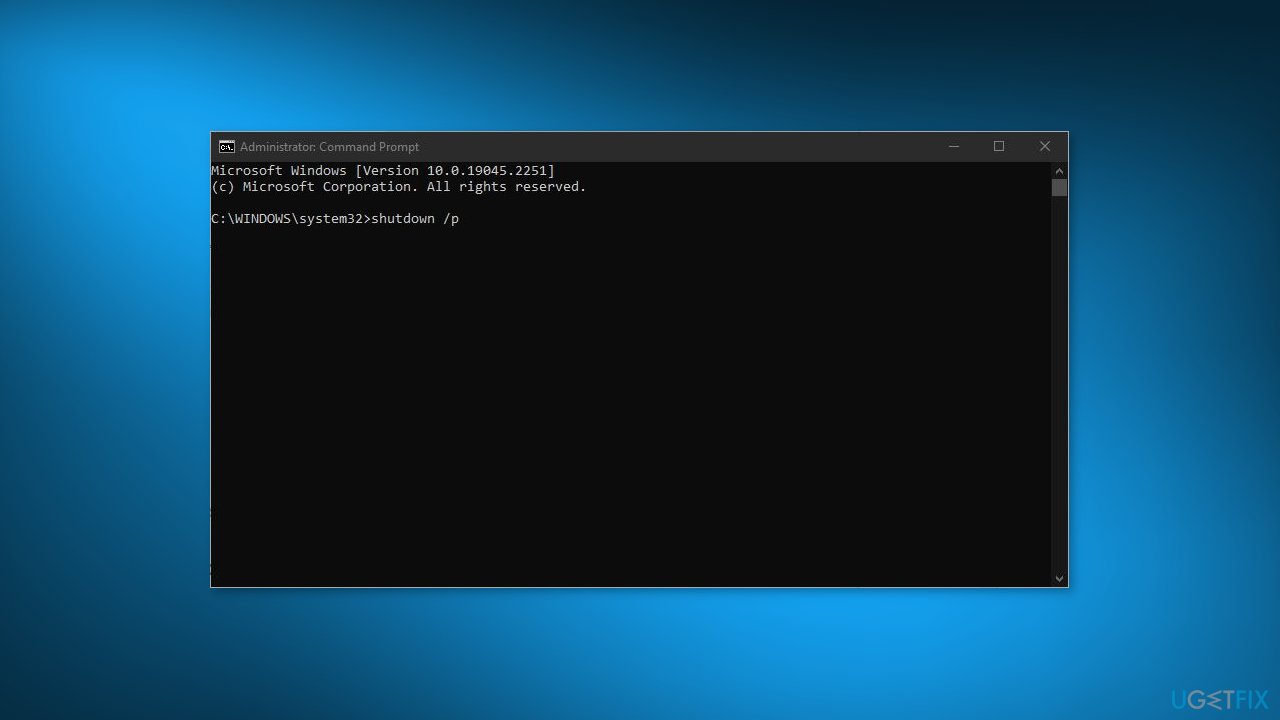
- Your device should turn off automatically
Method 7. Disable Windows Delivery Update Optimization
- From the Start menu, open Settings
- Choose Update &Security
- Click Delivery Optimization
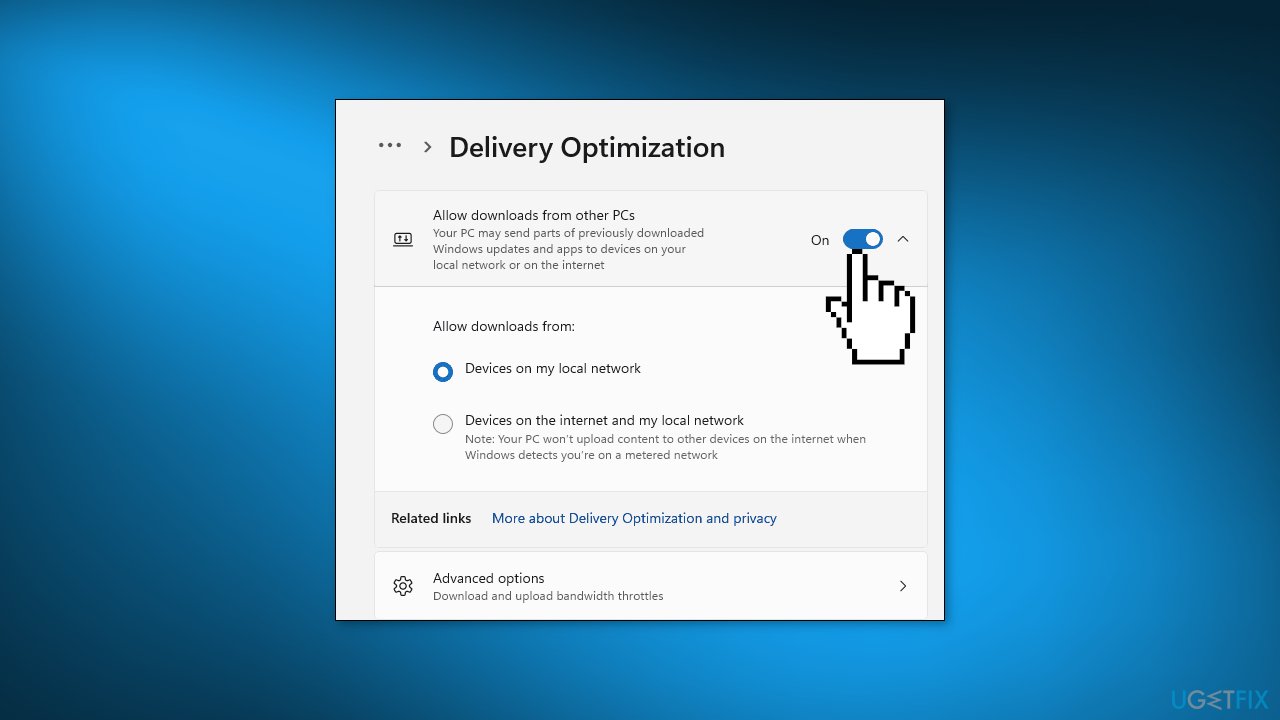
- Turn off the Allow downloads from other PCs button to forbid downloads from other computers
Method 8. Run System Restore
- Go to the Start menu, type restore, and click on Create a restore point
- Click System Restore, then follow the prompts until you can select a restore point
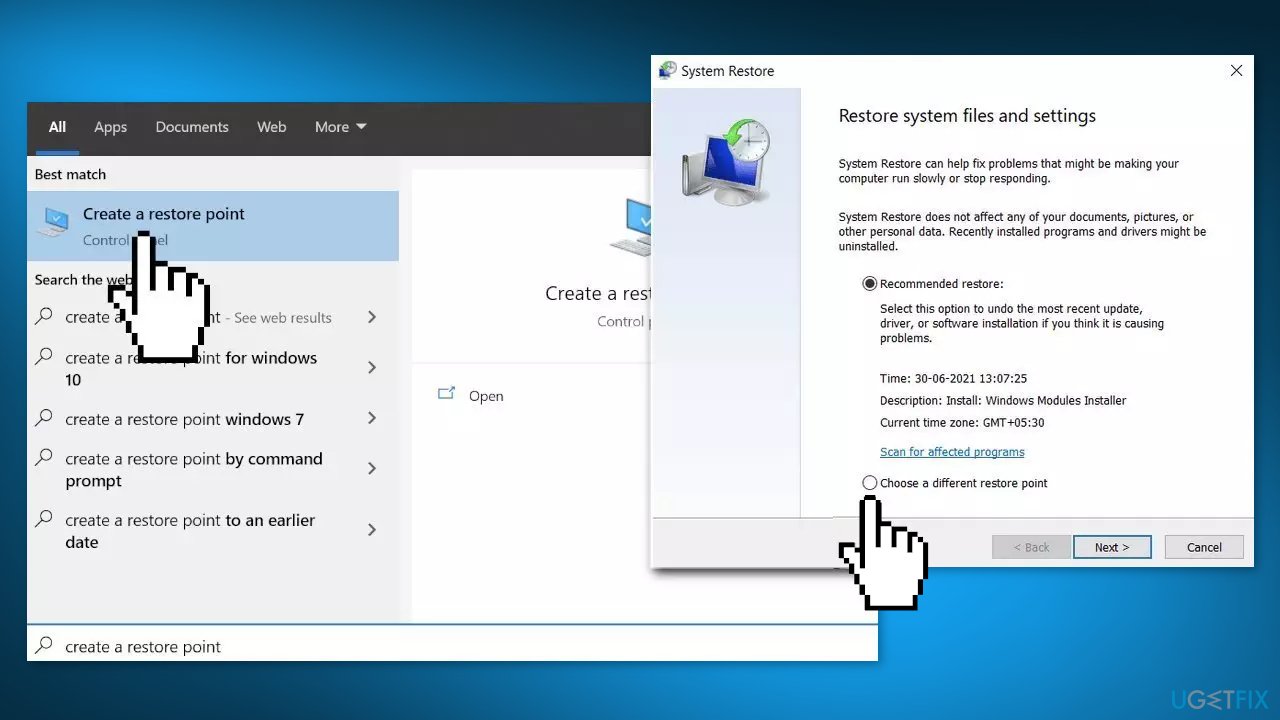
- Select the one you want (ideally before the shutdown problems started) and go ahead with the process
Method 9. Perform a Repair Install
- Visit the official Microsoft website to download Windows 11 Installation Media
- Run the Media Creation Tool and select Create Installation Media for another PC
- Select your USB drive
- Let the Process complete of writing the Installation files to the USB drive
- Click Finish
- On the PC you wish to upgrade, Press Windows + E to open the File Explorer
- Open the Removable drive and click Setup.exe
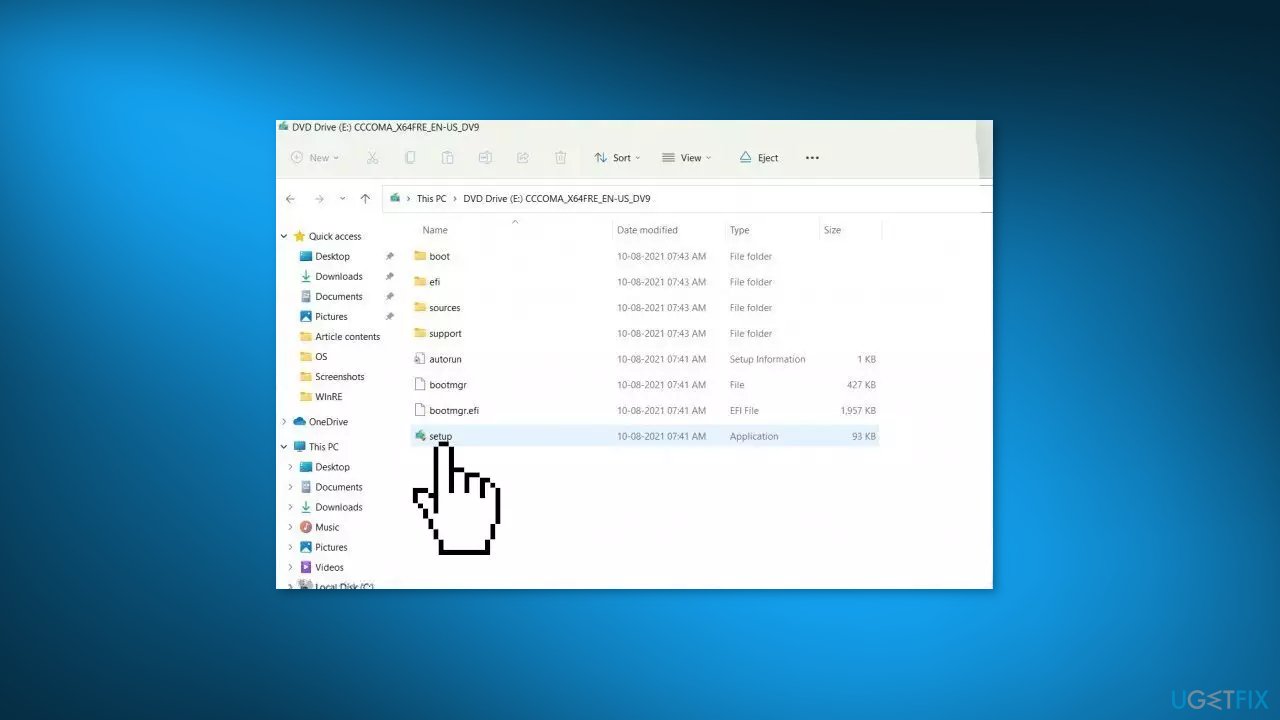
- Accept the license terms on the next screen
- Confirm the Upgrade options – Files, apps and Settings are kept
- Click Install, and the upgrade should start
Bottom line
To fix the issue of Windows 11 not shutting down after an upgrade, you can roll back or reinstall the display driver, and repair corrupted system files using Command Prompt. If these steps do not resolve the problem, consider using a maintenance tool or seeking further assistance.
Frequently asked questions
Try performing a hard shutdown by holding the power button for 10 seconds, then restart your PC. If the issue persists, check for pending Windows updates or consider rolling back the upgrade.
Yes, certain background applications or processes can interfere with the shutdown process. Close all running applications and try shutting down again to see if it resolves the issue.
You can run the Windows Troubleshooter for power issues or check the Event Viewer for any error messages related to shutdown failures. Additionally, resetting your power settings may help.




Report an issue
What's wrong with this guide? We review every report and update or remove content.
Report received — thank you. We'll review and fix it.
You need a free account to submit a report.
Be the first to comment