How to fix
“Incorrect function” error
on Windows
Resolve the "Incorrect function" error in Windows 10 or 11 quickly and effectively with our expert-tested solutions for seamless performance. Fixed in m…


What causes How to fix “Incorrect function” error in Windows?
- Corrupted system files
- Issues with Cortana
- Hardware changes affecting hard drive
- Problems with BitLocker
- Driver issues
Repairs Windows system files, removes malware, and restores a clean OS state — without reinstalling.
Hello. Every time I bootup my Windows PC I receive an error "Incorrect function" and it directs to Windows apps > Win32Bridge.Server.exe. I am not sure what it is how to fix this, but it is really annoying that it shows up every time. Please help me.
"Incorrect function" is a relatively broad error message that may appear under varying circumstances on various versions of Windows. Most commonly, people experience the error along with the Win32Bridge.Server.exe file, which is mentioned in the path of the pop-up error window.
In this case, the error usually shows up whenever users boot up their devices, although users reported that it can also appear when trying to open certain or all apps. While some people claim that the issue is contained within just the pop-up, others say that they come across other difficulties, such as struggles with opening the apps or even having to deal with Blue Screen of Death crashes, which can be extremely disruptive.
In this case, to fix the "Incorrect function" error, you would have to either repair or disable Cortana - Microsoft's virtual assistant. Since the issue may be related to the corrupted system files, running SFC and DISM tools may also resolve the situation.
However, the "Incorrect function" error can also appear under other circumstances, for example, whenever users change some of their hardware - hard drive to be more precise. Users are then unable to access their hard drives, which is understandably very frustrating and can be damaging, as they can't access their personal files. This issue can be solved by reinstalling corresponding driver, rescanning the disk, or removing write protection.
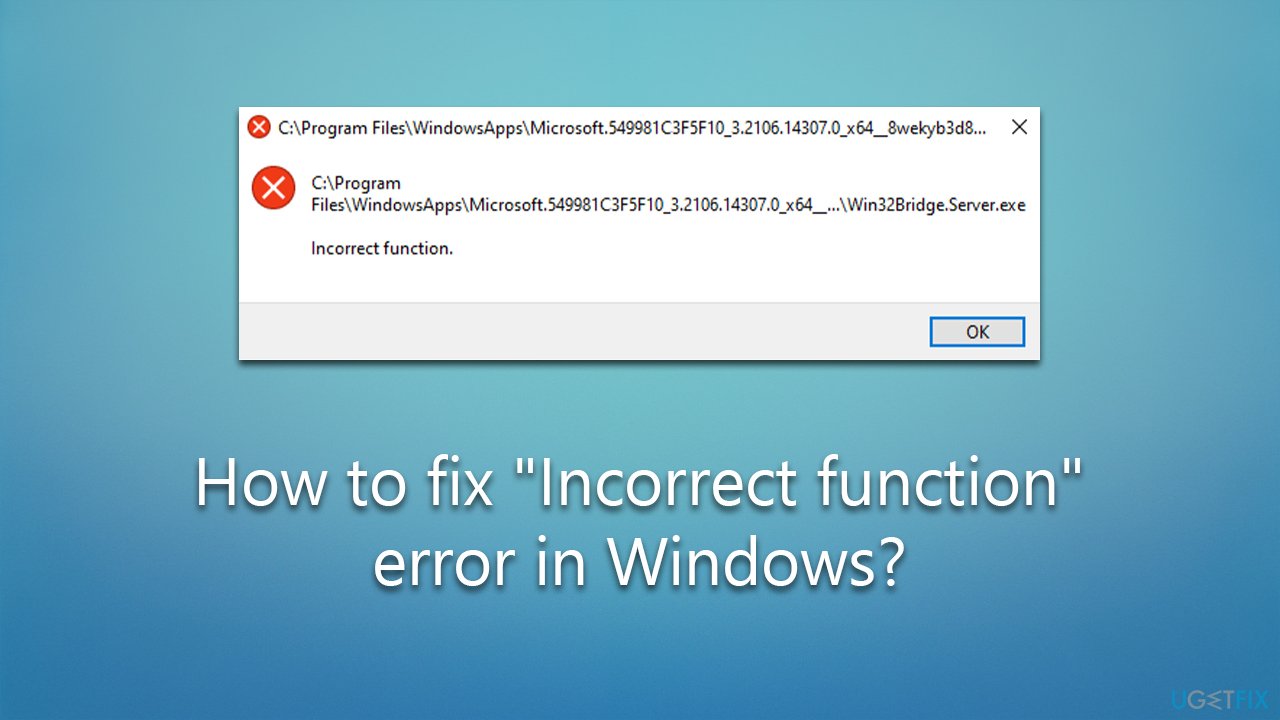
Finally, some users reported that they got the "Incorrect function" error whenever they tried to turn off BitLocker in Windows. This instance can be fixed by accessing Safe Mode and using a special command via Command Prompt.
Regardless of which issue you are dealing with, we have all the cases covered below. If you aren't completely confident in trying to resolve the issue yourself, we recommend you try running [d1] PC repair tool instead.
Fix "Incorrect function" Win32Bridge.Server.exe error
This is by far the most common version of the error, and following the steps below should help you resolve it once and for all.
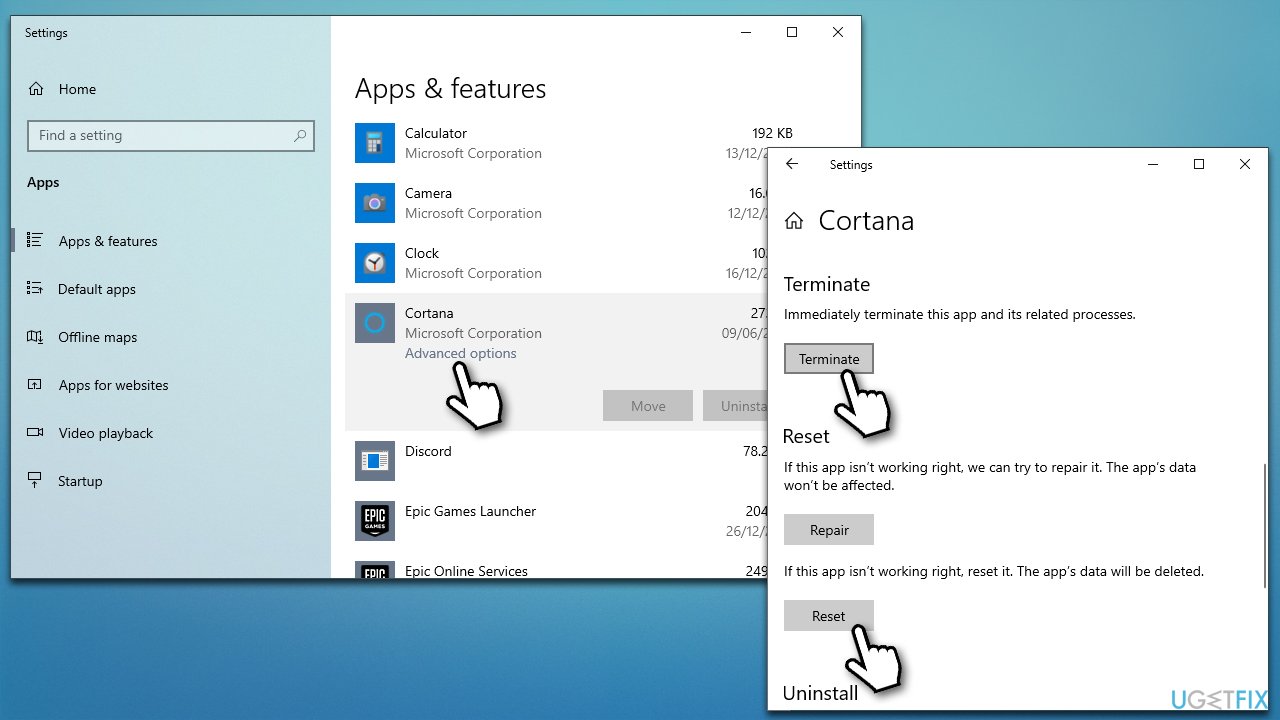
Fix 1. Reset Cortana
This solution might not be apparent straight away, but resetting Cortana managed to help people solve the "Incorrect function" error when it comes up with Win32Bridge.Server.exe file.
- Right-click Start and pick Apps & Features
- Scroll down to locate Cortana
- Select Advanced options
- Scroll down, click Terminate and then Reset
- Restart your PC.
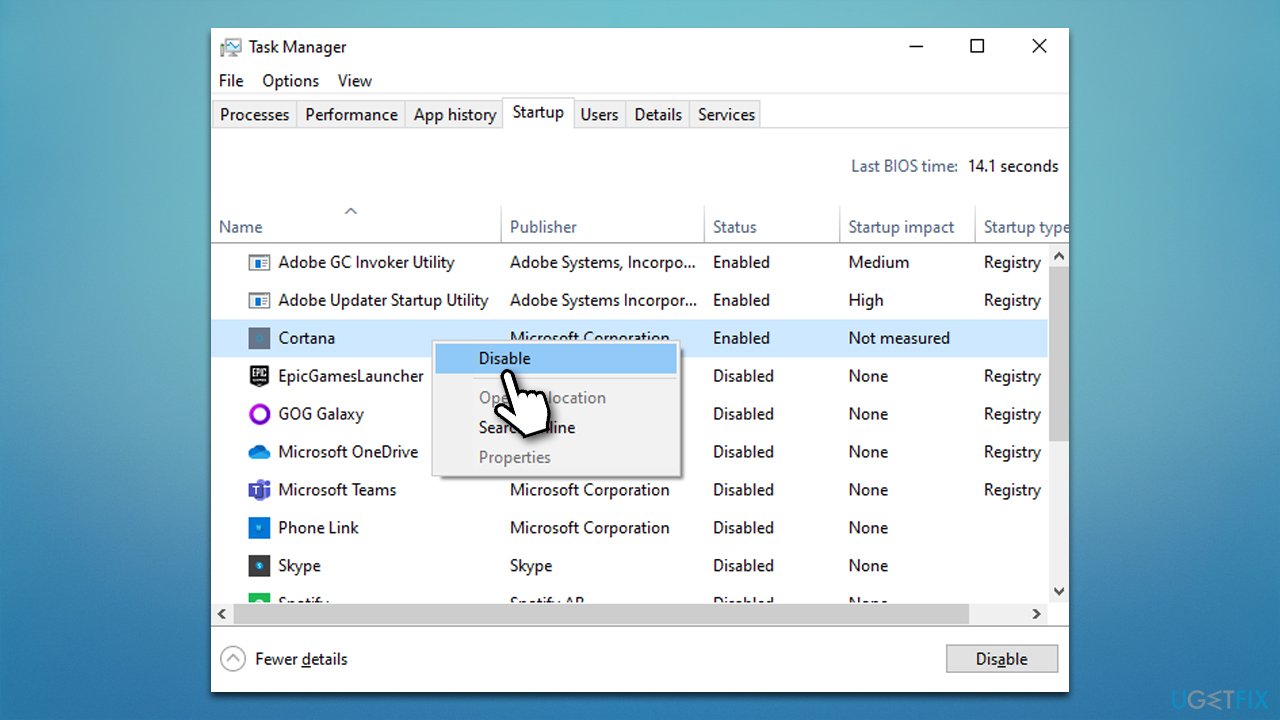
Fix 2. Disable Cortana
- Press Ctrl + Shift + Esc to open the Task Manager
- Go to Startup tab and locate Cortana
- Right-click on it and select Disable
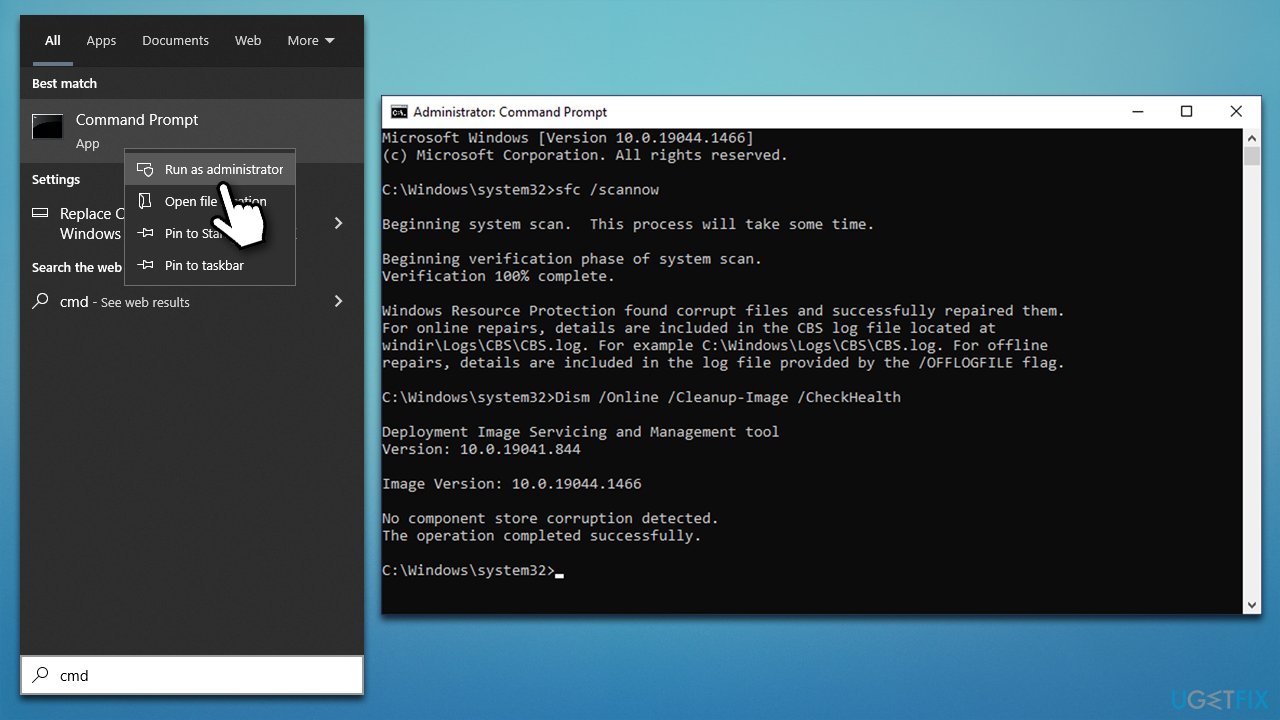
Fix 3. Run SFC and DISM
- Type cmd in Windows search
- Right-click on Command Prompt search result and select Run as administrator
- UAC (User Account Control) will ask whether it can make changes, click Yes
- Next, copy and paste the following command and press Enter:
sfc /scannow - Once done, run the following commands as well:
dism /online /cleanup-image /scanhealth
dism /online /cleanup-image /checkhealth
dism /online /cleanup-image /restorehealth - Restart your device.
Fix "Incorrect function" when not being able to access the hard disk
If you have recently replaced your hard drive and can no longer access it due to the "Incorrect function" error, try the solutions below.
Fix 1. Rescan disk
- Open Command Prompt as administrator again
- Type in the following command and press Enter:
diskpart - Next, use the following command and press Enter:
rescan - Close down Command Prompt.
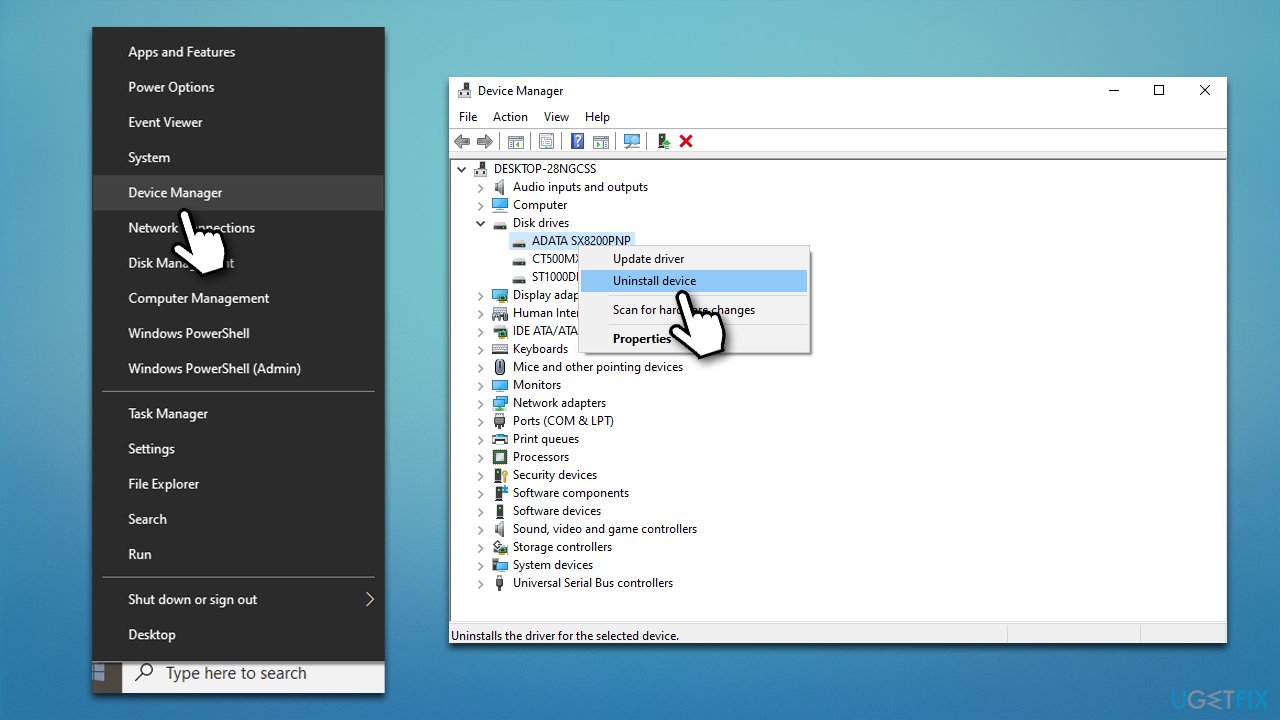
Fix 2. Reinstall drivers
- Right-click on Start and pick Device Manager
- Expand Disk Drives section
- Select Uninstall device
- Restart your system - Windows should reinstall the driver automatically.
Fix 3. Remove write protection
- Open Command Prompt as administrator again
- Type in diskpart and press Enter
- Type list disk and press Enter
- Next, use the following command, where X stands for your drive letter:
select disk X - Finally, use the following command:
attribute disk clear readonly - Press Enter and close down Command Prompt.
Fix "Incorrect function" error when turning off BitLocker
Users claimed they were unable to decrypt their drives due to the error. Follow the steps below to resolve this issue:
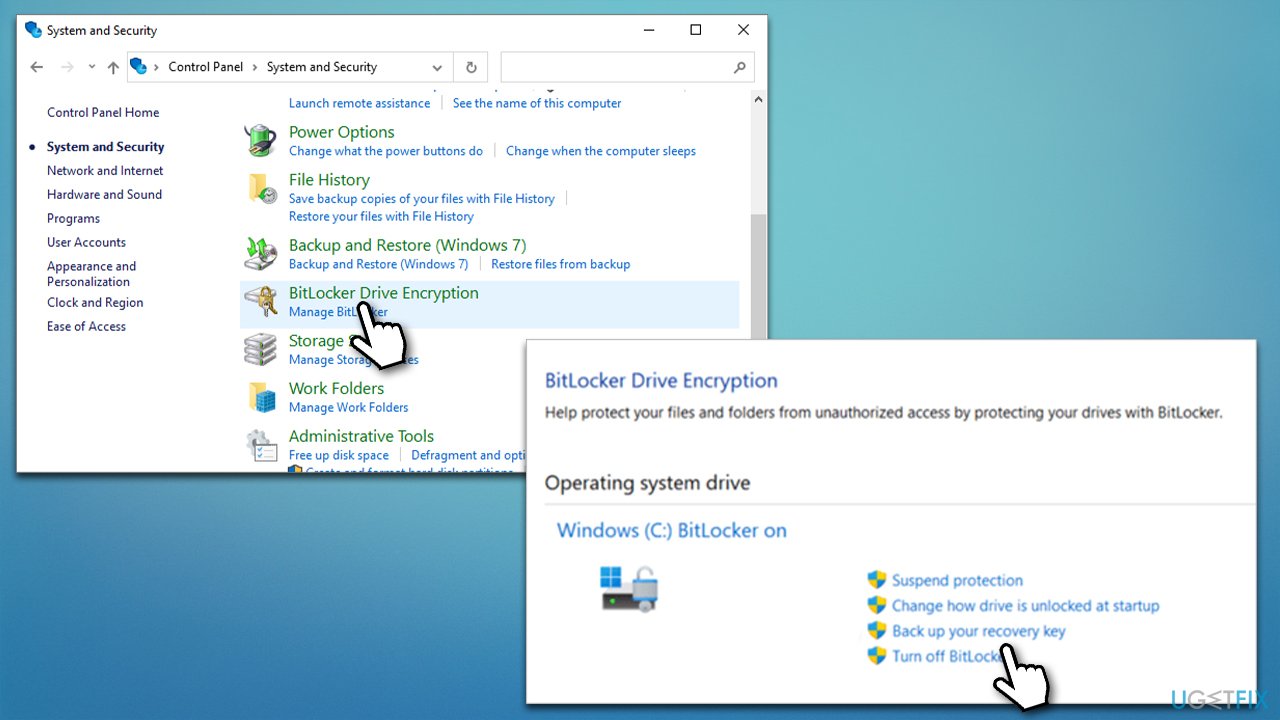
- Type Control Panel in Windows search and press Enter
- Go to System and Security section and pick BitLocker Drive Encryption
- Click Back up your recovery key to find out your BitLocker key (you can print it to PDF, or take a picture)
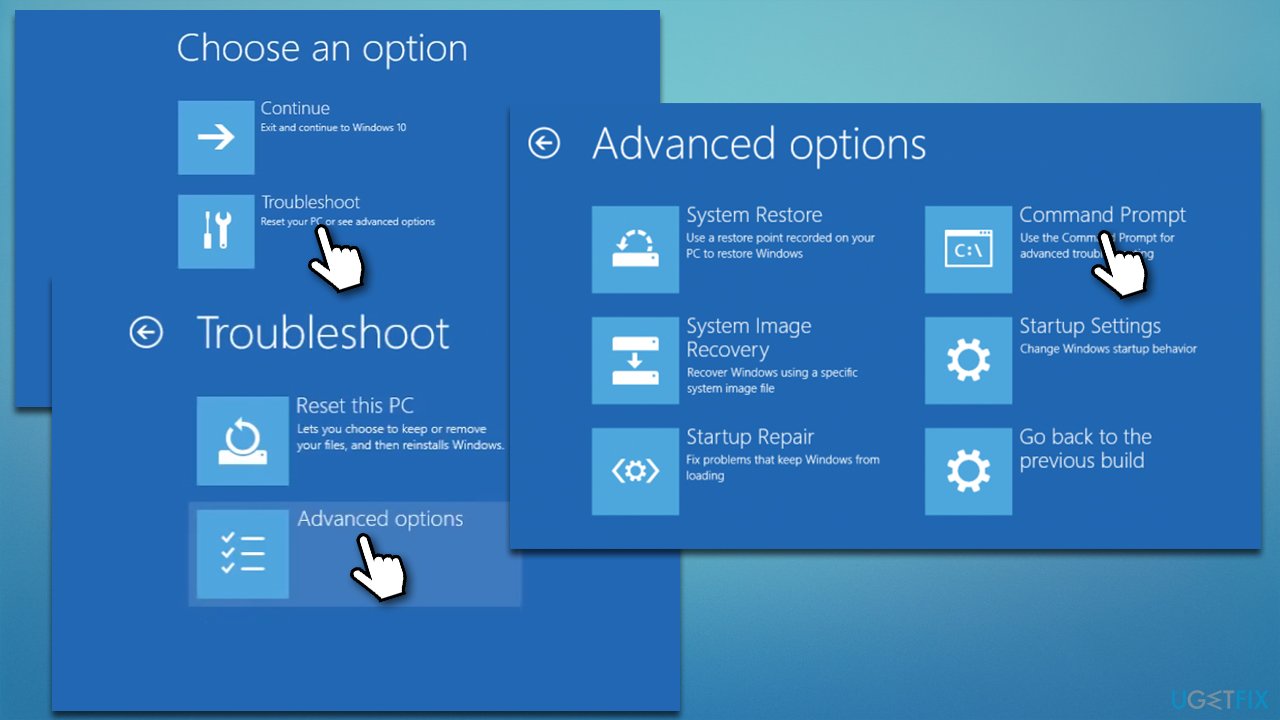
- Hold Shift key on your keyboard and click Start > Power > Restart
- Now go to Troubleshoot > Advanced Options > Command Prompt
- Enter your BitLocker key and press Enter
- Then, type in the following command, and press Enter:
manage-bde –off C: - This command will start decrypting your drive
- Use the following command at some point later:
manage-bde -status - Once it says that the decryption is finished, restart your system.
Bottom line
To fix the 'Incorrect function' error, you can repair or disable Cortana, run SFC and DISM tools, reinstall the corresponding driver, or access Safe Mode to use a command in Command Prompt for BitLocker issues. If none of these solutions work, consider seeking professional assistance.
Frequently asked questions
The 'Incorrect function' error can be caused by issues with the file system, corrupted files, or problems with connected devices such as USB drives. It may also arise from incorrect permissions or settings in your operating system.
To troubleshoot, try connecting the USB drive to a different port or computer, and run the built-in Windows Error Checking tool by right-clicking the drive in File Explorer and selecting 'Properties' > 'Tools' > 'Check'.
Yes, you can use the Command Prompt to run the 'chkdsk' command to fix file system errors without data loss. Open Command Prompt as an administrator and type 'chkdsk X: /f' (replace X with your drive letter) and press Enter.




Report an issue
What's wrong with this guide? We review every report and update or remove content.
Report received — thank you. We'll review and fix it.
You need a free account to submit a report.
Be the first to comment