How to fix
Event ID 86: CertificateServicesClient-CertEnroll
on Windows
Resolve Event ID 86 issues in Windows 10 and 11 quickly and effectively. Get expert-tested solutions and troubleshooting tips for seamless performance, …

What causes How to fix Event ID 86: CertificateServicesClient-CertEnroll in Windows?
- Problem with the certificate template
- Issue with the certificate authority (CA)
- Problem with the certificate request
- Corrupted system files
- Recent Windows update
Repairs Windows system files, removes malware, and restores a clean OS state — without reinstalling.
Hello. Today I encountered a Blue Screen error. Then I noticed an Event ID 86: CertificateServicesClient-CertEnroll in the event viewer. The error keeps appearing from time to time. How do I fix this?
Event ID 86 is an event that is logged by the Certificate Services Client in Windows when it tries to enroll for a certificate from a certification authority (CA). The event will contain details about the certificate request, including the subject name of the certificate, the CA that the request was sent to, and the status of the request. Usually, people experience this event after a DPC WATCHDOG VIOLATION BSOD.
If the request was successful, the event will indicate that a new certificate was issued. If the request was not successful, the event may contain information about any errors or issues that occurred during the enrollment process. If you see an error message related to CertificateServicesClient-CertEnroll in Windows, it typically means that there was an issue with the certificate enrollment process.
This could be due to a variety of reasons, such as a problem with the certificate template, an issue with the certificate authority (CA), or a problem with the certificate request itself. The issue may be resolved by updating Windows, device drivers,[ref en-1] or BIOS.
In this guide, you will find 7 steps that should help you fix Event ID 86: CertificateServicesClient-CertEnroll in Windows. Keep in mind that the manual troubleshooting process can be lengthy. You can use a maintenance tool like [d1] that can fix most system errors, BSODs,[ref en-2] corrupted files, and registry[ref en-3] issues. Otherwise, follow the step-by-step instructions below.
Method 1. Fix Corrupted System Files
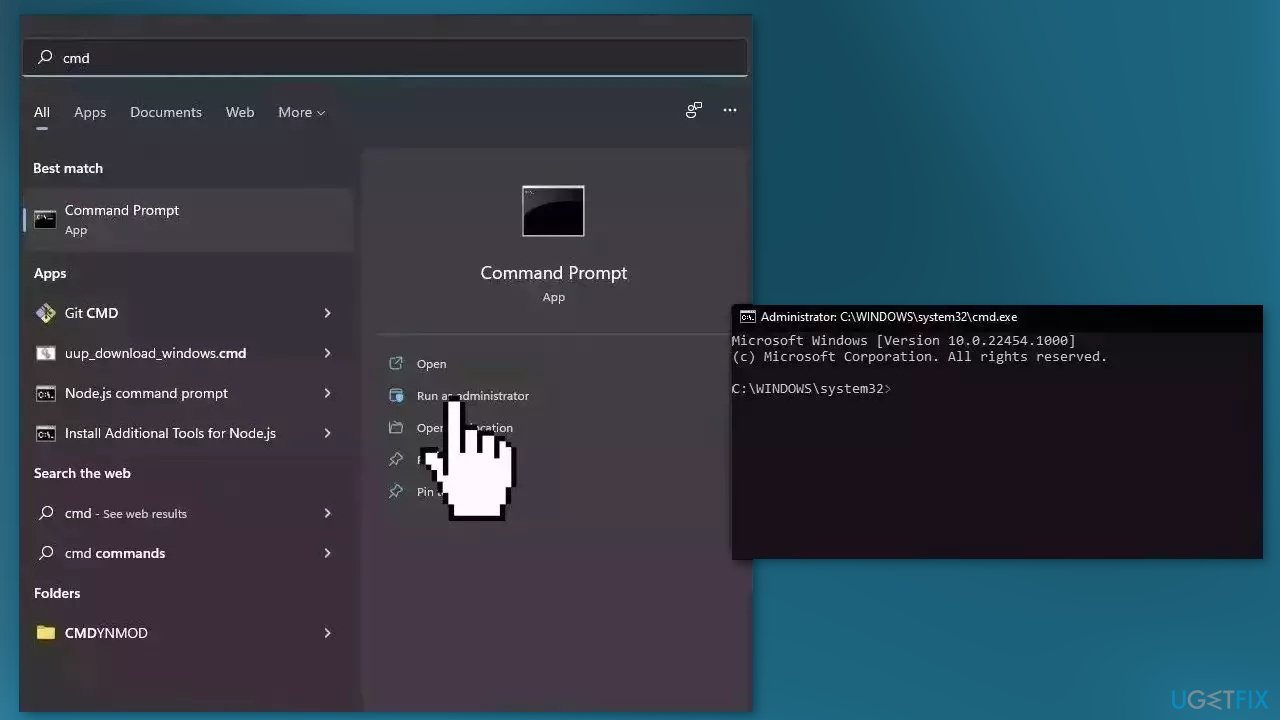
Use Command Prompt commands to repair system file corruption:
- Open Command Prompt as administrator
- Use the following command and press Enter:
sfc /scannow
- Reboot your system
- If SFC returned an error, then use the following command lines, pressing Enter after each:
DISM /Online /Cleanup-Image /CheckHealth
DISM /Online /Cleanup-Image /ScanHealth
DISM /Online /Cleanup-Image /RestoreHealth
Method 2. Roll back Windows Updates
If the problem started occurring after installing a Windows update, try to uninstall it to see if it fixes the issue:
- Press the Windows key + R to open the Run dialog box
- Type appwiz.cpl and hit Enter
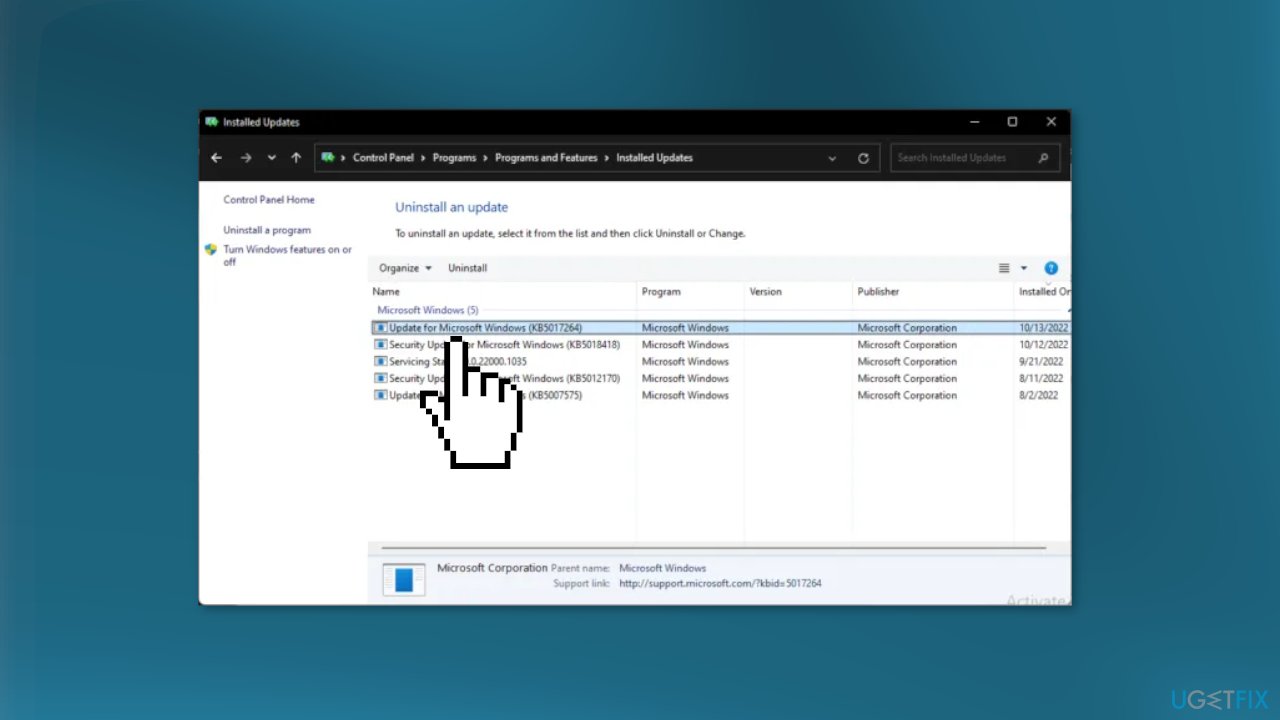
- In the Uninstall or view a program page click on View Installed Updates
- Right-click on the recently installed update and select Uninstall
Method 3. Install Windows Updates
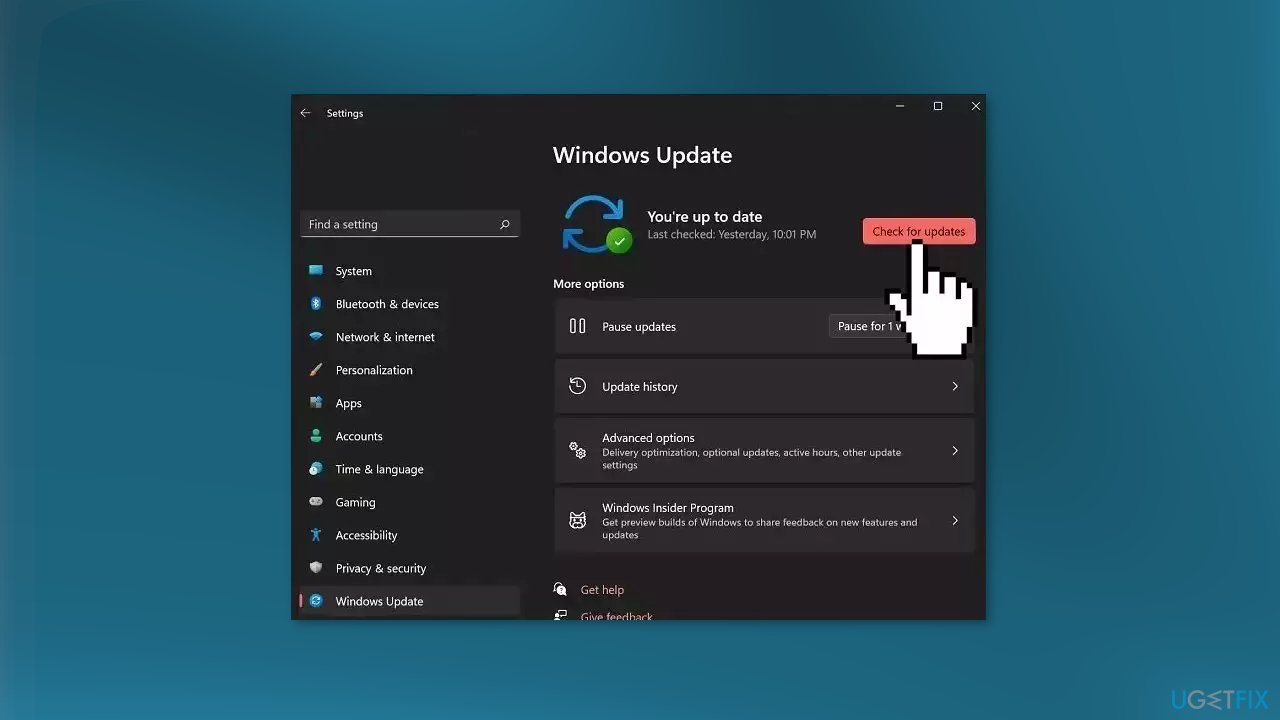
- Click Settings from your start menu and click Update & Security
- Choose Windows Upgrade from the left panel and click the Check for updates button, and then your computer will check for, download, and install any updates found
Method 4. Update Drivers
Outdated drivers could be the cause of this issue. In this case, you can fix it automatically by using [rev id="DriverFix"], which will scan your PC for missing and out-of-date device drivers. Or you can update them manually:
- Open Settings
- Click on Update & Security
- Click on Windows Update
- Click the Check for updates button
- Click the View optional updates option
- Click the Driver updates tab
- Select the driver you want to update
- Click the Download and install button
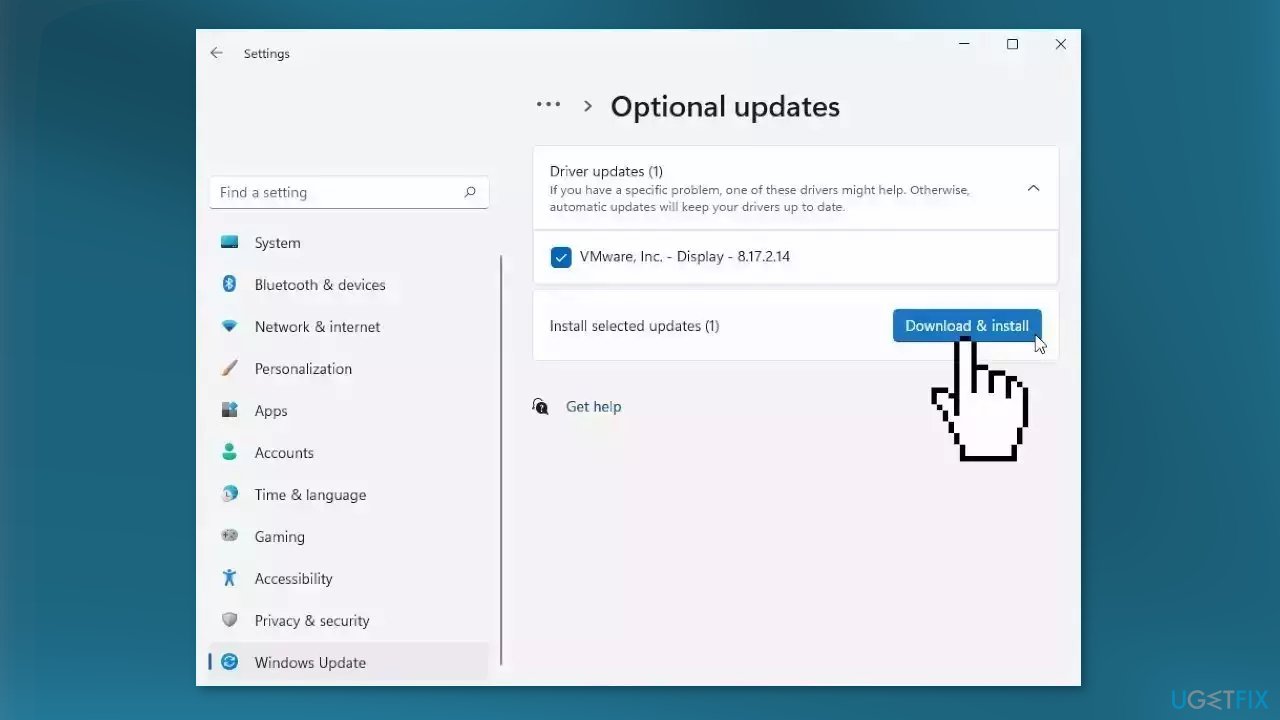
If the View optional updates link is not available after checking for updates, then Windows Update does not have any new drivers or any updates for other products at that particular time.
Method 5. Update BIOS
Updating the BIOS (Basic Input/Output System) on your Windows computer can help to improve its performance and fix any issues that you may be experiencing. Keep in mind that updating the BIOS can be a complex and risky process, and it is important to follow the instructions provided by the manufacturer carefully.
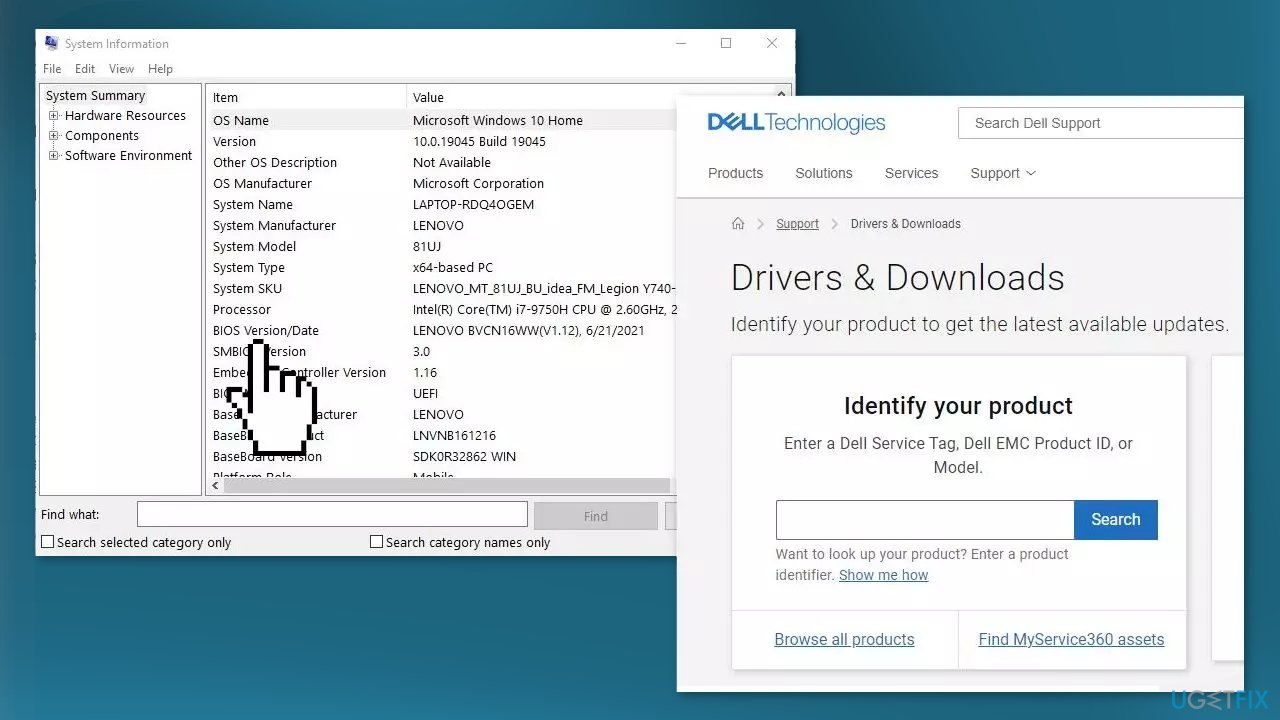
- First, you need to determine the current version of your BIOS. You can check the version of your BIOS by entering the BIOS setup utility or by using a System Information utility in Windows.
- Visit the website of your computer's manufacturer and search for the latest BIOS update for your specific model. Download the update to your computer.
- Make sure you have a stable power supply and a reliable internet connection. It is also a good idea to create a backup of your important files and data in case something goes wrong during the update process.
- Follow the instructions provided by the manufacturer for installing the BIOS update. This typically involves running the update file and following the prompts.
- After the BIOS update is installed, you will need to restart your computer for the changes to take effect.
Method 6. Use System Restore
System Restore is a tool that can revert your system back to a previous point before a specific problem has occurred.
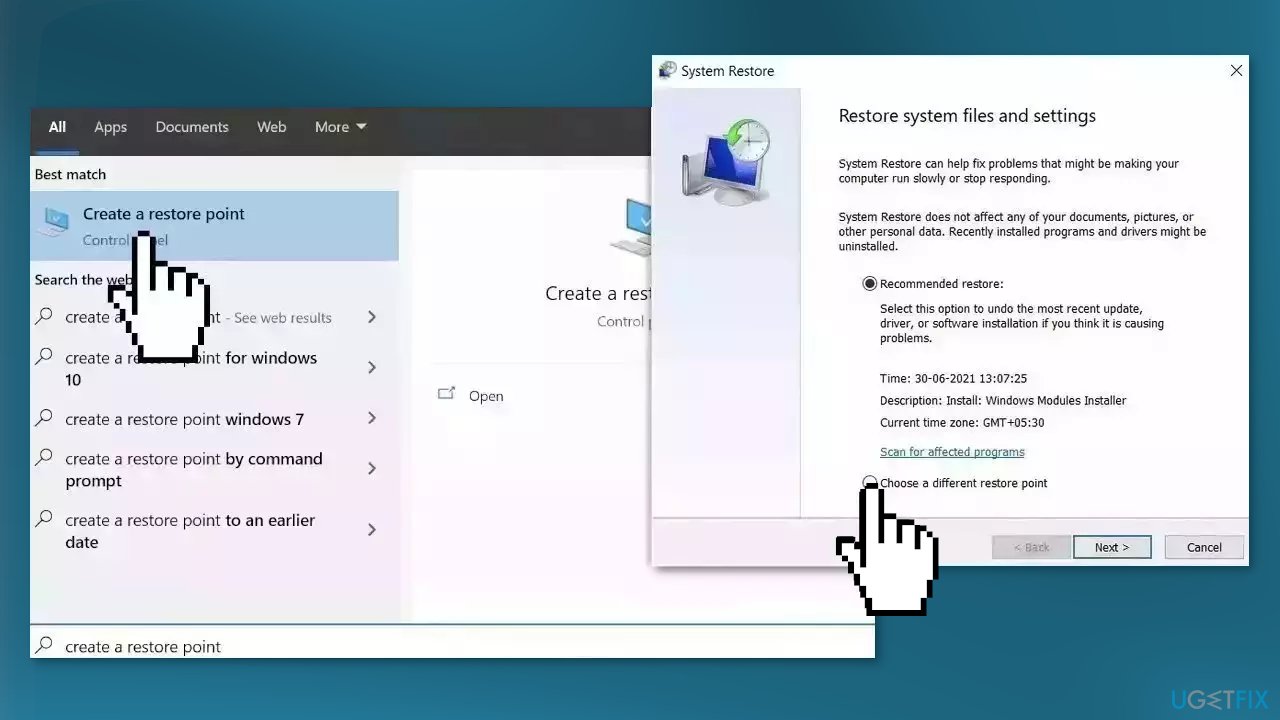
- Go to the Start menu, type restore, and click on Create a restore point
- Click System Restore, then follow the prompts until you can select a restore point
- Select the one you want (ideally before the issue started occurring) and go ahead with the process
Method 7. Repair Install Windows
- Visit the official Microsoft website to download Windows 11 or Windows 10 Installation Media
- Run the Media Creation Tool and select Create Installation Media for another PC
- Select your USB drive
- Let the Process complete of writing the Installation files to the USB drive
- Click Finish
- On the PC you wish to upgrade, Press Windows + E to open the File Explorer
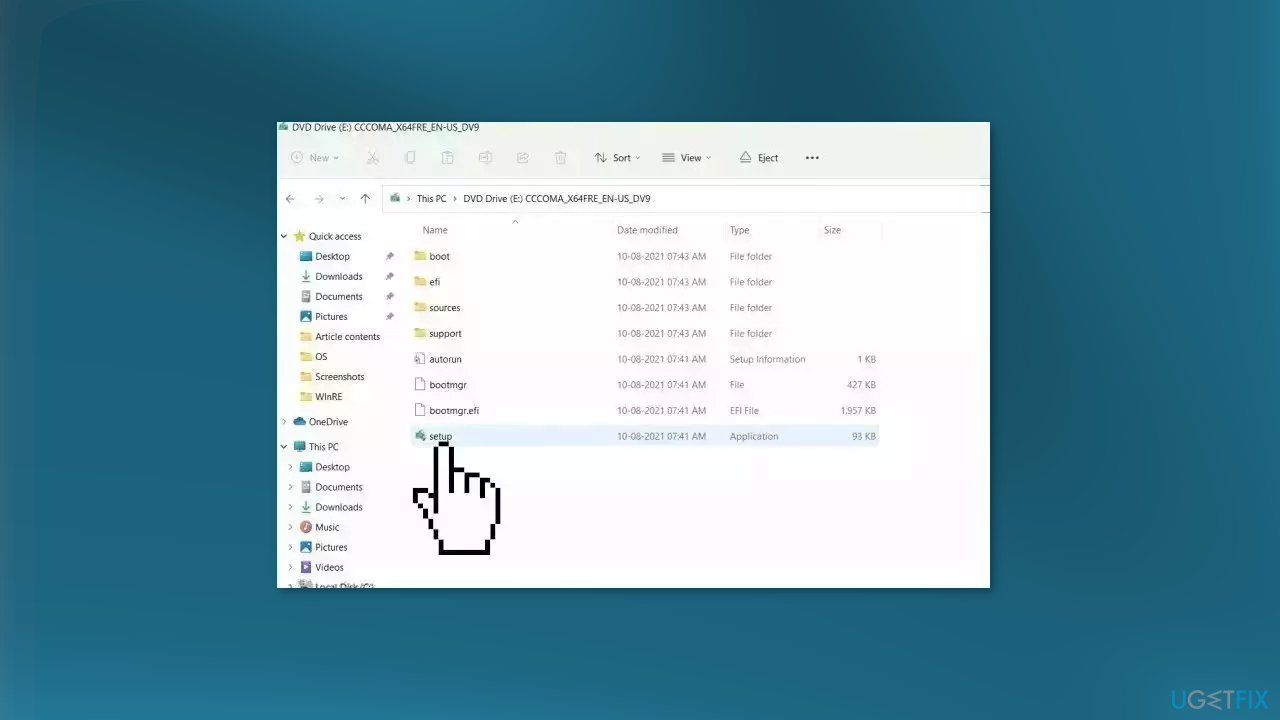
- Open the Removable drive and click Setup.exe
- Accept the license terms on the next screen
- Confirm the Upgrade options – Files, apps and Settings are kept
- Click Install, and the upgrade should start
Bottom line
To fix Event ID 86: CertificateServicesClient-CertEnroll in Windows, you can repair corrupted system files using Command Prompt commands, roll back recent Windows updates, or update your device drivers and BIOS. If these steps do not resolve the issue, consider using a maintenance tool to fix system errors.
Frequently asked questions
Event ID 86 indicates a failure in the Certificate Services Client during the certificate enrollment process, often due to network or configuration issues.
To fix Event ID 86 in Windows 11, ensure that your system is connected to the network and check the certificate enrollment settings in the Group Policy Editor.
Yes, verify that the 'Cryptographic Services' and 'Certificate Propagation' services are running in Windows 10, as they are essential for certificate enrollment.




Report an issue
What's wrong with this guide? We review every report and update or remove content.
Report received — thank you. We'll review and fix it.
You need a free account to submit a report.
Be the first to comment